
In this article, you will learn:
- What are Step Level Triggers?
- Types of Step Level Triggers
- Example Step Level Triggers usecases
Step level triggers
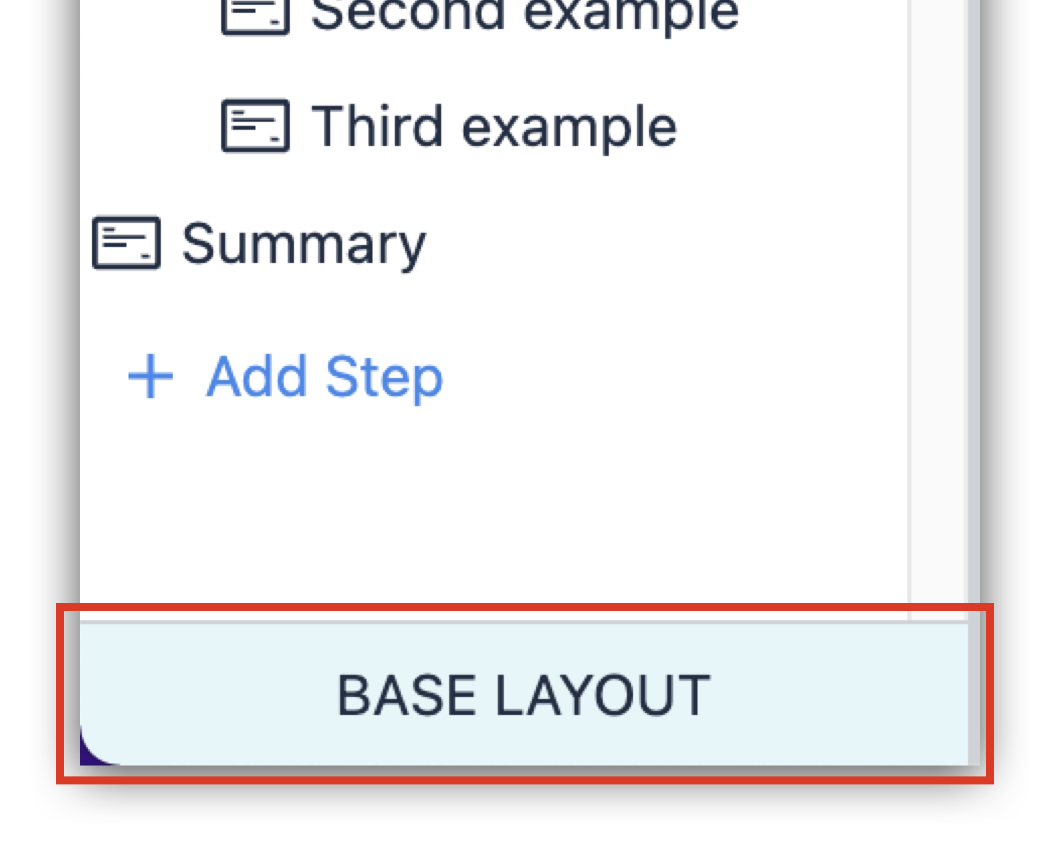
Step-level triggers are activated by events. As the name implies, Step level Triggers live at the Step level. Each Step has its own list of Step Level Triggers. These triggers will only run when their step is displayed. Step level triggers can also be added to the Base Layout, where the triggers will run on every step.
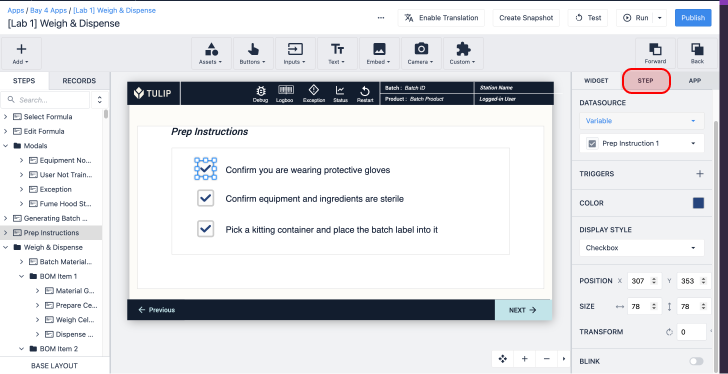
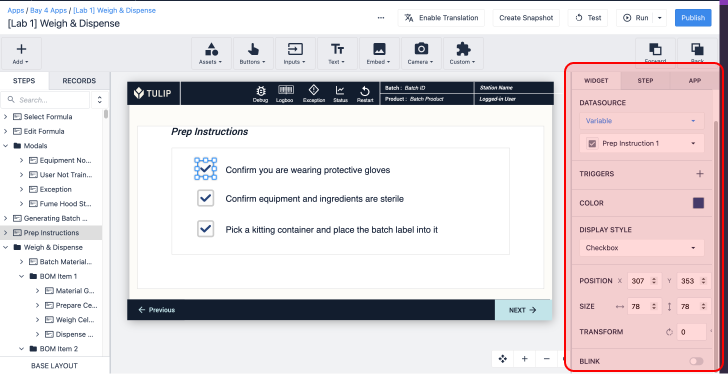
Step level Triggers can be accessed via the Step Tab in the Side Pane.

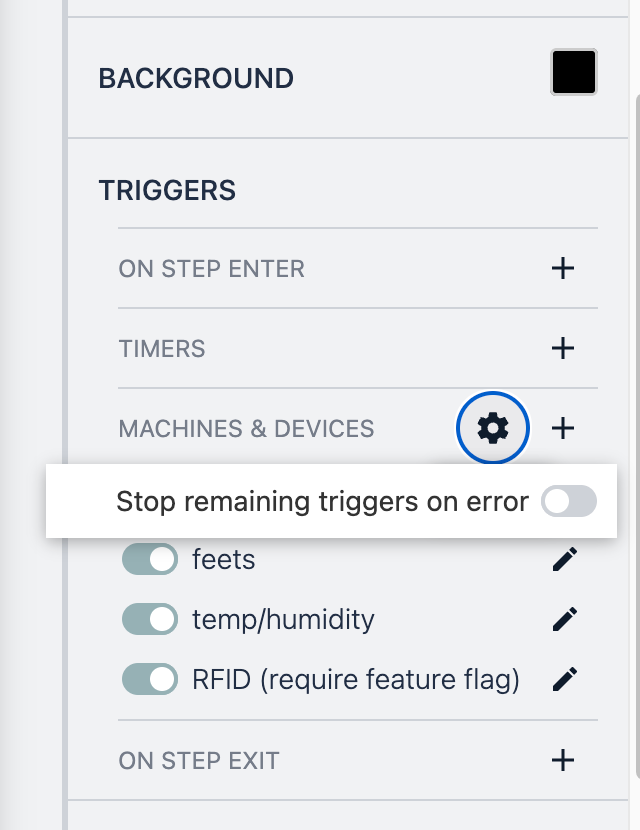
You can also configure how triggers respond to the previous triggers failing, once you add more than one trigger. Clicking the toggle allows users to determine which subsequent triggers will not execute if a previous trigger fails.
Types of step level triggers
Step level triggers, like all other triggers, run when a specific action occurs. Step level triggers can be executed based on 4 types of actions.
- On Step Enter - When the step is opened
- Timer - At regular time intervals
- Machines and devices - When there is an output from a machine or device
- On Step Exit - When the step is closed
On step enter
"On step enter" triggers will execute when a step is displayed.
On step enter triggers will run each time the step is loaded.
Example
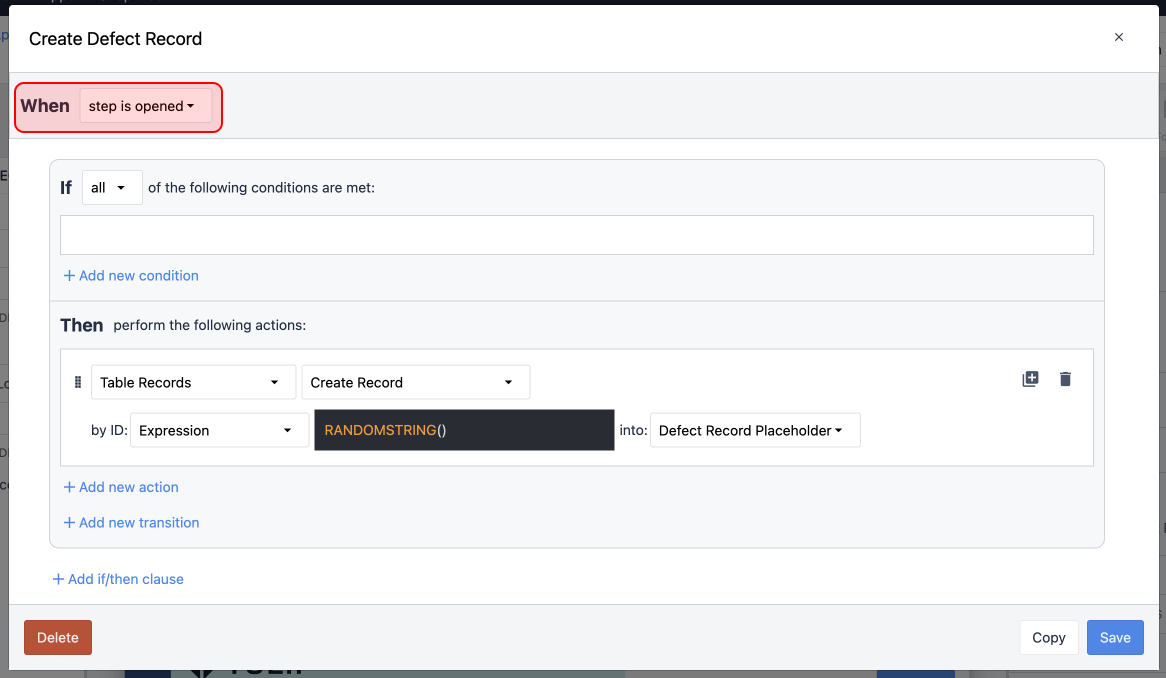
On step enter is a great time to initialize any data needed for a specific step.
Ex. I want users to report defects in an assembly process. I will be storing this defect in a Table. I need to create a Table Record Placeholder to write to this table.
On Step enter, I will create a Record with a random ID.
Timers
Timer Triggers run on a specific cadence. Every X seconds a trigger will be executed. Timer triggers can be run as fast as every 30 seconds.
Learn more about timer triggers.
Example
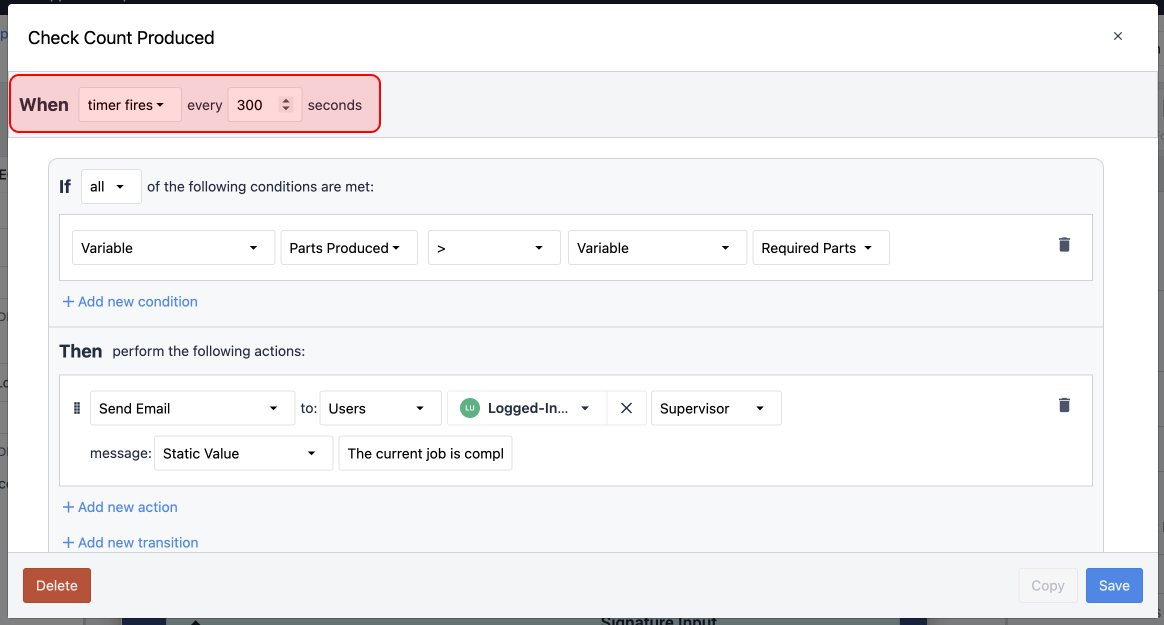
Timer triggers are great for doing periodic checks that can be run in the background without user intervention.
Ex. Every 5 minutes (300 seconds) I want to check how many parts have been produced, if this is more than the required quantity, I want to trigger an email to a supervisor.
Machine and devices
Machine and device triggers are how you can receive data from your supported devices and Tulip-connected machines. When your device or machine outputs data, triggers will run.
Learn more about device triggers.
Device triggers run every time a supported device output data, where Machine triggers fire every time that Attribute is updated, even if it does not change.
Example
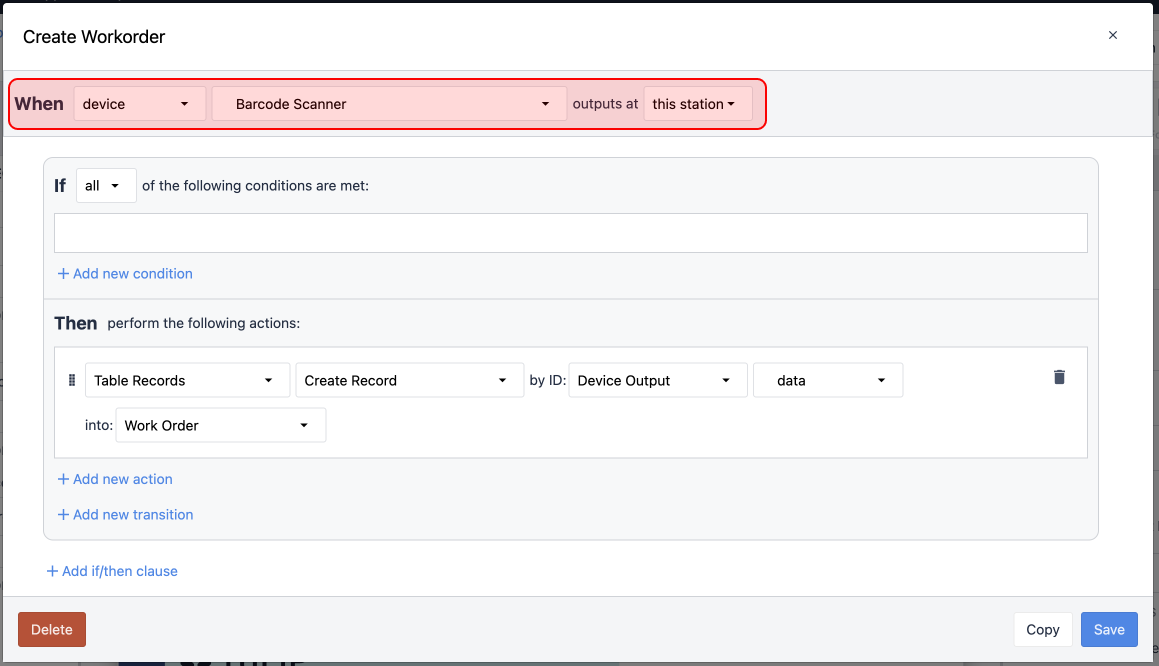
Machine and Device triggers are critical when working with many user input devices, like barcode scanners.
ex. I want users to scan a barcode on a job traveler with a USB barcode scanner, when they scan that barcode, I want to create a Table Record for that job.
On Step Exit
"On step exit" triggers will execute when a user leaves a step.
Example
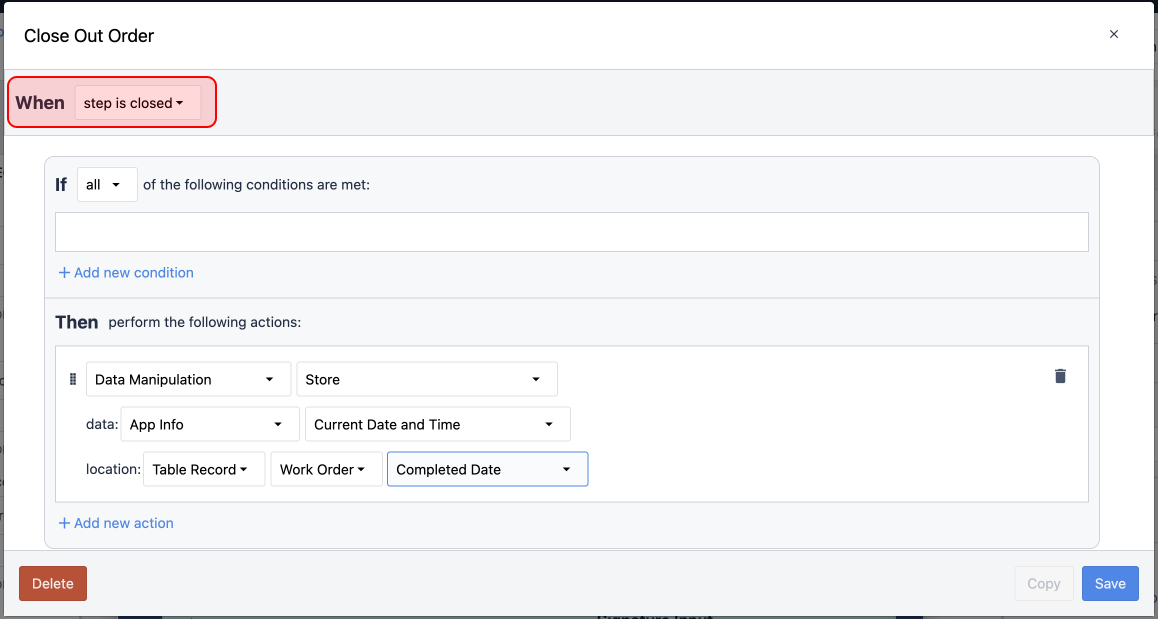
"On step exit" Triggers are very useful to close out processes.
ex. Users primarily sit on a single step while working on an assembly process. When the process is started, we track the start time to a Table Record. When they complete this process, I want to record a completion time.
Further reading
Did you find what you were looking for?
You can also head to community.tulip.co to post your question or see if others have solved a similar topic!