


Learn how to write reusable logic that you can use across apps in a workspace.
As of r380, Functions is generally available.
Read more in the Community thread.
Overview
Functions is a Tulip feature that allows you to standardize logic, reuse integrations, and accelerate app development. With functions, you can:
- Create reusable logic with a visual UI
- Avoid duplicating dozens of triggers across hundreds of steps
- Make key business logic easier to manage in a central location
- Use native looping logic and complex conditional statements
In the current release, Functions v1 run locally in the Player and are invoked only from Apps. In the future, Functions will be able to run server-side and be invoked from other Functions or Automations.
Common use cases include:
- Consolidate core Work Order processing logic across hundreds of apps
- Bundle multiple connector calls for easy ERP data integrations
- Reuse logic for barcode scans and manual barcode entry, including consistent navigation
- Standardize data processing (ex: pass data to a Function to standardize how it is written to a table)
- Looping logic that occurs through storing an array of data to Table rows
Why use functions?
Reusability is the core purpose of functions, in which you manage logic in one place and then apply it across multiple apps.
Functions enable centralized logic: a system that manages decisions and controls with a single component.
Centralized logic allows you to break down problems into small, logical pieces. These pieces are foundational blocks you can iterate on to deploy changes across a workspace.
When you use a function across multiple apps, you only need to update the logic of that function to update the apps.
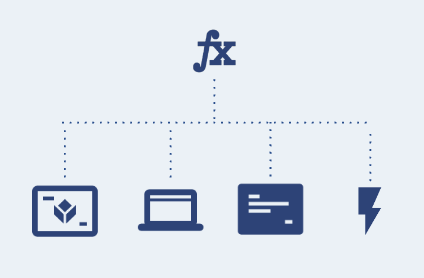
Functions improve change management by eliminating redundant logic and also improve governance by guaranteeing adherence to validated, centralized components.
How do functions work?
Logic
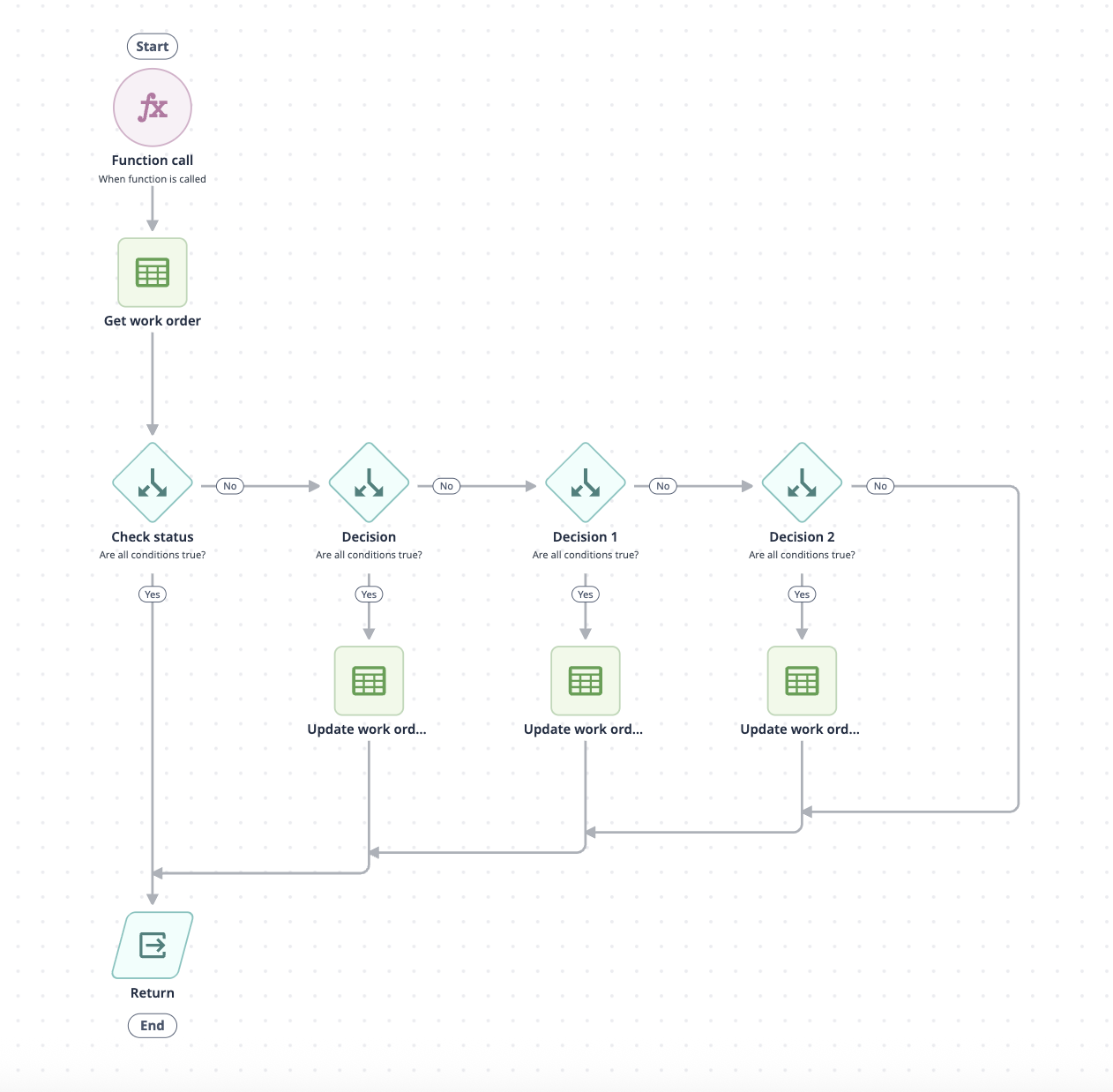
Functions logic structure is comprised of actions and decisions. Each function begins with a function call event and then uses action and decision blocks to build complex logic.
Inputs and outputs
Inputs and outputs pass data in a function.
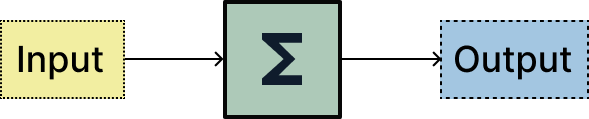
Any changes to inputs or outputs will immediately push to the development versions of apps that use the function. Therefore, development versions will not run correctly if you change an input or output that conflicts with logic relying on those data points.
As a best practice, you should only change a function’s logic and avoid changing inputs and outputs, unless it’s critical to your operation. If you need to change inputs or outputs, plan extra time to detect, update, and validate downstream logic.
Call functions from apps
In the trigger editor, use the action Run Function to call a function from an app.

The function will run in the trigger queue.
Publish an app with a function
When you update or save a function, the Development Version of an app is also updated. Previously published app versions do not change, as they use the previous function snapshot.
Learn more about function versions here.
Upon publication, Tulip checks for any changed function inputs and outputs. Address these warnings before publishing to avoid your function erroring in production.
Versions
Functions are versioned in snapshots, just like Connectors. When you publish an app, it also publishes a snapshot of the function in use. Snapshots will never change once published.
The following data is snapshotted on app publish:
- Logic Blocks
- Variables
- Signature (Inputs & Outputs)
Technical behavior
Execution
-
Functions execute locally to the client that calls them. For example, if a function is called from an app, it will be executed locally on the Tulip Player.
-
Functions execute serially in the trigger queue. This means the order of execution for Functions and Triggers works the same.
Execution performance
Functions in published applications
First execution
When a function first runs in an app on a station, execution is slower due to compilation and caching.
Subsequent executions
After the first execution, the function runs faster because it's cached.
Caching
Functions are cached both client-side and cloud-side:
- Client-side caching: Once a function runs in an app on a station, the function executes faster on that station for the remainder of the session.
- Cloud-side caching: After a function runs on one station, other stations can retrieve the function logic from the Tulip cloud faster for a brief period.
Functions in development applications
Every execution
Functions in development applications are slower because Tulip cloud services recompile the function each time it runs and then returns the function logic.
Best practice
Use development functions for building and testing. Publish apps when ready for performance testing.
Limits
| Limit | Recommended Approach | Notes | |
|---|---|---|---|
| Function name | 172 characters | Name functions in a concise and descriptive way, e.g. "Generate ZPL for Sample Labels" | In the Function editor, you can also add an optional Description. |
| Functions per workspace | 1000 | Keep under 200 for maintainability. | Too many functions create "function sprawl" and make governance difficult. |
| Tasks per function run | 1000 | Design functions to complete in <1000 tasks | Complex functions with many loops can hit this limit. |
| Logic blocks per function | 100 | Keep under 50 for readability | Break complex logic into multiple functions if needed. |
| Apps using a single function | N/A | No limit. | Verify changes thoroughly before publishing when function is used in many apps. |
| Functions used per app | N/A | No limit. |
Because Functions run serially in the Trigger Queue, they also follow trigger limits.
Functions and the trigger queue
Functions replace actions within triggers — they do not replace triggers themselves. A trigger that previously contained many sequential actions can be refactored into a single Run Function action. This simplifies trigger logic without affecting how the trigger queue operates.
Running a Function counts as one action within a trigger. There are no separate limits on the number of actions, including function calls, executed within a trigger.
Functions executed inside triggers follow all standard trigger limits (event timeout, queue depth), but do not add additional events to the queue.
Create a function
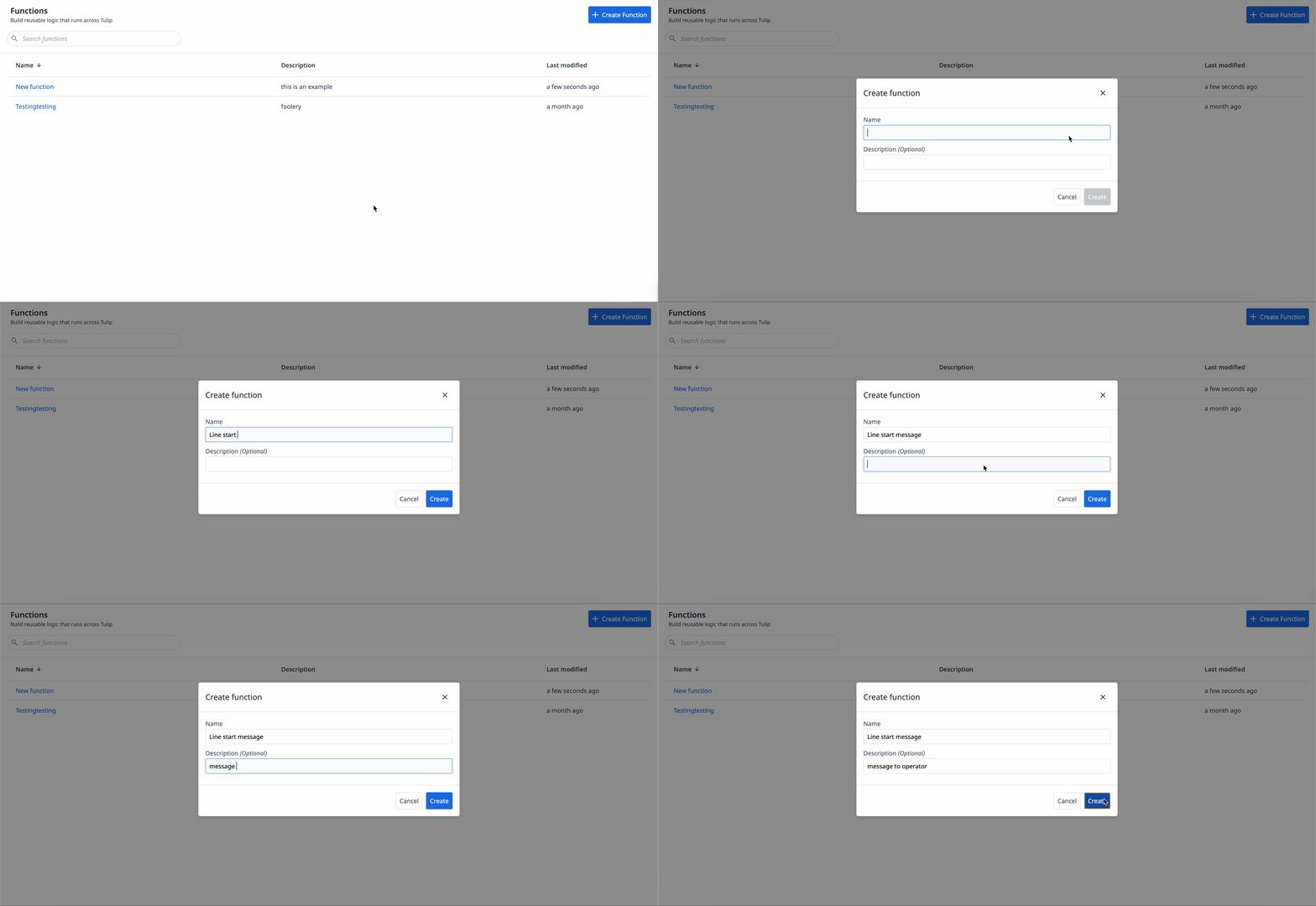
To create a function, navigate to the Functions page from the Apps tab.
- Click + Create Function
- Name the function and add an optional description.
- Click Create.
Capabilities and limitations
Functions can:
- Perform complex logic with decisions and loops
- Read and write to Tulip Tables
- Call Connector Functions
- Process data and return outputs
- Run locally on the Player
Functions cannot:
- Show messages or device outputs
- Create completion records
- Transition between steps or apps
- Read table record placeholders loaded in the app
- Access app context directly (app name, step name, logged-in user)
- Read or update app variable values directly
- Use the Table Queries & Aggregations built in Table editor (as available in Automations). You can use Tulip Table APIs as a workaround for such use cases
- Accept images as input
- Use the "Prompt AI" block (as available in Automations)
- Run Device functions
- Reference whether a table has or doesn't have a record with a specific ID in conditional logic
- Send emails (as available in Automations)
Limitations
Trailing Zeros - Functions do not maintain numbers precision. Trailing zeros on all numeric values will be removed when operated on by a function.
Learn more about numbers precision.
Where Used - Some where used functionality is not yet available for Functions:
- From the connector's UI, functions using each connector function are not displayed.
FAQ
Q: Should every repeated trigger become a function?
No. Functions add value when logic is reused 3+ times or is complex enough that updates would be tedious across many apps. Simple triggers (1-2 actions) are often clearer to leave as-is.
Q: Can functions call other functions?
Not currently (as of r351). This is a planned future enhancement. For now, duplicate logic or call multiple functions sequentially from app triggers.
Q: How do I debug a function that causes apps to fail?
Test the function with realistic inputs using the Test button. Add intermediate variables to see values at each step of the function logic.
Q: Can I export or import functions between workspaces?
Yes, functions can be individually imported and exported. Read more in the Function Import Export guide.
Q: Do functions work in Automations?
Not currently (as of r351). Functions are invoked only from apps. Calling functions from Automations is a potential future enhancement.
Q: How do I handle optional inputs?
Use decision blocks to check if input is null or empty before using it.
Example: Decision: Is input_name blank? > Yes: [skip logic]
Q: Should I use functions for every table write to enforce consistency?
Use functions only when multiple apps write to the same table and governance and consistency are required, for example the creation of new artifacts such as work orders or defects. For single-app scenarios or simple writes, functions add unnecessary complexity.
Q: Do functions count toward the trigger queue limit?
Running a Function counts as a single action within a trigger — it does not add an additional event to the trigger queue. The queue limit (100 events by default) applies to events (e.g., a button press, a timer fire), not to the actions or function calls within those events. Moving trigger logic into Functions reduces trigger complexity without increasing queue pressure. Standard trigger event limits still apply, since Functions execute inside triggers.
Further reading
Additional resources
Did you find what you were looking for?
You can also head to community.tulip.co to post your question or see if others have solved a similar topic!