
Periodically, Tulip releases a new Long-Term Support (LTS) version of the platform for organizations in regulated environments. The latest version of Tulip, LTS16, introduces composable AI agents, connector versioning, enhanced import/export transparency, and record history improvements, empowering regulated manufacturers to deploy new solutions and versions optimally and safely.
For Tulip customers who are not subscribed to an LTS cycle, these features have rolled out weekly in our usual platform releases.
For more detailed notes on all the changes in LTS15, please log in to Tulip Docs.
See the LTS16 notes in Tulip Docs →
Accelerate Solution Development with AI
Guide Development and Validation with Composable AI Agents
With Composable AI Agents (Beta in LTS16), your team can now move from solution design to production faster with higher confidence that what is deployed meets your standards.
Tulip’s AI agents are composable, so you can define how they work, what they have access to, and when human input is required. Create agents trained on your validation frameworks, data models, and SOPs. Whether generating GxP validation guides, evaluating apps against company guidelines, or architecting data models, agents reduce the time and effort required to build best-practice-aligned solutions.
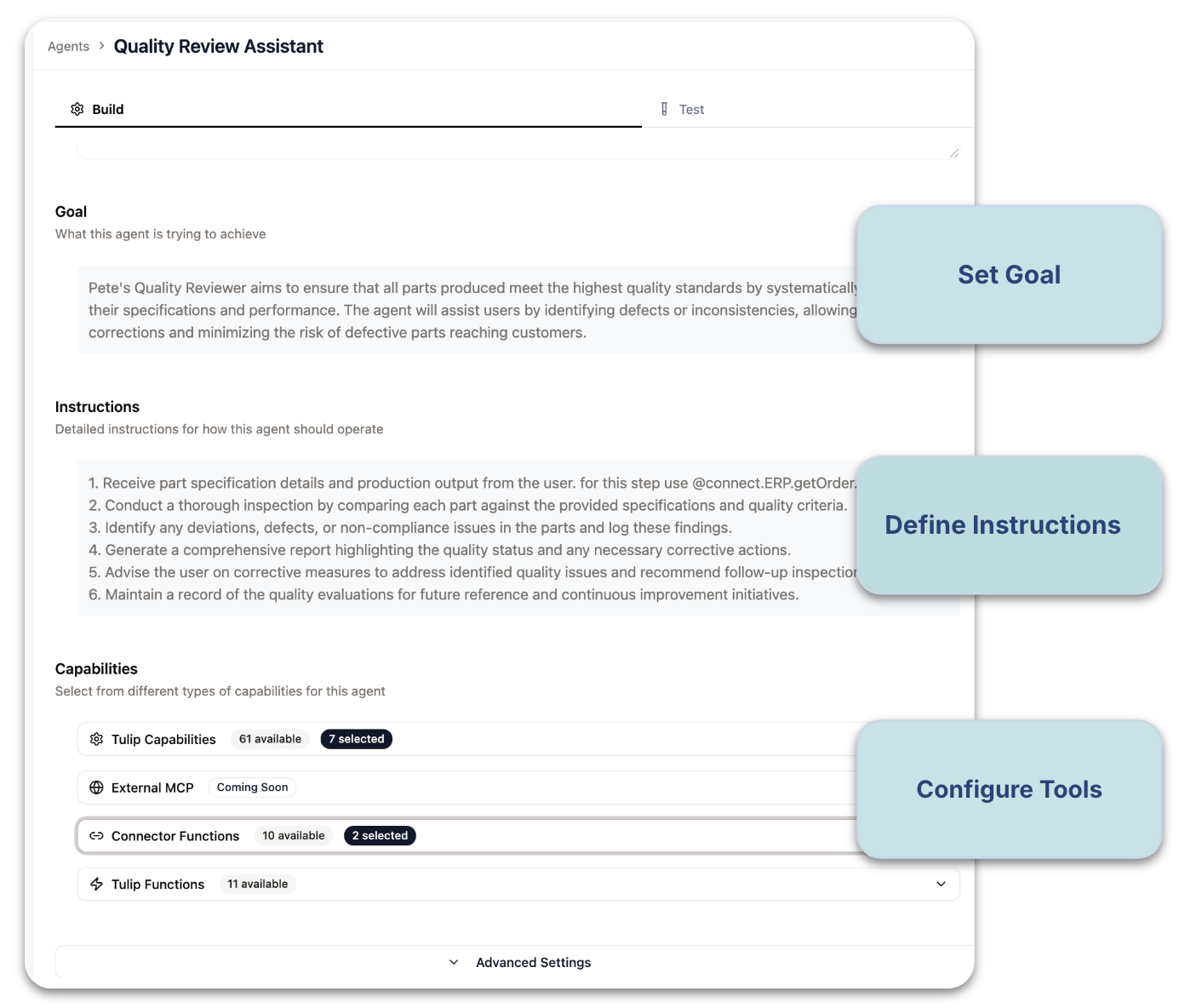
Explore the library for example agents, including the Validation Guide Generator and the Solution Design Expert.
Check out the new course on “Writing Prompts for Tulip Agents”.
Speed Up Everyday Development Tasks with AI additions
In LTS16, we added several AI enhancements that speed up everyday tasks, most notably:
- AI Translation Enhancement - Translations can now be fully deleted (not just archived), so teams can start fresh or trigger a clean AI re-translation when content changes.
- Automated Connector Output Definitions – Generate output definitions automatically in the connector function editor, accelerating integration development. Upon receiving a response from an HTTP connector function, users can now automatically generate output definitions by clicking on the new AI button.
- Connector Troubleshooting - Enhanced error handling for Connectors, where users can now access detailed error information through a new "Review error" option. This feature includes optional AI-powered, actionable troubleshooting to help explain technical errors and suggest potential solutions.
Safer, More Transparent Deployments
Update Integrations Without Breaking What's Live
Connector Versioning lets teams publish apps with stable connector snapshots, then push updates only when ready. A single click can swap a snapshot for a development version across an entire app. No more connector clutter and no more risk of broken logic or automations because someone updated a shared connector function.
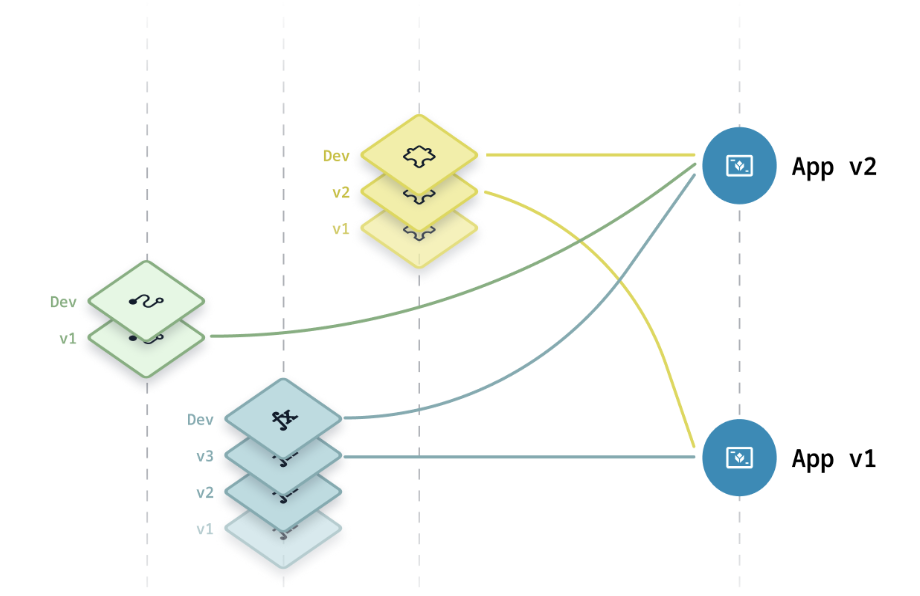
- Restore and browse snapshot history: Full version history for connector functions. Browse old snapshots, restore them as the active dev version, and see where each was used.
- Edit connector functions in-use: Users can now edit a dev-level connector function even when it's actively referenced in an app or automation. A modal shows the impact before saving.
- Update snapshot to dev version from trigger editor: Users can promote a snapshot connector function back to the development version directly from the app trigger.
Check out the new lesson about “Connector Versioning” in our HTTP Connectors course.
See more Connector Navigation and Management enhancementsbelow.
More Permissions Granularity for Import/Export
Give admins finer control over who can import and who can export with separate permissions. Previously one permission for import and export, now independently grantable.
See more improvements to versioning and approvals below.
Faster Reviews and Troubleshooting of History Records
Spot Incomplete Records Faster
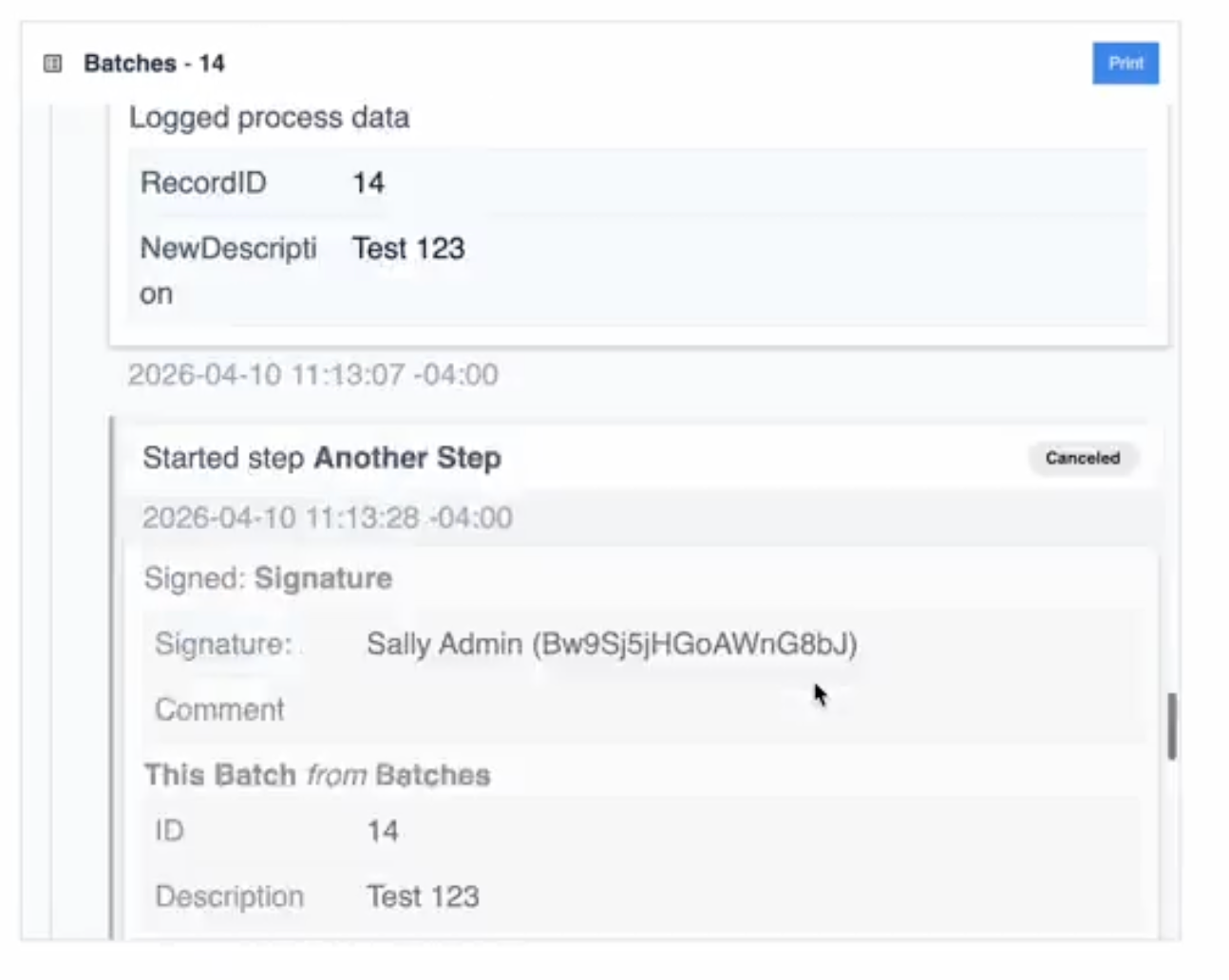
Cancelled or auto-logged-out app completions now appear with a distinct visual treatment so teams can distinguish incomplete records from normal completions at a glance. Cancelled steps appear muted (gray background, desaturated content, left border bar) and have a "Cancelled" badge, while normal completions remain unchanged.
Platform Enhancements
Comprehensive platform updates spanning editing, automations, versioning, connectors, and permissions.
App Editor Improvements and Updates
- Added base layout triggers to all step context panels. Base layout triggers will appear as read-only. This update makes it clear that base layout triggers run on all steps and helps app builders understand which logic runs on any given step.
- While viewing a read-only app, users can now view configuration and the "Where used" details for Table Records, Aggregations, and Table Queries, and then navigate to the item. Previously, users could only do this if they had edit access and were viewing a Development version.
- In the App Editor, if a user opens a URL with an invalid Step ID, they will now see an error message stating "Step not found".
- In the App Editor, removed the Grid widget's right-click context menu. All operations previously available through this menu remain accessible via the Widget tab in the side pane.
- When printing batches of steps from the App Editor, if you refresh the page then the print view will now continue with the current batch, rather than restart from the beginning.
- In the app editor, a new property for single and multi-select widgets allows them to be dynamically enabled or disabled.
- For Table Record Widgets, users can now select the Date Created and Date Updated metadata fields of a table.
- Standardized naming conventions in Widgets and Triggers ("Table" instead of "Tables") to enable easier copy-pasting of Expressions.
- Improves performance of apps that were not loading due to a high volume of station requests.
- When the inputs to table queries or interactive table widgets change in quick succession, the requests to fetch or update table records will wait until the previous request has completed. This update prevents multiple simultaneous requests and improves performance.
- In the Expression Editor, we've made UX improvements around the font, spacing, and success messages.
Trigger Editor & Workflows Enhancements
- Added search capability to the variable picker in the trigger editor, making variables easier to find when building logic.
- In the Trigger Editor, improved the variable dropdown to automatically scroll to the current selection. This change will make it easier to locate the selected variable in large lists.
- Added keyboard navigation support for the duplicate button in the Trigger Editor. Now, you can use the tab key to access the duplicate button, even though the button is not always visible.
- In the Trigger Editor, there is now an "Is Not Empty" condition. Previously, there was only an "Is Empty" condition.
- In the trigger editor for device triggers, the output selection UI is now a basic dropdown with two options: "this station" and "specific device". Choosing the latter will prompt an additional dropdown to select the device. This update also applies to the "Run device function" action.
Automations Enhancements
- On the Automations page, added a "Last Modified" column. This column supports sorting so that it is easier to find recently modified automations.
- When testing an automation or a function, there is now a "View test" button in the pop-up that appears at the bottom of the screen. When you click this button, the "Run history" panel opens.
- For the Functions and Automations "Create/update table record" action, you can now select multiple fields at once using a searchable multi-select dropdown with a "Select all" option.
- Apps that reference functions as dependencies will now correctly import those functions when the app is imported into another workspace. If a matching function is found in the target workspace, that function will be reused. Function versions are always imported as snapshots to preserve app behavior upon import.
- Updated UI buttons on the App Editor Page, where the "Enable translation" and "Create snapshot" buttons now show icons and display text on hover. Also on the Functions page, the "Function errors" modal now shows an icon.
App Versioning and Approvals Enhancements
- On App Publish, the Development version will remain in Completions and the Record History Widget. Previously, for historical entries, the Development version changed to the subsequently published app version number.
- The app publish modal now lists any connector function trigger configuration errors. If you click on the trigger name, you'll be navigated to the trigger to fix the errors.
- When an app version is submitted, the email sent to approvers now includes a link to the publishing modal.
- Under the Versions tab of the App Overview page, the list of connectors has been expanded to include connector functions and an additional "See all" button, where you can search for a connector or connector function.
- On the App Versions tab, added an onboarding modal for the new "View resource usages" feature.
- Fixed issues related to table aggregations (TAs) and table queries (TQs): TAs might have appeared broken in the app editor records tab upon import or restore; apps could incorrectly use multiple versions of the same TA in rare edge cases. Import behavior now differentiates between TA development versions and snapshots.
- For Compare App Versions, improved the performance when loading app comparisons, including for larger apps.
Improved Navigation Across Connectors
- On the App Overview page under the Versions tab, you can now see where Connector Functions are used. Click on a connector function name in the Resource Modal to view a full list of triggers where that function is used. If you click on a specific trigger name, you will be navigated directly to that trigger in a separate tab for quick editing.
- From the Connectors side panel, upon clicking the app name from the "Where used" list, the user is navigated to the resource modal of the app's Versions tab where they can view that connector's usage within the app.
- On the Connector Functions page, upon selecting an app from the "Where Used" list for a connector function, users are navigated to the Versions tab of that app, and the Resources modal opens for that connector function.
Connector Management and Troubleshooting
- In the Connector details side panel, there is now an "Edit" button to manage connector metadata (name and description) and environment settings.
- Connectors and connector functions can now be sorted according to their name, last updated date and type (for connectors only).
- Connector function inputs and outputs can now include parentheses and spaces at the beginning or end of their name.
- MQTT and OPC UA connectors now return a standard TimeoutError upon request timeout, providing consistent error handling across all protocols.
- Added the ability to configure Quality of Service (QoS) levels for MQTT data sources in the environment settings panel. This improvement expands compatibility, allowing you to connect with MQTT brokers that require specific QoS configurations.
- The environment configuration settings for machine data sources and connectors have been updated for a consistent user interface.
- For new connectors, the Cloud Connector Host is selected by default.
- Added a help link for editing MQTT datasources to provide quick access to documentation.
Tables & Data
- Table settings now remain across sessions (View Metadata Fields, Text wrap header cells, Text wrap record cells), to reduce administrator overhead in specifying their preferred settings each time.
- The Table rate limit warning banner now indicates the date when the limit was last exceeded.
- Datetime values in table fields are now restricted to four digits, with the largest year being 9999. This prevents inconsistent behavior across the platform.
Player & Devices
- Users can embed the preview of a station from the Shopfloor page into an iFrame.
- Prevented an issue where printing a document widget with a file variable froze the Player. Now, users can successfully print document widgets and file variables.
- Added a new setting, "Users Share Interface on Same Device", in the Player Misc Settings to control interface sharing behavior when switching between authentication methods. This setting is automatically enabled for installations using SAML or LDAP authentication.
- With Player 2.9.1, support for Vietnamese is now included.
- For torque drivers on Player, we've improved the output of the rawJSON event to include more information, such as the drill serial number.
- In the multi-tool torque driver and open protocol torque driver, a new "alarm" event has been added to torque tool Open Protocol driver(s). This event allows monitoring of conditions, such as low battery.
- Allows a new protocol (
wsync://) in the open url trigger, which enables further connection with Zebra devices.
Computer Vision
- For vision camera detectors, color, datamatrix, and jig detectors are now available by default. Anomaly detection and anomaly localization detectors have been removed.
Access, Permissions & Settings
- SCIM implementation now supports Bearer token authentication, enabling it to be used from identity providers that require a Bearer token, including Microsoft Entra.
- In the Activity History, replaced the text "Deleted User" with "User not found" to reflect IDs with missing user information.
- Changed the error type for requests against the Tulip API that contain missing or malformed authorization info. This now results in 4XX errors.
- Changed the reported error type for the signURL endpoint. For malformed requests, it now returns client error responses (4xx) instead of server errors (5xx).
- The API endpoint
POST /api/v3/usersis now rate-limited to 30 requests per minute. The endpoint responds with HTTP 429 when the limit is exceeded. This update improves service stability and reduces the chance of disruption. - On the App Permissions page in Settings, fixed the click zone targeting to help prevent accidental changes to the settings.
- On the Account Settings page, we've improved the clickable area for toggles.
- In Custom User Roles, the App Import and App Export permissions are now split into two separate permissions.
UI & Platform Polish
- UI elements in the platform, such as snackbars and toast notifications, are now animated.
- Toast messages will now automatically dismiss after 10 seconds.
- In our API documentation, we've added a tab for 429 responses (Too Many Requests).
How do I learn more about LTS16?
If your team is interested in seeing all of the latest updates in LTS16, access the Tulip Docs or reach out to your Tulip contact for the official quality assurance report. Your customer success manager can also help you upgrade your instance to LTS16.
Enablement materials for new features are available in Tulip University:
- Connector Versioning (new lesson in the HTTP Connectors course): Build and Use HTTP Connectors in Apps
- Writing Prompts for Tulip Agents (new course)
If you are interested in learning more or upgrading to LTS16, please contact your Customer Success Manager.