This document provides information about a new feature added to our product. Starting from r345, following behavior will be the default for new customers. Please note that this feature might be disabled for certain instances. If you wish to enable this feature, please contact Support at support@tulip.co.
Overview
Connectors play a crucial role in the functioning of your Tulip applications. Similar to your app logic, maintaining stability after publication is our top priority.
To ensure this, Connector Functions within your application are snapshotted upon app or automation publication. This means that any modifications made to an existing connector function after publication will not negatively impact applications or automations running on the shop floor.
Connector versioning allows you to freely iterate on the development version of a connector function while keeping your published apps and automations unchanged. It also supports the addition and deletion of inputs and outputs when connector functions are being used in development apps or automations.
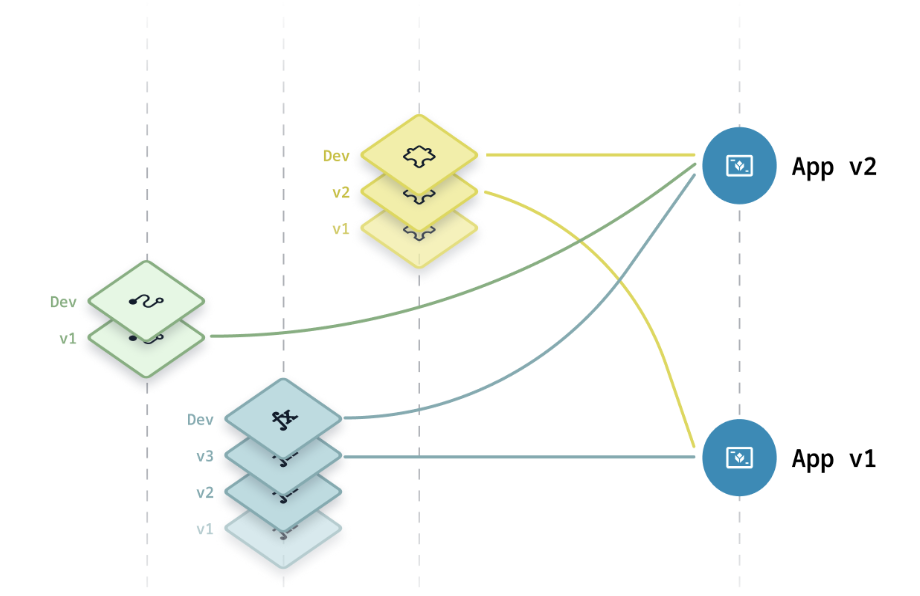
Importantly, the connector configurations are not snapshotted. Any changes to the connector configuration would propagate to the development and published apps/ automations.
Versioning in Tulip is implicit — a snapshot of a connector function is automatically created each time an app or automation is published.
Editing Inputs and Outputs of A Connector Function
With versioning improvements, you can change the inputs and outputs of a connector function. When a change breaks an existing trigger, you can locate it using the where used information within the connector function editor, the versions tab in the app editor, or the error modal. Once you've identified the affected trigger, you can open it and update it to match the new inputs and outputs.
Managing Snapshots
Restoring or importing an app (see Connector and connector function import for more information) can result in your development app having snapshots of connector functions.
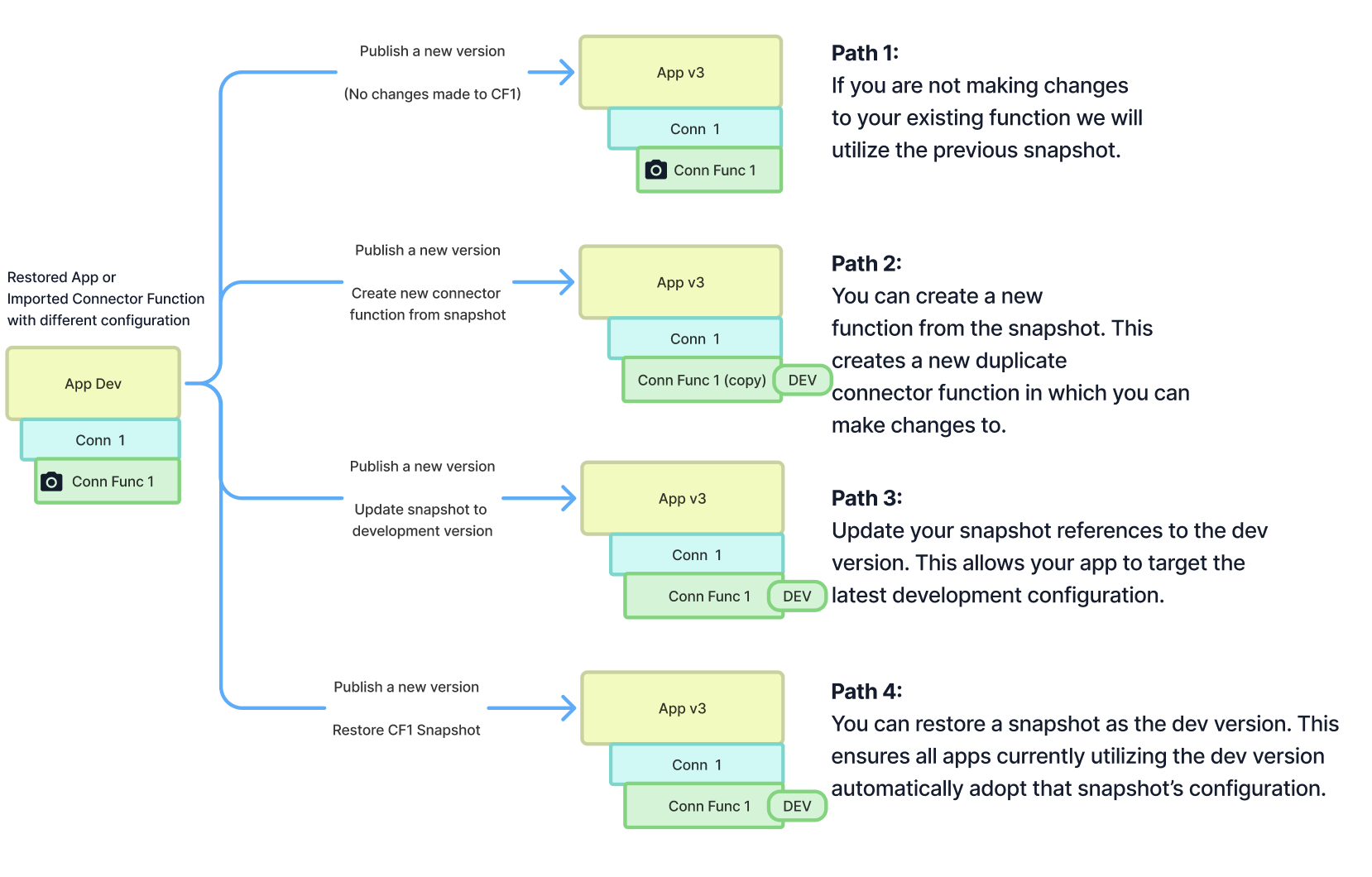
Currently we offer 4 ways to manage your snapshots.
-
Option 1 - Keep the snapshot as-is: If no changes to the connector function snapshot are needed, the same snapshot will be used throughout your app or automation lifecycle.
-
Option 2 - Create and replace with a copy: A new connector function (Copy of Function 1) will be created in your connector, and all usages of **Conn Function 1 Snapshot ** throughout your app will be replaced with this copy.
-
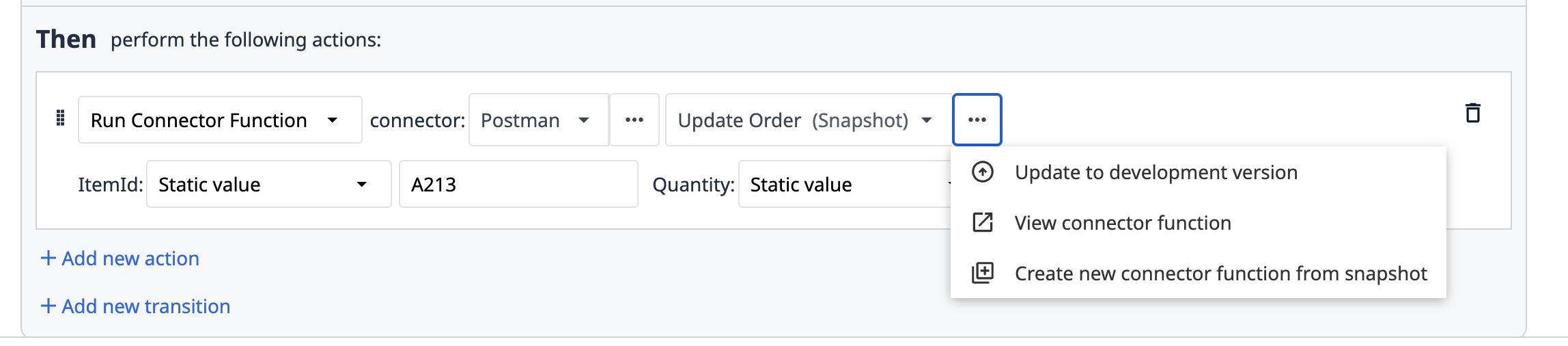
Option 3 – Update the snapshot to use the development version: All usages of the snapshot throughout the app will be updated to use the current development-level configuration of that function. This action is available in any trigger that is using a snapshot connector function within the app.
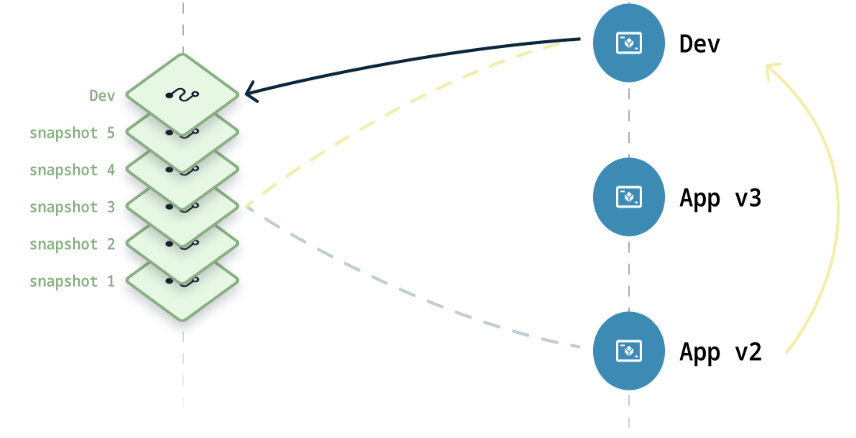
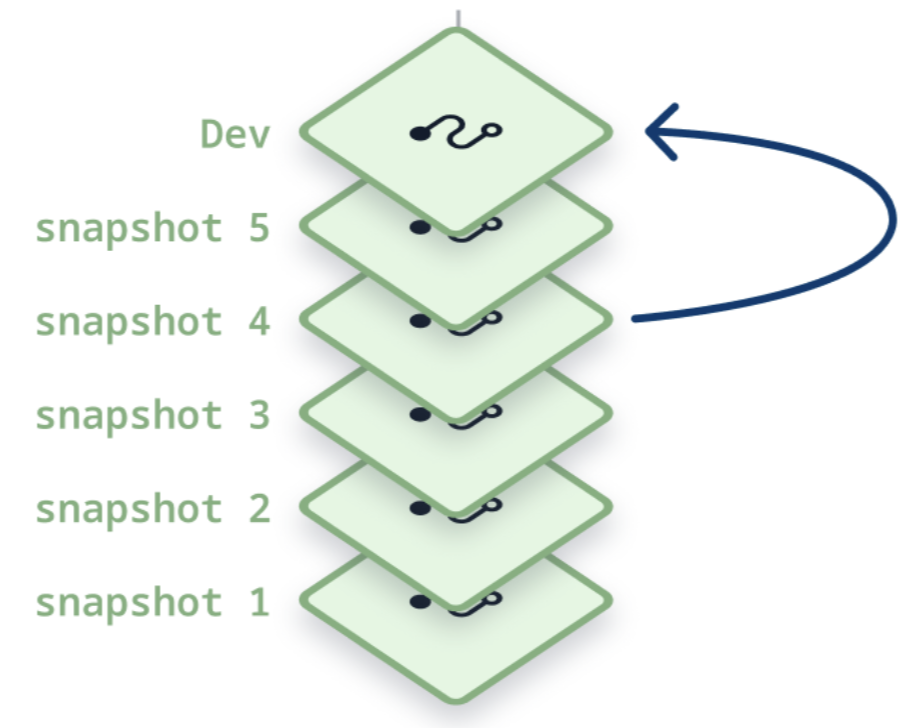
Option 4 – Restore a snapshot as the development version: This restores an older snapshot configuration as the current development version. Note that this action will impact all development-level apps and automations that use the development version of that connector function.
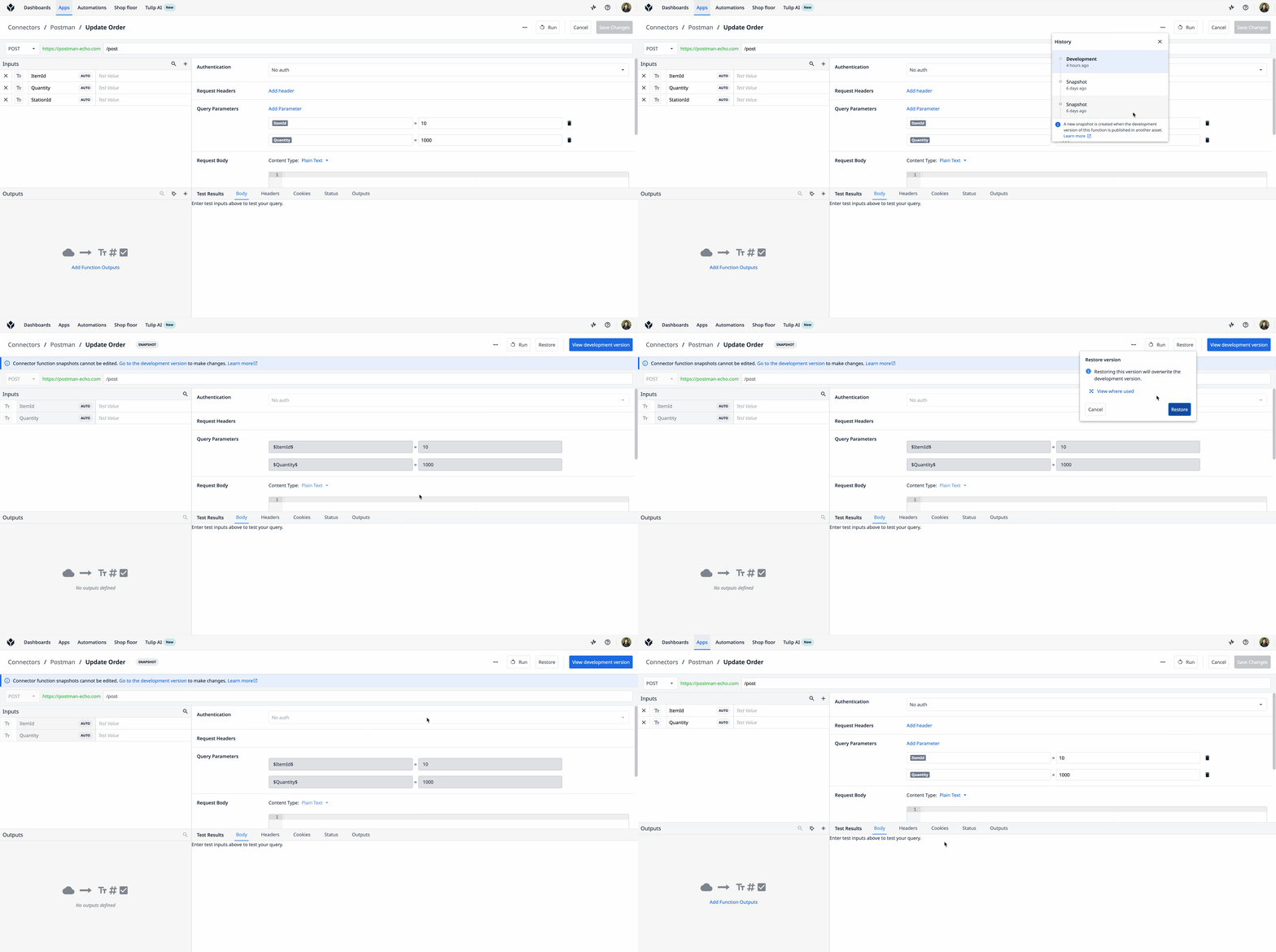
To restore an older snapshot, open the connector function editor for the relevant function, click the "..." menu, and select "View History".
The Version History panel will display all previous snapshot configurations of that connector function. Click any snapshot in the list to view its configuration.
Clicking Restore on a snapshot configuration will open a modal listing all apps that may be affected by the change.
Upon clicking on Restore, you will be prompted with a modal showing all the apps that might be impacted by this change.
Once you have reviewed and confirmed the impact, click "Restore" to proceed.
Import flow for Apps/Automations
Import flow connector functions follow a similar path for both assets. See Connector and Connector Function Import – New Import Behavior for more details.
Viewing Snapshots
To view the snapshots associated with a specific app Version, navigate to the "Versions" tab on the app overview page, then open the "..." menu for the version whose connector snapshots you want to inspect.
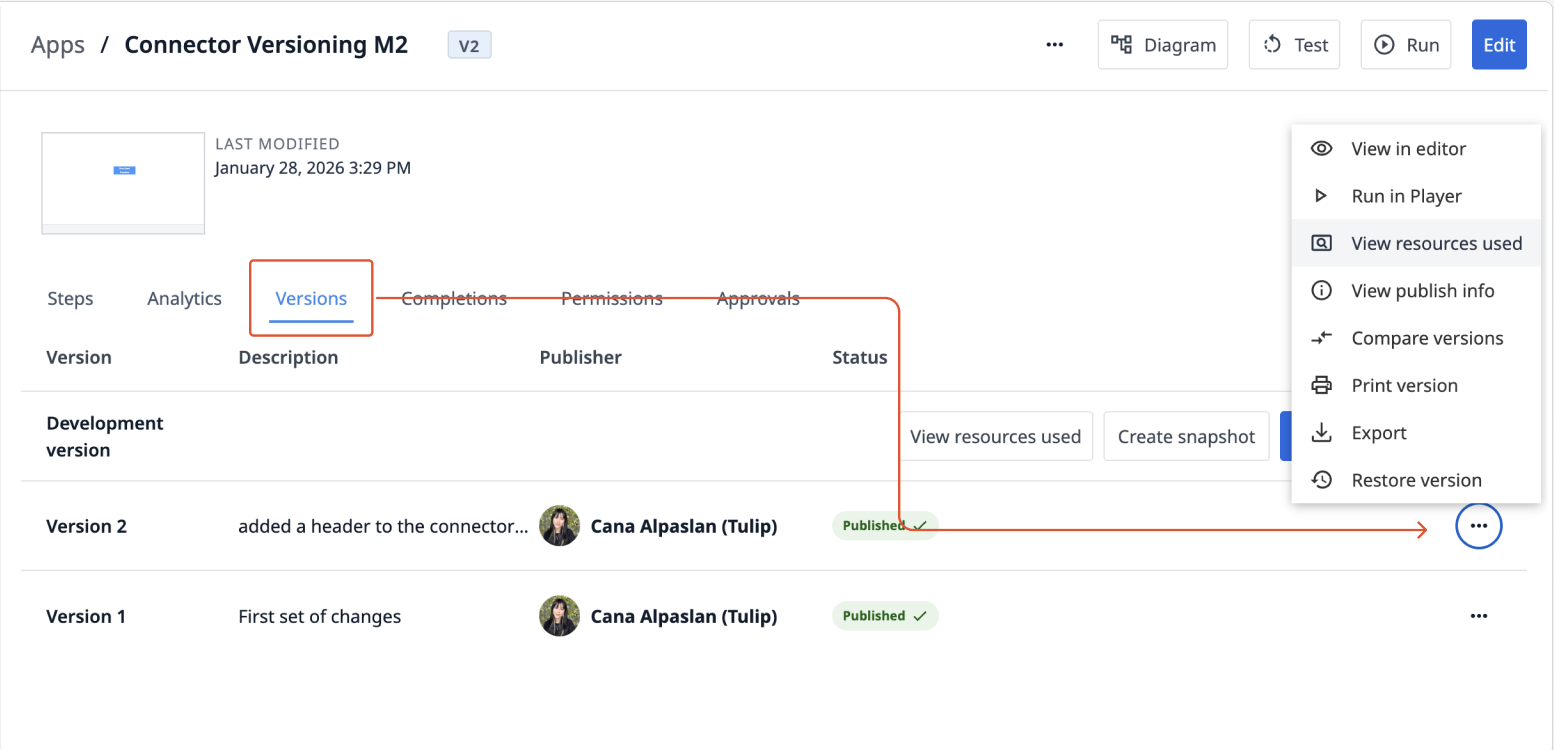
Using the "View Resources Used" option, you can navigate to the exact trigger using a connector function snapshot, as well as view the snapshot itself. See Locate Connector Function usage across Tulip.
Viewing Broken Connector Functions
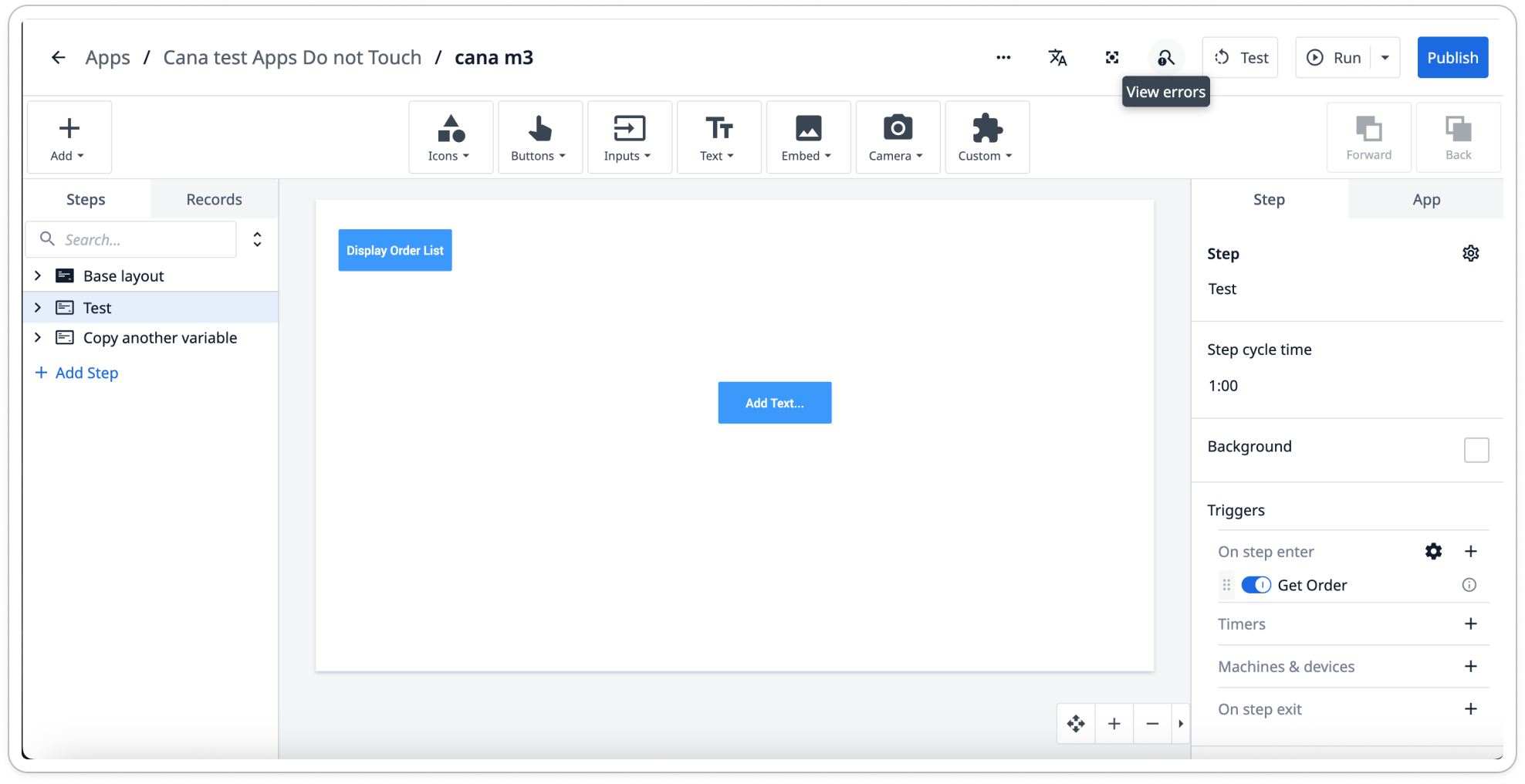
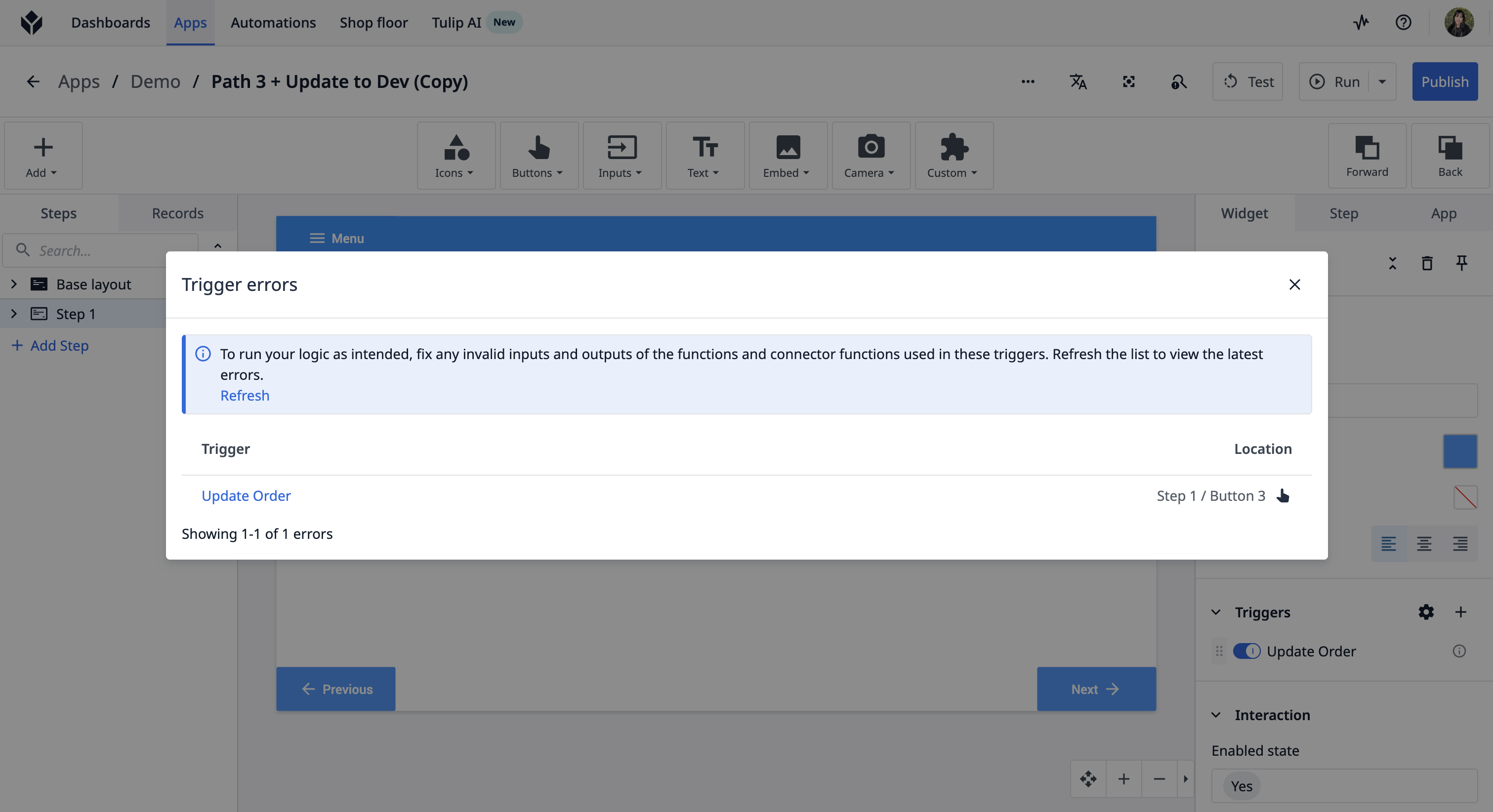
If changes to a connector function's inputs or outputs cause broken triggers, these will be displayed in the Error Modal, located in the top-right corner of the App Editor next to the "Test" button. Clicking on a trigger name in the Error Modal will take you directly to that trigger so you can resolve the issue.
Further reading
Locate Connector Function usage across Tulip