Learn about run history and how you can use these insights to invoke changes in your automation.
Run history shows the archive of all the Runs an Automation has completed. A run refers to each time an event is invoked. For example, when a Machine outputs or when a Table Record is created or updated.
The run history of an automation reveals the status of the automation, i.e., whether or not it is successfully running and triggering from an event.
The log of runs is kept for 6 months, after which runs will be deleted from the history. If you are on a release before January 2025, the run history will only show the previous 3 days.
Run history will take 6 months to populate after Jan 2025, it will not pull the previously deleted data.
View run history
There are two ways to view the run history of an automation.
-
Logic Editor panel of the Automations Editor
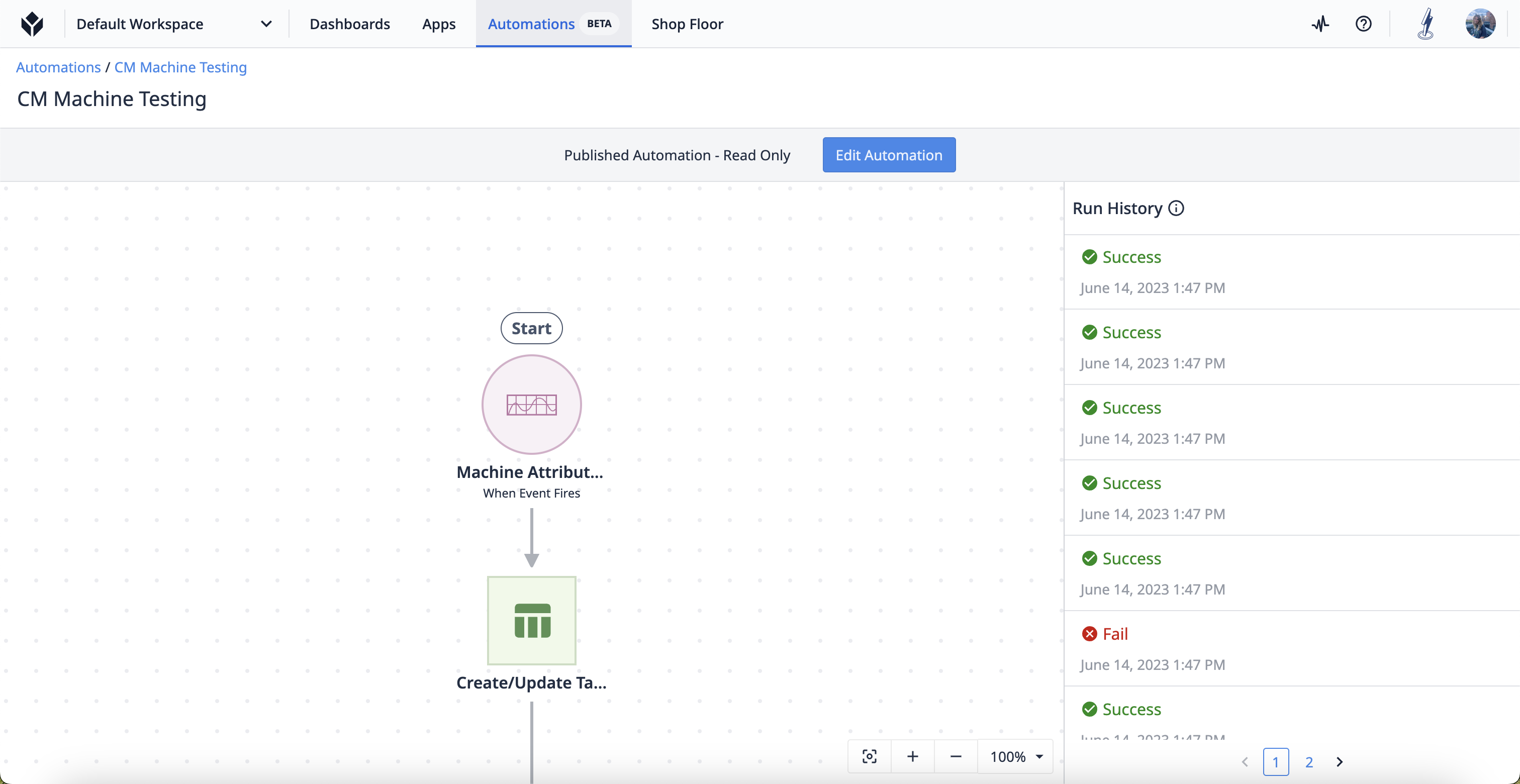
When no Logic Block is selected in the Automations Editor, you can see the most recent run history of the current version. -
Run history page
The run history has more details than the Logic editor view. This page shows the history for all versions of the automation, up to 3 days.
Run history page
To access the run history page, click on the automation you want to view and then click the Run History tab.
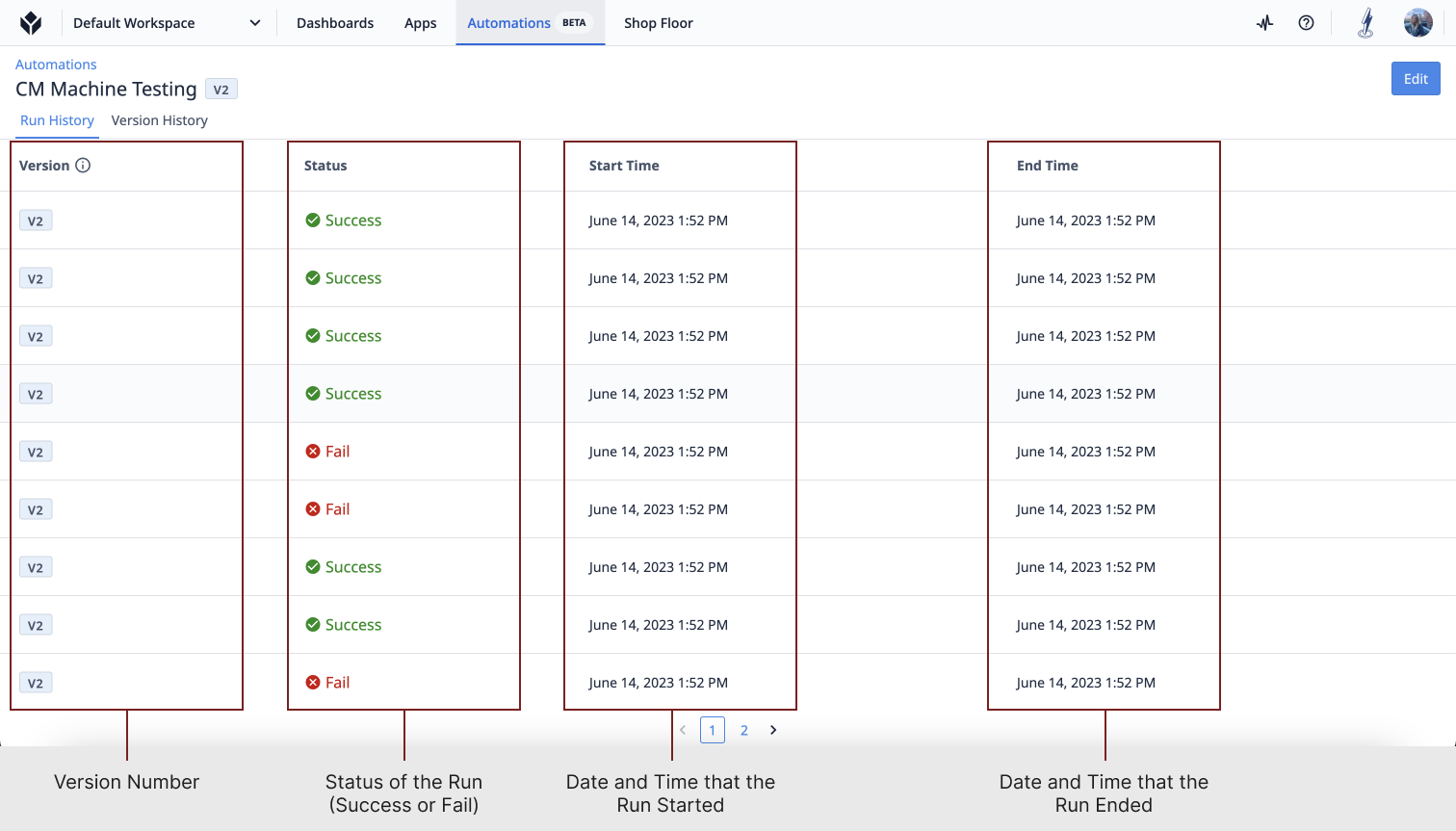
The run history page is dedicated for viewing the status of automation runs. The data includes the version number of the automation, the status of the run (see Run states), and the datetime that the run started and ended.
You can use this page to gather insights and determine if you need to edit the automation for optimal use.
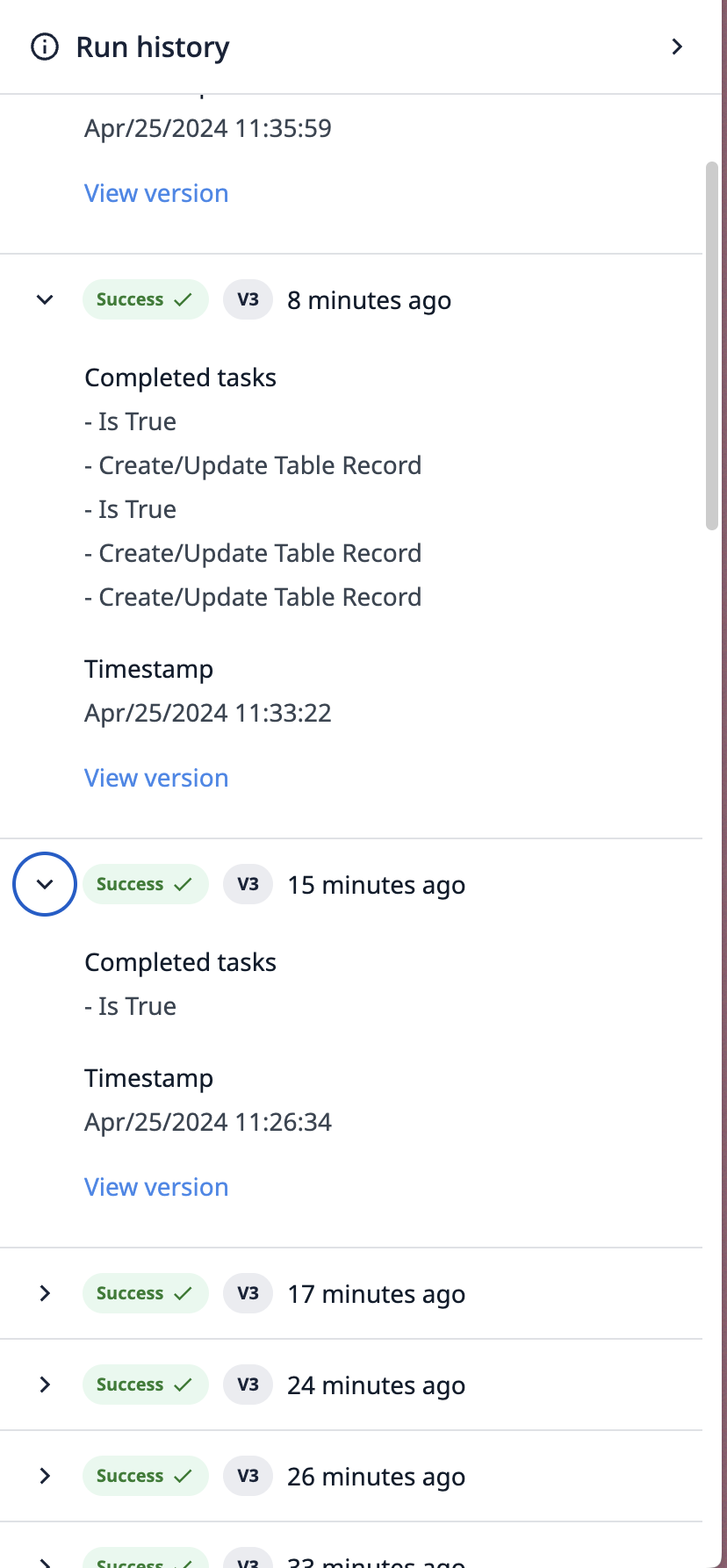
The run history also provides insight into why an automation run may have succeeded, failed, or been limited. The history shows the completed steps or the available error message.
Run states
There are 4 different states for each automation run:
| State | Description |
|---|---|
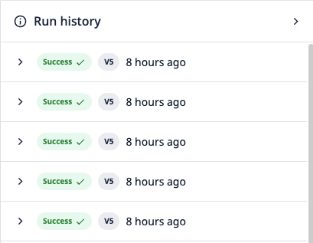 |
Success - the automation ran without issue. |
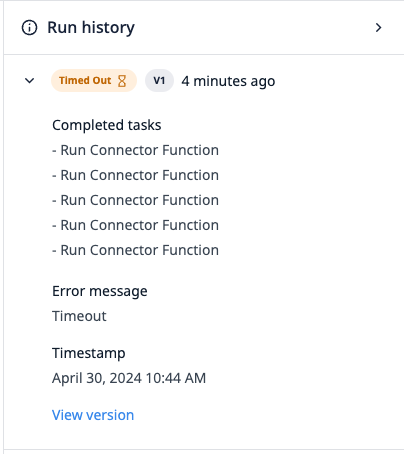 |
Timed Out - the automation ran until it hit its time limit (learn more here). |
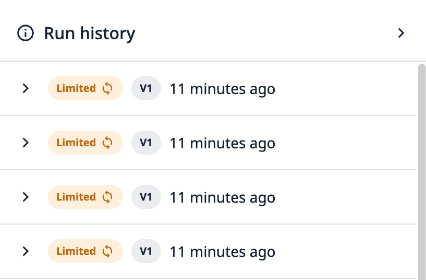 |
Limited - the automation was either called too many times (see this article) or your workspace is at its limit for automation runs per second (see this article, Automation Limits, for additional information). |
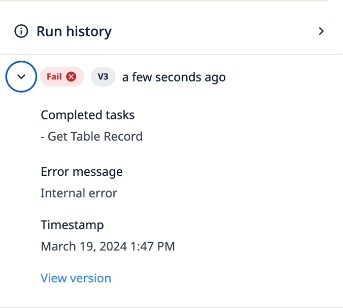 |
Failure - the automation ran into an issue - the automation will describe the issue or have internal error listed, if so, please reach out to support. |
Debug an automation with run history
The run history will indicate the type of issue that occurs with an automation, but you will need to investigate to understand the root cause.
Example 1: Limited
The run history identifies if a rate limit was reached, but does not specify which limit.
If a run state is "Limited", you can identify the most appropriate Automation limit relevant to your automation by troubleshooting each limit.
Example 2: Timeout
The run history identifies if a timeout occurred, but does not specify the logic during which the automation timed out.
You can examine the logic in your automation and determine if you have multiple "slow-running" logic blocks, such as Run connector function or Create/update a table record. These types of logic take longer to execute and, therefore, risk reaching a timeout. You can reconfigure the automation logic to avoid this risk.
Further Reading
Did you find what you were looking for?
You can also head to community.tulip.co to post your question or see if others have solved a similar topic!