


This article describes the different ways you can reach out to Tulip Support and what information you should include.
If you are currently experiencing a critical issue that is impacting production, use the request form via your Instance or help center, and indicate the appropriate business impact.
There are multiple ways you can get support for an issue you may have in Tulip.
Tulip Community & Tulip Support
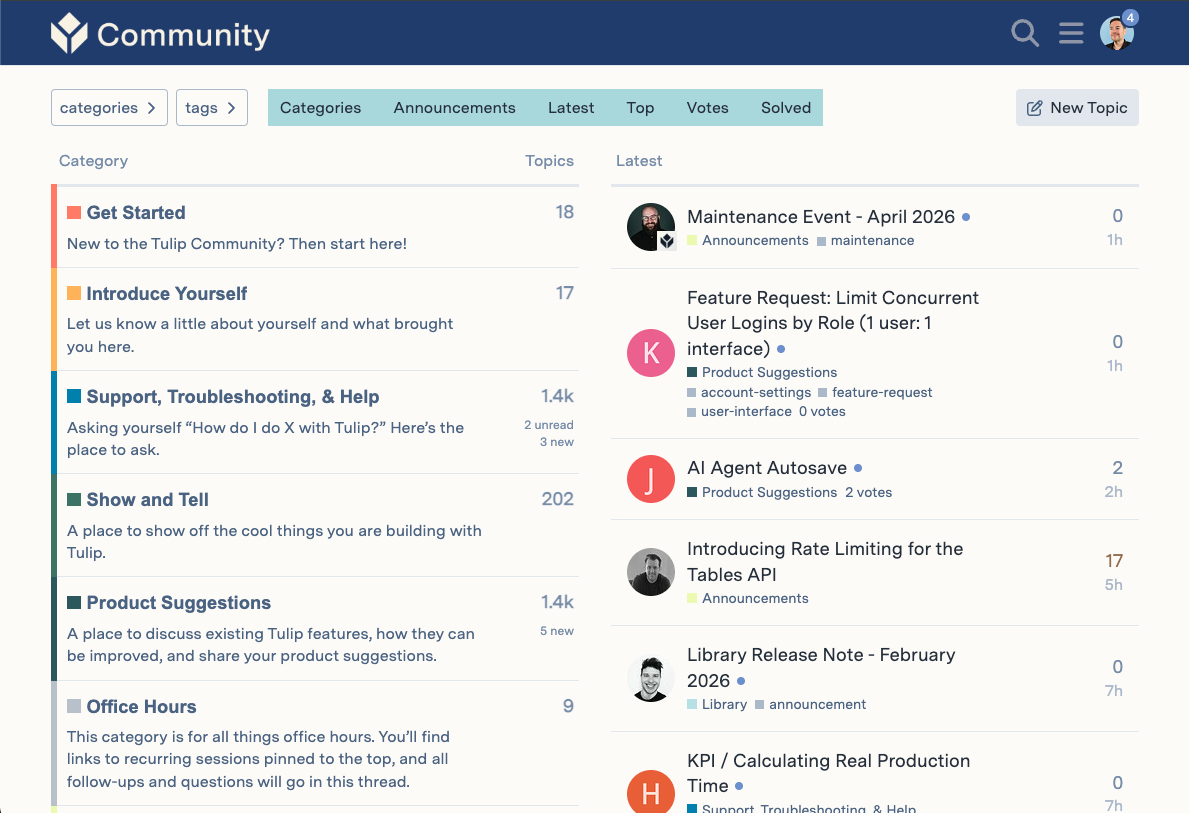
- Tulip Community is Tulip's peer-driven forum with 5,000+ members across our customer base.
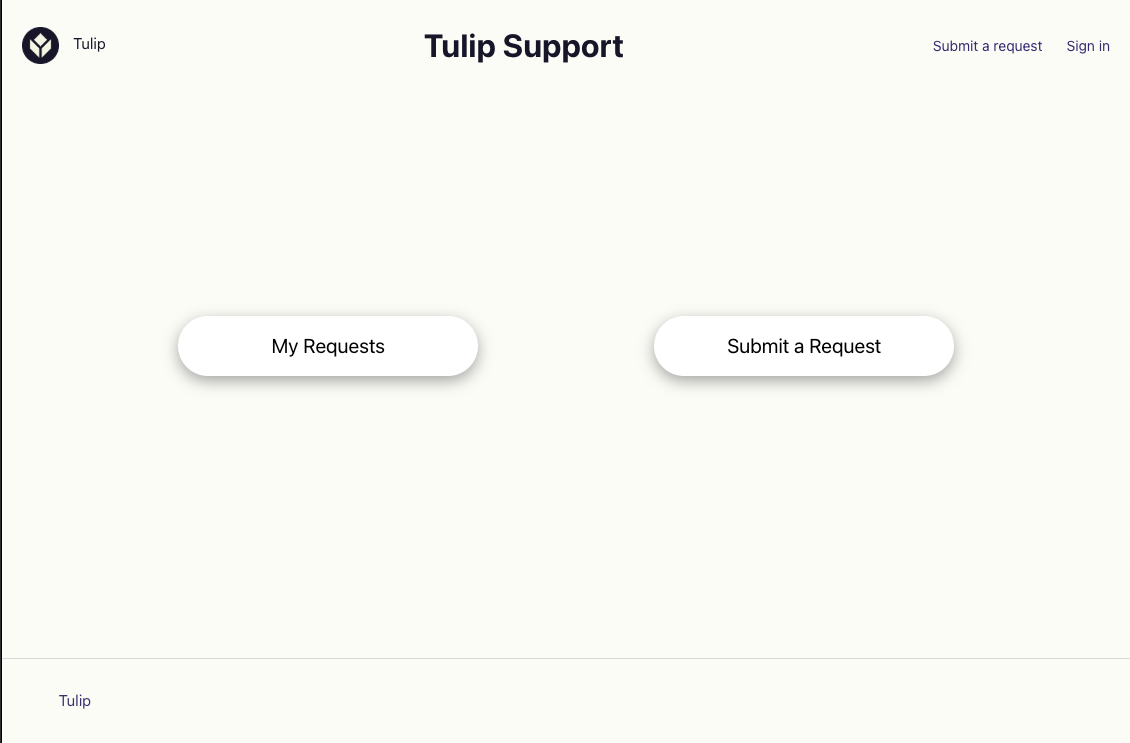
Tulip Support is Tulip's formal help desk, managed by Support Engineers with SLA commitments.
When to use Tulip Community vs. Tulip Support
Tulip Community or Tulip Support - quick decision framework
| Situation | Community | Support (Zendesk) |
|---|---|---|
| "How do I build this?" | Yes | No |
| "Is this a bug or expected behavior?" | No | Yes |
| Platform is down or broken | No | Yes — Severity 1 ticket |
| Peer-to-peer advice | Yes | No |
| Product idea or feedback | Yes — Product Suggestions category | No |
| SLA-backed response required | No | Yes |
| Best practices | Yes | No |
| Production is blocked | No | Yes — Severity 1 ticket |
| Share what you built | Yes — Show & Tell | No |
| Account, access, or instance issue | No | Yes |
Use Tulip Community when...
community.tulip.co is Tulip's peer-driven forum with 5,000+ members across our customer base. Use Tulip Community for the following scenarios:
App-building and "how do I...?" questions
Post in the Support, Troubleshooting, & Help category. This is a collective problem-solving space, not a ticketing system.
Best practices discussions
Not sure how to structure logic or handle traceability in your apps? Peer answers from experienced Tulip users are valuable here.
Product suggestions and feedback
The Product Suggestions category is directly integrated with Jira. Your suggestions become product tickets and inform the product roadmap.
Show & Tell
The Show & Tell category allows you to share what you built, celebrate wins, and learn from what others are doing.
Get started with Tulip
The Get Started category is designed for onboarding questions.
Developer questions
The Developer category is a recognized support-type category where Tulipians route questions to the right team.
Response time expectation
Tulip aims to have all Community questions receive an initial response within 24 hours. Tulipians actively monitor new Community posts and route unanswered questions to the right team within a few hours.
Other Community resources
Office Hours
Free live help from Tulip experts
Build Better Sessions
Webinar-style sessions on a variety of topics presented by expert Tulipian(s).
Announcements
The first place to learn about releases, events, and webinars.
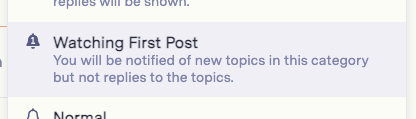
Best practice recommendation - subscribe to the Announcements category with the 'Watching First Post' option to be emailed upon new posts:
Use Tulip Support when...
support@tulip.co and tulip.zendesk.com is Tulip's formal help desk, managed by Support Engineers with SLA commitments. Use Tulip Support for the following scenarios:
Platform bugs
If something does not work as expected and is not a configuration issue, Support Engineers triage, investigate, and file bug tickets for confirmed bugs.
Production-blocking issues
Anything that stops operators from working should be filed as a Level 1 (Critical) ticket.
Account, access, or instance-level issues
Login problems, SAML (SSO) issues, user management errors, and instance configuration issues all belong here.
Machine and connector failures
Connector function failures, edge device problems, and integration errors are handled through Support.
Data integrity concerns
Support has a formal process for evaluating data integrity risks.
GxP and compliance-related issues in production
These follow a stricter escalation path, including Quality Event evaluation.
Issues that require a documented record
Zendesk tickets are the system of record for customer issues. This is especially important in regulated industries.
How to post on Tulip Community
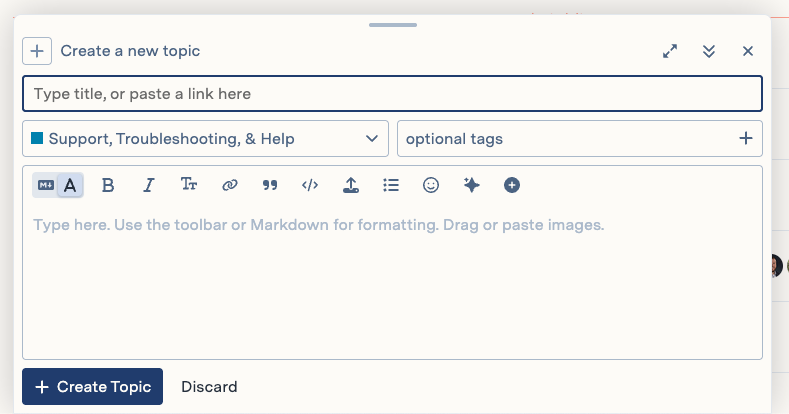
- Navigate to Tulip Community, or directly from your instance by clicking the question mark icon and selecting Community.
- Select the category that best fits your request.
- Create a new topic.
Best practices for reporting issues to Tulip Support
Core principle
Provide complete context upfront. Tulip Support engineers have visibility into your instance but need your manufacturing context, expected behavior, and reproducibility details to resolve issues efficiently.
A complete ticket submitted once resolves faster than an incomplete ticket that requires several follow-up exchanges.
Essential components
A high-quality support ticket includes the following information:
- Short description and problem statement
- Expected results
- Actual results
- Business impact and severity
- Supporting references
- Steps to recreate
- Screenshots and screen recordings
- Logs and diagnostic data
The sections below provide detailed guidance on each component.
Short description and problem statement
Lead with the affected capability: app, table, connector, trigger, analytics, machine monitoring, or edge device.
Be specific. For example, "Table record 'Part123' fails to update via connector function" is more useful than "Data not syncing." Links to affected items are ideal.
Include a severity indicator if the issue is production-impacting.
Expected results
State what the platform should do based on your app logic, connector configuration, or trigger design.
Reference related Tulip Knowledge Base articles, prior working behavior, or design intent.
Actual results
Describe exactly what happens. Include full error messages verbatim (for example, from completions logs, connector error responses, or analytics query failures).
Note whether the behavior is consistent, intermittent, or time-dependent, and specify whether the issue appears in Player or Editor mode.
Include screenshots and recordings where relevant.
Severity alignment
Align your description to Tulip's priority definitions:
| Severity | Description | Example |
|---|---|---|
| S1 - Critical | Production completely down, security breach | "Assembly line stopped - barcode scanning fails across 15 stations" |
| S2 - High | Major feature unusable, significant workaround required, multi-user impact, data loss or corruption | "MES completion step fails - manual paper tracking required for 3 lines" |
| S3 - Medium | Feature degraded but workaround exists, isolated user or app impact | "Dashboard analytics load slowly - operators can still complete apps" |
| S4 - Low | Cosmetic issue, feature request, minor inconvenience | "Button alignment off in mobile view" |
Include:
- Number of affected users, stations, lines, or sites
- Impact on production, quality, or compliance workflows
- Whether the issue blocks a critical path (for example, eBatch Record completion or quality release)
Supporting references
Required links:
- App: Direct URL to the affected app (from Editor or Player)
- Table: Specific tables and record IDs if data-related
- Connector: Name and version of the connector function or host
- Trigger or automation: Specific trigger or automation names
- Analytics query: Link to the affected dashboard or analytics query
Environment details:
- Tulip instance URL (for example, yourcompany.tulip.co)
- App version if the issue appeared after recent changes
- Player device type (tablet, desktop, mobile) and browser or OS
- Edge device model and firmware version if hardware-related
Steps to recreate
Provide numbered, sequential steps that Tulip Support can follow:
- Navigate to app "Incoming Inspection v2.4" in Editor.
- Open Player on station "QC-Station-03."
- Scan barcode "LOT-2024-001" in step 2.
- Click Submit Inspection.
- Observe: error "Connector function failed: timeout after 30s."
Include:
- User role and permissions required (operator, app builder, account owner)
- Specific data inputs (barcode values, form entries, table lookups)
- Timing conditions (for example, "Issue occurs only after 10+ consecutive scans")
If the issue is not reproducible on demand, describe the pattern (for example, time of day, specific stations, or concurrent users).
Screenshots and screen recordings
Capture the following:
- Full browser window, including the URL bar and Tulip instance
- Completions tab showing step or trigger execution failures
- Connector host logs if connector-related
- Edge device status page if hardware-related
- Analytics query builder and error messages
- Browser developer console (F12) errors for Player issues
Video is ideal for:
- Intermittent or timing-sensitive behavior
- Machine connectivity problems (for example, PLC communication drops)
- Multi-step workflows with user interaction
Attach logs and diagnostic data
Attach the following where applicable:
- Completions export (CSV) filtered to the failure timeframe
- Connector host logs from the relevant time window
- Edge device logs (accessible via the device management interface)
- Browser console logs (F12 → Console tab, exported or screenshot)
- Network trace (HAR file) for connector or API failures
- Table data export showing incorrect or missing records
Use ISO 8601 format for timestamps (for example, 2024-02-18 14:32:05 UTC) or reference completions ID numbers.
Tulip-specific tips
| Do | Don't |
|---|---|
| Link directly to the specific app version in App Editor. | Refer generically to the app (for example, "the welding app"), as this does not point to the specific app, especially when there may be multiple apps with similar names. |
| Export completions (if available) for the exact run showing the failure. | Describe the issue only from memory. |
| Note any recent changes that may be related (for example, changes to the app, network infrastructure, or systems connected via connector functions). | Omit recent context regarding changes to apps, physical interfaces, connected systems and devices, and so on. |
| Specify whether the issue is Player-specific or also present in App Editor preview. | Report issues experienced only in developer mode (test mode). Ensure the issue is reproducible when running the app from Tulip Player. |
| Include station ID or interface ID for hardware issues. | Provide incomplete information, for example: "It's happening on a tablet somewhere." |
| Mention if you've tested on multiple stations or with multiple users. | Report an issue based on a single non-repeatable observation. |
| State a workaround if found (for example, "Refreshing the browser resolves the issue temporarily"). | Rely solely on Support to discover temporary fixes and workarounds. |
| Describe business logic and implementation details for related apps, connectors, and so on. | Assume Support knows your solution implementation details and context. |
Support ticket template
TITLE: [App/Connector/Table] – [Brief symptom] – [P0/P1/P2/P3]
PROBLEM: One sentence description of the malfunction.
EXPECTED: [What should happen based on app logic and configuration]
ACTUAL: [What does happen — include exact error text]
BUSINESS IMPACT:
- Severity: P0/P1/P2/P3 (see definitions above)
- Affected: [X operators | Y stations | Z production lines]
- Production status: [Line down | Workaround active | Monitoring]
- Started: [Timestamp or "Since app version X.X"]
ENVIRONMENT:
- Instance: yourcompany.tulip.co
- App: "Assembly Checklist v3.2" (link: https://...)
- Table: "Work Orders" - Record ID "WO-12345" (link: https://...)
- Connector: "SAP RFC v2.1" on host "EDGE-01"
- Station/Device: "Assembly-Station-04" | iPad Pro iOS 17
- User role: Operator
STEPS TO RECREATE:
1.
2.
3.
Expected result at step 3: [...]
Actual result at step 3: [Error: "..."]
REPRODUCIBILITY: [Always | Intermittent (50% of attempts) | Specific conditions]
ATTACHMENTS:
- screenshot-error.png (shows error message in Player)
- completions-export.csv (Run IDs 98765-98770)
- connector-host-logs.txt (2024-02-18 14:30-14:35 UTC)
- browser-console-F12.png
RELATED:
- Similar issue ticket: #SUPPORT-12345
- Tulip Community post: [URL if applicable]
- Started after: [App publish | Connector update | Platform upgrade]
WORKAROUND (if known): [Temporary solution or none available]
Checklist before submitting issues to Tulip Support
- Title clearly identifies the component and symptom.
- Business impact and priority are clearly stated.
- Direct links to the affected app, table, connector, and trigger are included.
- Reproducible steps are provided, or the pattern is described if intermittent.
- Screenshots and logs are attached with timestamps.
- Environment details are complete (instance, versions, device type).
- Expected and actual behavior are explicitly stated.
- The ticket covers one issue only (not multiple problems).
A complete ticket submitted once resolves faster than an incomplete ticket that requires several follow-up exchanges.
Additional information to provide Tulip Support
For more complex issues such as bug reports, connector function errors, OPCH-related issues, unexpected behavior, and system failures it is helpful to provide more detailed information along with the basic information above.
Browser Console Logs
Console logs from your browser can provide more detailed insights about the issue. To access the browser (Chrome and Firefox) console for real-time error logs: right-click on the page, select Inspect Element, and then select Console. For more detailed instructions refer to: How to Open the Developer Console.
For Tulip player-related issues, you should provide the player logs. See Capture Player Logs.
- Tulip Player app logs from a local device storage. These store Events, Errors and Debugging logs over a longer time. For Windows these logs are stored in the directory:
%appdata%/Tulip Player/tulip/log
On-premise Connector Host (OPCH) logs
For issues related to connectors using your OPCH or the OPCH itself, the logs from that OPCH at the appropriate timestamp are useful for our support team. These logs contain detailed records of events, user behaviors, and potentially critical information for resolving system issues.
Specific Information for certain issues
For issues related to specific features of the platform, dig into the relevant section of our support documentation to first troubleshoot the issue and also obtain necessary logs. Example Documentation:
- Troubleshooting Connectors
- Troubleshoot your Tulip Edge Devices
- Troubleshooting Zebra Printers with Tulip
- How To Troubleshoot the Tulip Player
- How To Troubleshoot Your Barcode Scanner
Remember: The more detailed information you provide, the easier it will be for the support team to understand and address your problem effectively. Include as much detail as possible, even if it seems small. Each piece of information can be crucial in resolving the issue.
Contacting Tulip Support
When contacting Tulip Support, consider the nature and urgency of your request to choose the best avenue.
Before submitting a support ticket, ensure that the issue falls within the scope of Tulip's supported product areas. Refer to the Support Policy, which lists items that are out of scope for Tulip Support, as well as Support hours, severity definitions, and target response times.
There are a few options for contacting Tulip Support:
1. Support Request via Tulip Instance
Customers have the ability to submit a Support Request ticket directly from a Tulip Instance. This method is best suited for:
- Critical Issue affecting production (ie. requires immediate solution)
- Bug reports
- Questions that involve reviewing confidential information and thus cannot be publicly discussed in Tulip Community
How to Submit a Support Request
- Click the Question Mark icon in the top right of your instance menu
- Select Support Request
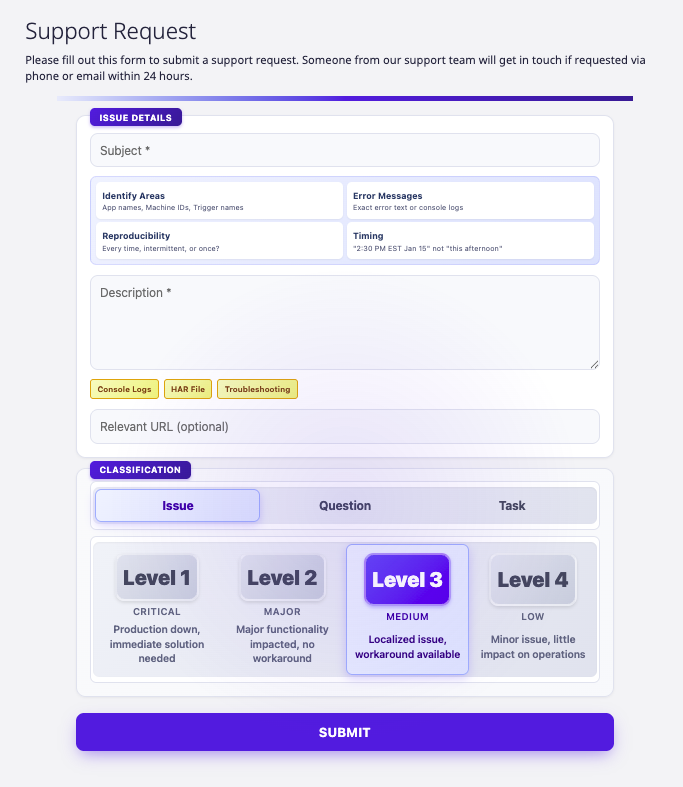
- Complete the form, providing as much detail as possible.
- Ticket Type:
- Issue - Use this type to report unexpected behaviors within the platform (expected bugs, performance issues, etc.)
- Question - Use this type to ask questions you may have around the platform or expected functionality
- Task - Use this type to request standard known scopes of work (i.e. version upgrades, application imports, etc.)
- Severity
- Use severity to report the business impact the ticket has on your operations. Reserve the Critical level for issues that have direct production impact and require immediate attention.
- Ticket Type:
2. Support Request via Help Center (Zendesk)
Tulip's help center offers an alternative to the instance request form by hosting this in a separate location. The help center also allows for users to create new tickets, review their previously submitted tickets, and directly communicate on these tickets.
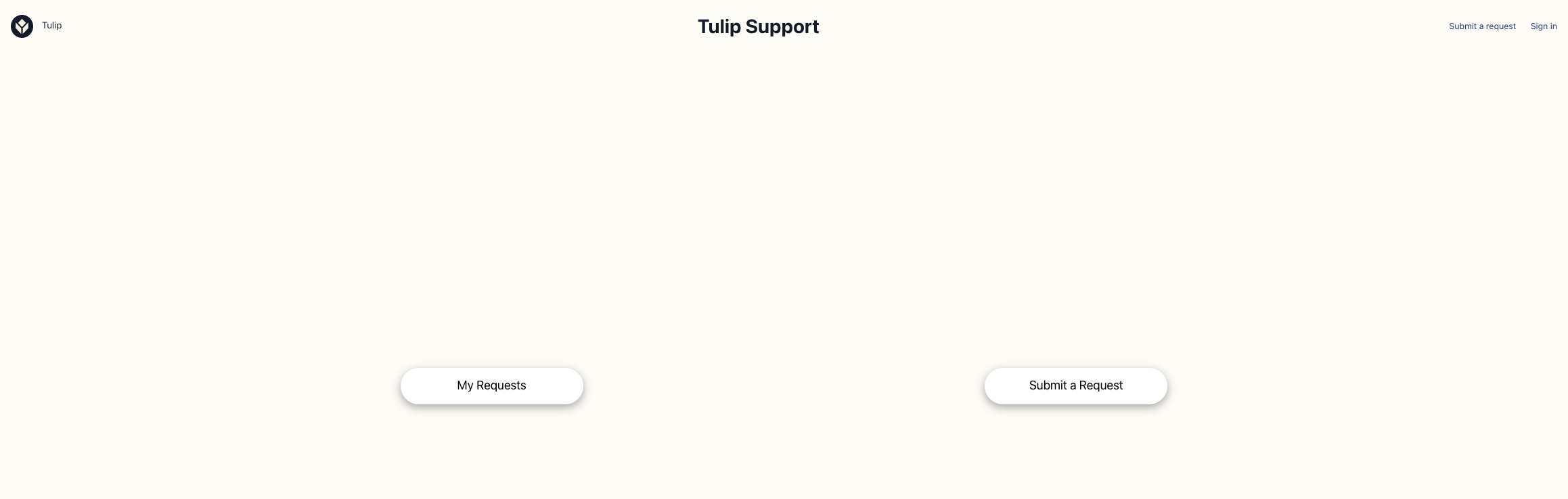
Logging into the Help Center
Tulip's help center currently uses separate login details from Tulip instances. A separate account will need to be created and you can receive a password or sign up directly from the login window:
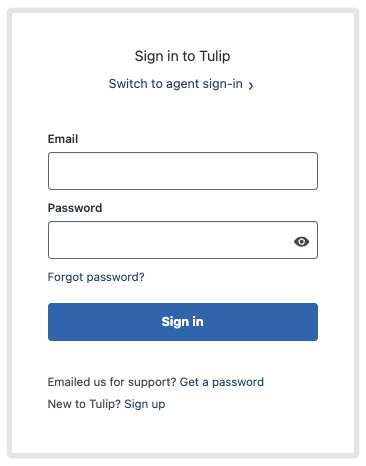
How to Submit a Support Request
To submit a ticket, use the following: Support Request Form
Similar to the instance-hosted form, use Business Impact to report the impact the ticket has on your operations. Reserve the Critical level for issues that have direct production impact and require immediate attention.
3. Support Request via Email
Requests for Tulip Support can be sent to support@tulip.co. Follow best practices to ensure requests are handled in a timely and effective manner.
Did you find what you were looking for?
You can also head to community.tulip.co to post your question or see if others have solved a similar topic!