
In this article, you will learn how to:
- Locate where your connectors or connector functions are used in Tulip.
- Identify which specific apps and automations utilize a connector function.
- Find triggers using connector functions to verify their configuration.
Locate where a connector is being used
If you have recently updated a connector environment, you may want to see where that connector is being used within Tulip.
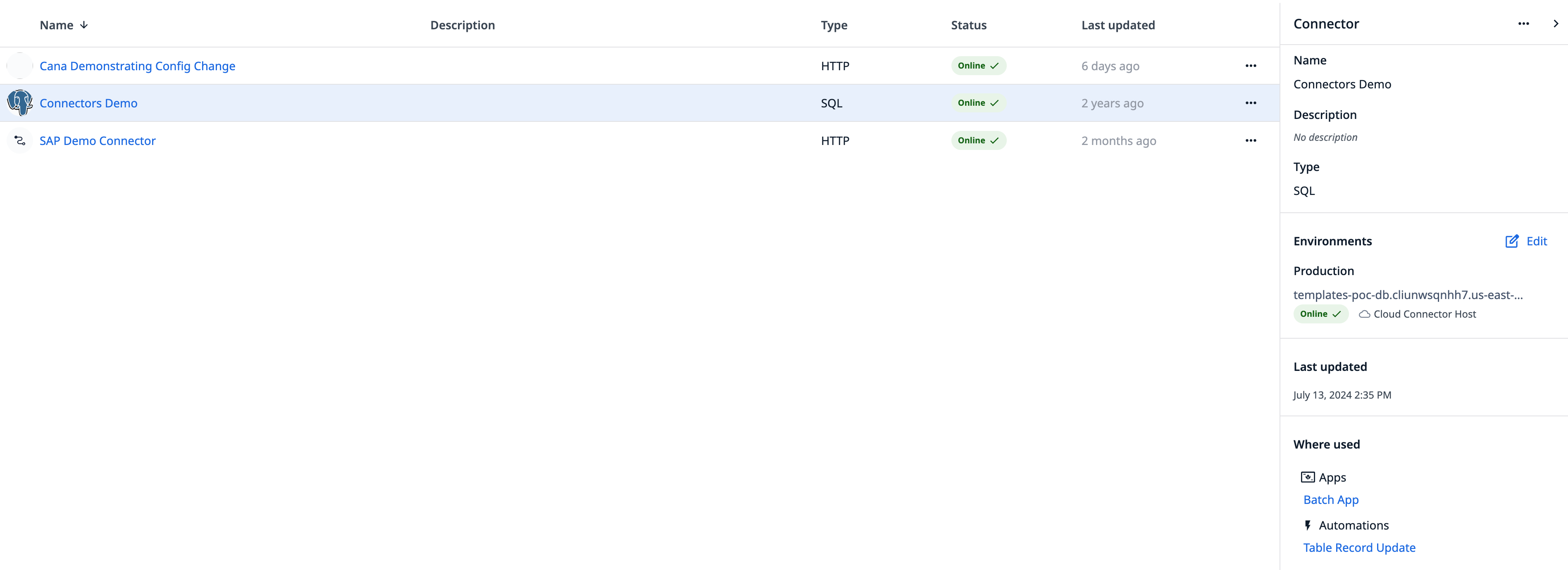
- On the Connectors page, click anywhere on a connector’s row (except for the name) to open the side panel.
- Scroll down to view all development apps and automations currently using that connector.
Locate where a connector function is being used
- Select a connector from the Connectors page.
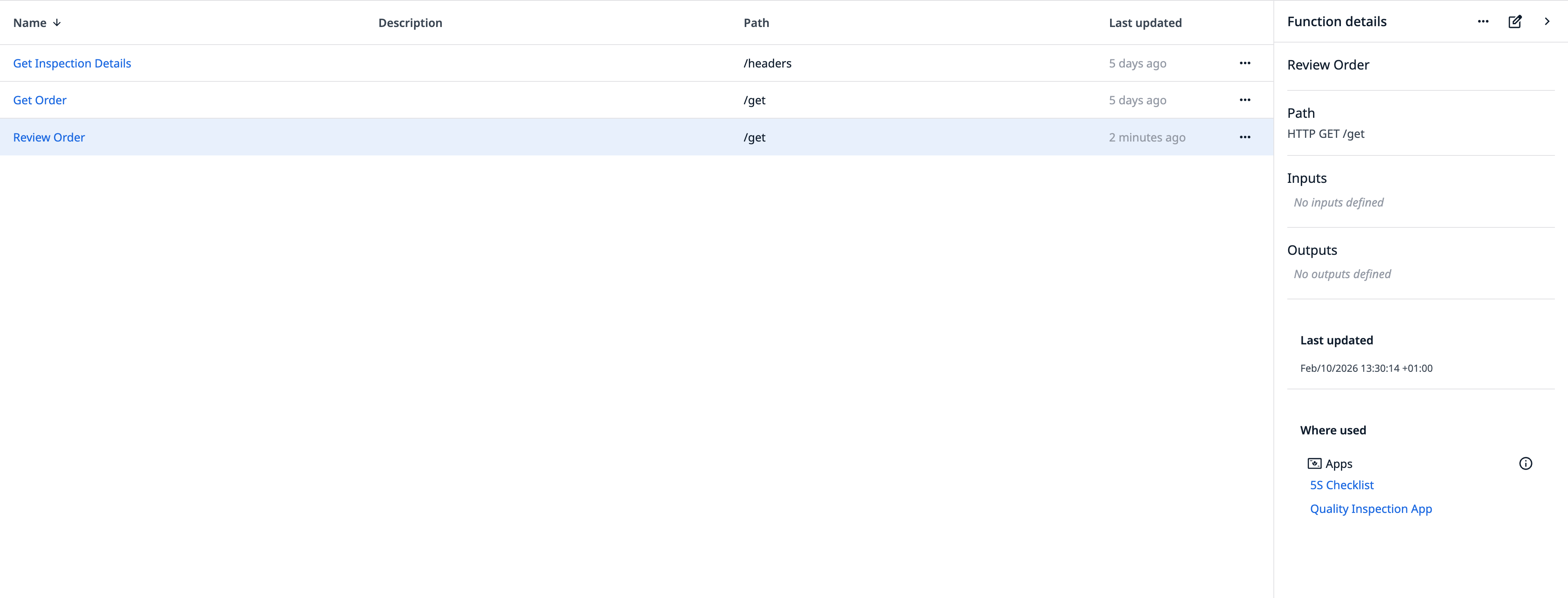
- Click anywhere on a connector function’s row (except for the name) to open the side panel.
- Scroll down to see all development apps and automations that utilize that specific function.
Locate which trigger is using a connector function
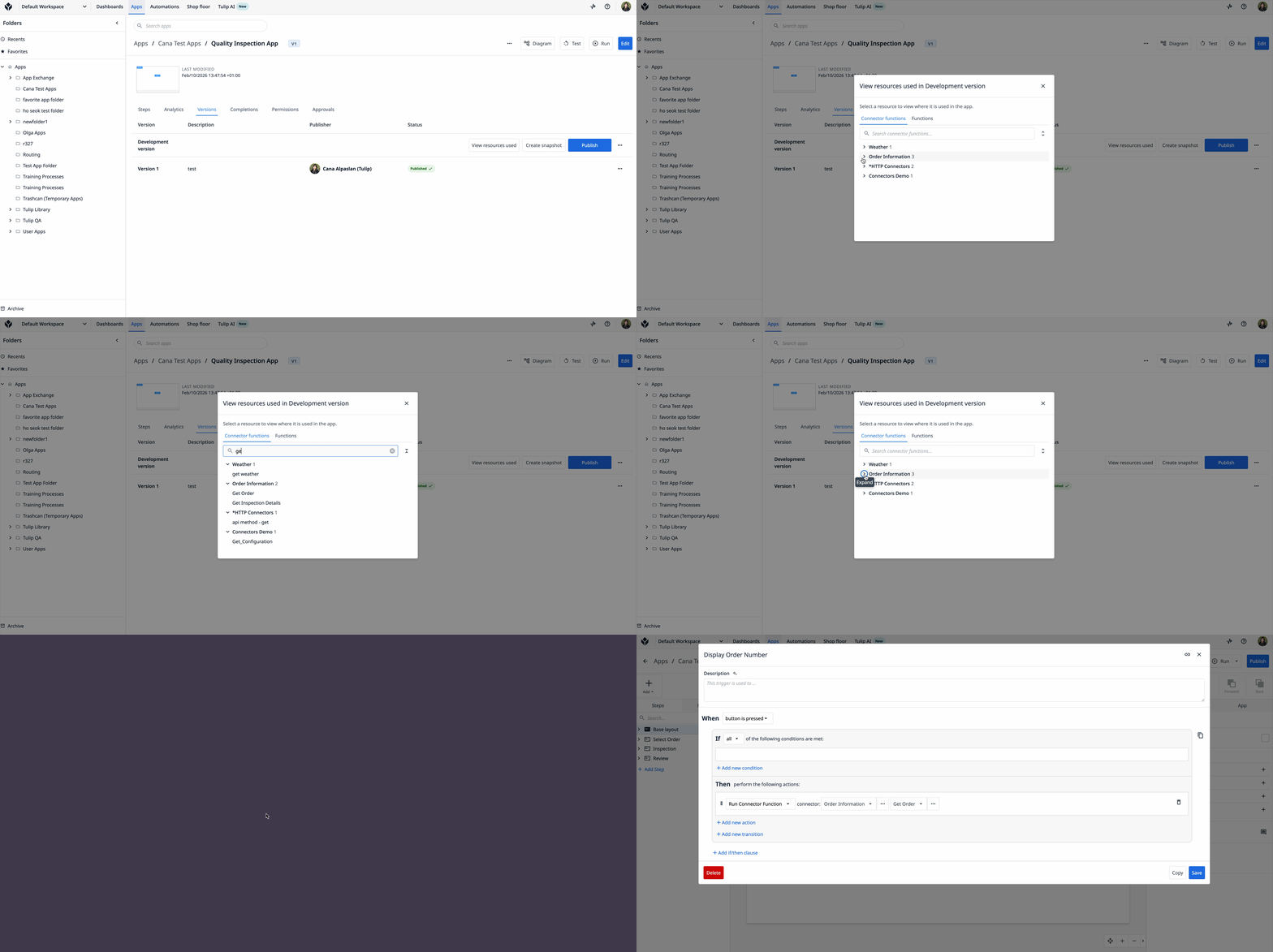
- On the Apps page, click on an app list to navigate to the Resource Modal for that app. In this view, you can see which connectors are used in the development version of that app.
You can also access the Resource Modal by clicking View Resources Used in the Versions tab of the App Overview page.
-
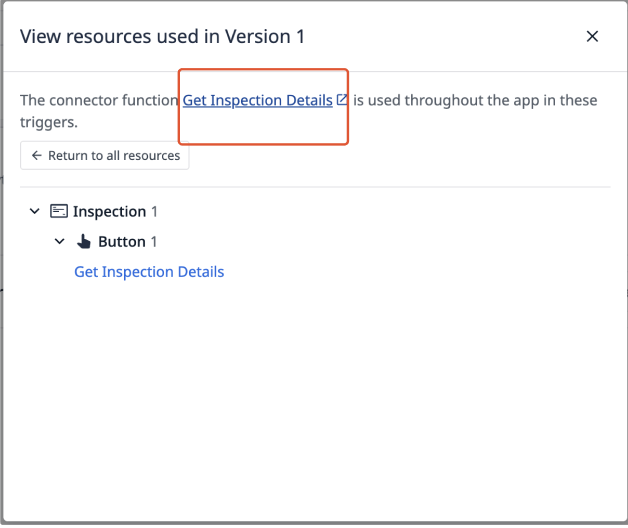
When you click on a connector function's name, you will view the list of triggers in that app that use the connector function.
-
Click on a trigger name to navigate to that trigger in a new tab.
Locate which trigger is using a connector function in an older App Version
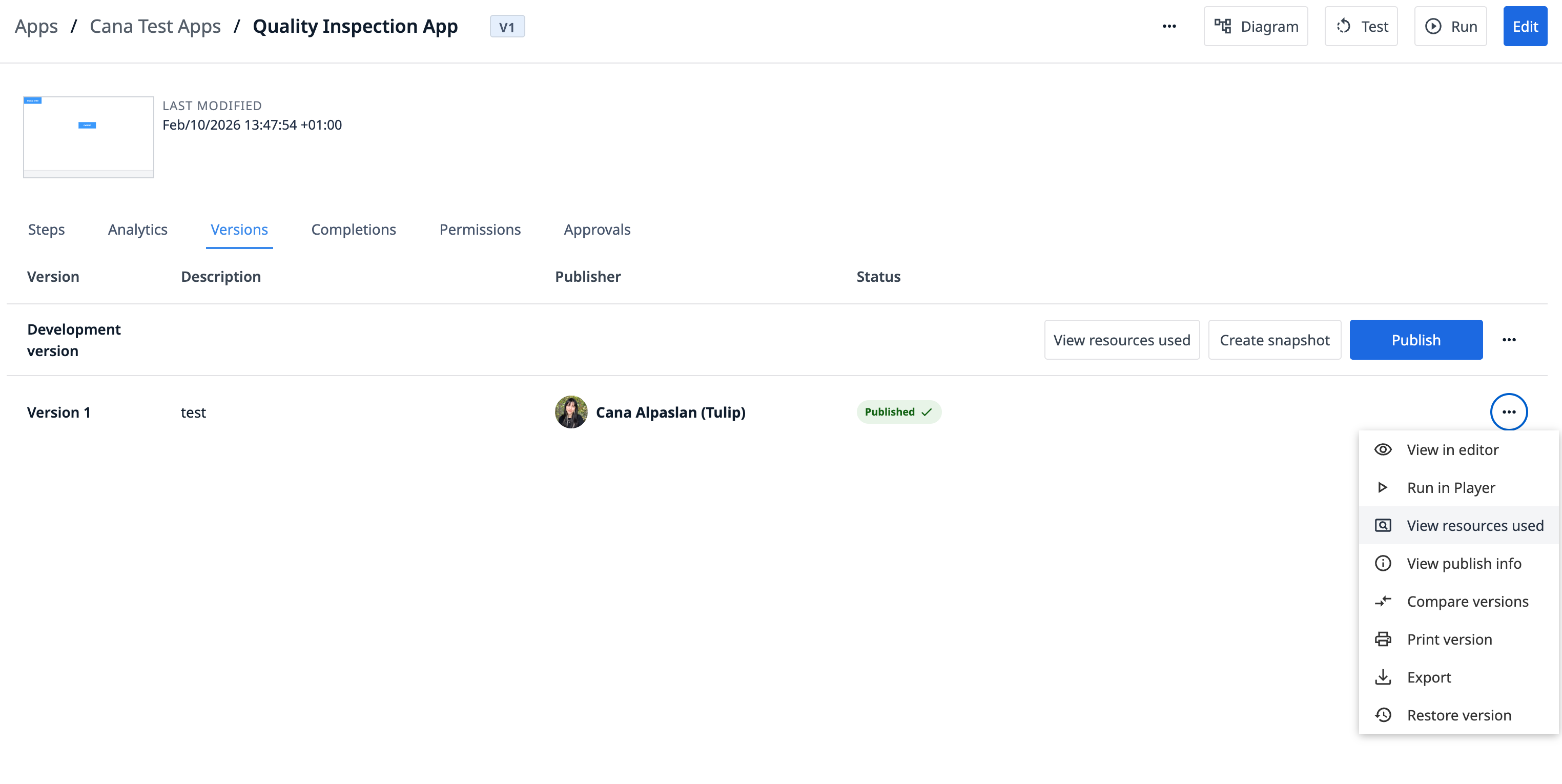
- To see the breakdown of connector functions used in a different version of an app, navigate to the Versions tab on the App Overview page.
- Click the three-dot-menu for an app version and then click "View resources used."
Locate Snapshots in an older App Version
- To see the breakdown of connector functions used in a different version of an app, navigate to the Versions tab on the App Overview page.
- Click the three-dot-menu for an app version and then click "View resources used."
- Click on the name of the connector function in the modal.
Locate Where your Snapshots are Used
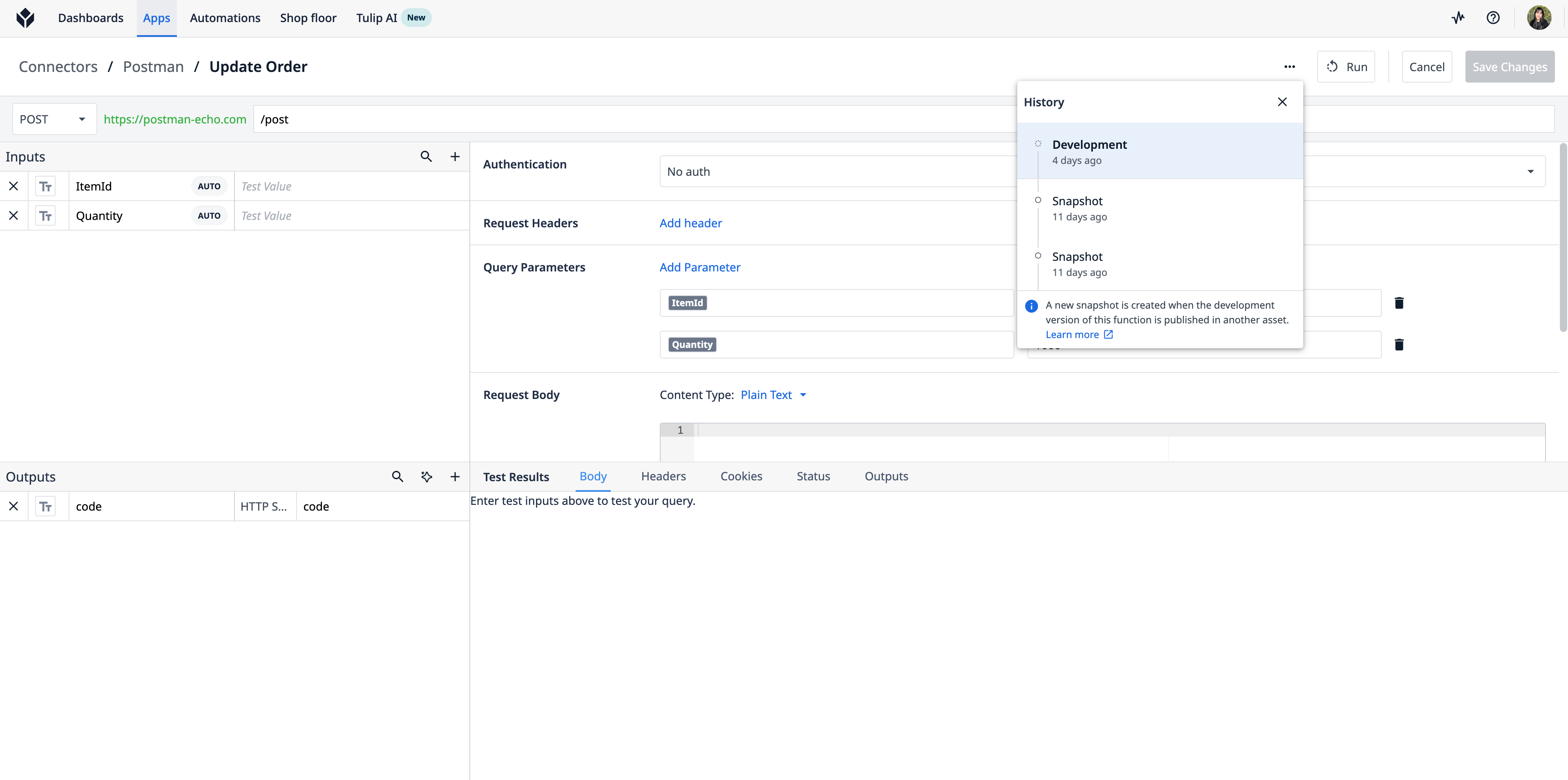
- To see where your old snapshot configurations are used in iterate over to the connector function.
- Under "View History" click on a snapshot configuration.
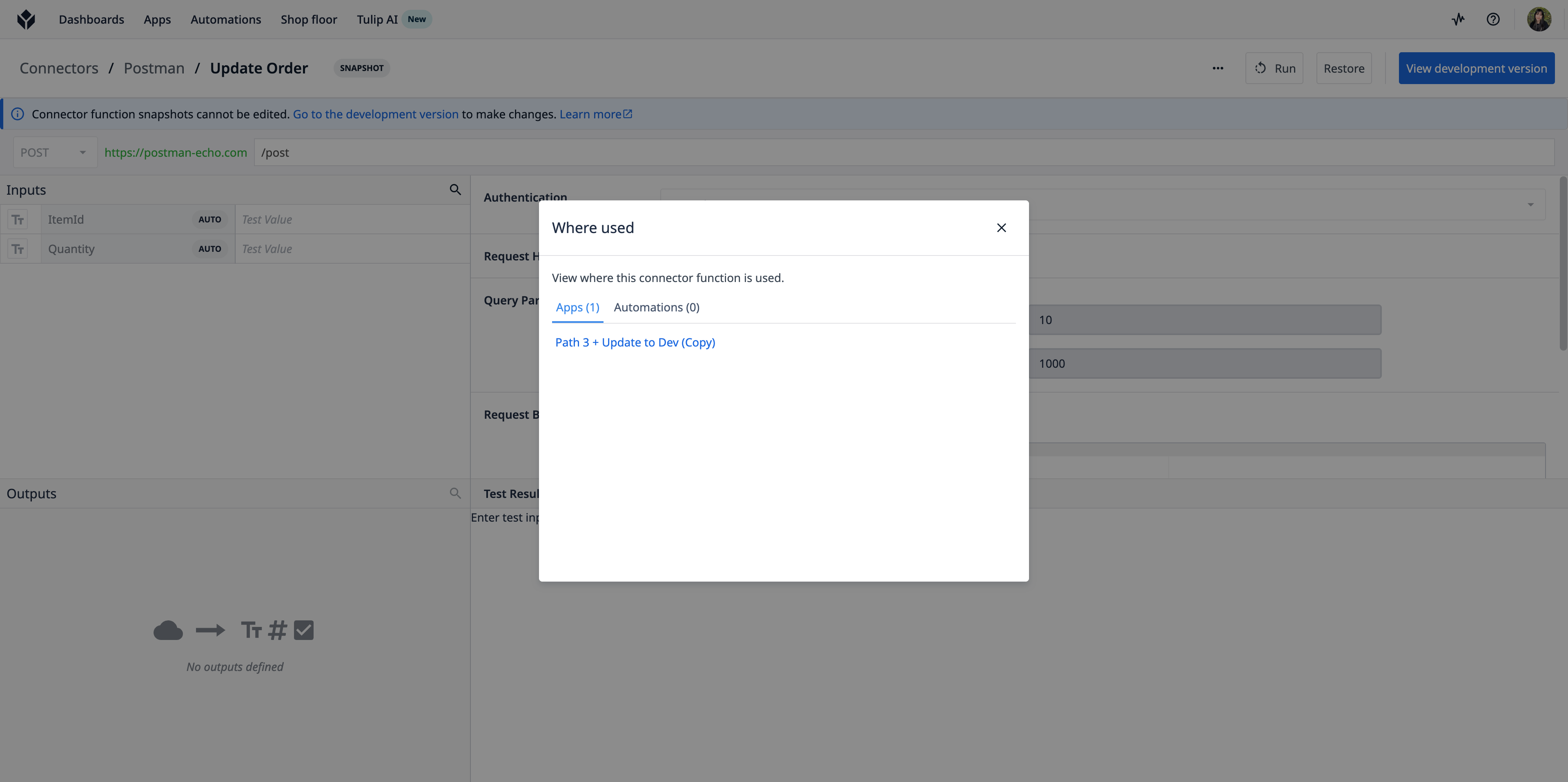
- Click "Where Used".
Further reading
Did you find what you were looking for?
You can also head to community.tulip.co to post your question or see if others have solved a similar topic!