


AI agents are in open beta. Agents are available as of r350 and on LTS 16. They are not available on earlier LTS versions, or to GovCloud or China-based customers.
What is an agent?
An AI Agent is a configurable component in Tulip that can make decisions and take action. Think of it as a highly-trained digital team member to whom you can assign complex, non-deterministic tasks.
An agent should be centered around achieving a goal or solving a problem.
Examples
-
Goal: Reduce quality costs
Agent solution: Minimize rework and scrap costs with a Defect disposition agent. This agent could check historical data, and then send defected items to rework or scrap. -
Goal: Reduce risk
Agent solution: Minimize nonconformances with an Operator performance agent. This agent could identify anomalies based on data, and then suggest trainings to a supervisor.
Agent solution: Streamline root cause analysis with a Machine audit agent. This agent could fetch data from machines and connectors to then identify root cause and generate a traceability report. -
Goal: Limit downtime
Agent solution: Minimize downtime and scrap costs with an Andon triage agent. This agent could check historical data, such as order context, and then guide users on the best next action.
Build an agent
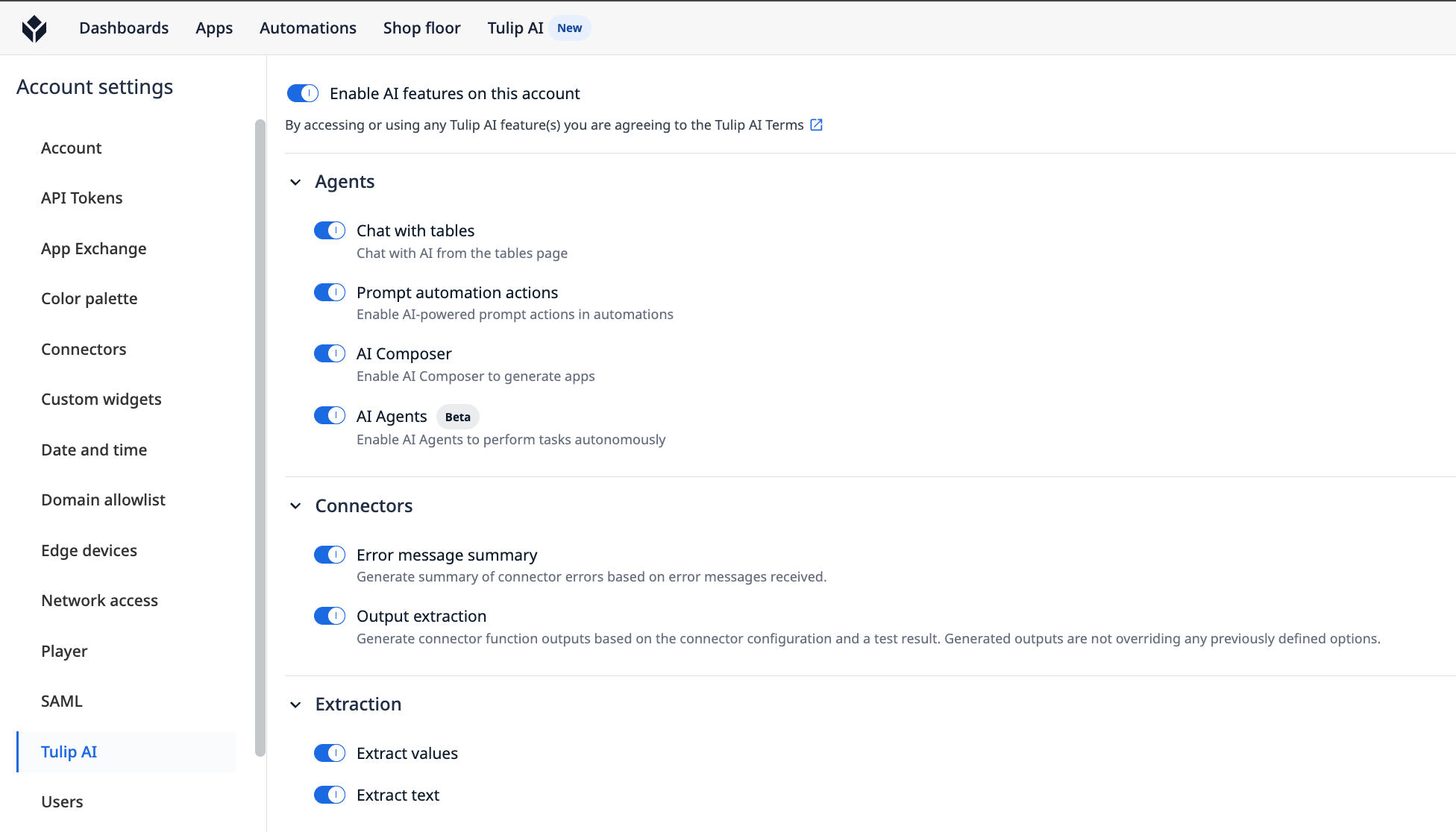
To build your first agent, click the Tulip AI tab and select Agents.
If you do not see the Tulip AI tab, contact your Account Owner to enable the agents feature in Account Settings.
Agent editor
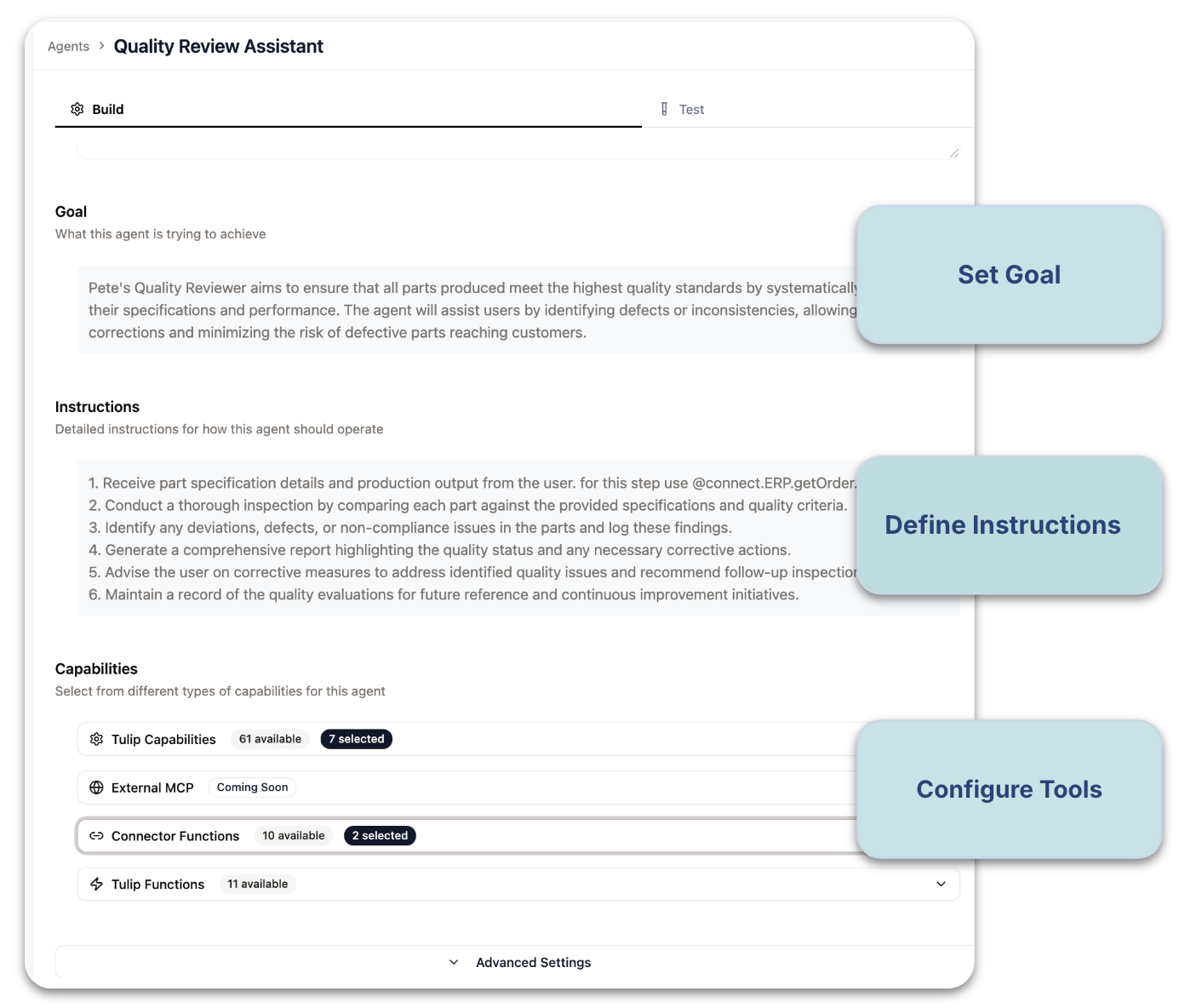
The agent editor is a no-code interface where you configure the agent’s Goal, Instructions, and Tools.
There are three core components you need to configure in the agent editor:
-
Goal: The specific, measurable objective you want the agent to achieve (e.g., "Review this app for quality issues" or "Find the root cause of this machine failure").
-
Instructions: The steps the agent must follow, including any guidance, constraints, and expert logic (e.g., "First, check the machine log. Then, cross-reference with the Tulip MES data. Finally, use the SAP connector to check vendor data.").
-
Tools: The capabilities the agent uses to achieve its goals. This is where the governance happens. You can give it explicit access to read/write Tulip Tables, call specific Connector Functions (to SAP, QMS, etc.), or run other platform logic.
Model
Each agent is configured with a model that determines how it reasons and responds.
Tulip-managed model aliases are dynamic references that automatically resolve to the best available model at any given time. This means the underlying model will be updated as needed by Tulip without requiring any changes to your agent configuration.
The current model in use is visible in the chat window, so you know which one is running.
Compatibility
The table below shows the current list of platform features that agents can interact with. Additional features will be added as Tulip builds solution-safe compatibility.
| Feature | Read | Write |
|---|---|---|
| Analytics | yes | yes |
| Apps | yes | no |
| Automations | no | no |
| Functions | no | no |
| Import/Export | no | no |
| Stations/ interfaces | yes | yes |
| Tables | yes* Agents cannot read files or images |
yes |
| Users/ user groups/ user roles | yes | yes |
| Variables | no | no |
Supported files
The chat interface supports file uploads, which the agent can then read.
Supported file types are:
- csv
- txt
- png
- jpeg
File upload limit
Uploaded files cannot exceed 5mb.
Pre-built agents
Get started with agents without having to build one from scratch.
Default agents
All instances with agents enabled have a set of default agents, which are pre-built agents you can use immediately. These agents appear on the Chat page.
Default agents are immutable to ensure any updates from Tulip don’t impact your operational configuration. To edit a default agent, copy the agent and then configure it using the Agent Editor.
The primary default agent is called “Tulip AI,” which you can use to answer general questions about Tulip and your instance.
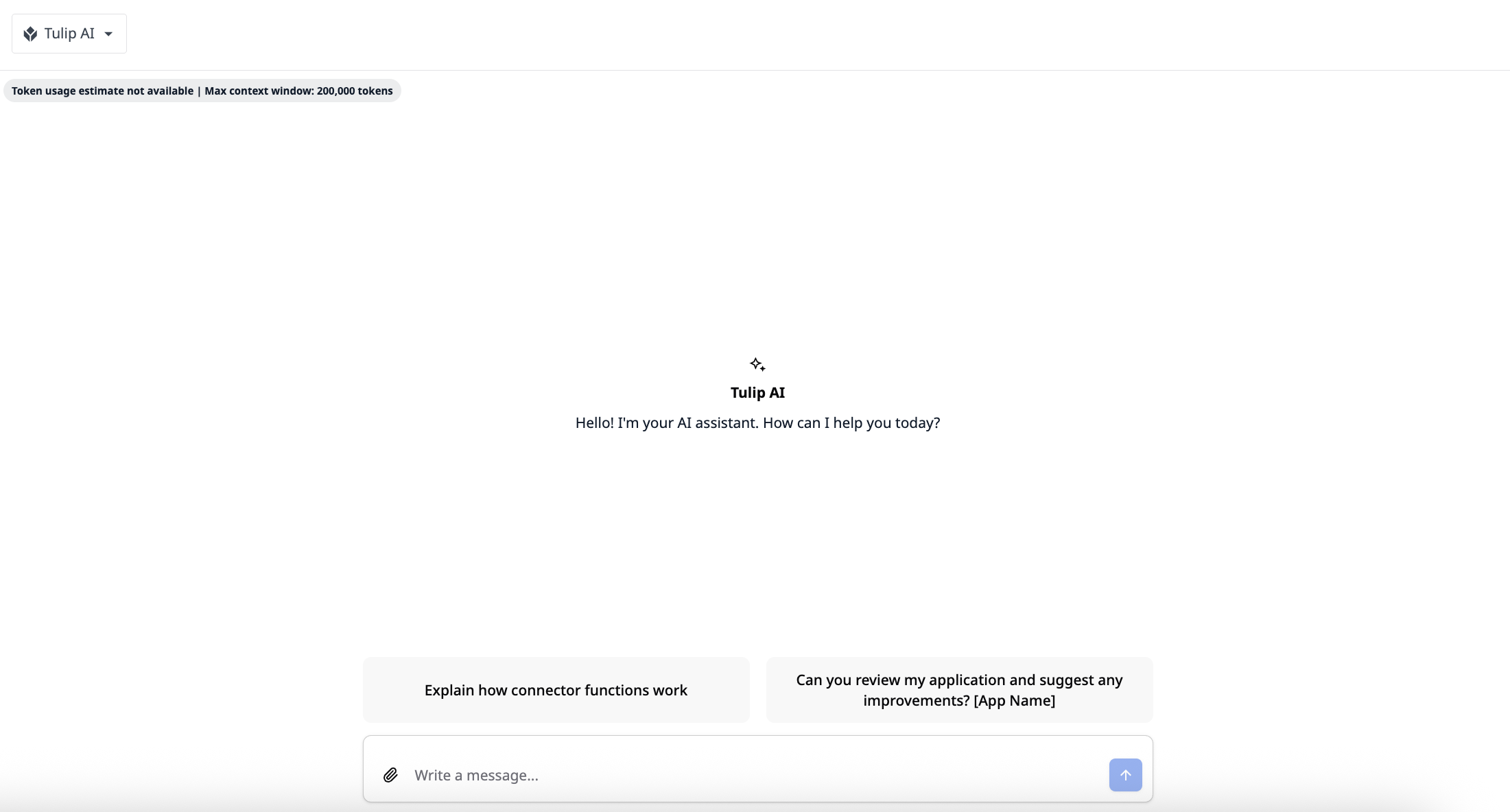
Tulip recommends getting started with the Agent Building Assistant, an agent that can define the goal and instructions of any agents.
Tulip agent library
Tulip also provides a library of best-in-class, pre-built agents for common operational use cases. These can be downloaded from the Tulip Library to your instance and are configurable to suit your specific operational needs.
A few of Tulip’s library agents include:
- Solution design expert
- Shift summary reporter
- Production dispatcher
- Test data generator
Explore Tulip’s agent library here.
Instance management
Agents are scoped to a single workspace. They cannot access data or apps in other workspaces.
As a workaround, you can migrate data and have an agent in Workspace A generate a CSV. Then, in Workspace B, have an agent read that CSV to create the new assets. Alternatively, you could use connectors to allow agents to fetch data from multiple workspaces.
Access and permissions
User roles
Default user roles will have the following settings:
| Role | Agent editor | Full page agent chat |
|---|---|---|
| Account Owner, Workspace owner, Administrator | Full access | Full access |
| Administrator, Application approver, Application builder, Application engineer, Connector supervisor, Station Operator, Station supervisor, Tulip table supervisor, Viewer, Viewer (with player), Workspace Owner | No access | Use chat |
| Operator | No access | No access |
Agents are also supported by custom user roles, where users can be granted one of the following access levels:
Full access - Can create, edit, archive, chat with, and view AI agents
View editor and chat - Can view AI agents in the editor and can chat with them
View editor only - Can view AI agents in the editor but cannot view chat
Use chat - Can chat with AI agents but cannot use the editor
Cannot view - Cannot access AI agents
Agent permissions
Two aspects determine an agent’s permissions:
- Tools - The tools you configure for the agent (e.g. “Read tables”, “Create stations”)
- User permissions - The existing permissions of the user who is invoking the agent
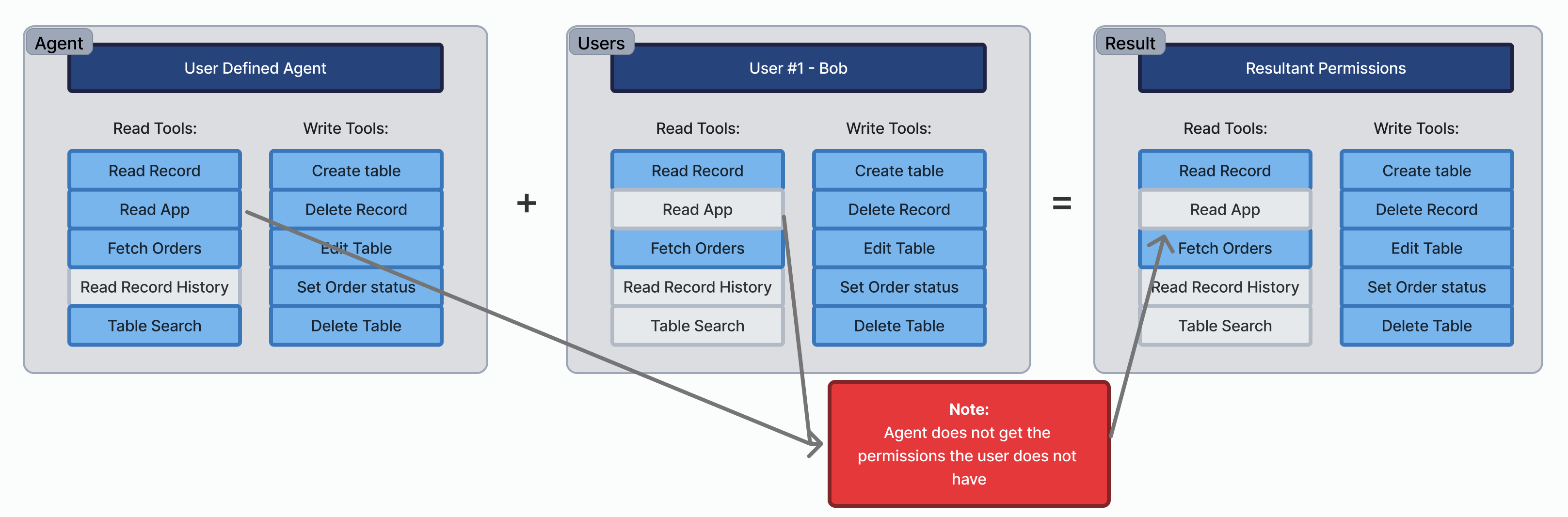
Note that an agent can never be used to elevate a user's permissions. A user cannot make an agent perform an action that the user doesn't already have permission to do.
Agent activity data
You can keep track of what an agent did, like an audit trail
Master Data: The instance’s Activity Feed tracks actions on assets (e.g., creating a station) and the user who ran the agent.
Transactional Data: Changes to Table Records include the user ID, Agent ID, and Conversation ID in the record history for full traceability.
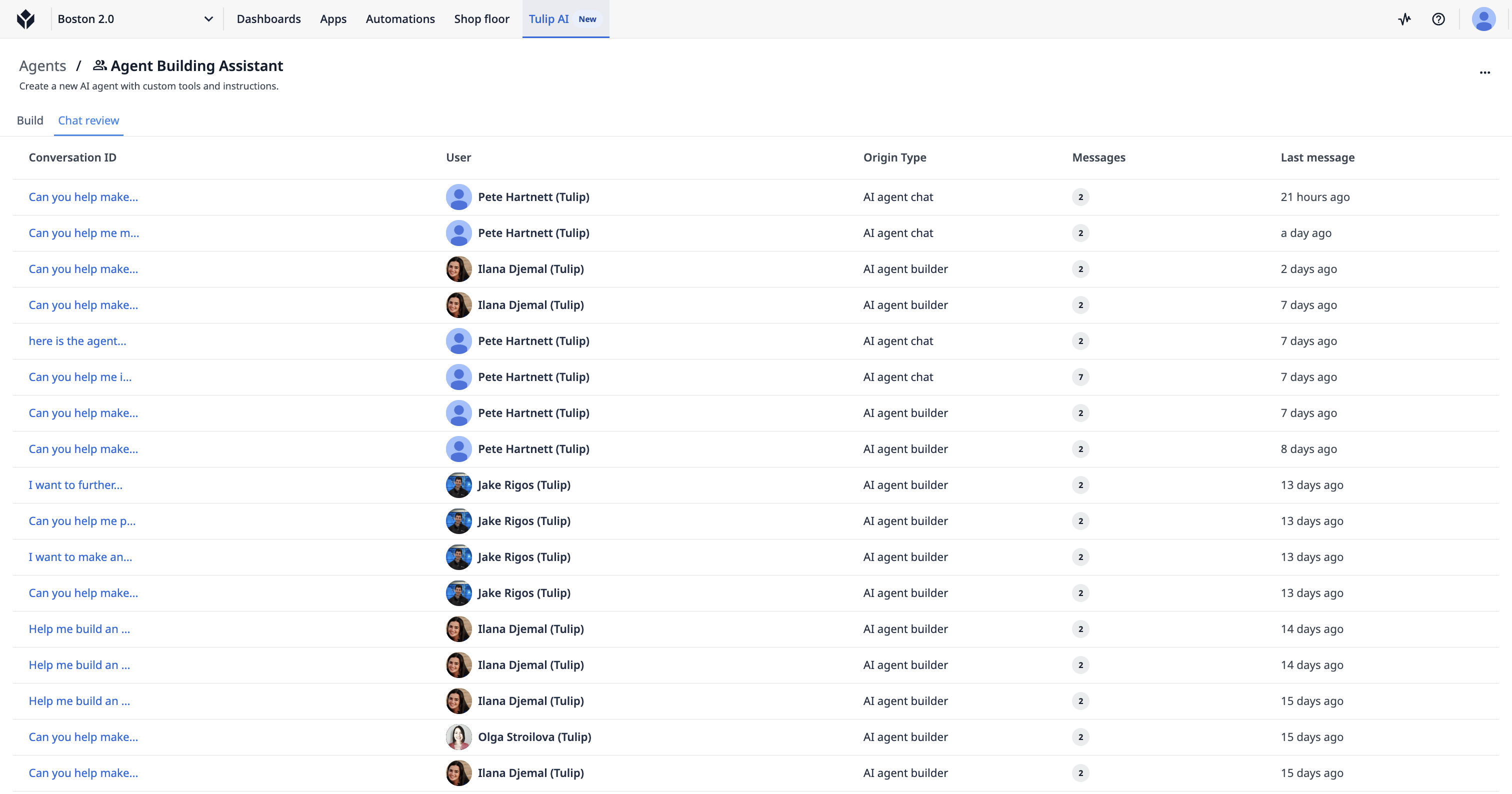
Additionally, within the agent editor, users can see every chat conversation with an agent to review the context of an agent action and users’ interactions with each agent.
Use external data
Agents can connect to external systems (e.g., SAP, ERP/MES, Postgres). An agent can use your existing connector functions with its tools, so that the agent can read data from any connected external system.
Agents can read external documents (e.g., SOPs) through connectors. If your documents are in an internal server, you can build a connector function to query that system. The agent will use that connector to “look up” information from your SOPs.
Connector error handling in agents
If a connector fails, the agent will receive the failure status from the connector. The agent is capable of understanding the failure and will often retry the action or try a different method.
Tulip MCP and agents
Agents in Tulip and the Tulip MCP are complementary. The Tulip MCP is similar to the Tulip API because it allows you to connect other systems to Tulip and its data.
For example, you can use the Tulip MCP to connect your Tulip instance to your company’s own AI chat tool.
Security and data privacy
Tulip uses external, "off-the-shelf" large language models from trusted partners (e.g., OpenAI, Anthropic). All data handling is strictly governed by our Master Service Agreement (MSA) and Terms of Service (TOS). We have strong data privacy agreements with these providers, and they do not retain customer data or use it for training their models.
Data is kept secure via a secure API. The models process the data to generate a response and do not store it. The security is the same as for other parts of our platform.
Learn more about Tulip’s AI security and governance practices AI security and governance.
Did you find what you were looking for?
You can also head to community.tulip.co to post your question or see if others have solved a similar topic!