Slideshow
Video
Step by Step Guide
Work Order Table Creation
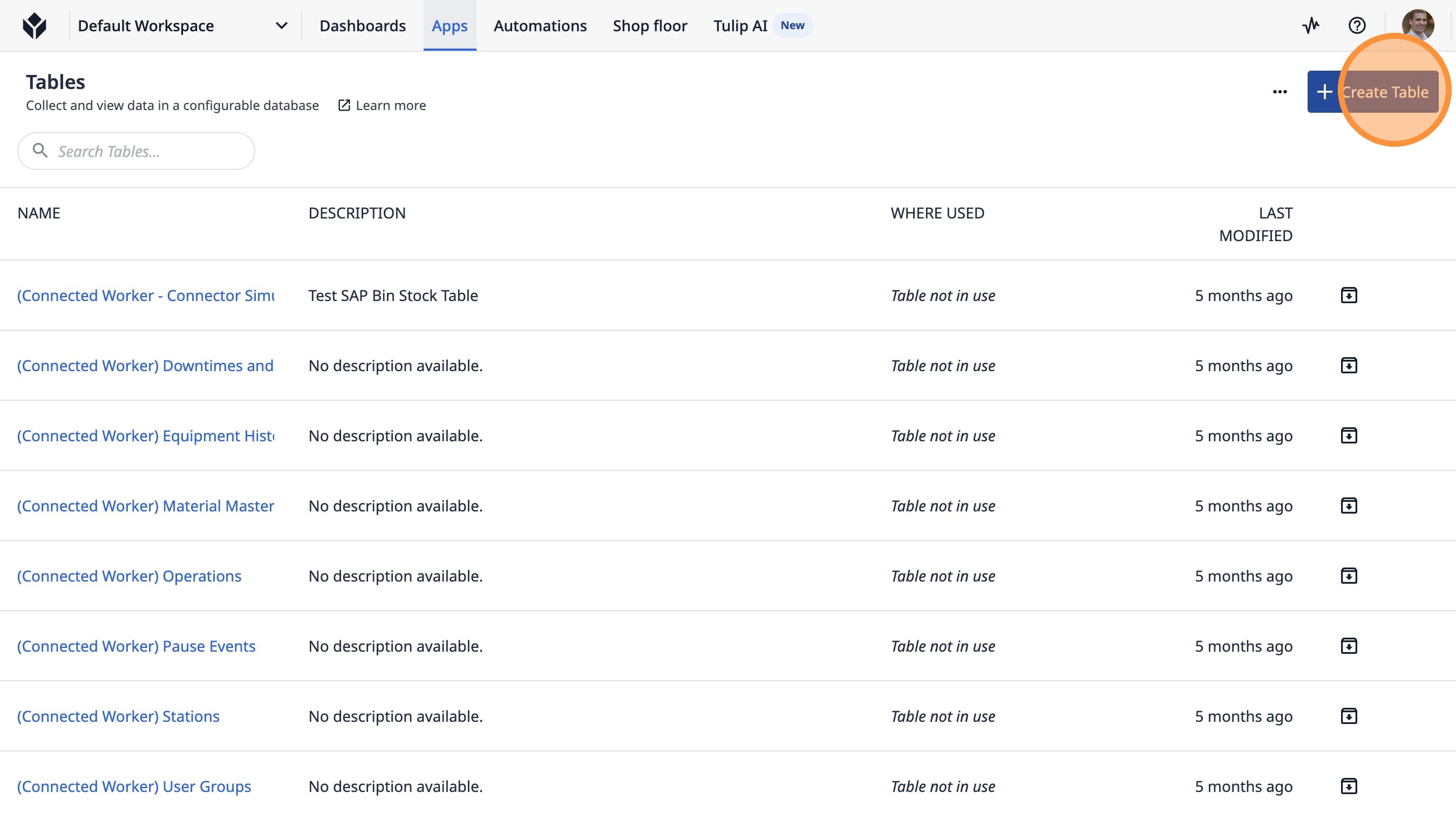
1. Click "Create Table"
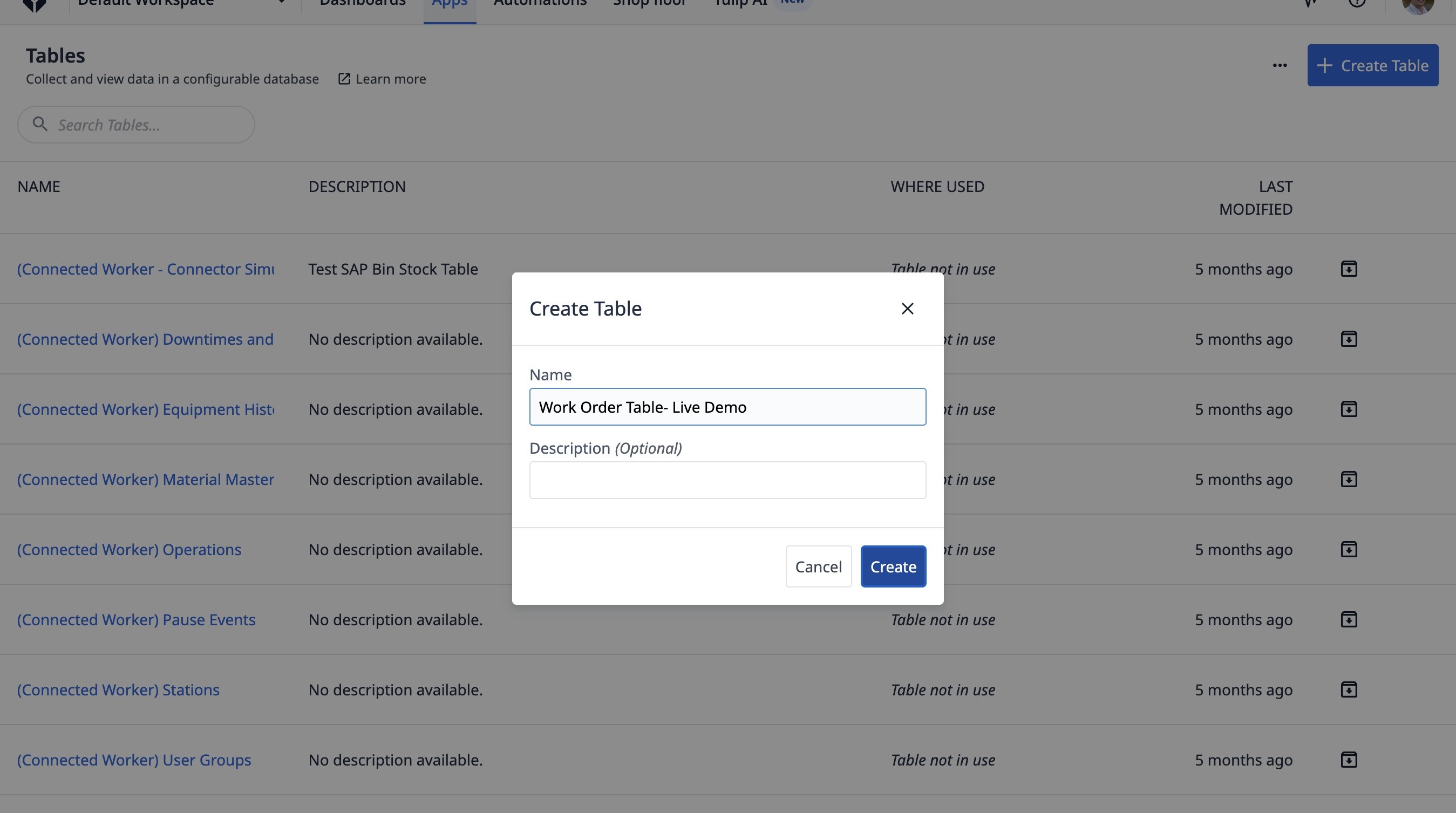
2. Type "Work Order Table- Live Demo"
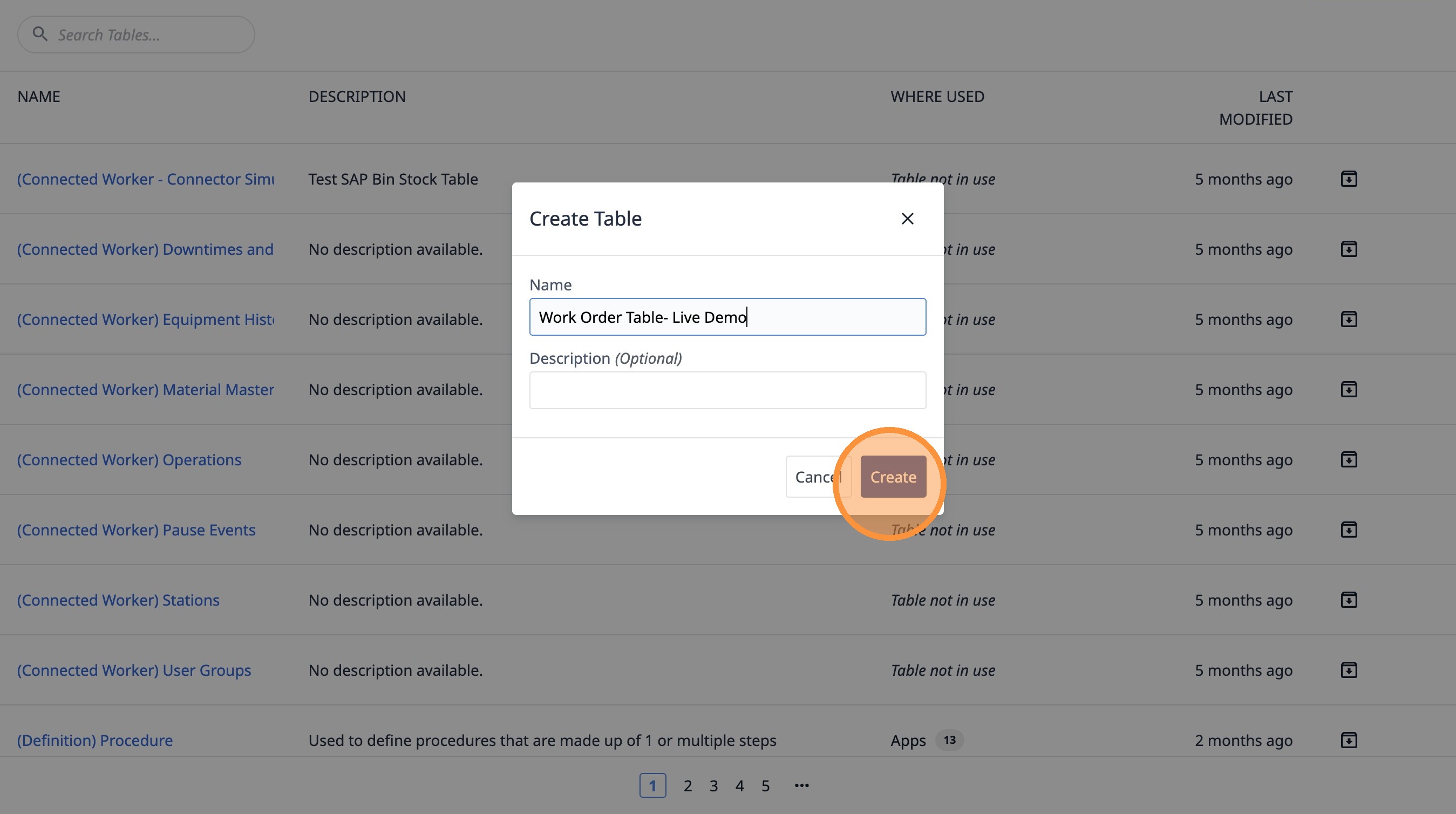
3. Click "Create"
4. Click this button.
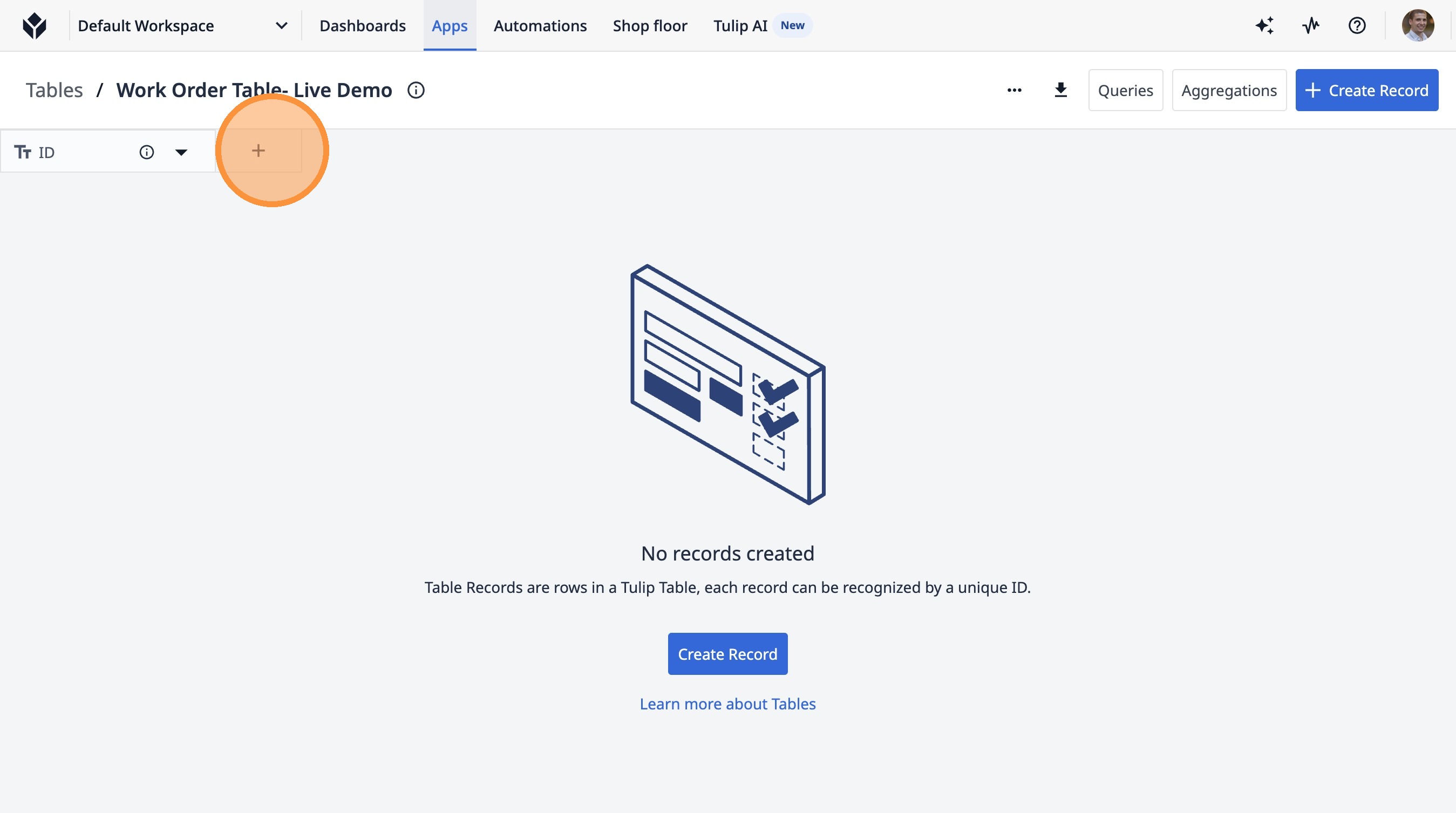
5. Click this text field.
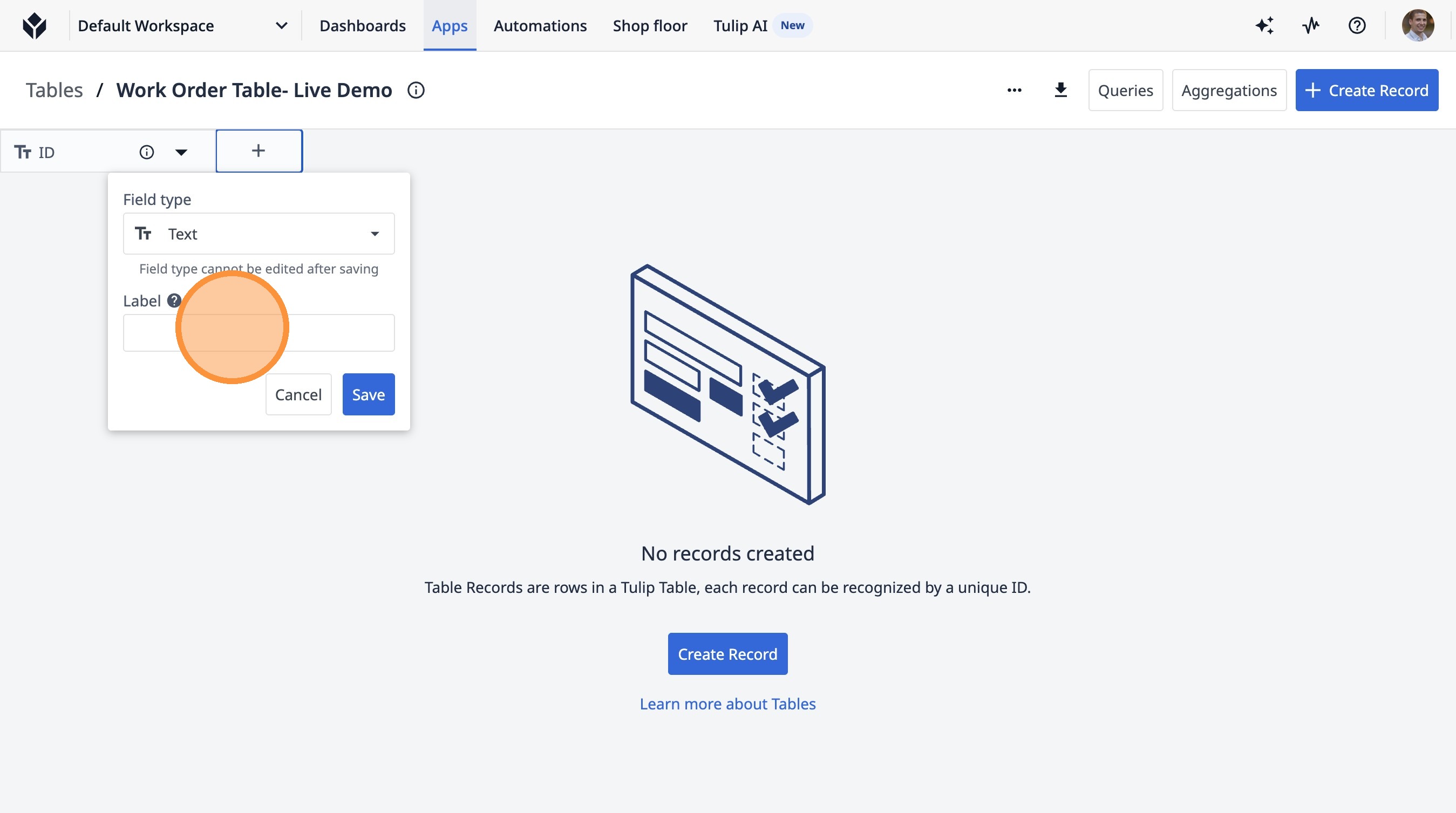
6. Type "Customer"
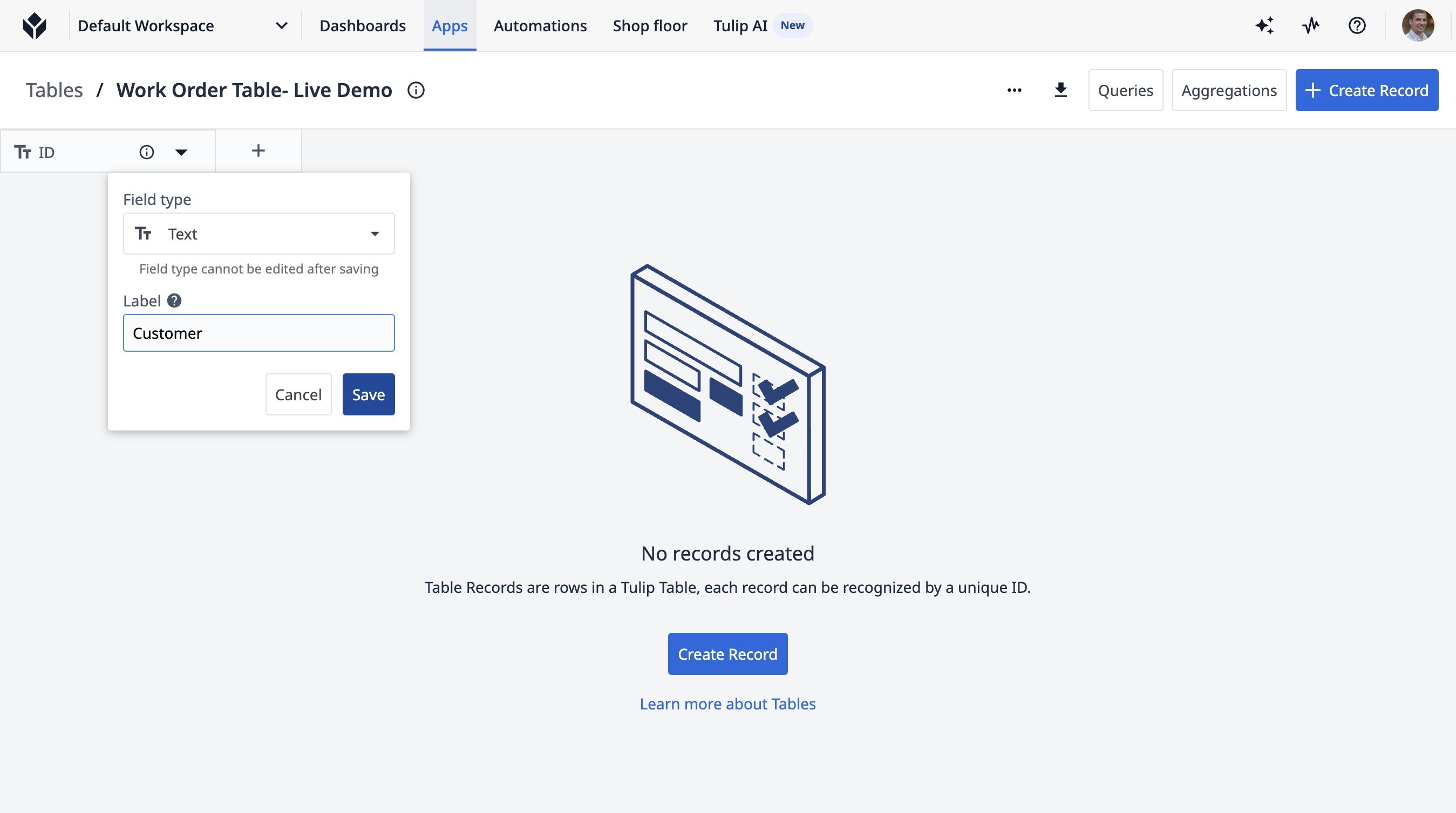
7. Click "Save"
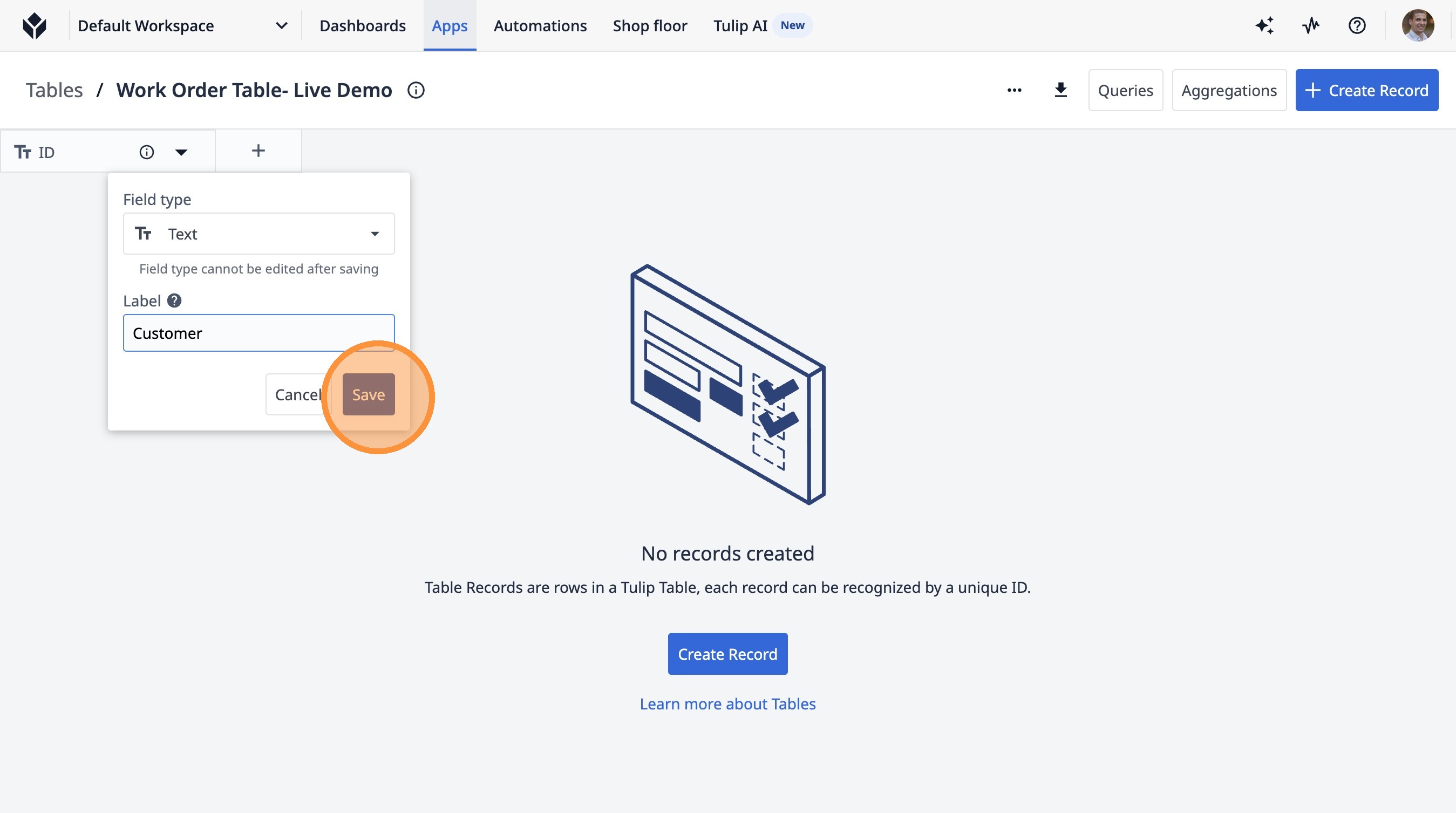
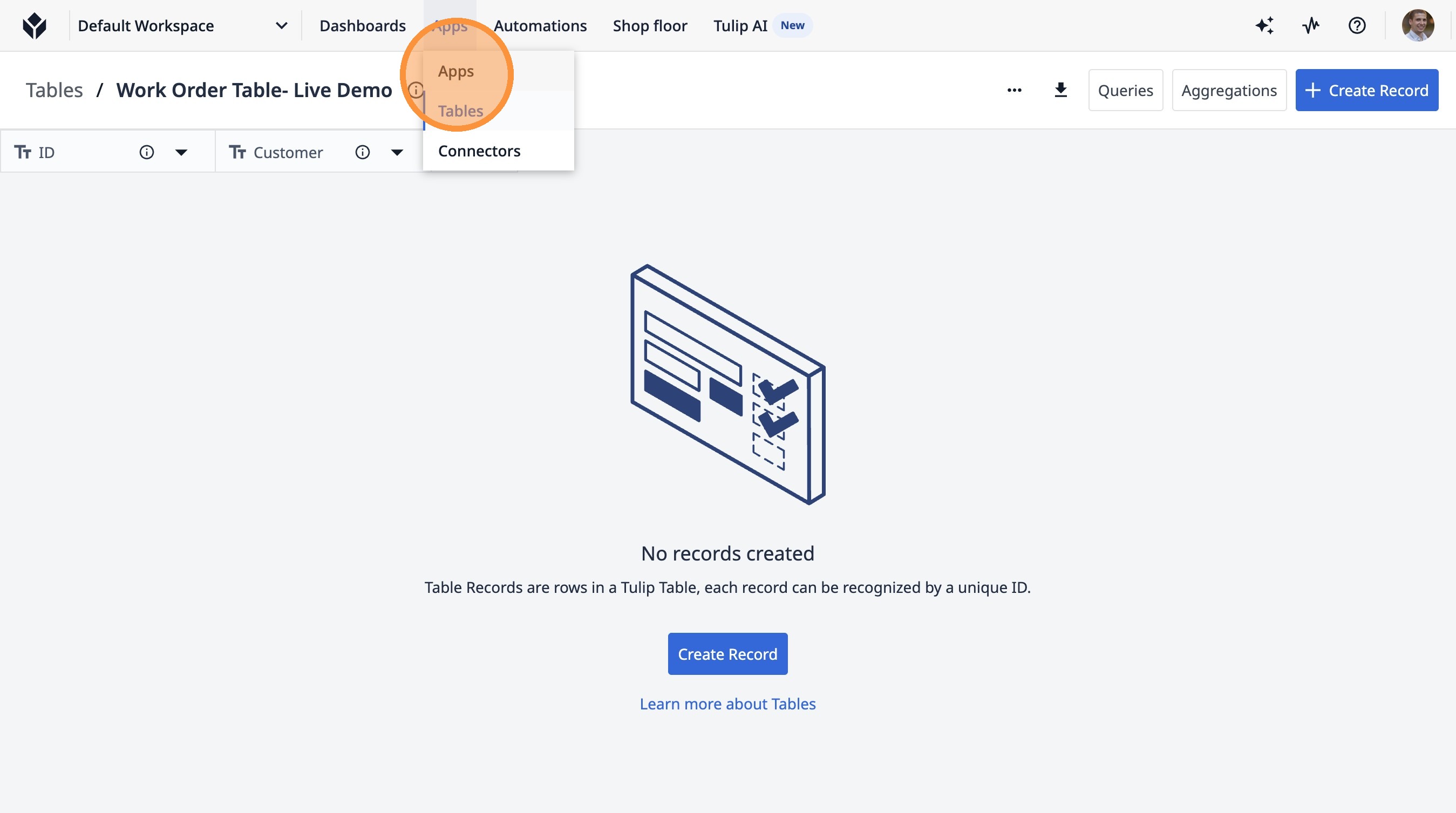
8. Click "Apps"
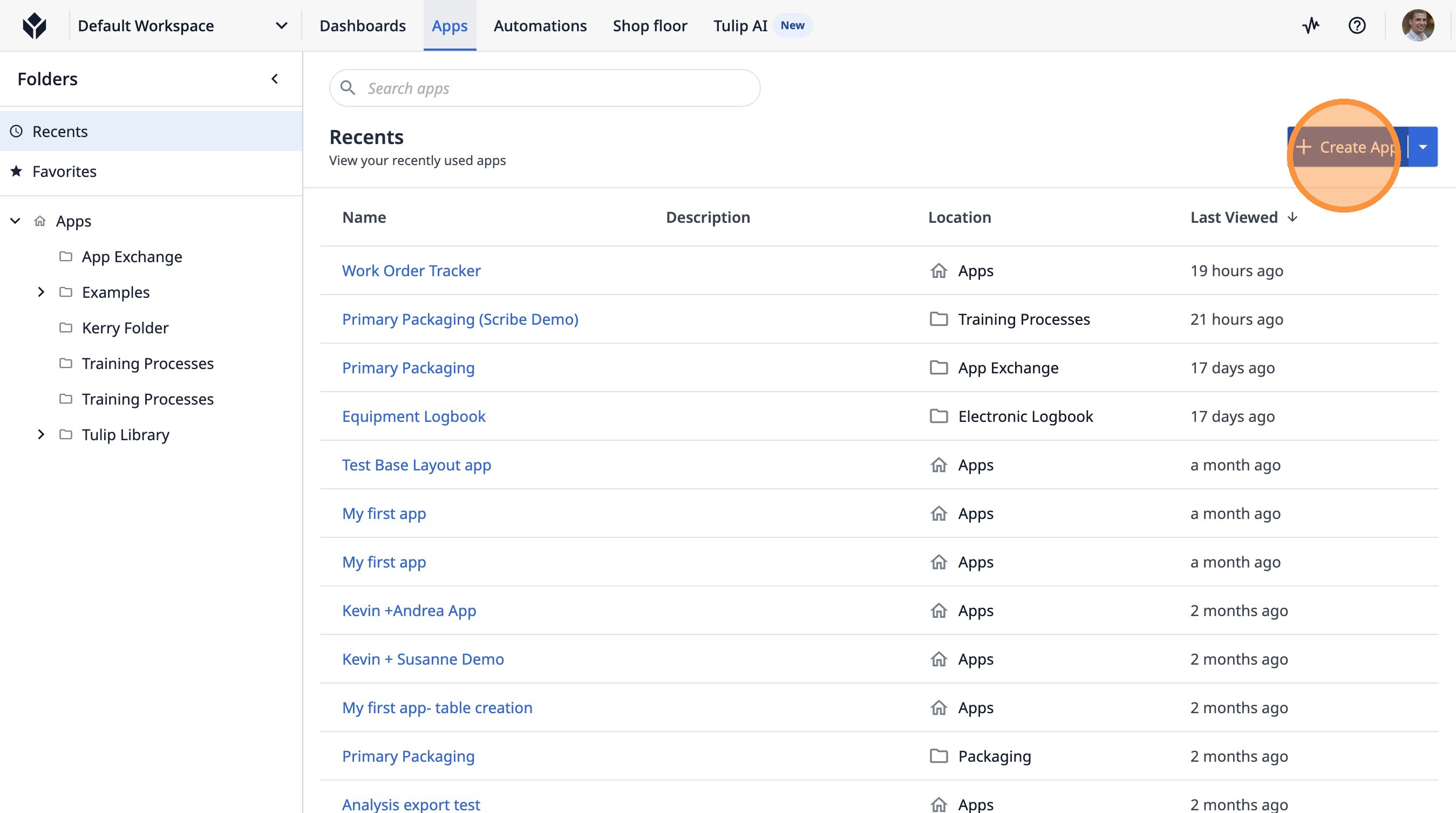
9. Click "Create App"
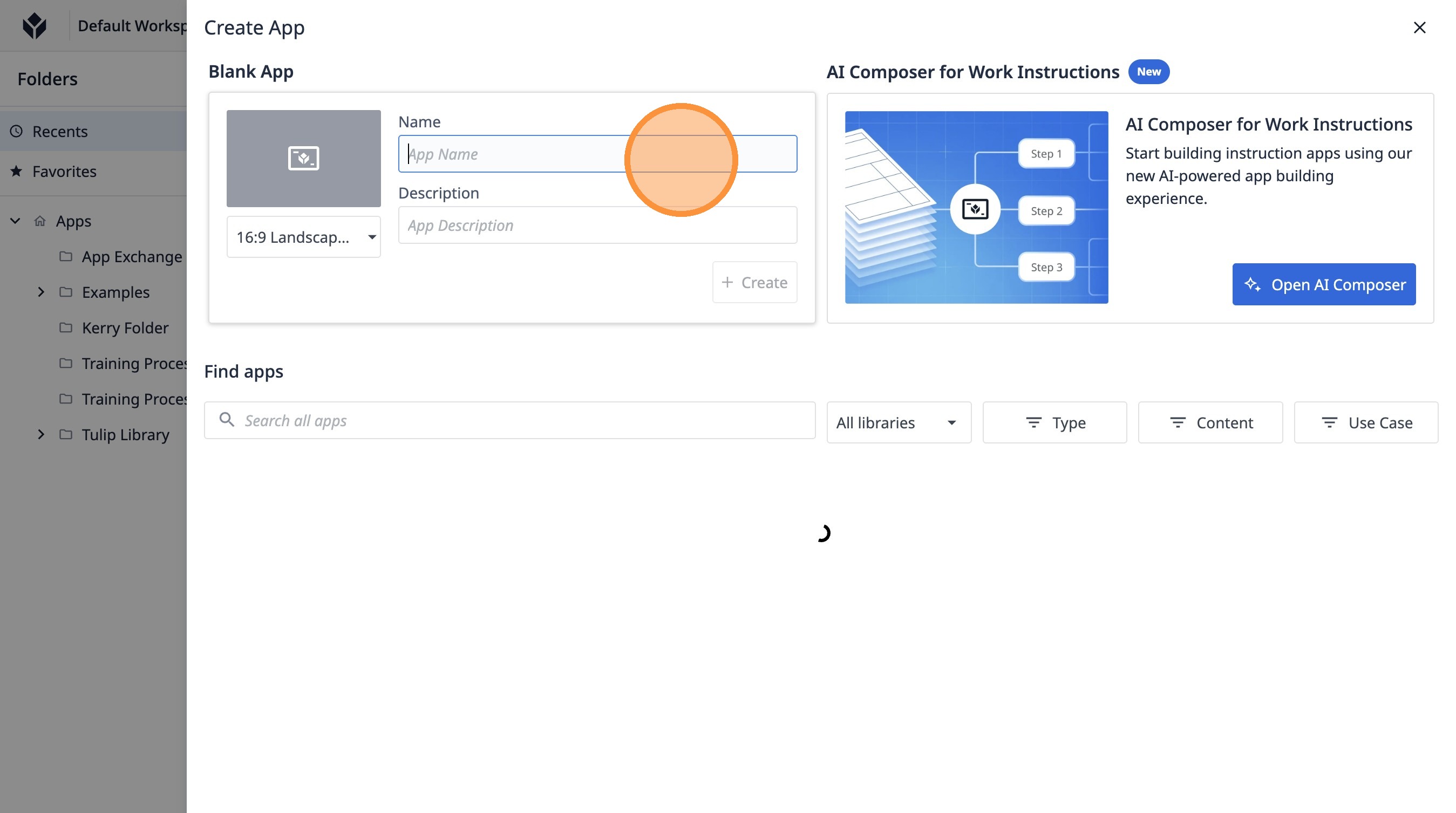
10. Click the "App Name" field.
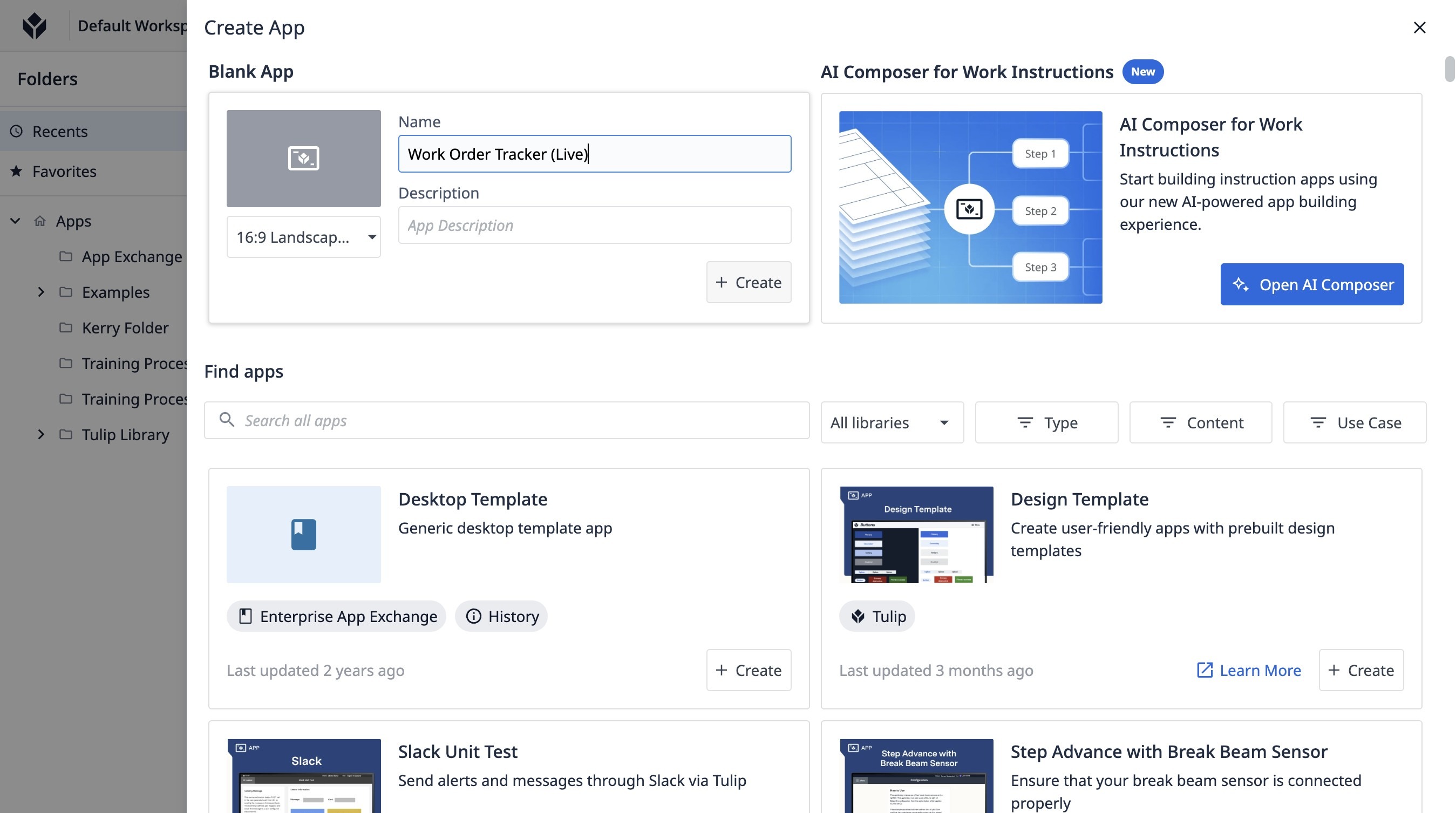
11. Type "Work Order Tracker (Live)"
12. Click "Create"
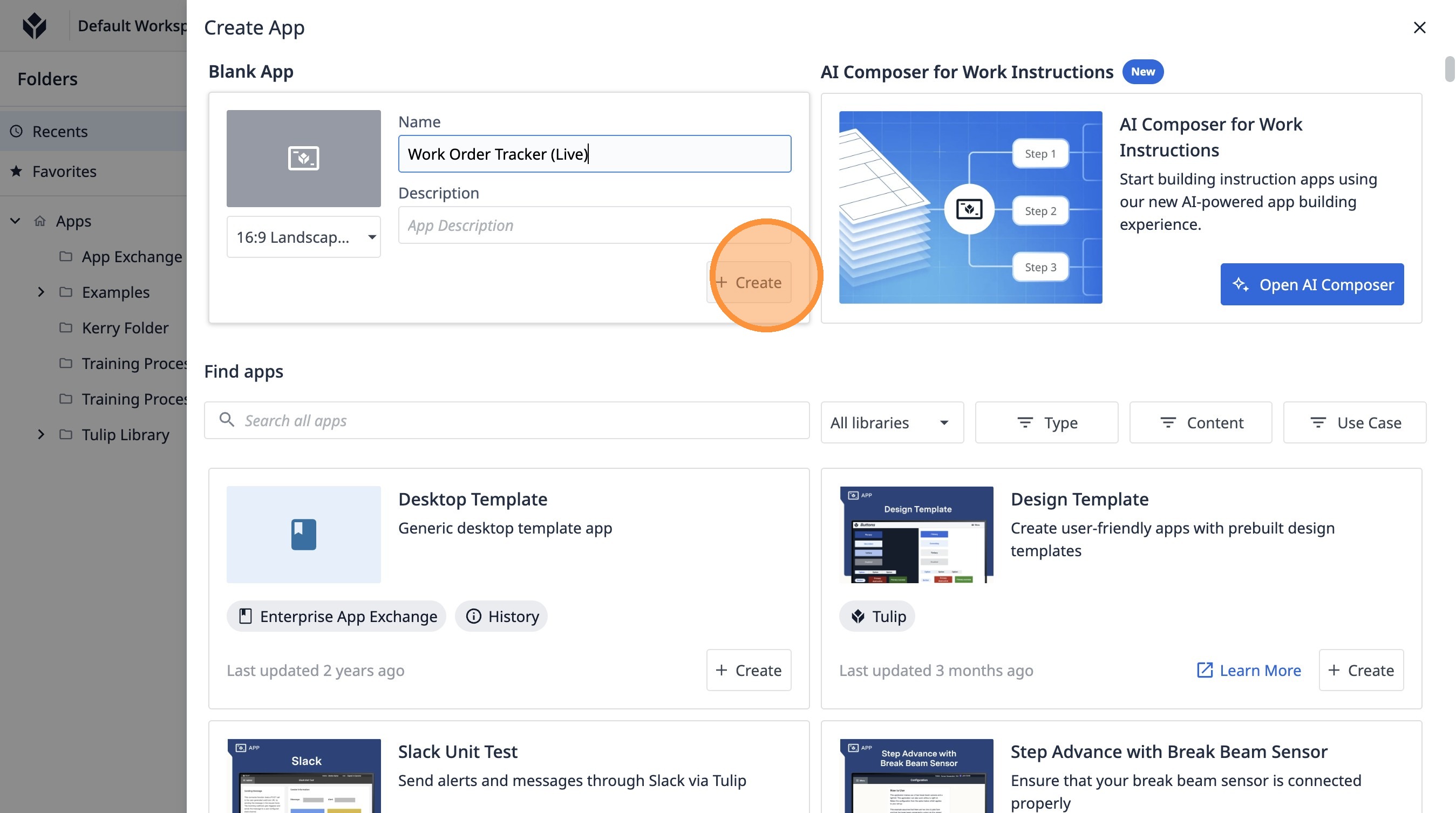
13. Click "Untitled Step"
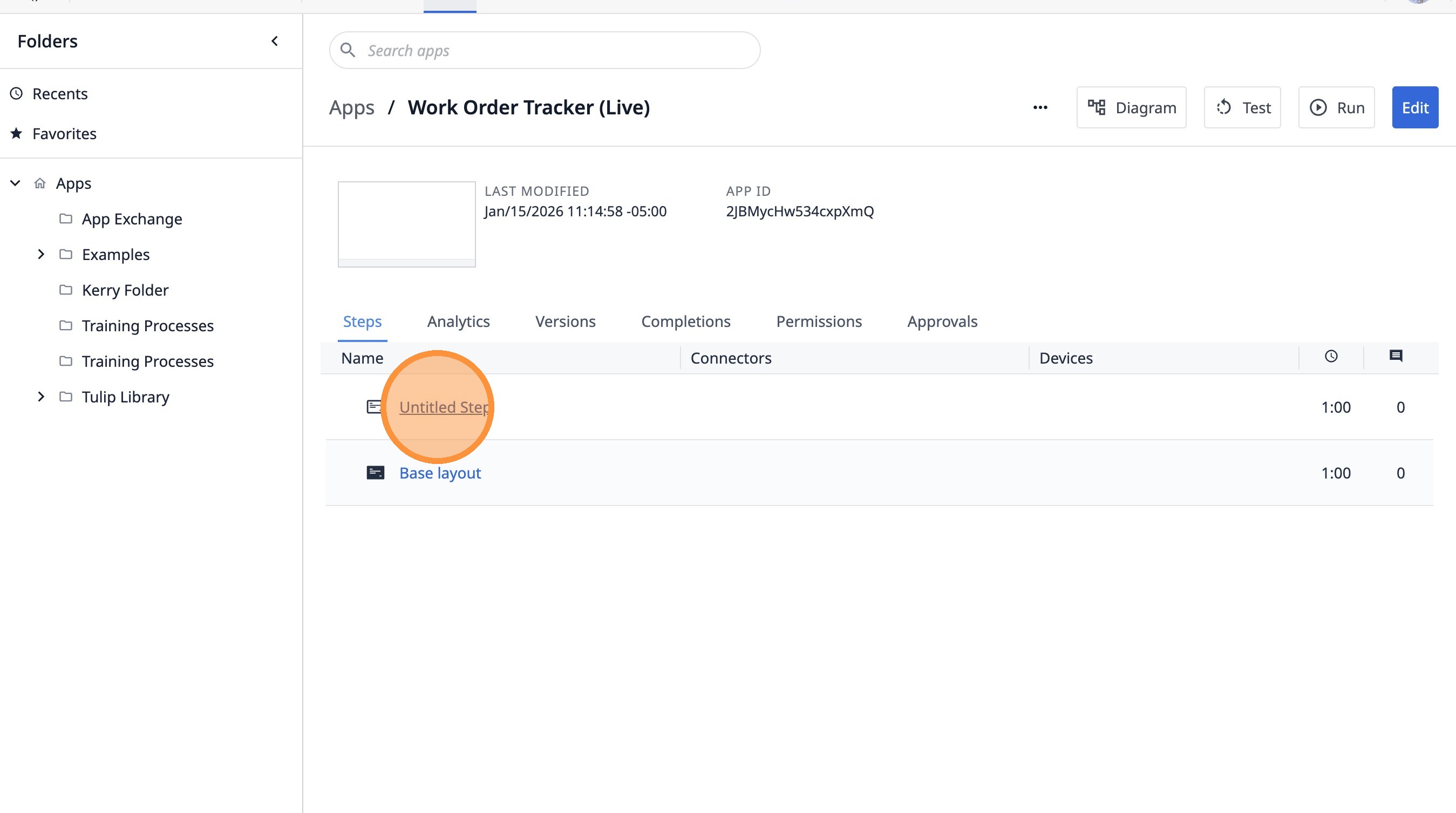
Add it to an app
14. Click "Records"
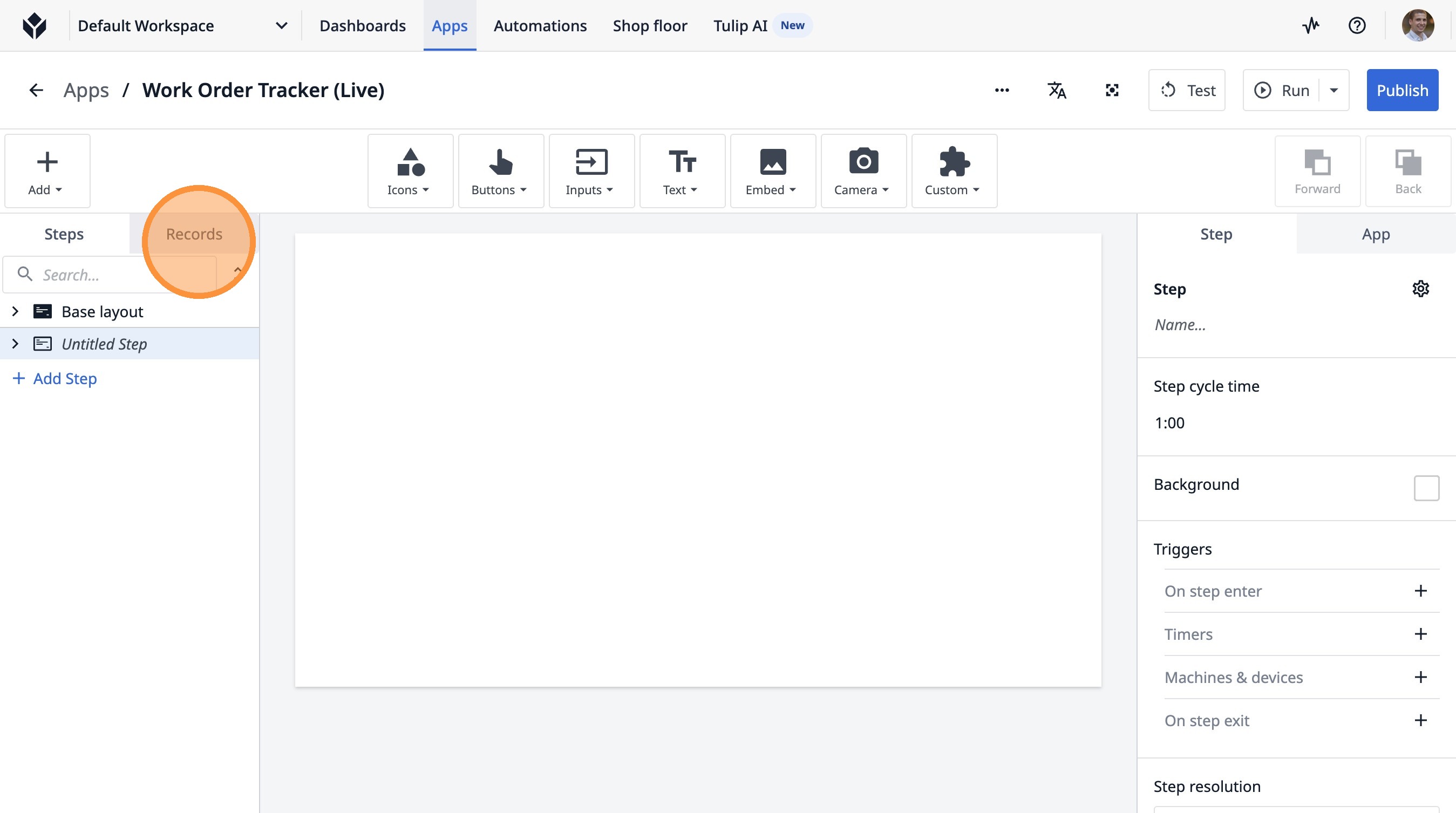
15. Click "Add Table"
16. Click "Select an option"
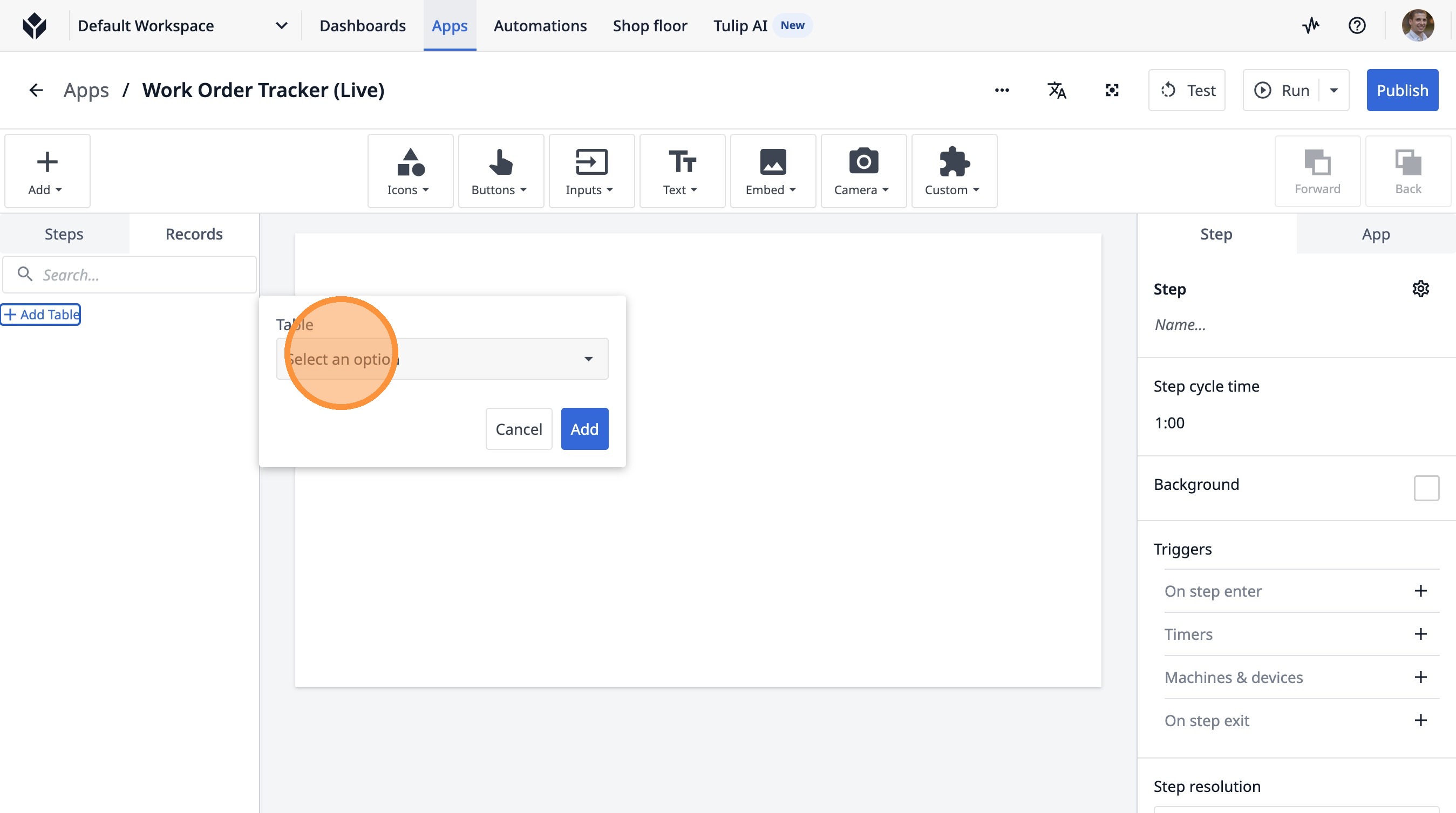
17. Type "work order"
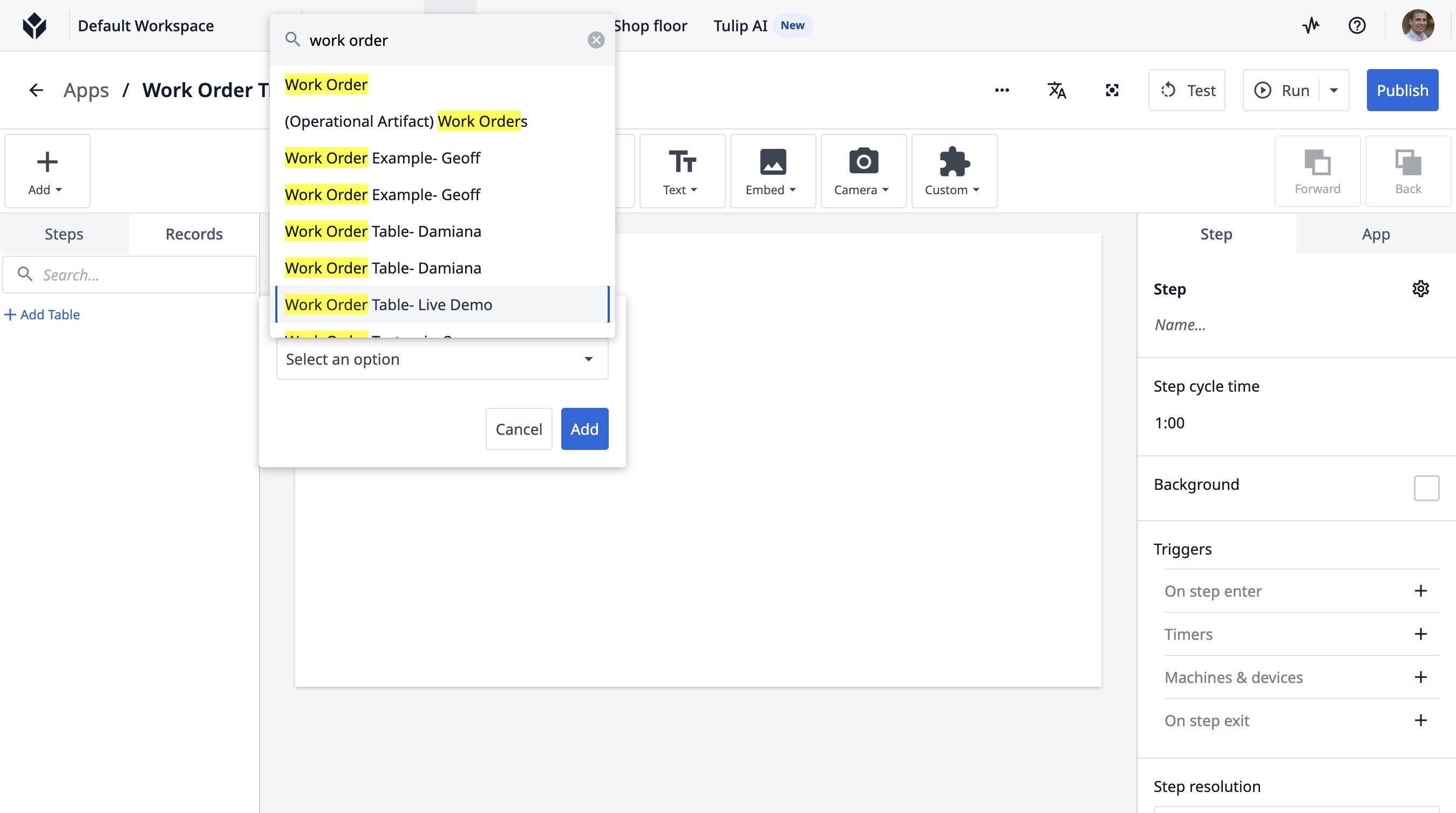
18. Click "Table- Live Demo"
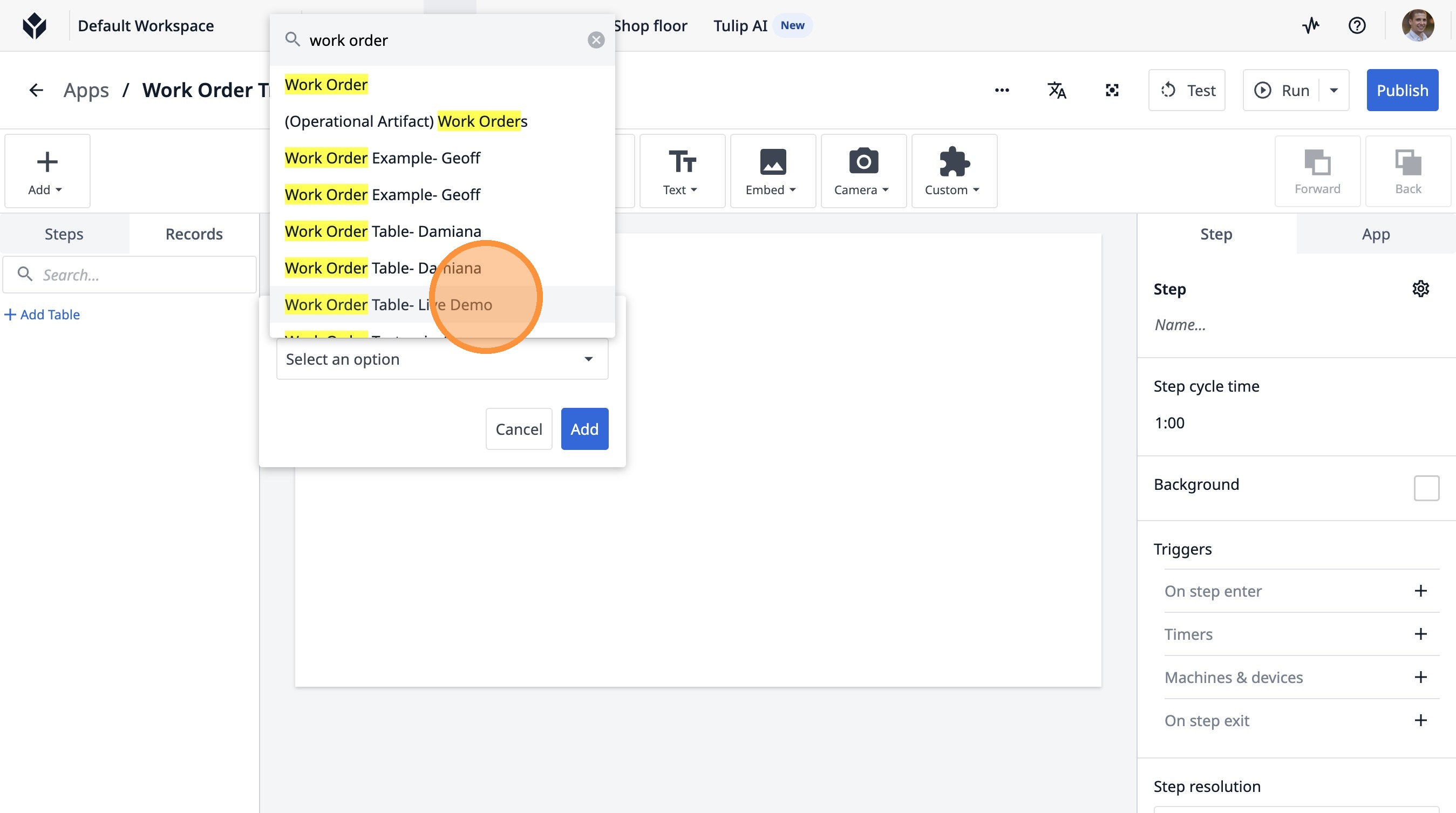
19. Click "Add"
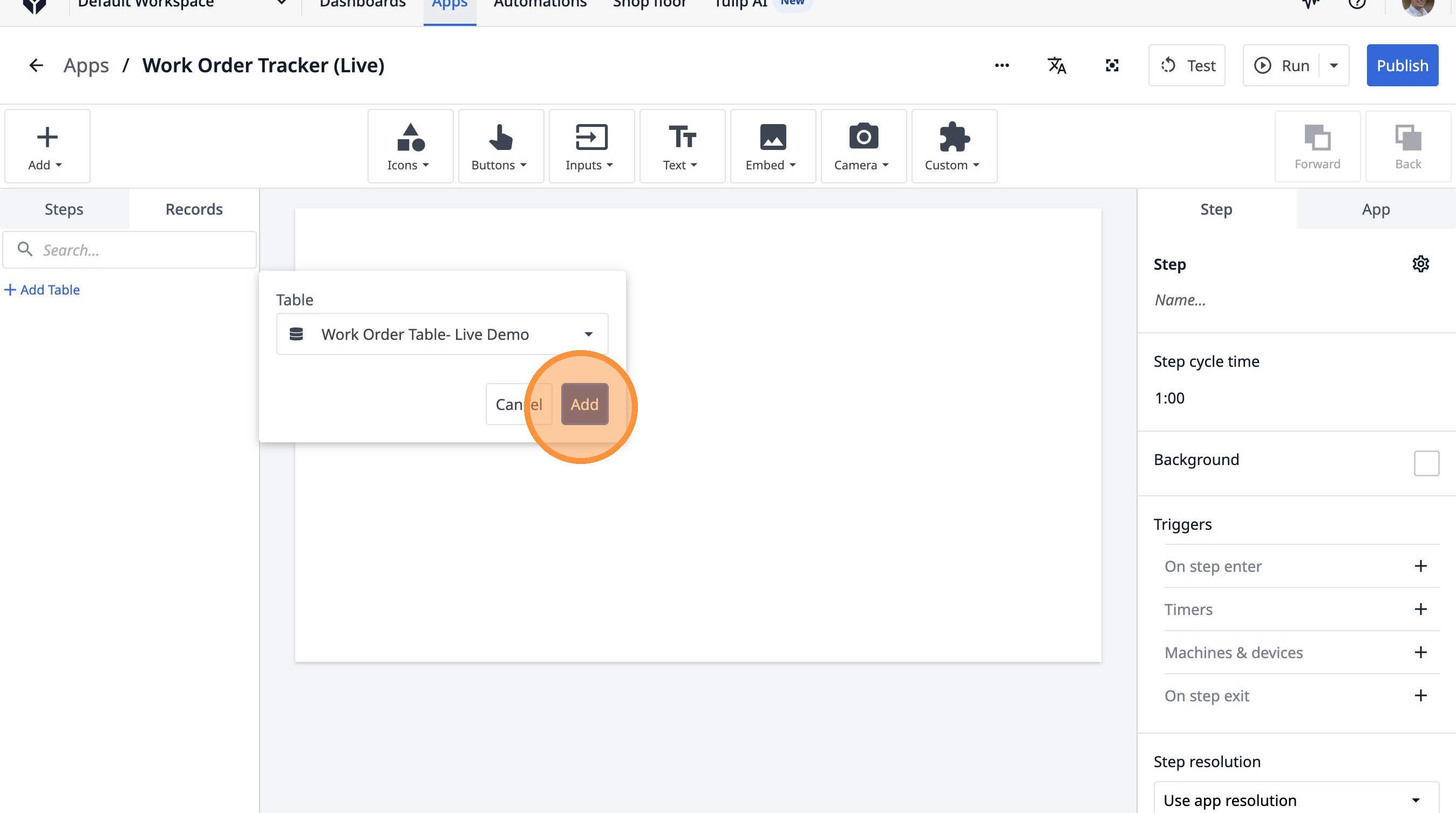
20. Click here.
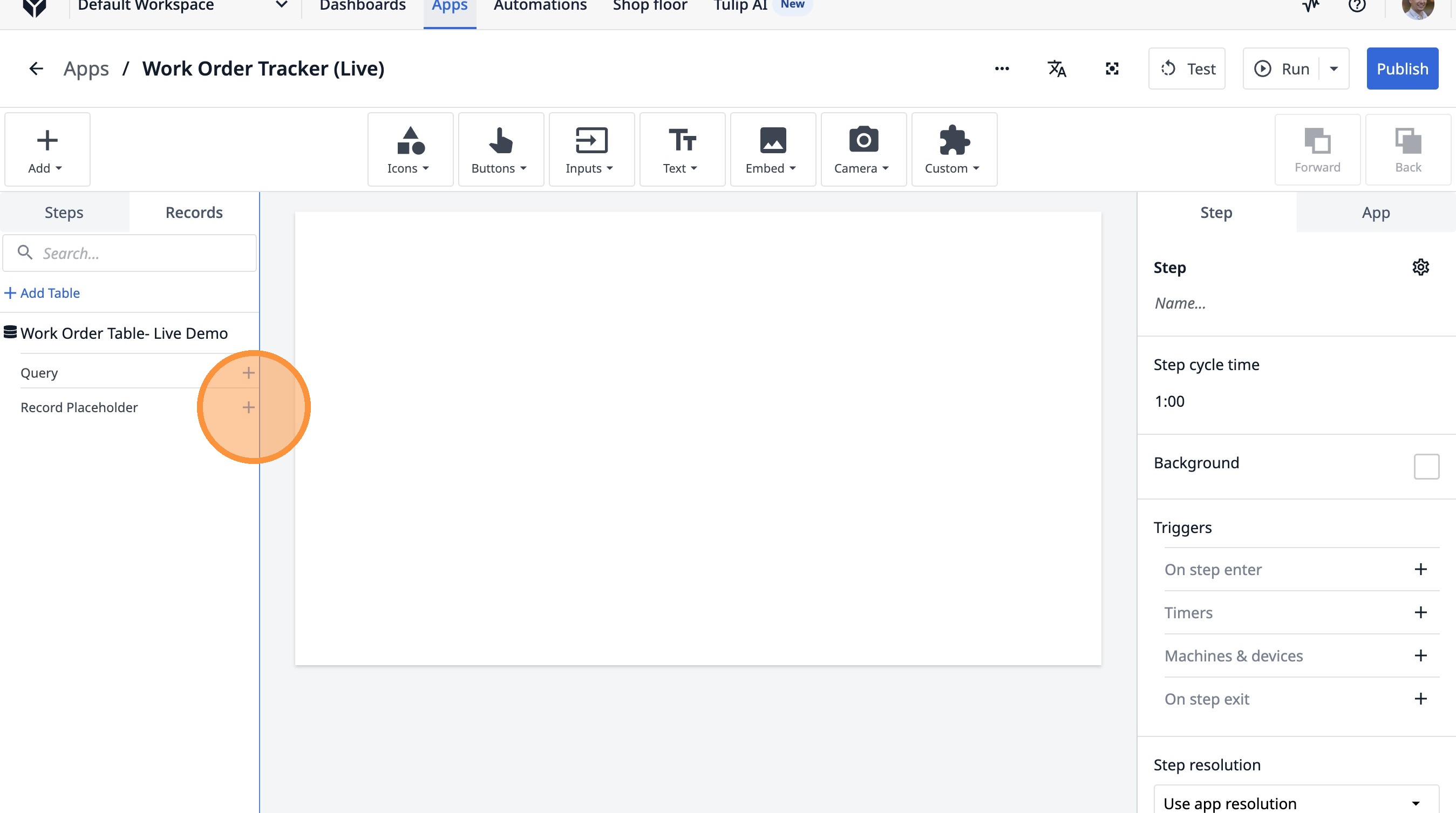
21. Click this icon.
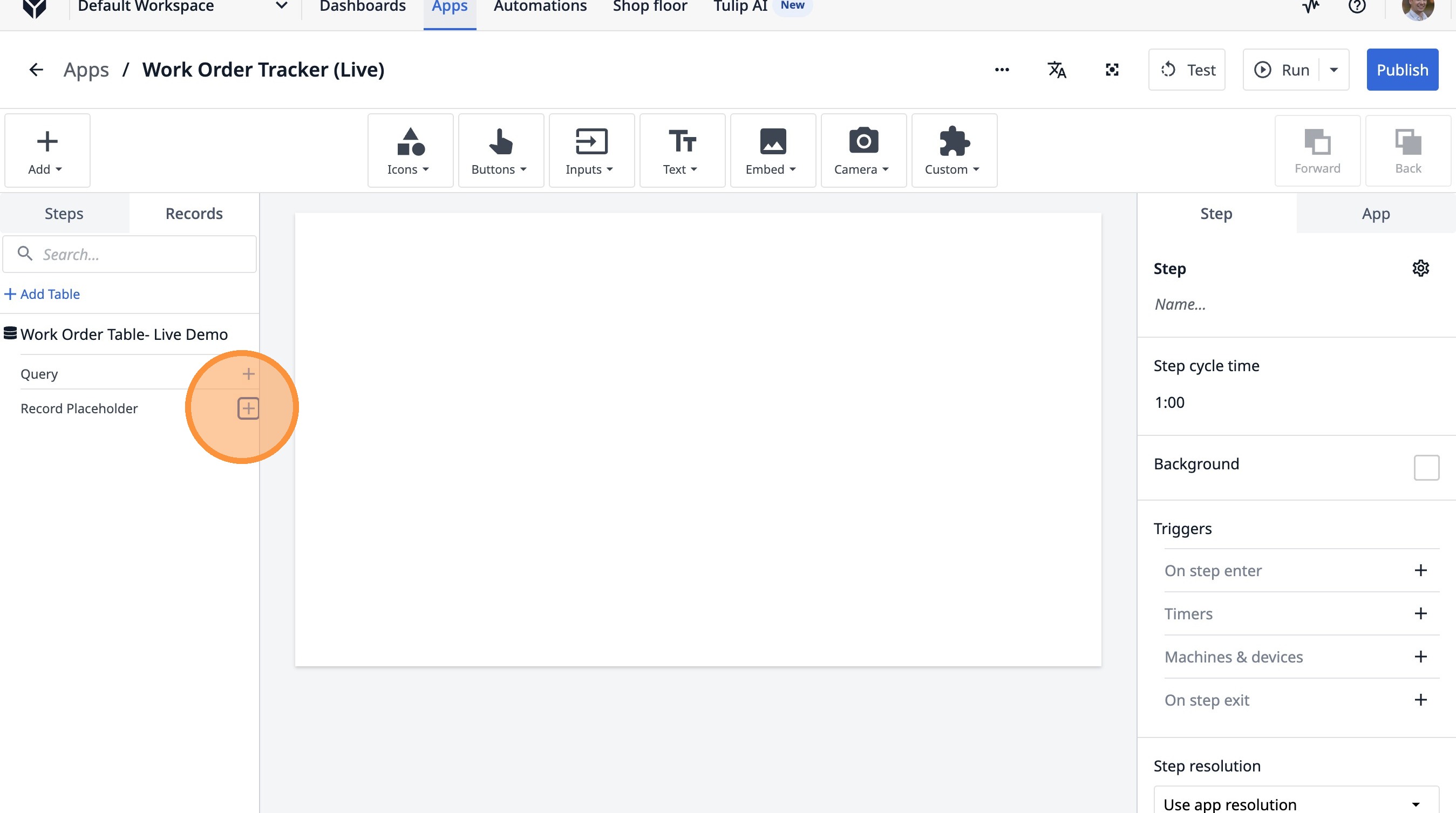
22. Click the "Current Work Order Table- Live Demo" field.
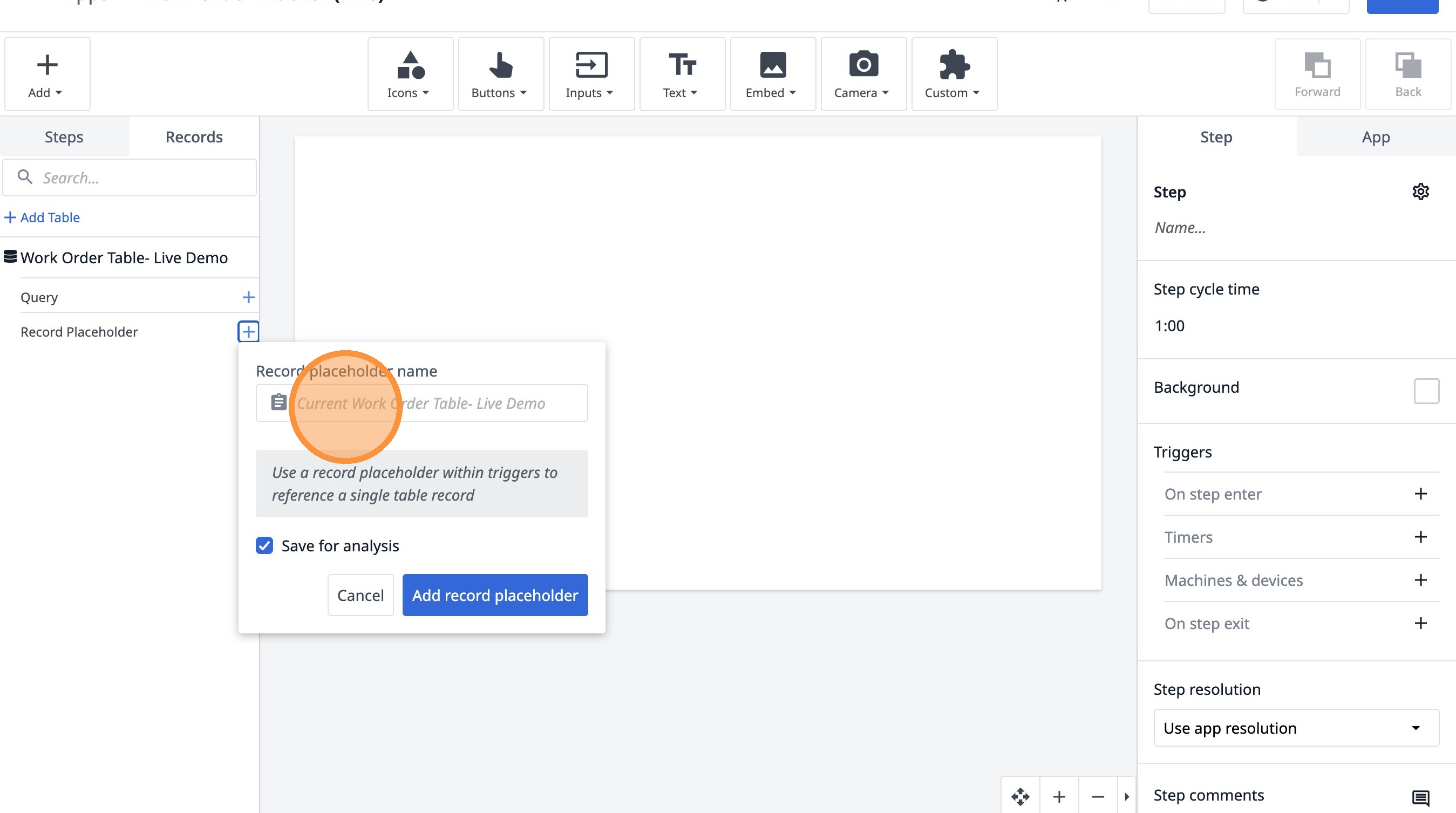
23. Type " [[up]] current work order"
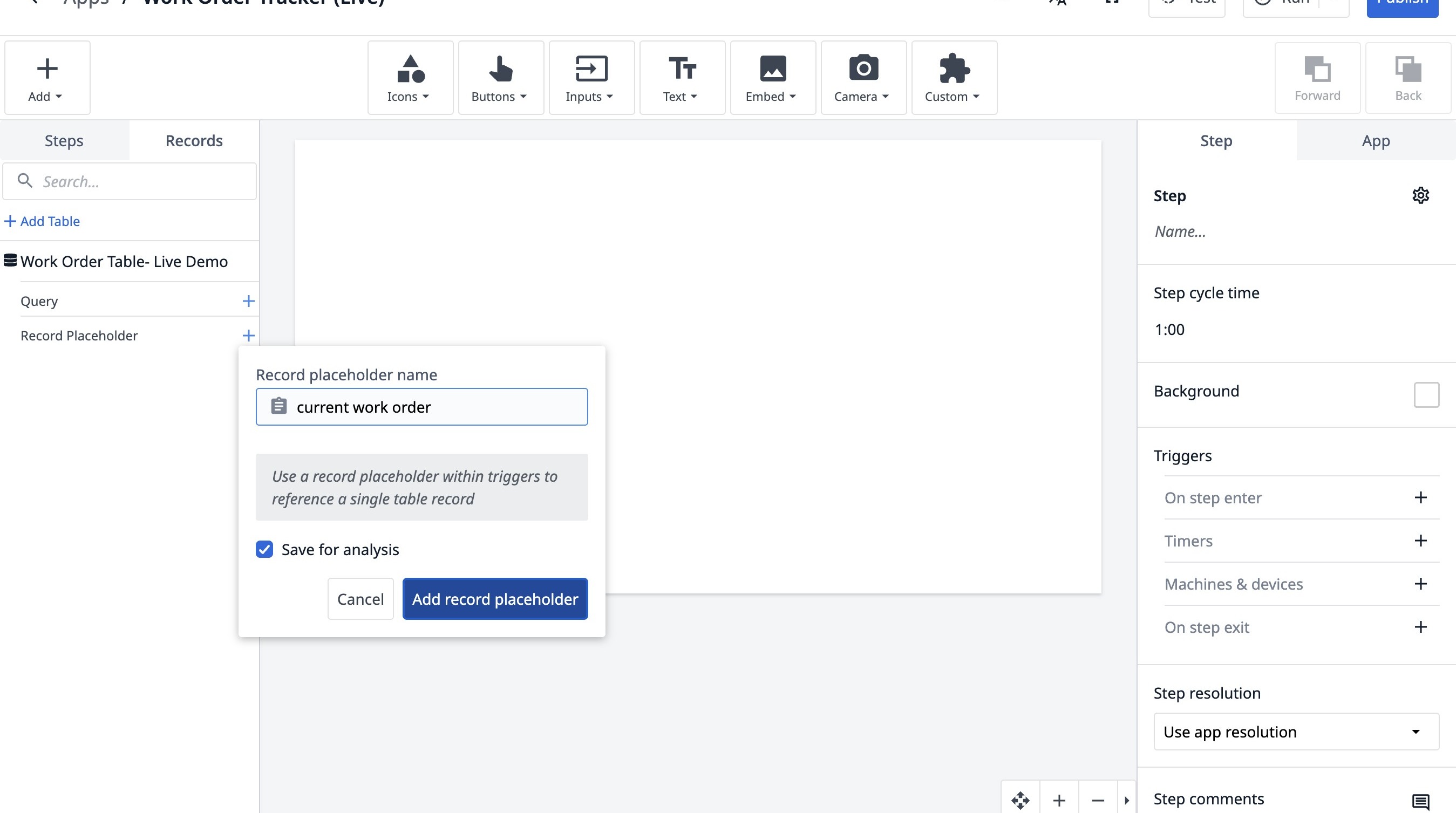
24. Click "Add record placeholder"
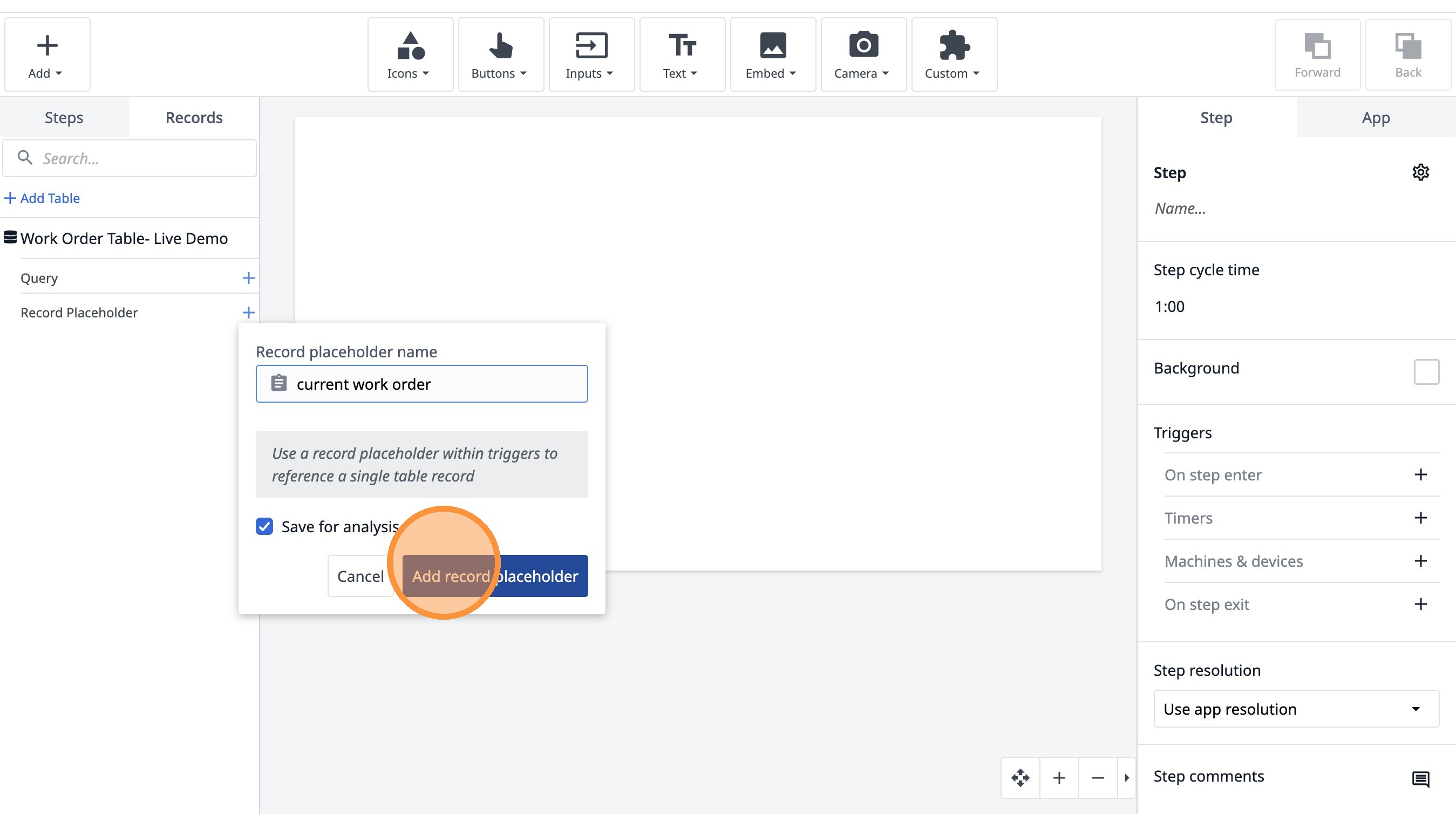
25. Click "Buttons"
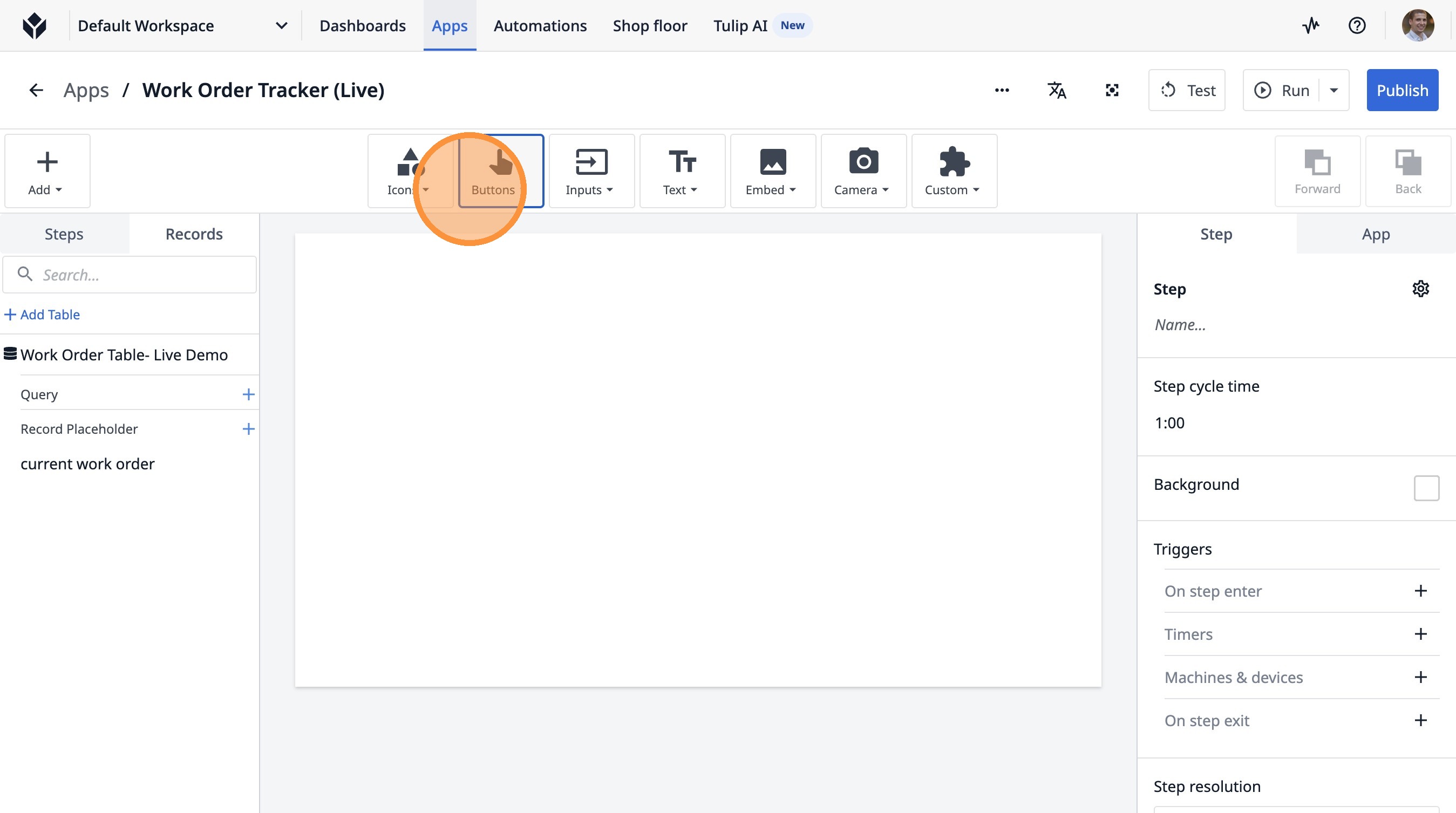
26. Click "Button"
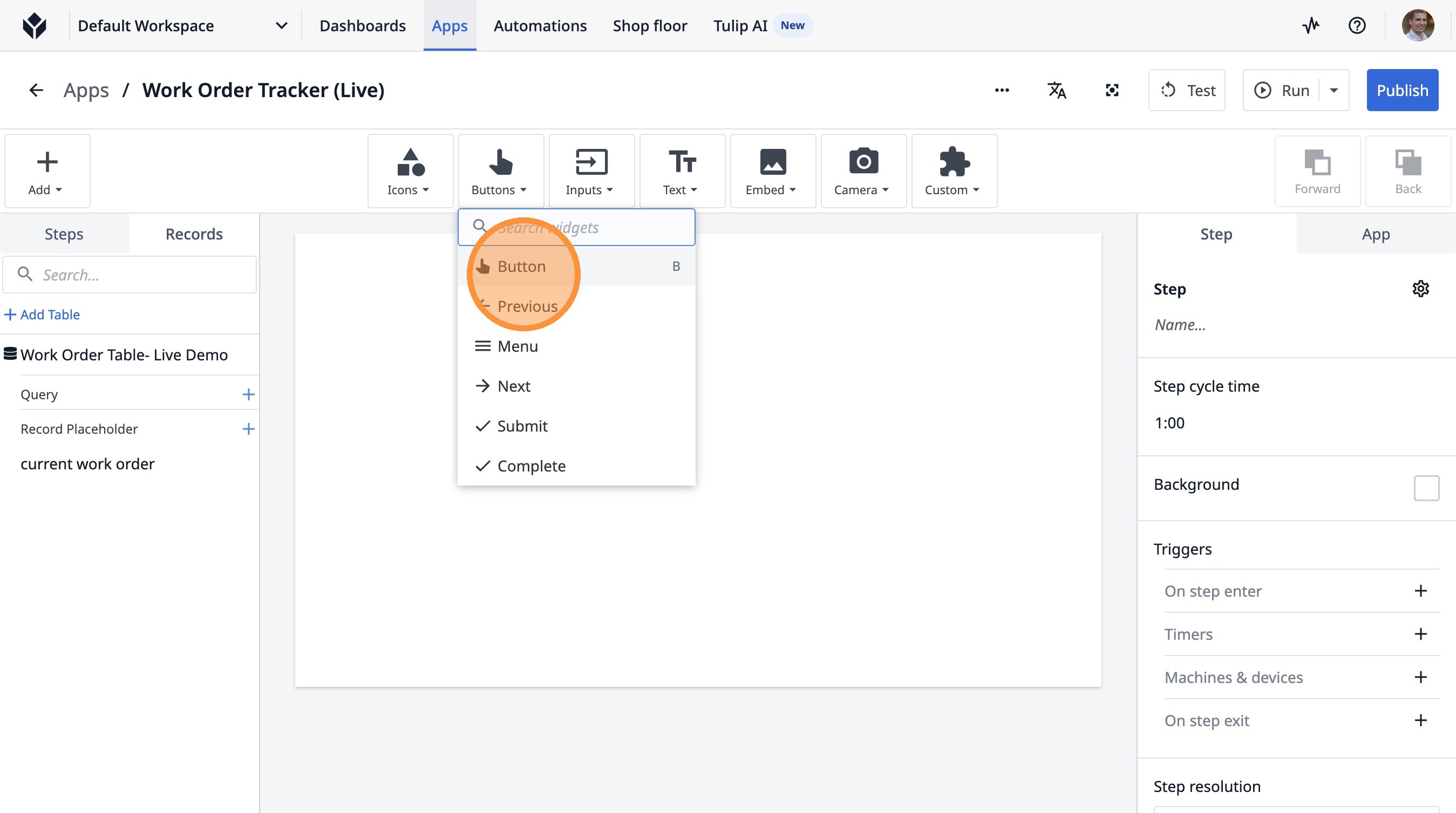
27. Click this icon.
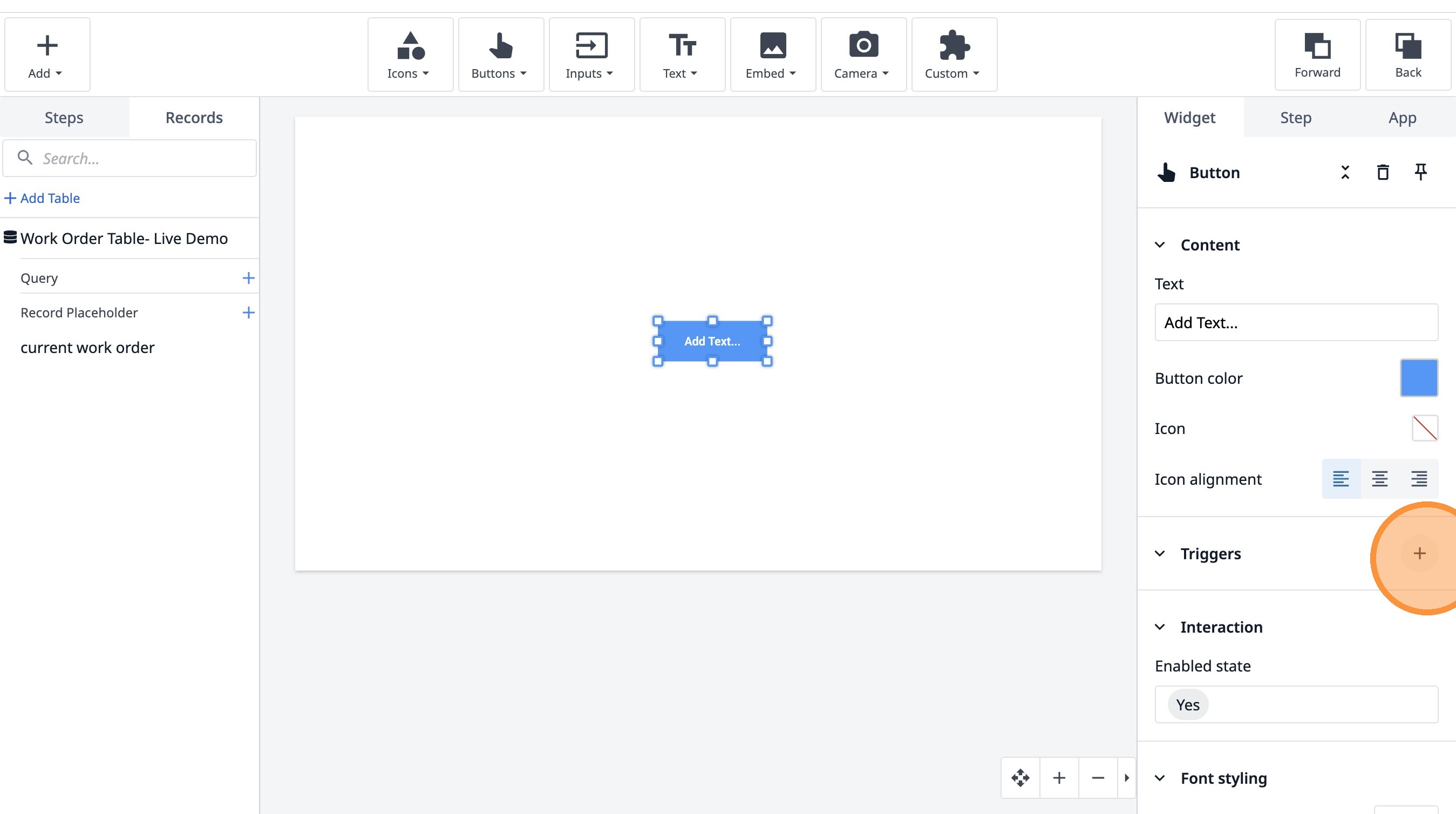
28. Type "create work order"
29. Click "Add new action"
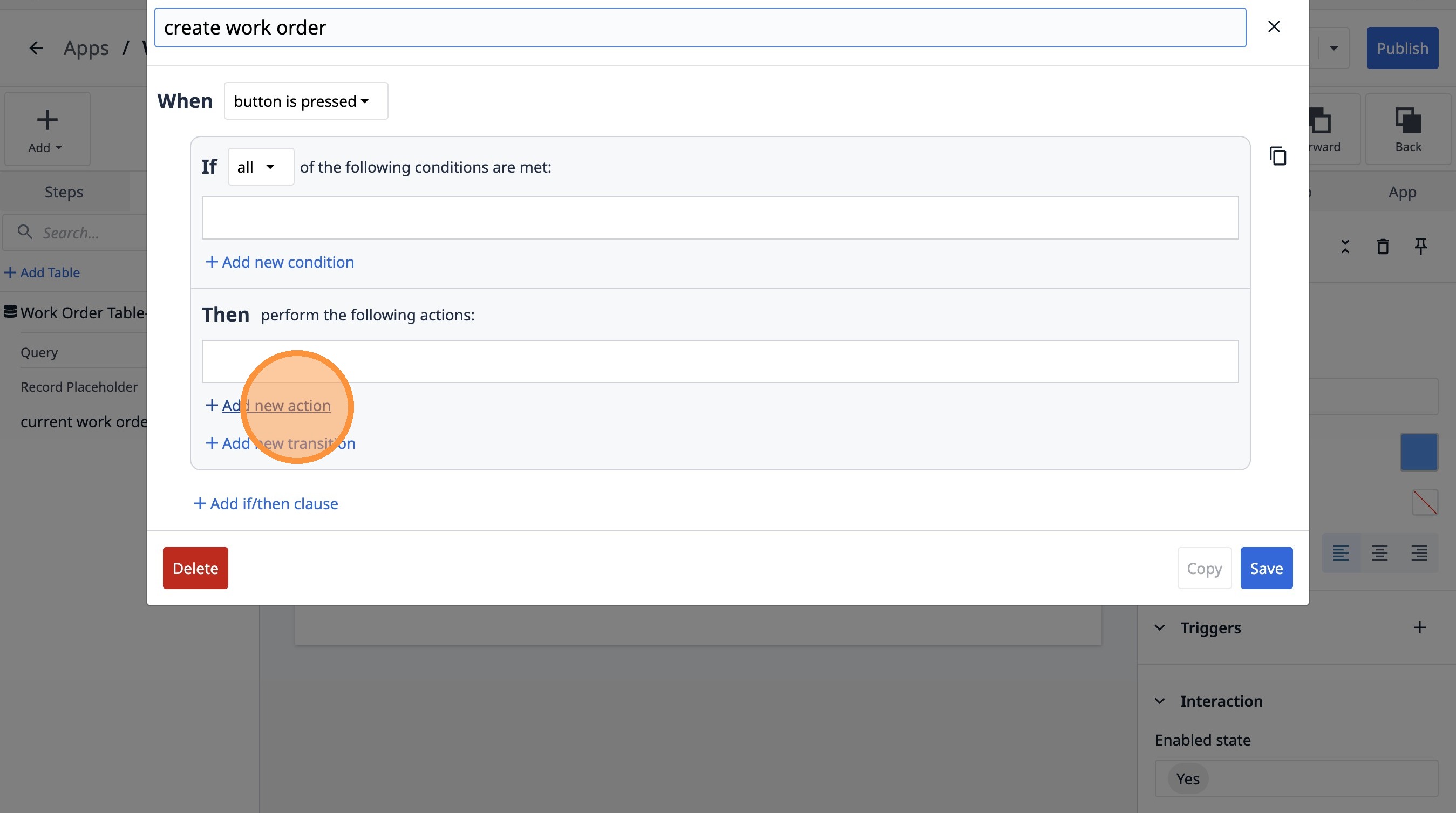
30. Select the "Table Records" option.
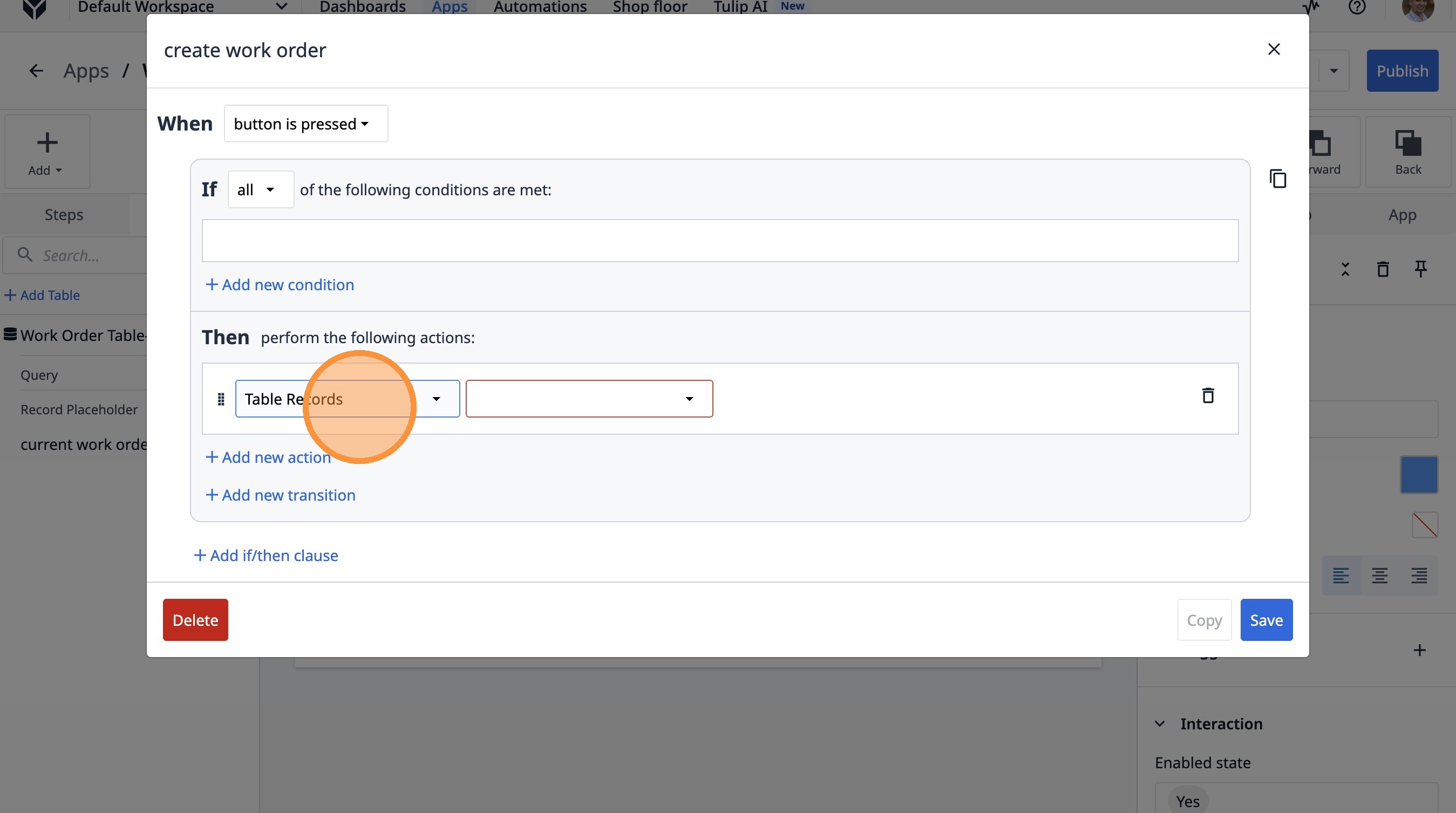
31. Select the "Create Record" option.
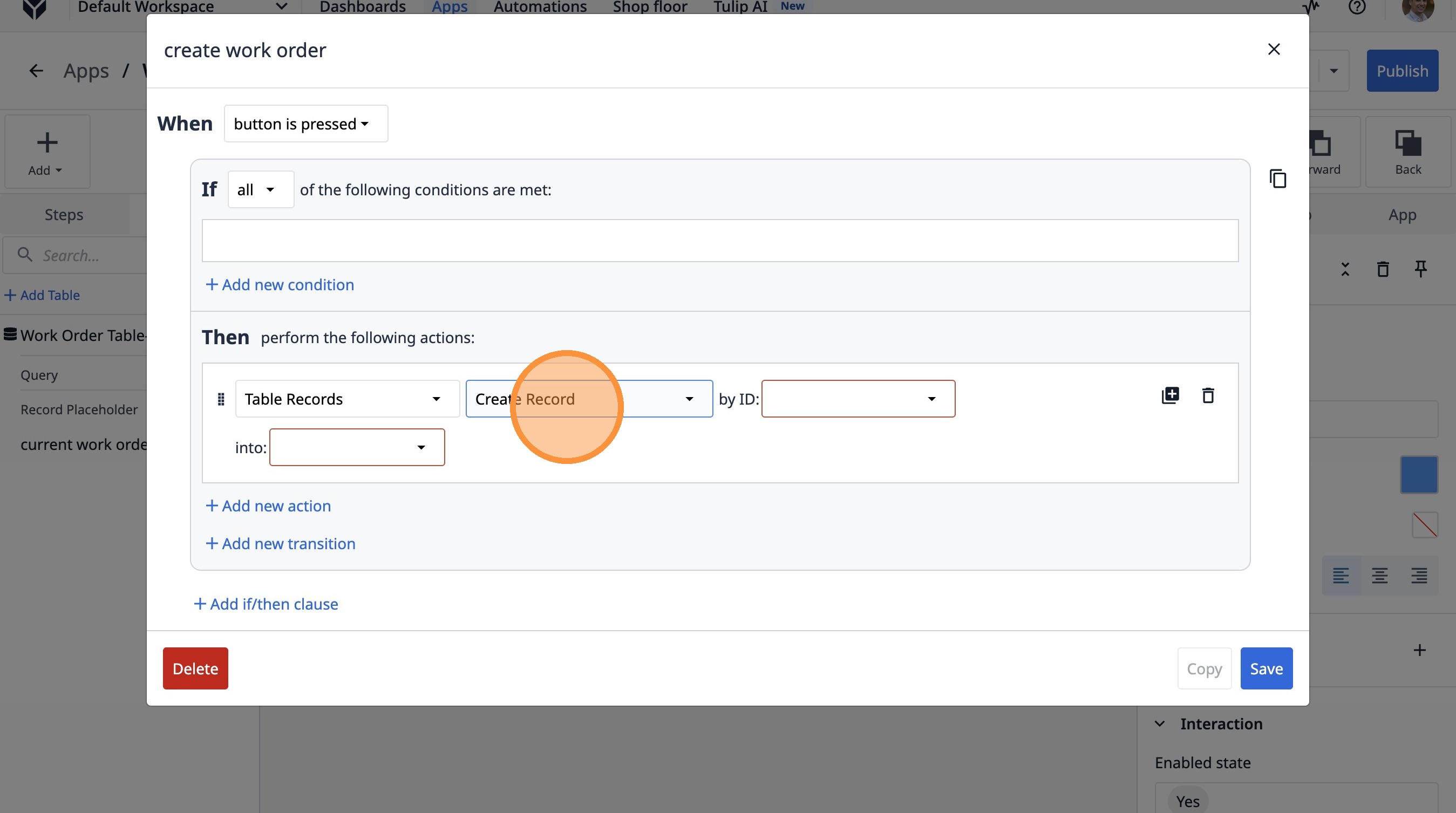
32. Select the "Static value" option.
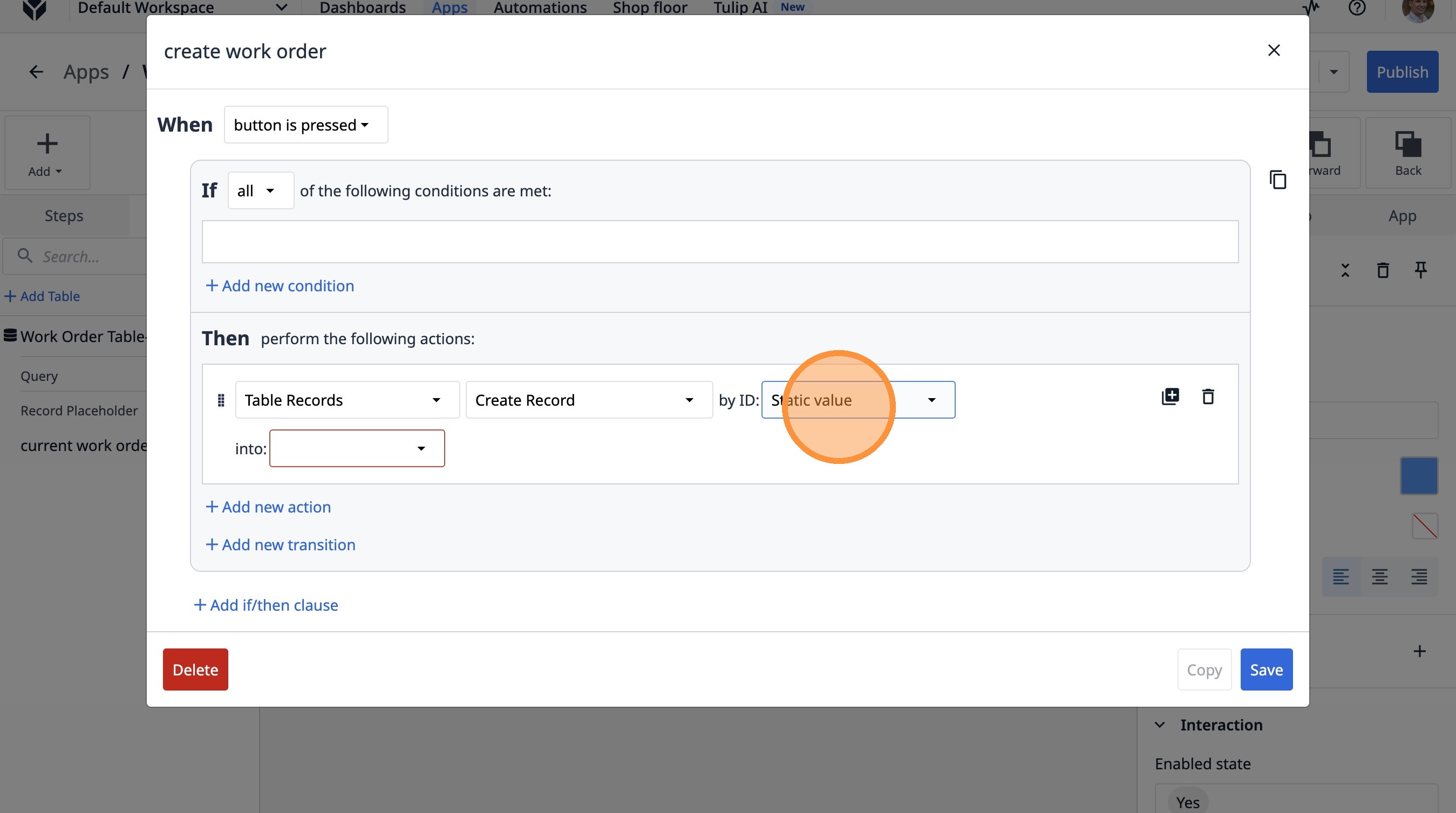
33. Click this text field.
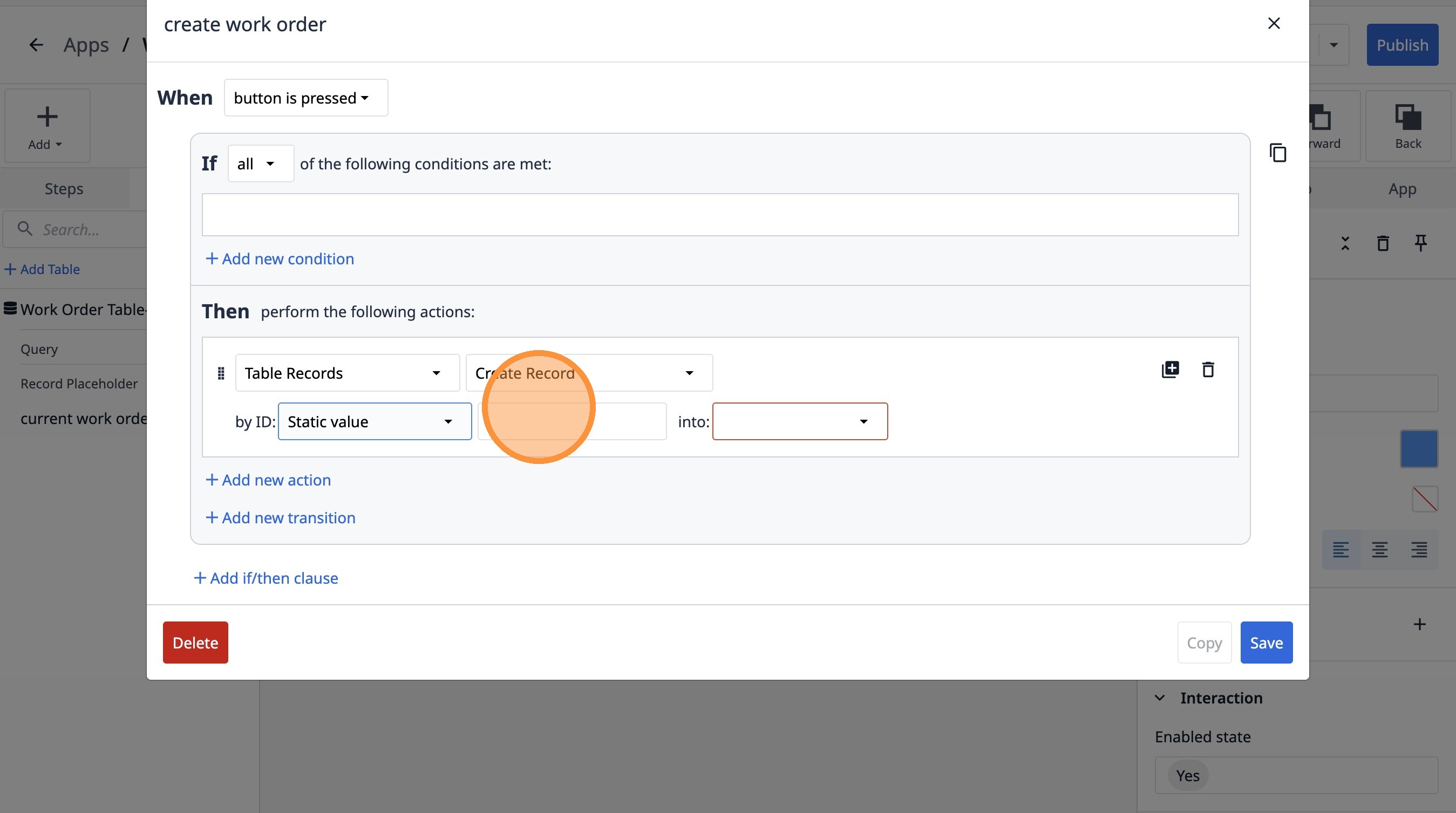
34. Type "123"
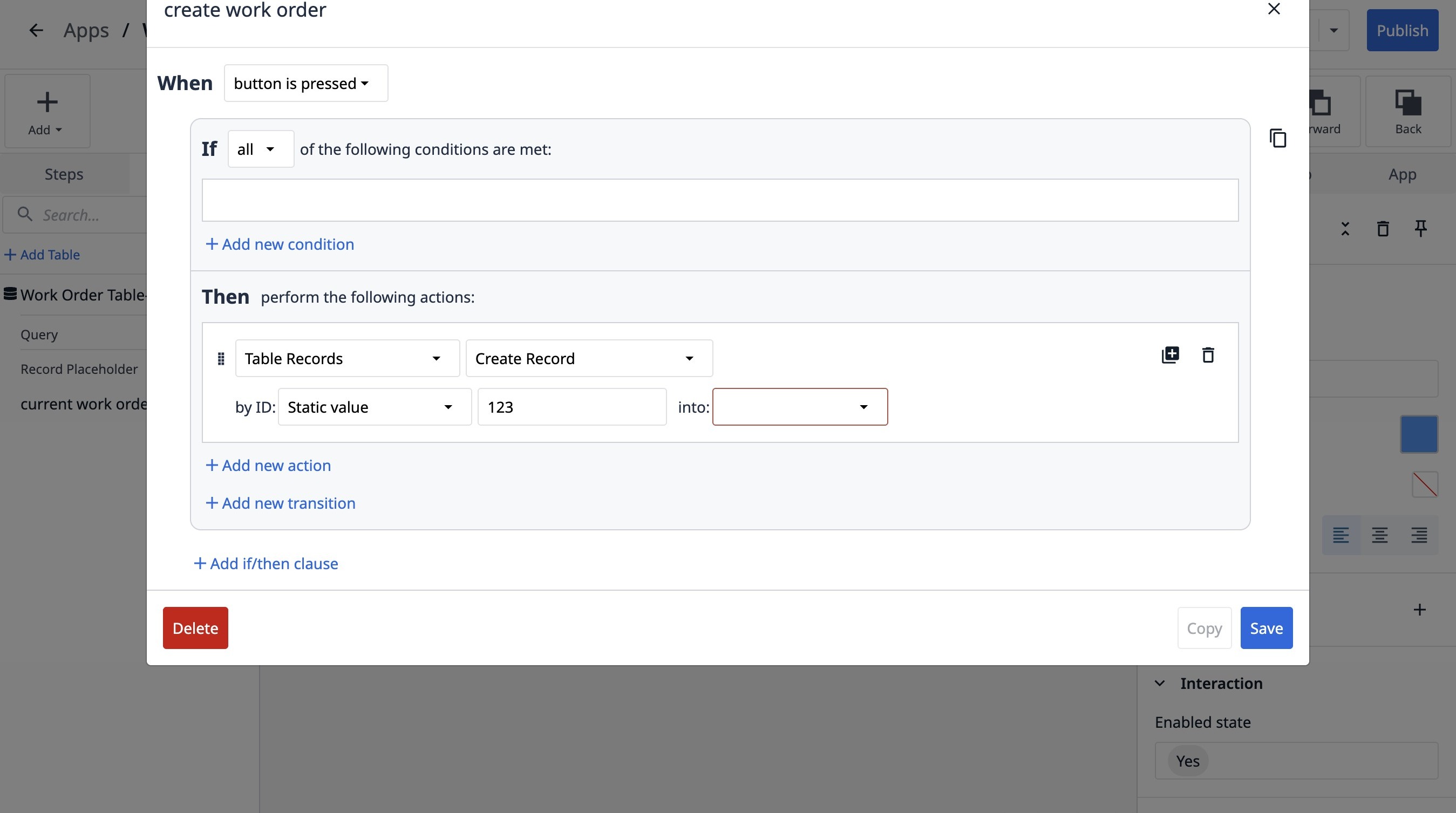
35. Select the "current work order" option.
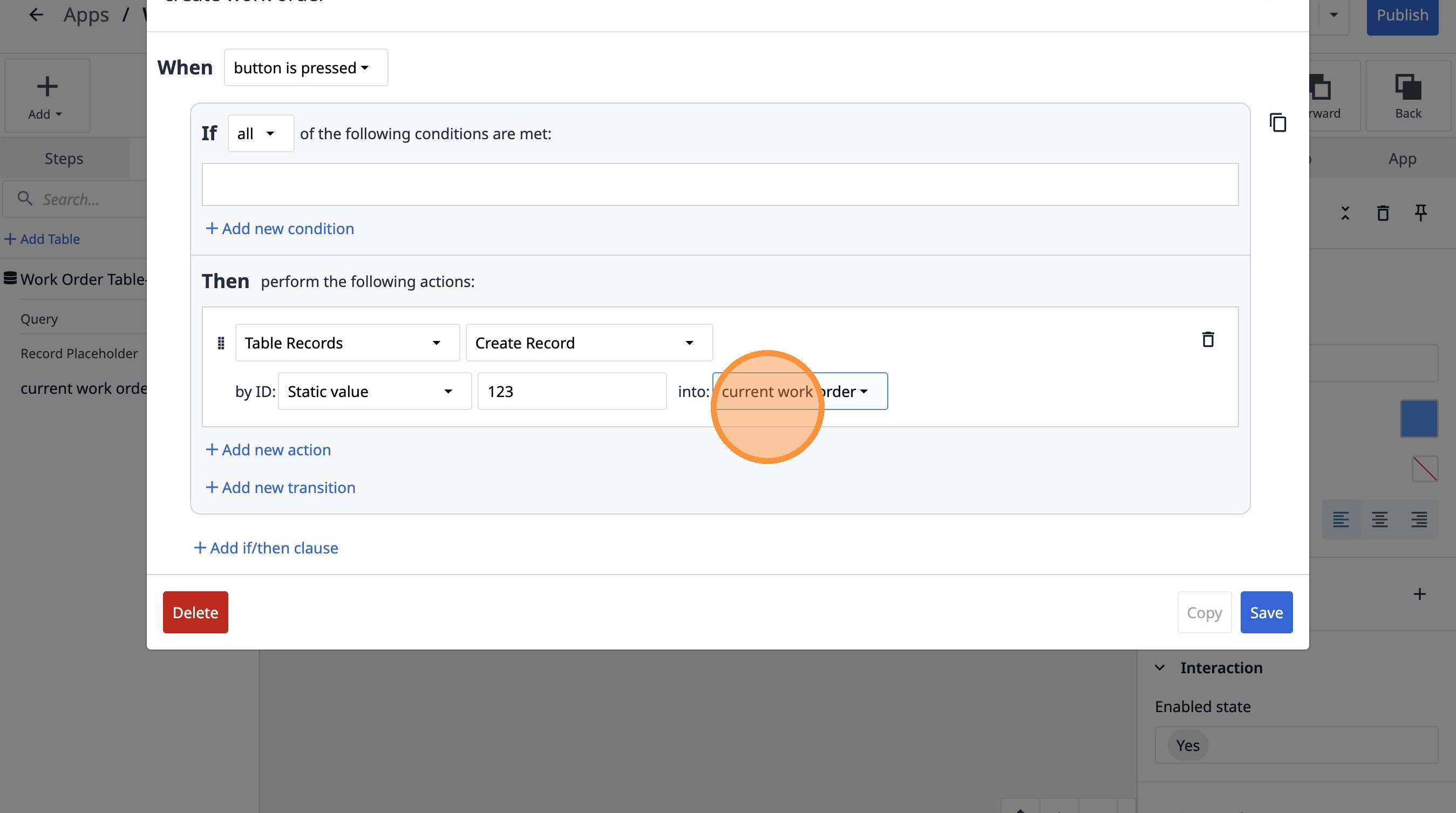
36. Click "Add new transition"
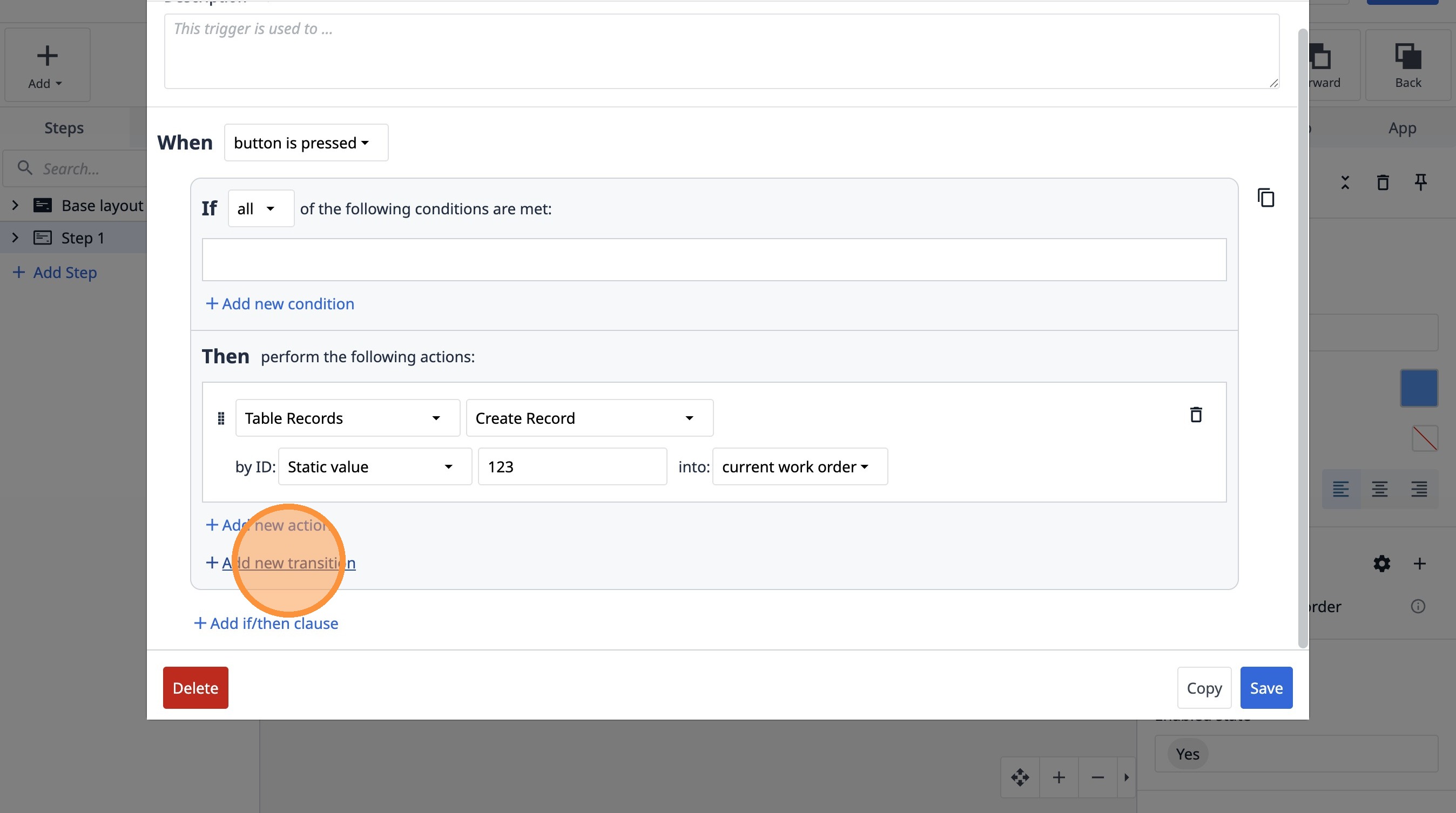
37. Select the "Go To Step" option.
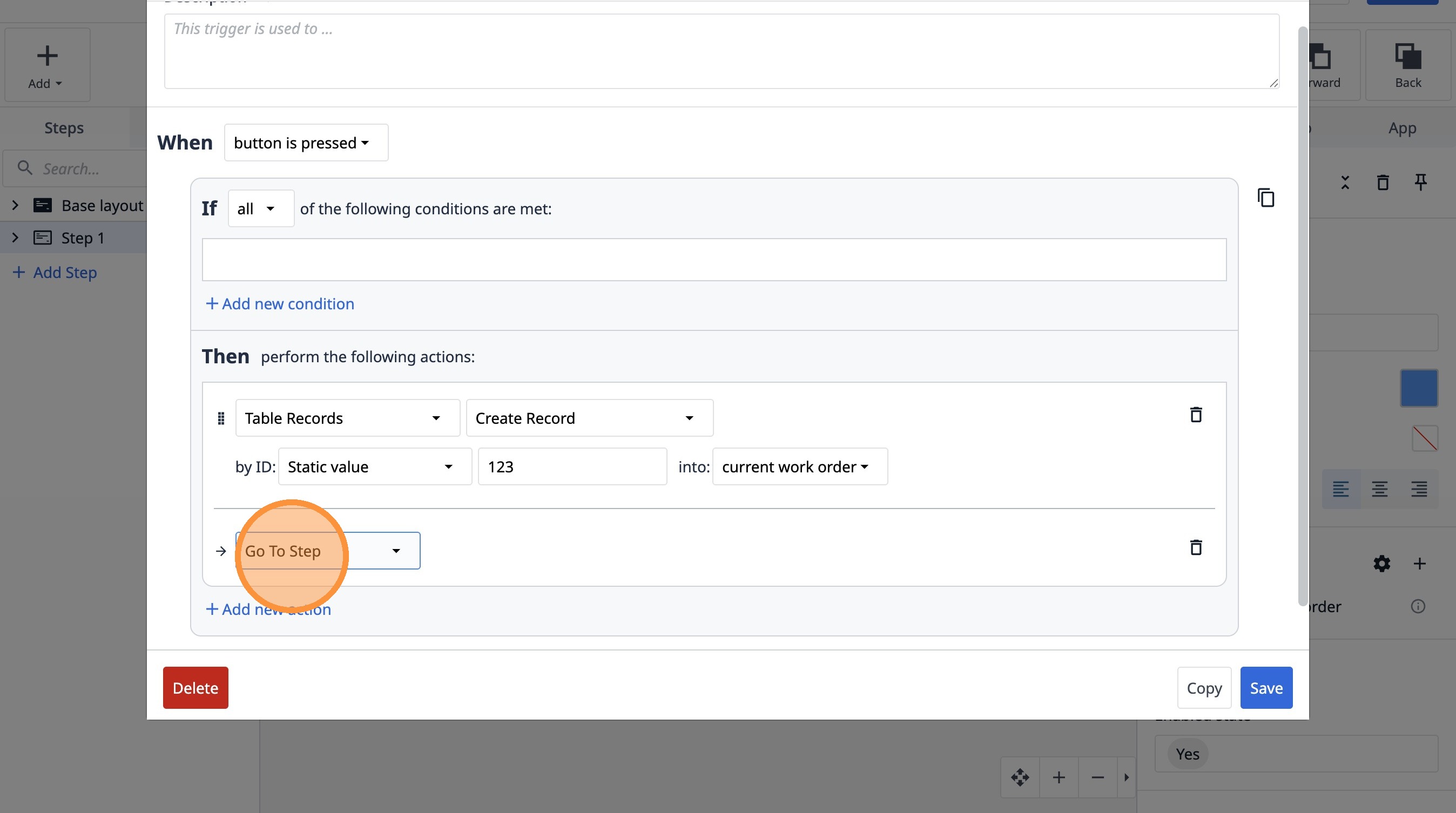
38. Select the "Next" option.
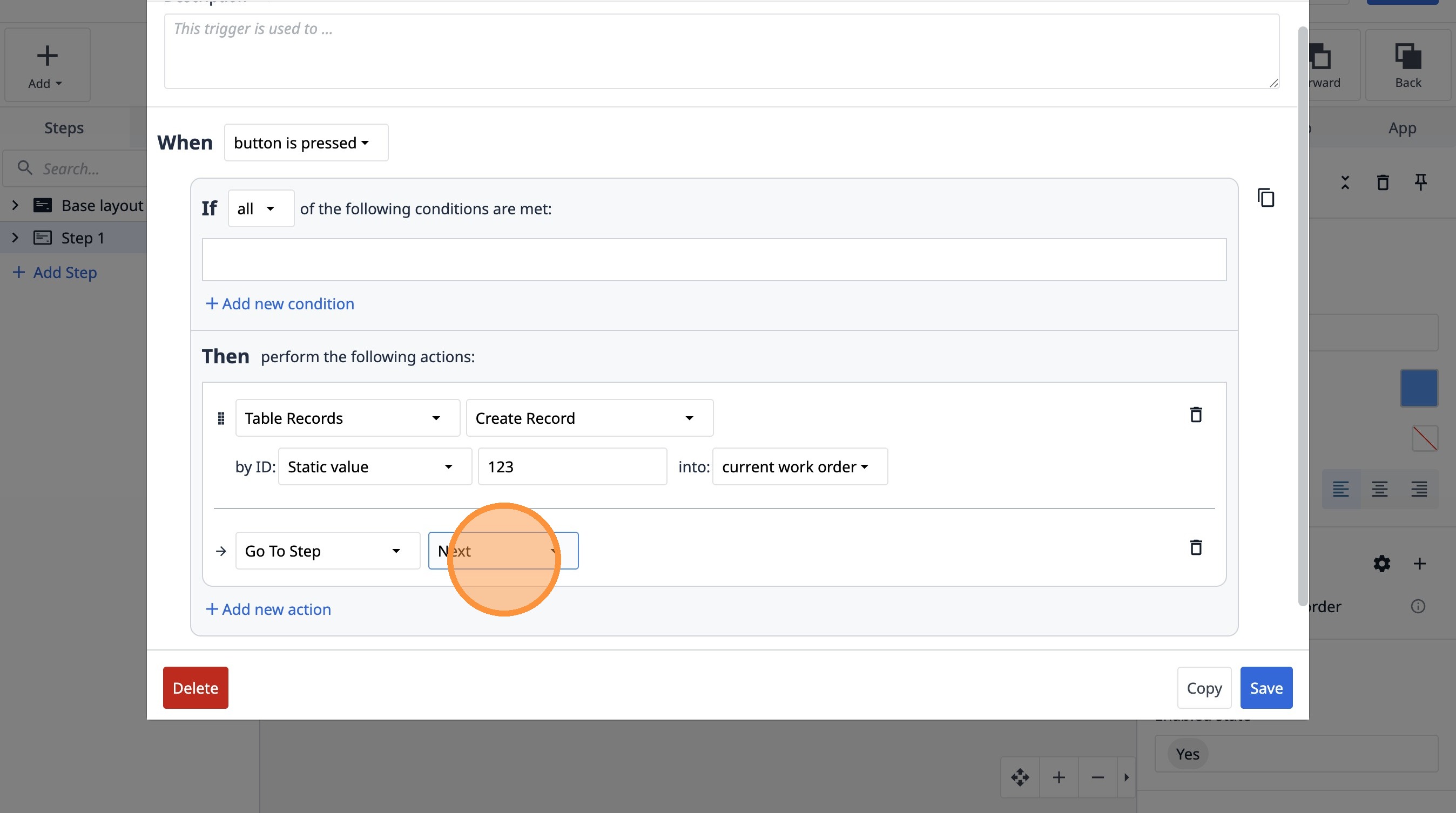
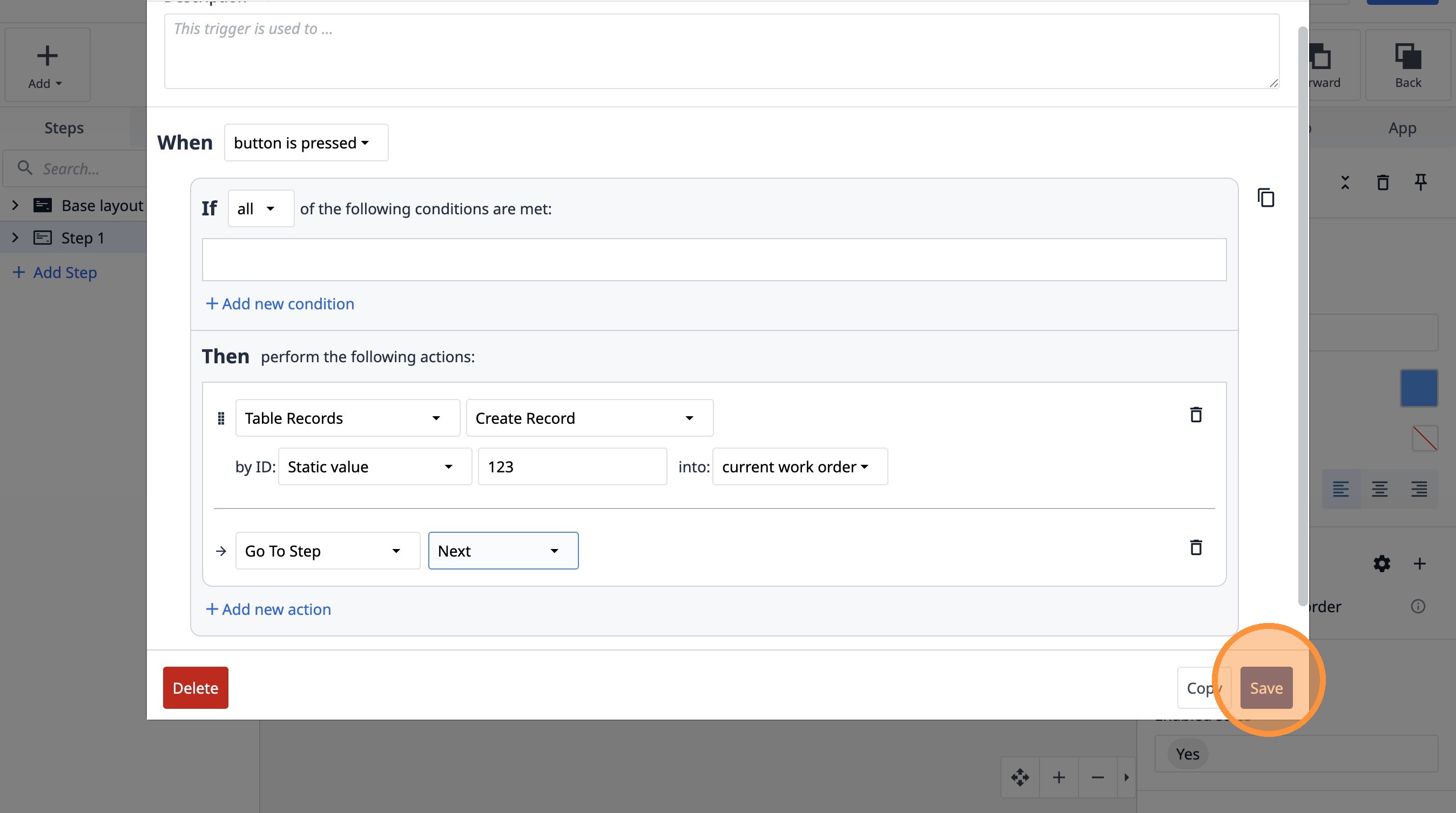
39. Click "Save"
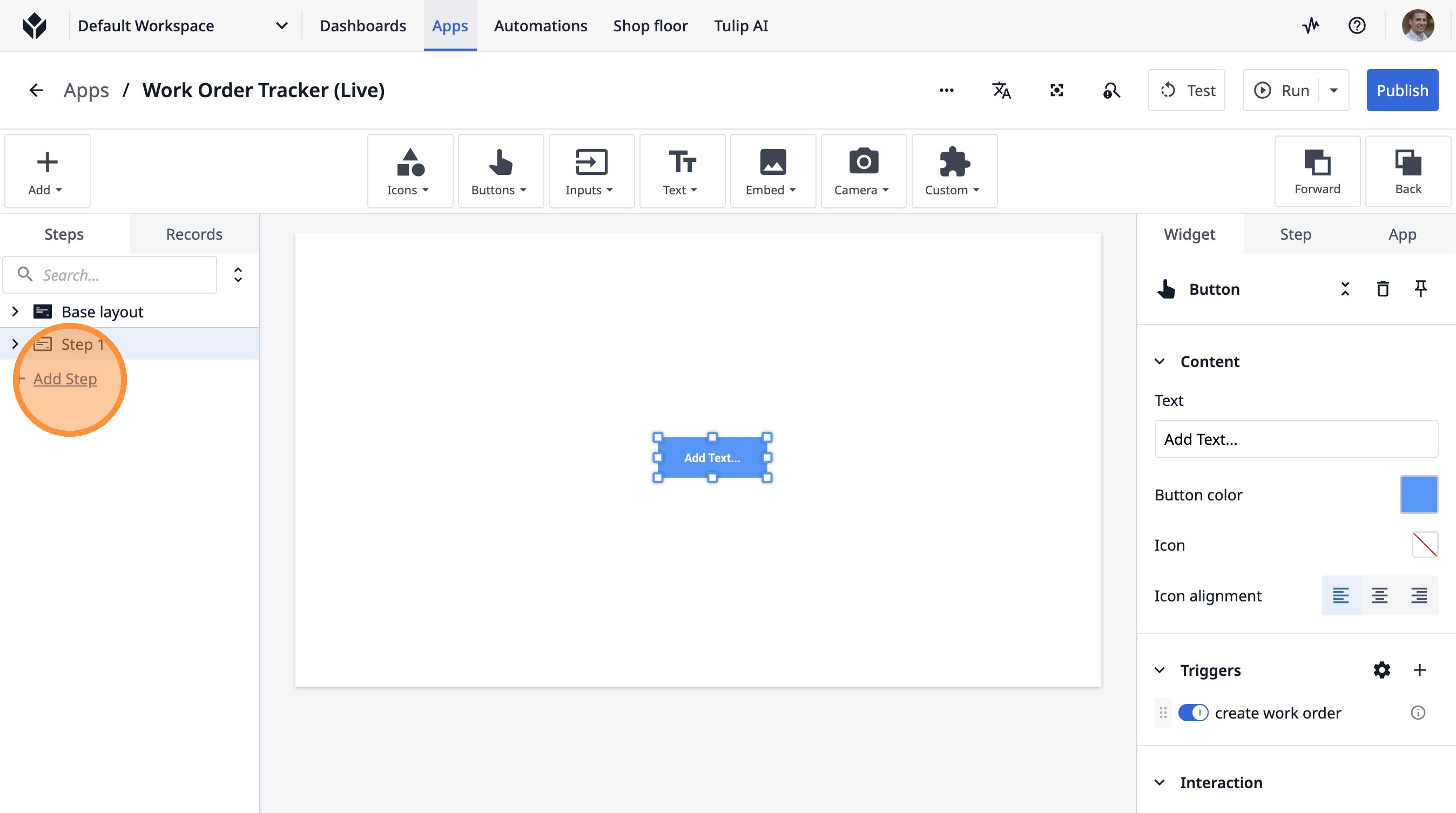
40. Click "Add Step"
41. Type "Simulate your station"
42. Click here.
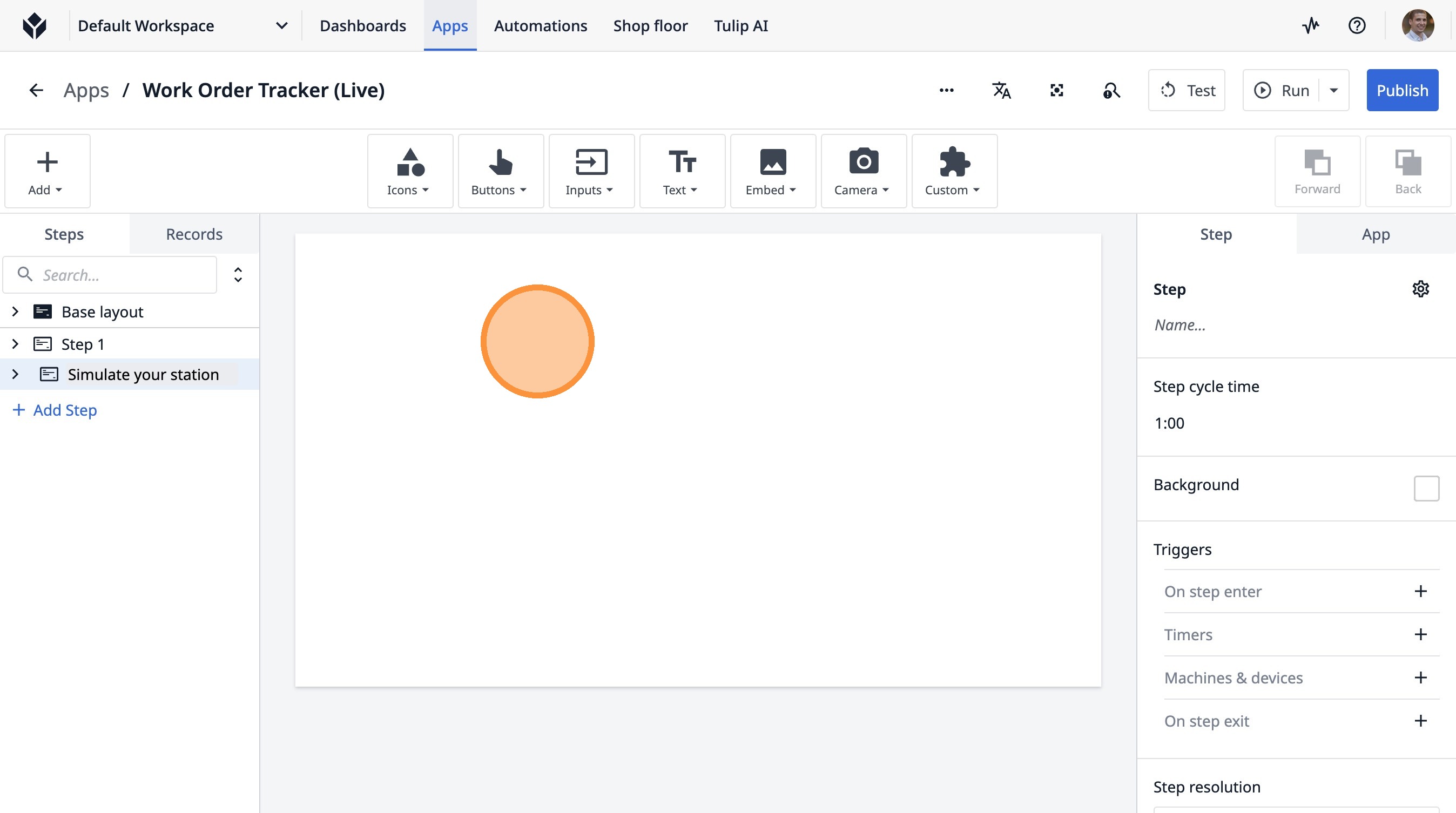
43. Click "Text"
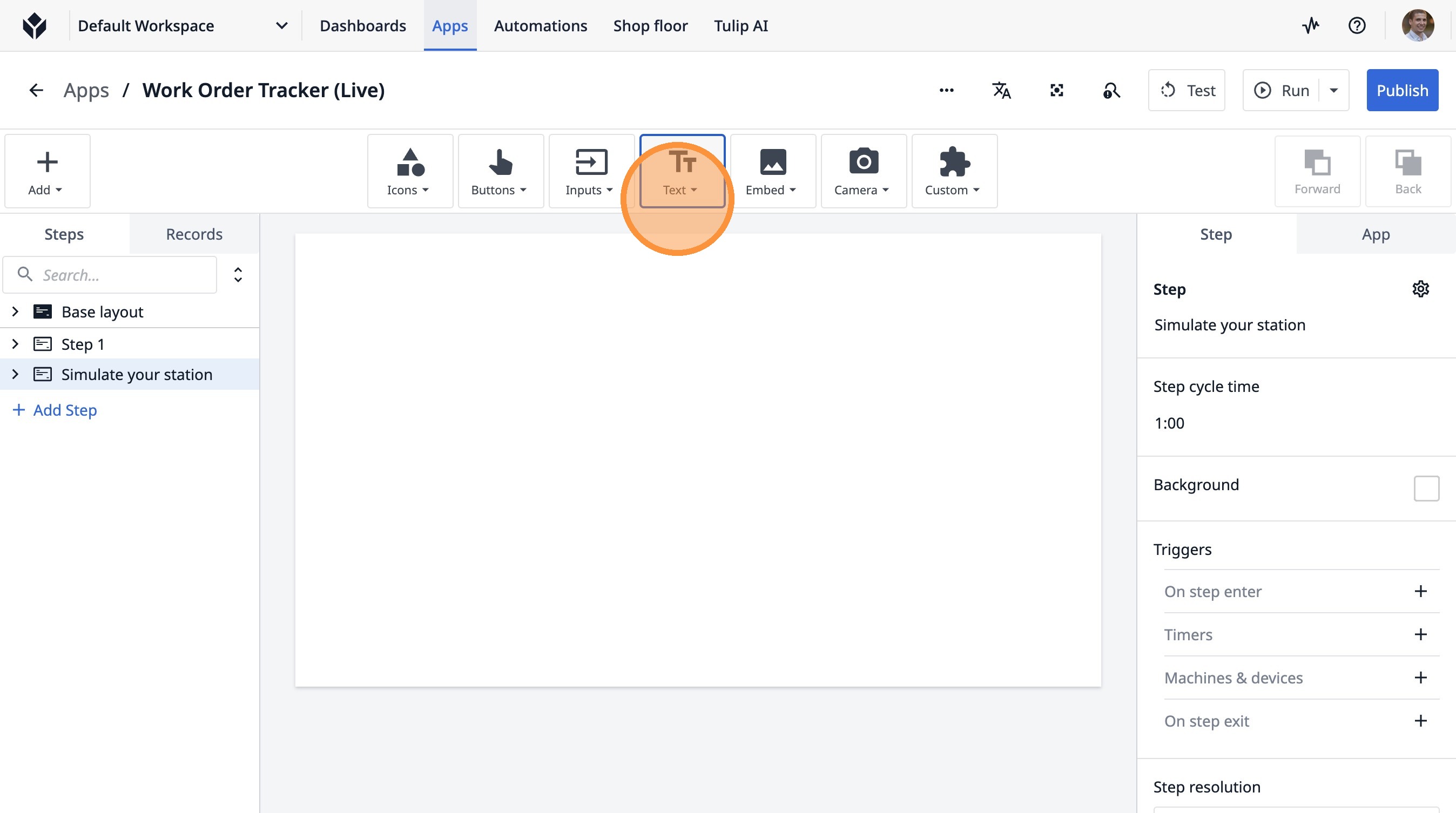
44. Click "Text"
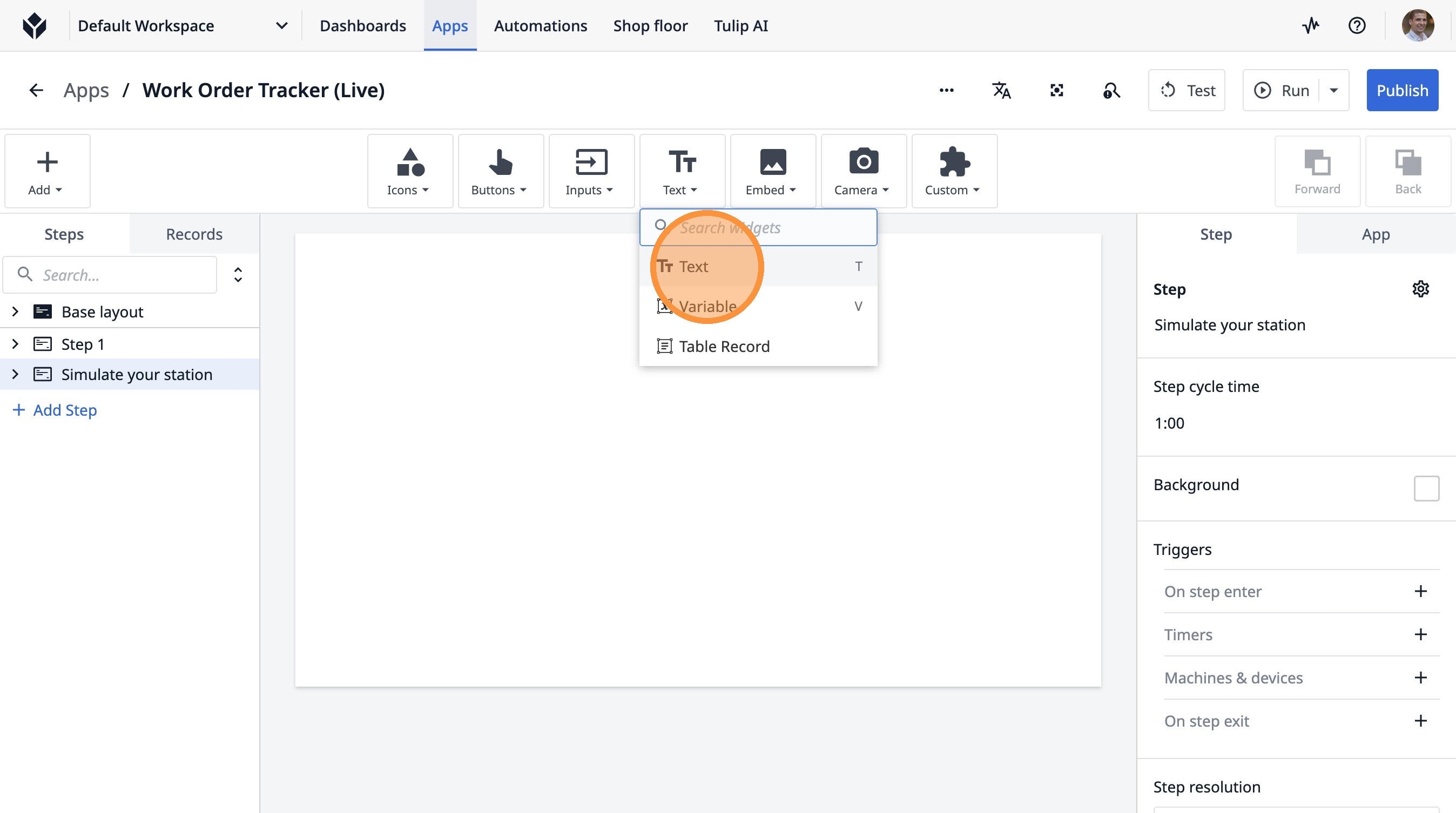
45. Click "Add Text..."
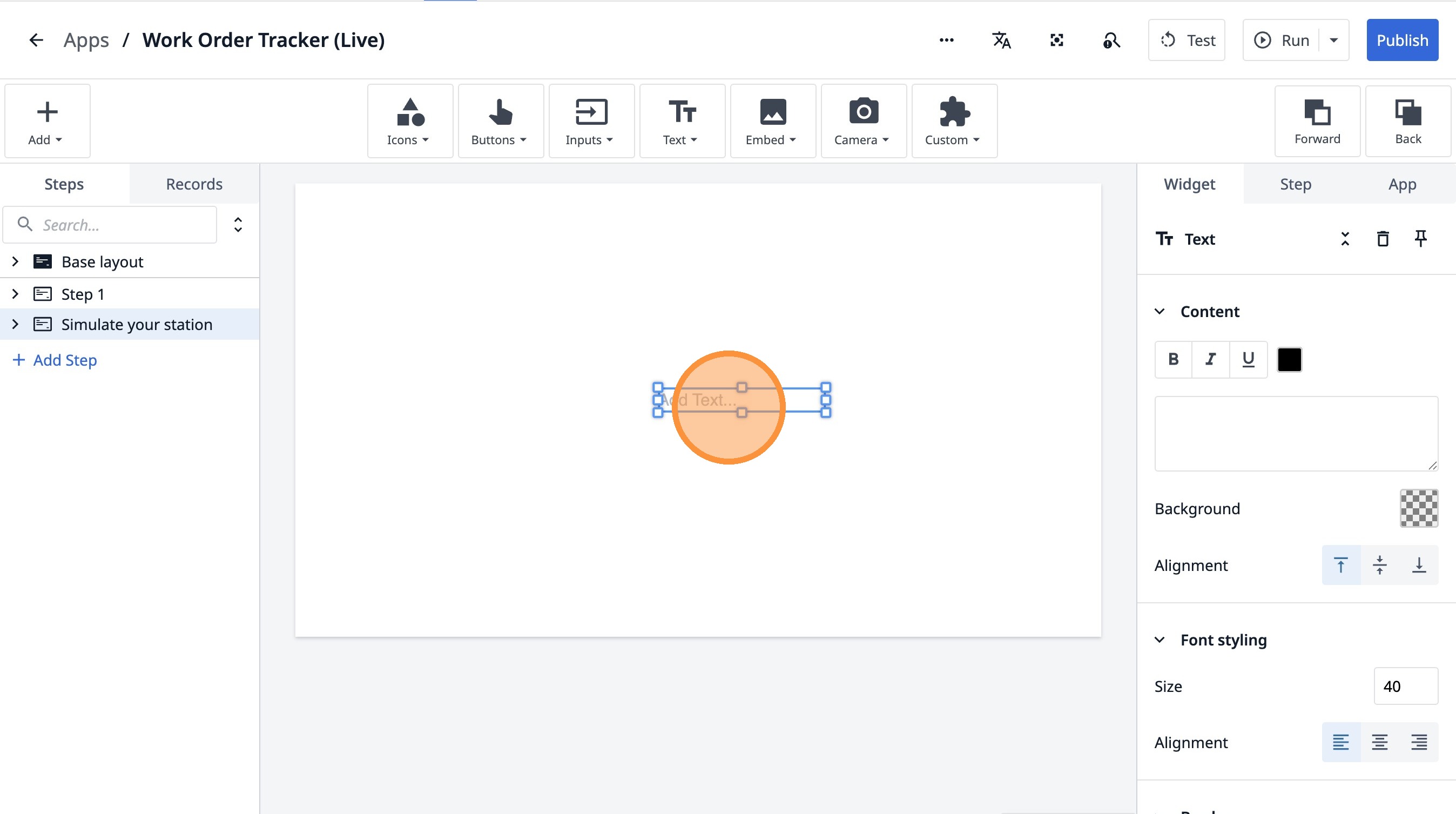
46. Click here.
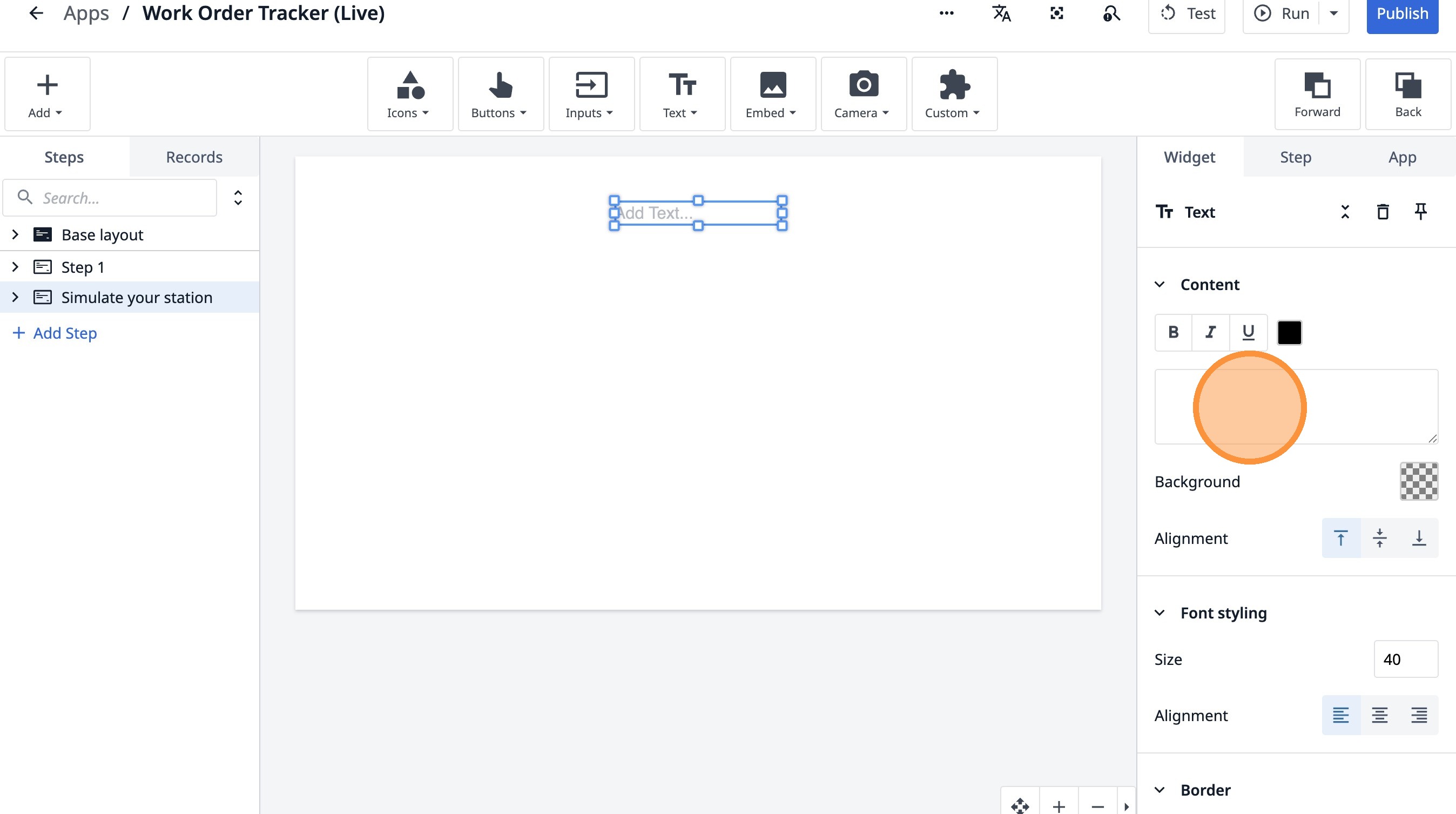
47. Type "Indicate your current station"
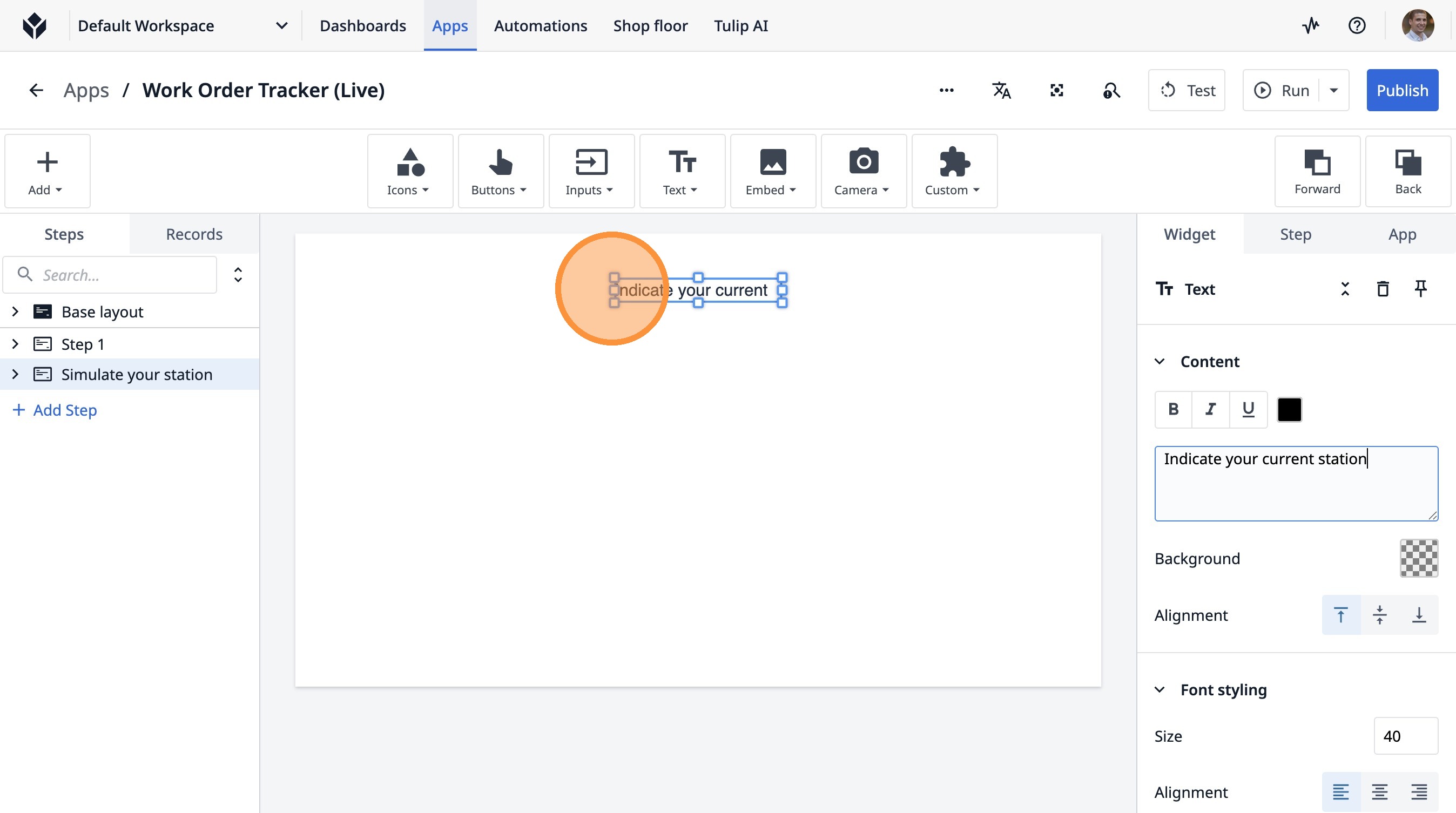
48. Click here.
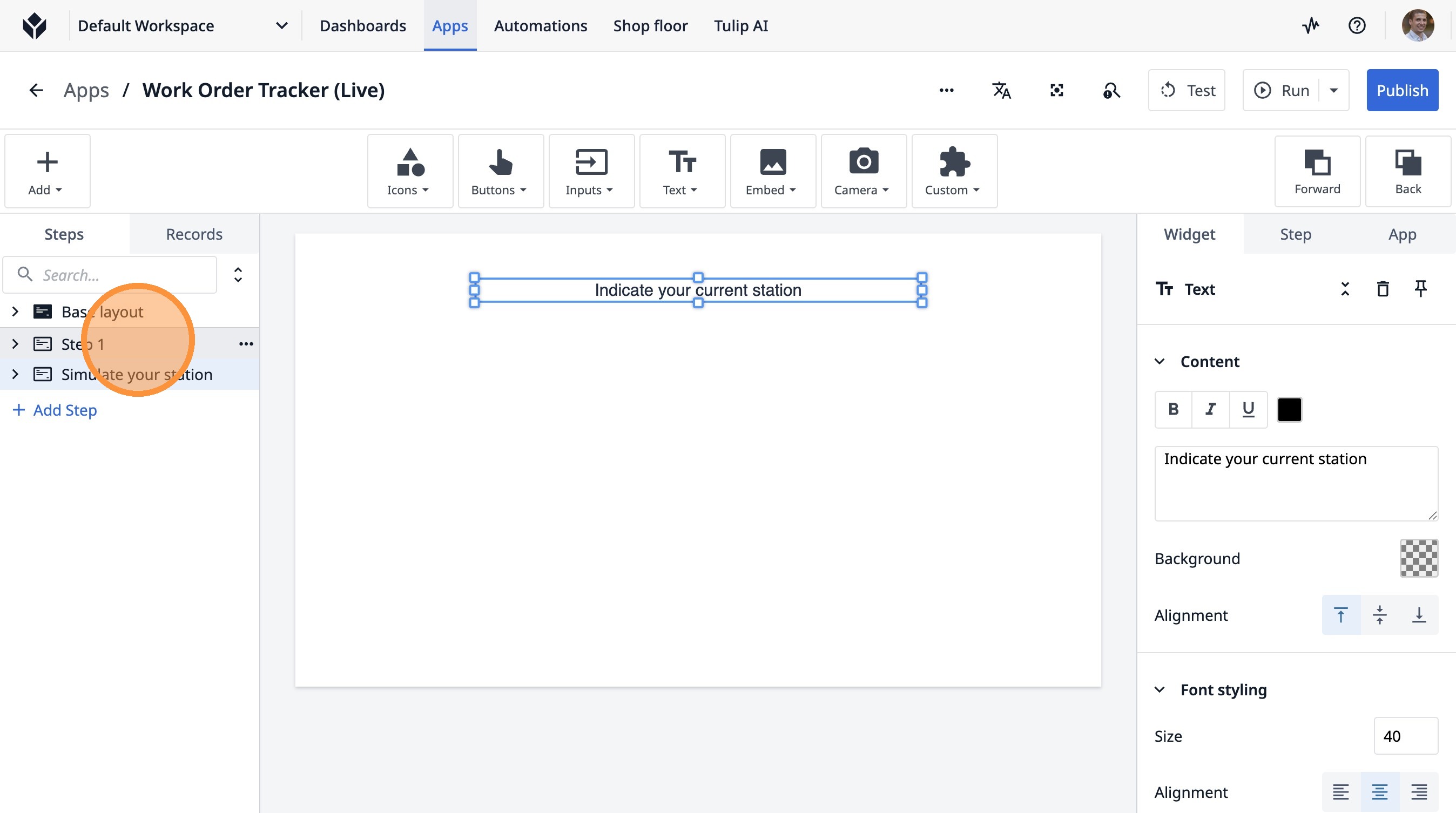
49. Click "Step 1"
50. Click here.
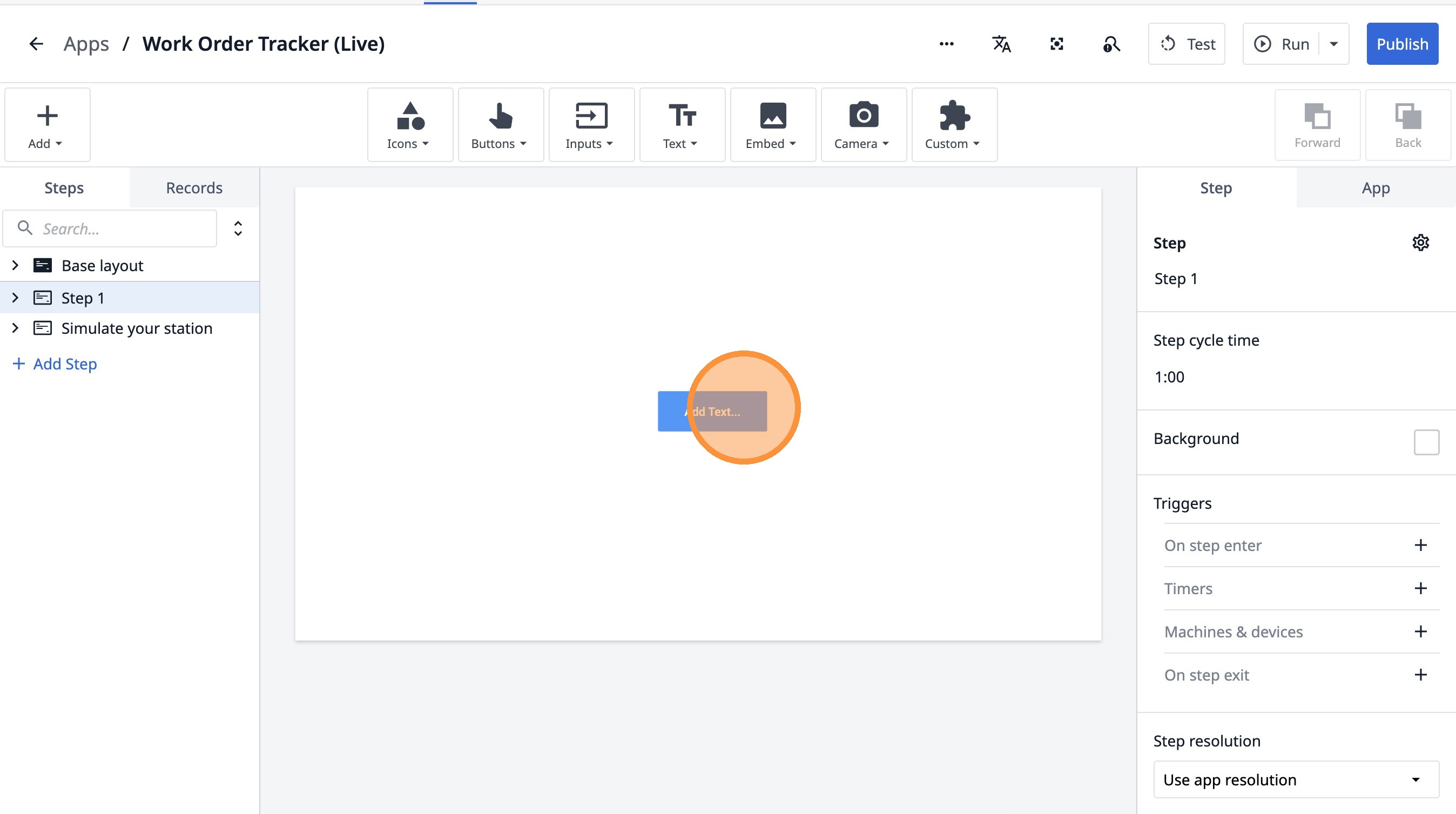
51. Click "create work order"
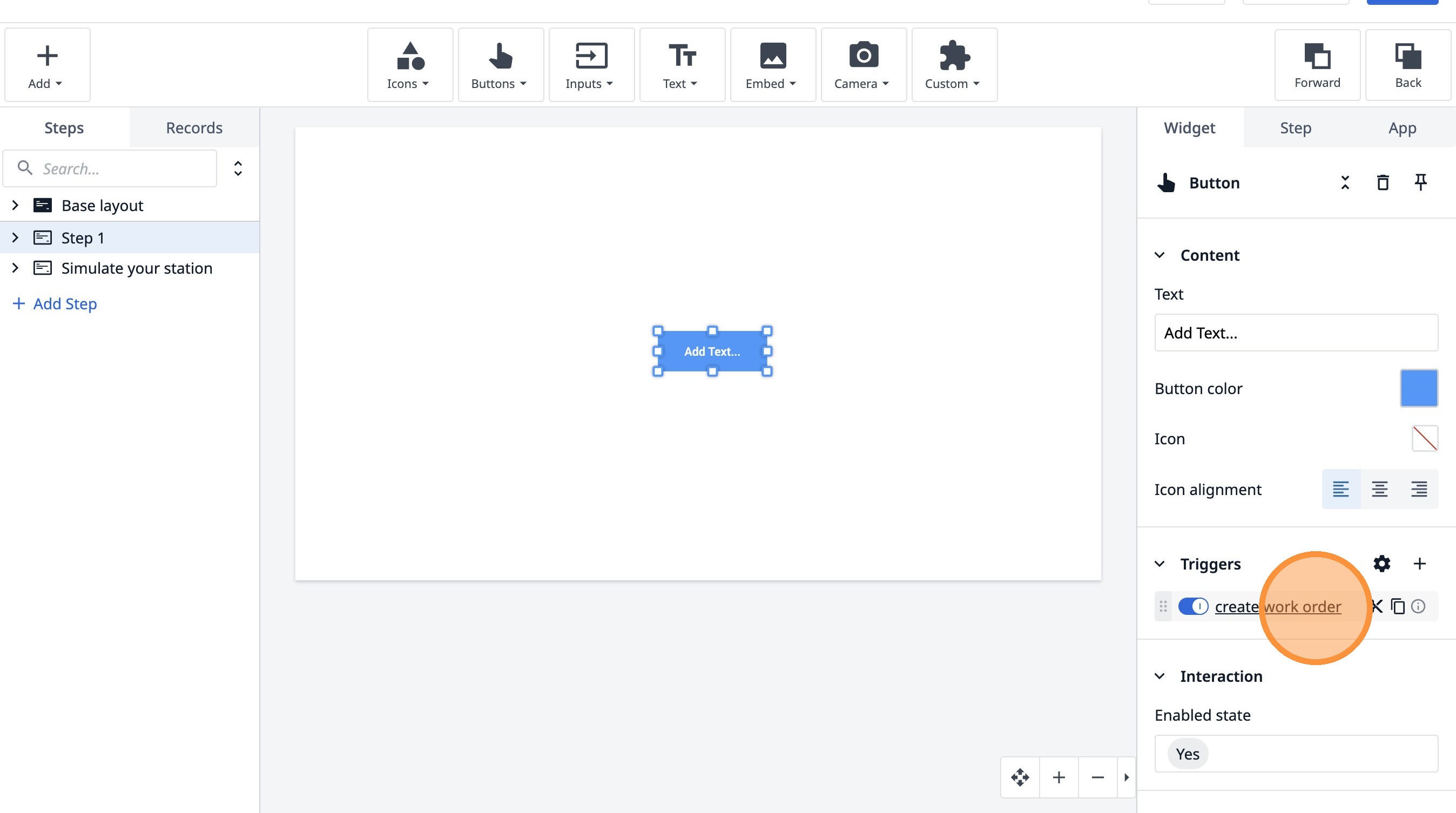
52. Double-click this text field.
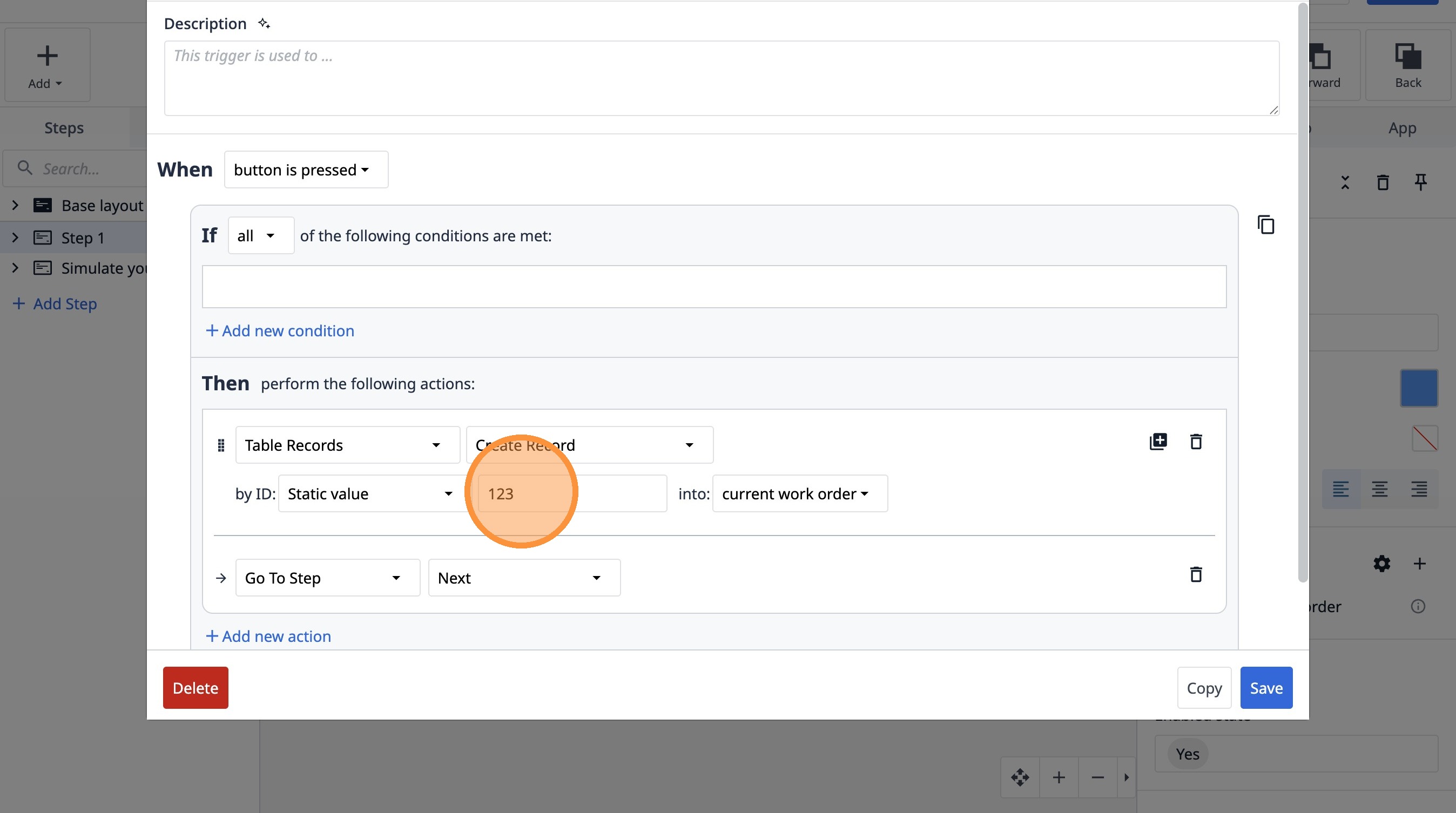
53. Select the "Expression" option.
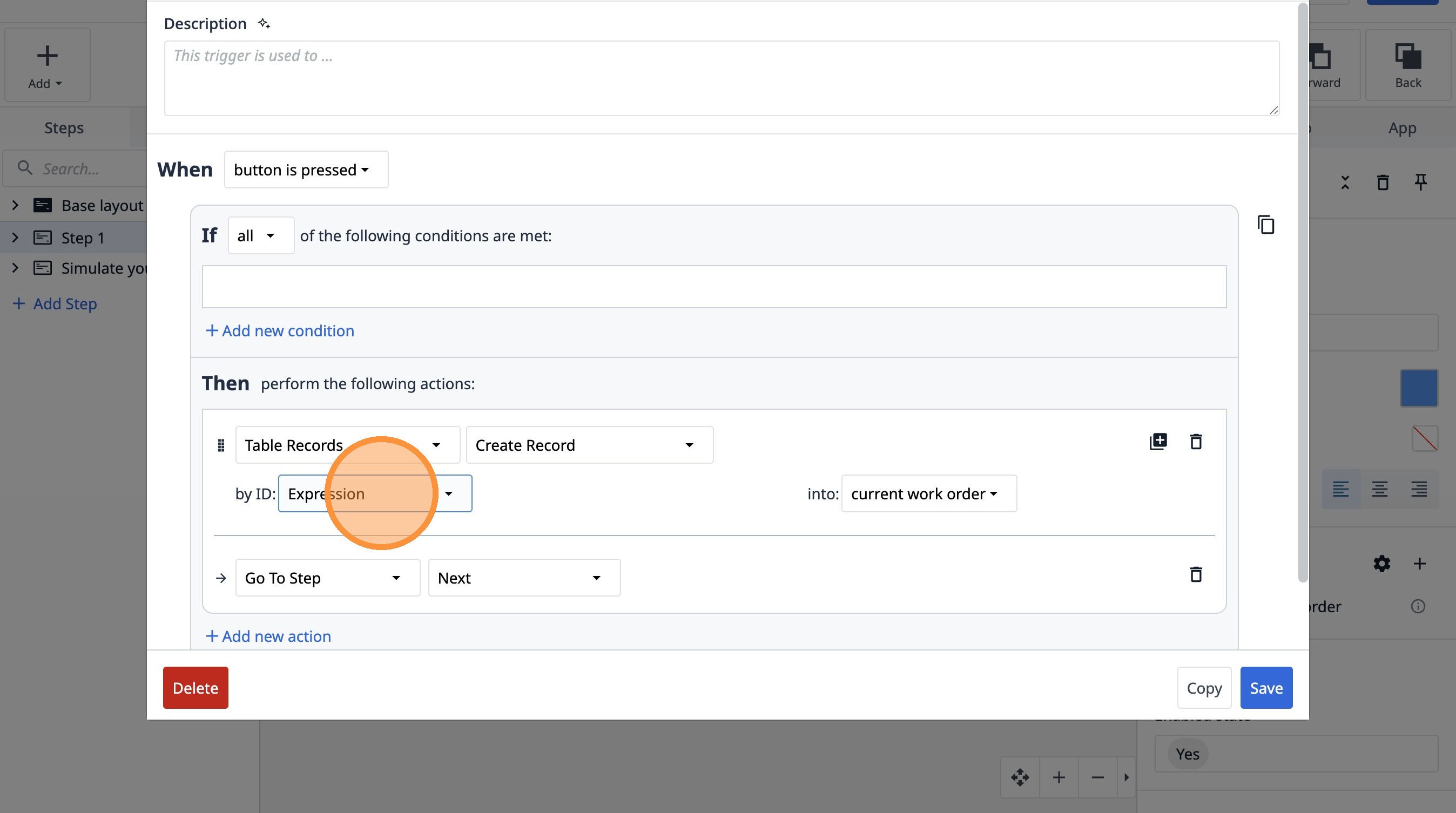
54. Click here.
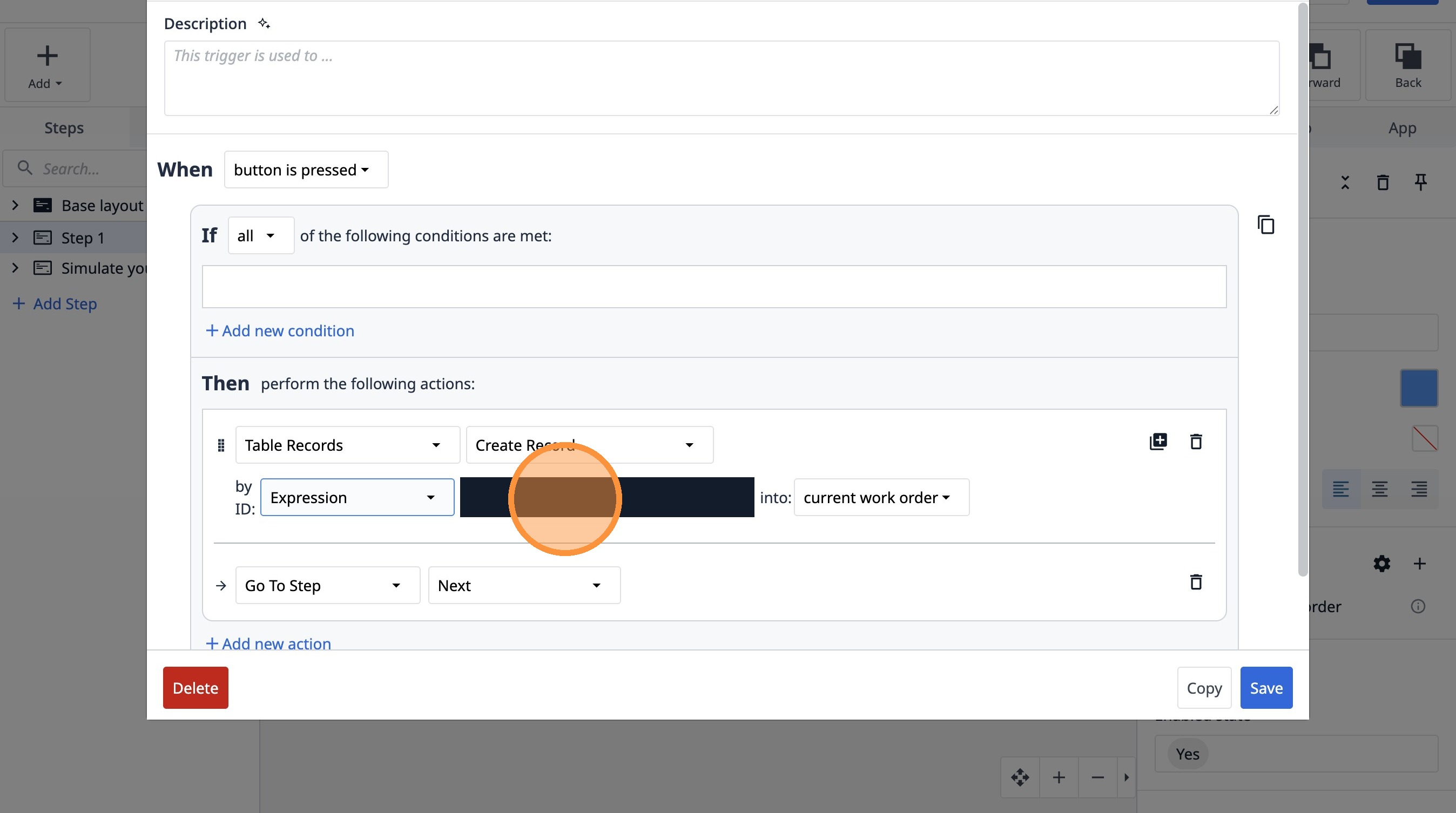
55. Click "randomstring()function"
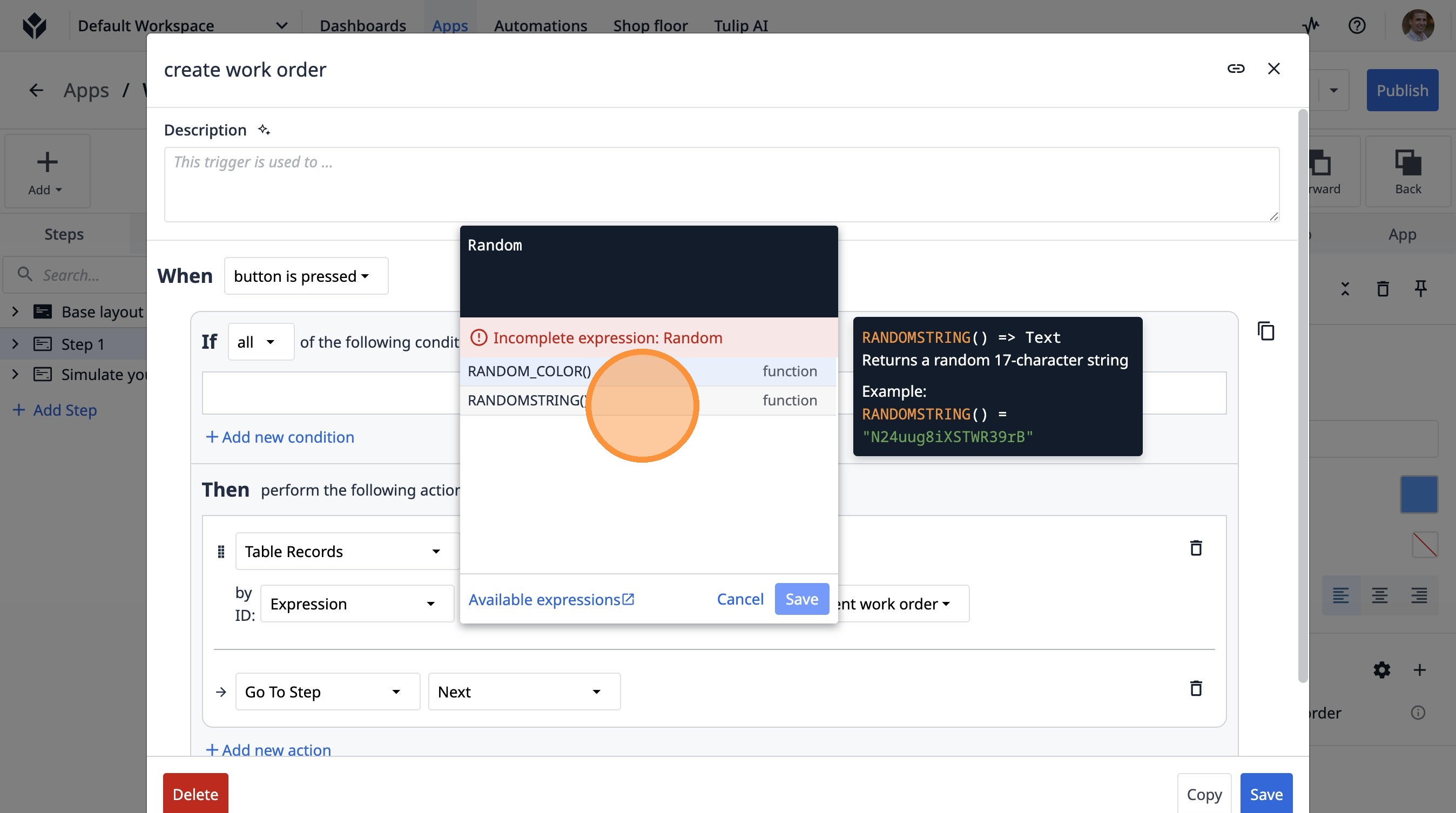
56. Click "Save"
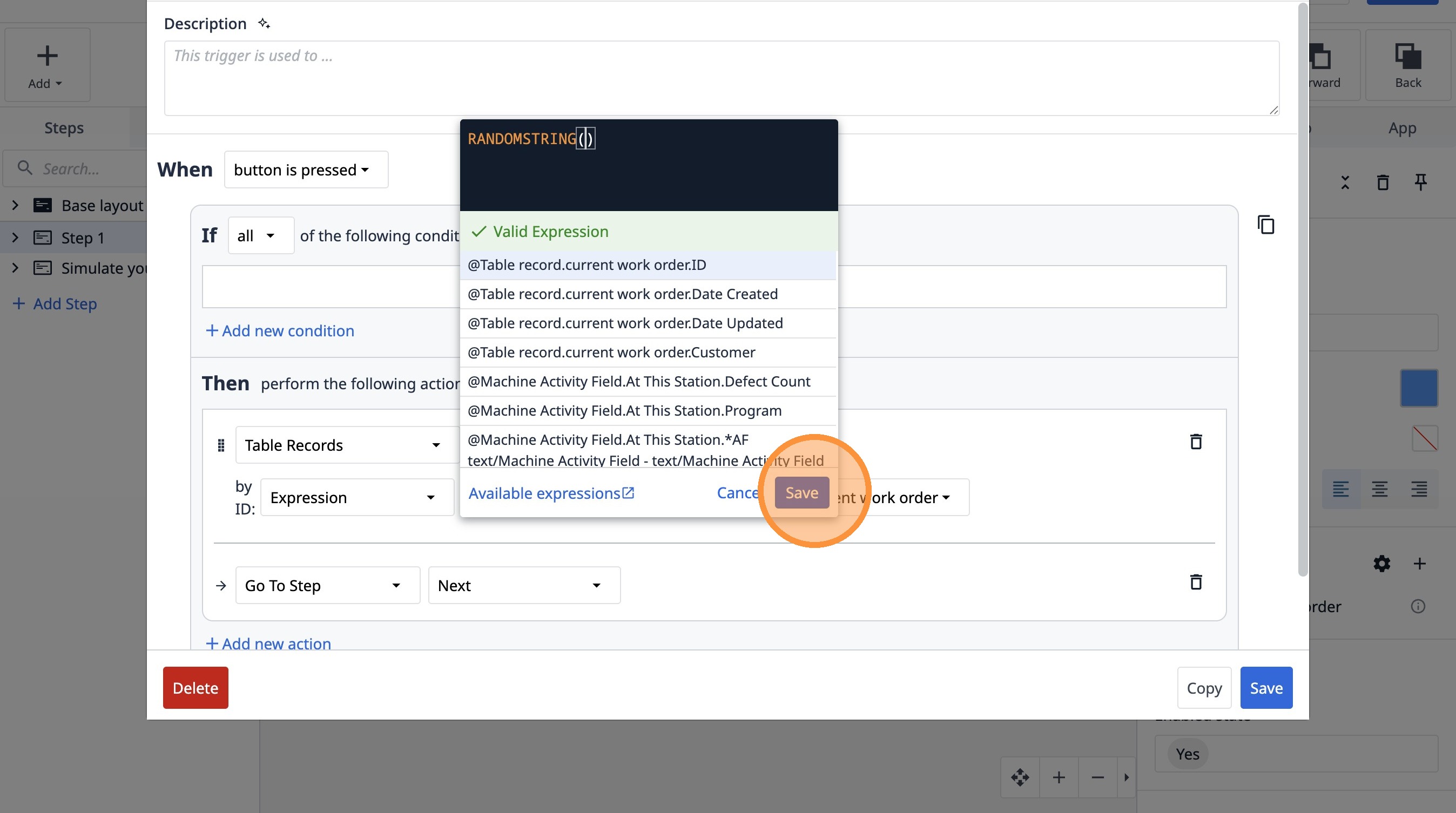
57. Click "Save"
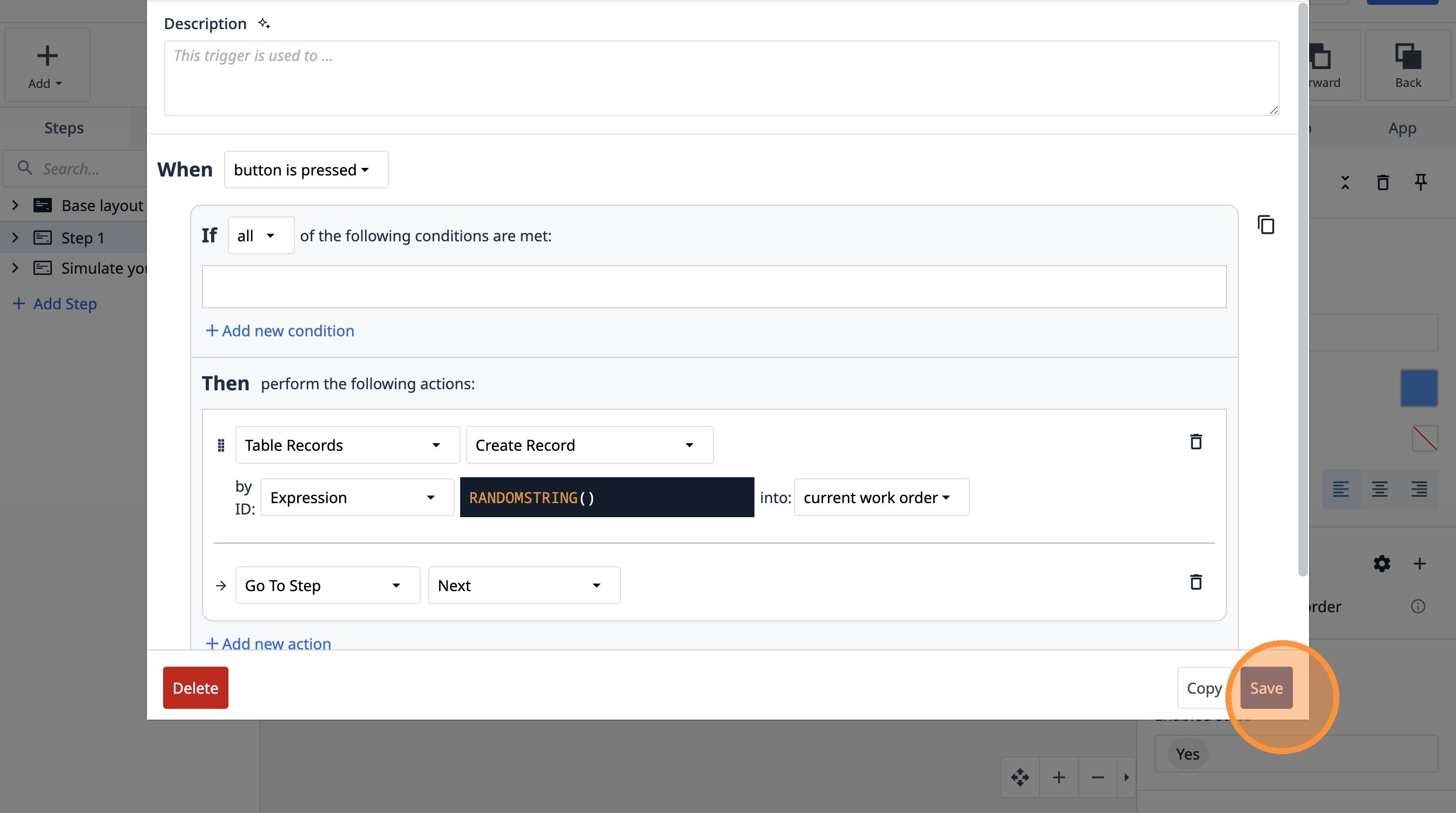
58. Click "Simulate your station"
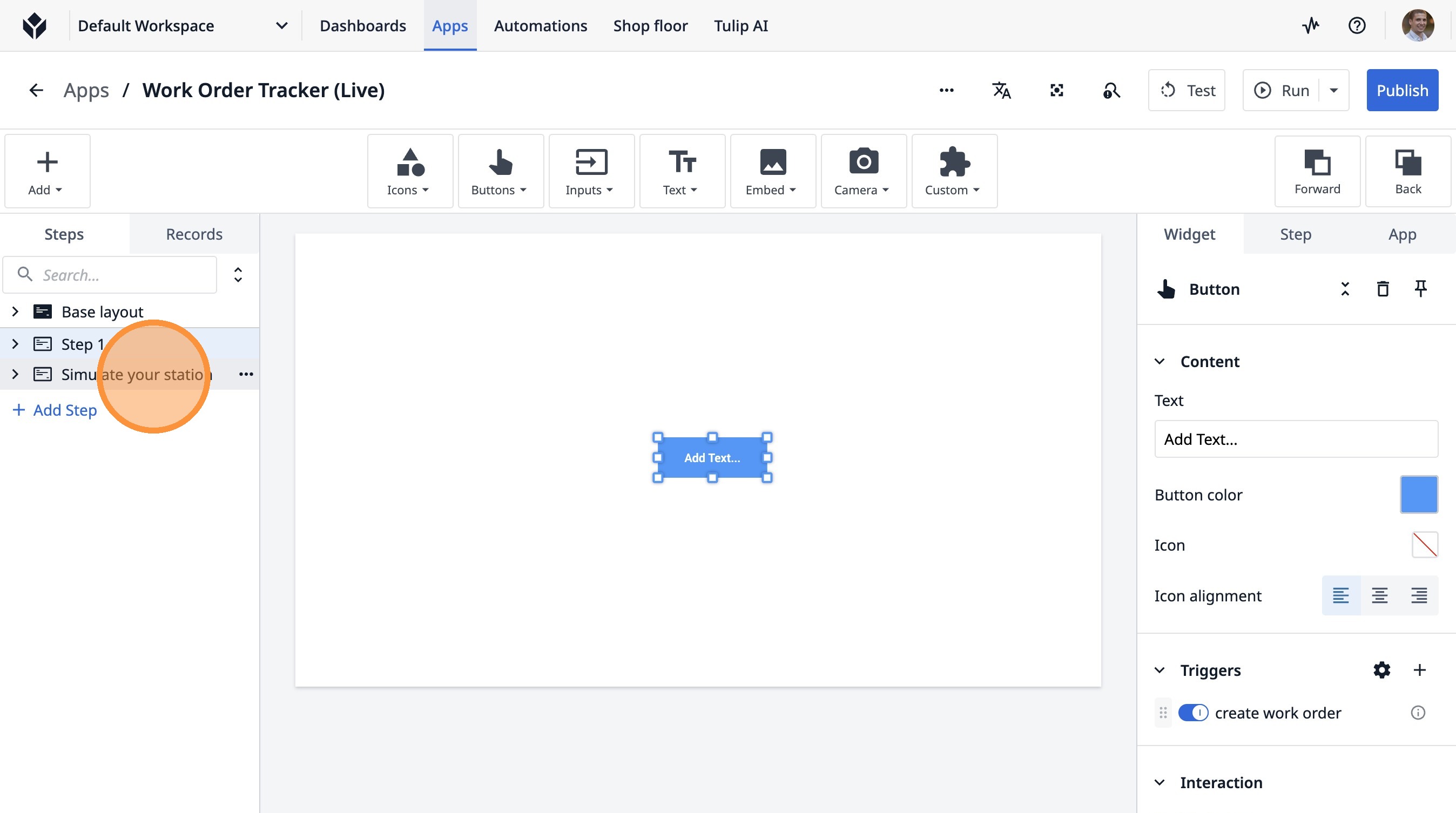
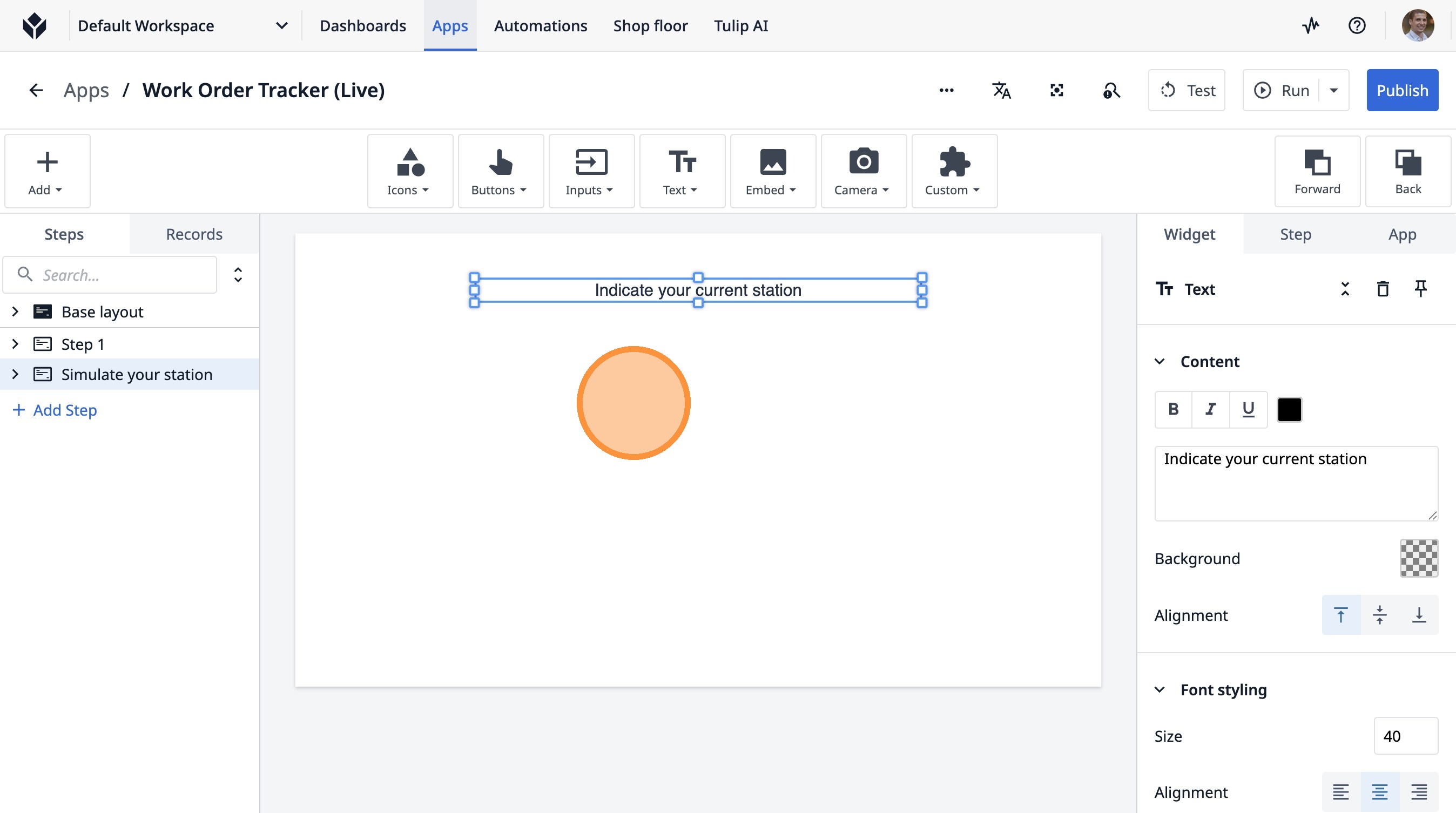
59. Click "Indicate your current station"
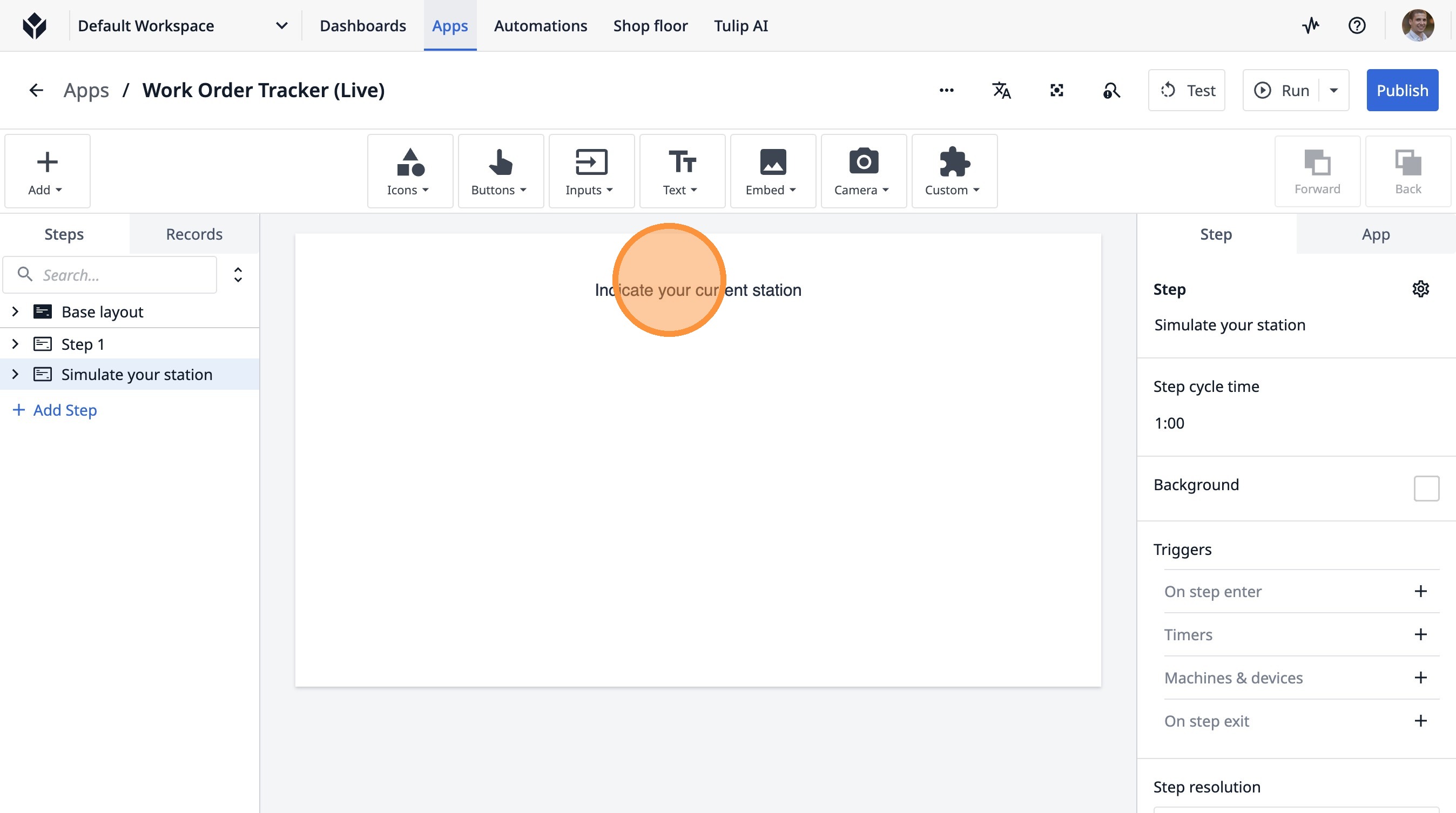
60. Click here.
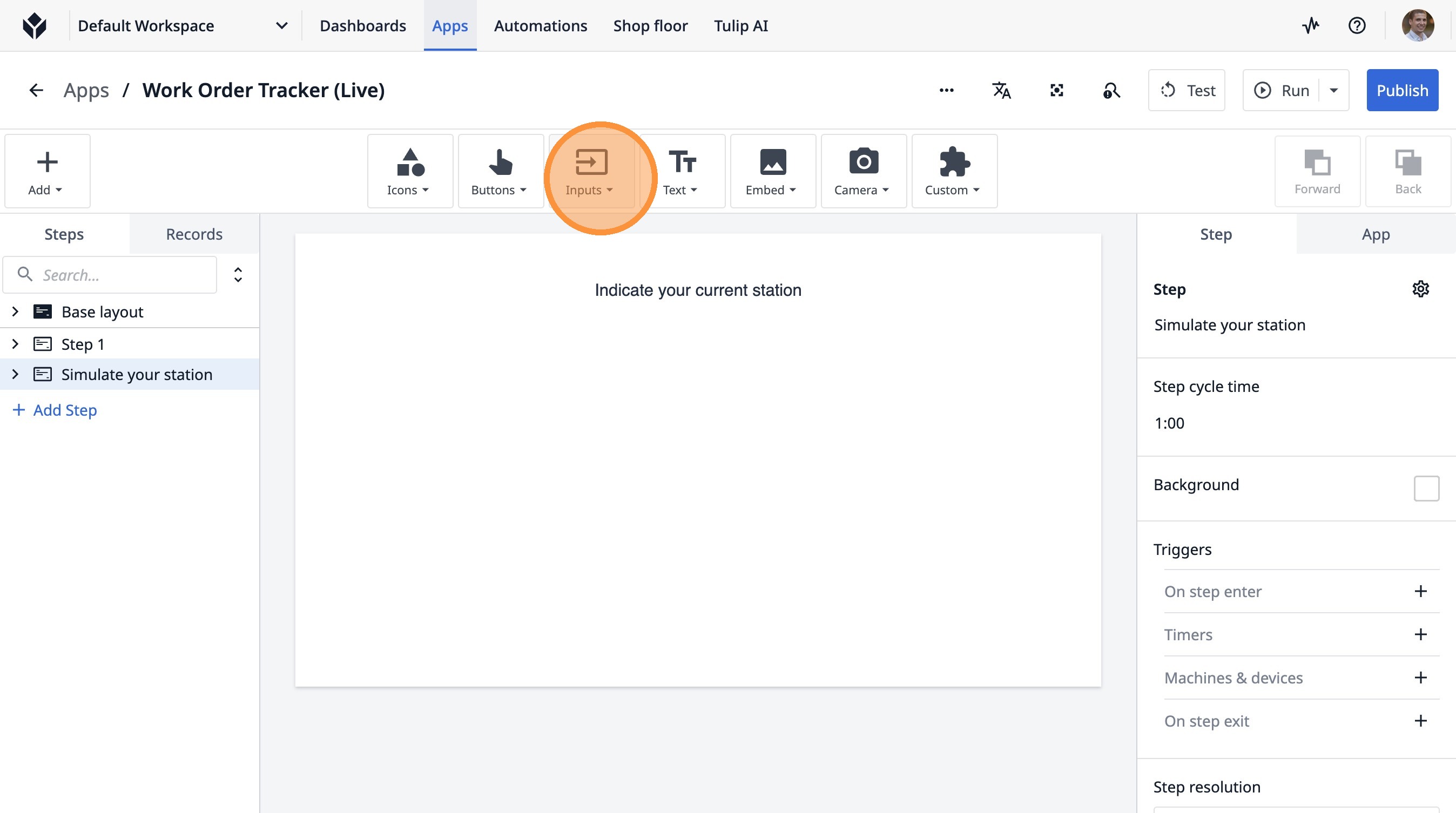
61. Click this icon.
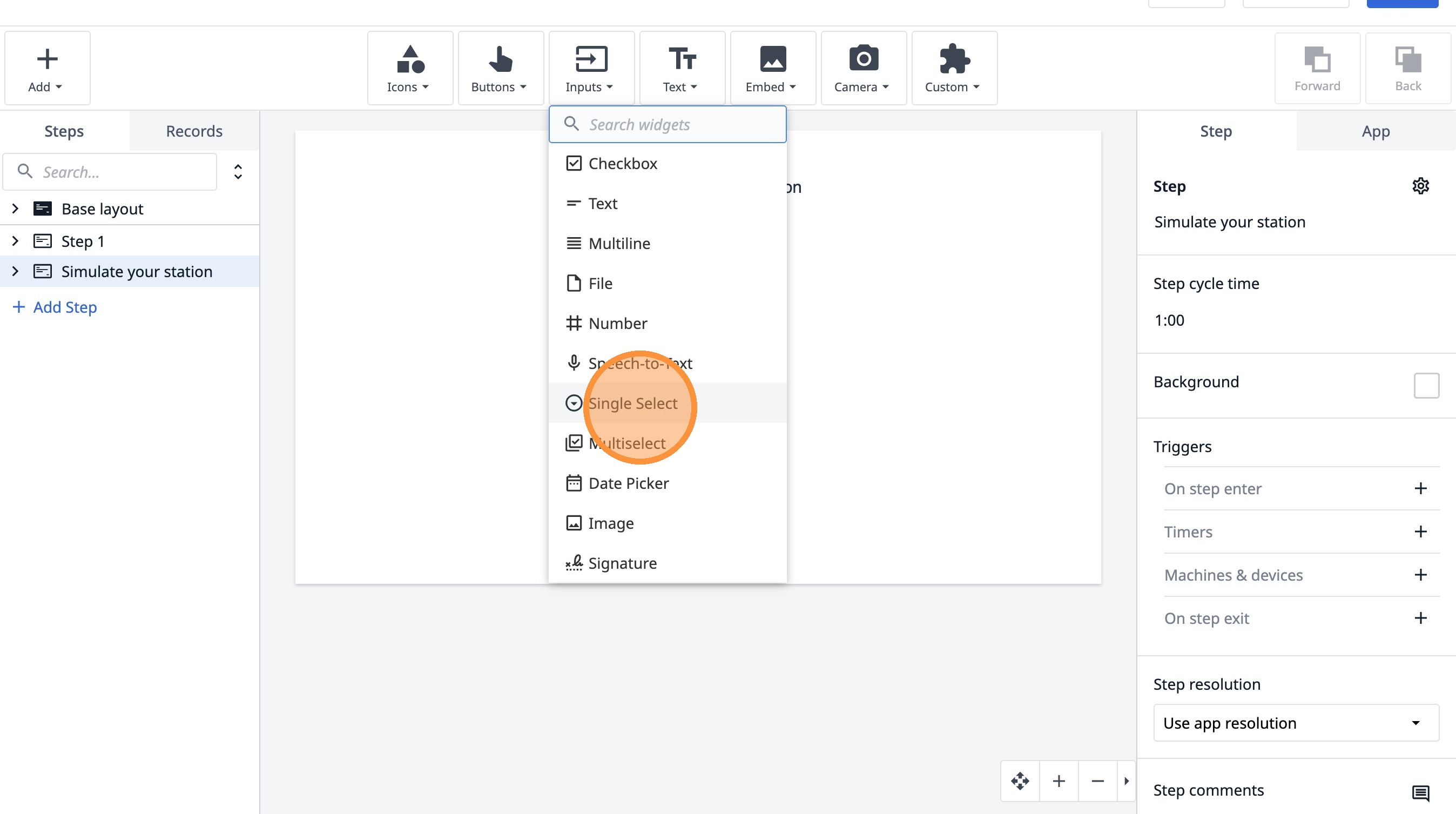
62. Click "Single Select"
63. Click here.
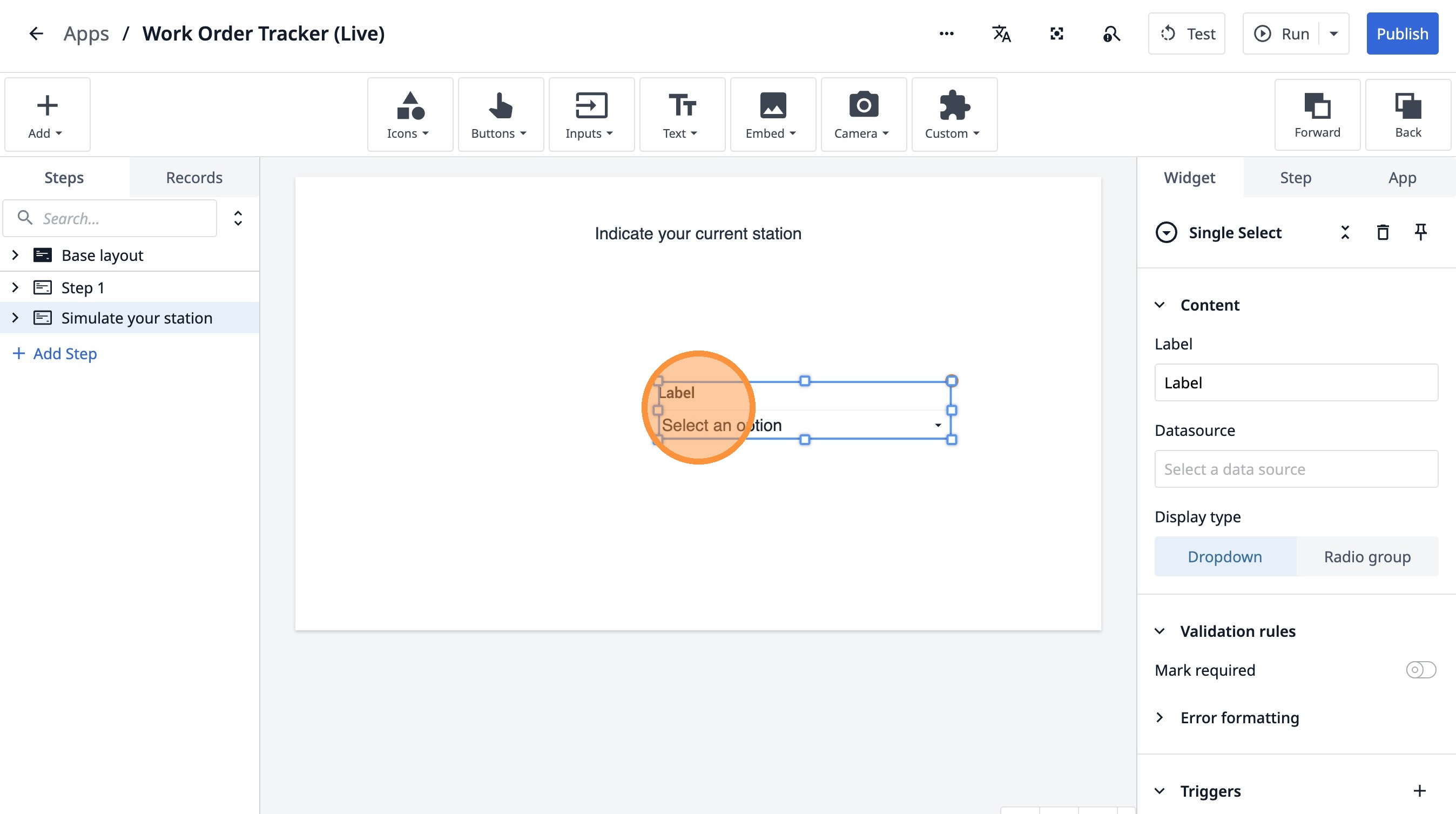
64. Double-click the "Label" field.
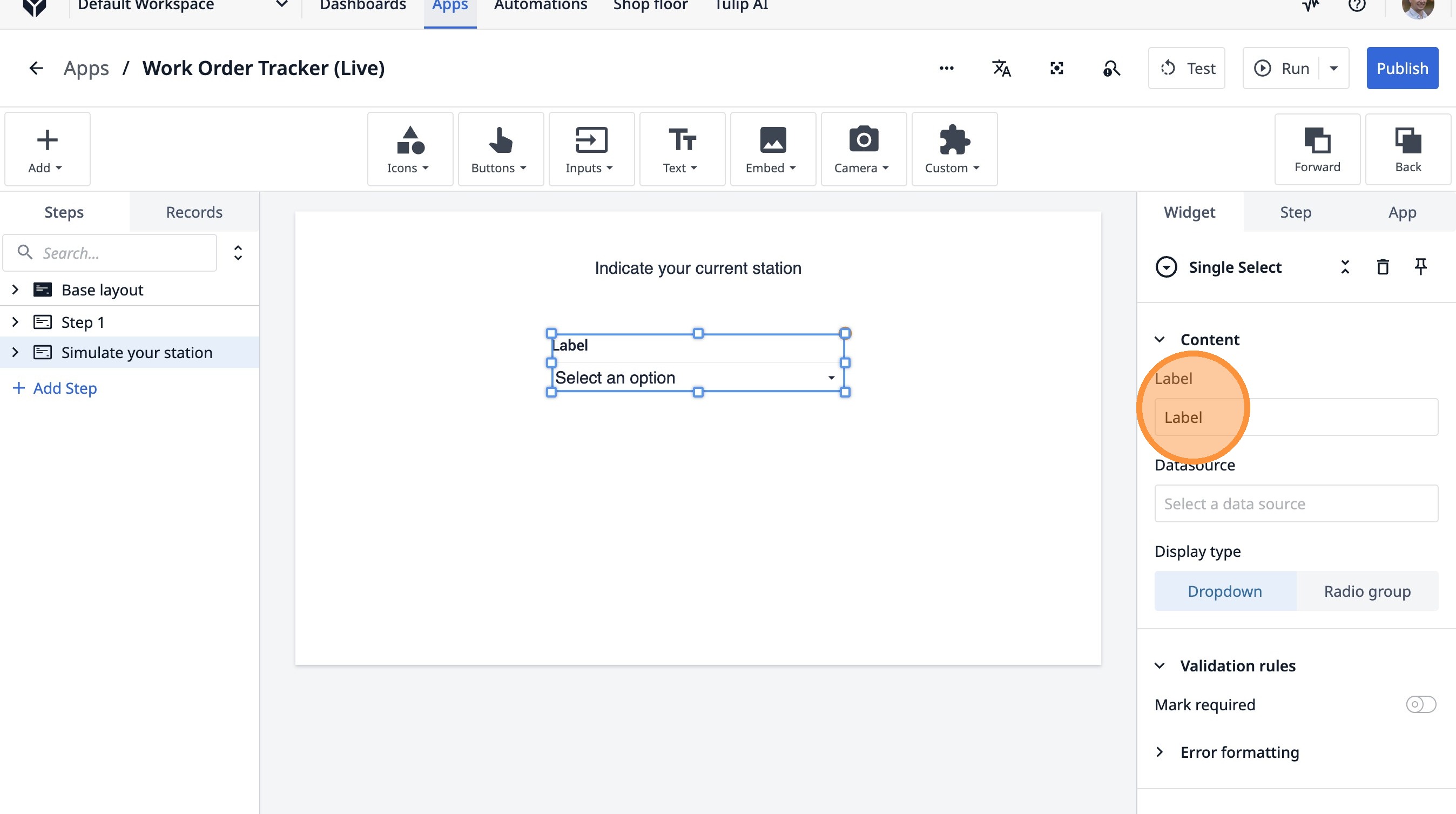
65. Type "Current Station"
66. Click "Select a data source"
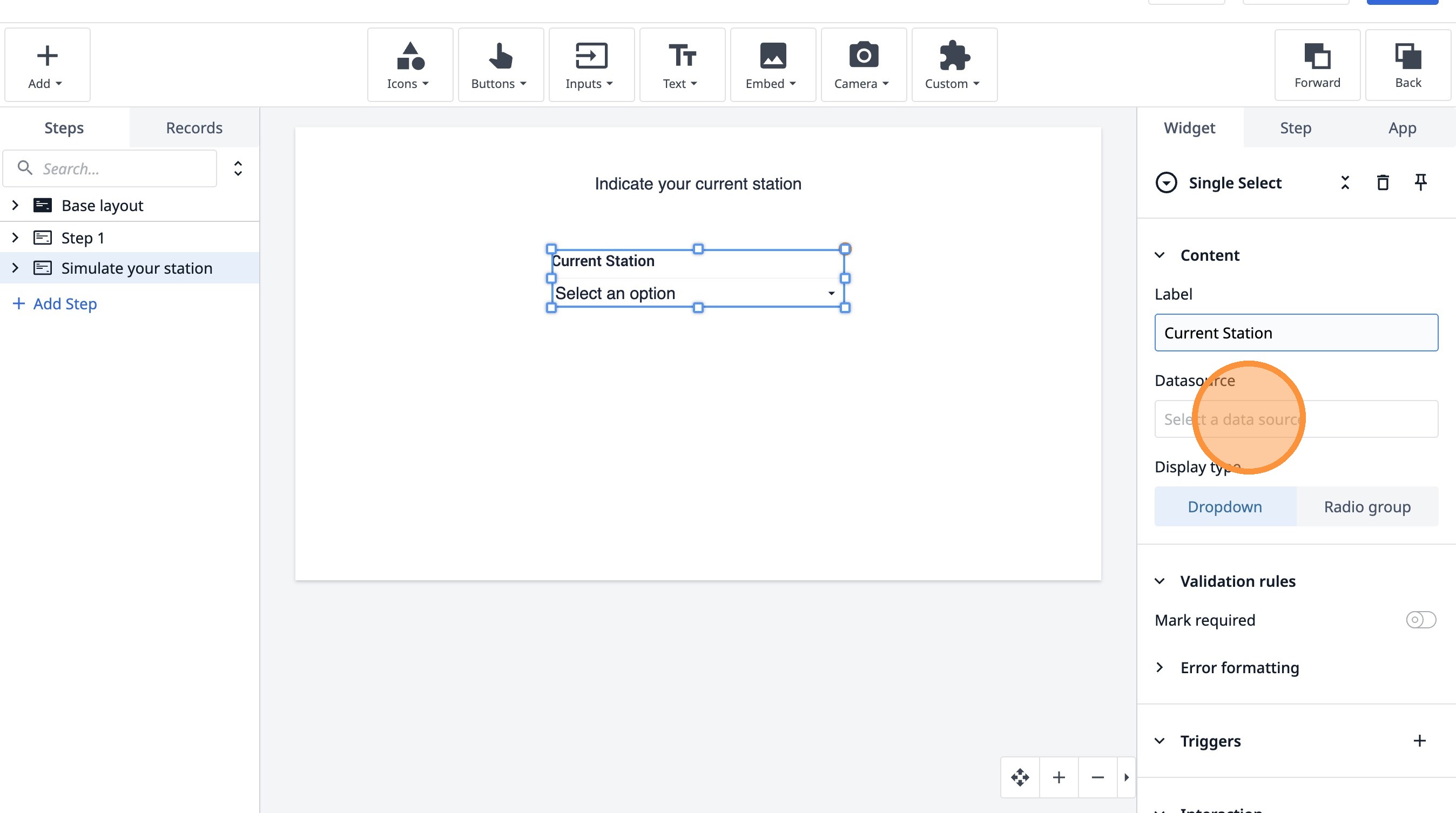
67. Click "Add variable"
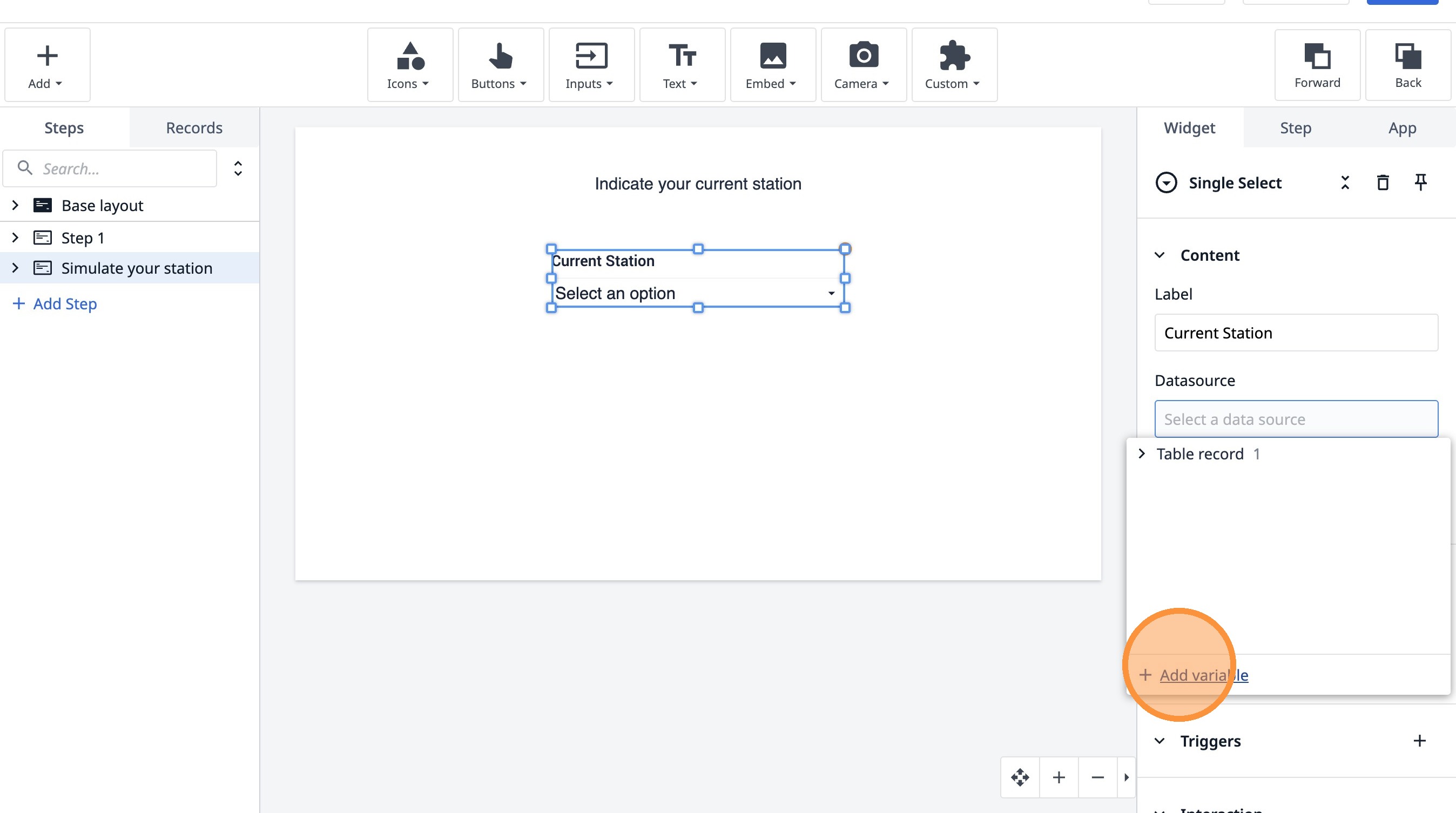
68. Type "current station"
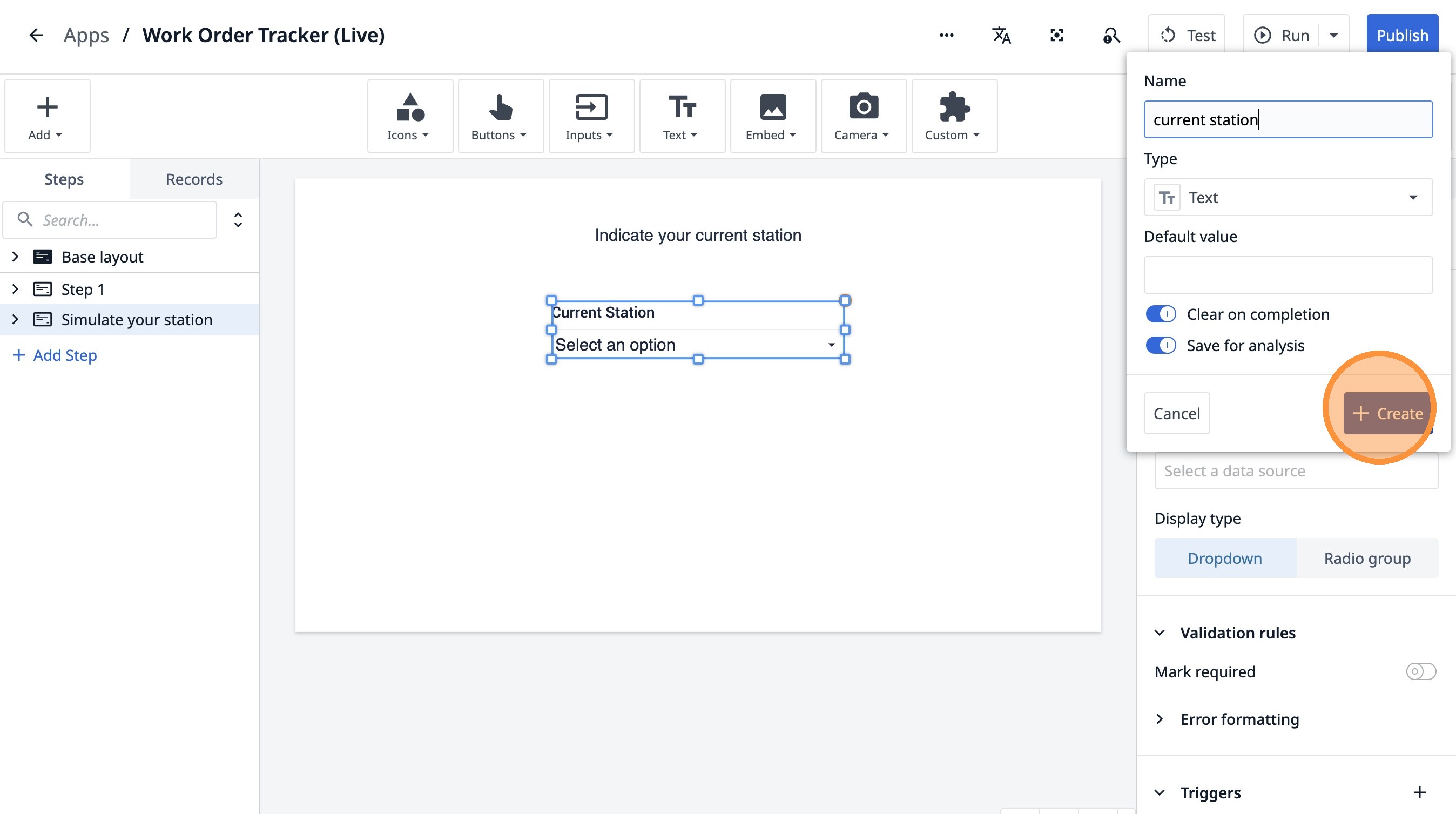
69. Click "Create"
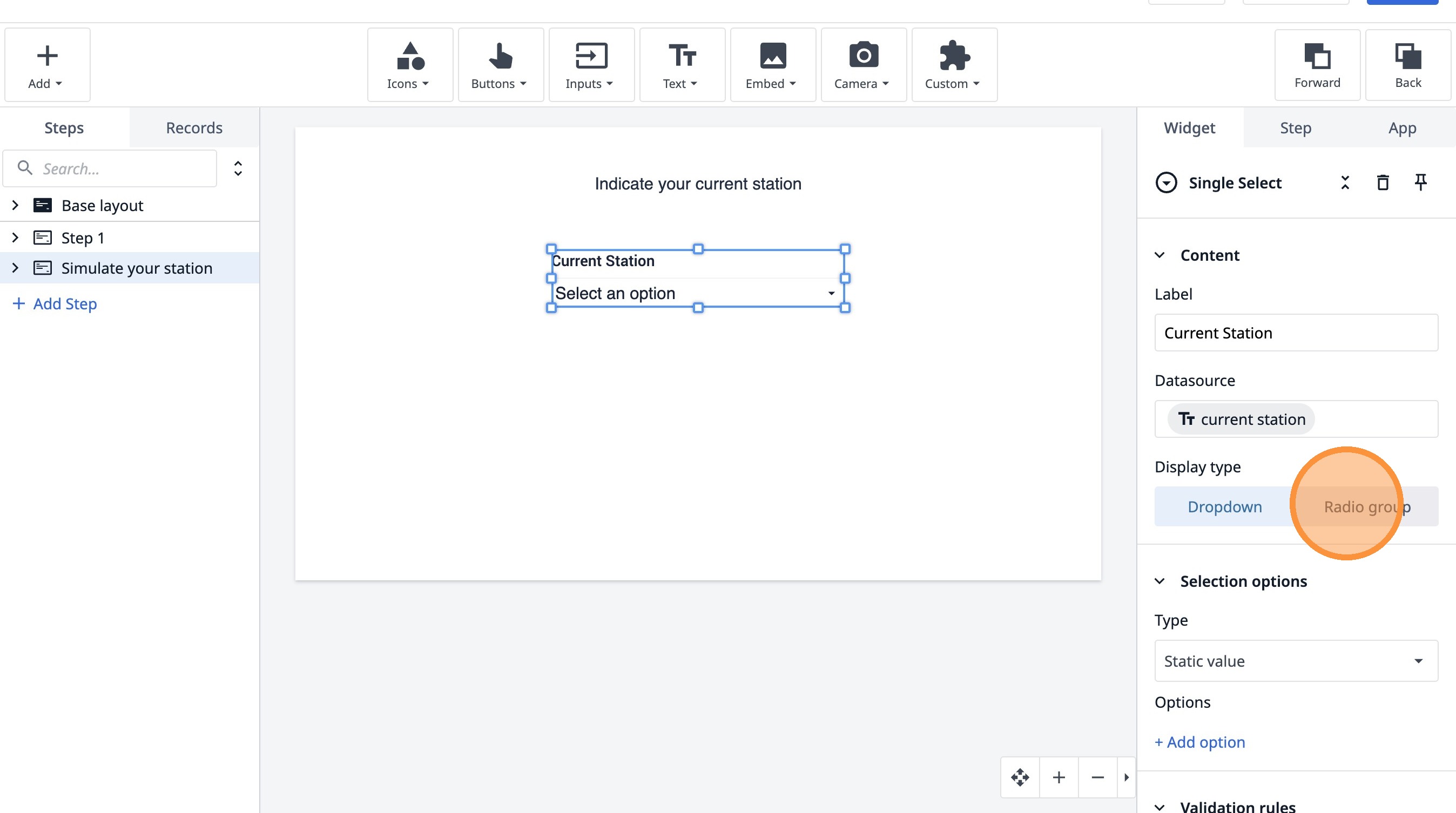
70. Click "Radio group"
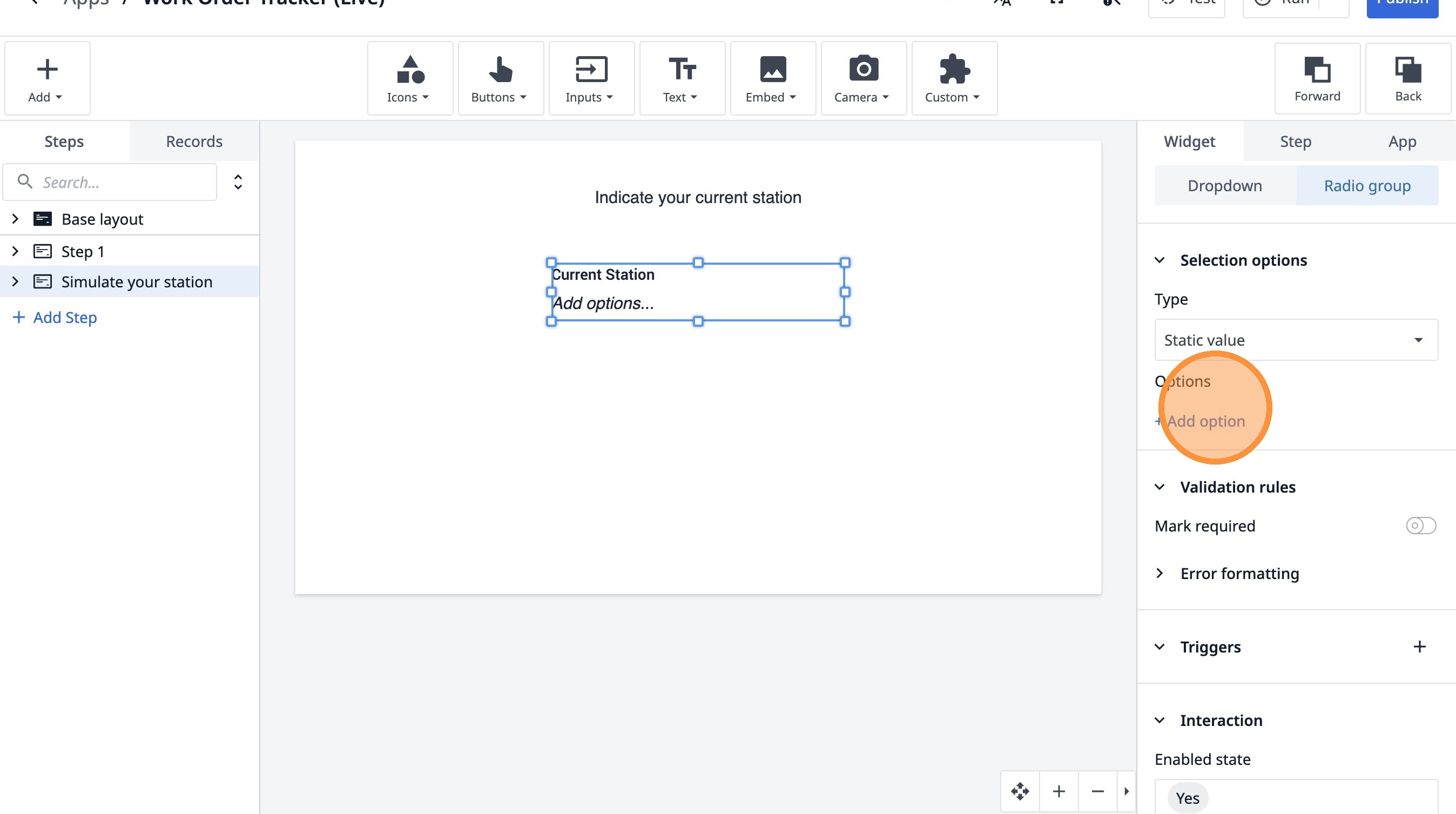
71. Click "+ Add option"
72. Type "Station 1"
73. Click "+ Add option"
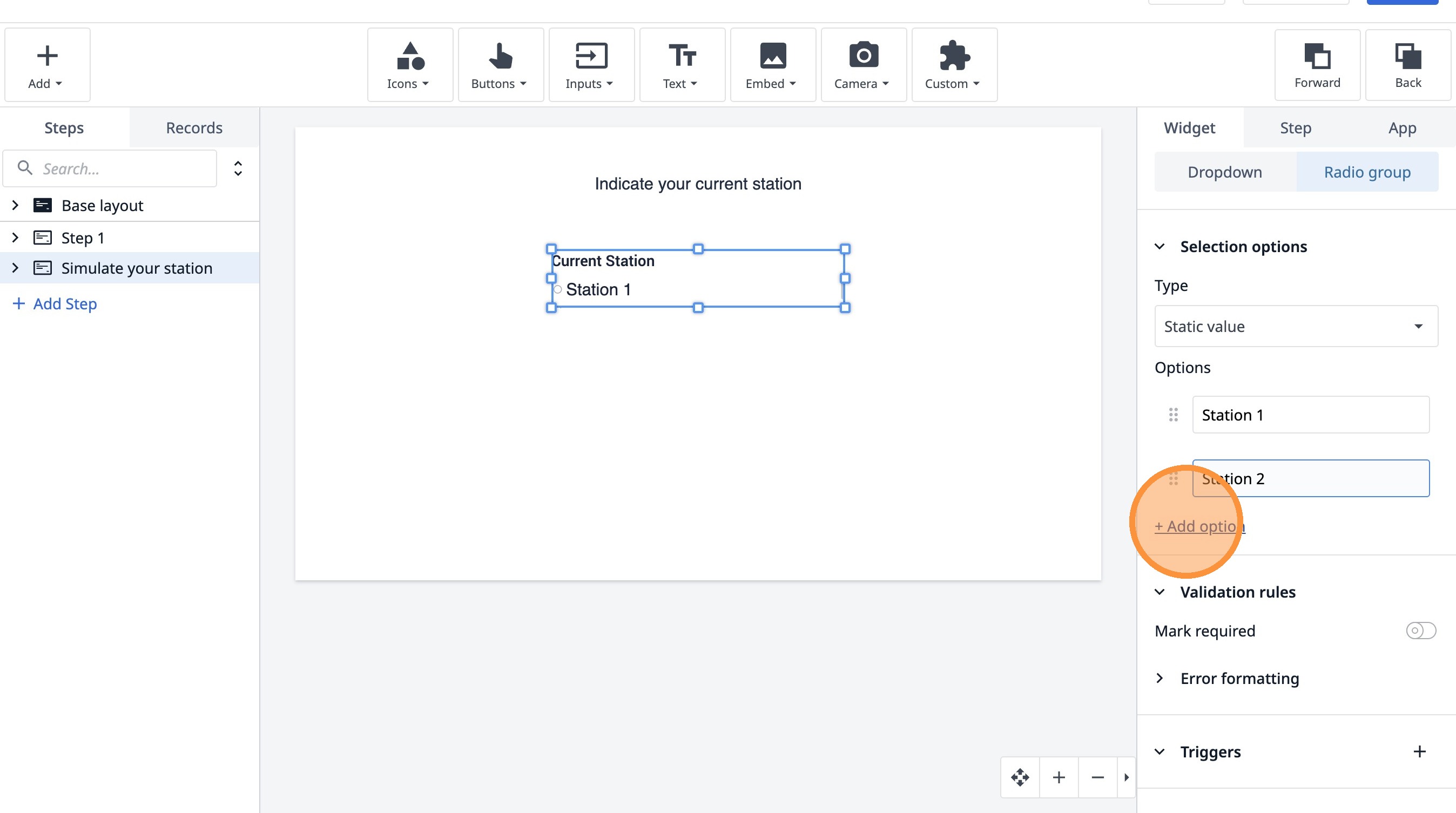
74. Click "+ Add option"
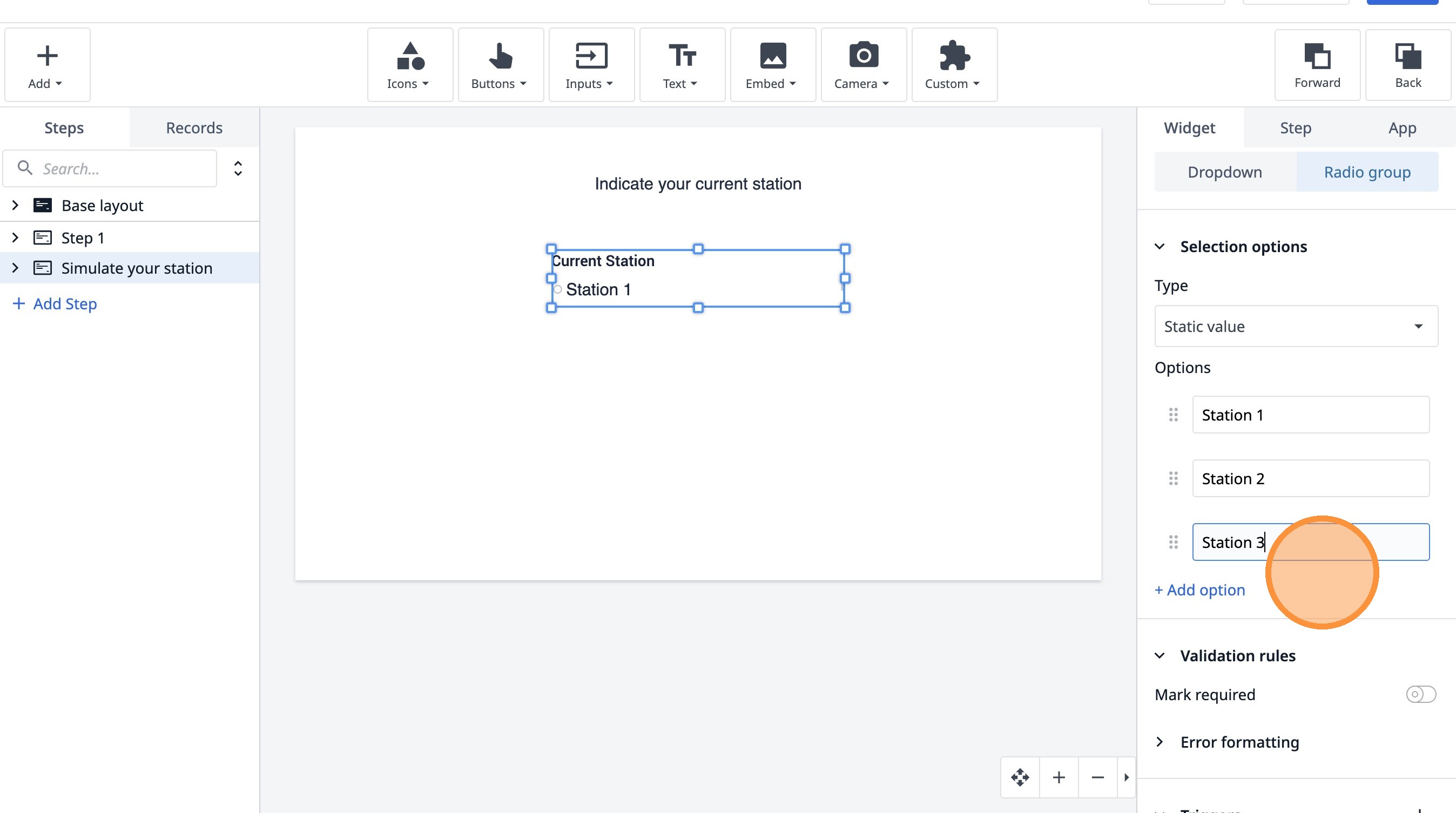
75. Click this icon.
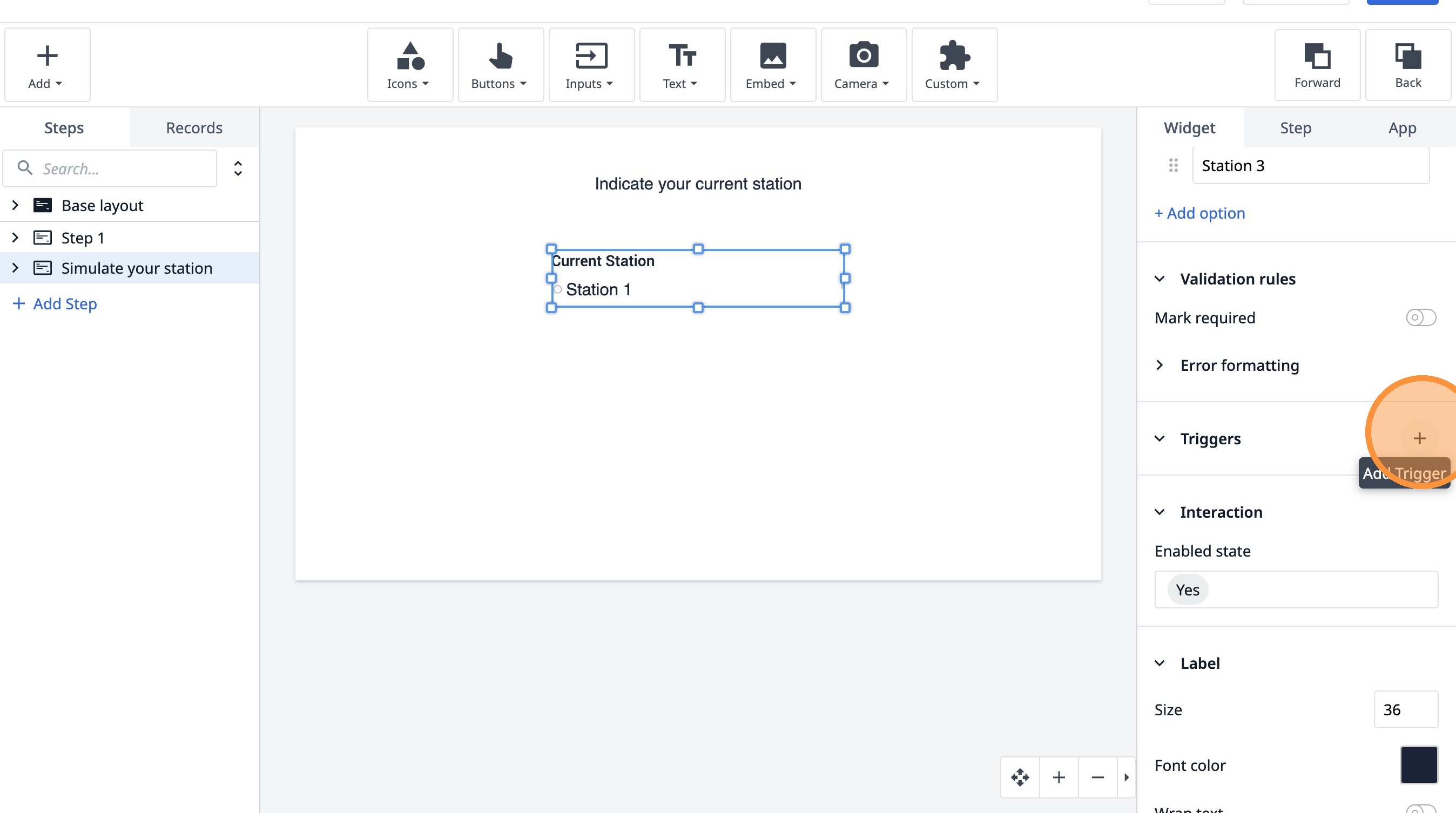
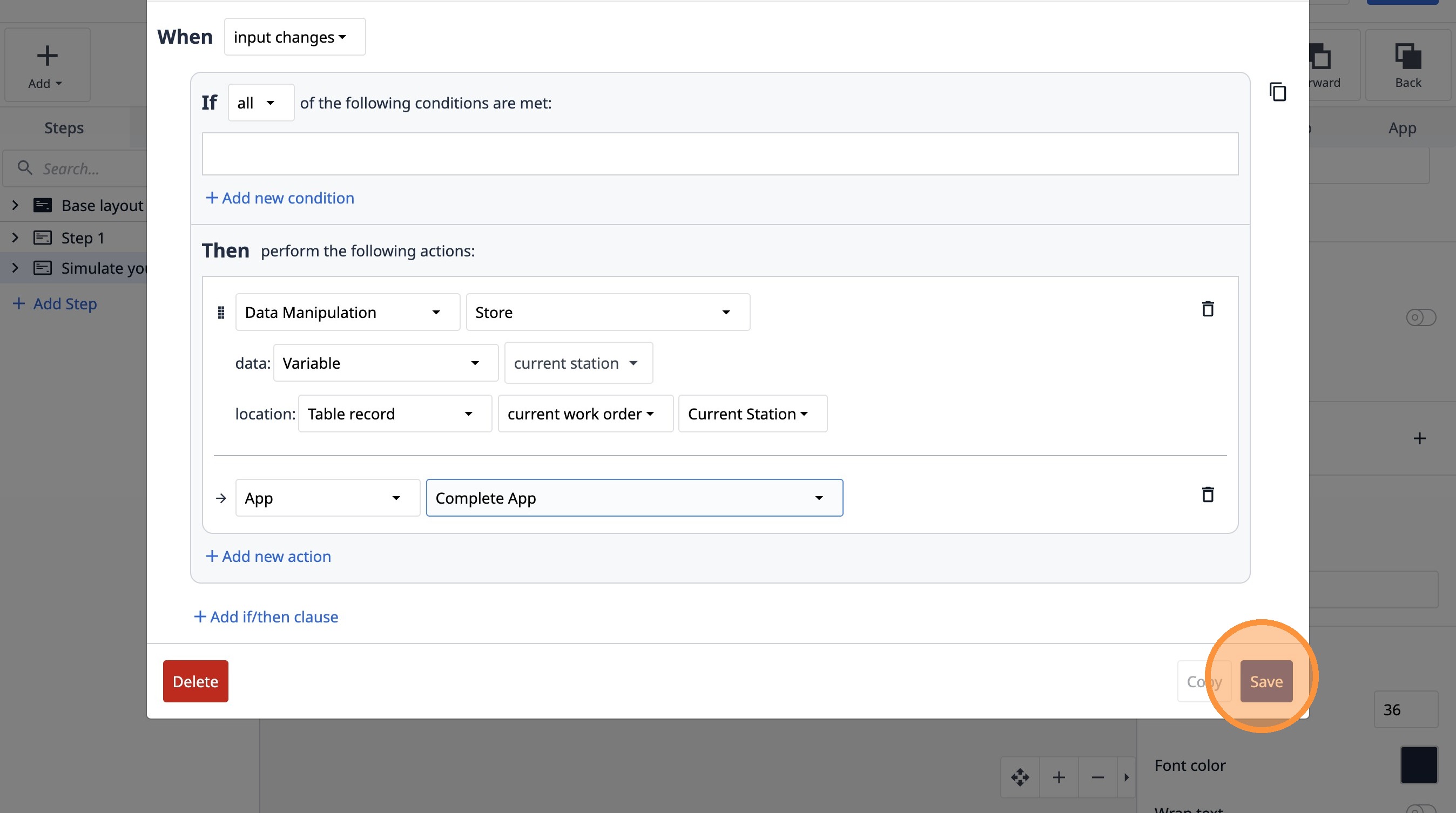
76. Click "Add new action"
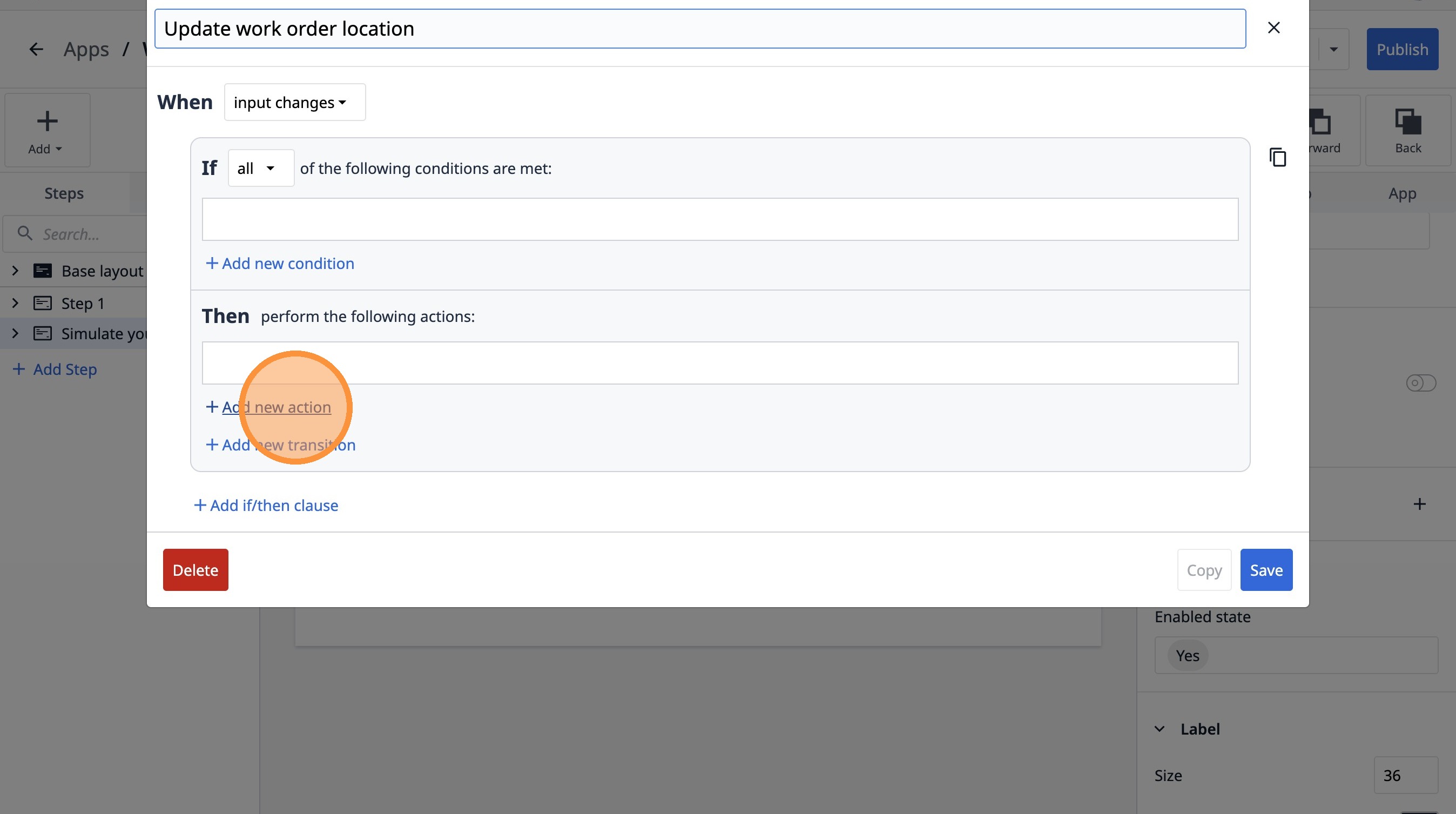
77. Select the "Data Manipulation" option.
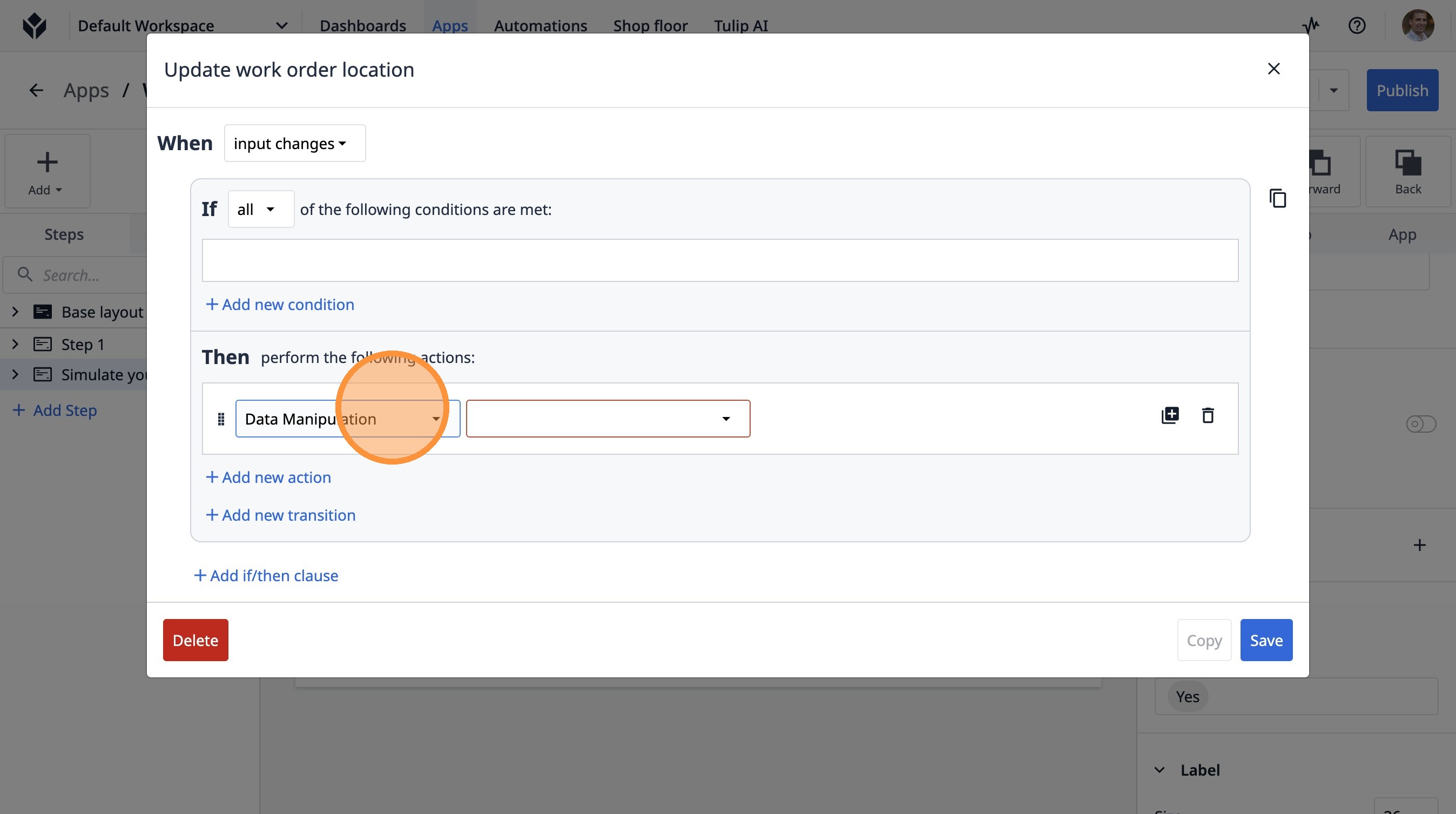
78. Select the "Store" option.
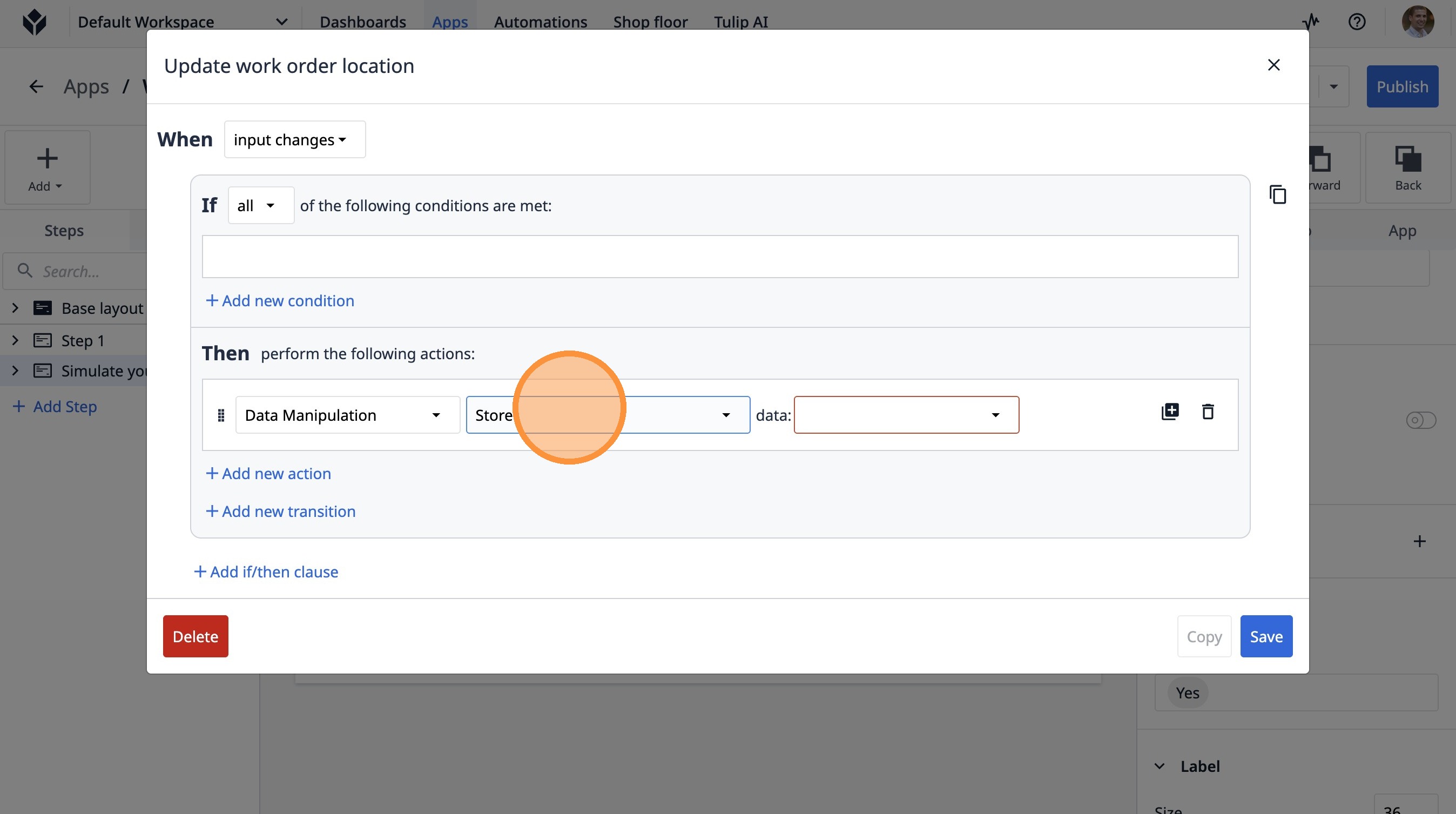
79. Select the "Variable" option.
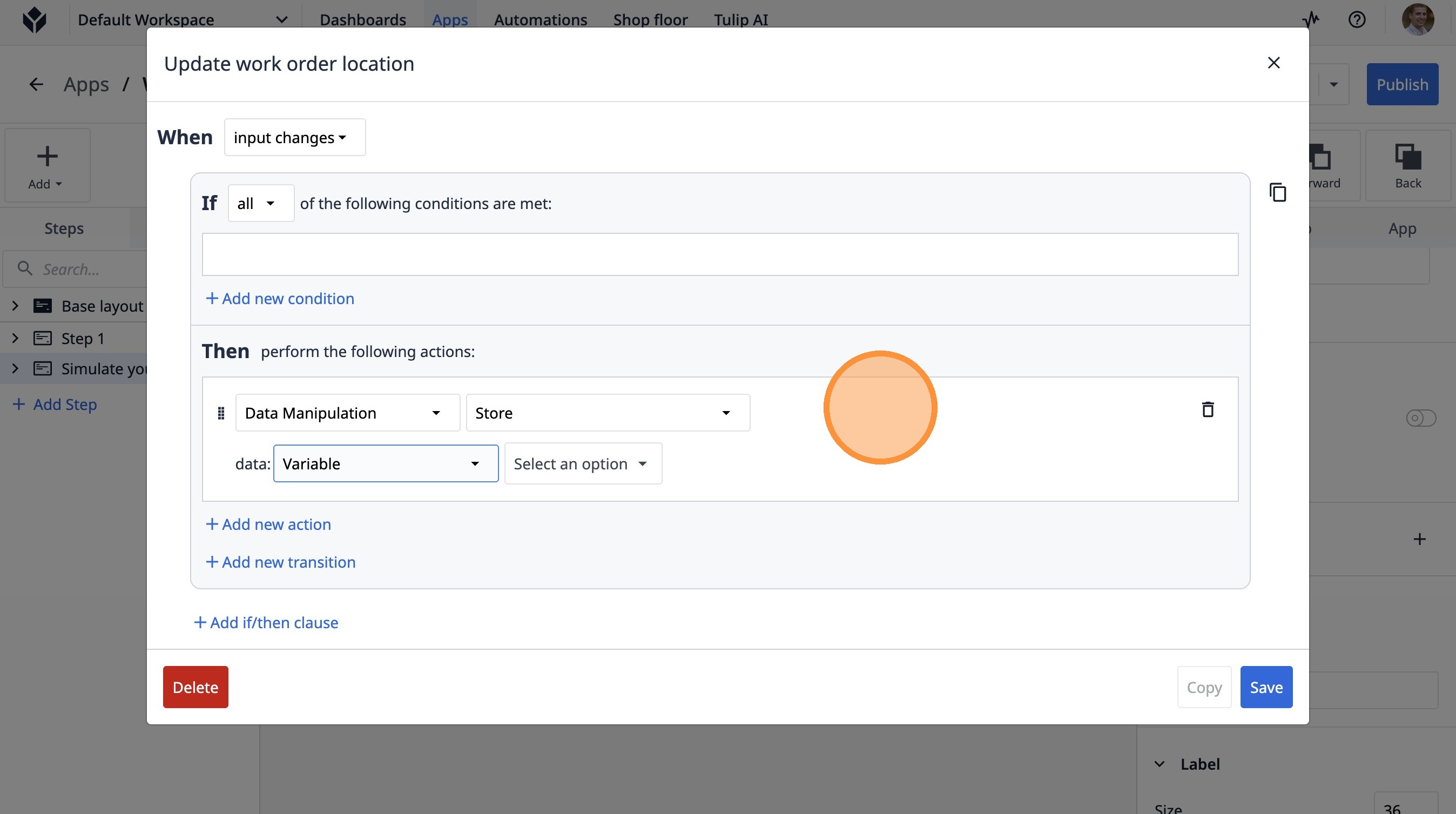
80. Click "Select an option"
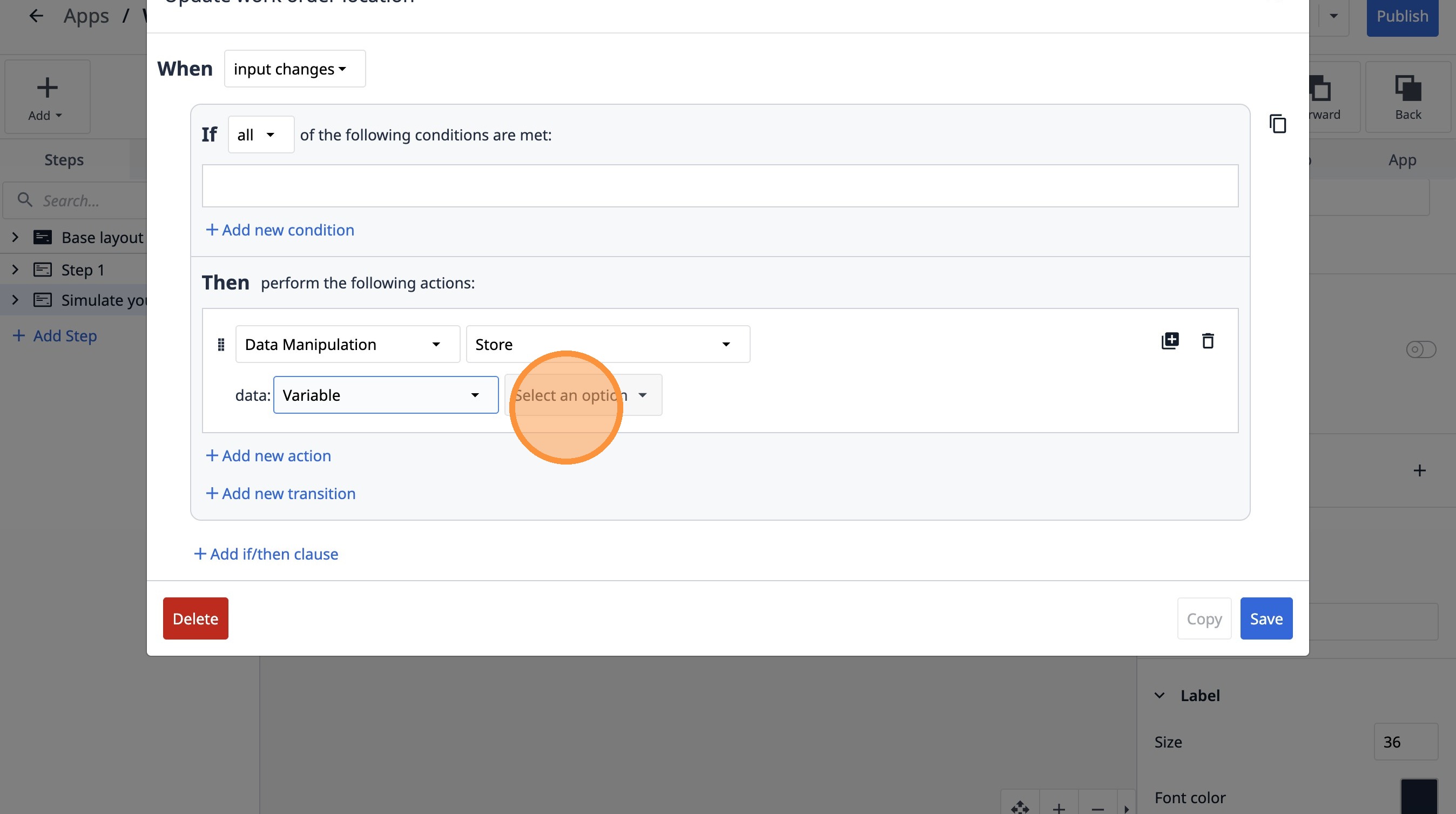
81. Click "current station"
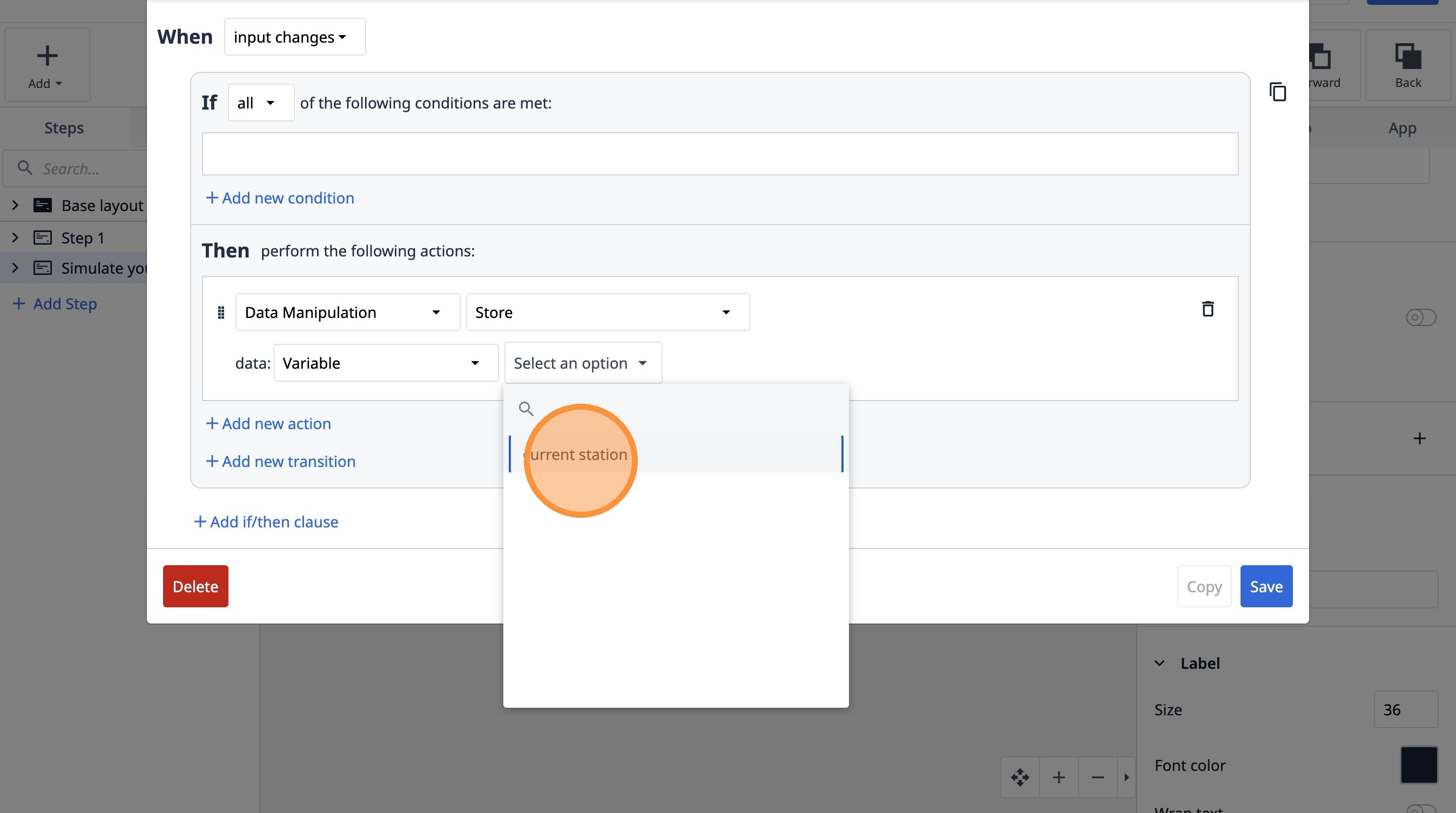
82. Select the "Table record" option.
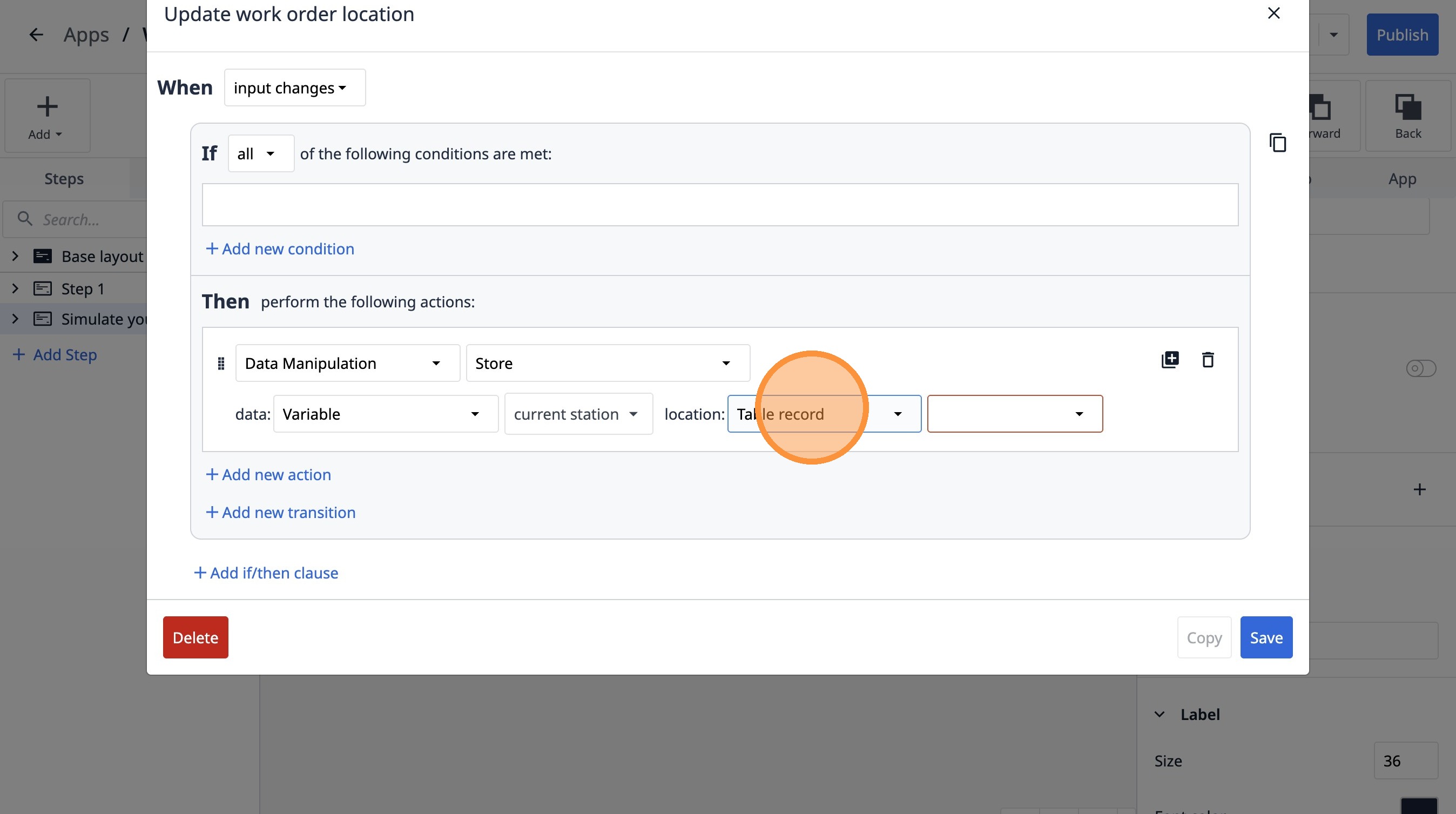
83. Click this dropdown.
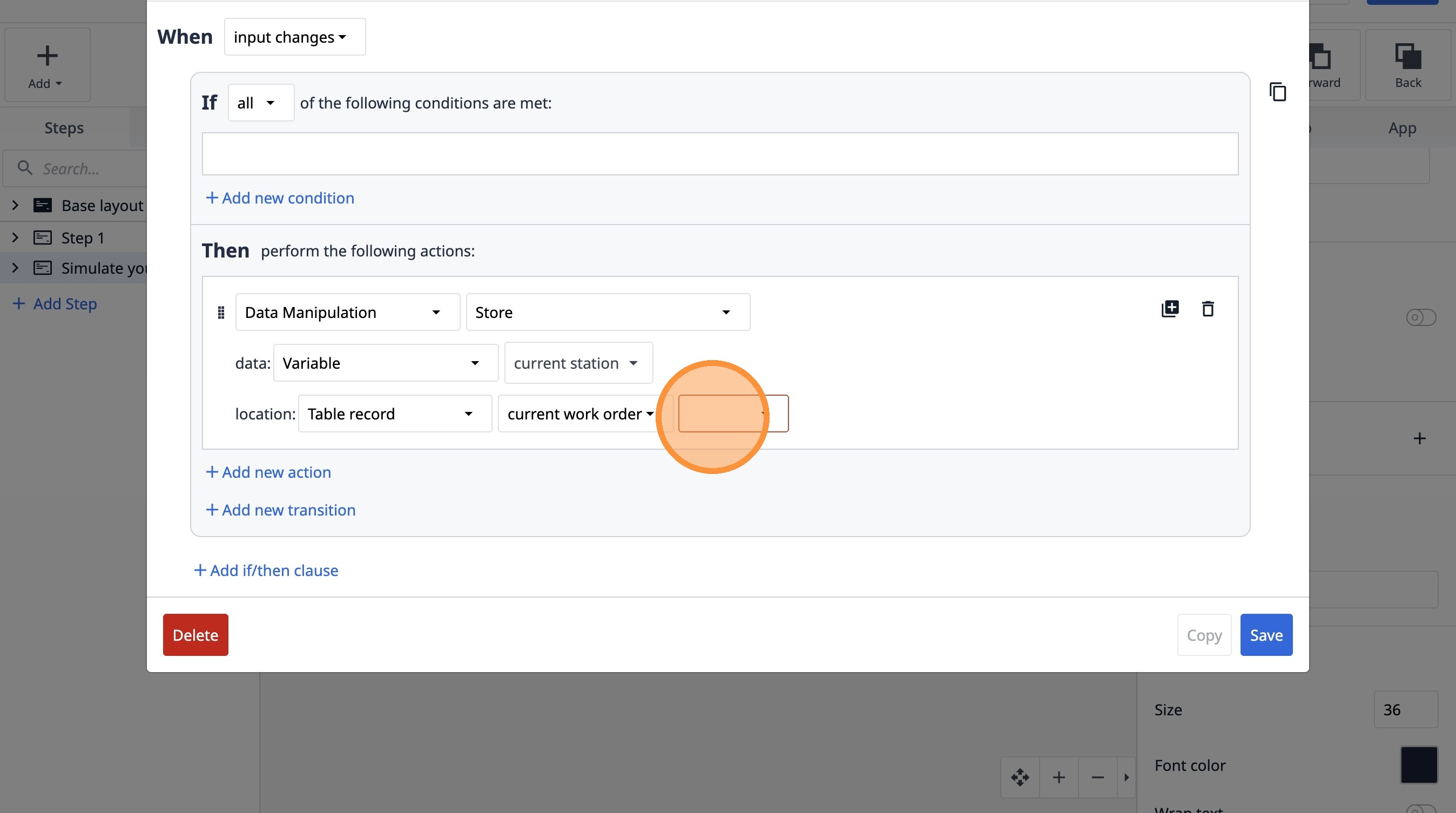
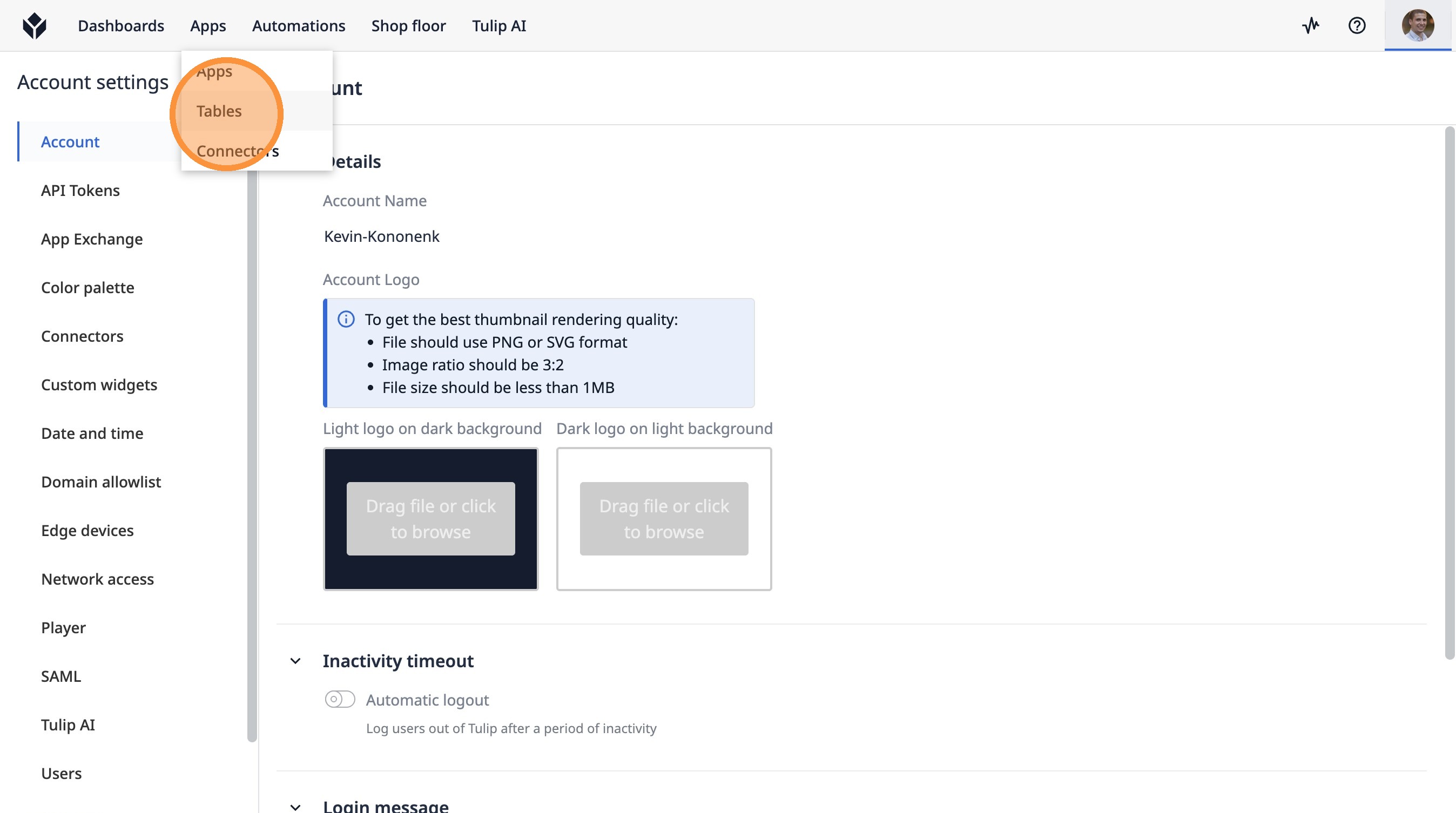
84. Click "Tables"
85. Click the "Search Tables..." field.
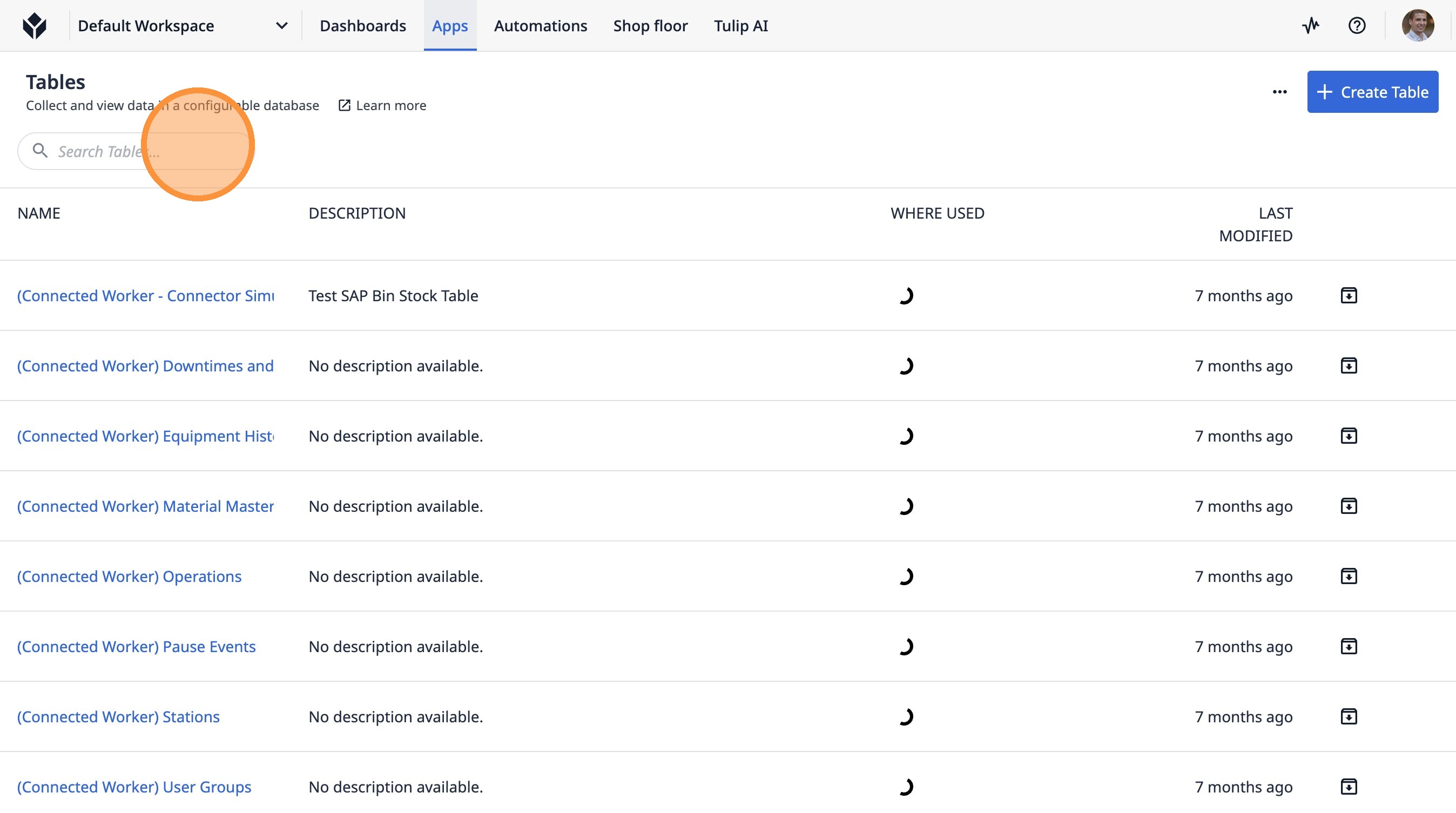
86. Type "work order"
87. Click "Work Order Table- Live Demo"
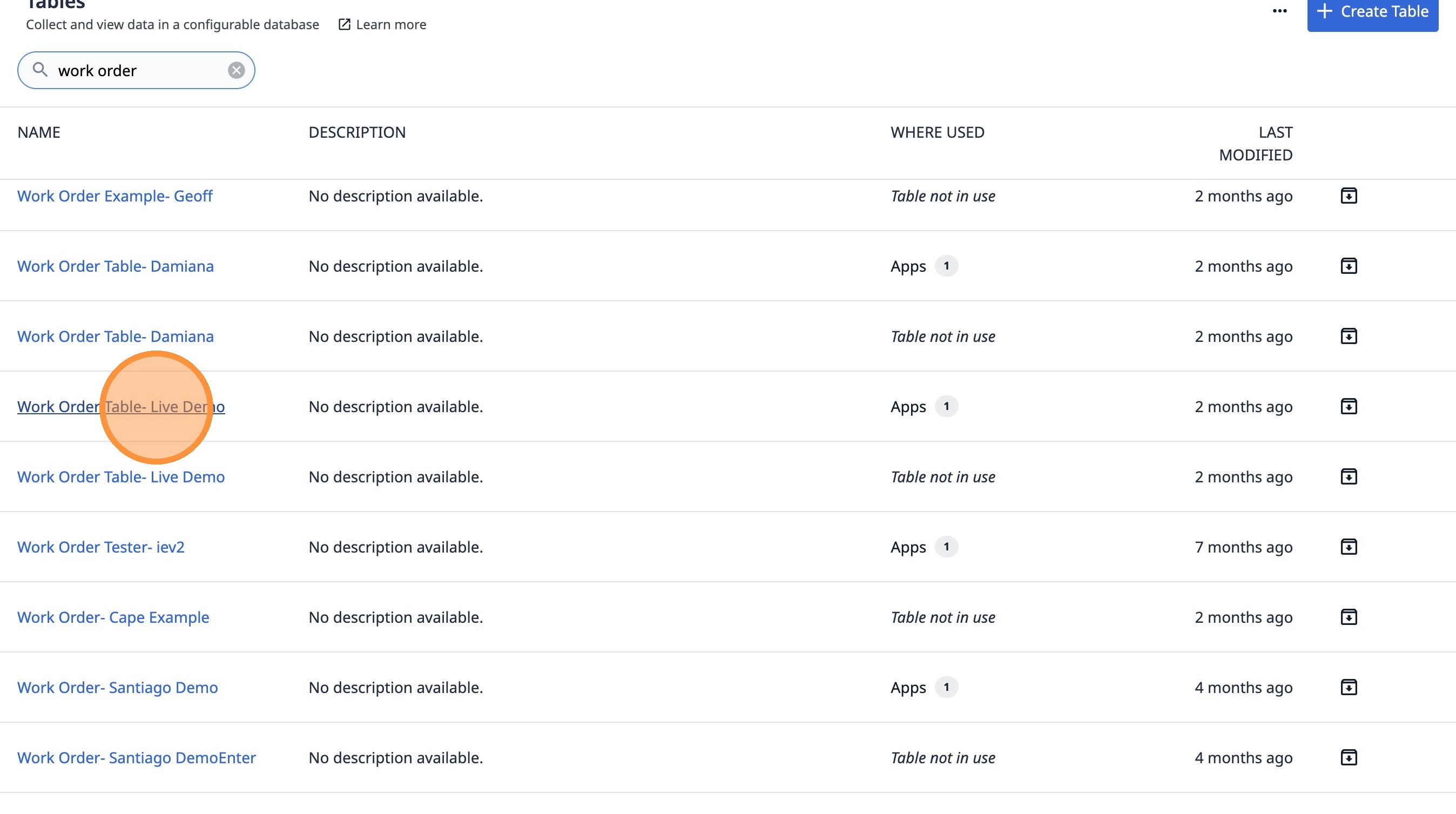
88. Click this button.
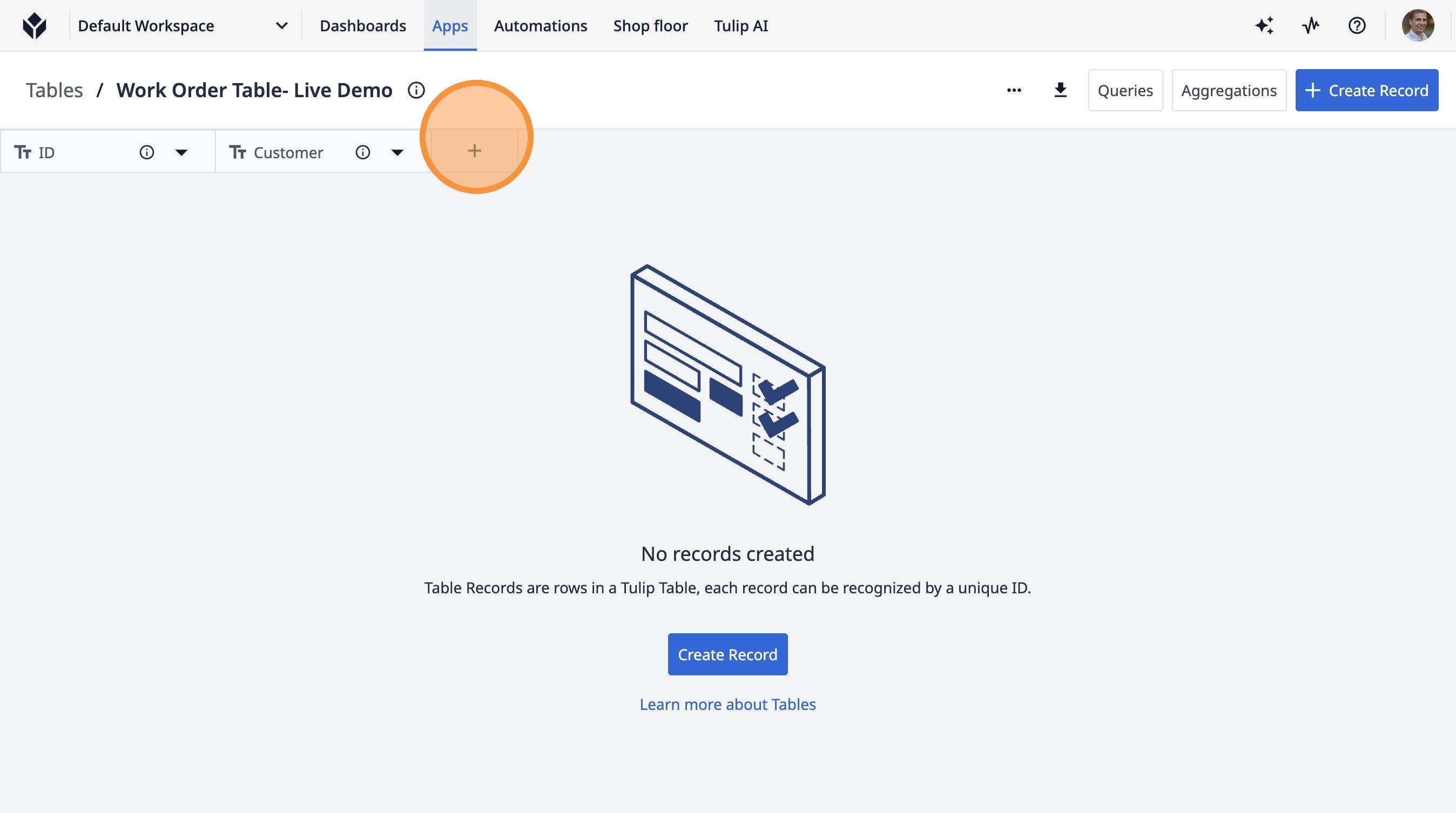
89. Click this text field.
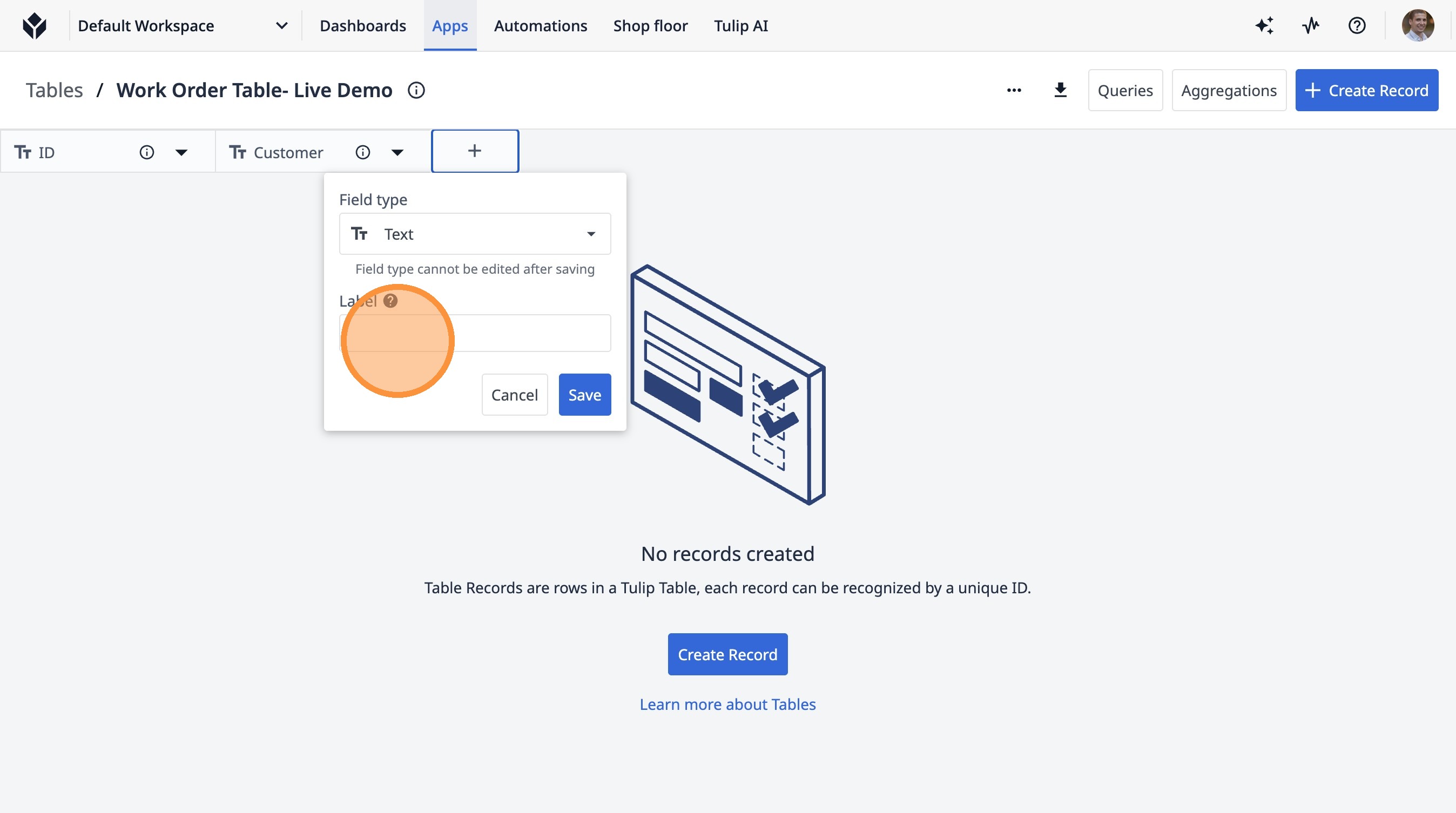
90. Type "Current Station"
91. Click "Save"
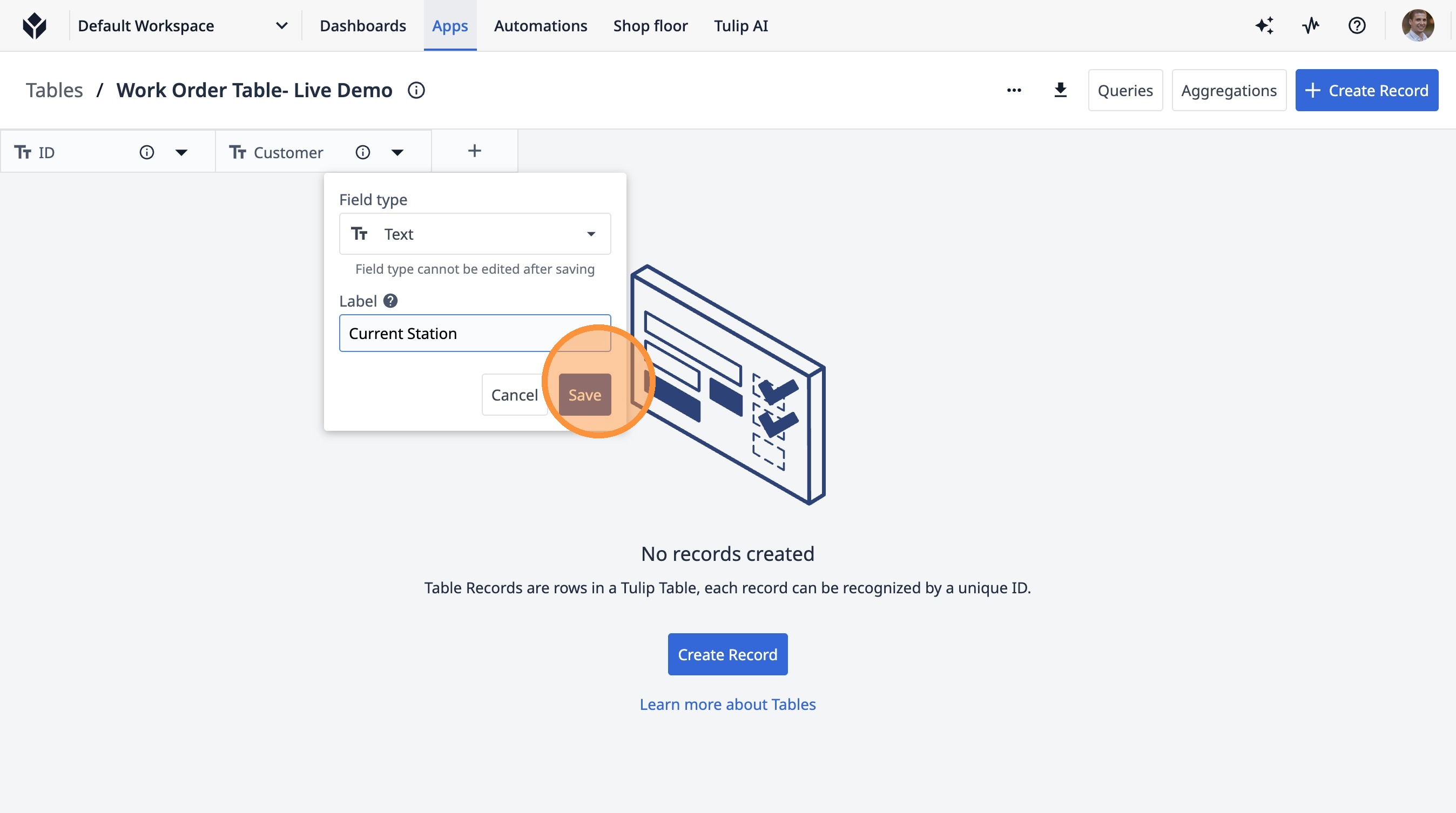
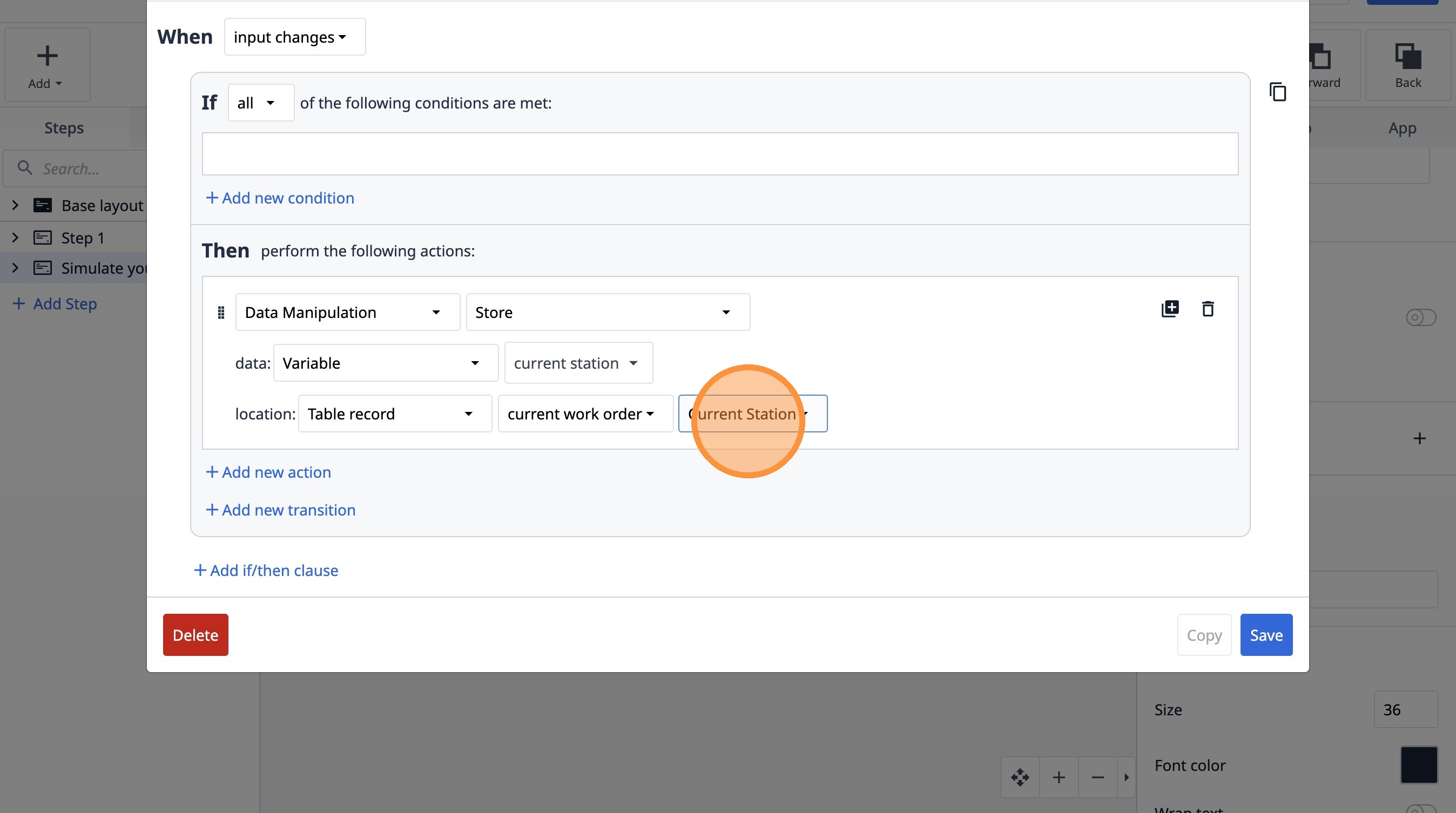
92. Select the "Current Station" option.
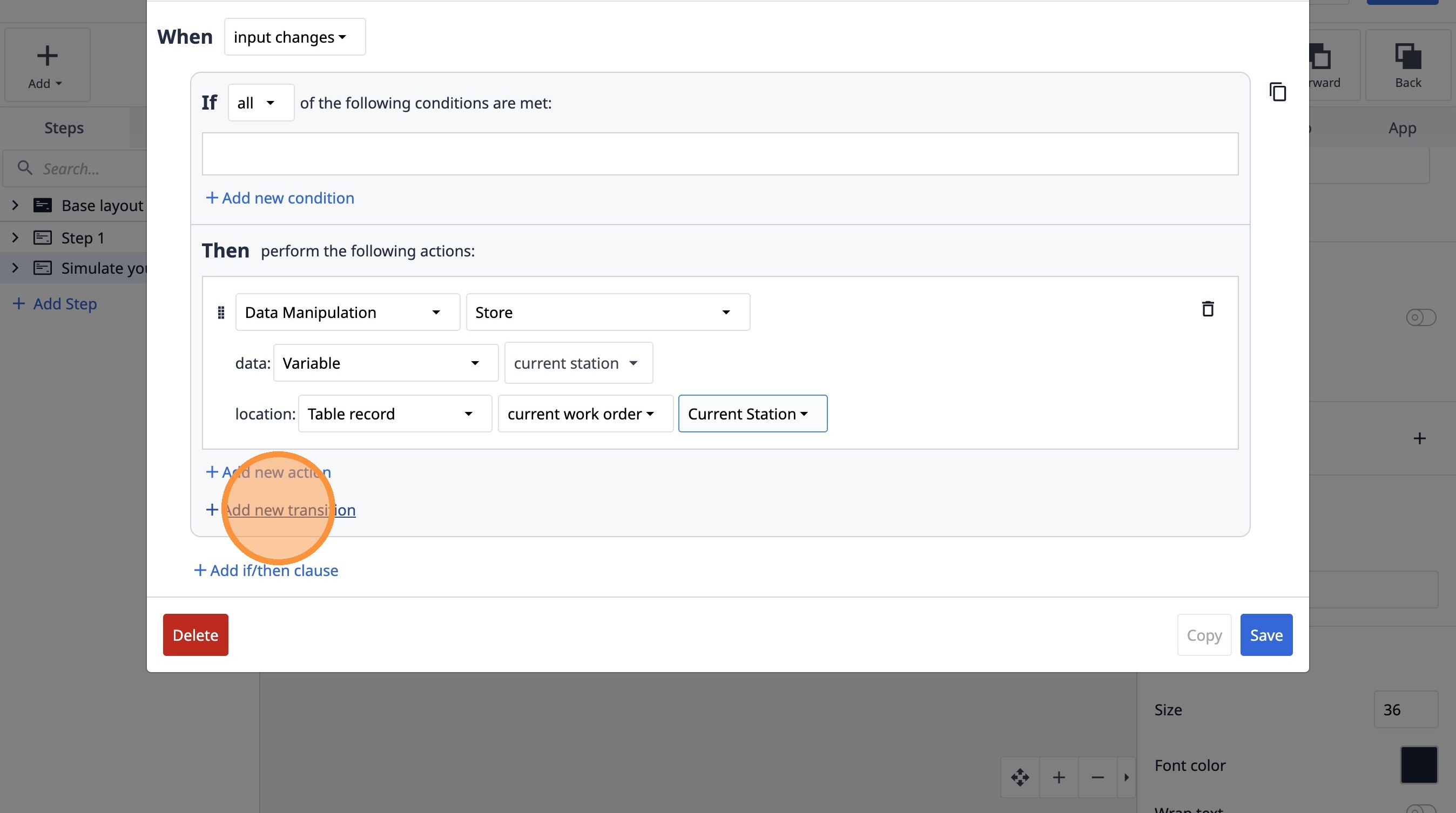
93. Click "Add new transition"
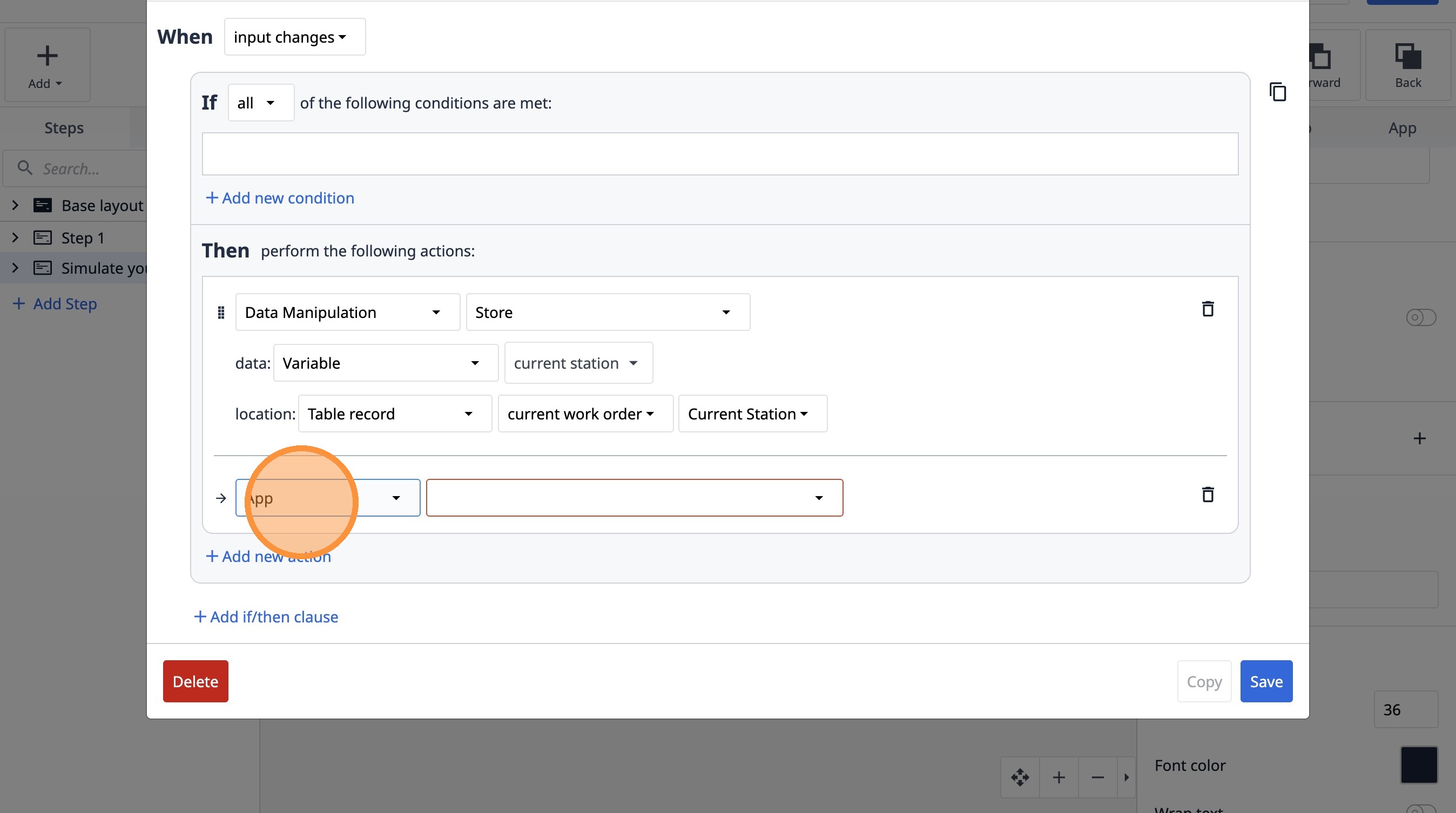
94. Select the "App" option.
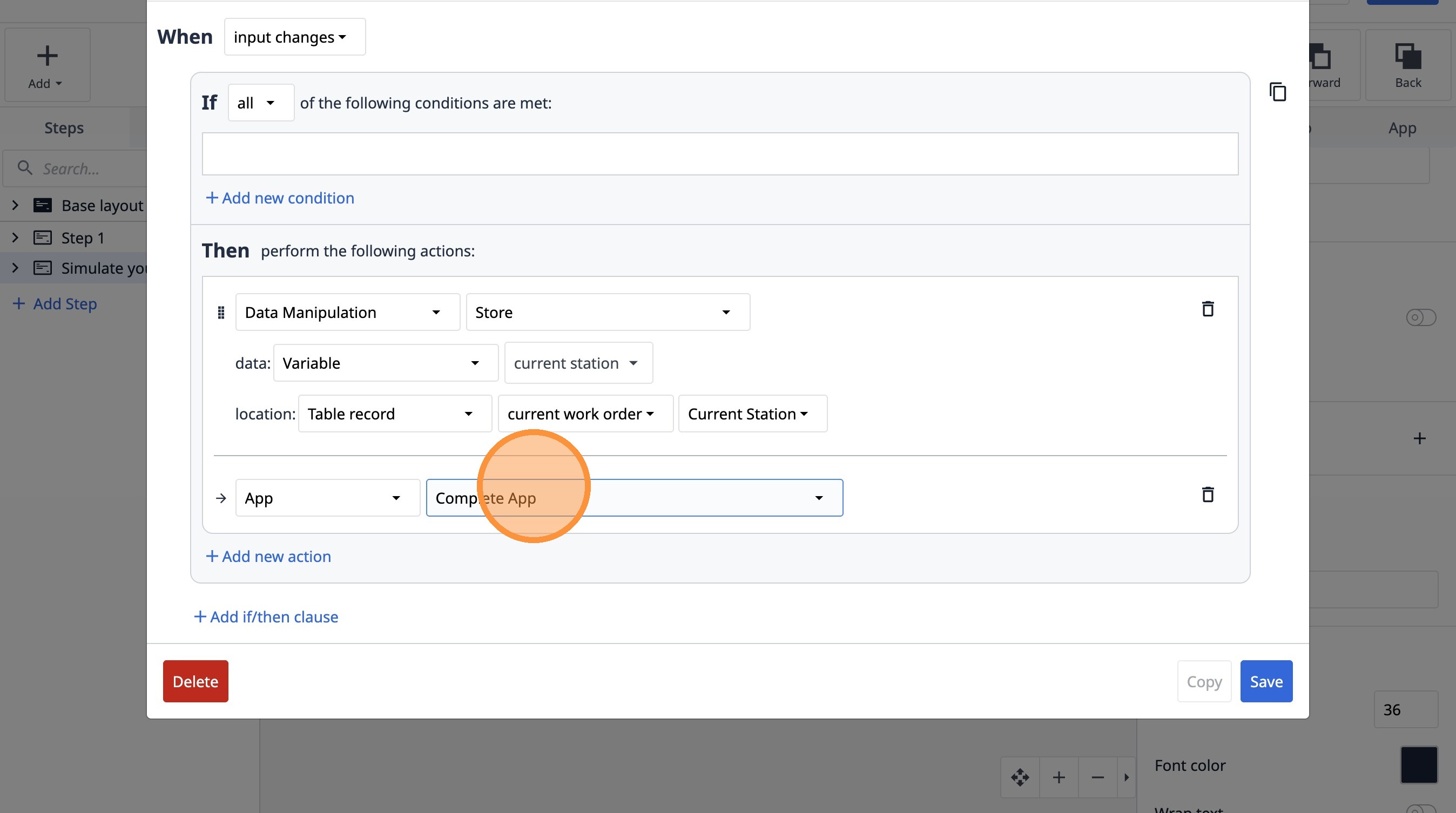
95. Select the "Complete App" option.
96. Click "Save"