Bring live tag locations from your LoconIQ system into Tulip apps.
LoconIQ is an ultra-wideband (UWB) real-time location system. It tracks tags on bins, carts, people and robots, and computes their positions on an on-premise Edge. With a Connector to the Edge, your apps can show where things are and react when something leaves an area. This guide covers connecting to the Edge, reading tag positions and zone states, and an example alert. It's for app builders setting up location-aware apps.
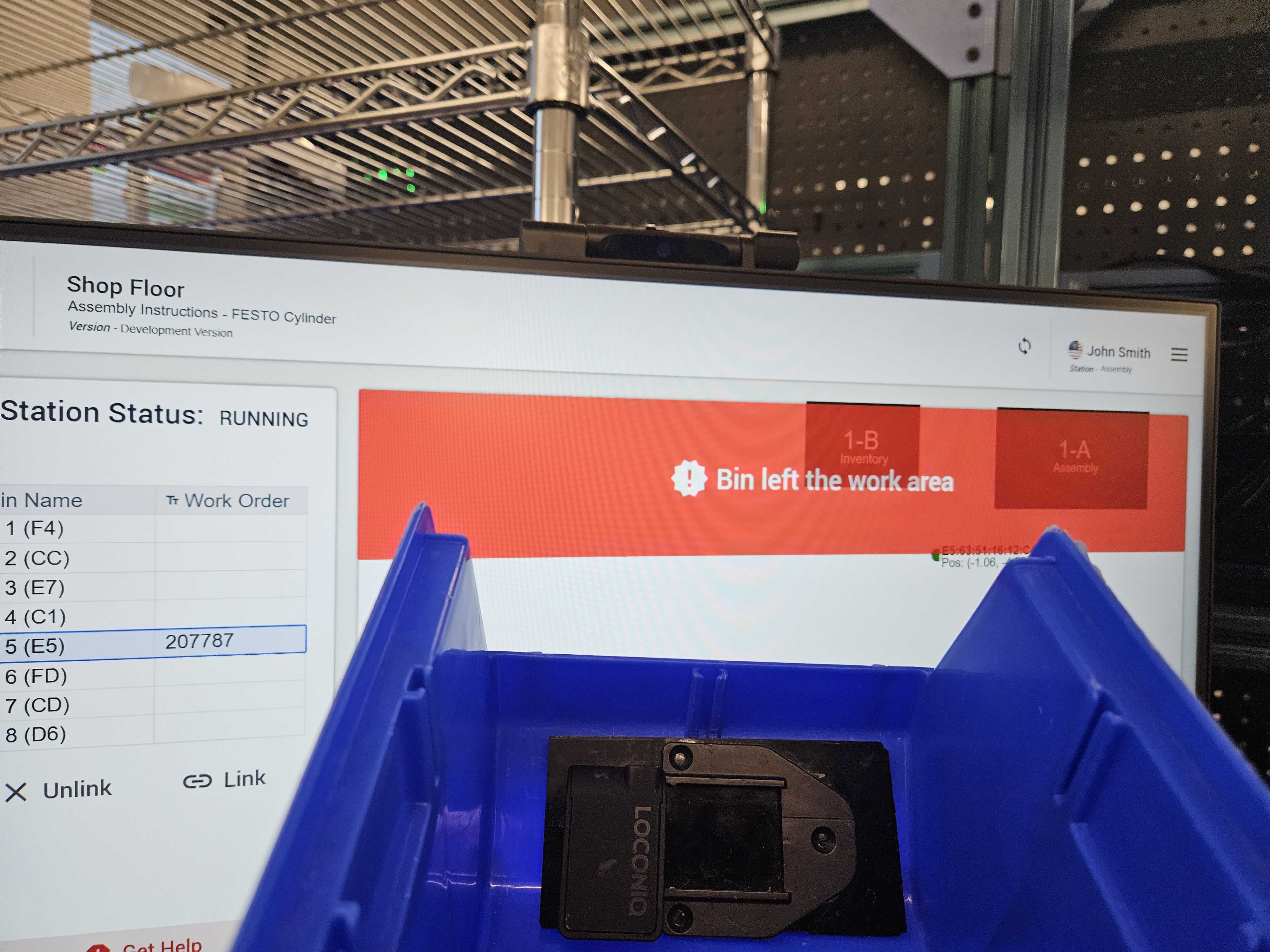
Required
- A LoconIQ environment (Edge, access points and tags) set up in the LoconIQ Admin App
- An Edge API key
- An on-premise connector host that can reach the Edge
- Familiarity with Connectors and Triggers
App Configuration
Create the connector
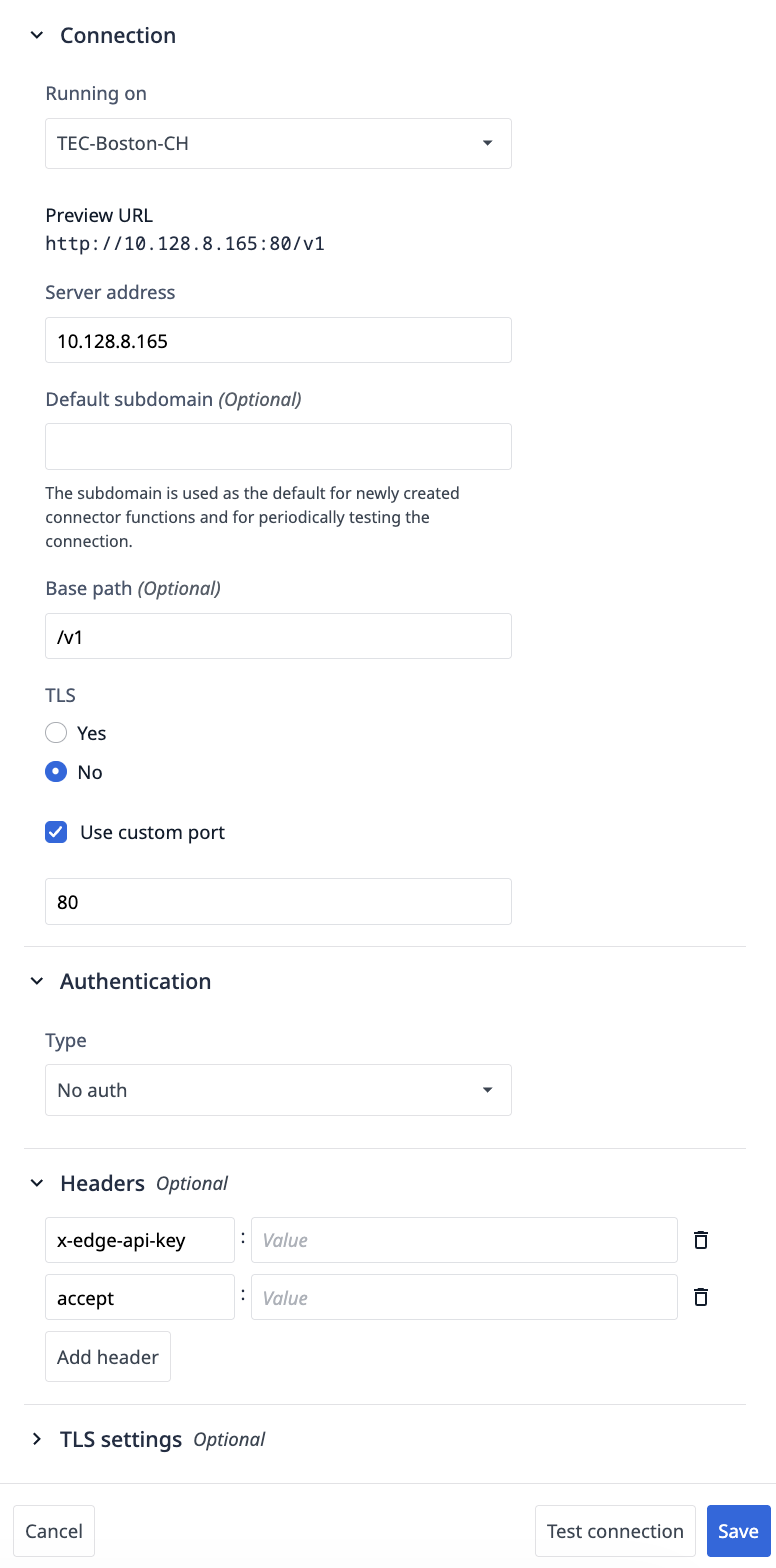
- Go to Apps > Connectors and create an HTTP connector.
- Select your on-premise connector host.
- Enter the Edge's IP address as the server, port 80, with TLS off.
- Under Headers, add
x-edge-api-keywith your Edge API key.
Add functions
| Function | Method and path | Returns |
|---|---|---|
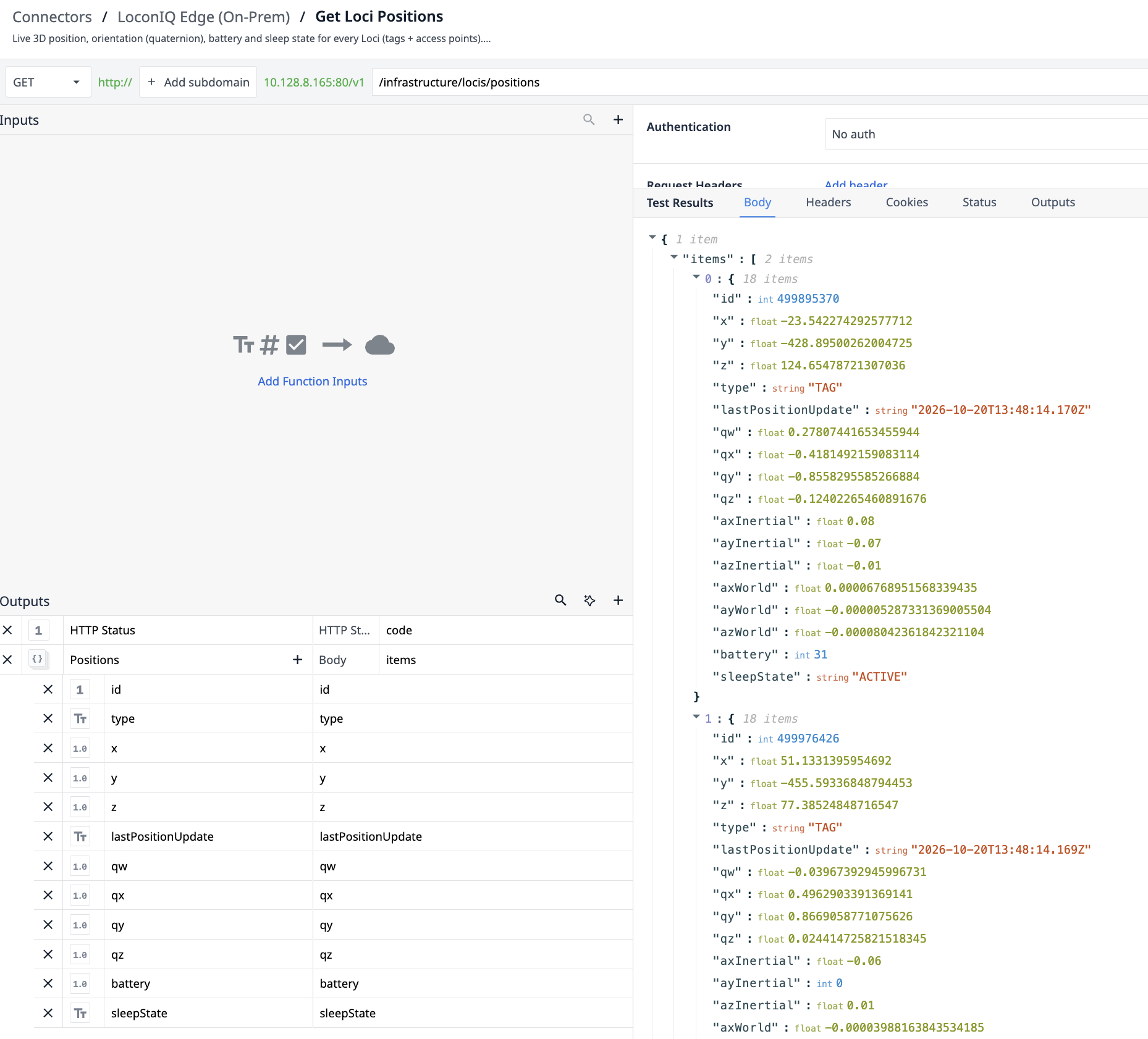
| Get Positions | GET /v1/locis/positions |
Each active tag's id, x, y, z (cm) and lastPositionUpdate |
| Get Zone States | GET /v1/zones/locis?zoneIds={zoneId} |
Each tag's state in the zone: INSIDE or OUTSIDE |
Run Get Positions to test. Each active tag should appear with its position.
Read positions in an app
LoconIQ doesn't push data, so your app polls the Edge.
- Add a Timer Trigger to the step that runs Get Positions every few seconds.
- Store the result in a Variable.
- Use the variable in widgets or triggers, for example to show a tag on a floor plan.
Example: alert when a bin leaves its work area
- In LoconIQ, create a zone around the work area and copy its ID.
- In the same Timer trigger, run Get Zone States with that zone ID.
- If the bin's tag is
OUTSIDE, show a message or turn a banner red. If it isINSIDE, clear it.
Required Set Up
- Fixed IP: give the Edge a static IP address. If it changes, the connector stops working.
- Zone IDs: zone IDs are 18 digits. Store them as text, not numbers.
- Devices: LoconIQ tags and access points are configured only in the LoconIQ Admin App on an iPhone.
- After a restart: if the Edge or access points restart, move the tags so they rejoin, then restart the app.
Extend this App
- Link a tagged bin or cart to a work order and track it across stations
- Show mobile robots or carts live on a dashboard
- Combine zone events with Andon lights or notifications