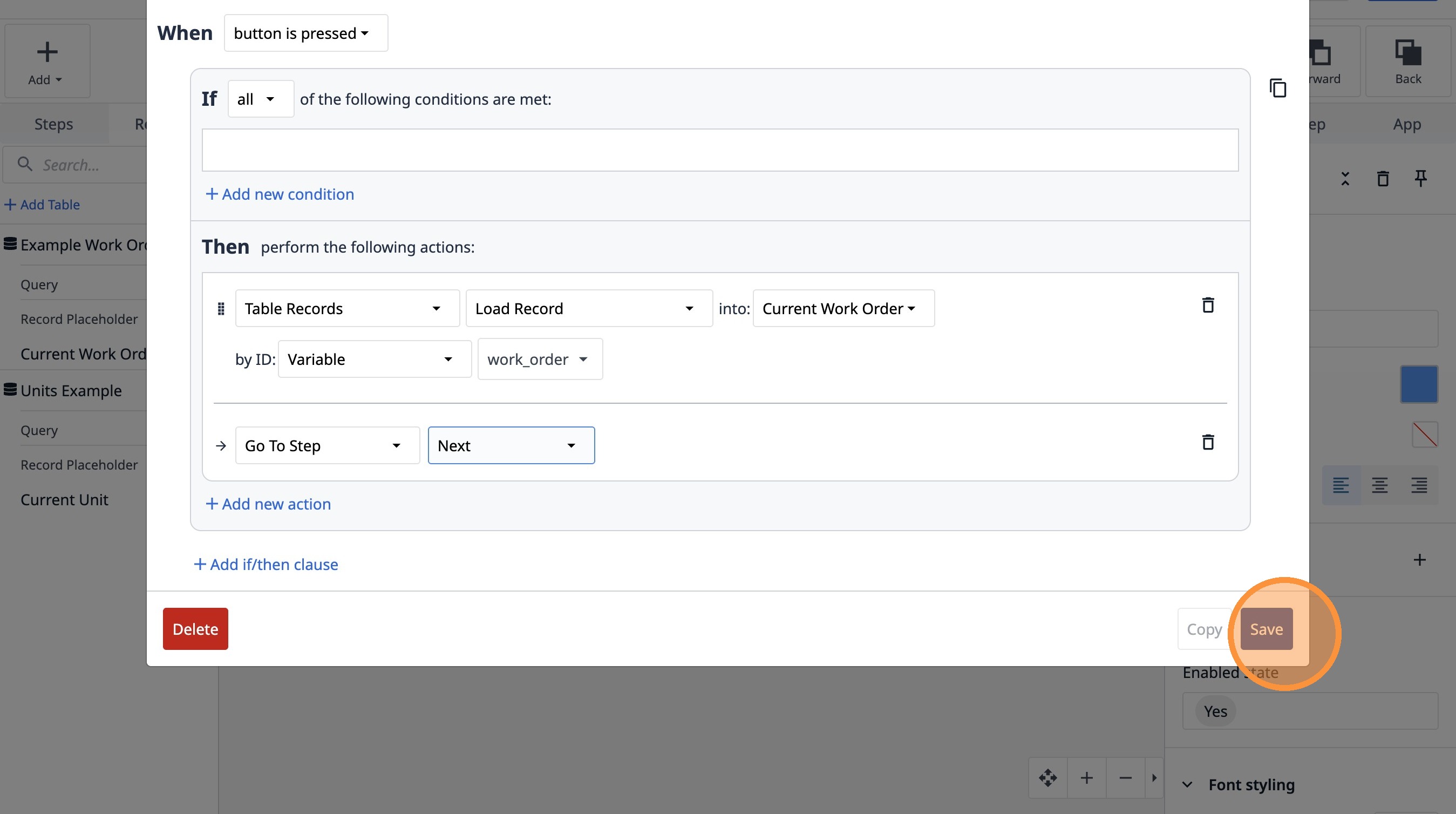
Learn how to build a Tulip app that allows users to input a work order number and load the corresponding record. This guide details adding text fields, buttons, and configuring actions to fetch data, streamlining work order management.
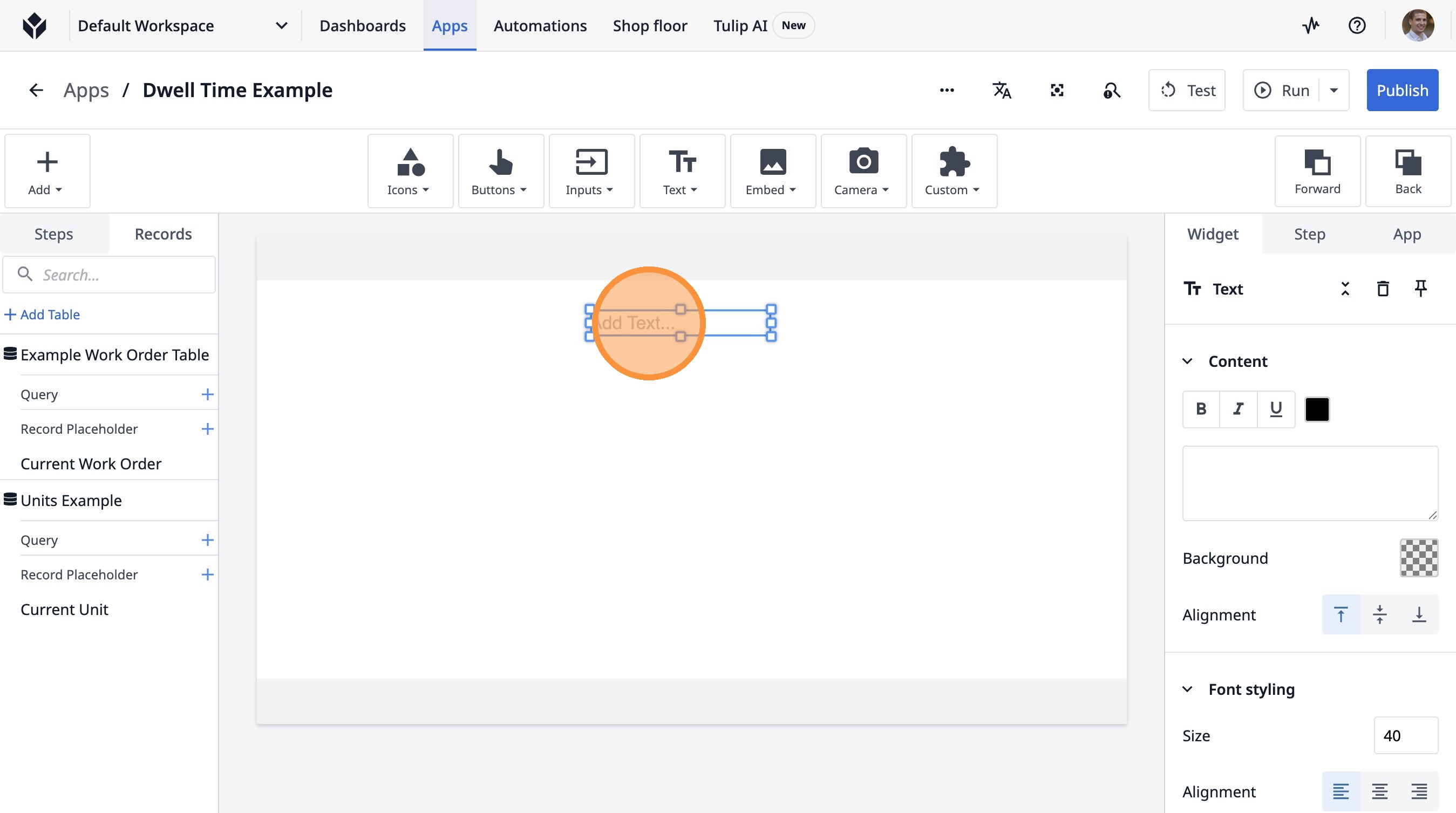
1. Navigate to the app builder.
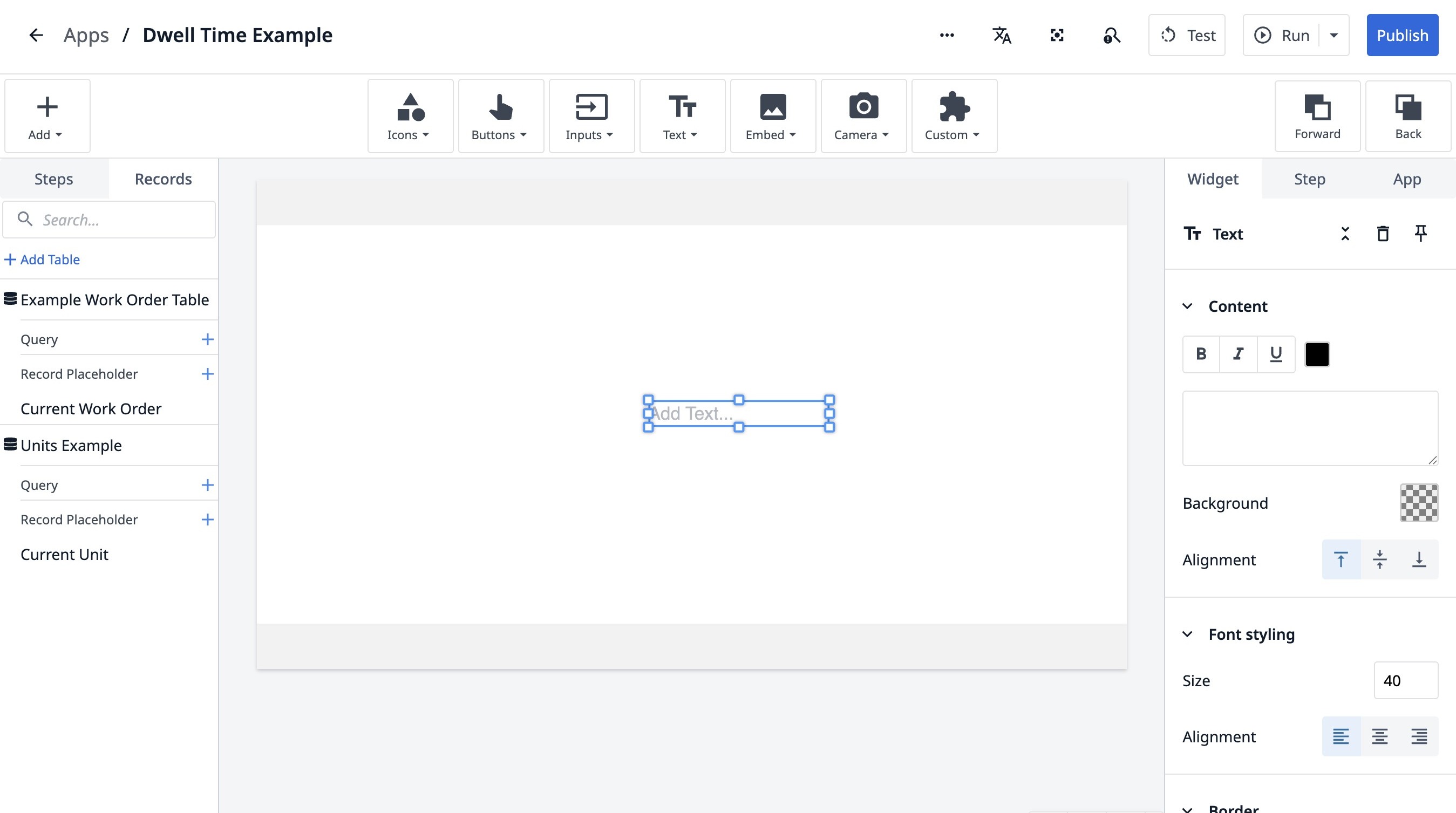
2. Click "Add Text..."
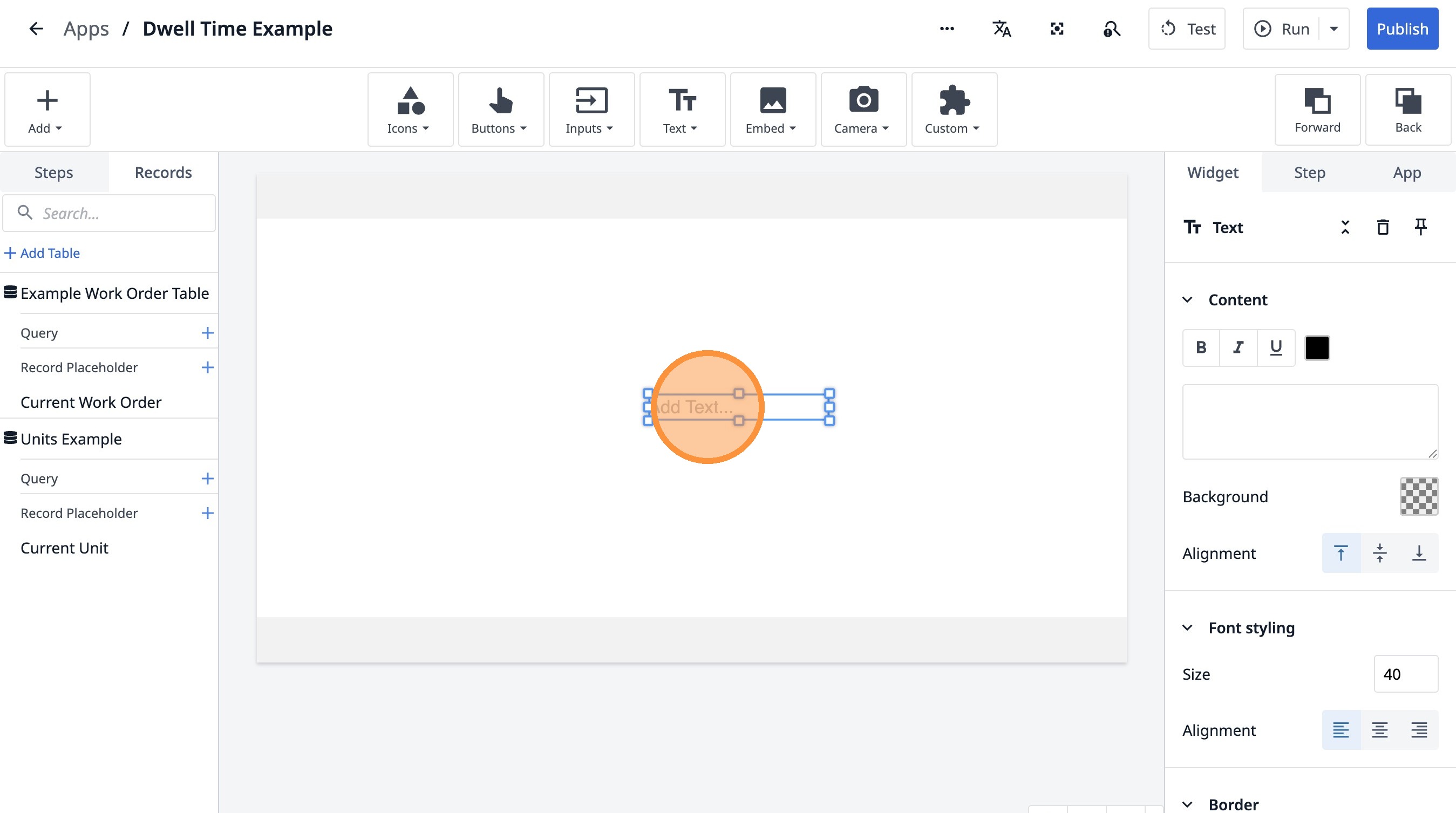
3. Double-click "Add Text..."
4. Type "Enter your work order number"
5. Click here.
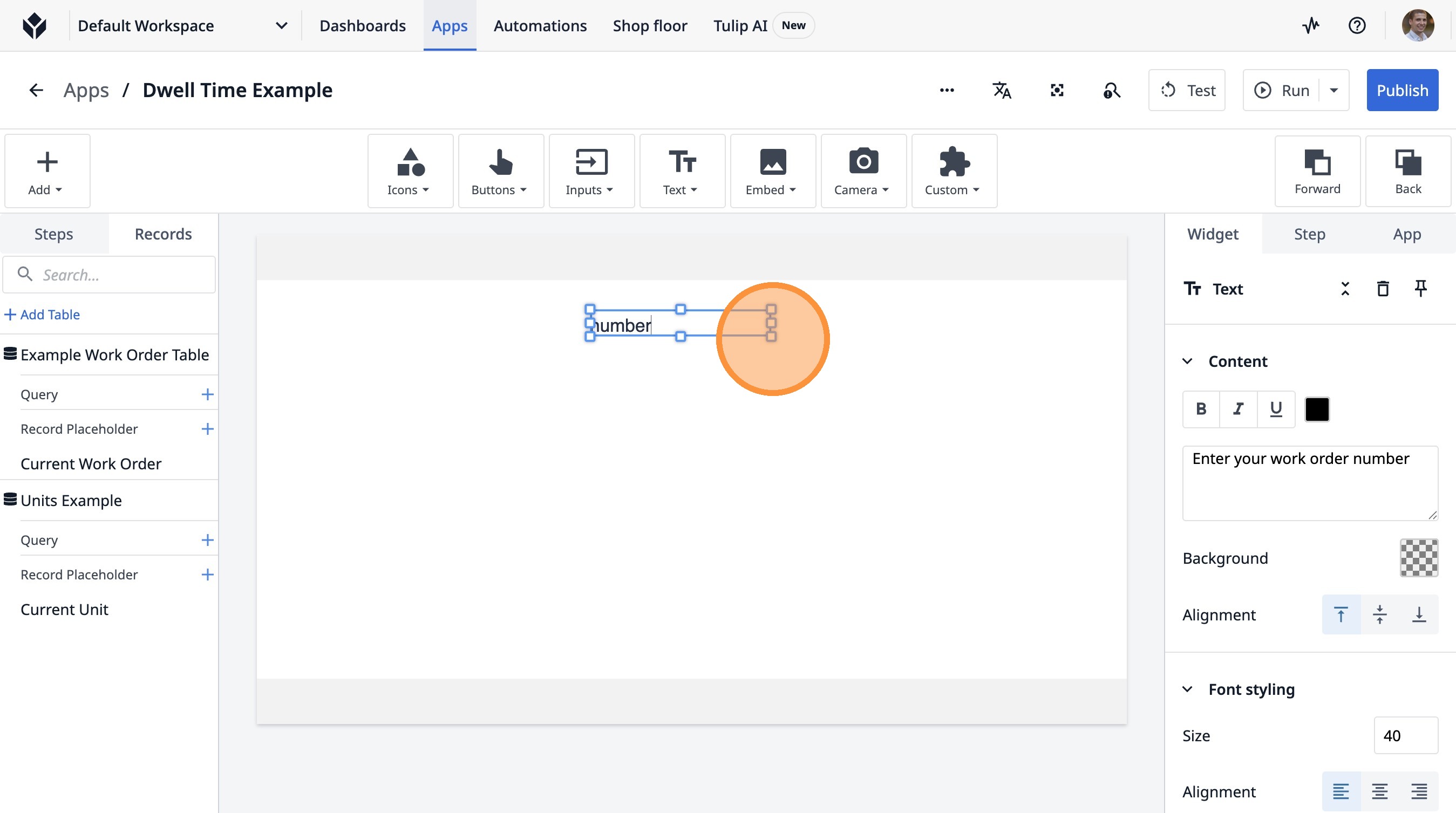
6. Click here.
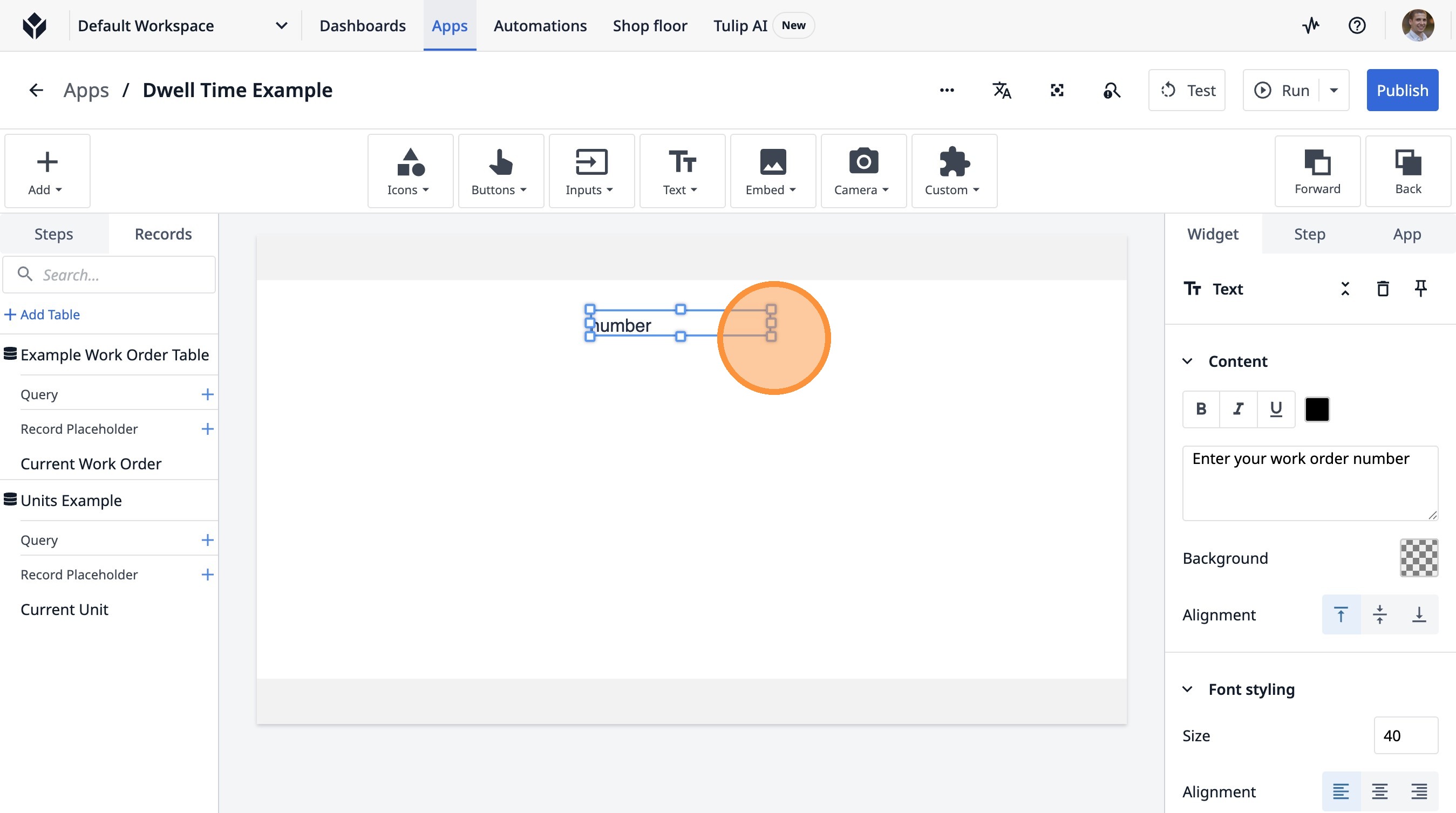
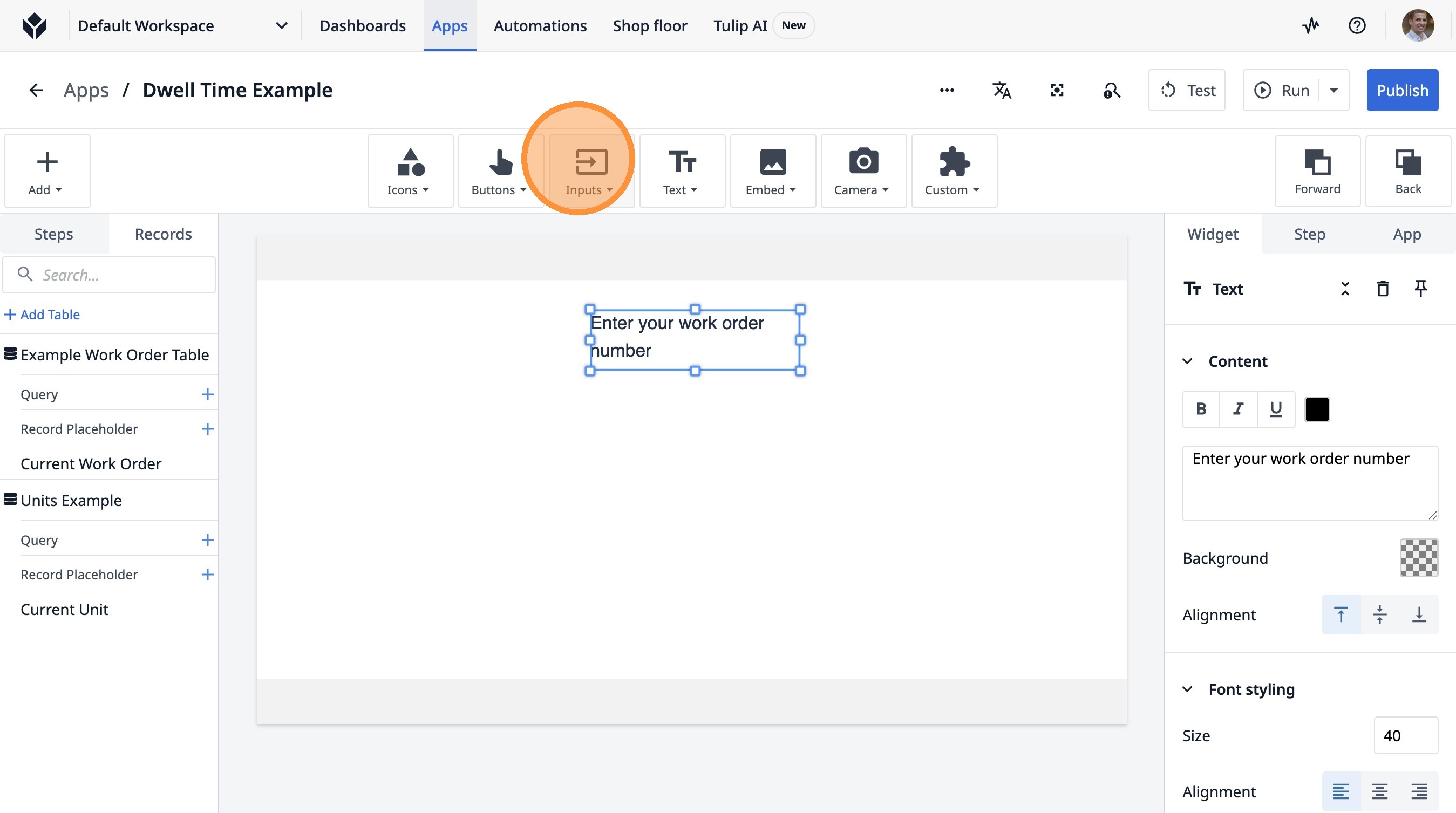
7. Click this icon.
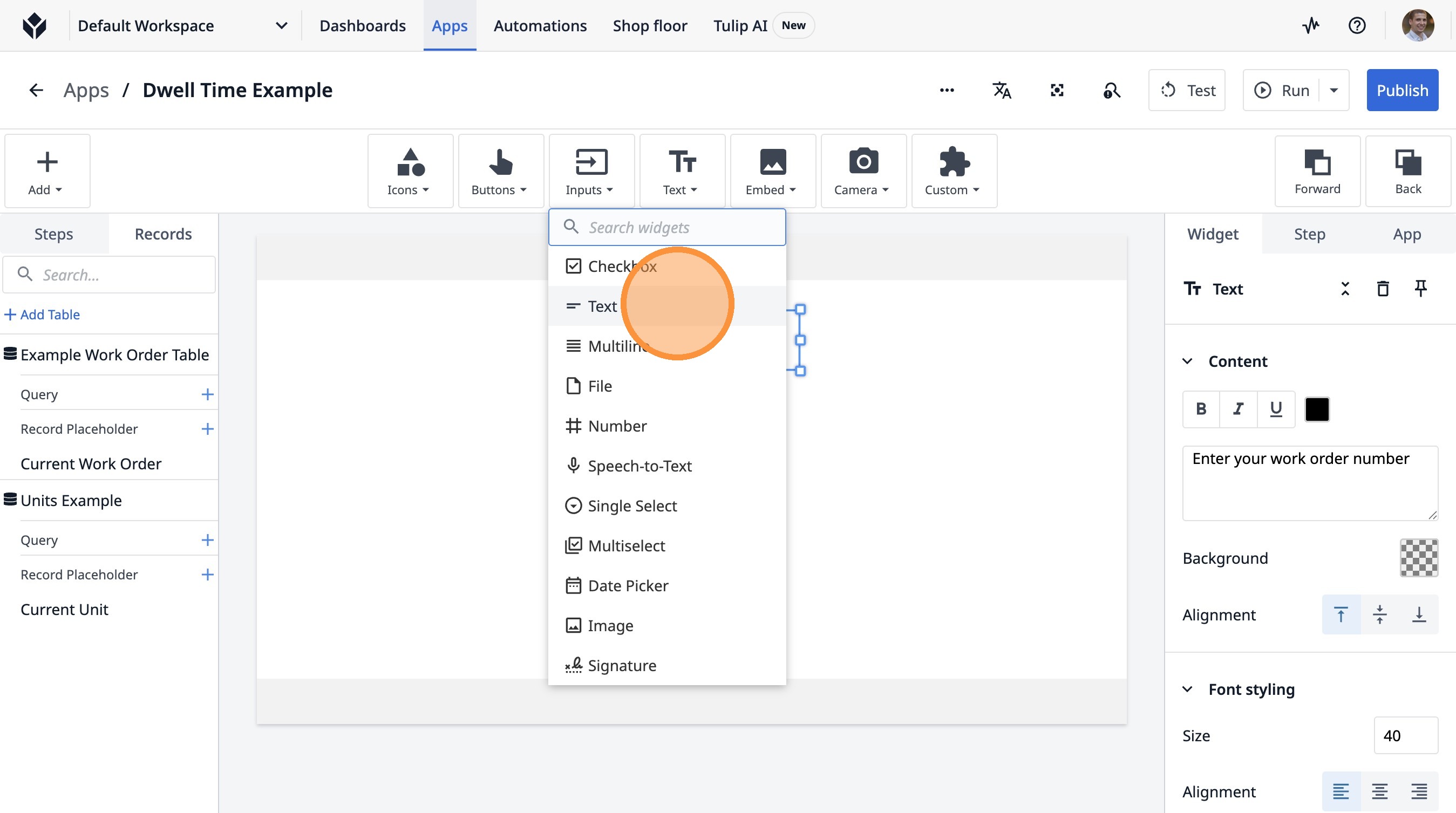
8. Click "Text"
9. Click here.
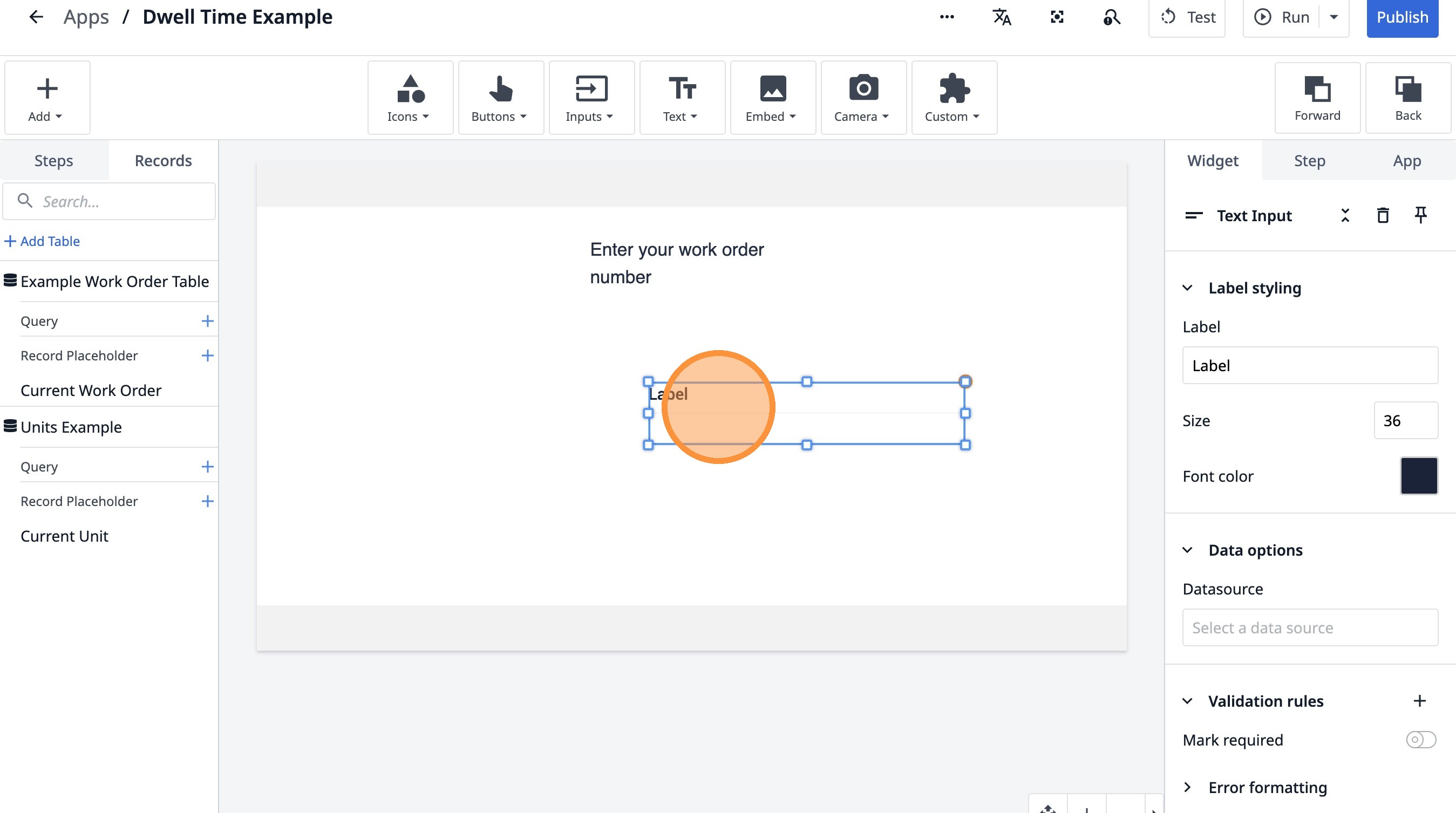
10. Double-click the "Label" field.
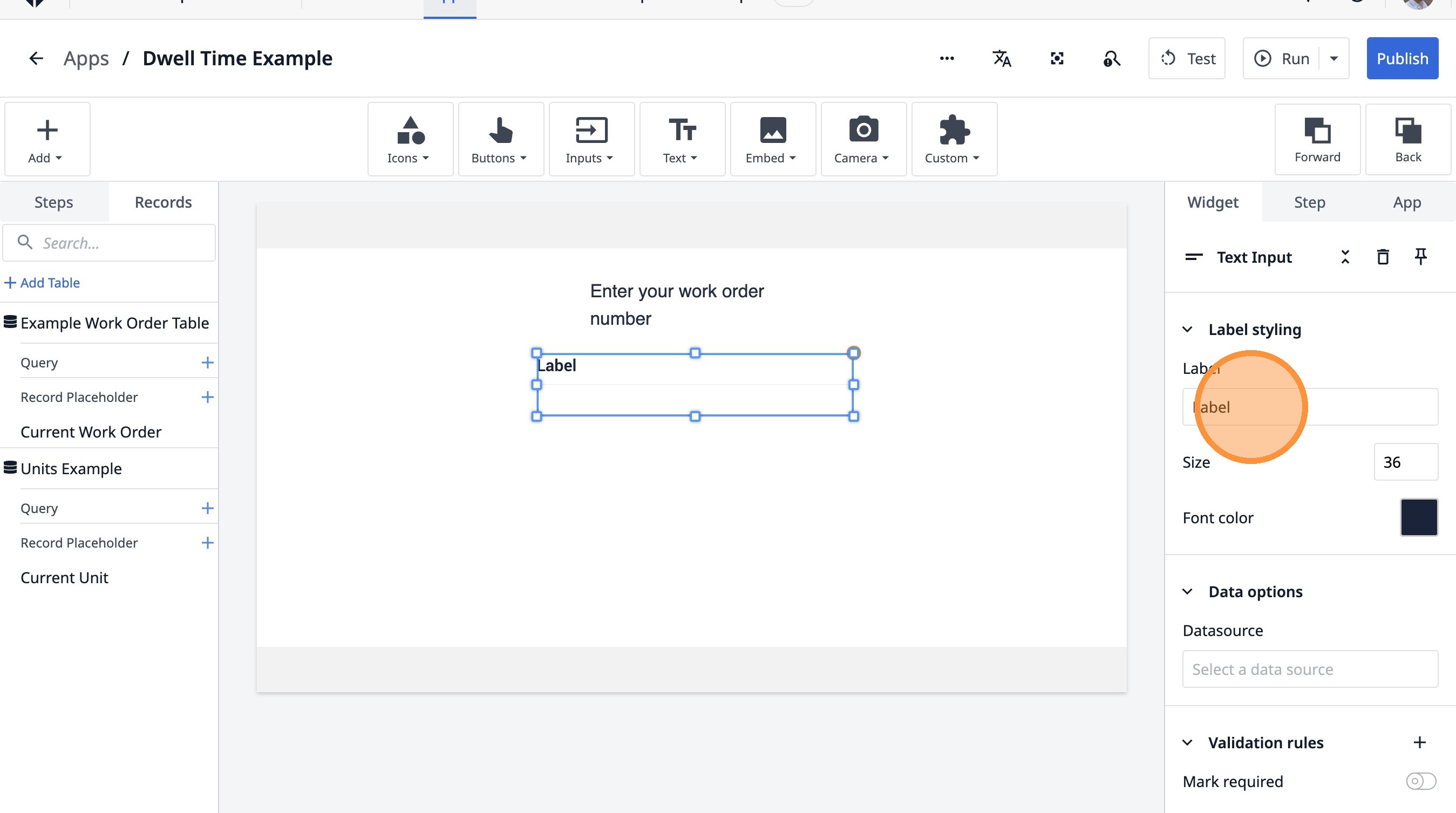
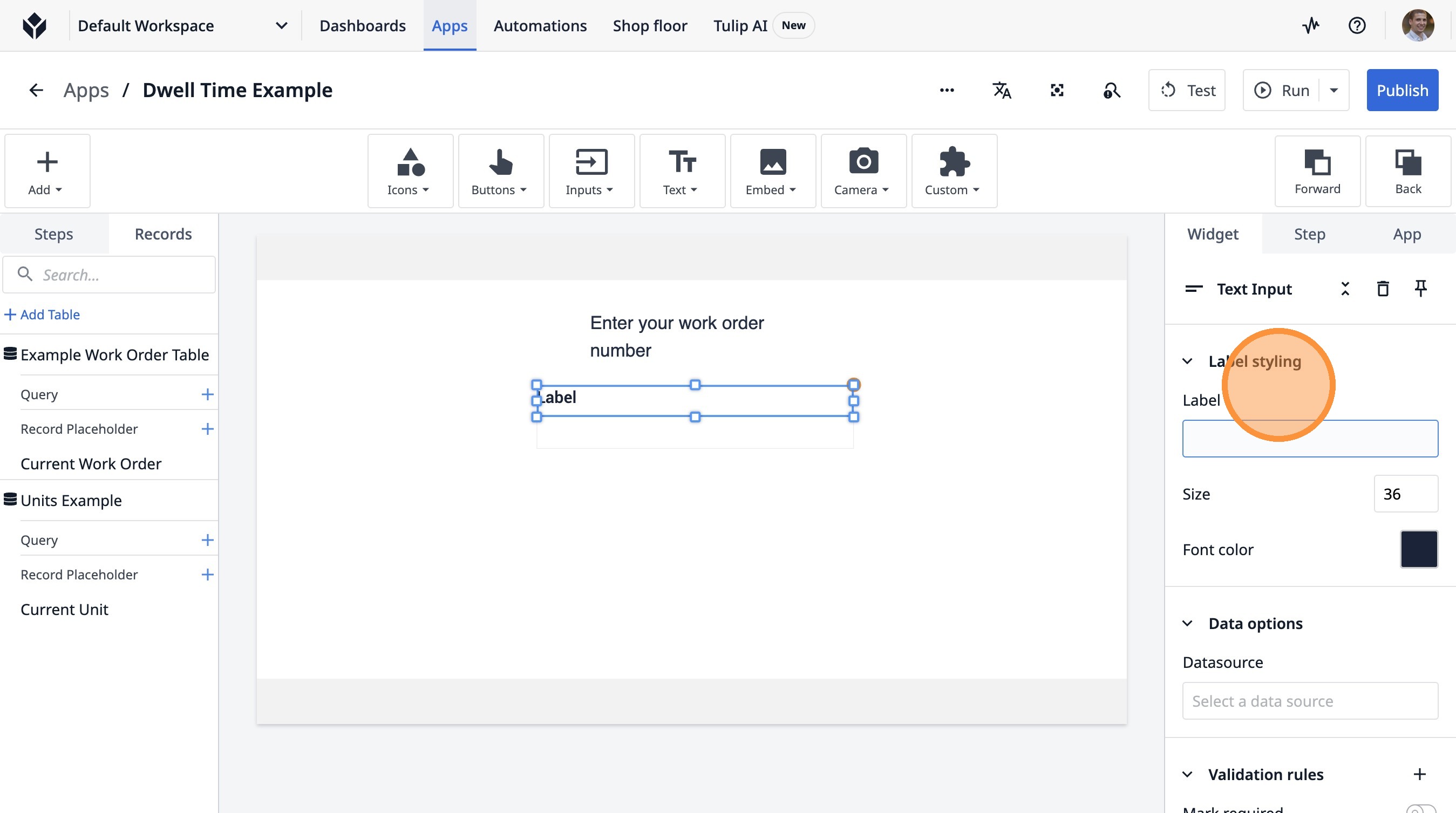
11. Type " [[Backspace]]"
12. Click "Label styling"
13. Click "Select a data source"
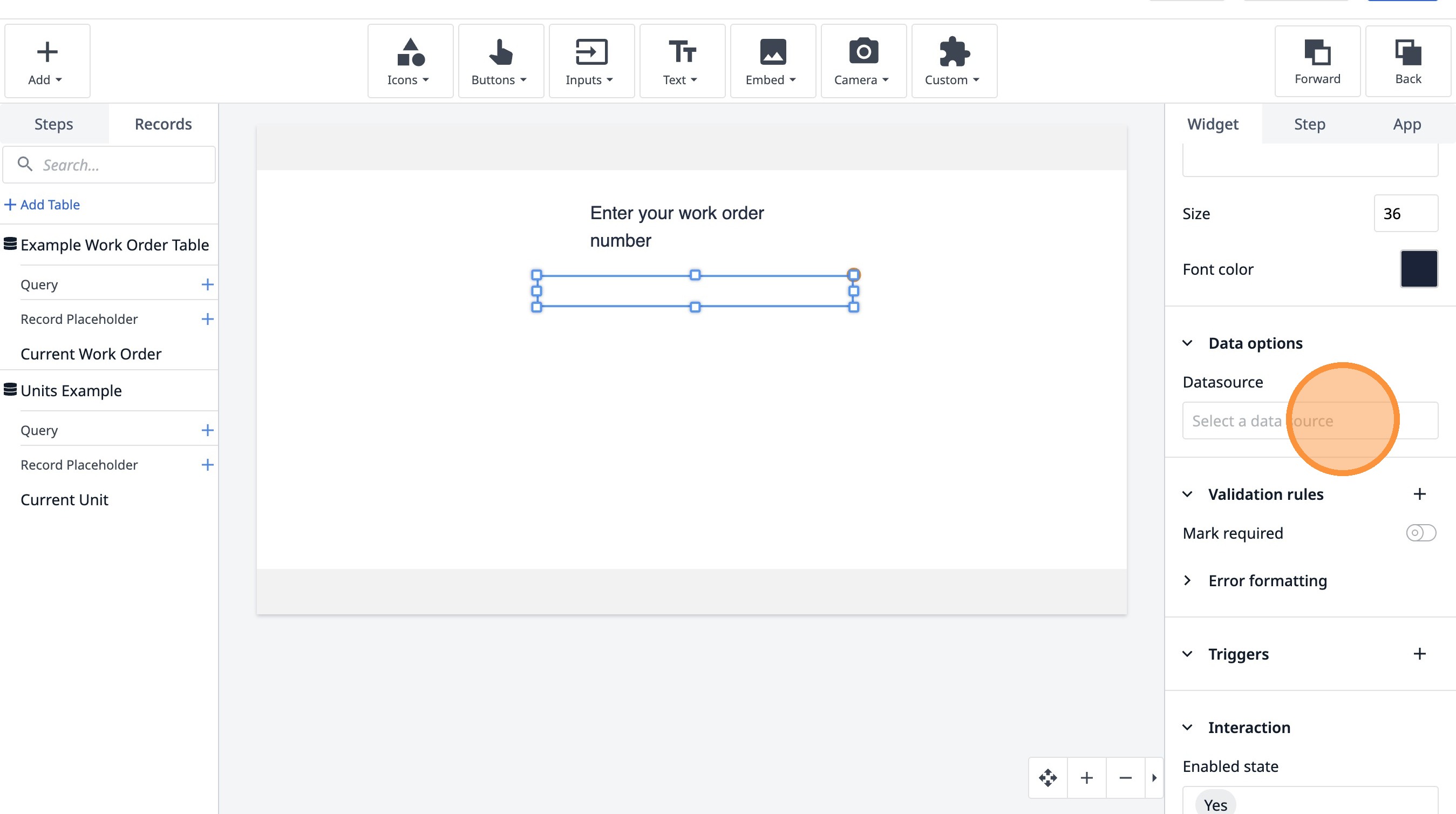
14. Click "Add variable"
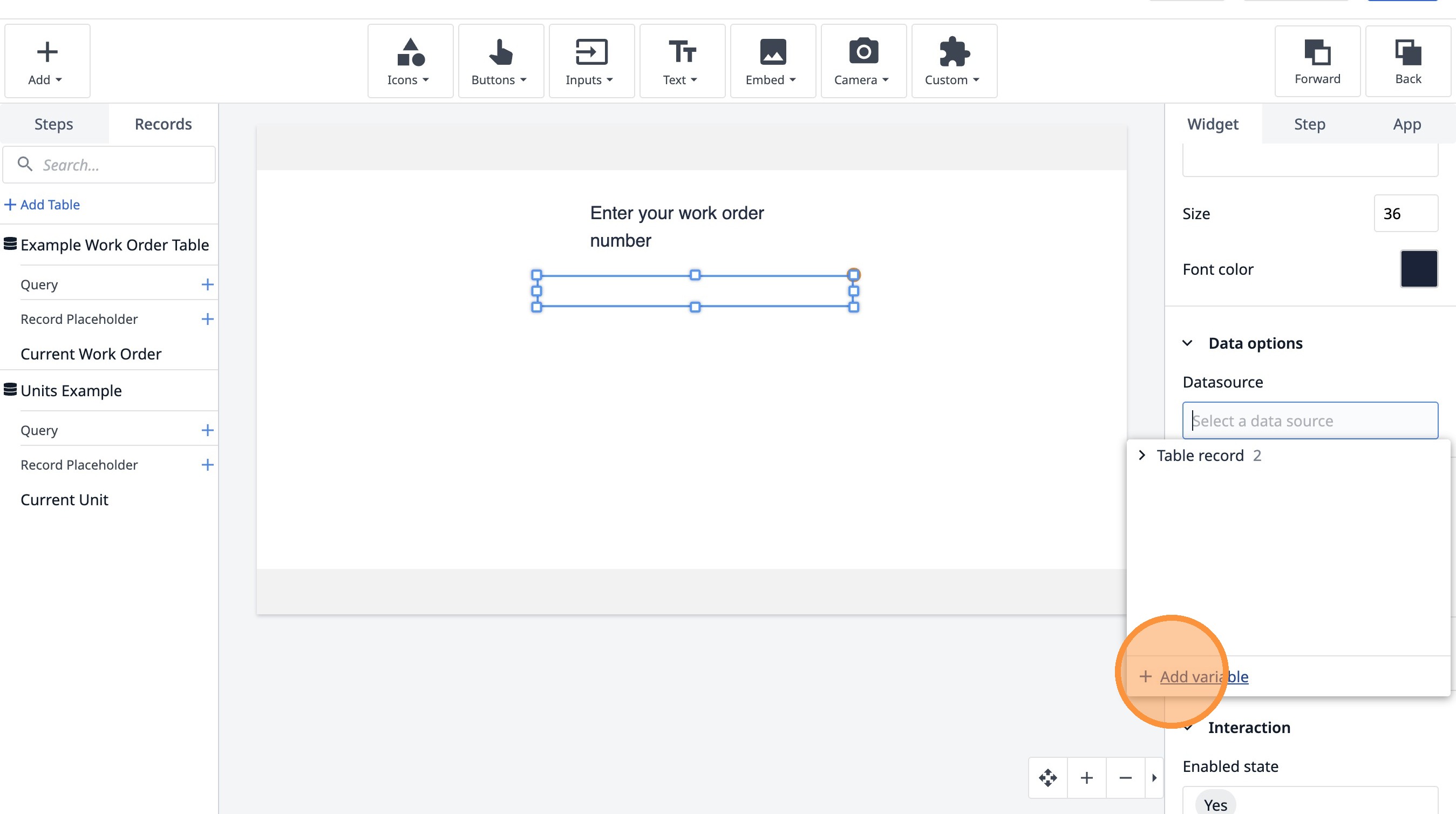
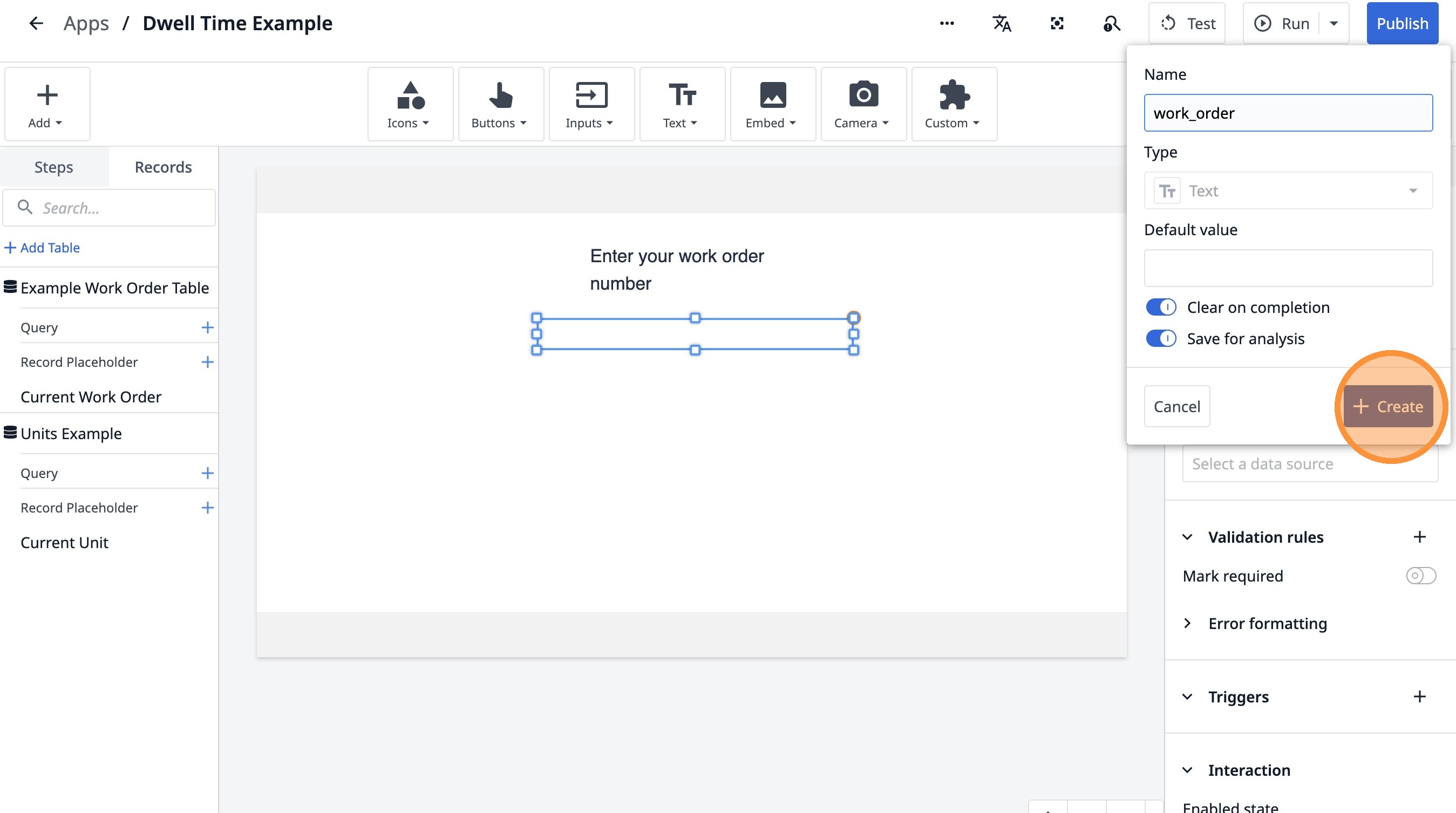
15. Type "work_order"
16. Click "Create"
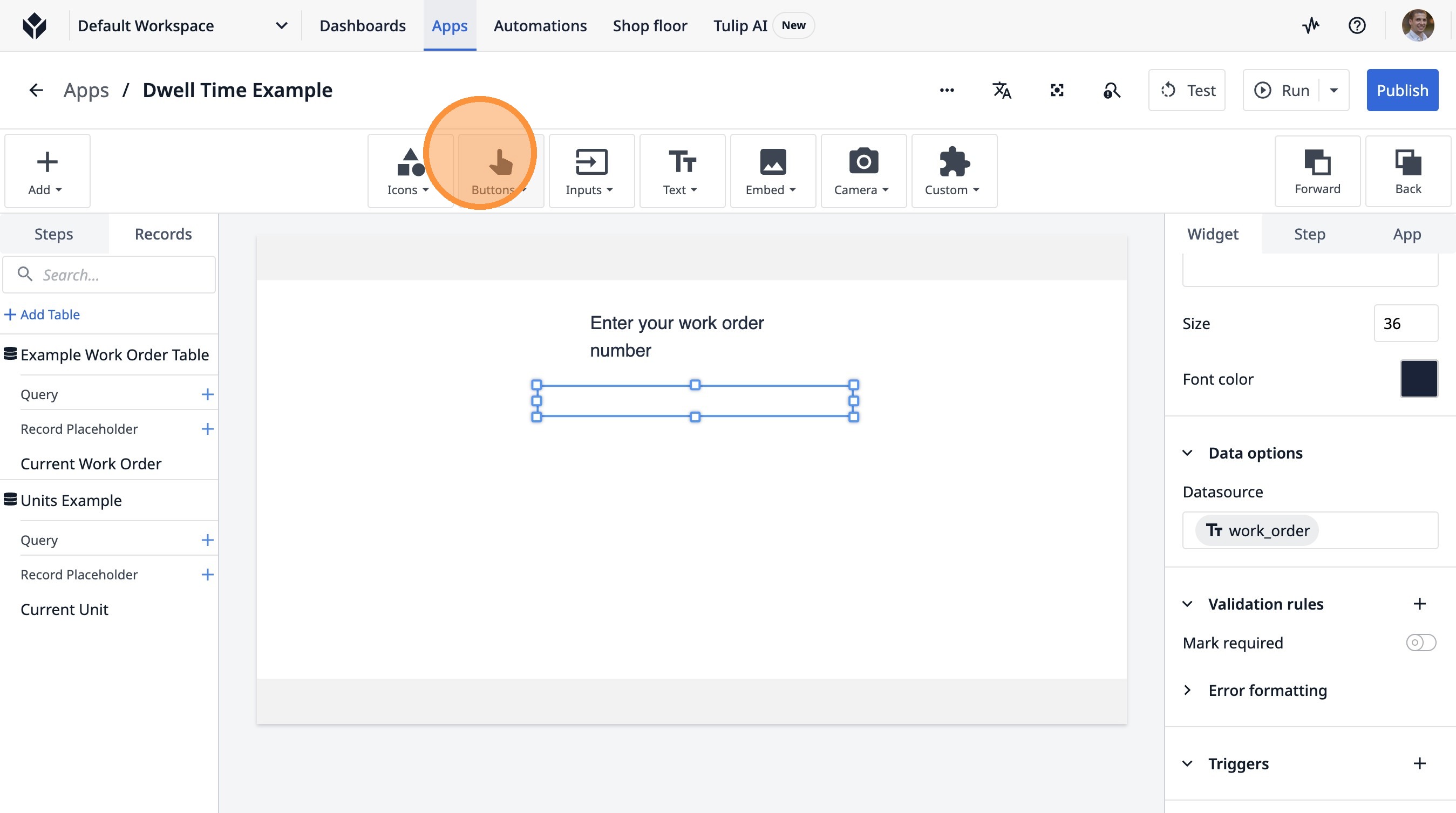
17. Click "Buttons"
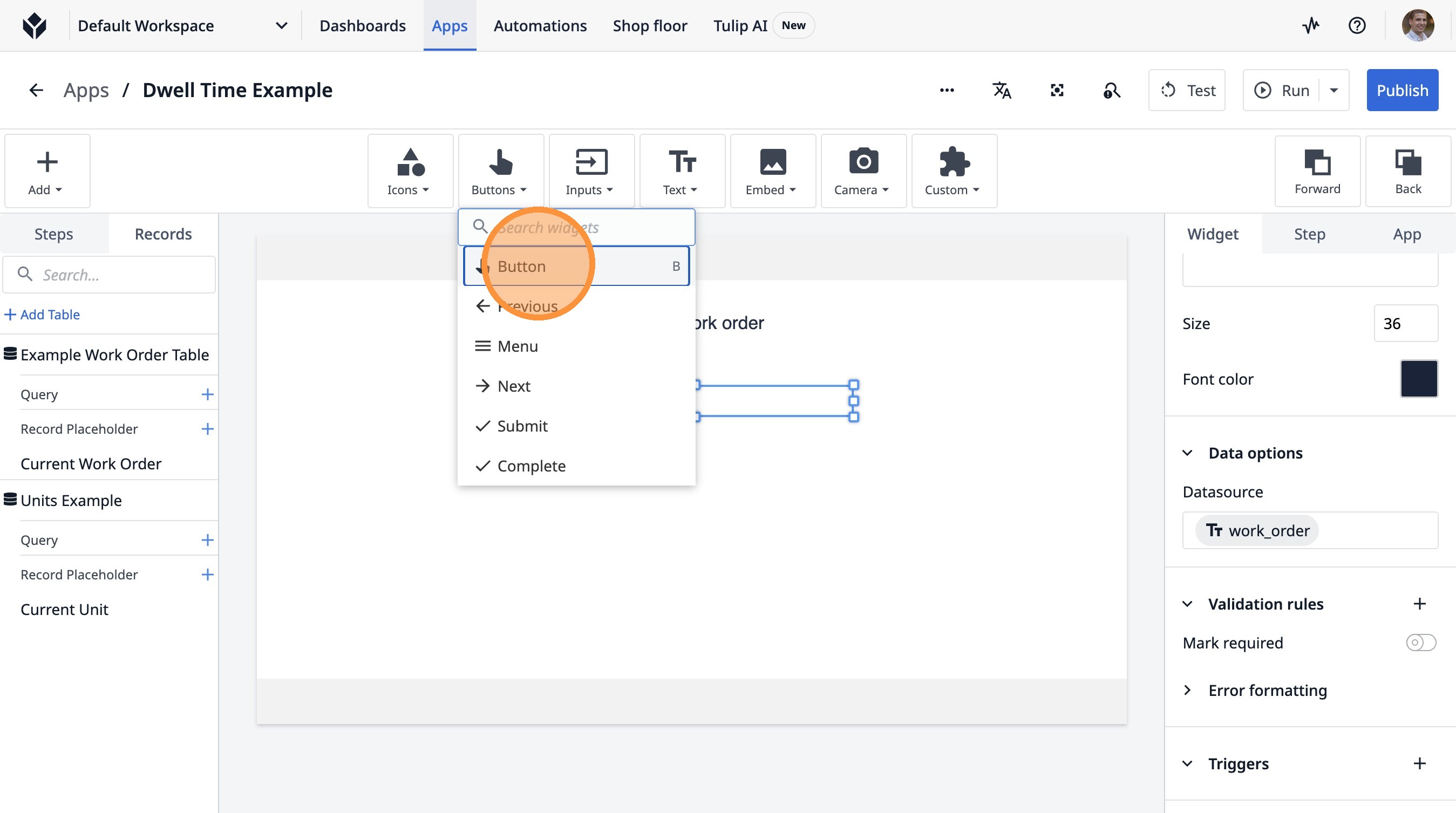
18. Click "Button"
19. Click here.
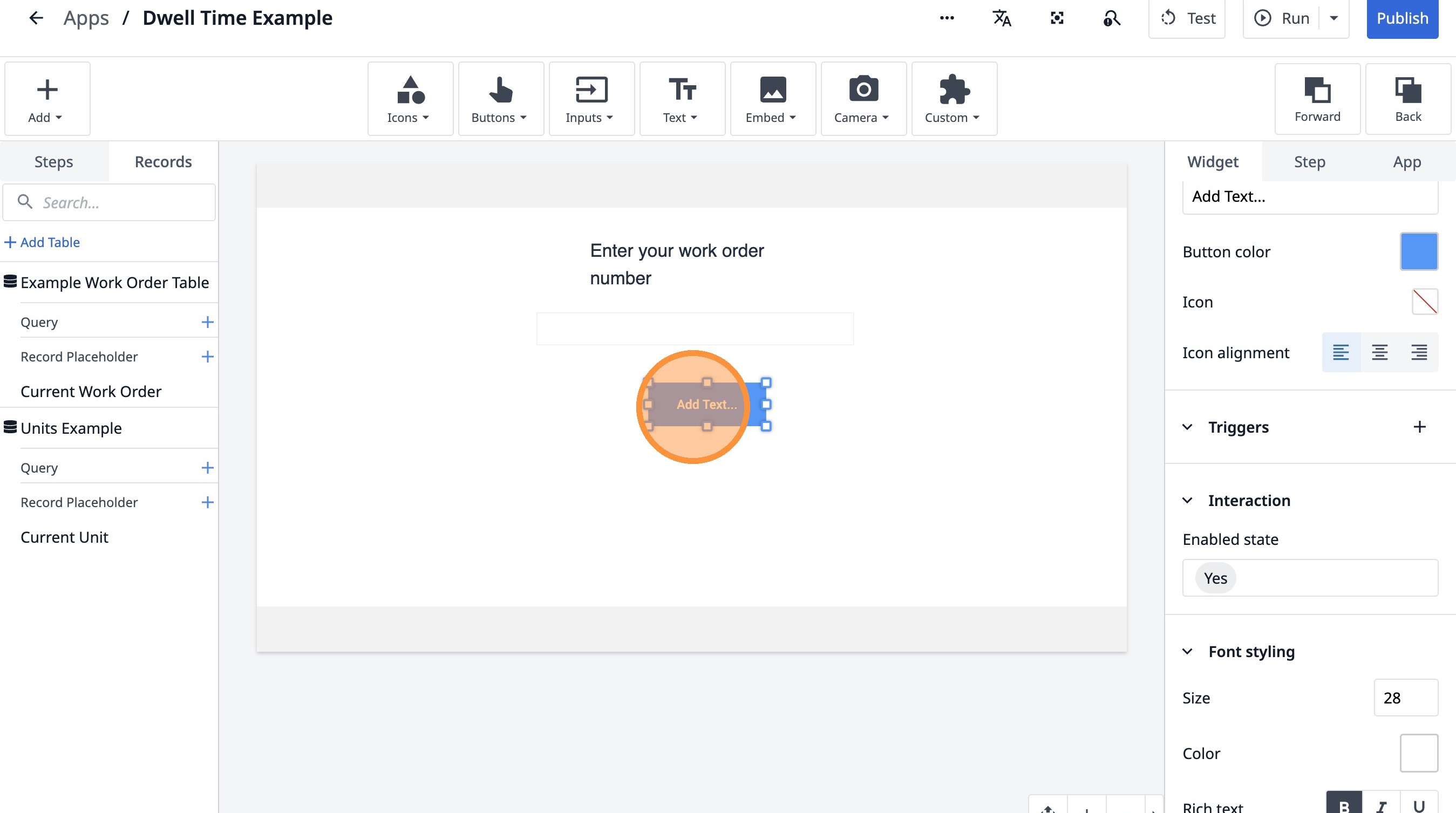
20. Double-click the "Text" field.
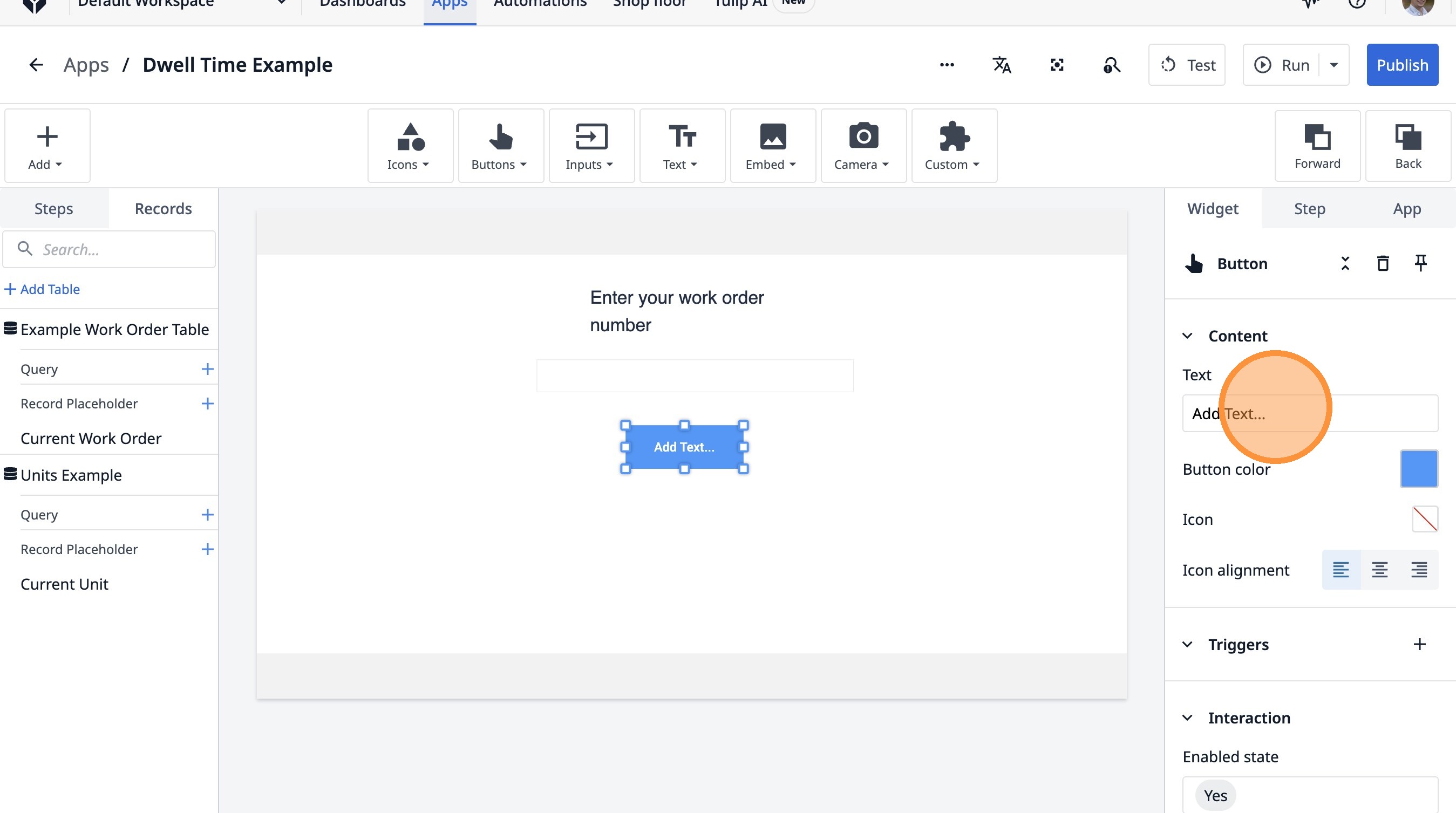
21. Type "Next"
22. Click this icon.
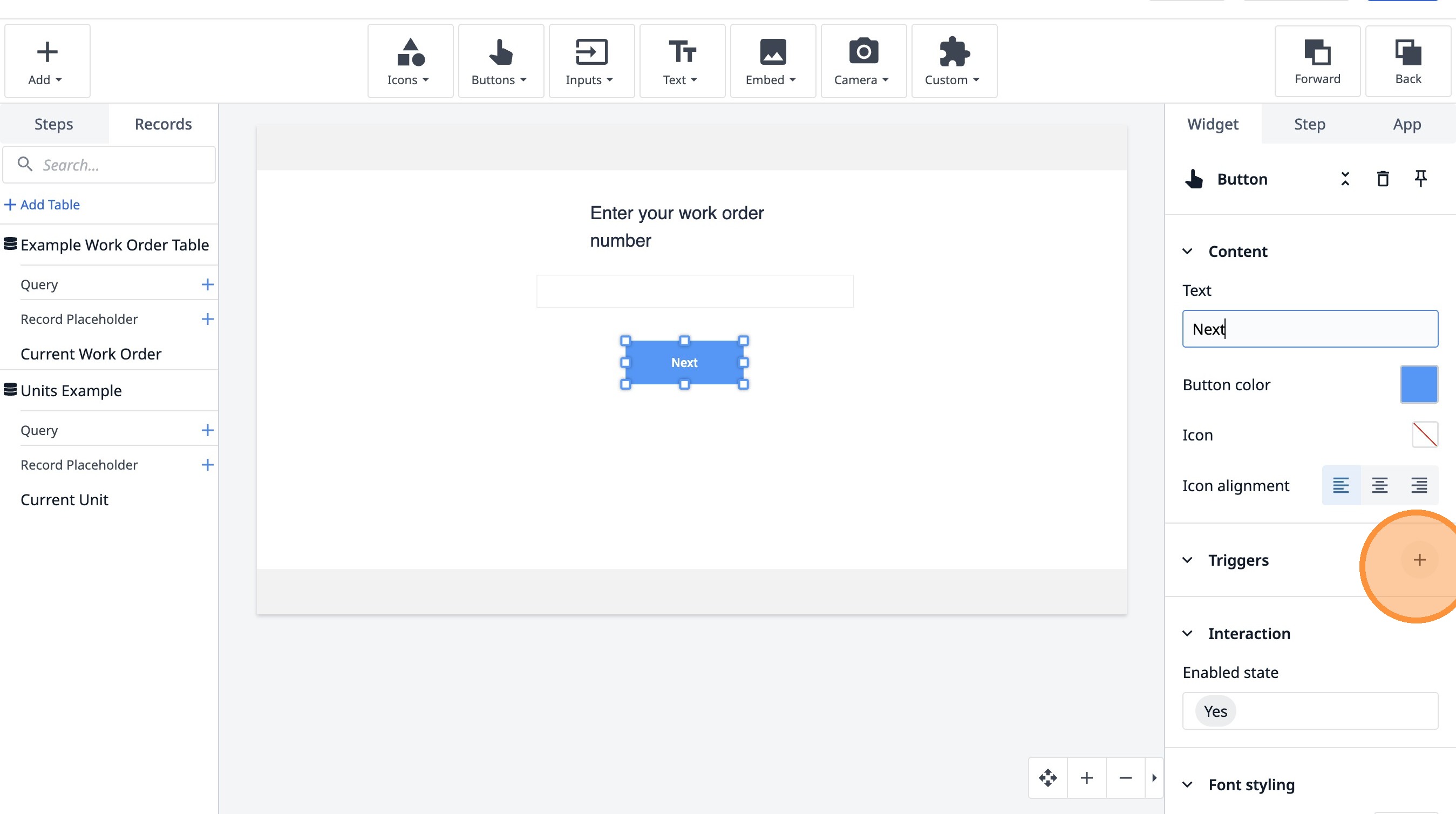
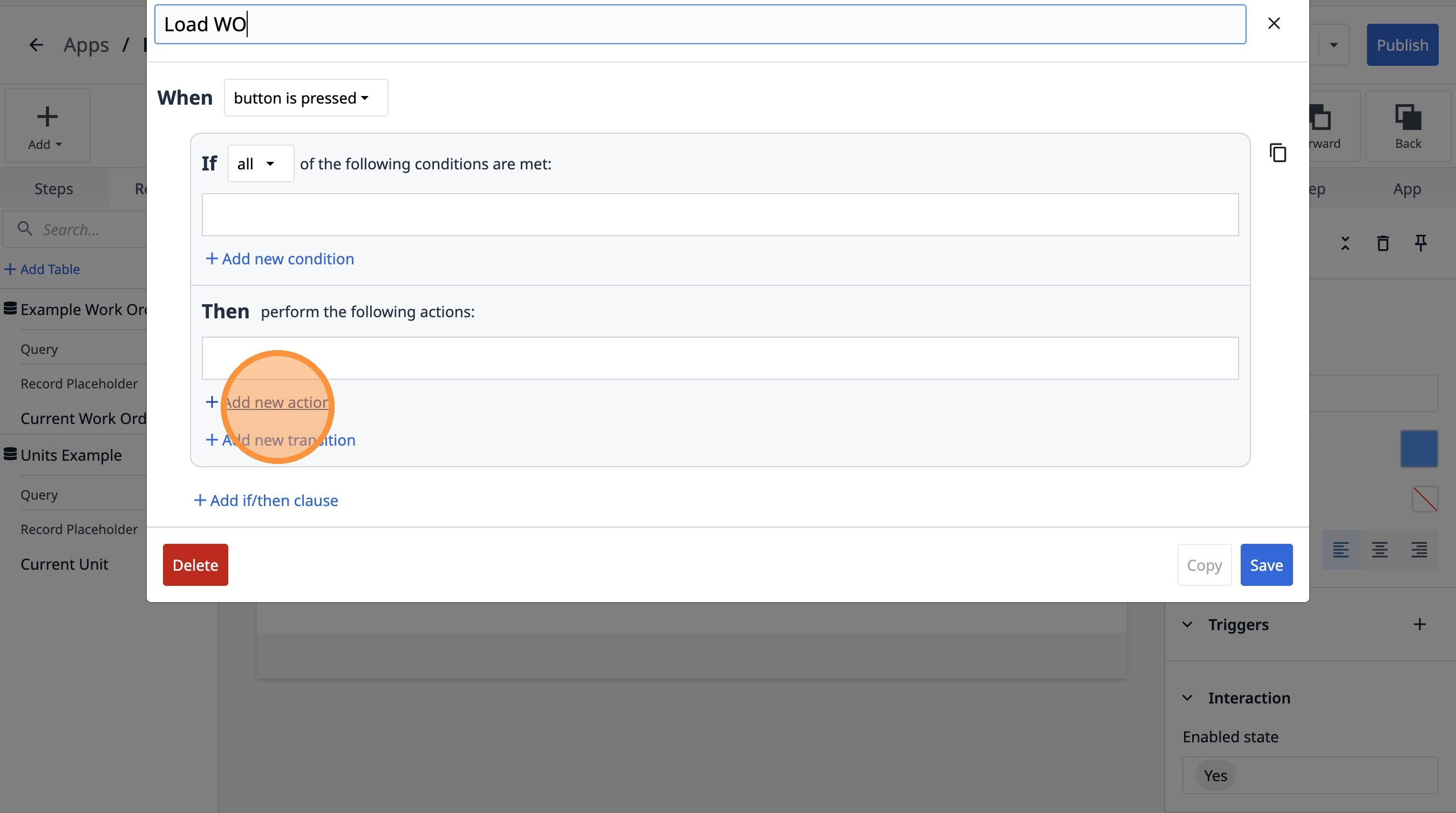
23. Type "Load WO"
24. Click "Add new action"
25. Select the "Table Records" option.
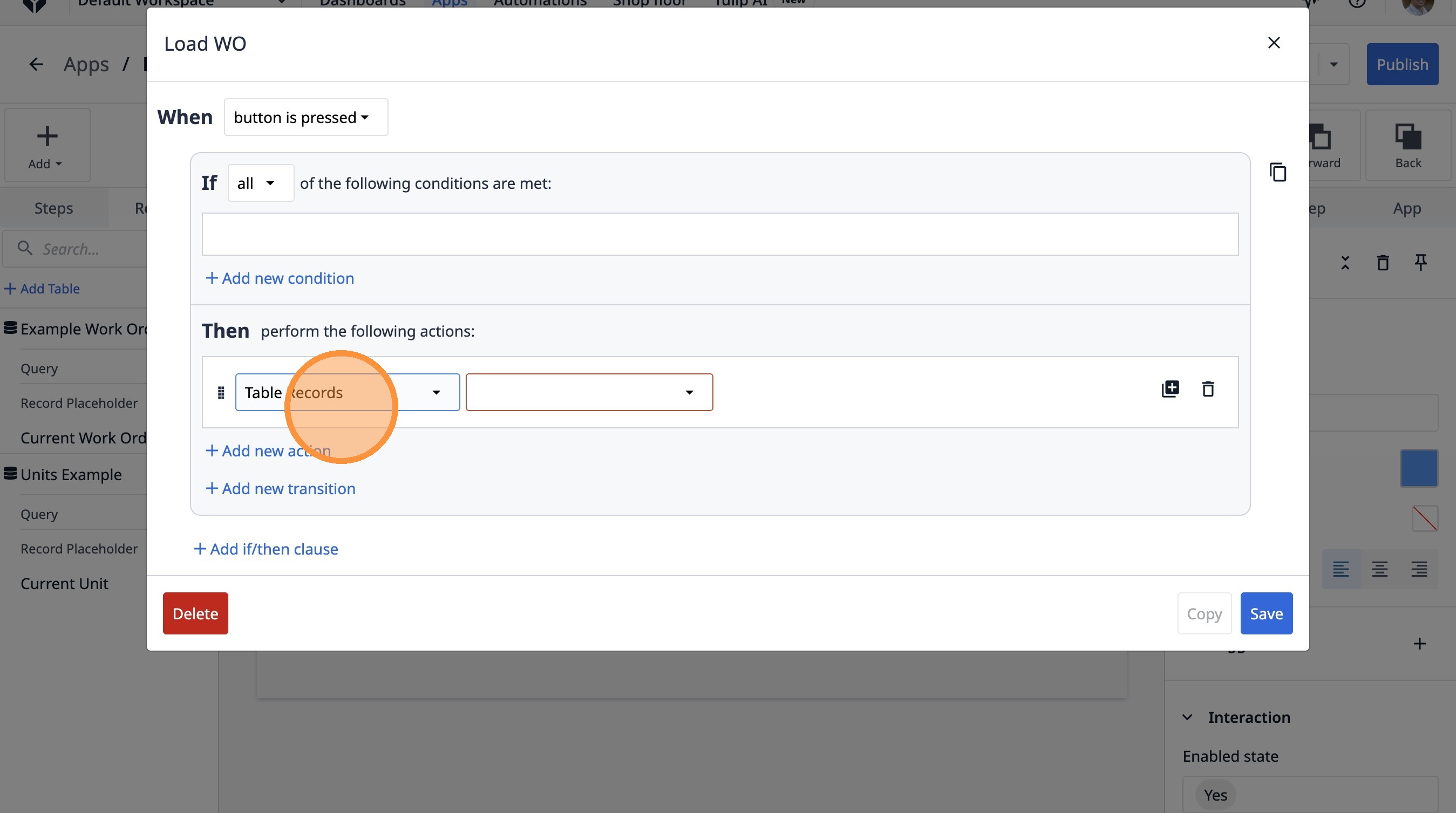
26. Select the "Load Record" option.
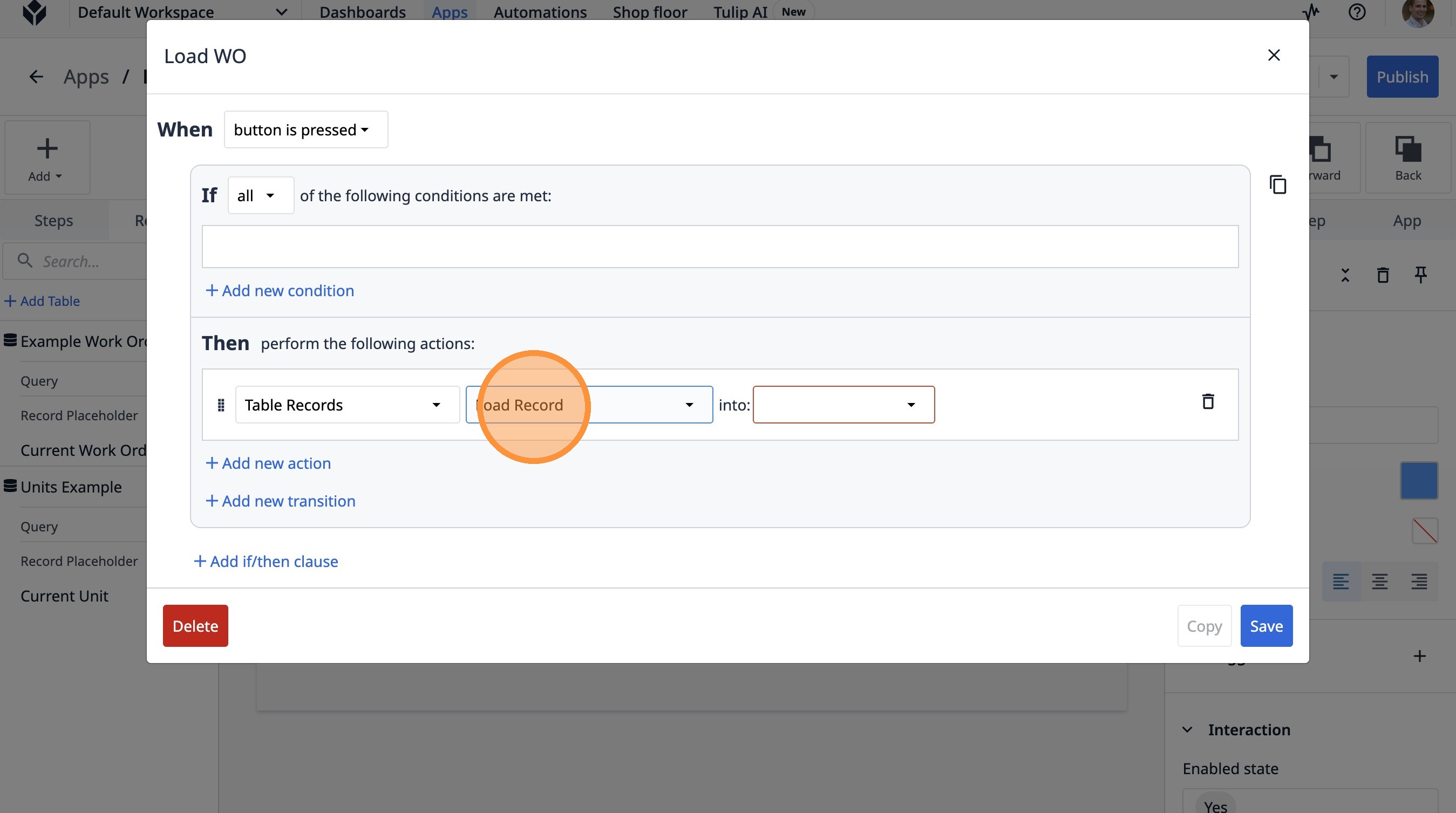
27. Select the "Current Work Order" option.
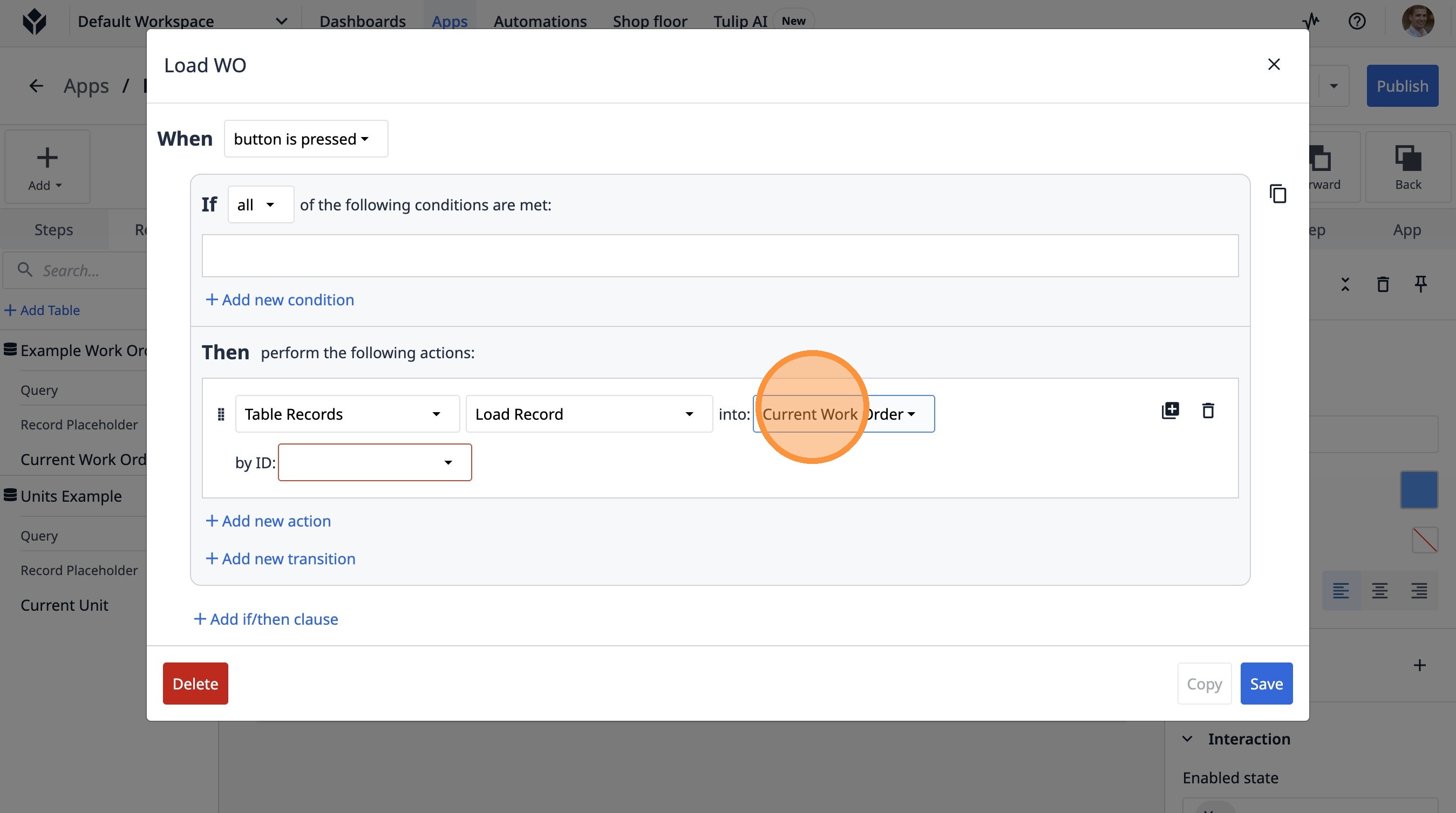
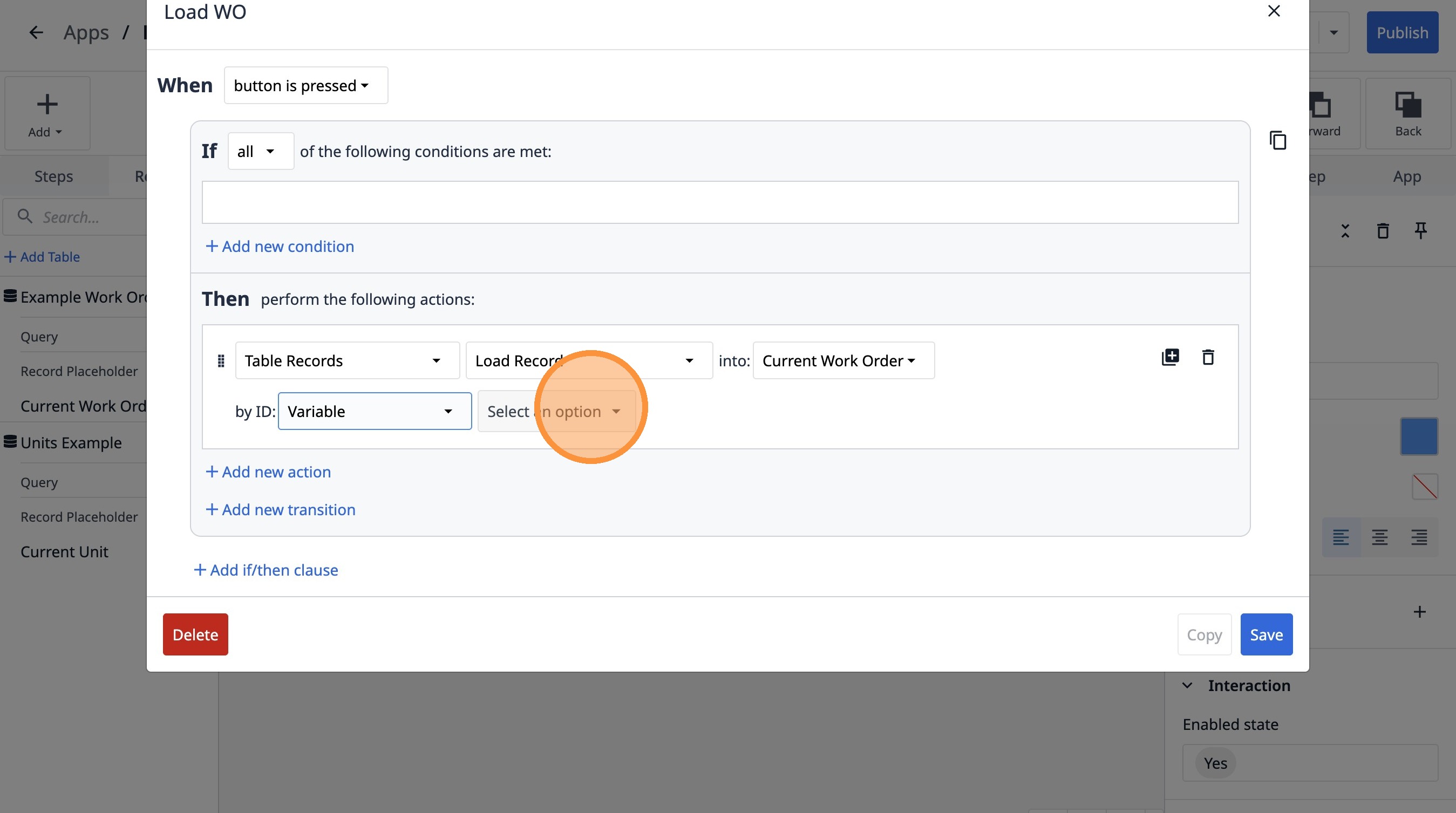
28. Select the "Variable" option.
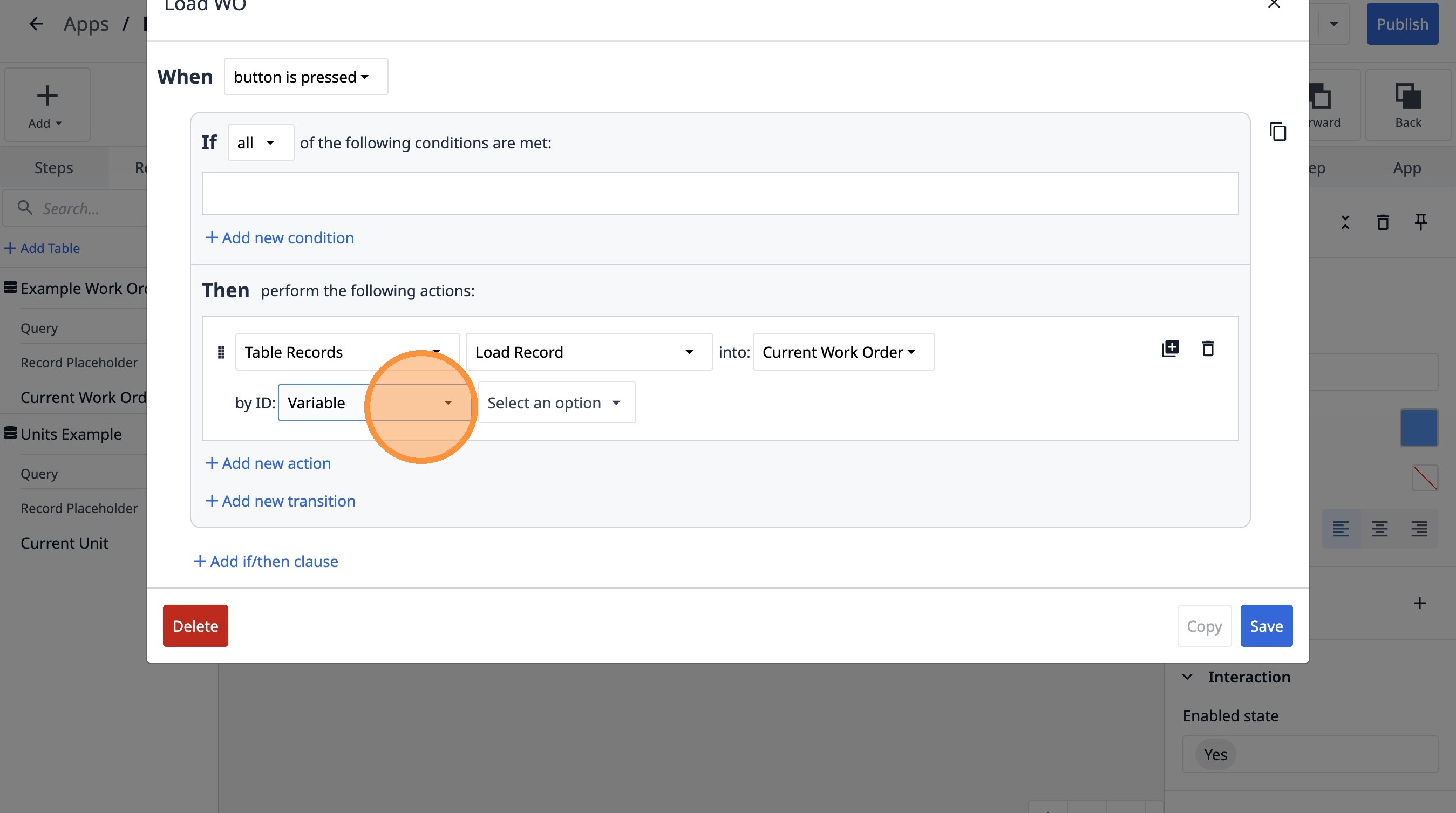
29. Click "Select an option"
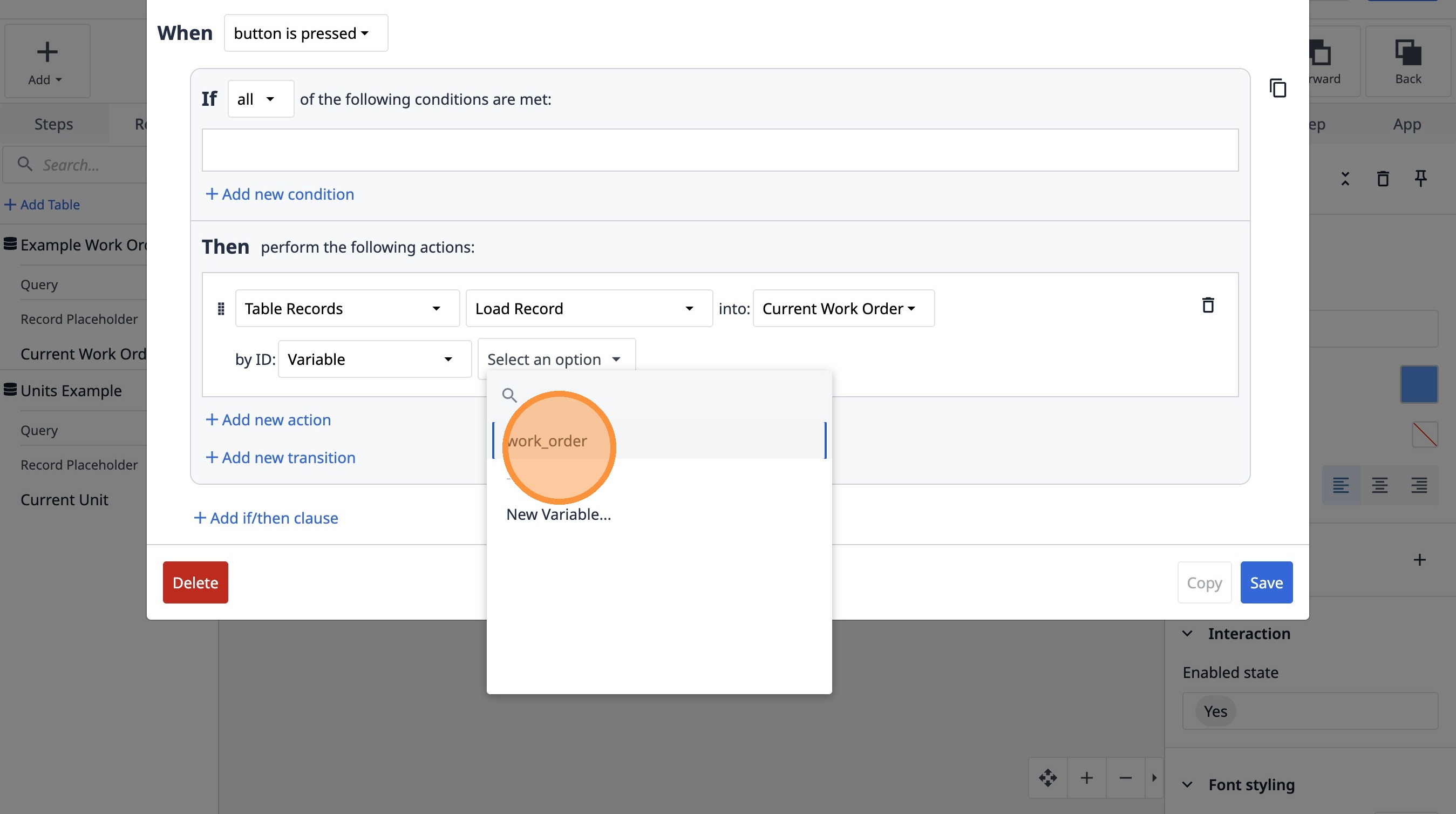
30. Click "work_order"
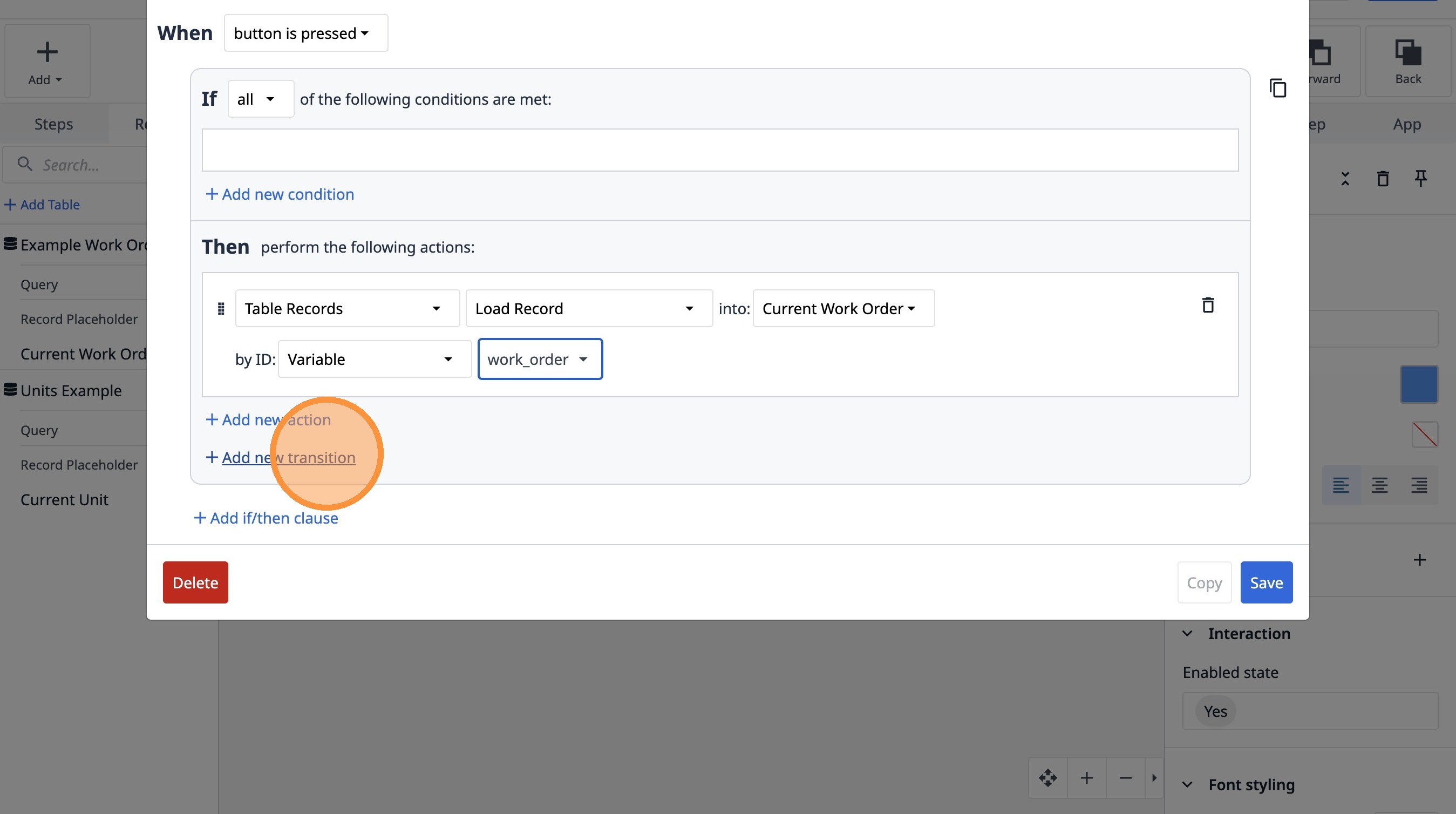
31. Click "Add new transition"
32. Select the "Go To Step" option.
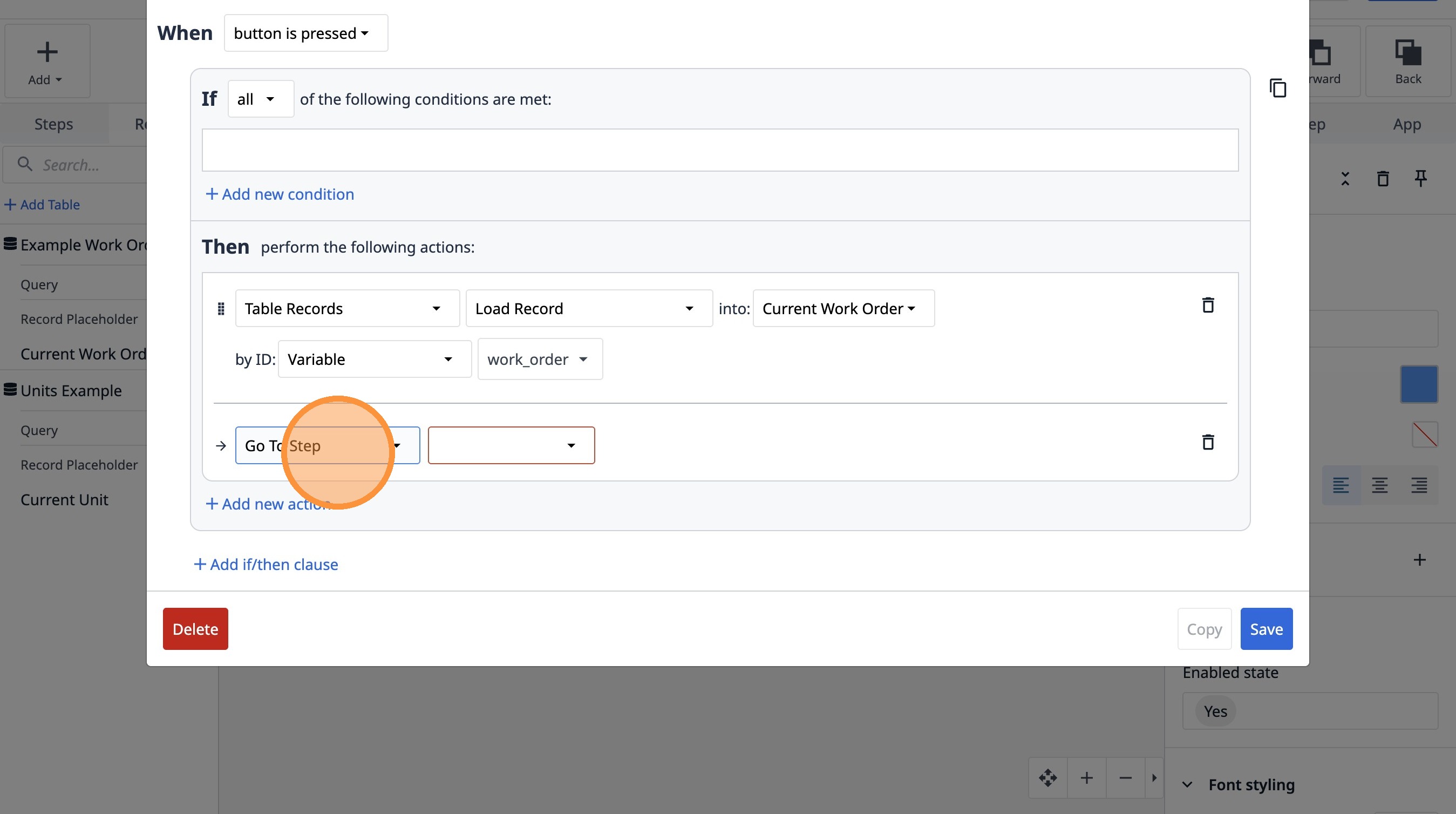
33. Select the "Next" option.
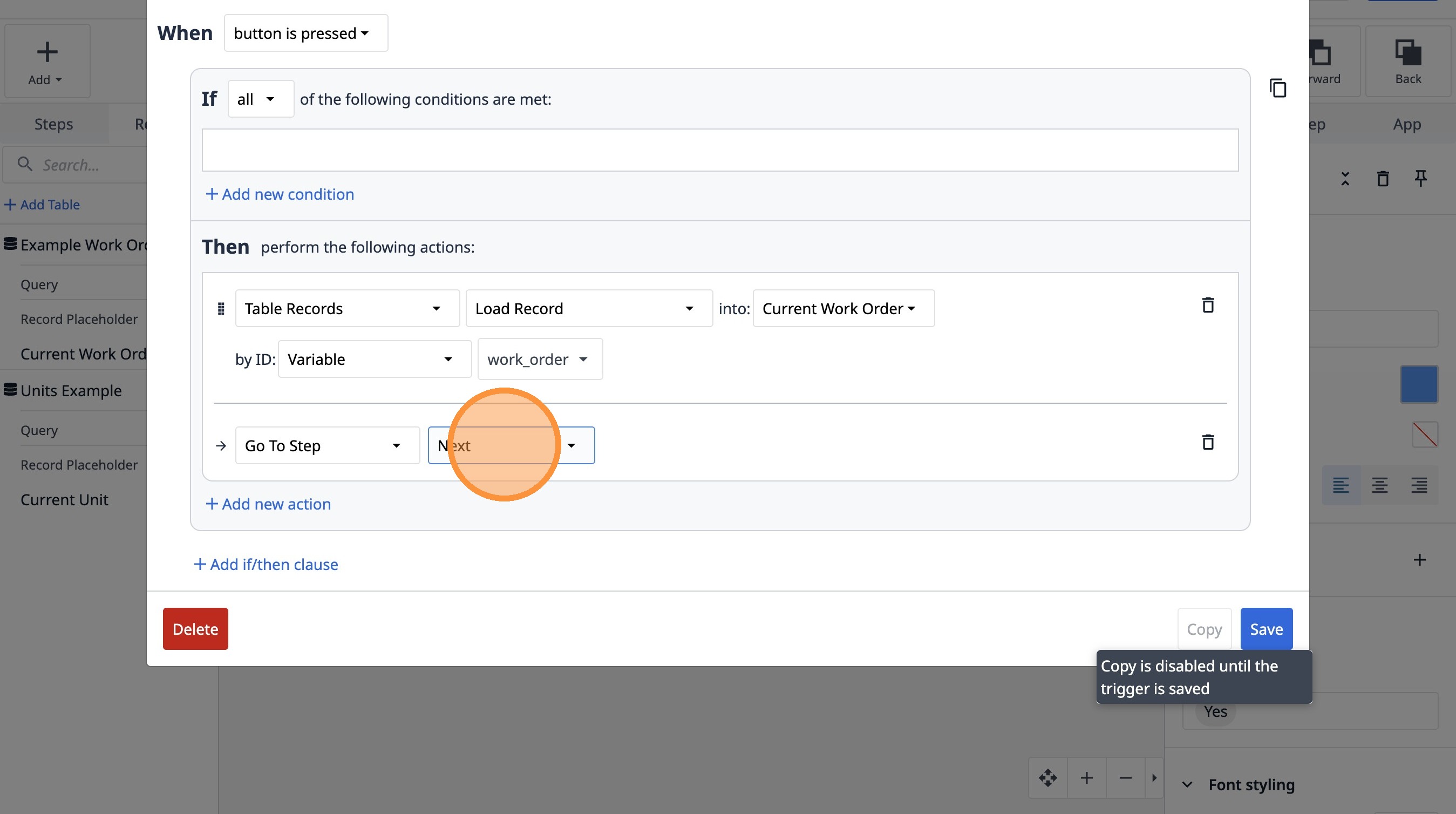
34. Click "Save"