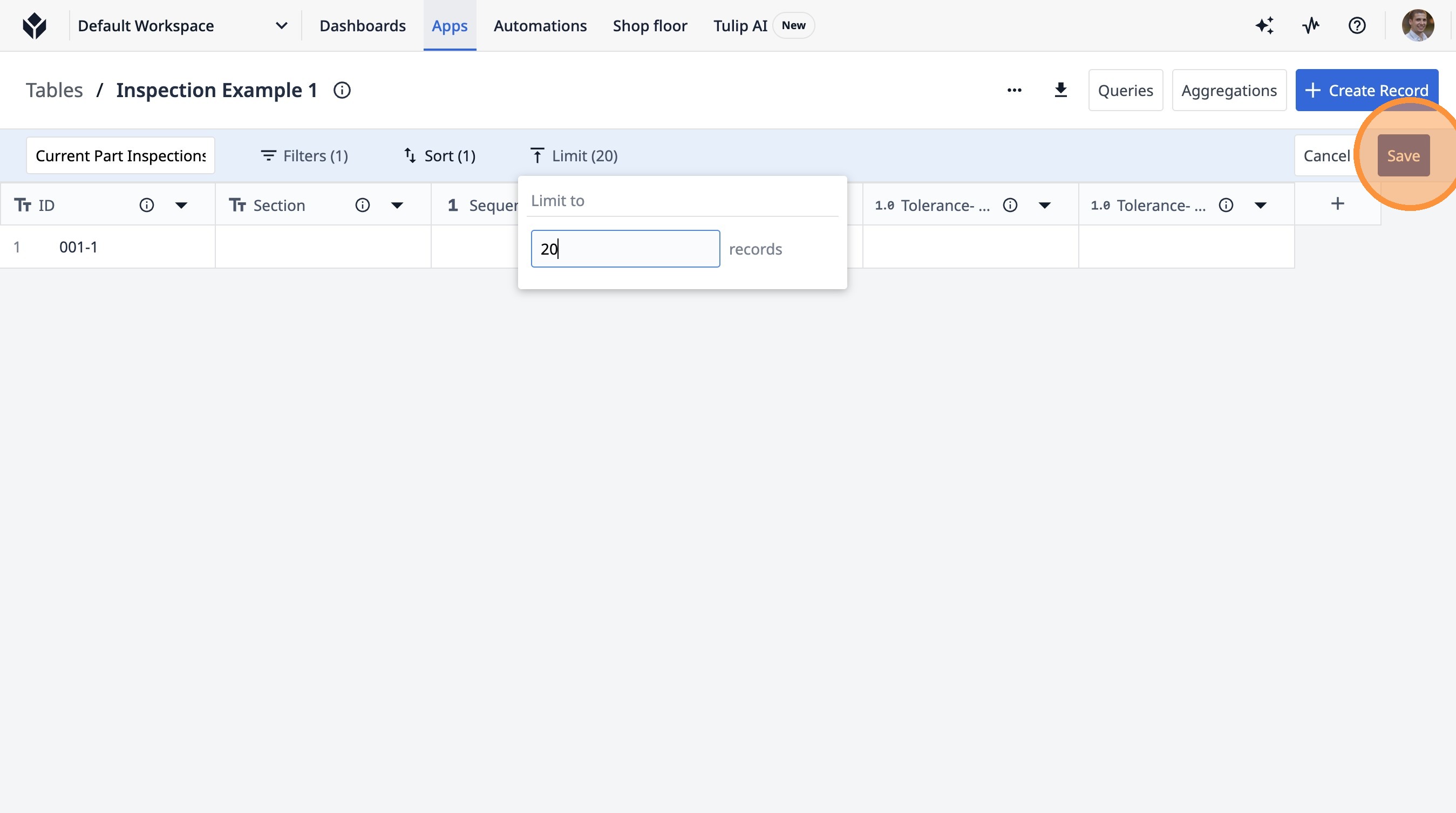
Learn how to create a new query in Tulip. This guide will walk you through the process of naming your query, adding filters, and setting sorting and limiting options to refine your data.
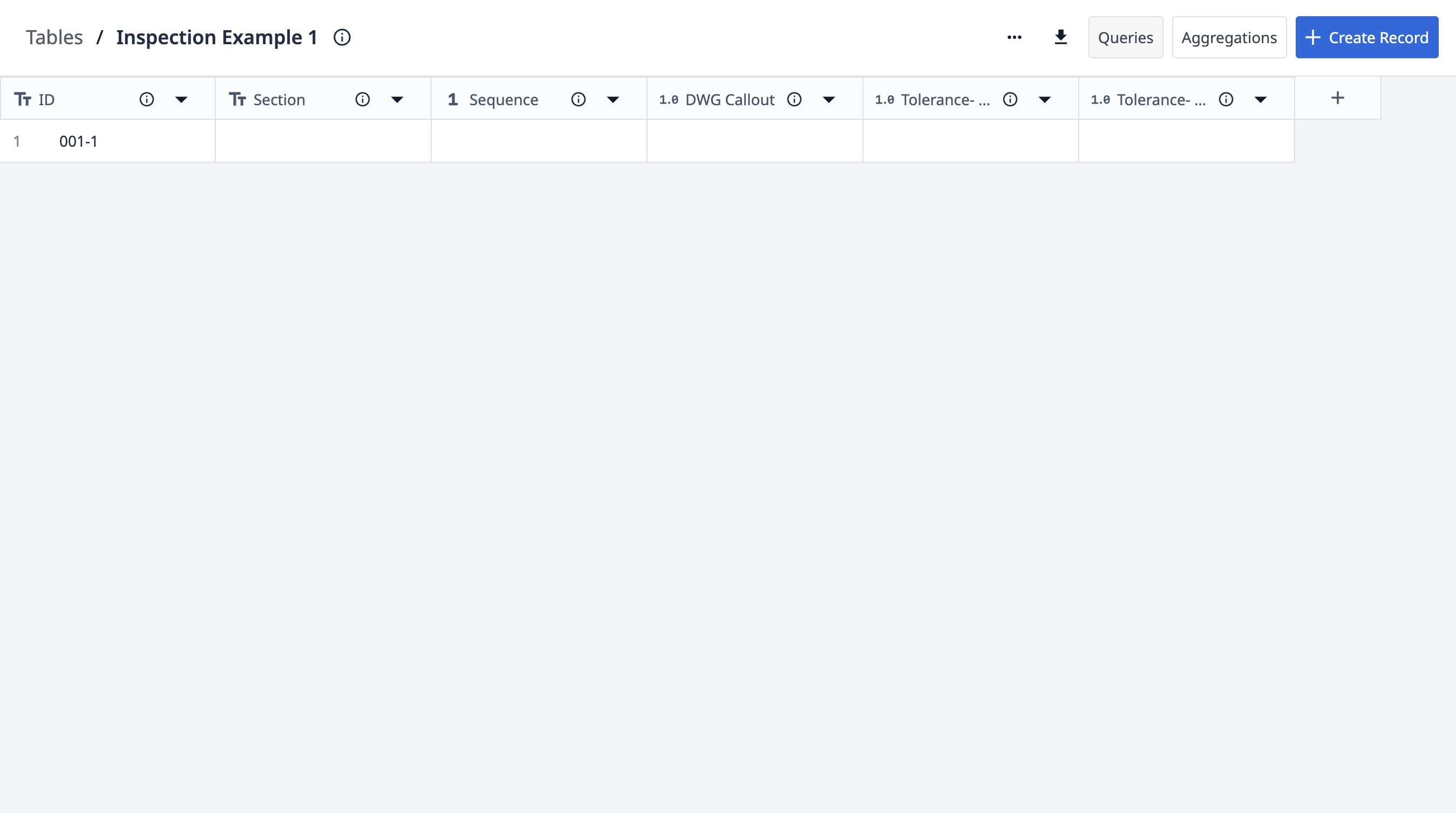
1. Navigate to an individual table page.
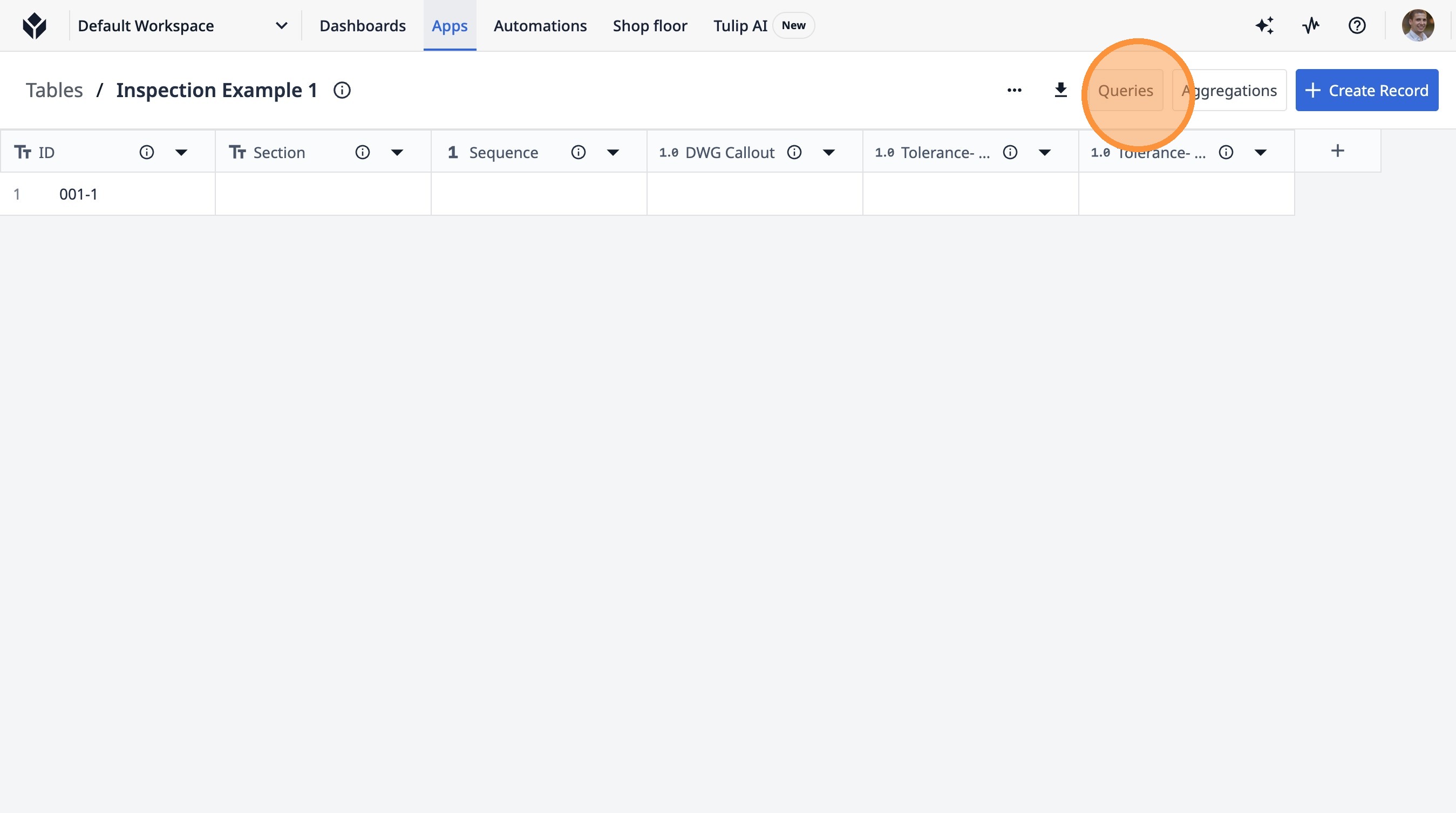
2. Click "Queries"
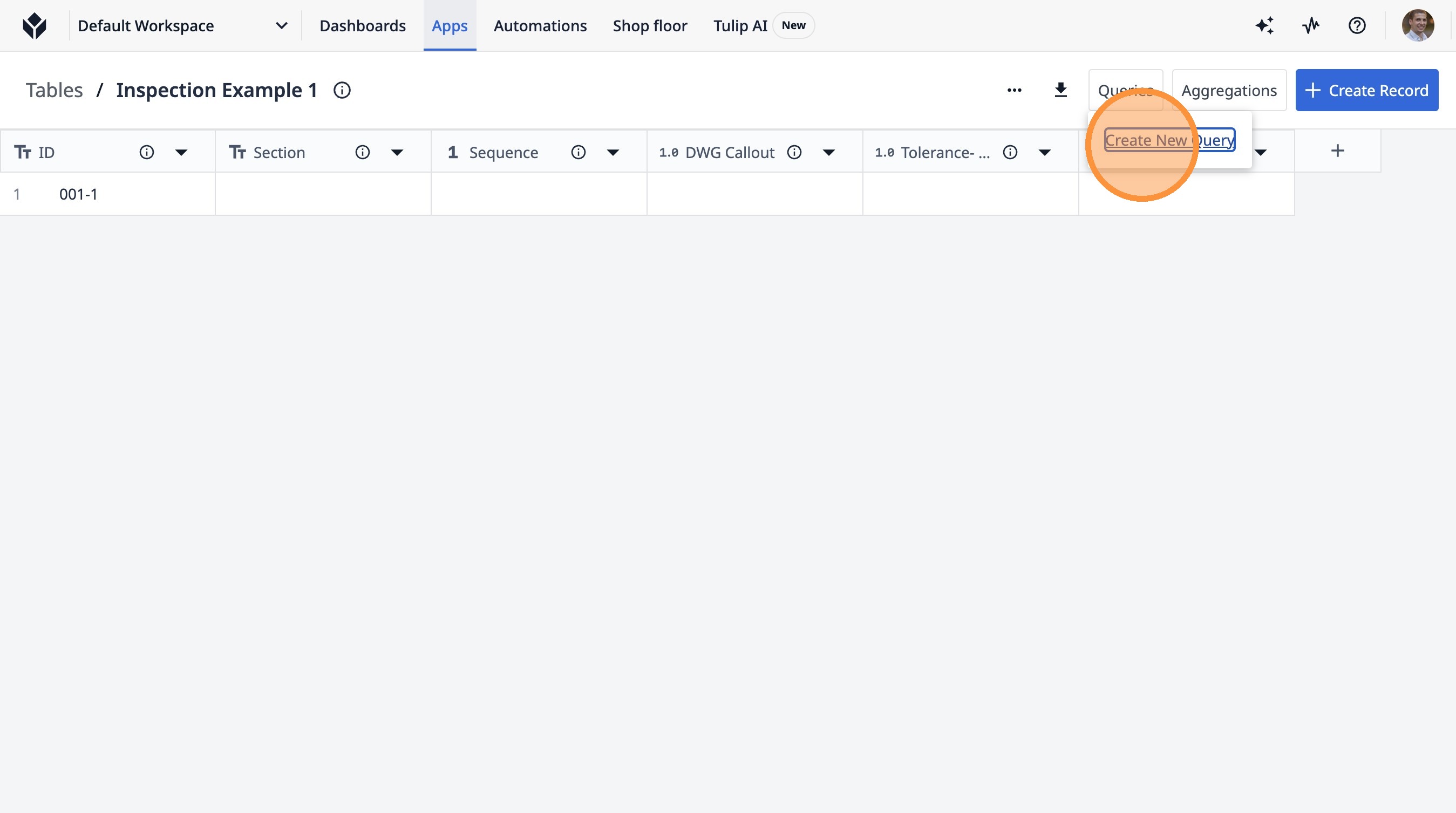
3. Click "Create New Query"
4. Click the "Query Name" field.
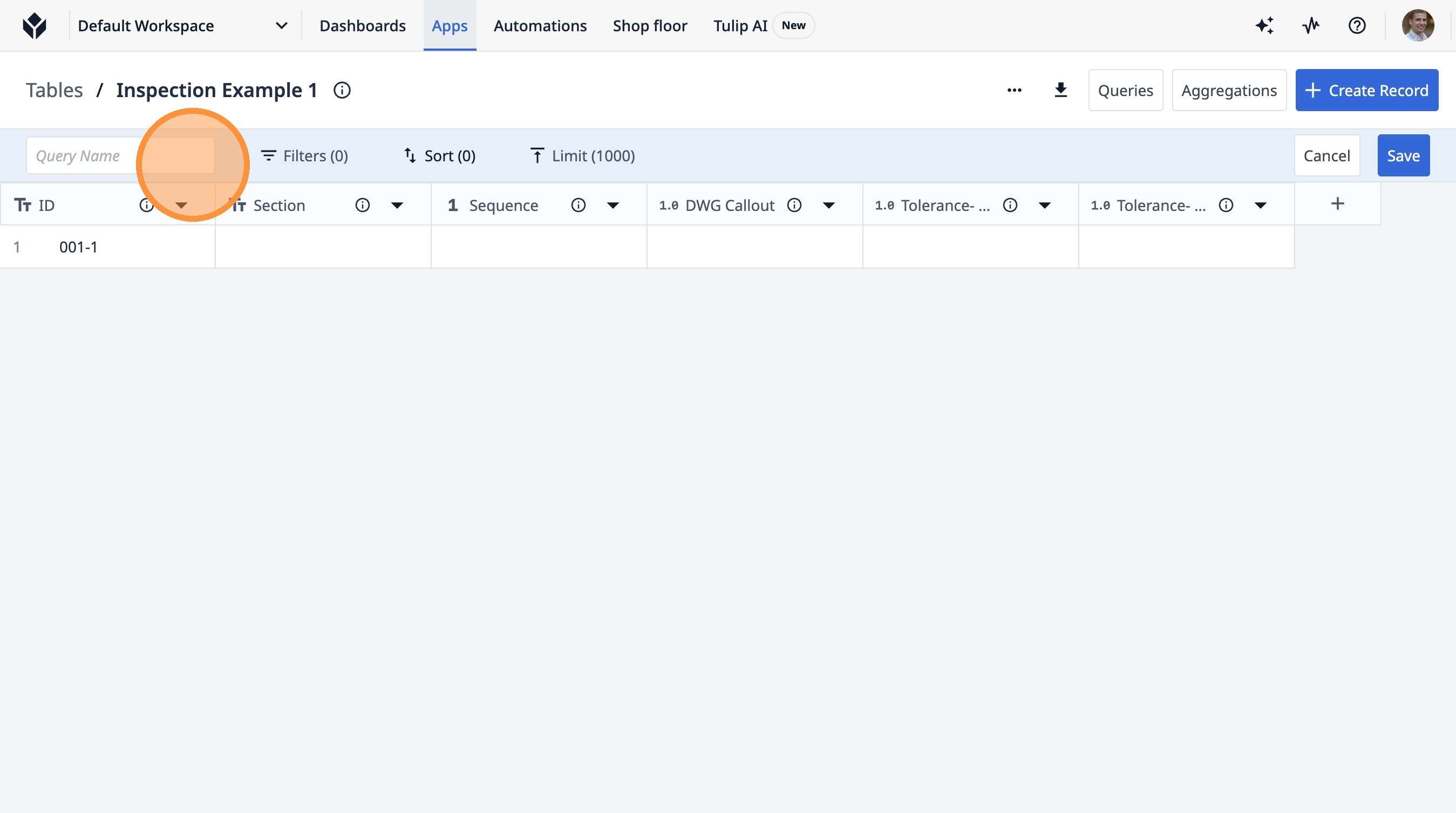
5. Type "Current Part Inspections"
6. Click "Filters (0)"
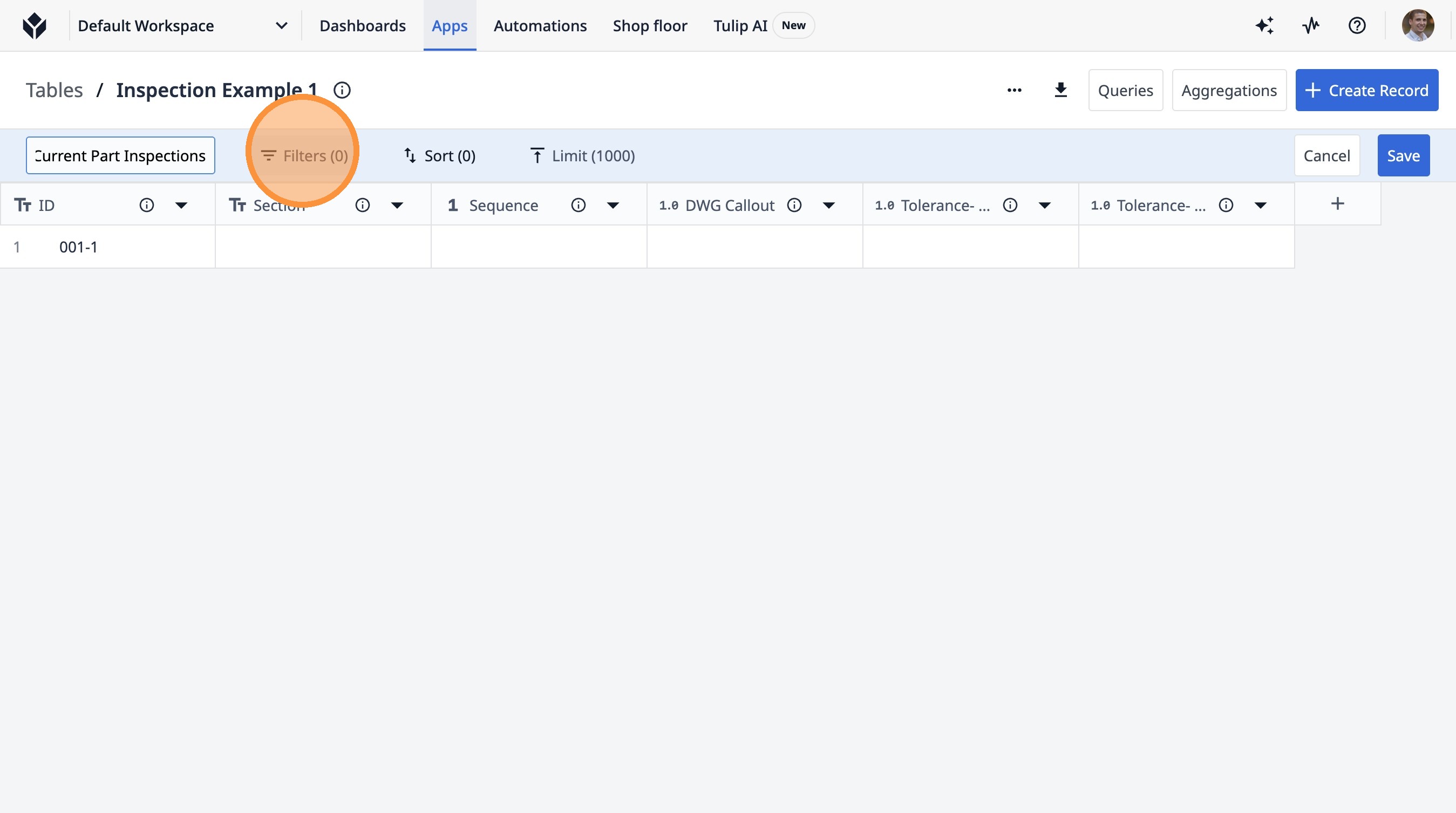
7. Click "+ Add Filter"
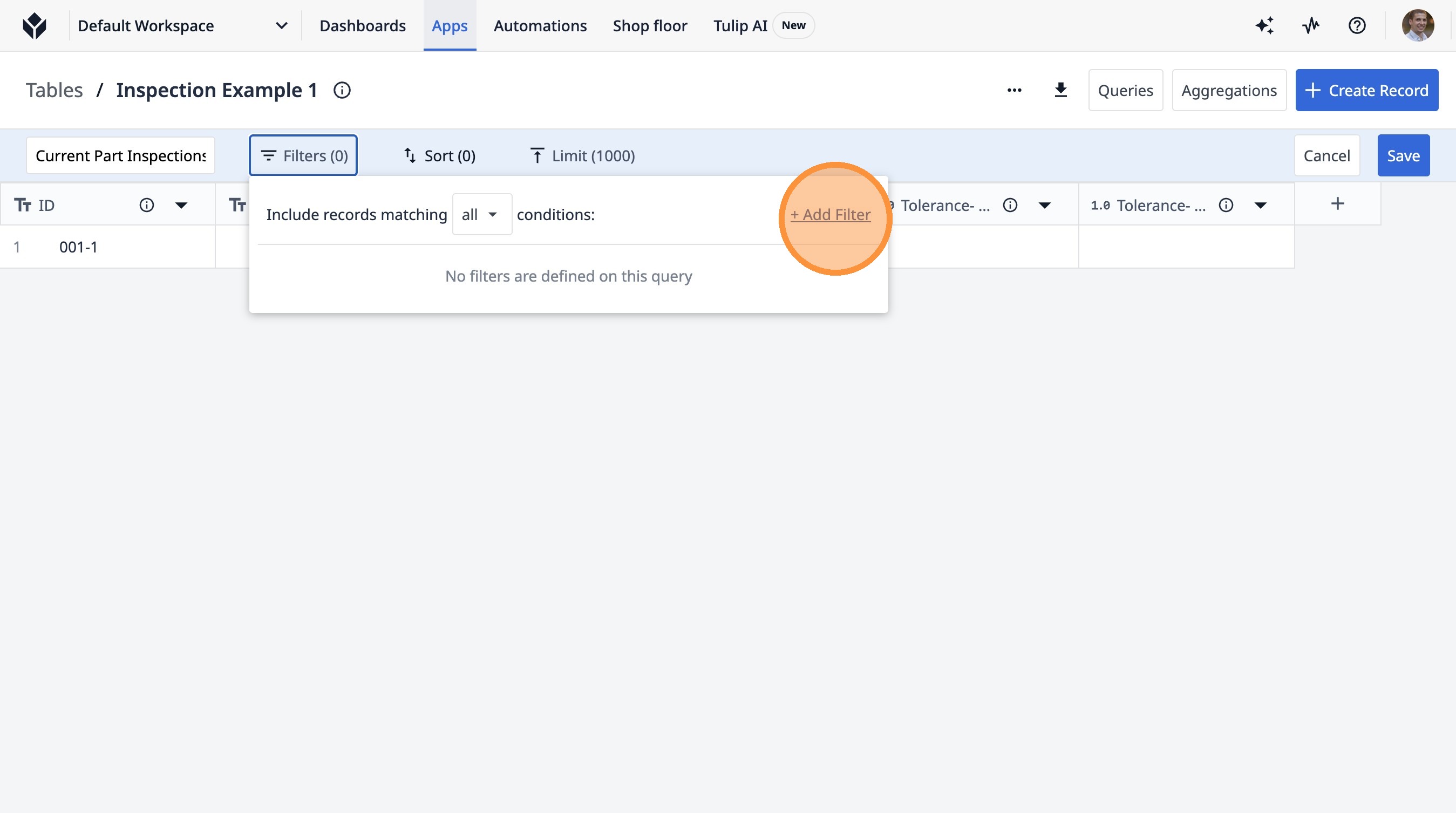
8. Click here.
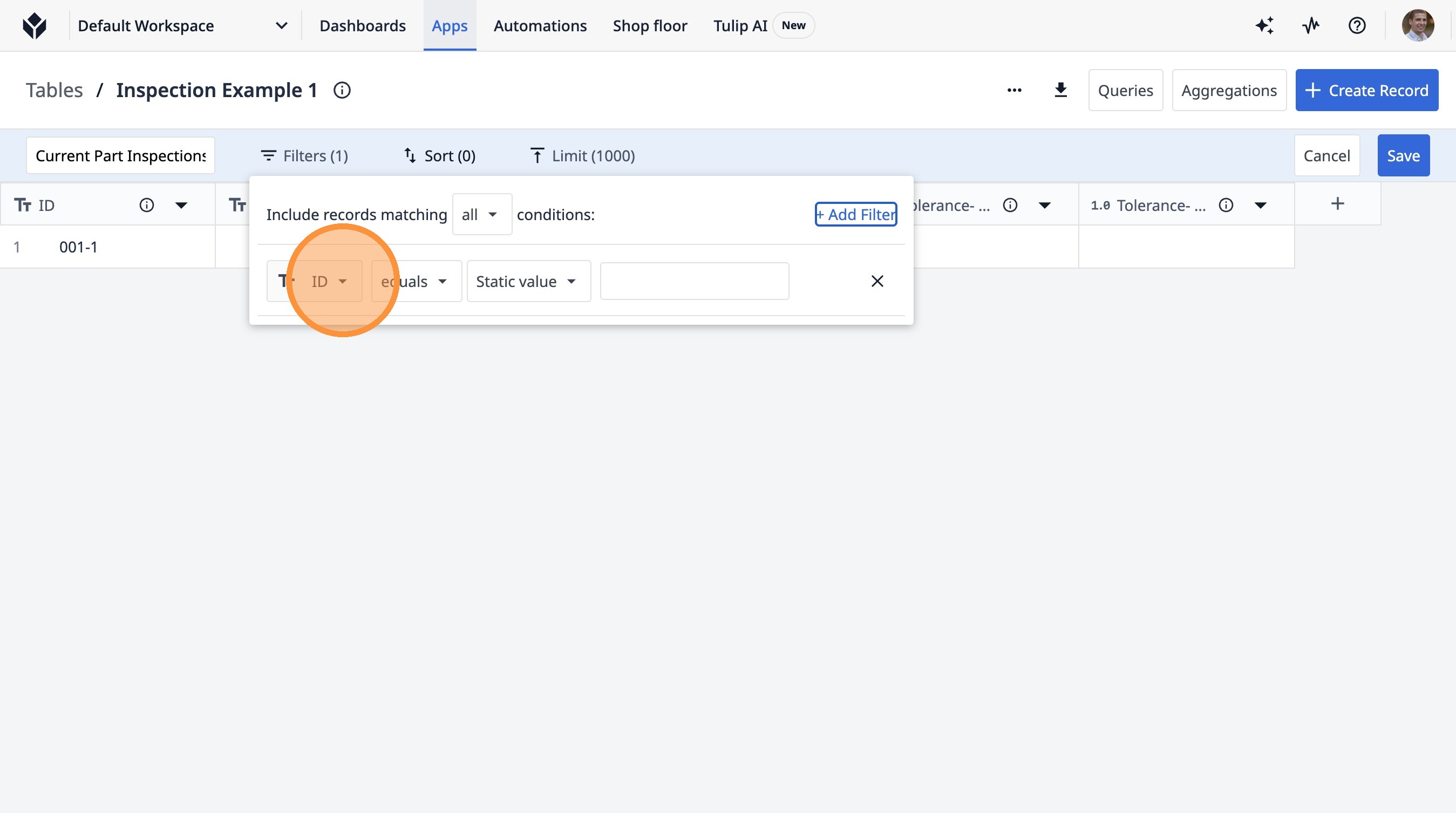
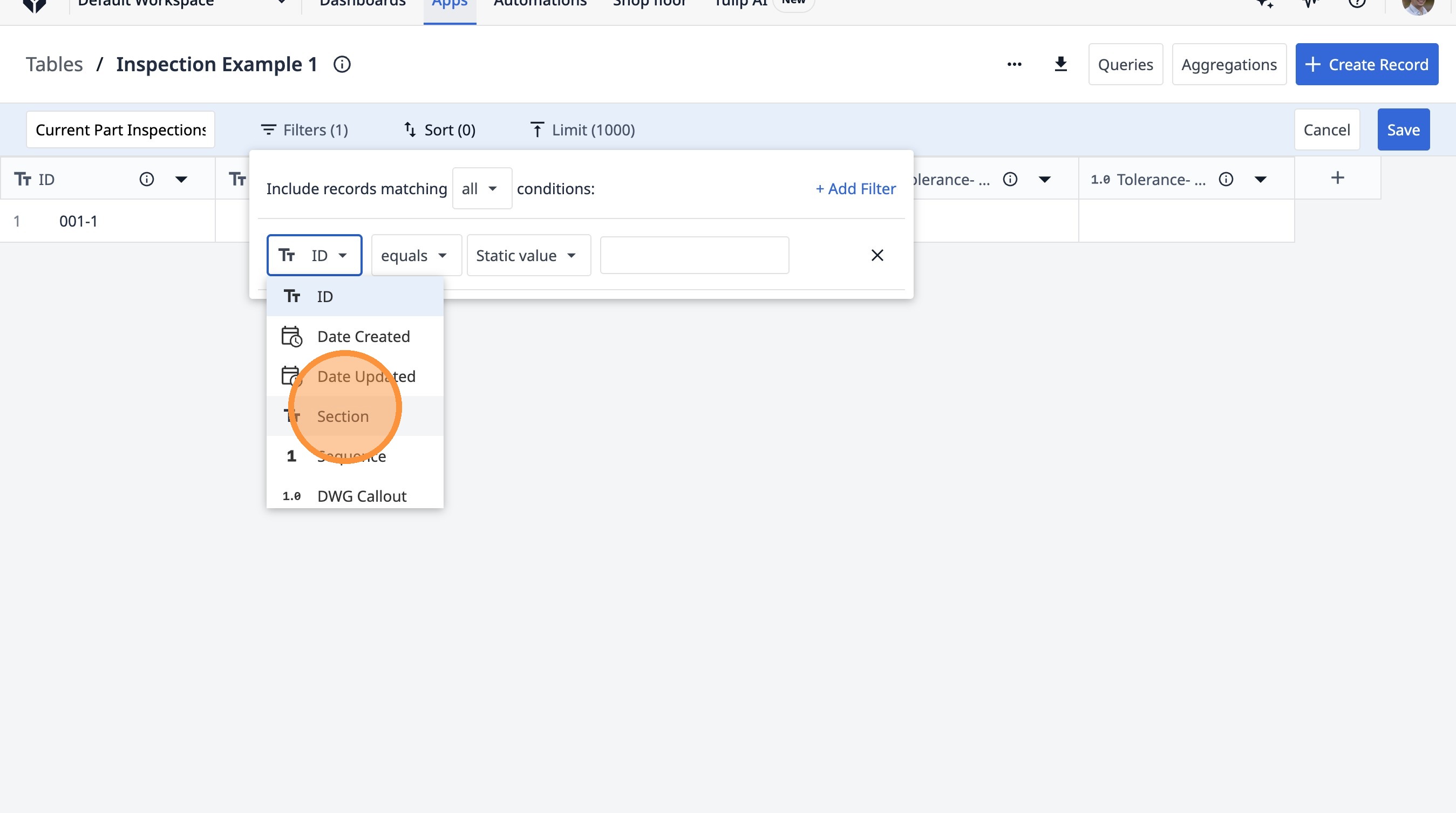
9. Click "Section"
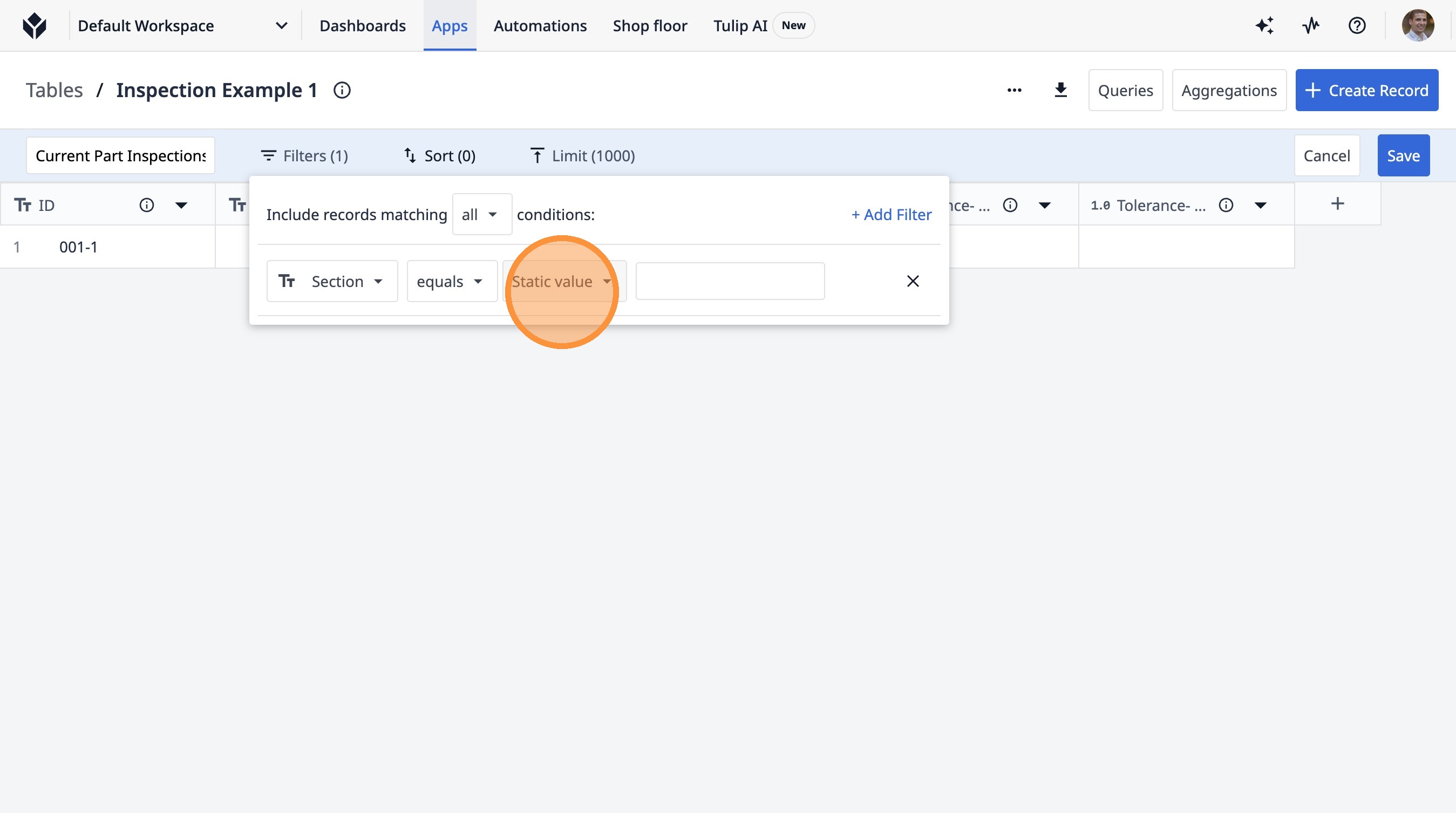
10. Click "Static value"
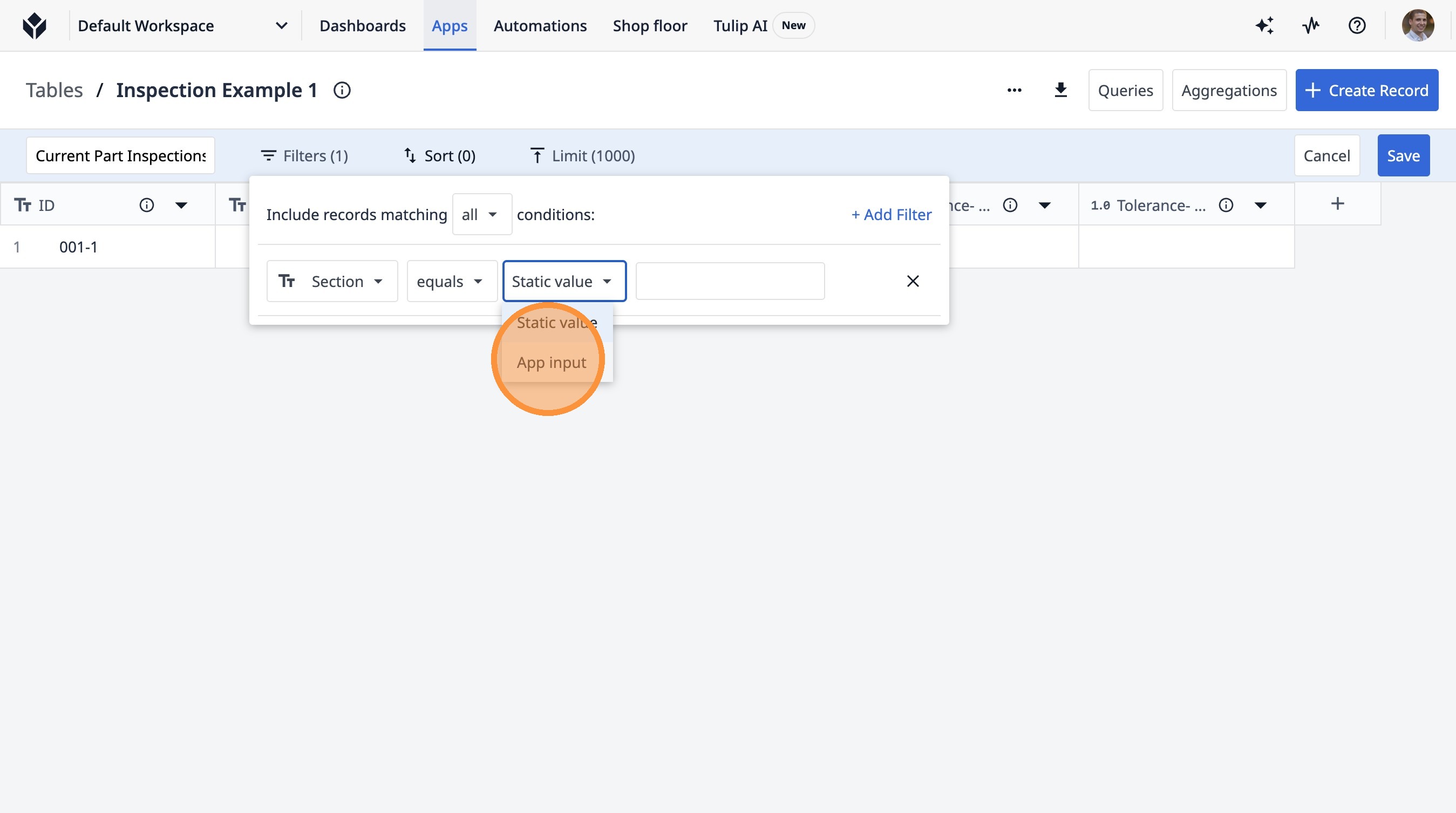
11. Click "App input"
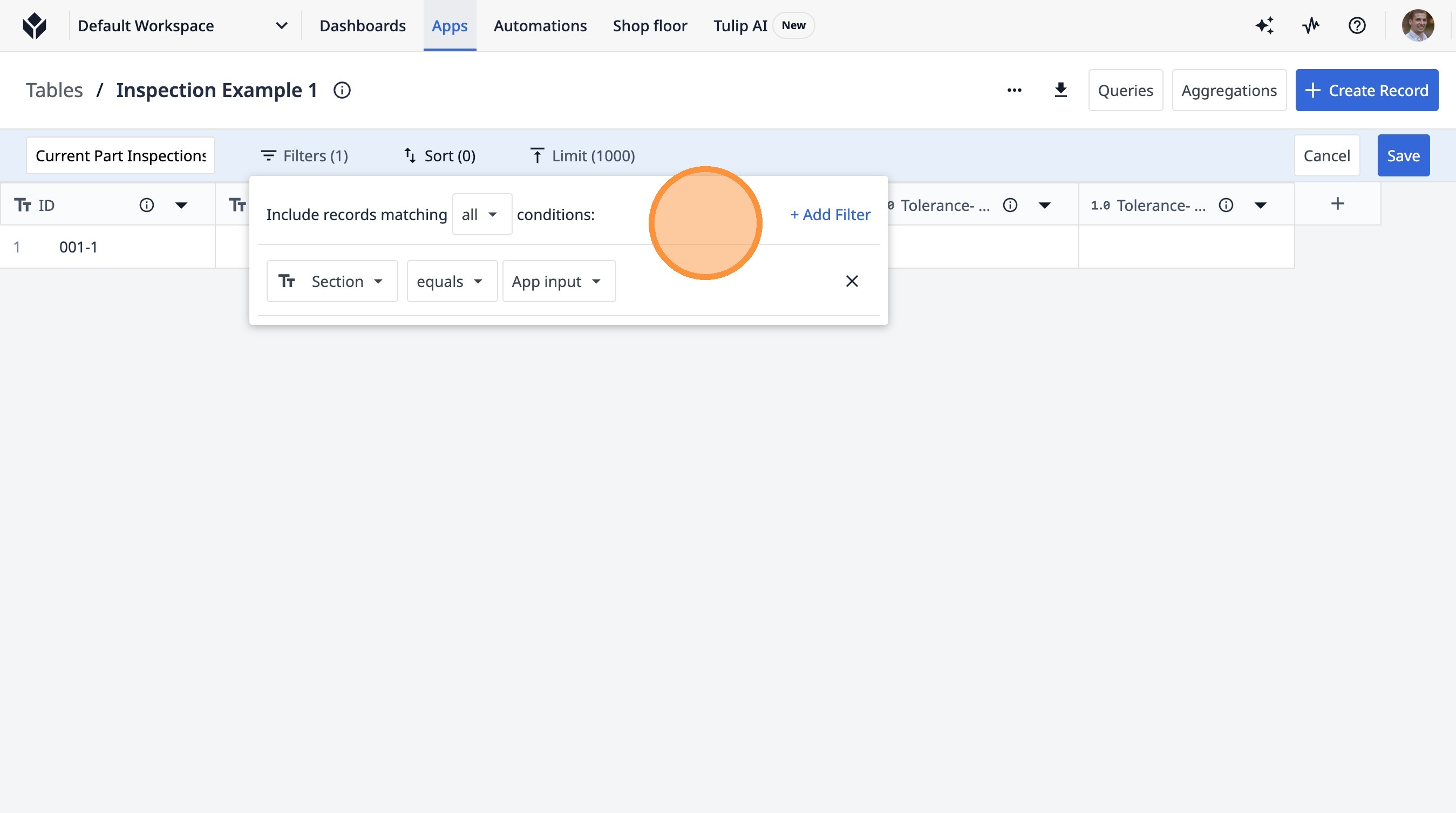
12. Click "Include records matchingallconditions:+ Add Filter"
13. Click "Sort (0)"
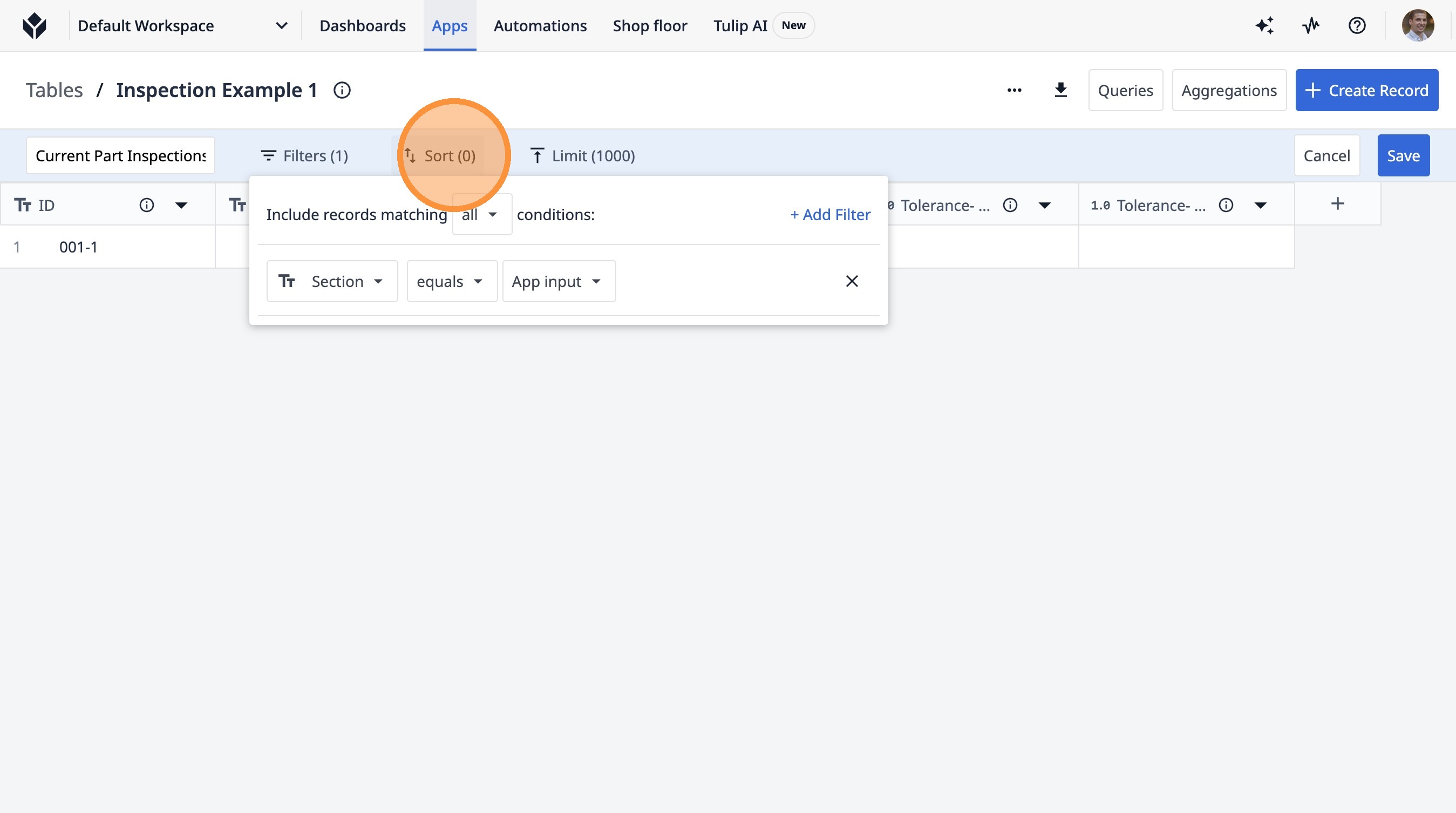
14. Click "Sort+ Add Sorting Method"
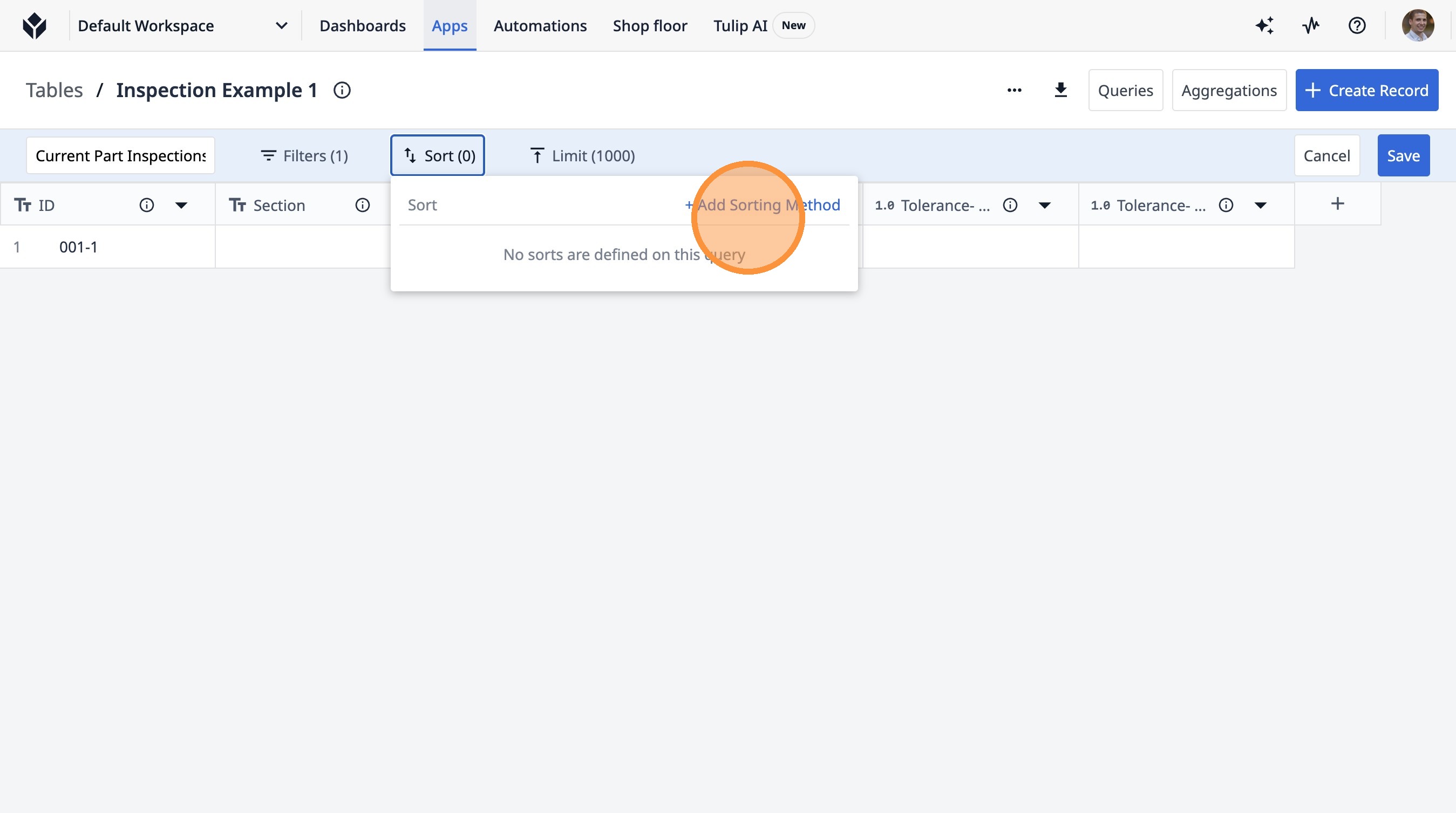
15. Click "+ Add Sorting Method"
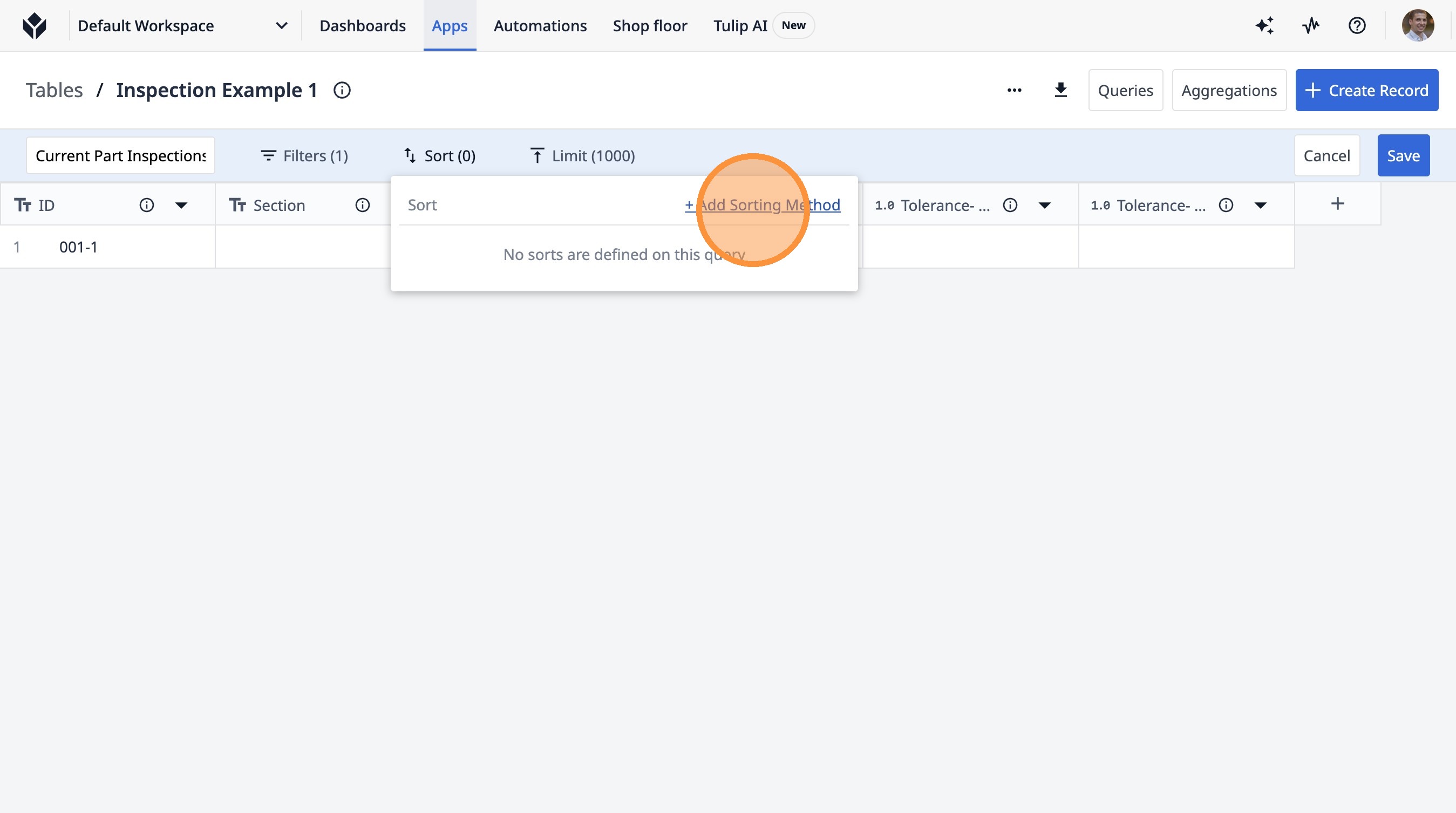
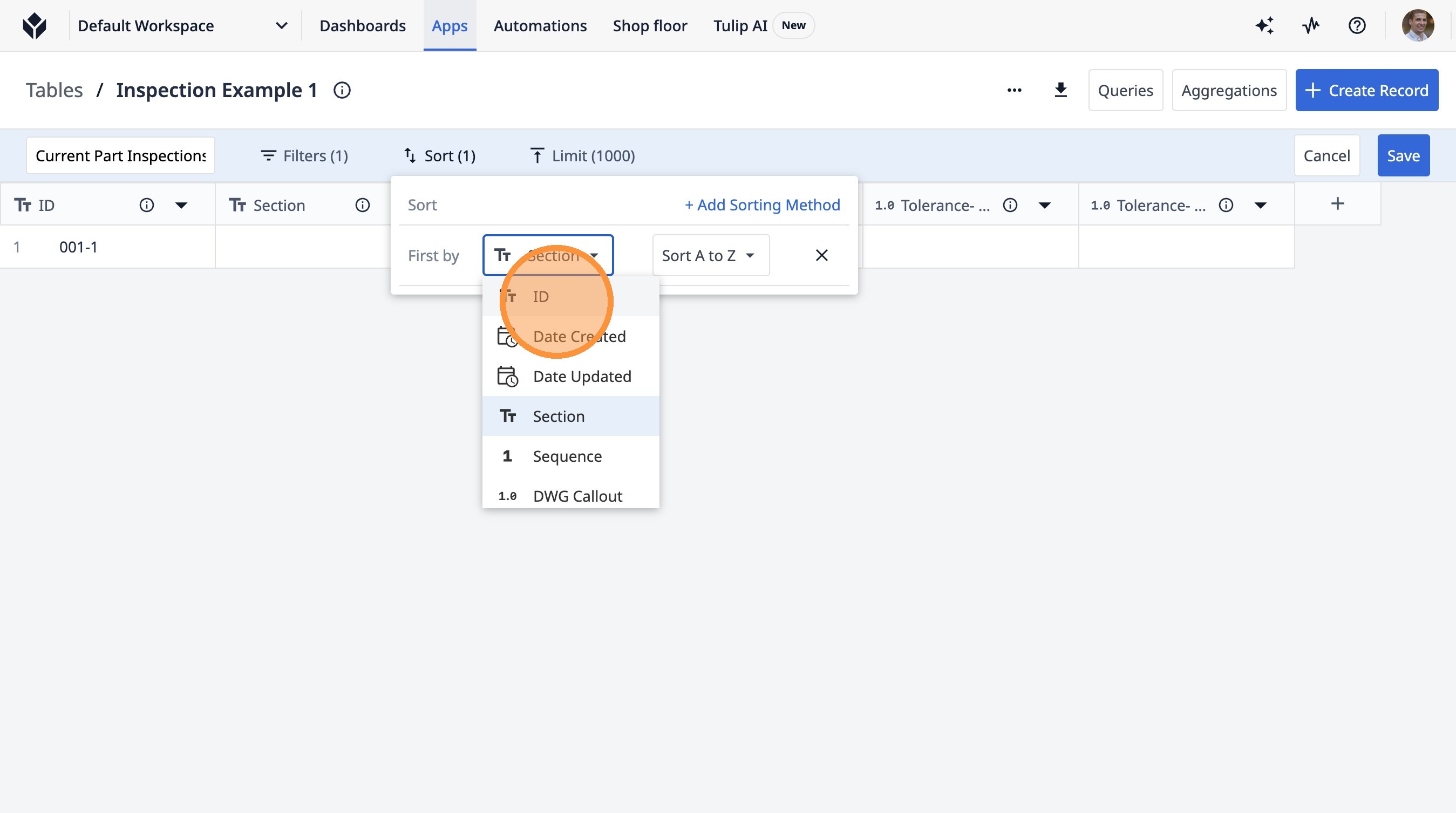
16. Click "ID"
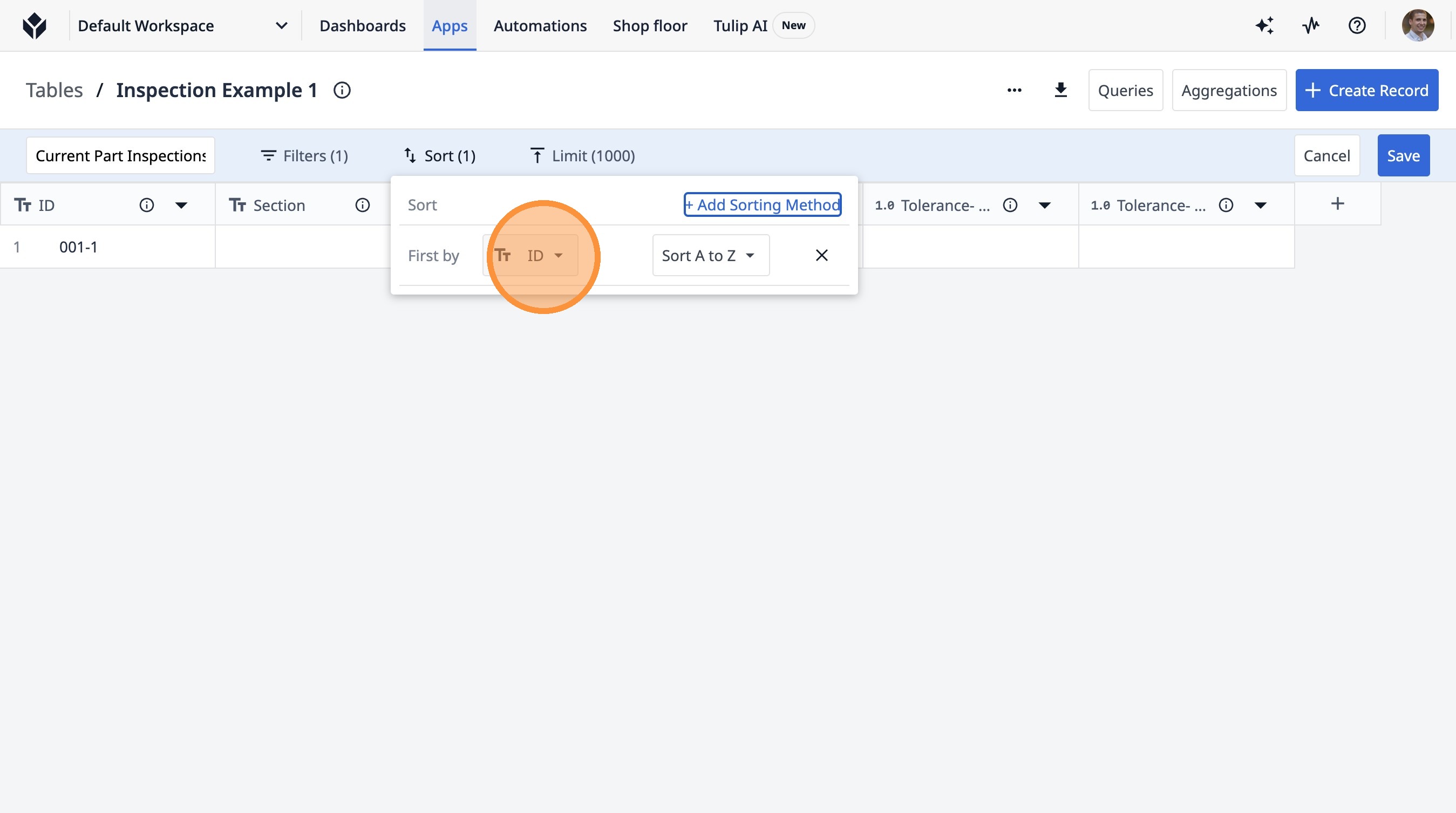
17. Click "ID"
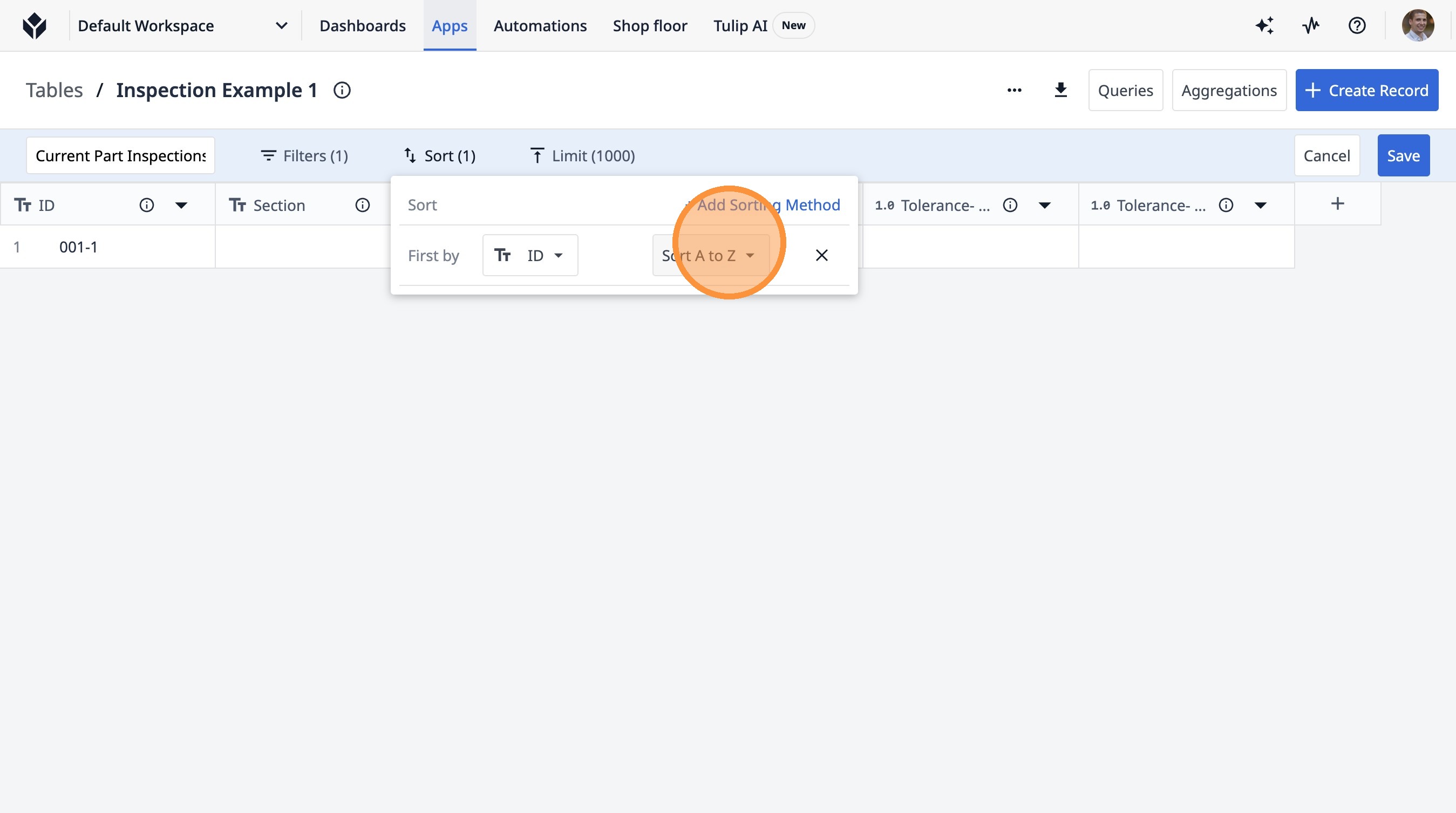
18. Click "Sort A to Z"
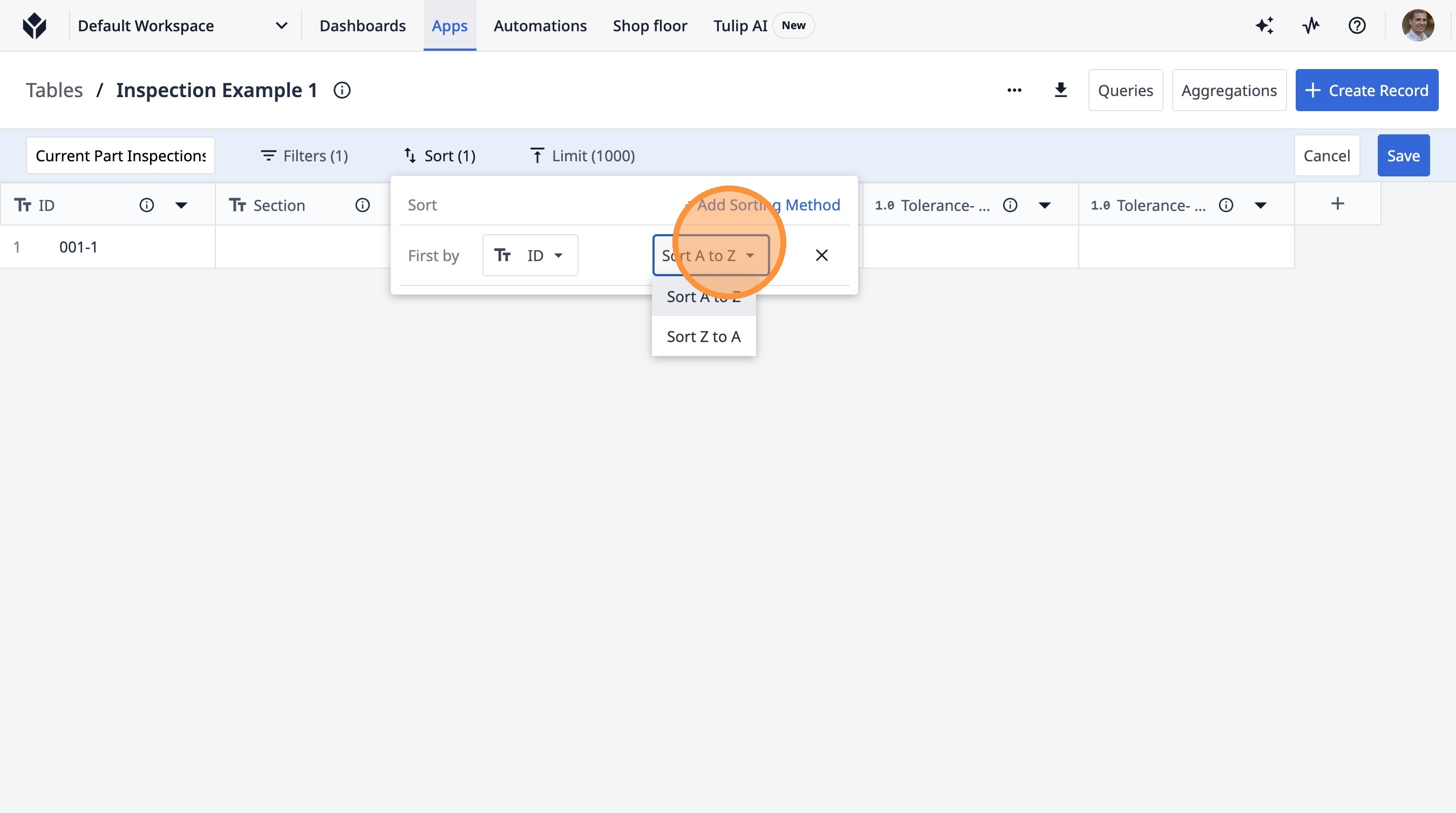
19. Click "Sort A to Z"
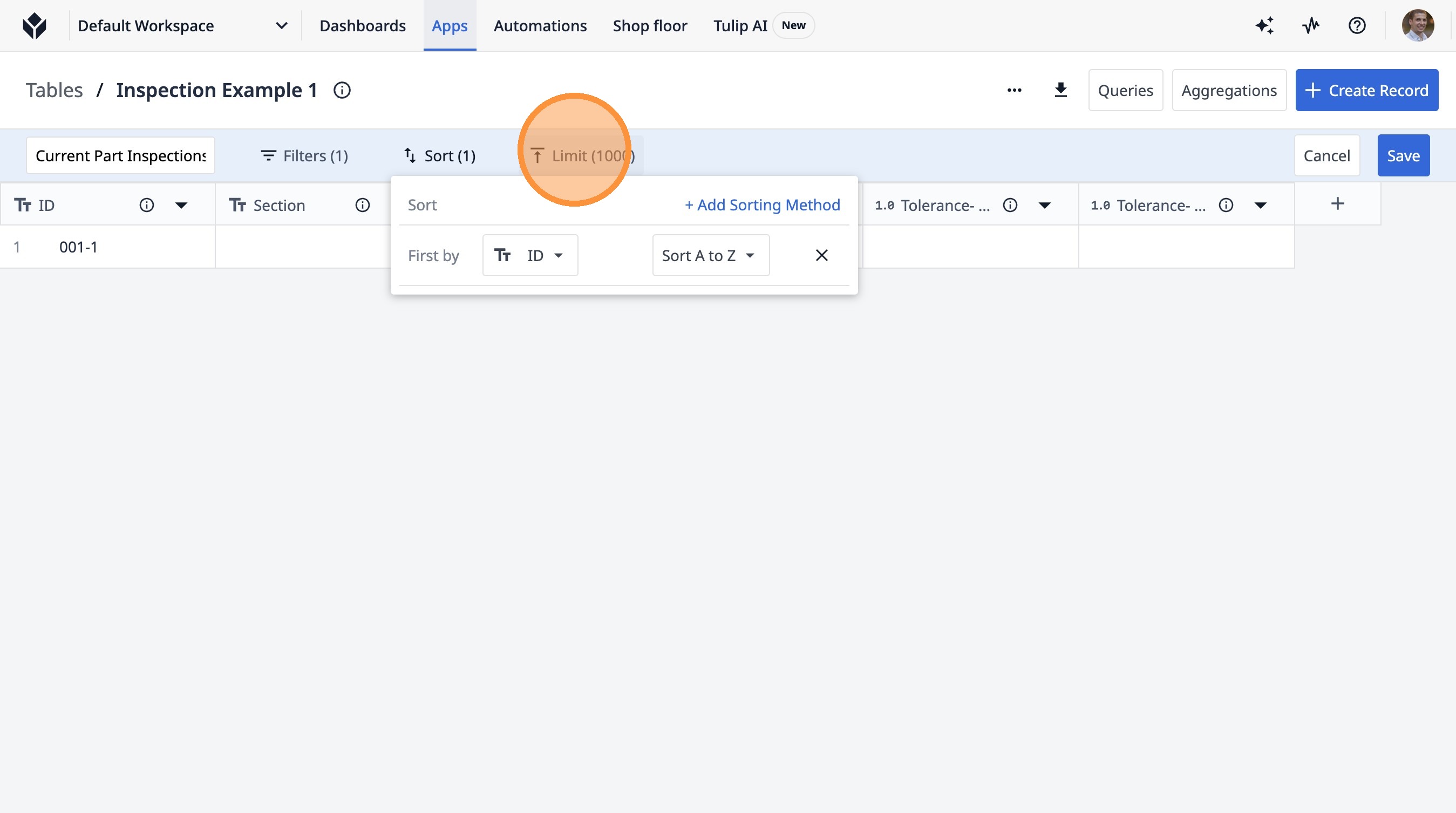
20. Click "Limit (1000)"
21. Double-click this text field.
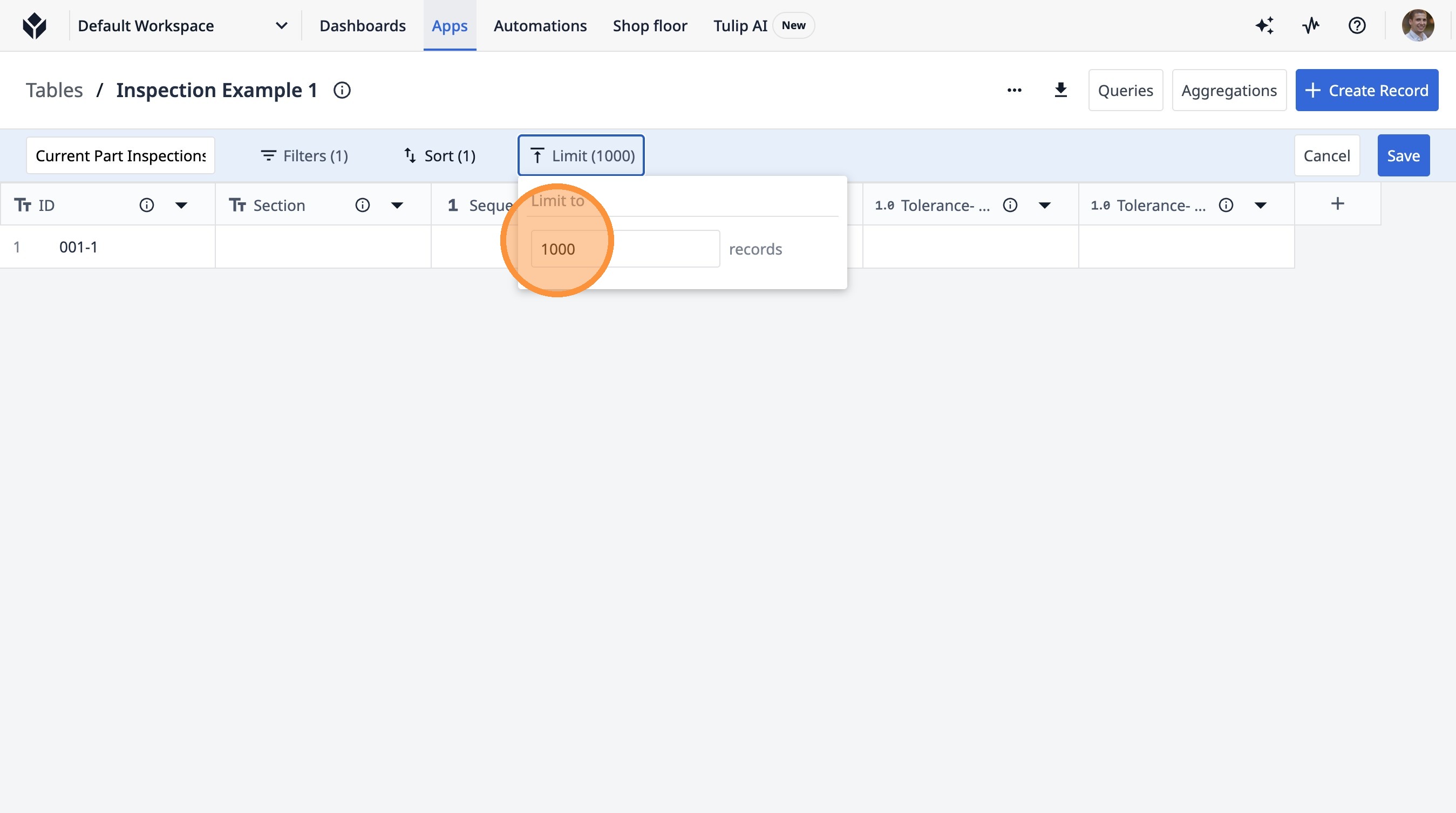
22. Type "20"
23. Click "Save"