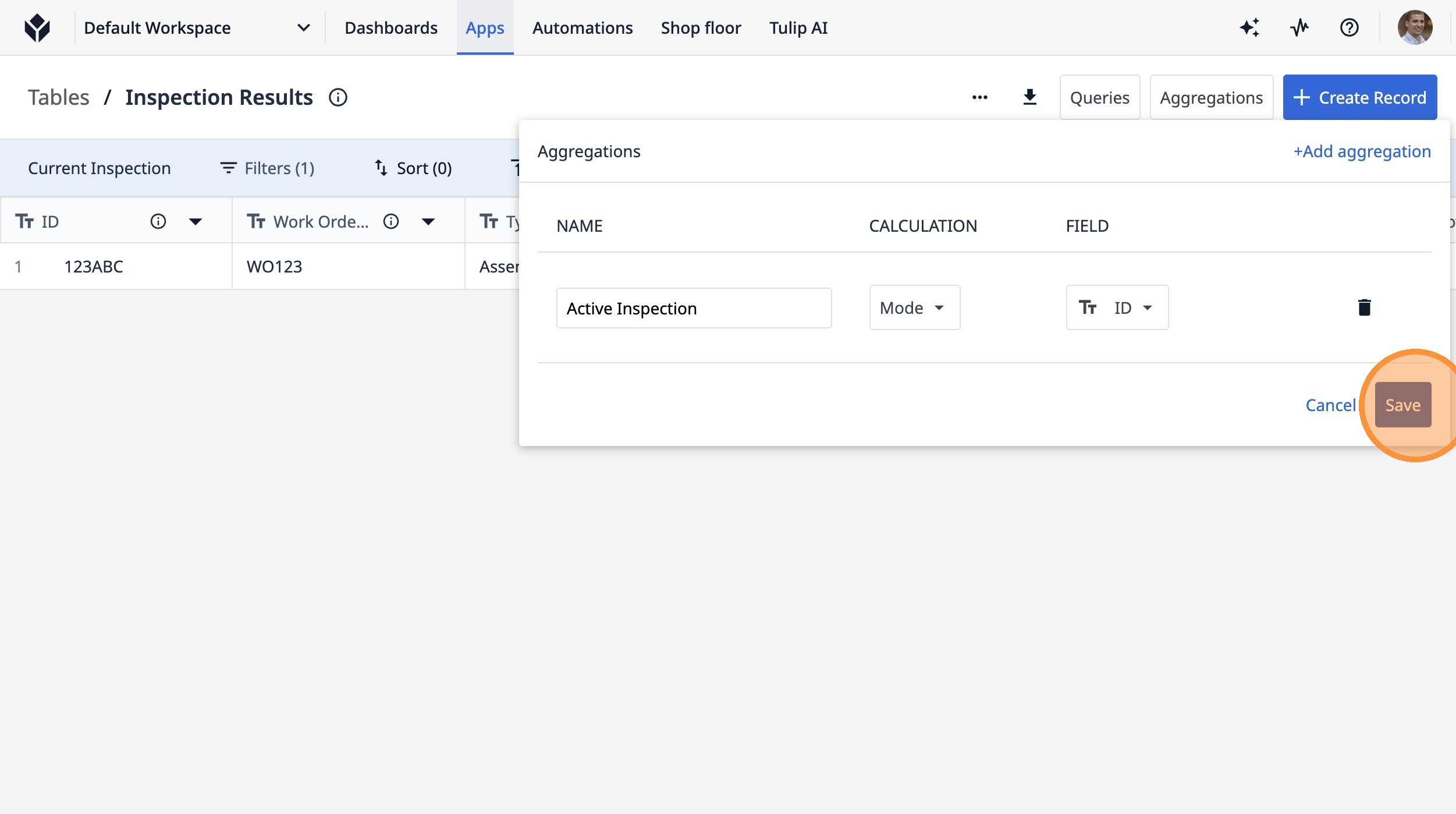
Learn how to build a new query in Tulip by adding filters and aggregations. This guide walks you through setting up a query to identify specific data points within your Tulip tables, ensuring you can access and analyze the information you need efficiently.
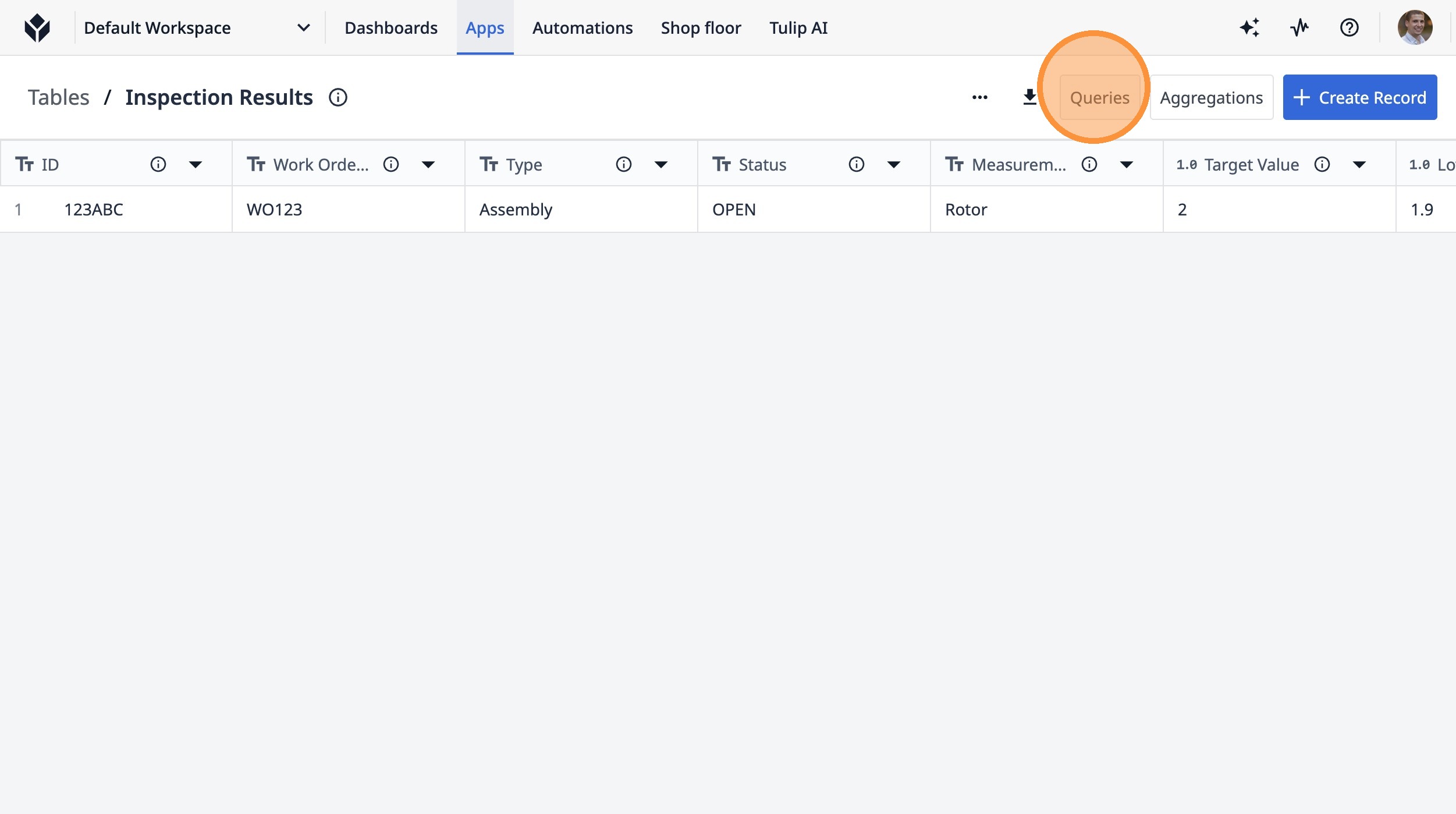
1. Click "Queries"
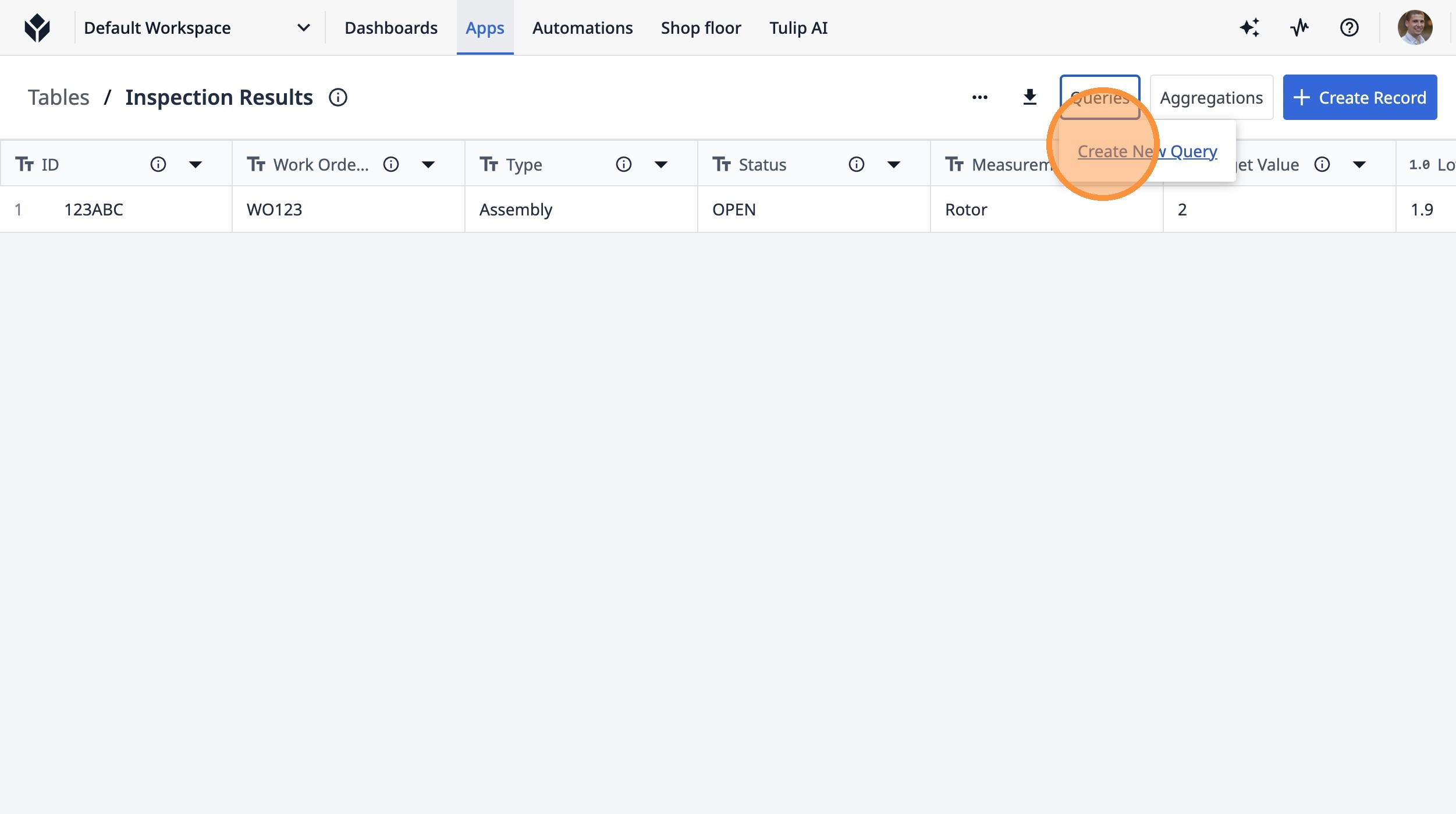
2. Click "Create New Query"
3. Click the "Query Name" field.
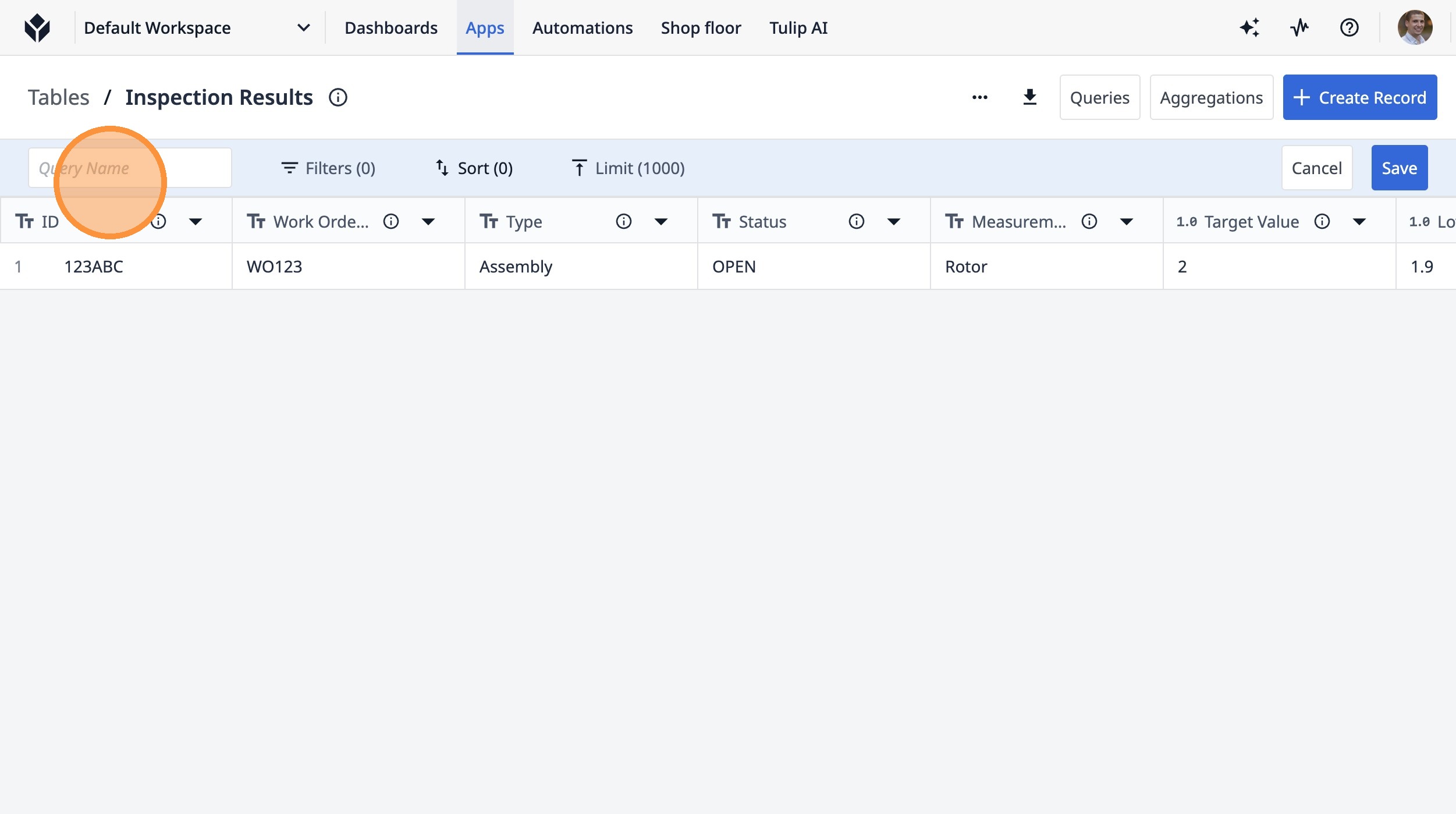
4. Type "Current Inspection"
5. Click "Filters (0)"
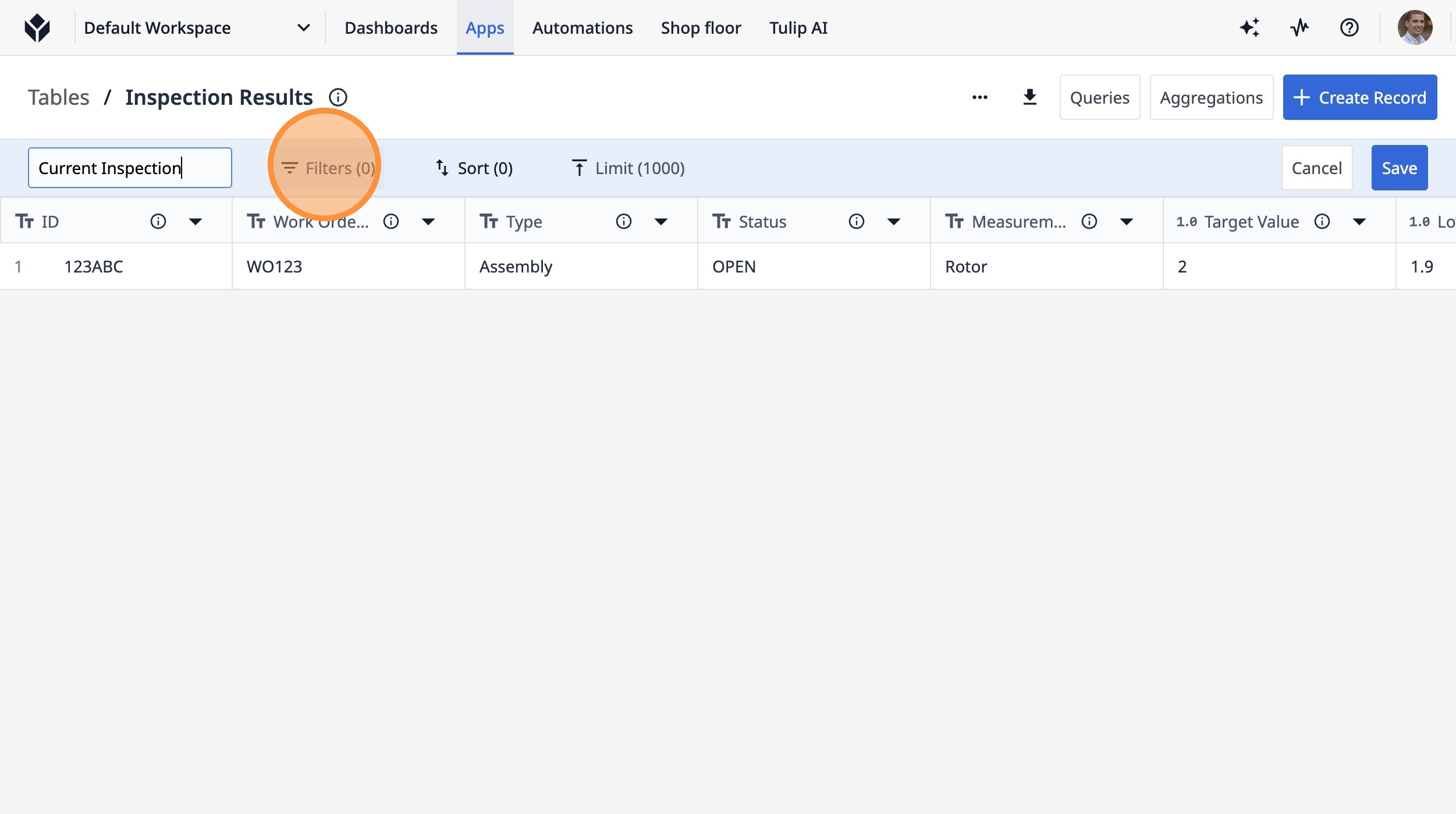
6. Click "+ Add Filter"
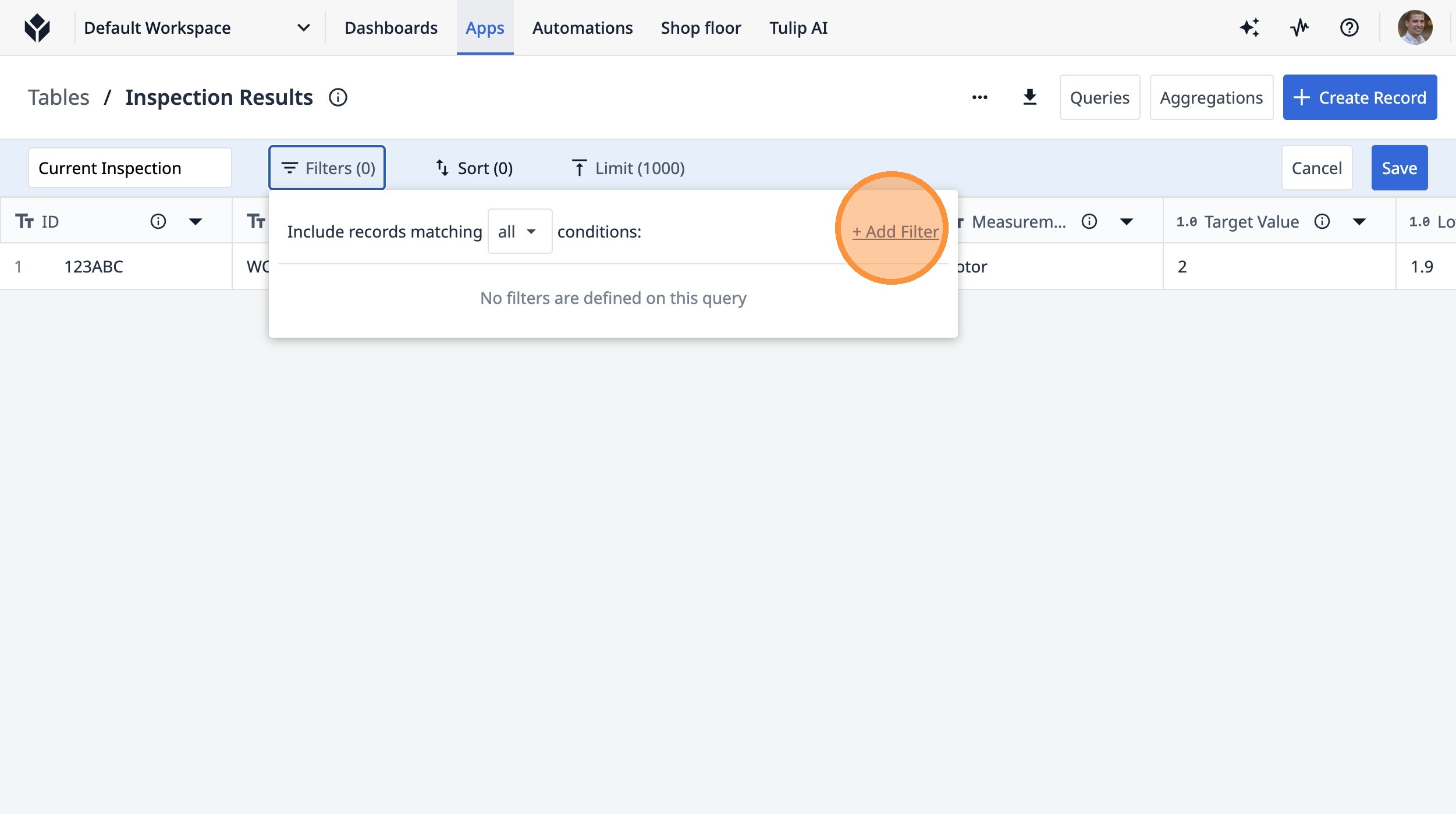
7. Click this icon.
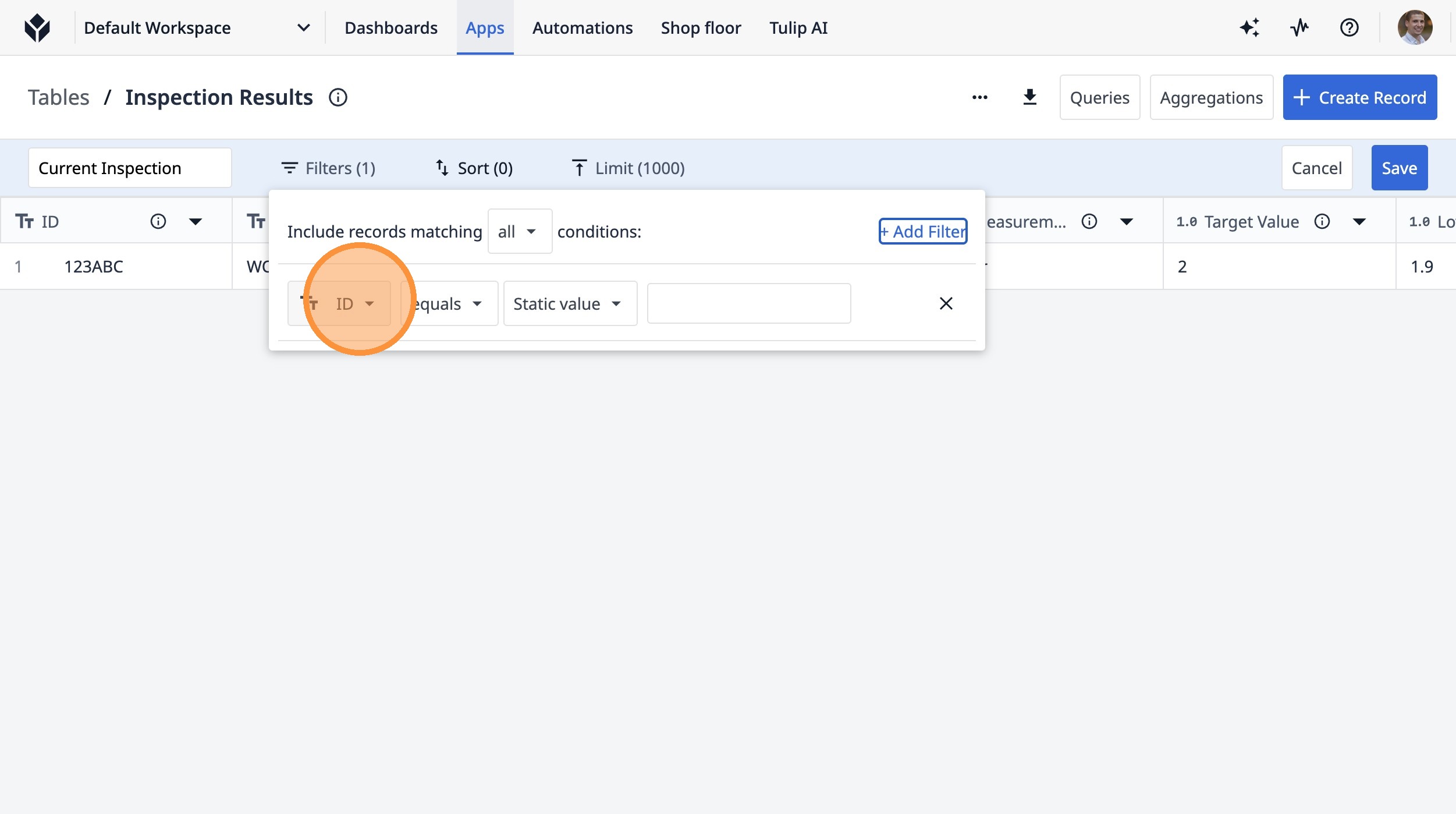
8. Click "Measurement"
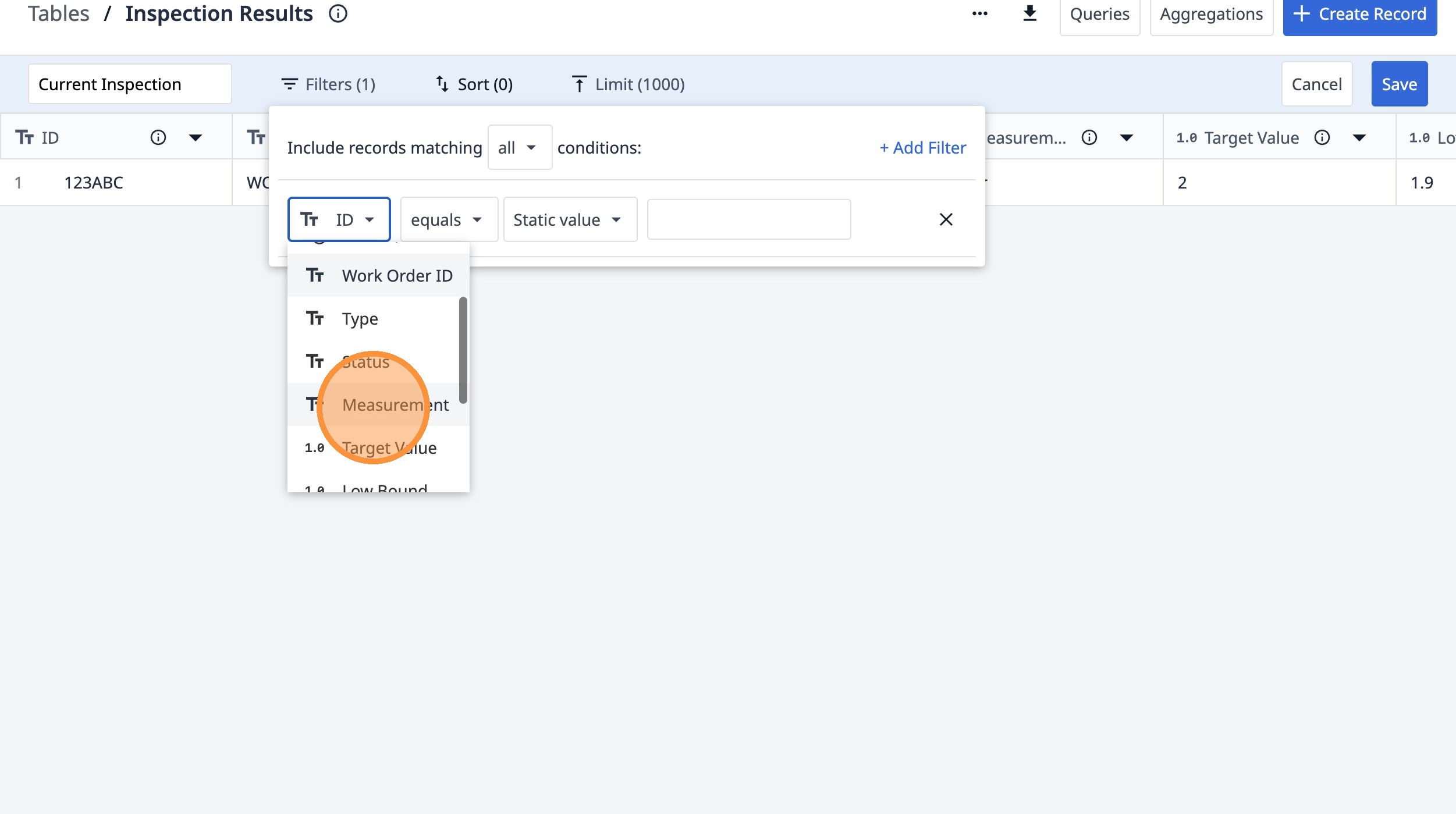
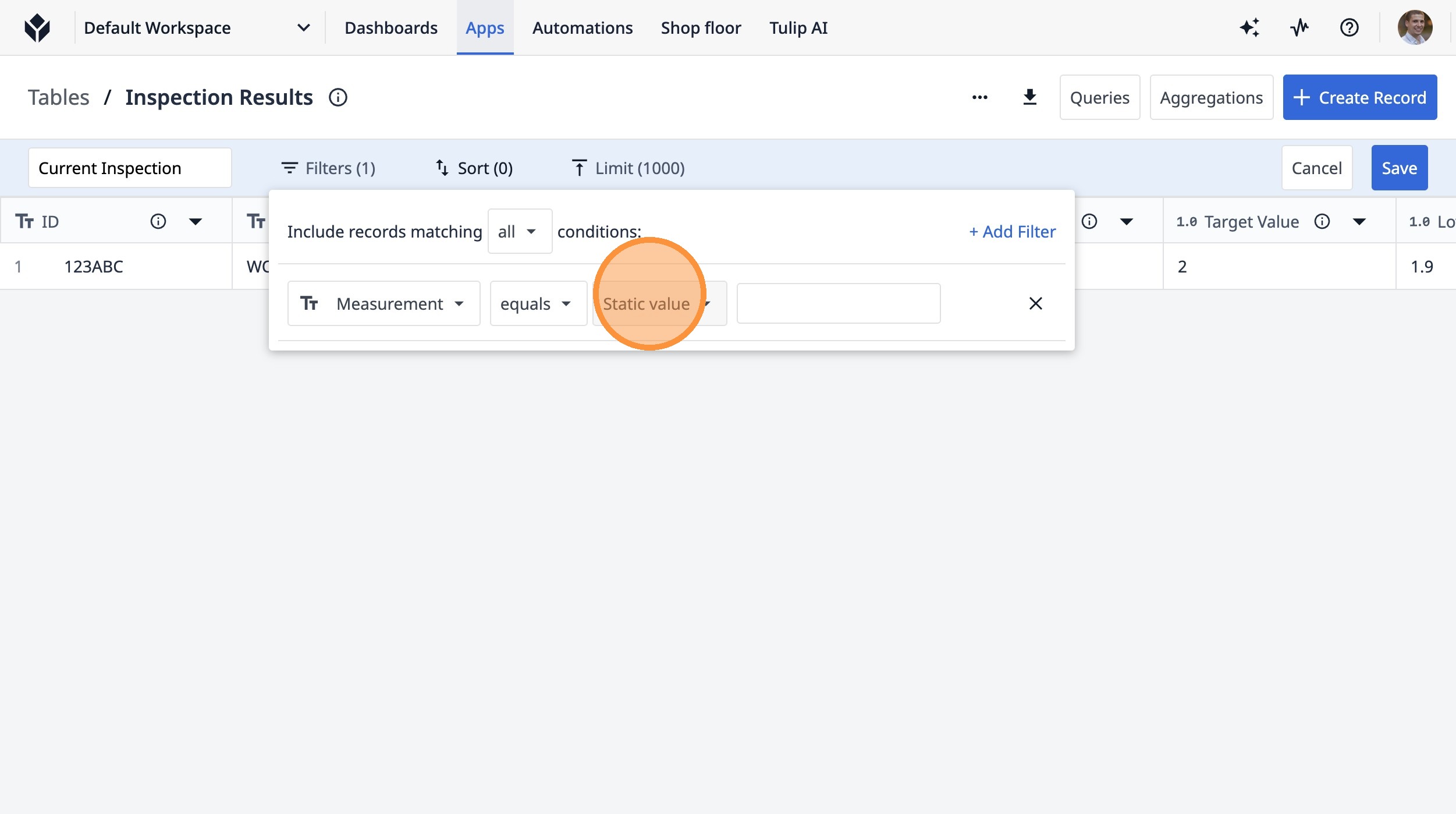
9. Click "Static value"
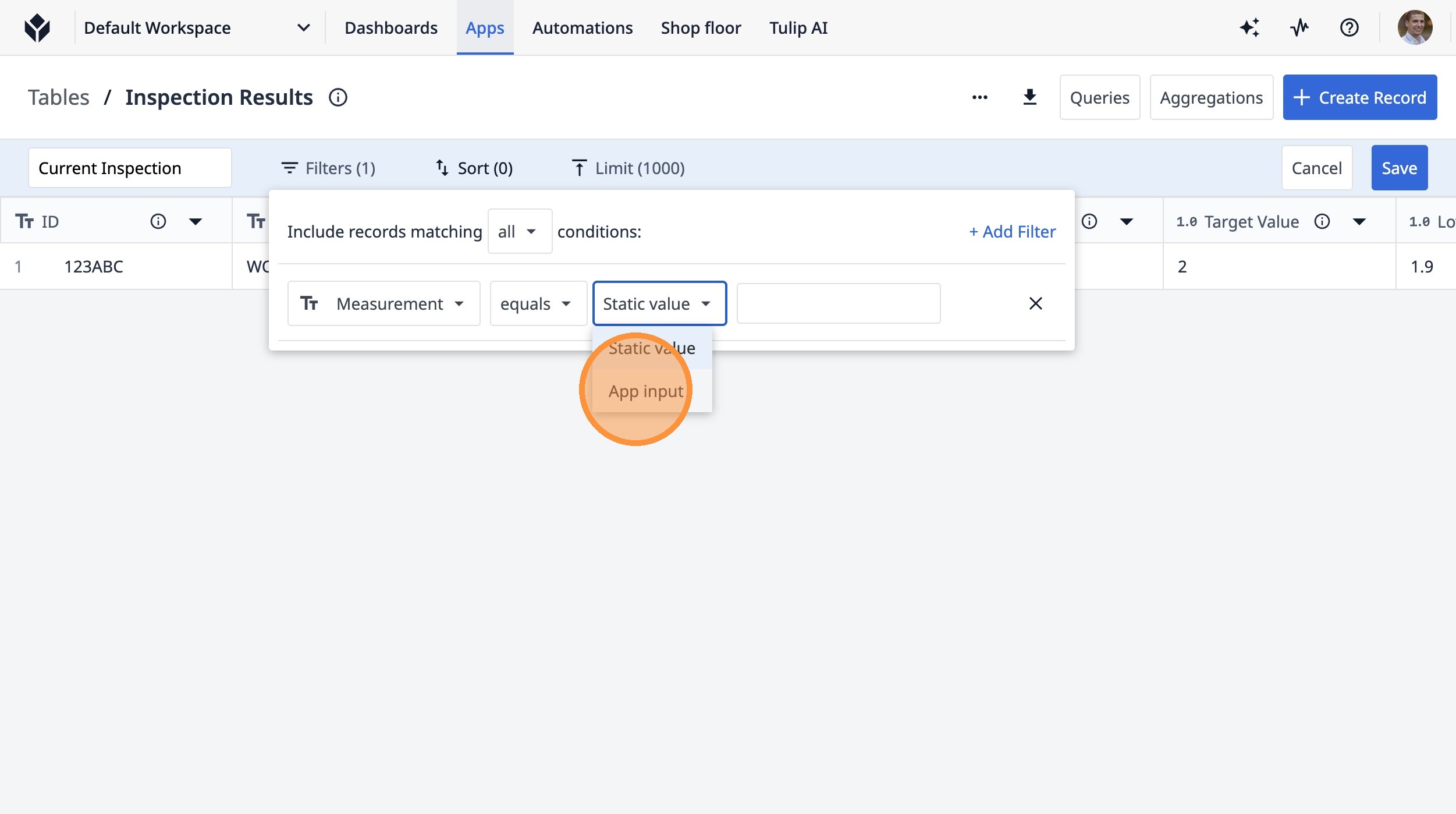
10. Click "App input"
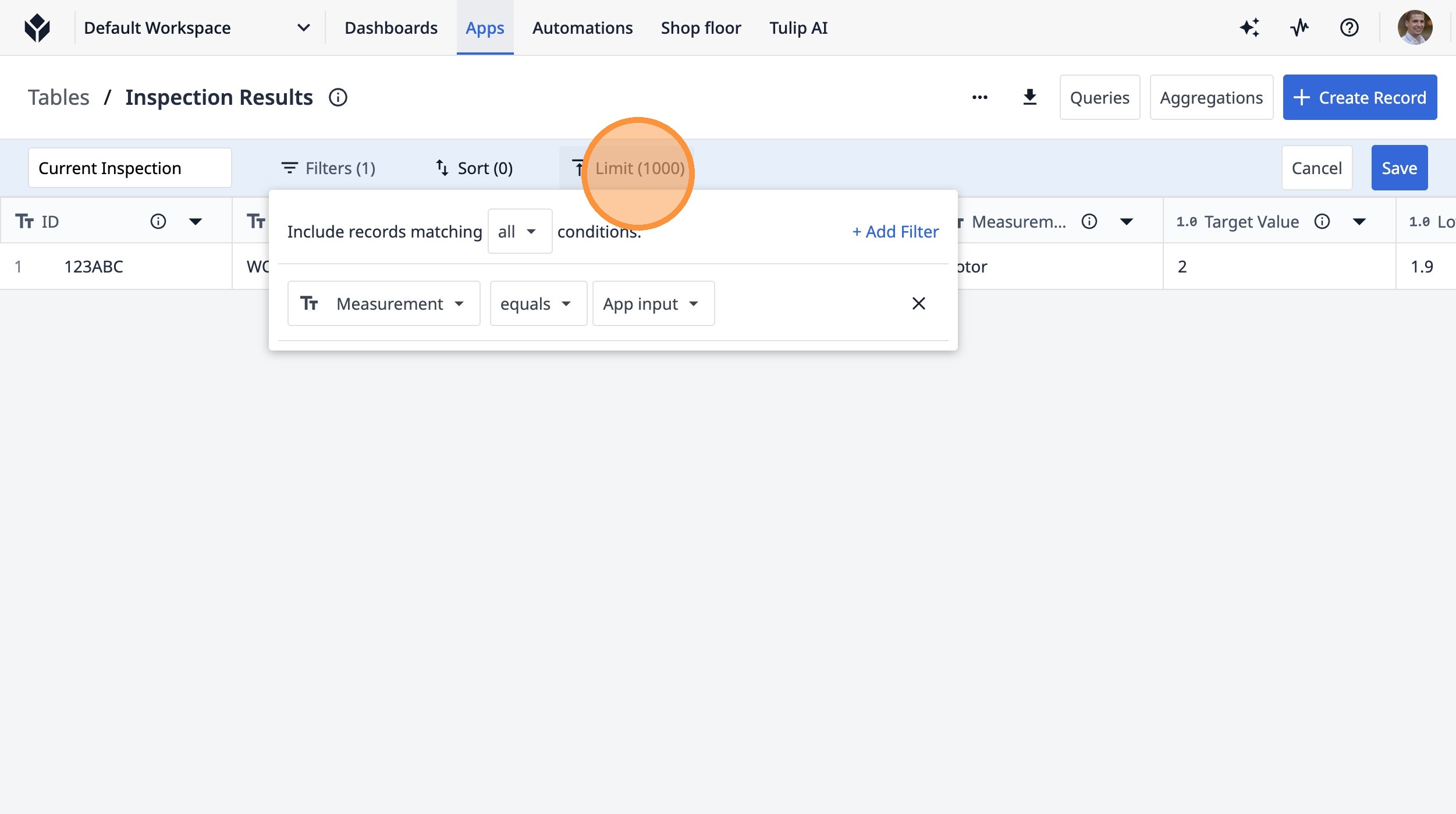
11. Click "Limit (1000)"
12. Click this text field.
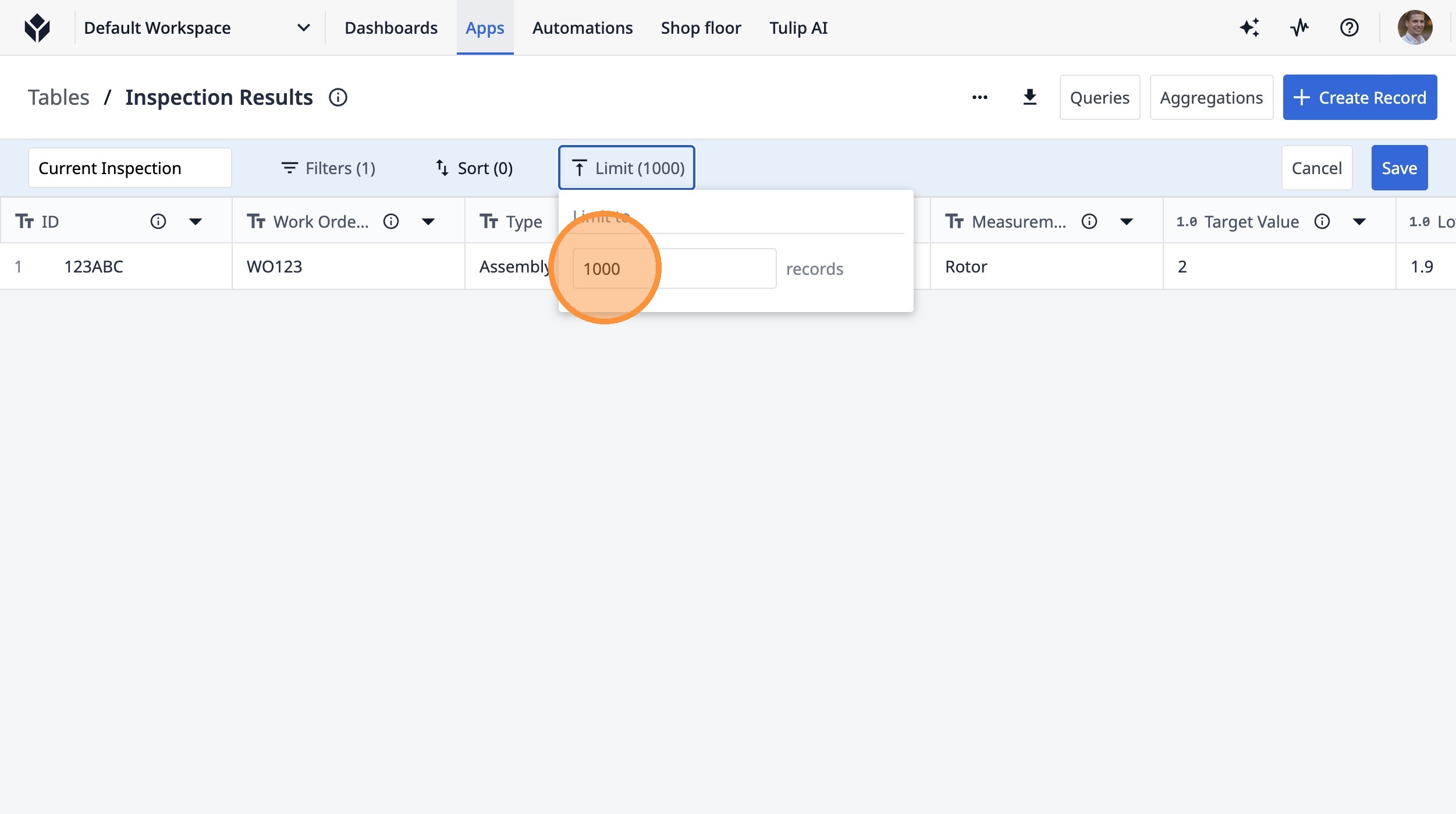
13. Click this text field.
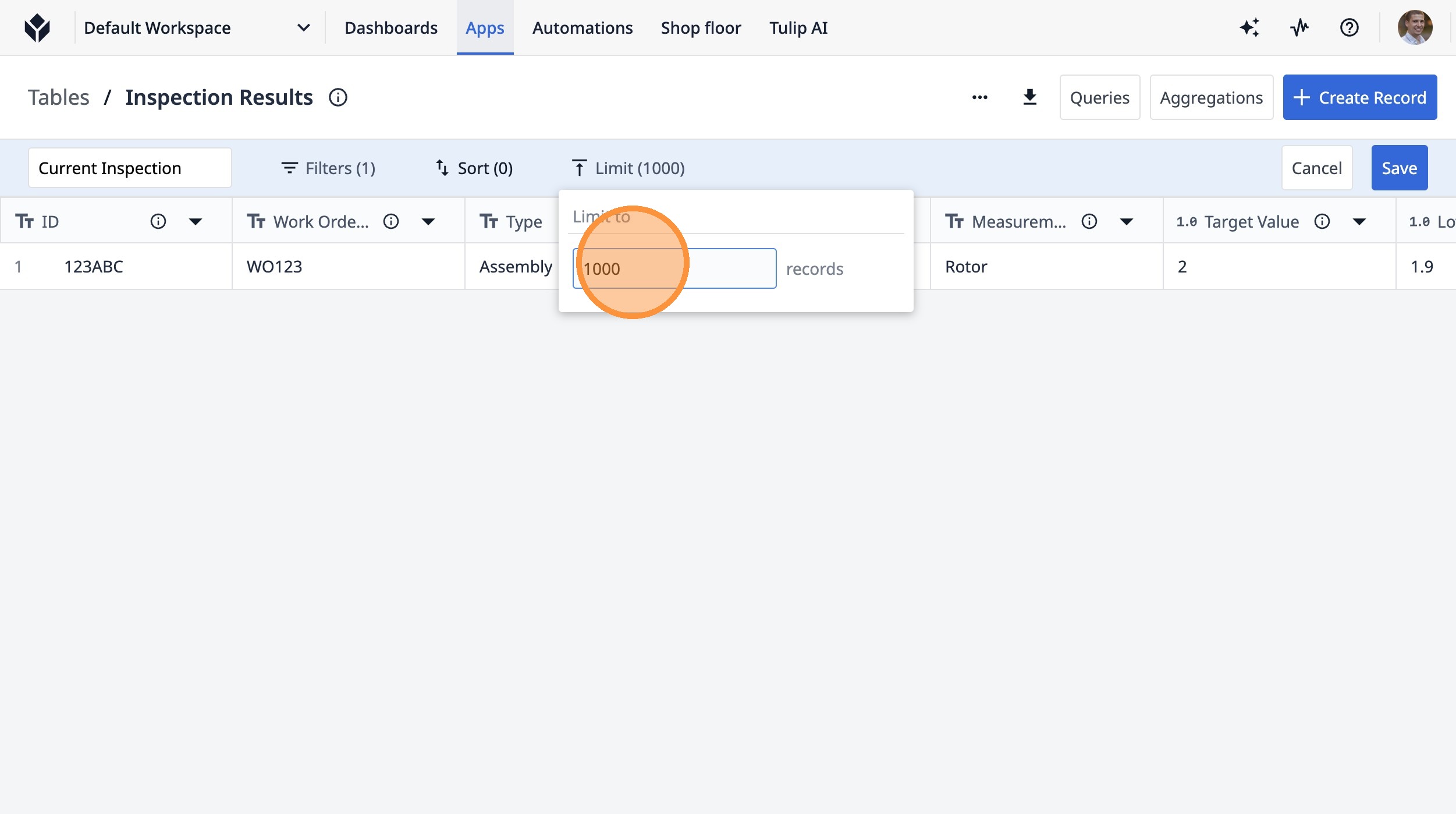
14. Type " [[Backspace]]"
15. Click "Save"
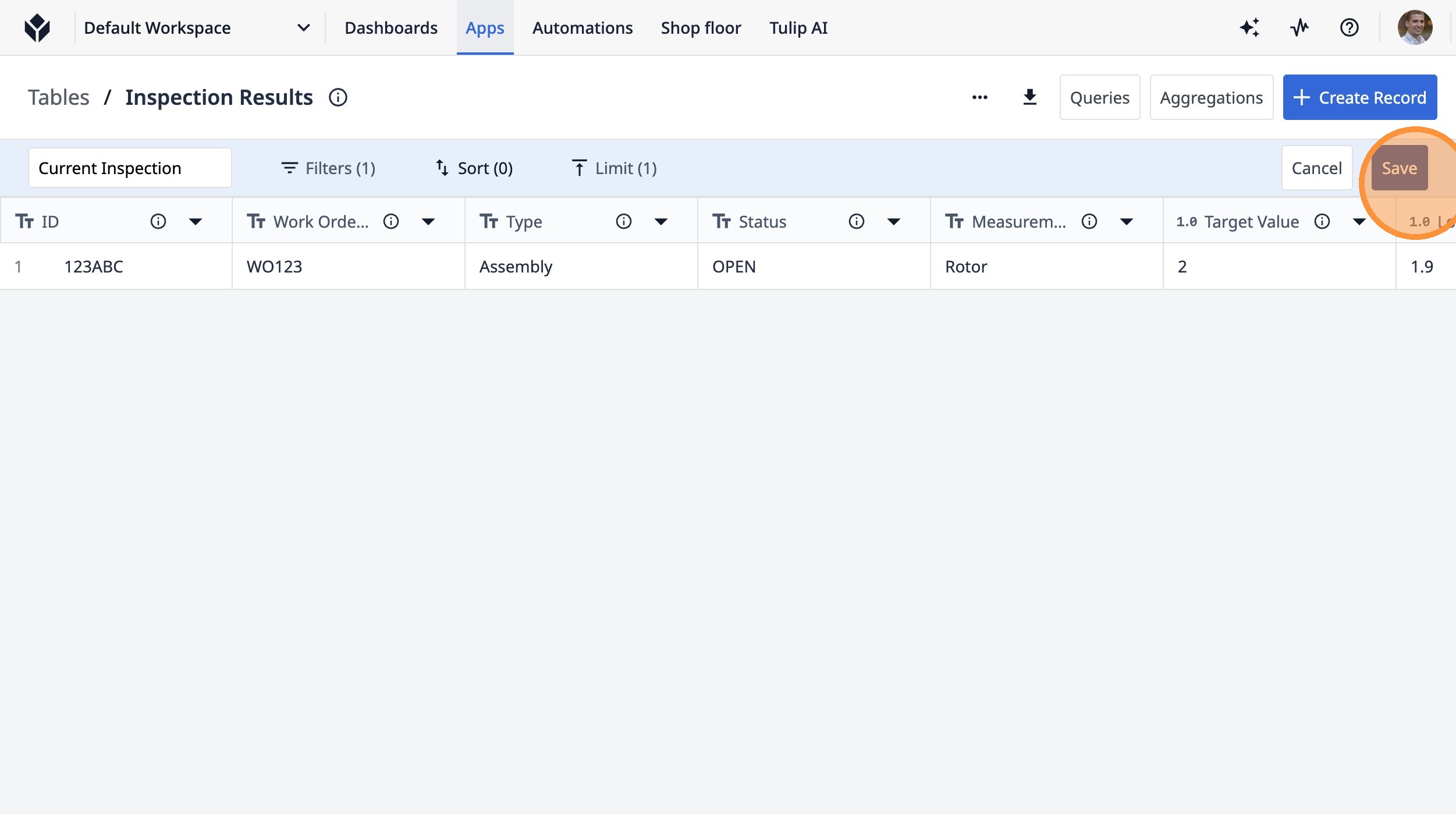
16. Click "Aggregations"
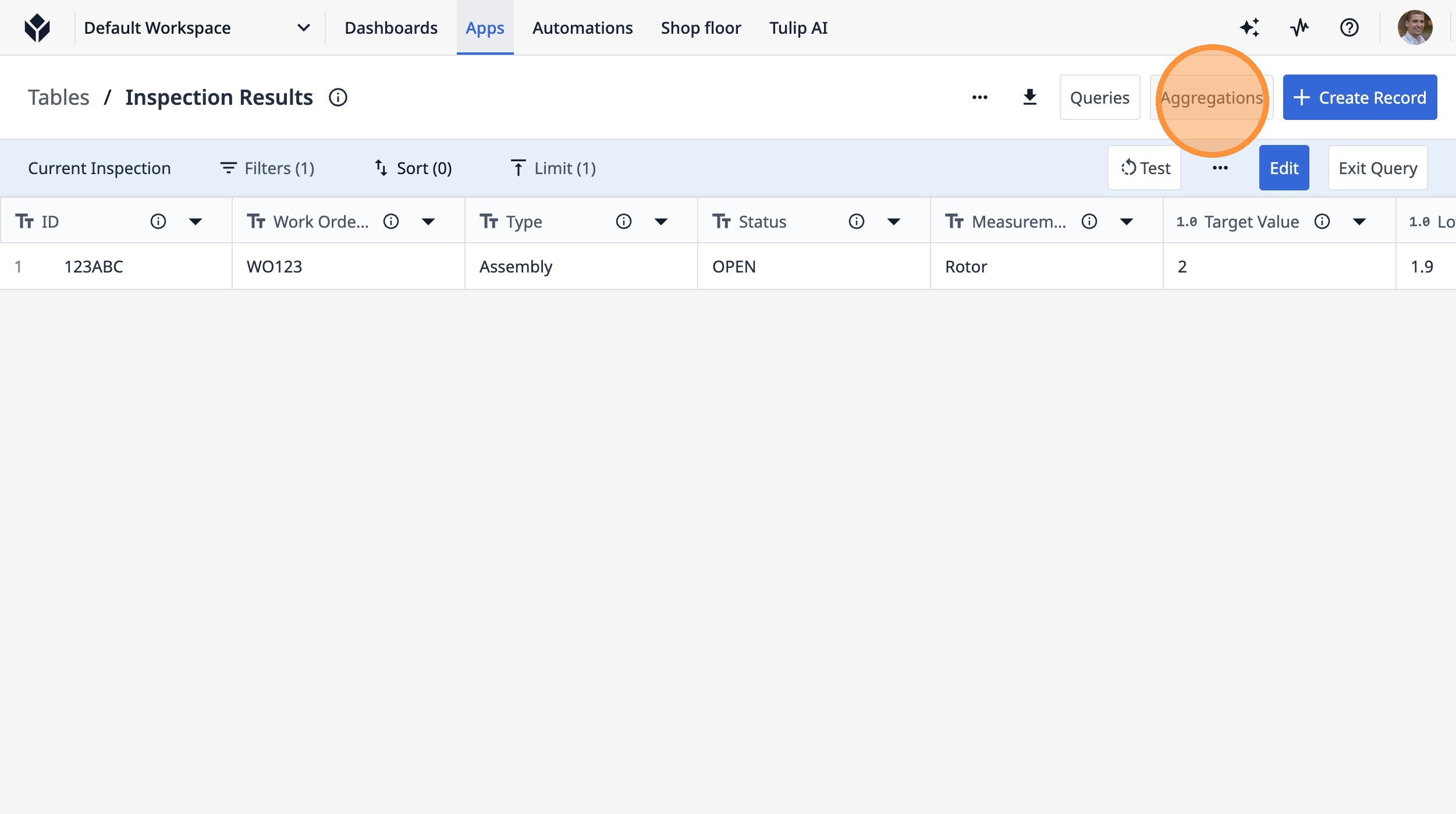
17. Click "Edit"
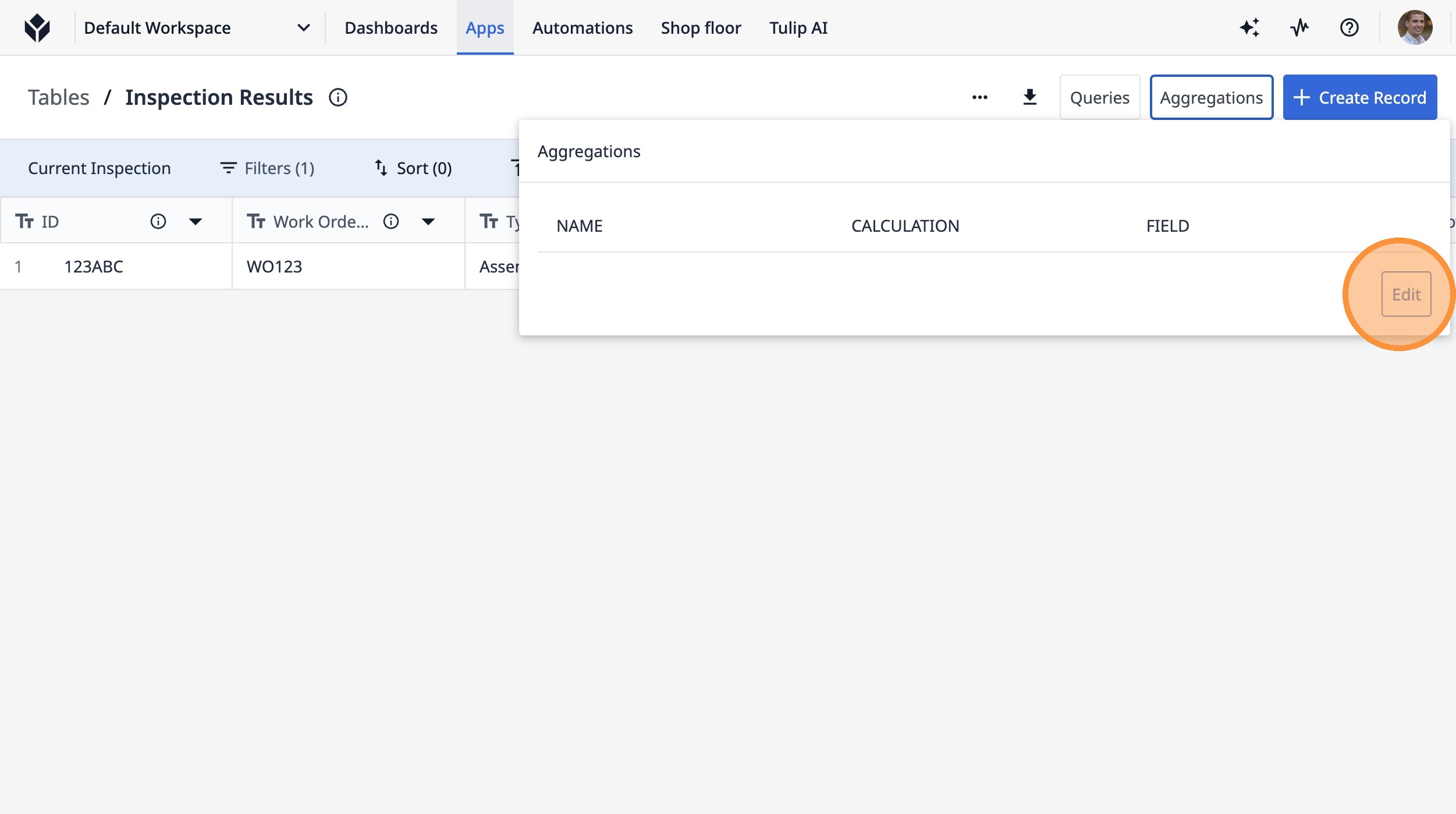
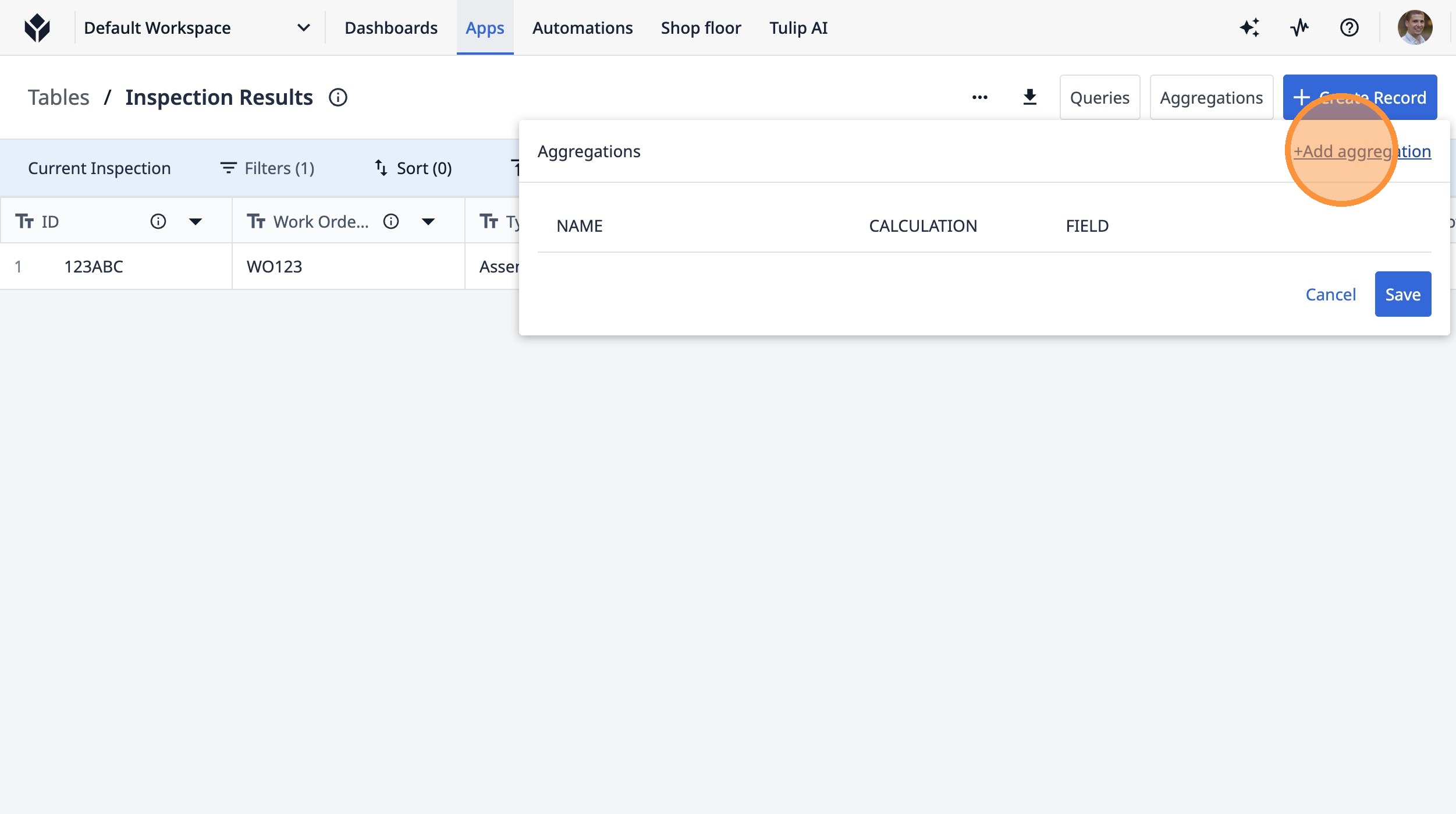
18. Click "+Add aggregation"
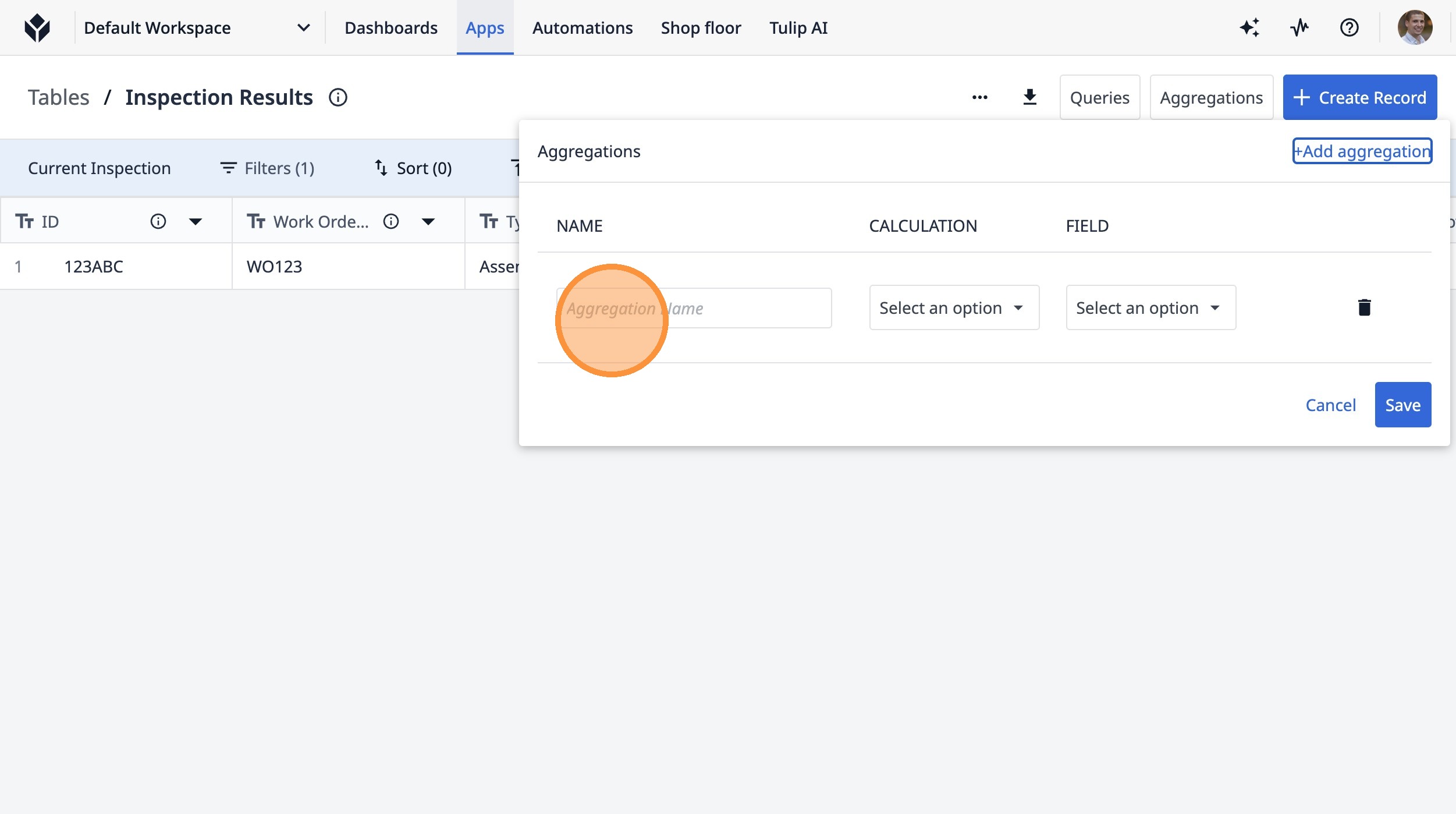
19. Click the "Aggregation Name" field.
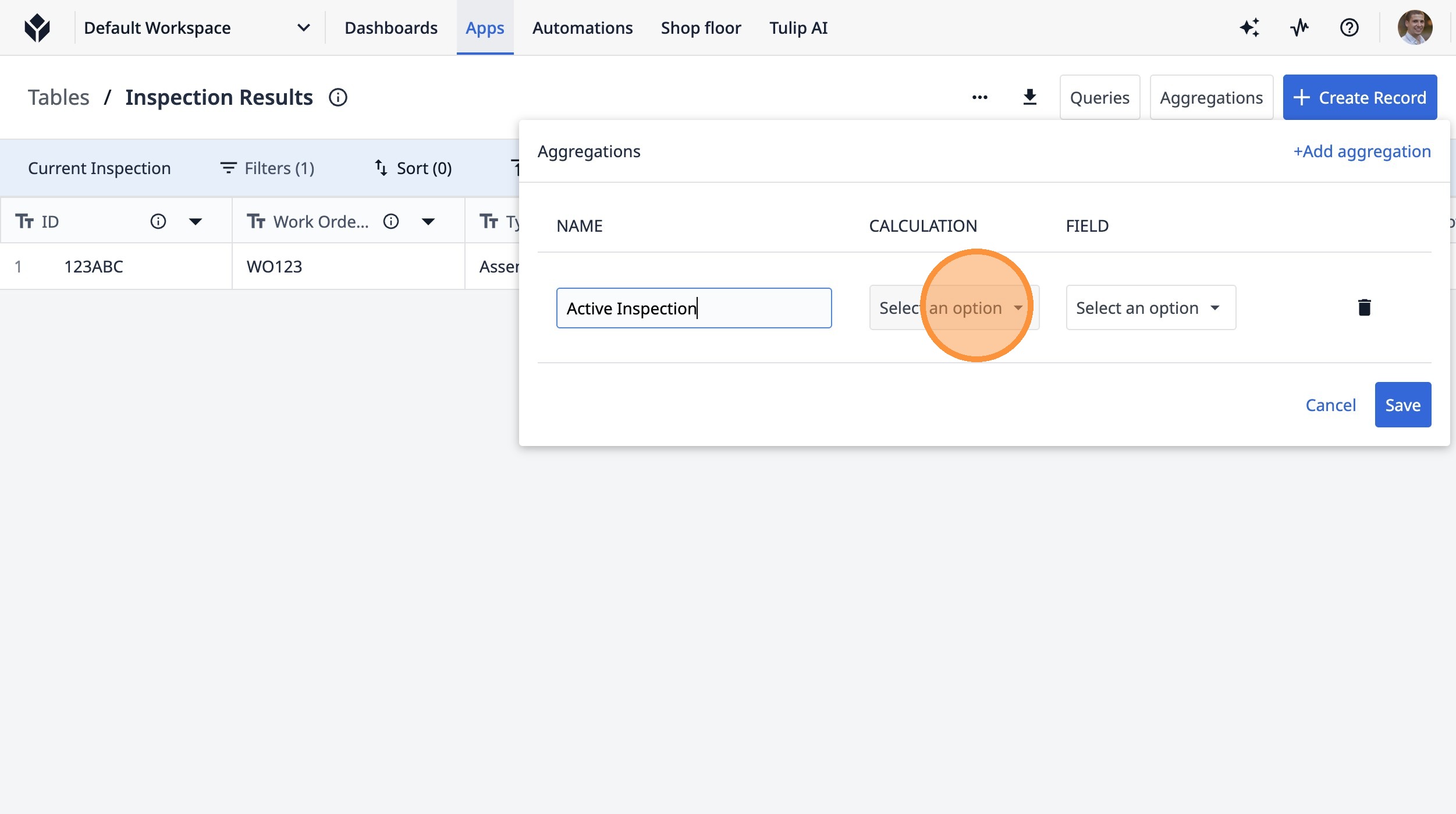
20. Type "Active Inspection"
21. Click "Select an option"
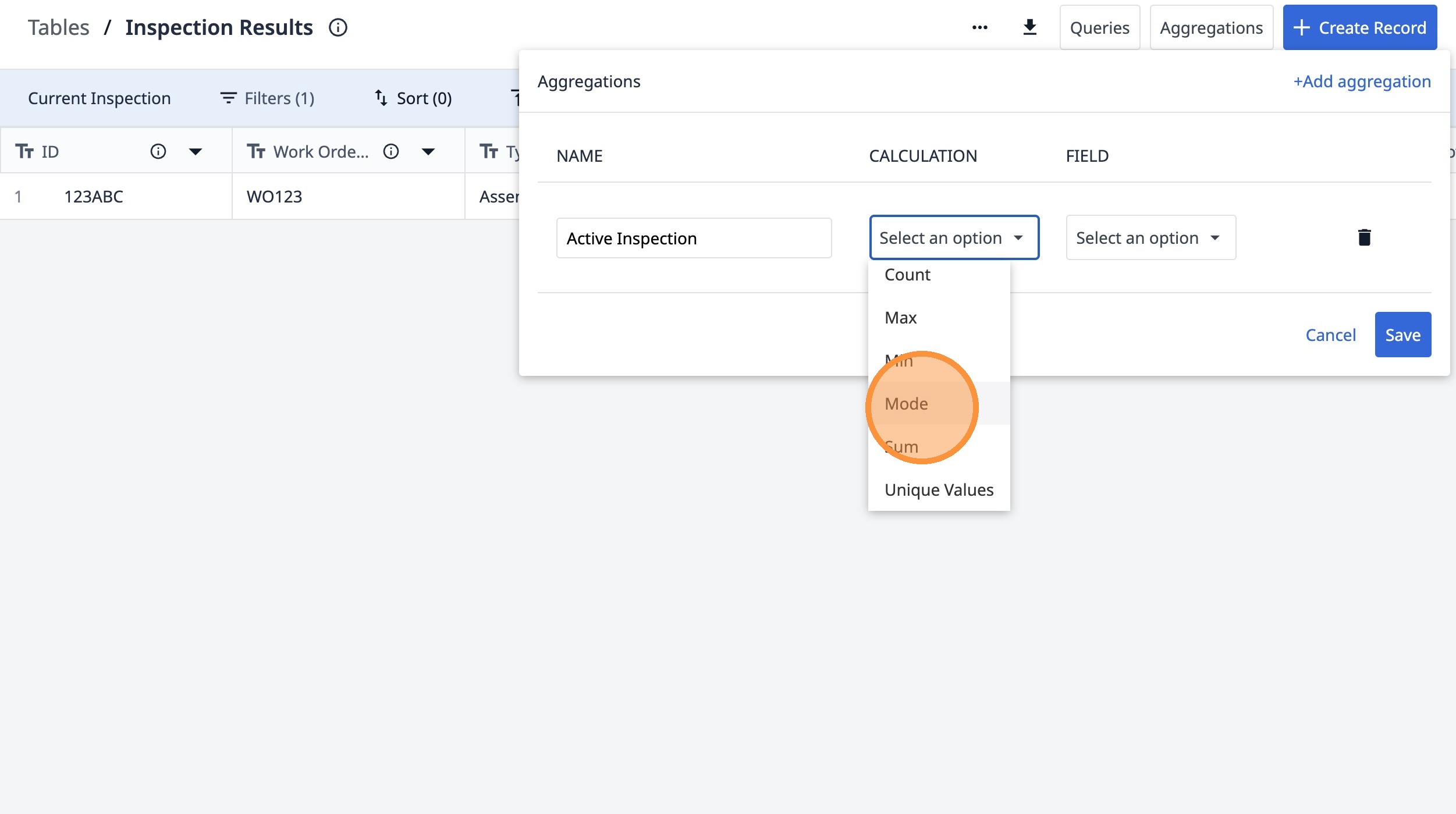
22. Click "Mode"
23. Click "Select an option"
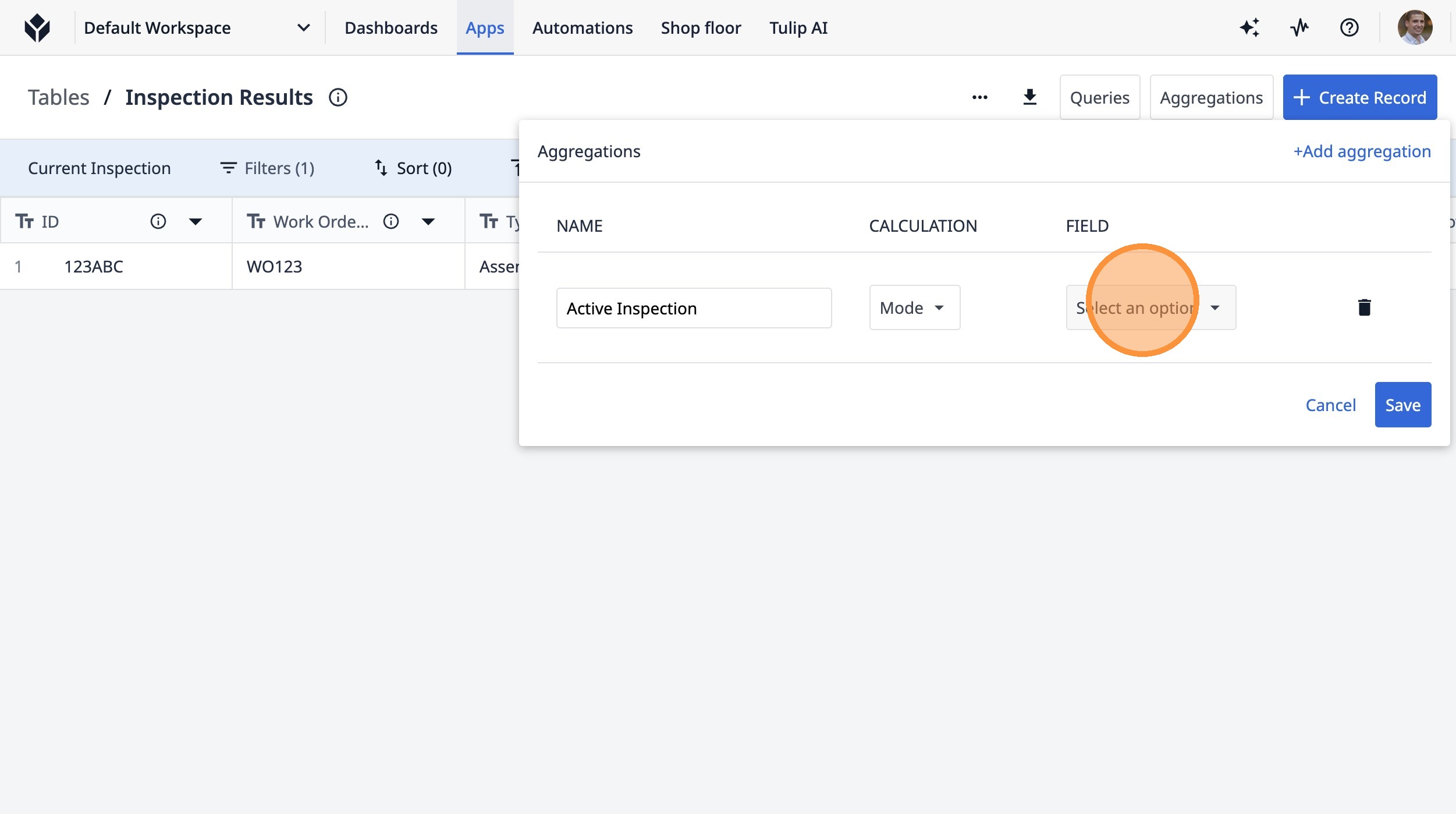
24. Click "ID"
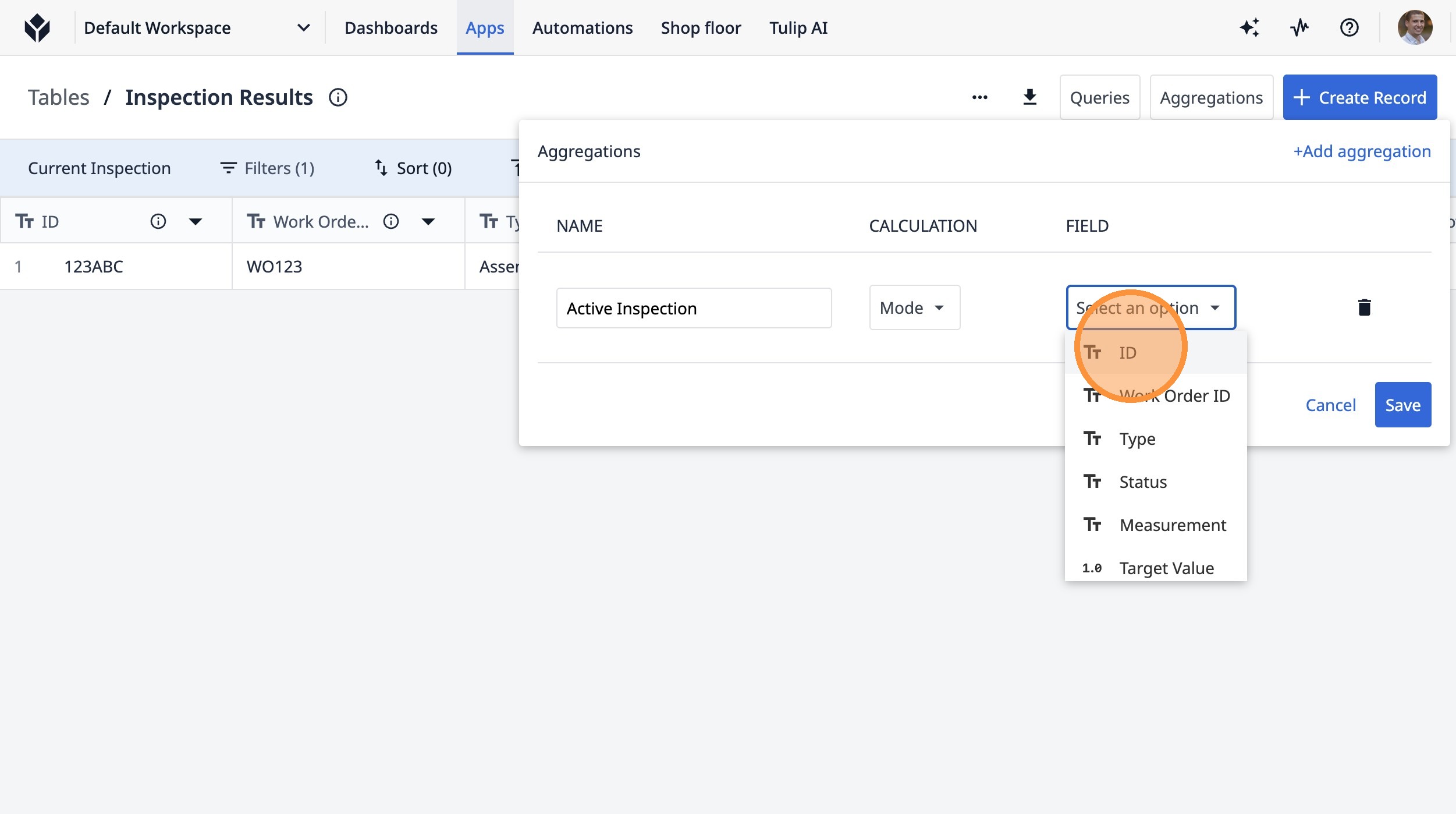
25. Click "Save"