
Learn how to use the AI chat widget in your Tulip apps.
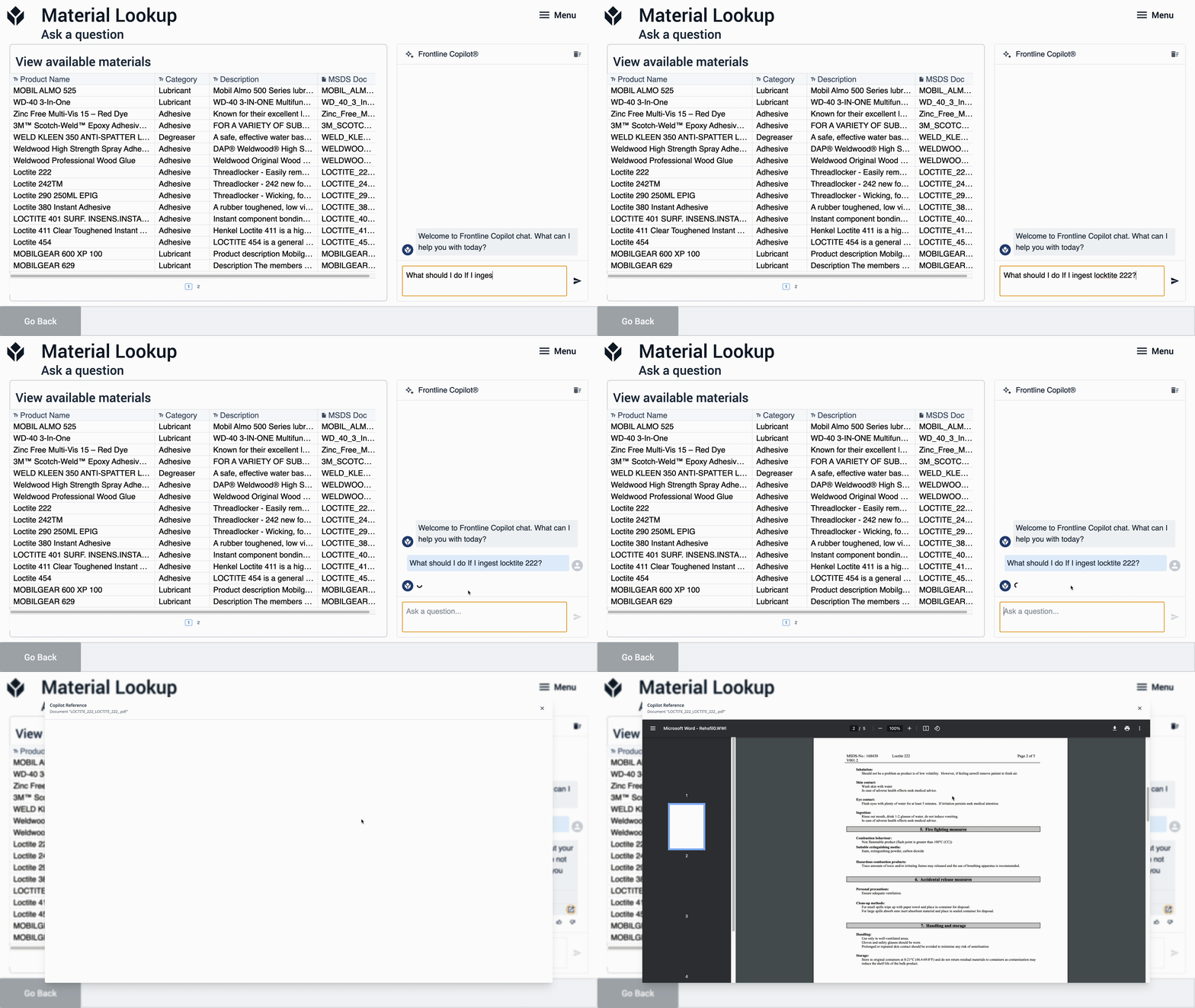
The AI Chat Widget brings AI Agents directly to the shop floor by embedding them into Tulip apps. Operators can interact with agents built for their workflows through a simple chat interface, without leaving the app.
The widget is powered by a Tulip AI Agent. Depending on how the agent is configured, it can use Tulip Tables, documents, Knowledge Base articles, external systems, and more to deliver accurate, sourced answers in the moment they're needed.
Common use cases include:
- Troubleshoot equipment issues
- Retrieve work instructions
- Guiding operators through non-standard situations.
Best practices
The AI Chat widget performs best when the underlying agent is configured with a clear purpose and access to the right data sources. Before embedding the widget in an app, ensure the agent is set up for the specific needs of that workflow.
The widget is suited for:
- Retrieving and interpreting information
- Finding relevant records
- Surfacing document content
- Guiding operators through a process.
For questions that require aggregating or calculating across large datasets, consider whether your agent has the appropriate data tools configured, or whether a dedicated Analytics solution better suits the need.
Permissions
Operators running an app in the Player do not have a separate permission set. This is what allows apps to log data to tables and run logic on their behalf. The widget can perform any action its agent's tools allow.
For example, if an agent has tools to create, update, or delete records or send emails, operators can trigger those actions through the widget.
Role permissions for the agent editor and full-page chat do not apply to the widget.
Before publishing an app with the widget:
- Enable only the tools the workflow needs. For questions and searches, use read tools only.
- Test in the Player with an operator login, including requests outside the intended scope.
Add the widget
- In the app editor, click Embed and select Agent Chat.
- Resize and position the widget.
- Select the agent of your choice. The Tulip AI Agent, a general-purpose agent built by Tulip, is selected by default.
- If applicable, select which table the chat experience should learn from and click Train.

To see the training progress, hover over Training.
- When the training status changes to Trained, the widget is ready to use.
AI Chat widget statuses
| Status | Description |
|---|---|
| Untrained | AI chat is ready to learn |
| Training | AI chat is ready to learn |
| Trained | AI chat is ready to be used. All records and documents have been learned |
| Partially Trained | AI chat is ready to be used, but some documents or records could not be trained. |
| Updating | AI chat is learning new or updated information. |
| Failed | Reach out to support@tulip.co for more information. |
Limits
The following limits are in place for all Tulip AI
- AI chat can read PDFs in the following languages:
- English
- Spanish
- Italian
- Portuguese
- French
- German.
- For each table: the first 10,000 Records will be encoded (by creation date)
- For each PDF: 500 page limit, encoding will fail on larger documents.
- For each instance:
- Count of Tables that can be trained
- Essentials: 1
- Professional: 3
- Enterprise and Regulated Industries: 10
- Maximum count of updates that will be retrained monthly. This excludes initial training.
- Essentials: 20,000 Updates/Month
- Professional: 60,000 Updates/Month
- Enterprise and Regulated Industries: 100,000 Updates/Month
- Count of Tables that can be trained
Other limitations
The following languages are the only languages supported for documents where values are being extracted: English, Spanish, Italian, Portuguese, French, German.
- CSV files uploaded to tables after the chat widget has been trained will not be atomatically processed and may not be accessible to AI chat.
- Subsequent edits to these records will lead to them being accessible to operators.
- Any CSV upload before the AI chat widget is trained will be processed.
- All PDFs must not be password protected.
- Only Image and PDF file types can be trained upon, not CSV, Text, gcode, or other file types that can be stored in tables.
- Images must be below 5MB to be processed.
Did you find what you were looking for?
You can also head to community.tulip.co to post your question or see if others have solved a similar topic!