To download the app, visit: Library
Easily understand which tables and column will get created upon Library app import
Purpose
Quickly understand which tables and columns get created before downloading Library apps.
Setup
Once this app is downloaded, navigate to the Tulip Table API connector environment that is downloaded with this app.
Create and add authentication to this connector. The API Service Accounts must have tables:read scope. Learn more about the Tulip API here.
How it works
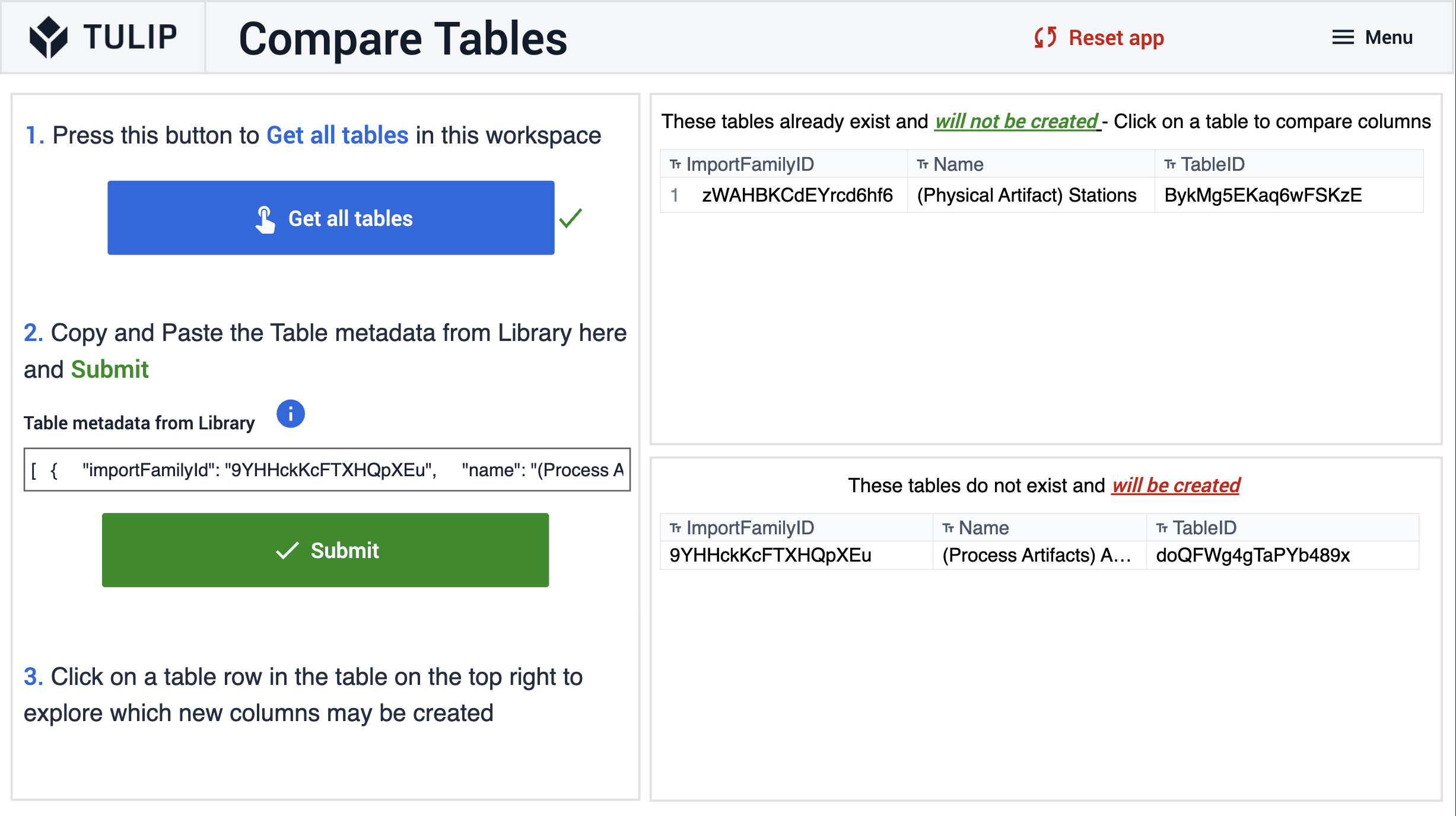
- On the Compare Tables step, press the Get Tables button to fetch all tables on that workspace.
Postman Echo Connector
Compare Tables step uses a Postman Echo connector which is not managed by Tulip.
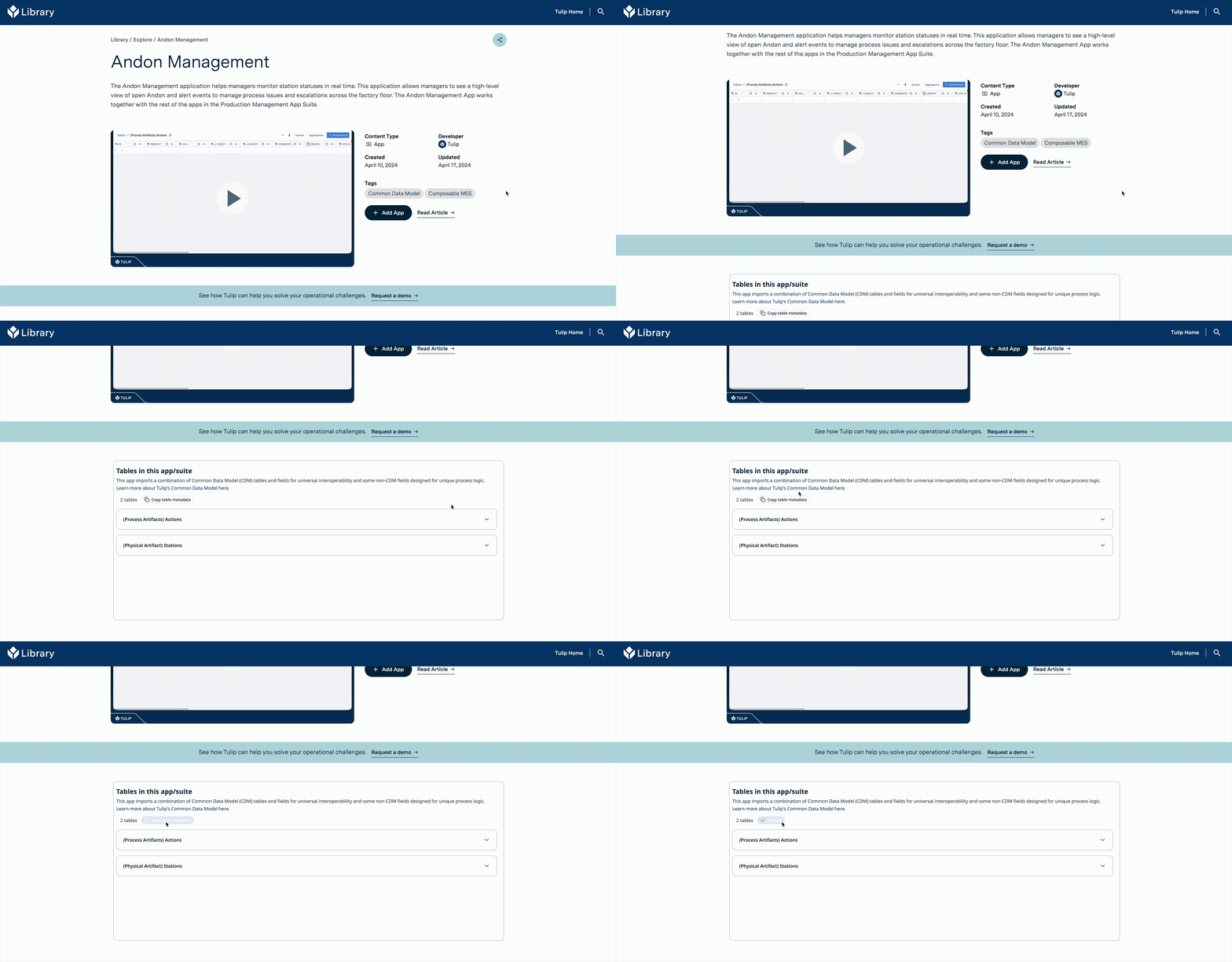
- Navigate to the Library app page that you wish to check and scroll down to find the Copy Table metadata button. Copy and Paste this into the input widget on the step and Press submit.
- The interactive table widget on the top right will display tables that already exist on your workspace and the one on the bottom will display the tables that will be created.
-
Click on a row in the interactive table widget to navigate to the Compare Columns step.
-
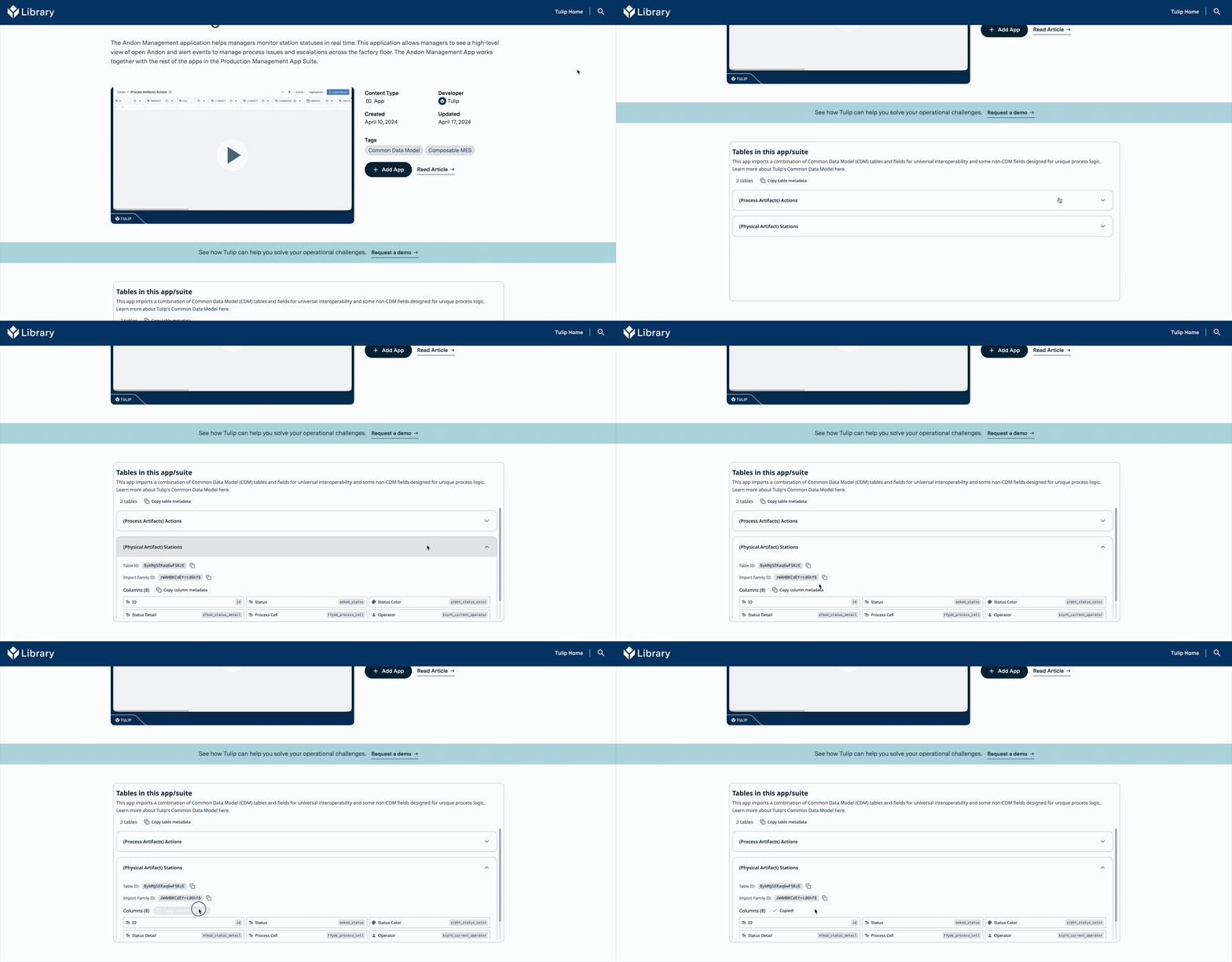
Once on the Compare Columns step, navigate back to the Library page for an app, and expand the table you want to check this for.
Postman Echo Connector
Compare Columns step uses a Postman Echo connector which is not managed by Tulip.
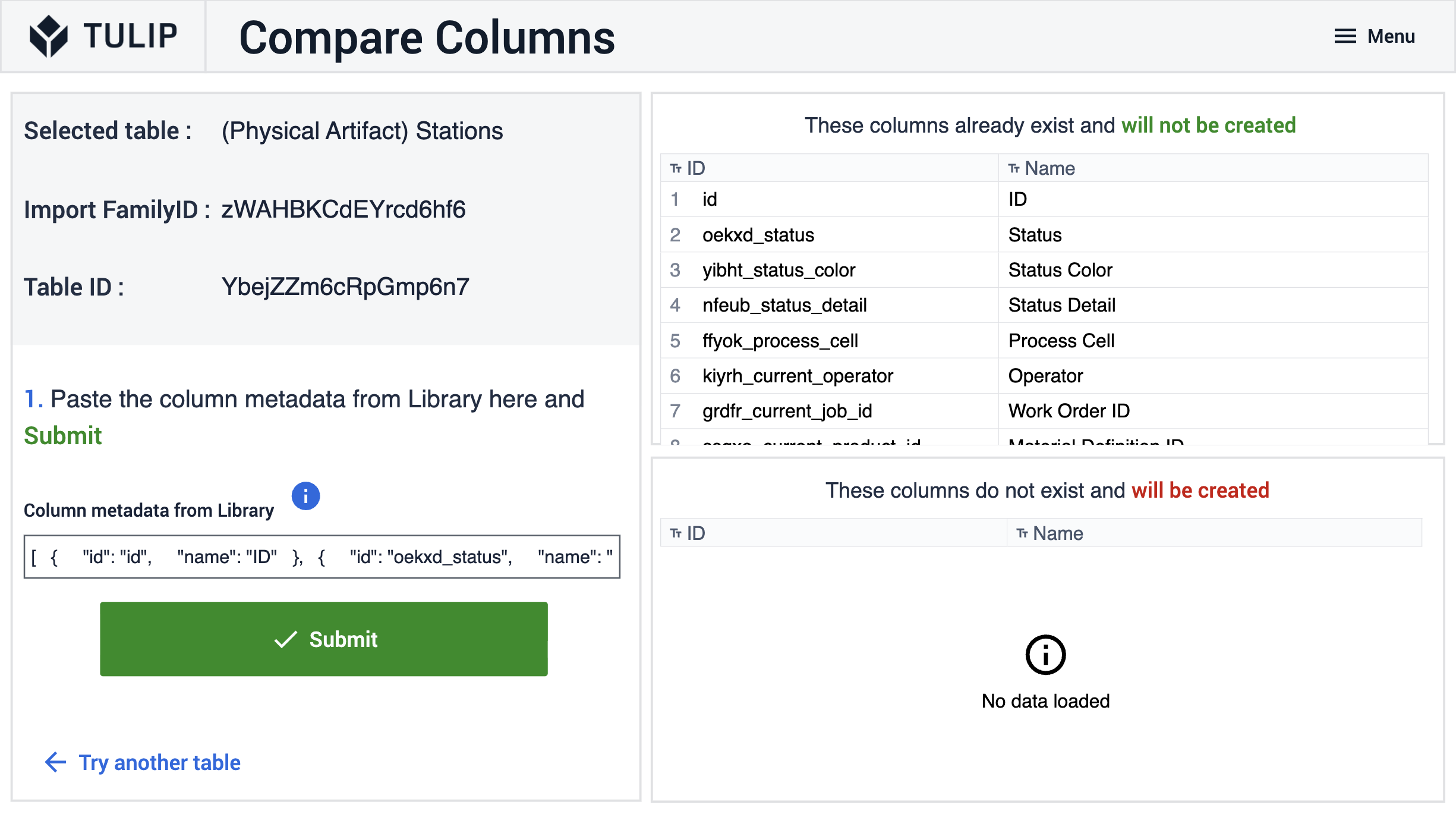
- Click Copy Column metadata and now paste this in the input widget on the Compare Columns step and hit Submit.
- The interactive table widget on the top right will display columns that already exist in your table and the one on the bottom will display the columns that will be newly created.