

If you have the and Edge Device driver active, the station will default to the Player driver.
With OS61 and release r334, you can now run the Multi-Torque Tool Driver on Edge Devices.
With Player 2.9.0 and release 334, the multi-torque tool driver will be available on Player.
To learn more, see the Torque OP drive guide
Overview
The Multi-Torque Tool Driver on Tulip Edge Devices and Player is designed to communicate with various torque controllers that support the Atlas Copco Open Protocol specification.
While Atlas Copco pioneered this standard, numerous manufacturers have adopted it. This driver has been successfully tested with torque controllers from:
- Atlas Copco
- Cleco
- Ingersoll Rand
- Stanley-Black & Decker
- Desoutter
- Kolver K-Ducer
To confirm if your torque controller supports this protocol, consult your product's manual or contact your sales or distribution representative.
In this article, we reference the following terms which may vary by brand:
- Parameter Set - A set of instructions for the torque controller, often detailing specific torque and angle requirements.
- Jobs - A collection of Parameter Sets.
Supported functions
The Multi-Torque Tool Driver supports the following functions:
- Connect tool: A command to establish a connection to your Torque Controller from Player.
- Note: You may need to append ":4545" to the end of your IP Address.
- Sending an "Enable Tool" command to the controller.
- Sending a "Disable Tool" command to the controller.
- Sending a "Set Parameter Set ID" command to the controller.
- Sending a "Set Job ID" command to the controller.
- Receiving a "Tool Status" message from the controller, indicating whether the controller is enabled or disabled.
- Receiving a "Tightening Event" message from the controller, which includes details about the last tightening event such as torque, angle, and whether measurements were within range.
- Receiving a “Trace Data” message from the controller, providing the trace curve data for one trace type from the last tightening. One message will be output per trace type. Select compatible trace types in the driver configuration. Note: This data type has only been verified for Kolver compatibility mode.
Using the Driver
This driver is compatible with Tulip Edge Devices. You must first re the Multi-Torque Tool Driver on the Edge Device, and then build an App that uses this connection.
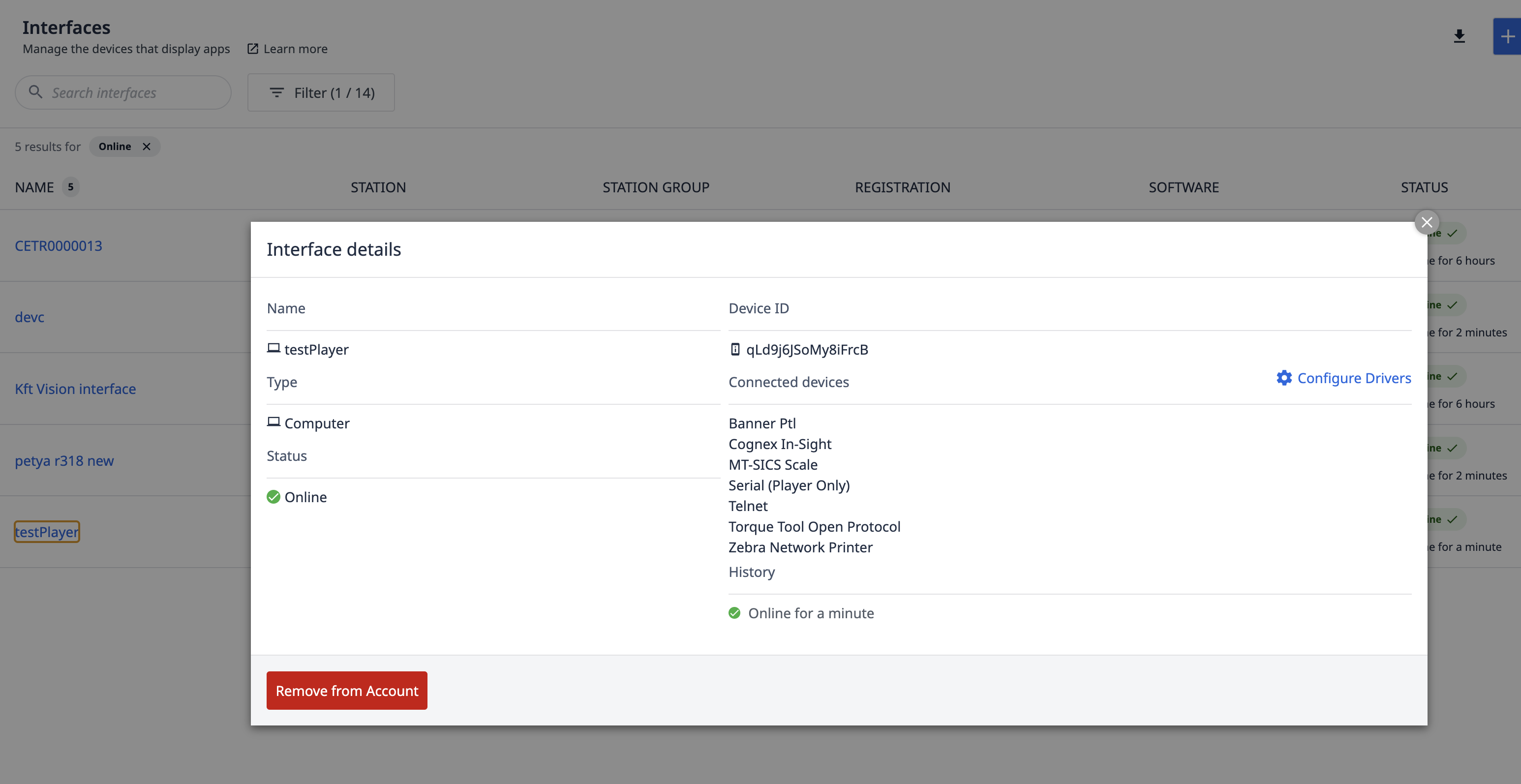
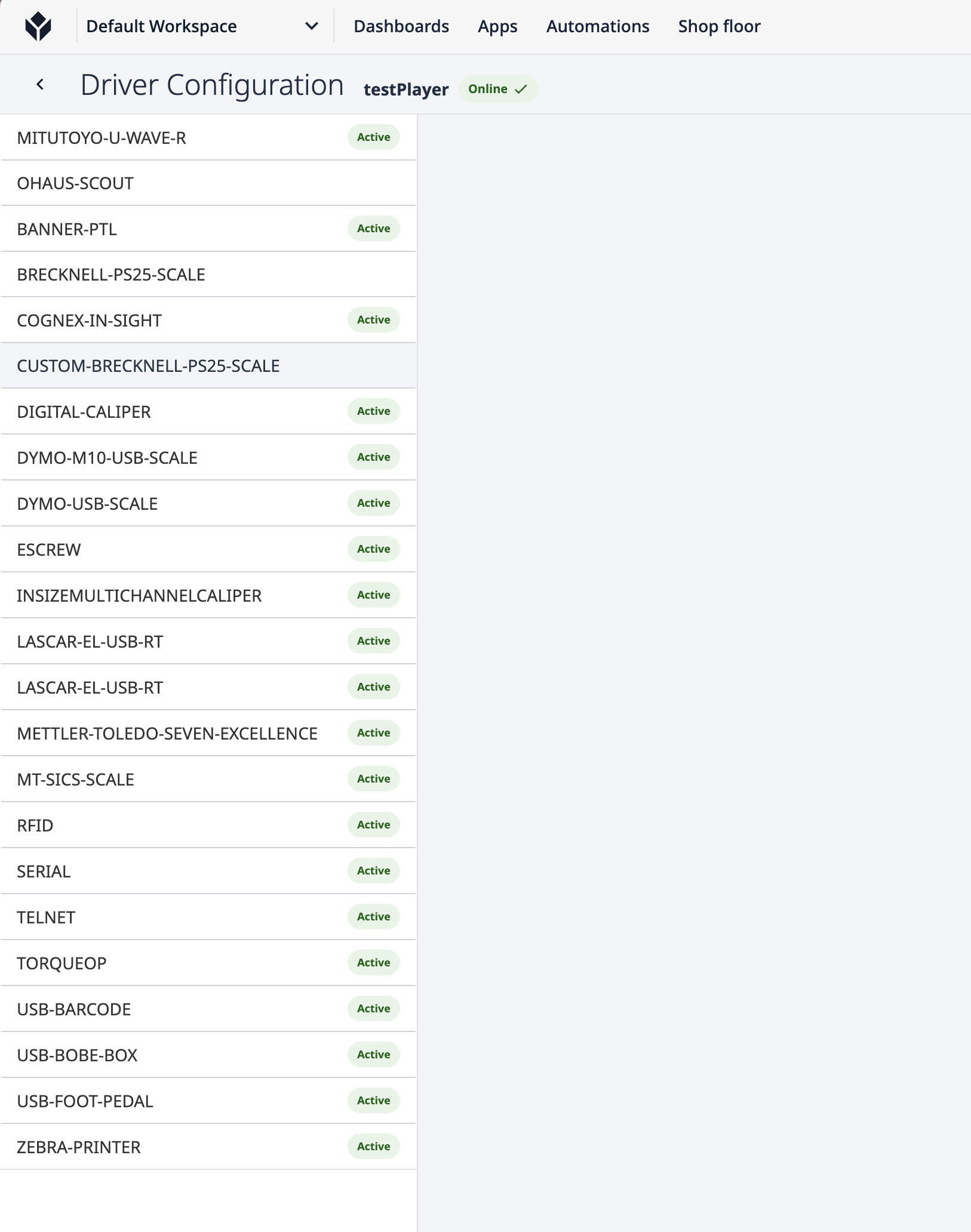
Enable the Driver on your Player/Station
Enable the driver at each station where you plan to connect to a Torque Device.
Enable the Driver on your Edge Device
-
Ensure that your Torque Controller is connected to the same network as your Edge Device.
-
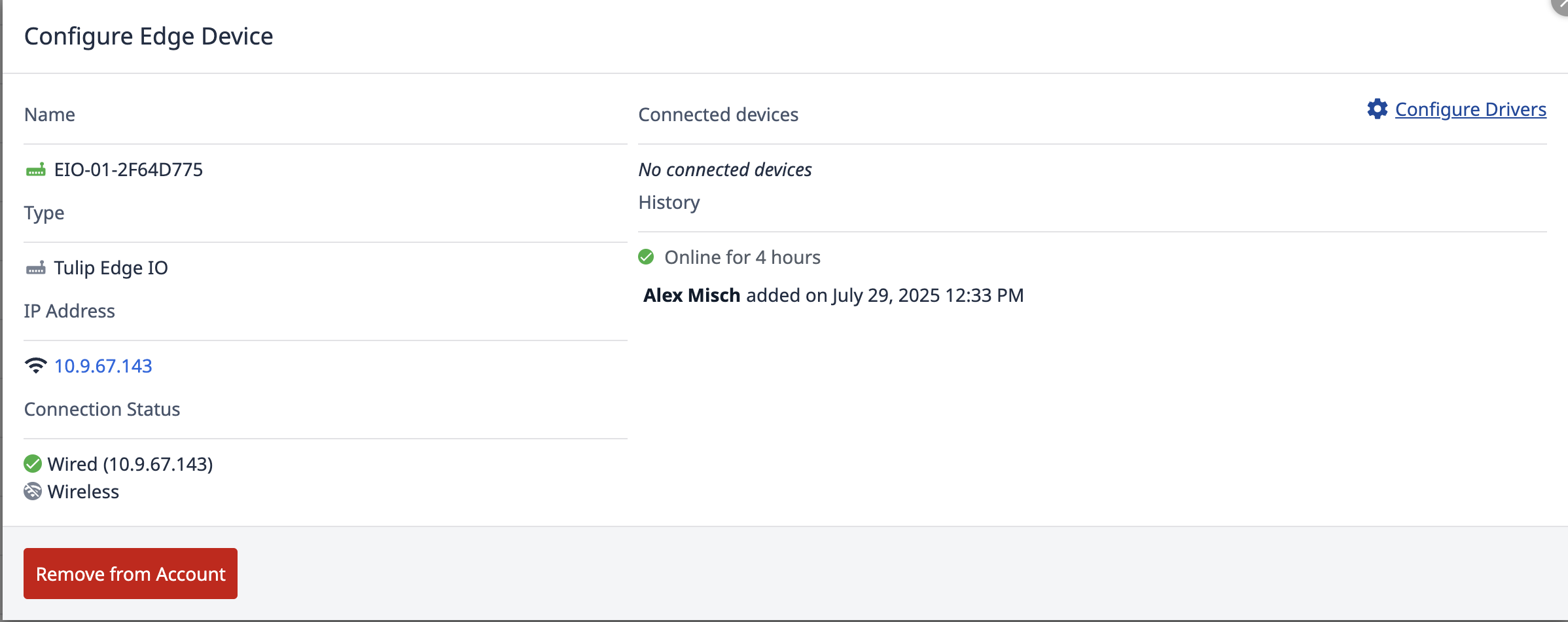
Click the Shop Floor tab and select Edge Devices.
-
Select the Edge Device that you want to enable this driver for. Then, click Configure Drivers.
-
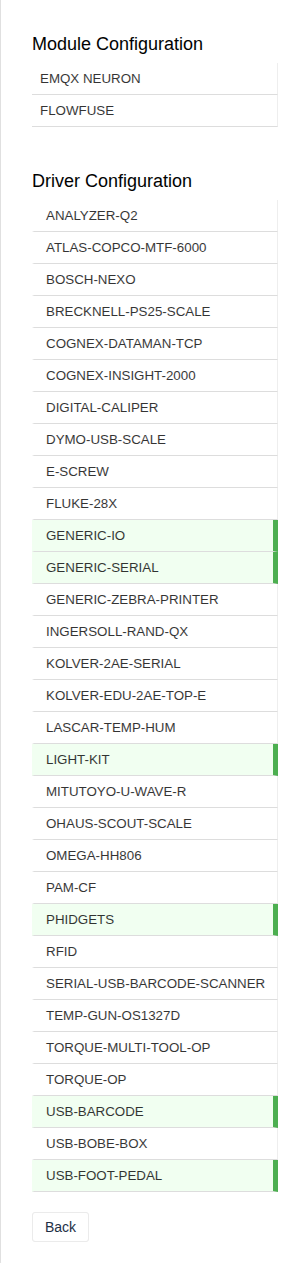
To enable the multi-torque tool driver, select "TORQUE-MULTI-TOOL-OP".
-
Toggle the pill selection, and click Save.
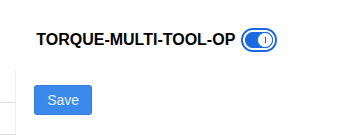
If you have questions about enabling the Torque Open Protocol server on your torque controller, refer to your product's manual or contact your sales or distribution representative.
Create a Tulip app
The you need to create a Tulip app that utilizes this driver.
- Create an app and then create a trigger to interact with the driver.
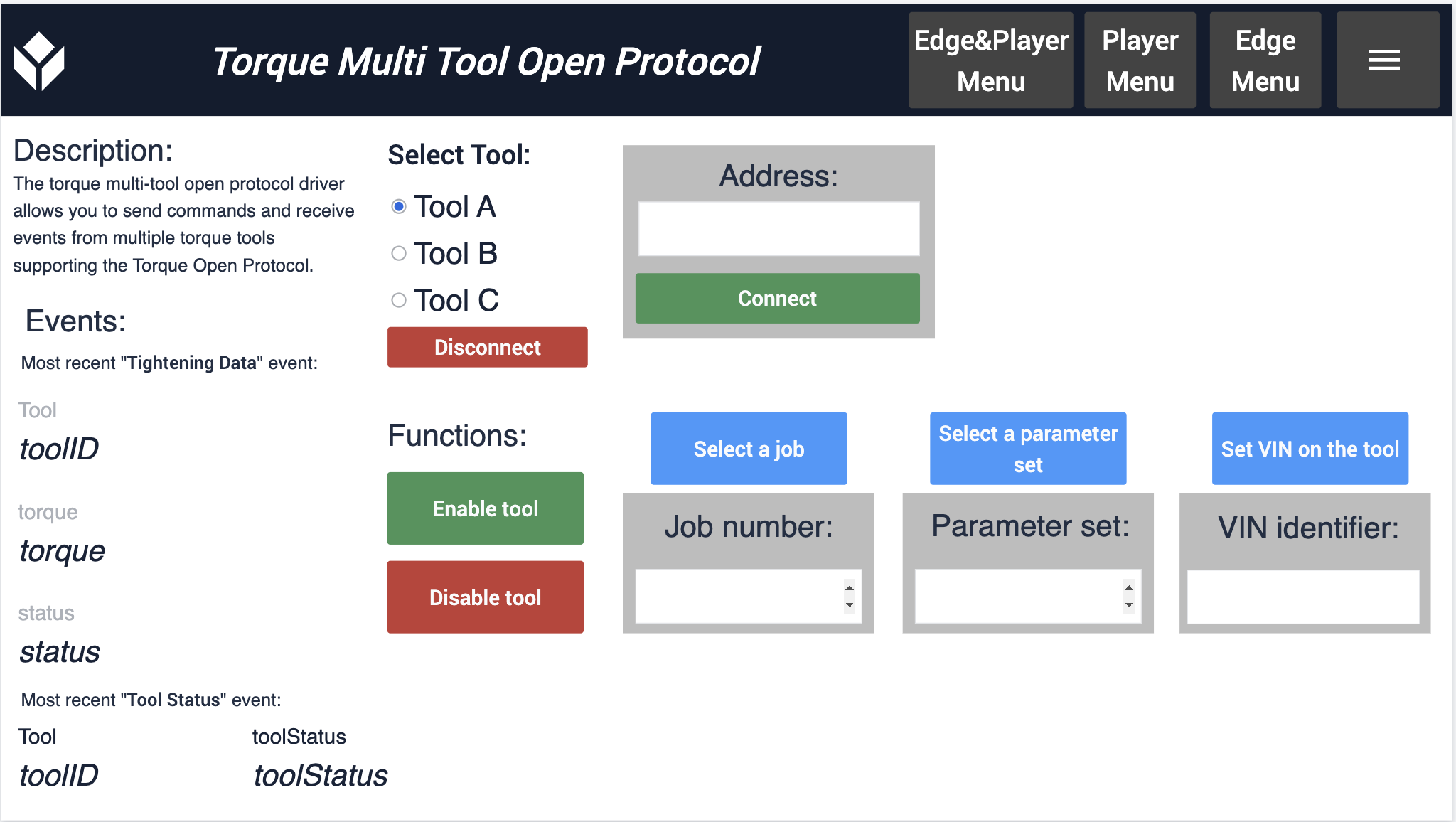
Supported trigger events
This driver supports two types of trigger events:
- Send information
This command sends information to the Torque Controller. The command executes as a Trigger Action.
See its supported action types in the image below:
THEN
- "Run Device Function" "Multi Torque Tool Open Protocol" (select the action)
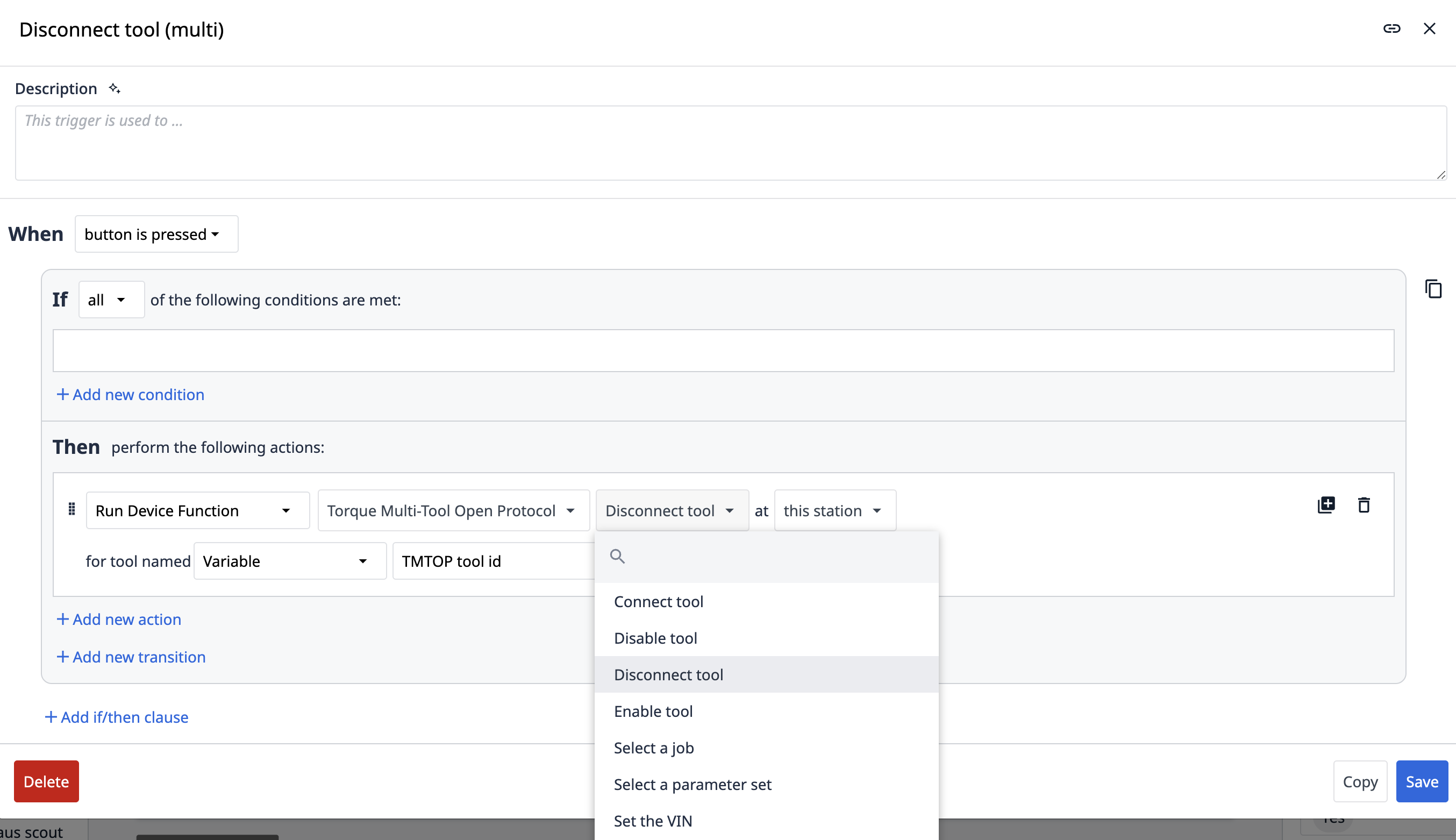
Each command then prompts you for the necessary information related to that command.
- Receive
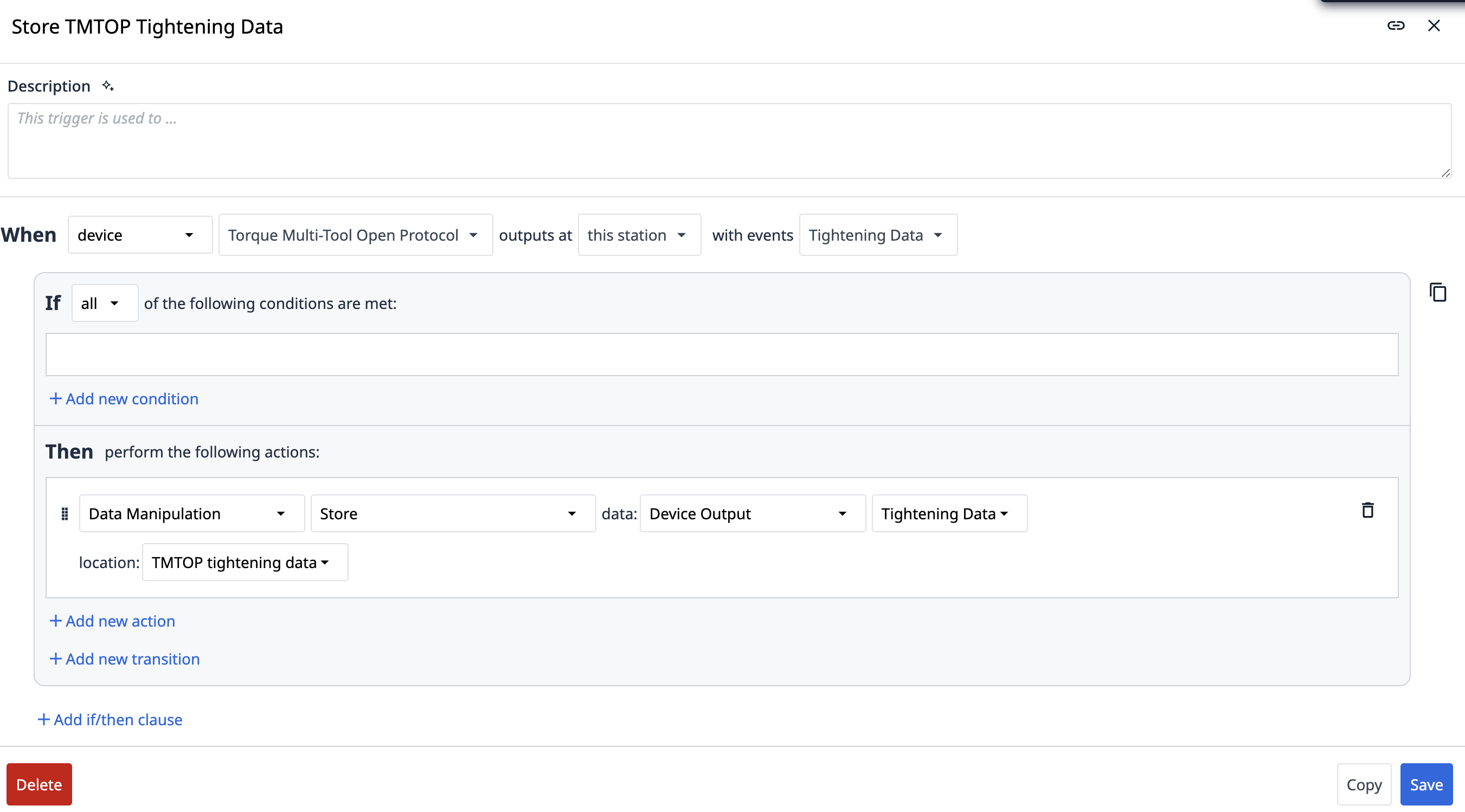
This trigger event receives data from the torque controller. These triggers are exclusively available as Step Level Triggerss in the When event clause. Note the options below:
WHEN
- "device" "Multi Torque Tool Open Protocol" outputs as "this station" "with events"... You will be able to delineate the tool that sent the information back from the multi torque tool driver.
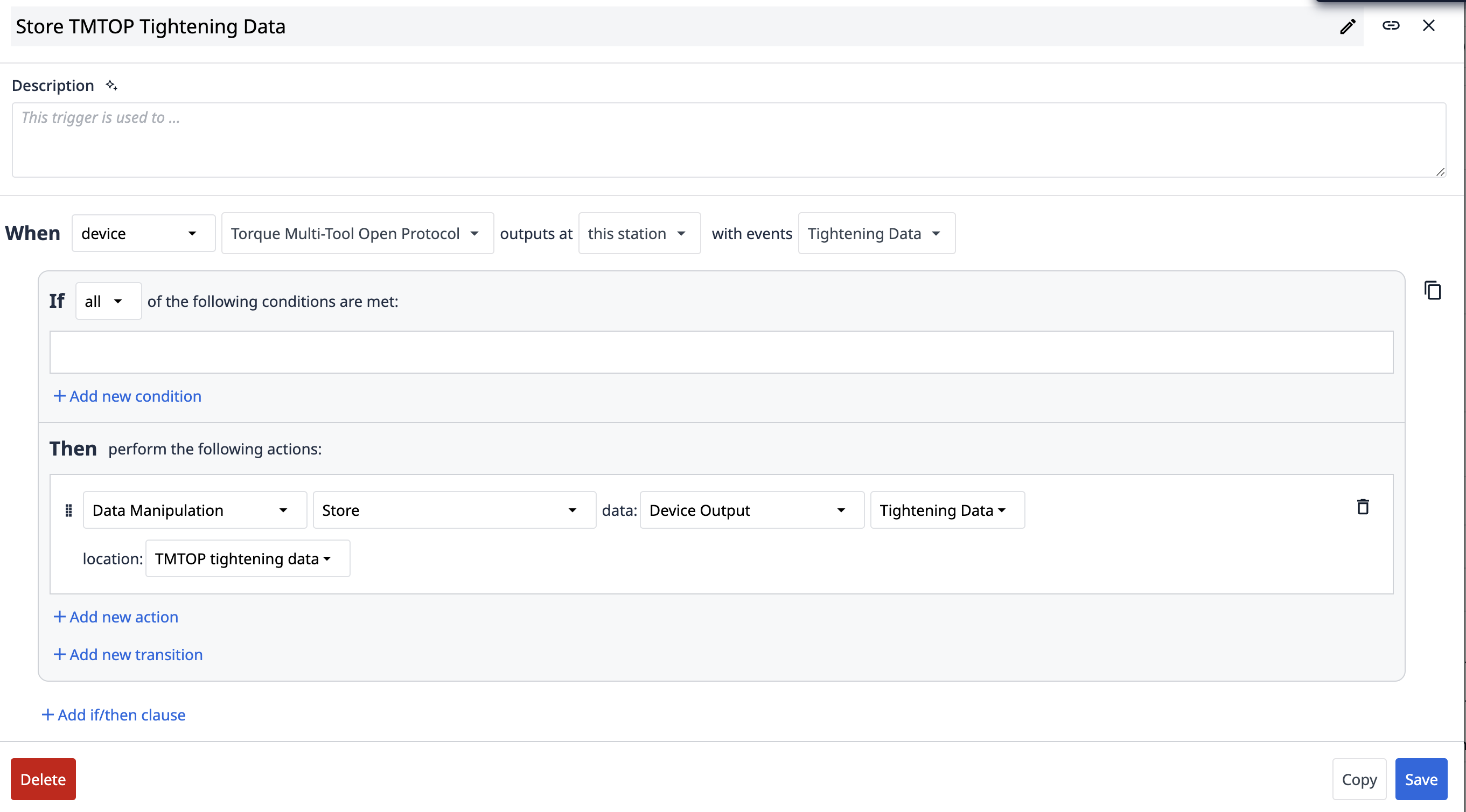
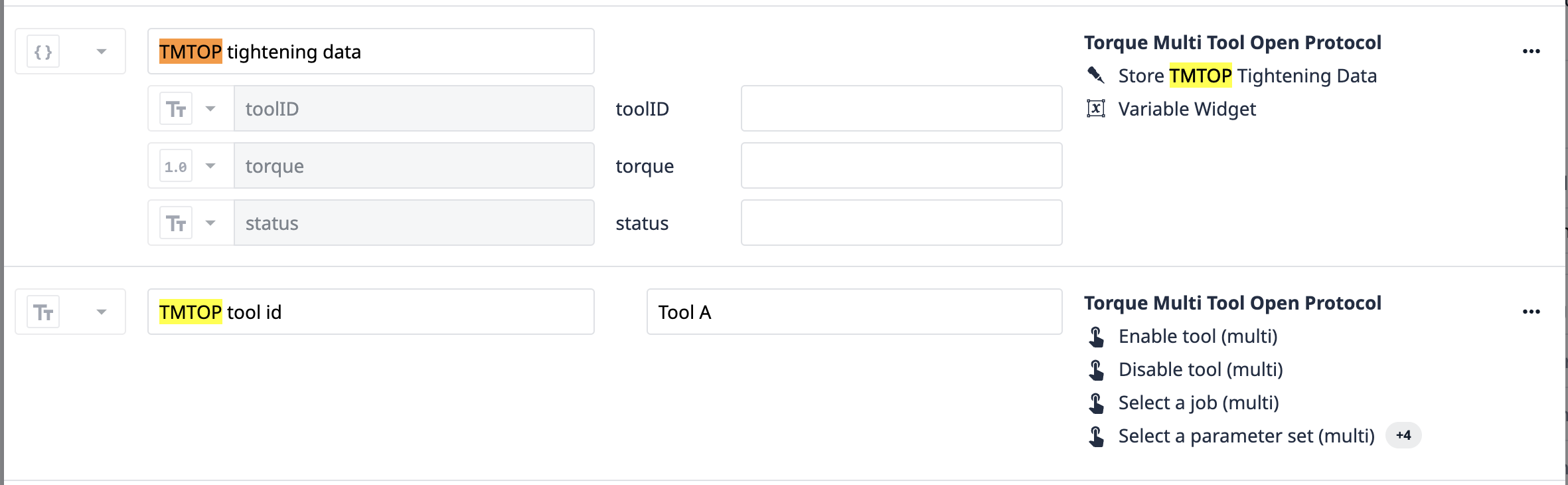
Here, the "Tightening Data" event will include the torque value and whether or not the torque measurement was within the acceptable range.
The "Extended Tightening Data" event provides significantly more information but may not be relevant for all use cases.
For both events, the device output becomes available within the Trigger to be used in various scenarios.
Did you find what you were looking for?
You can also head to community.tulip.co to post your question or see if others have solved a similar topic!