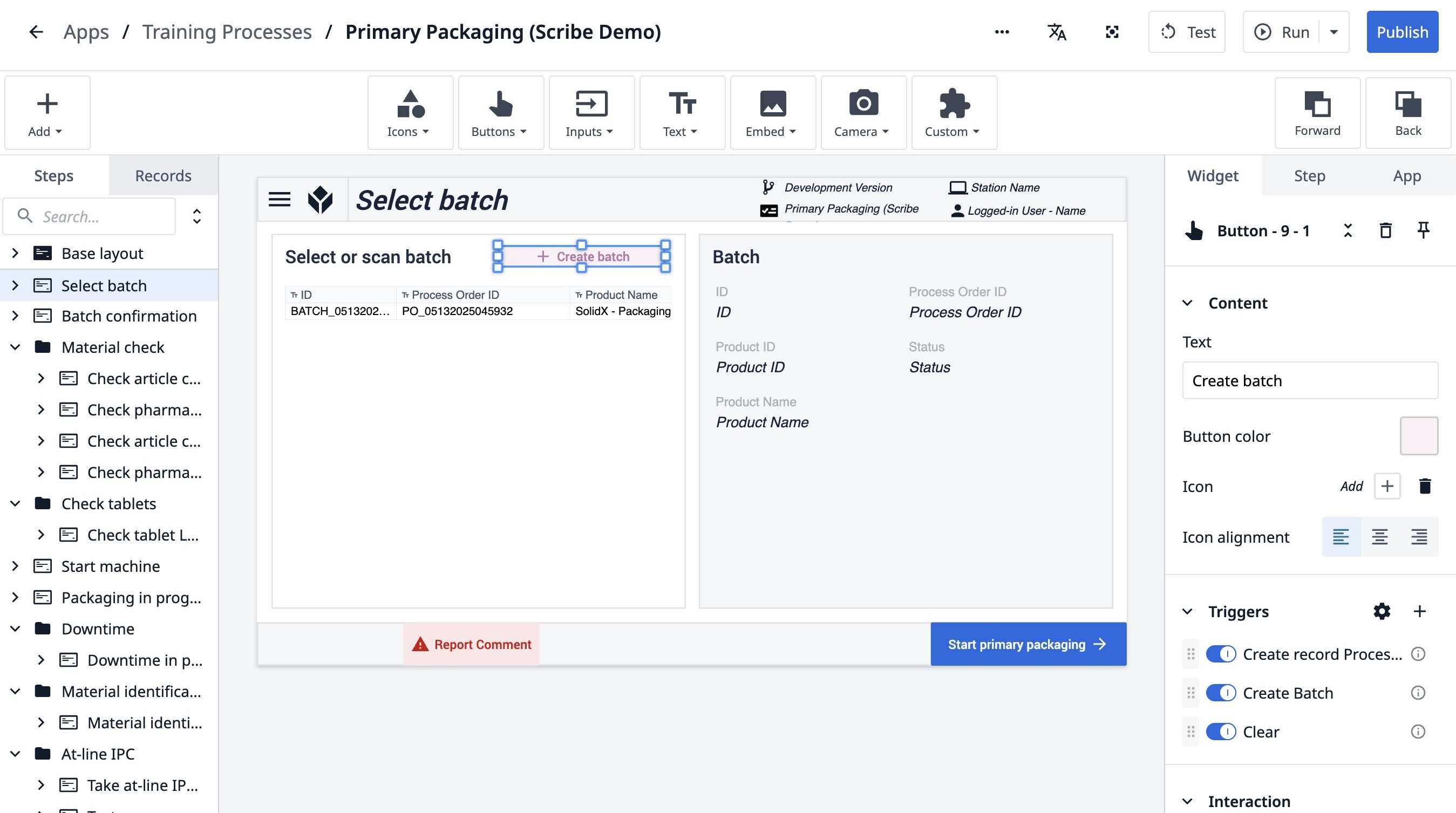
1. Navigate to any page in the app builder.
Add the Batch Record Placeholder
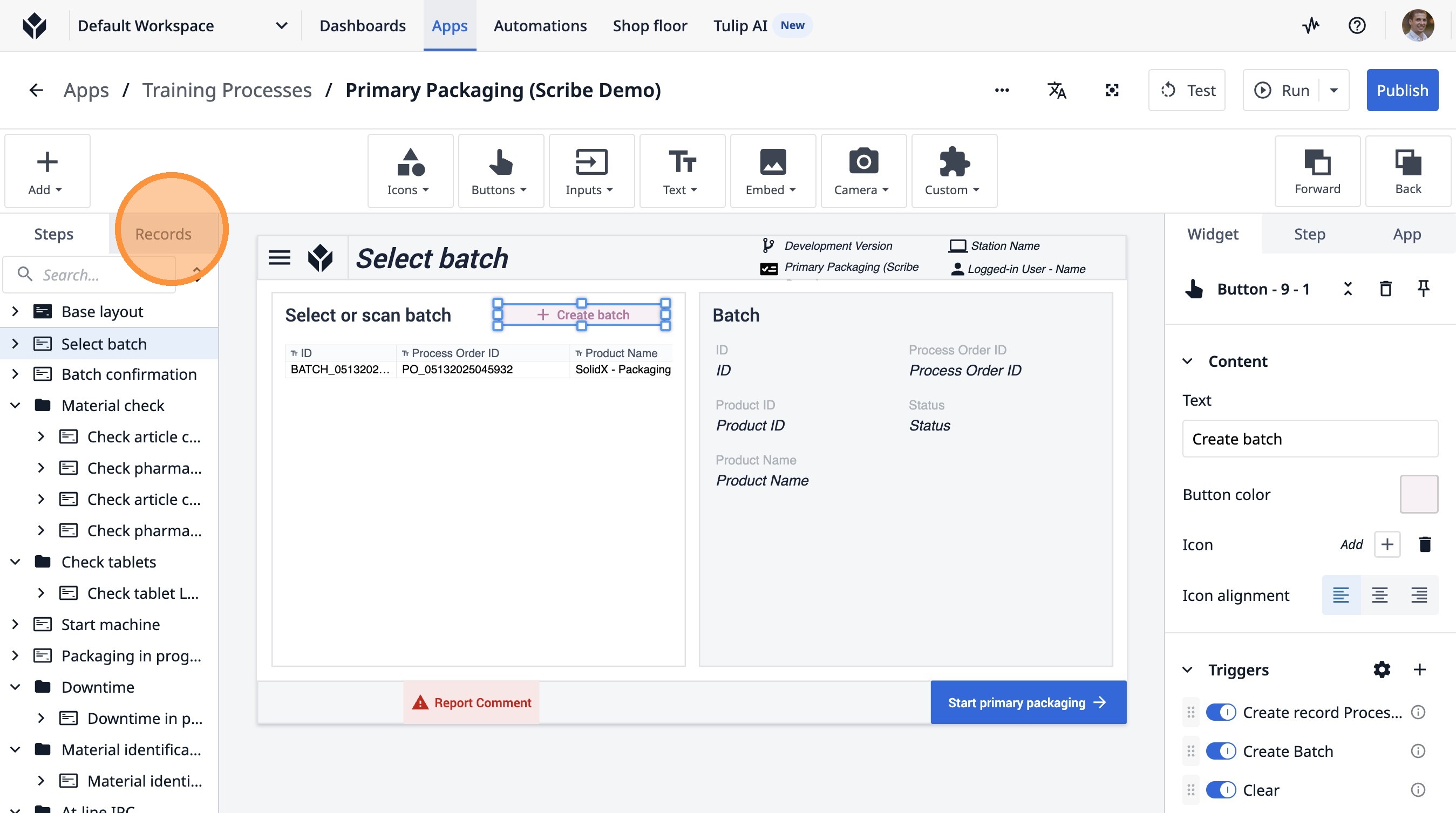
2. Click "Records"
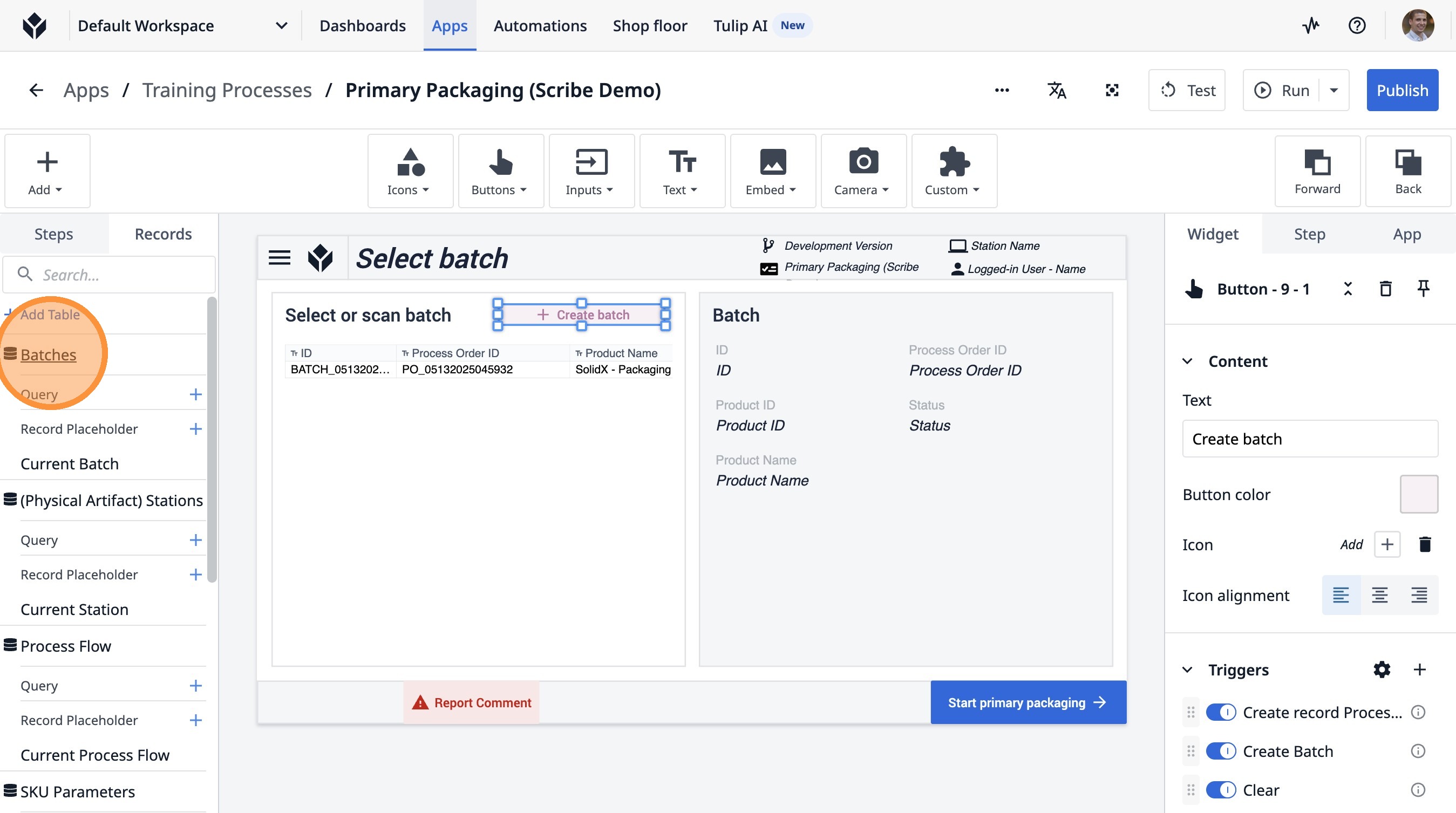
3. Click "Batches"
4. Click "View"
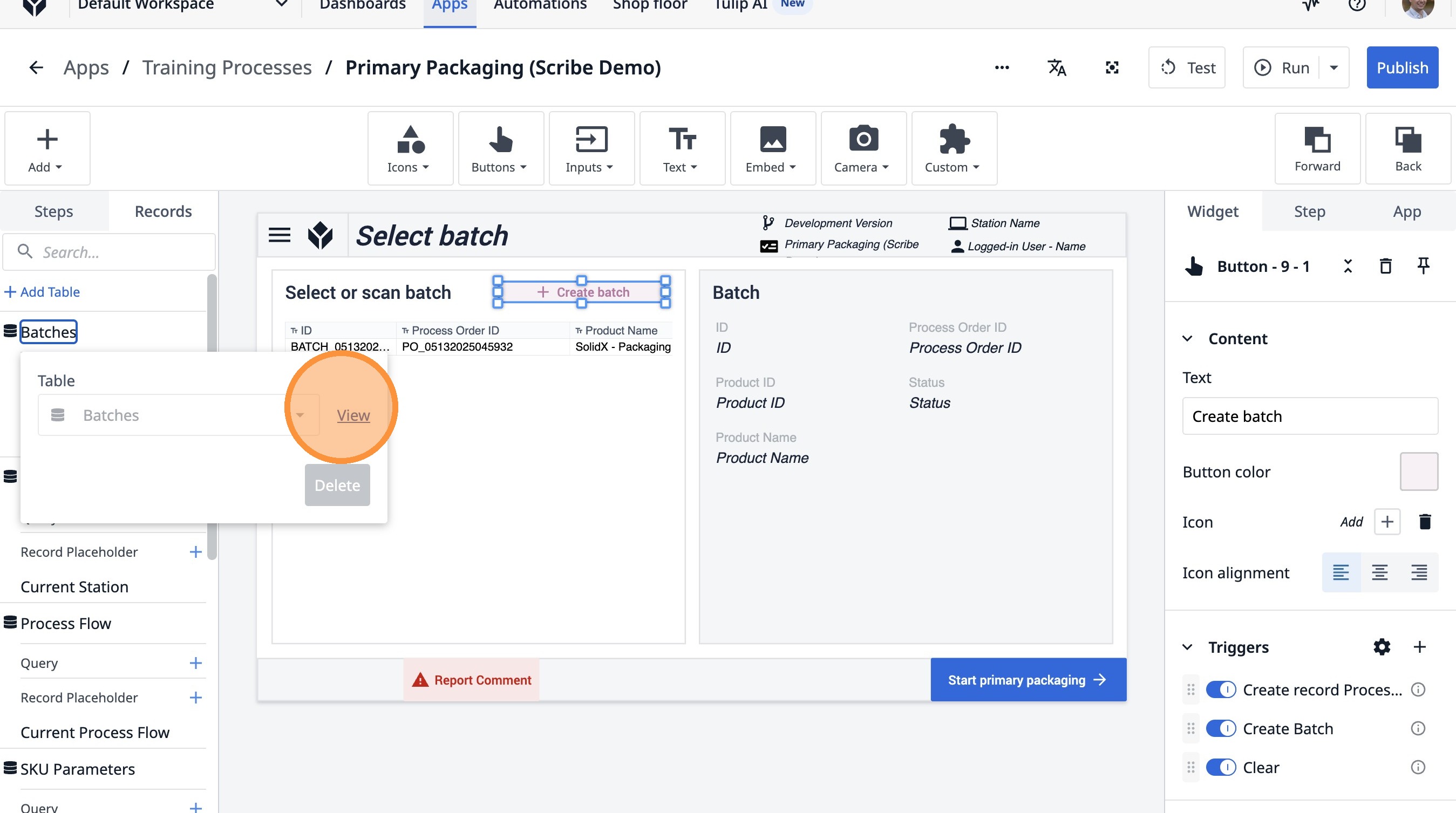
5. Click this icon.
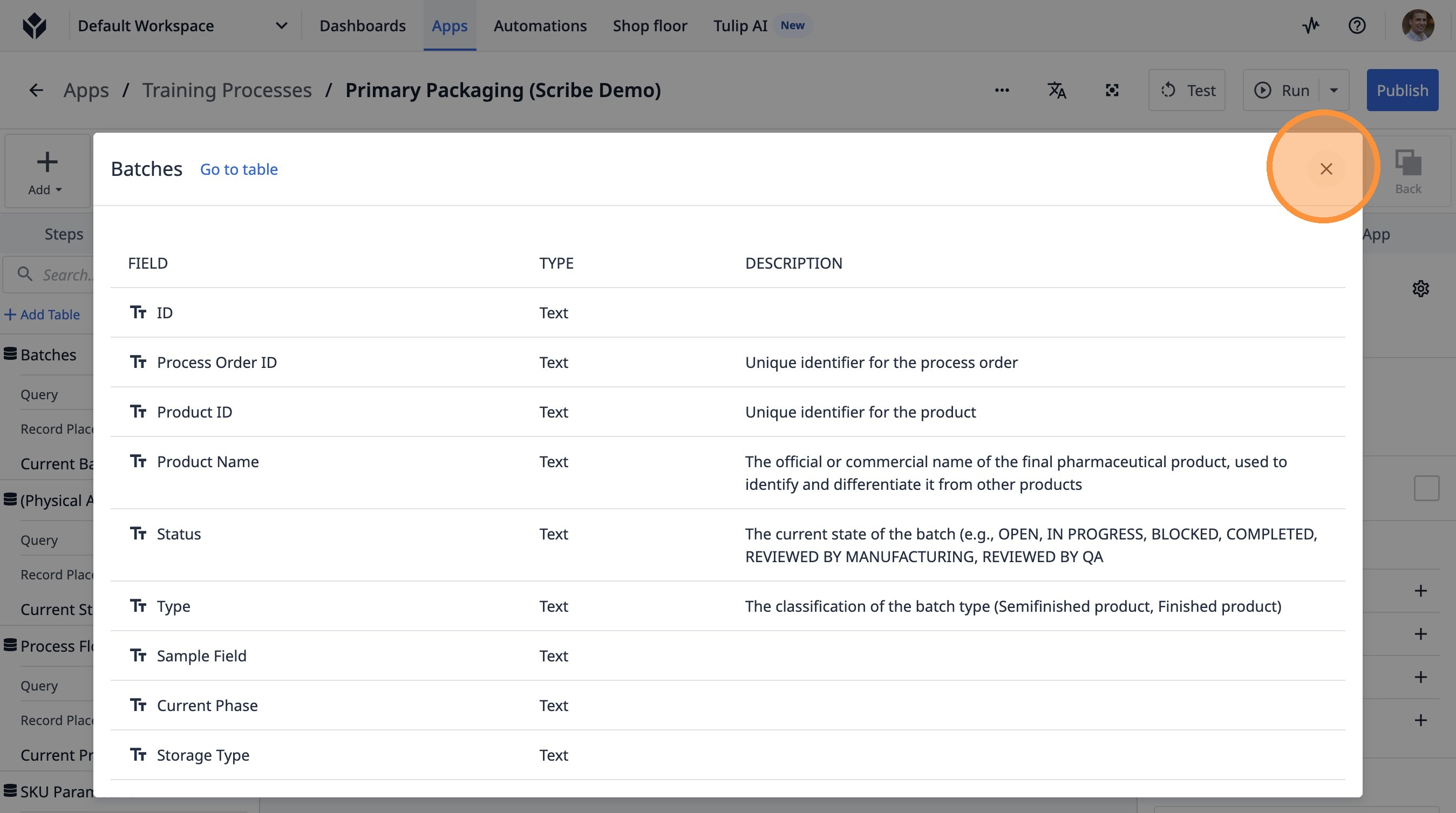
Load the Correct Batch Record
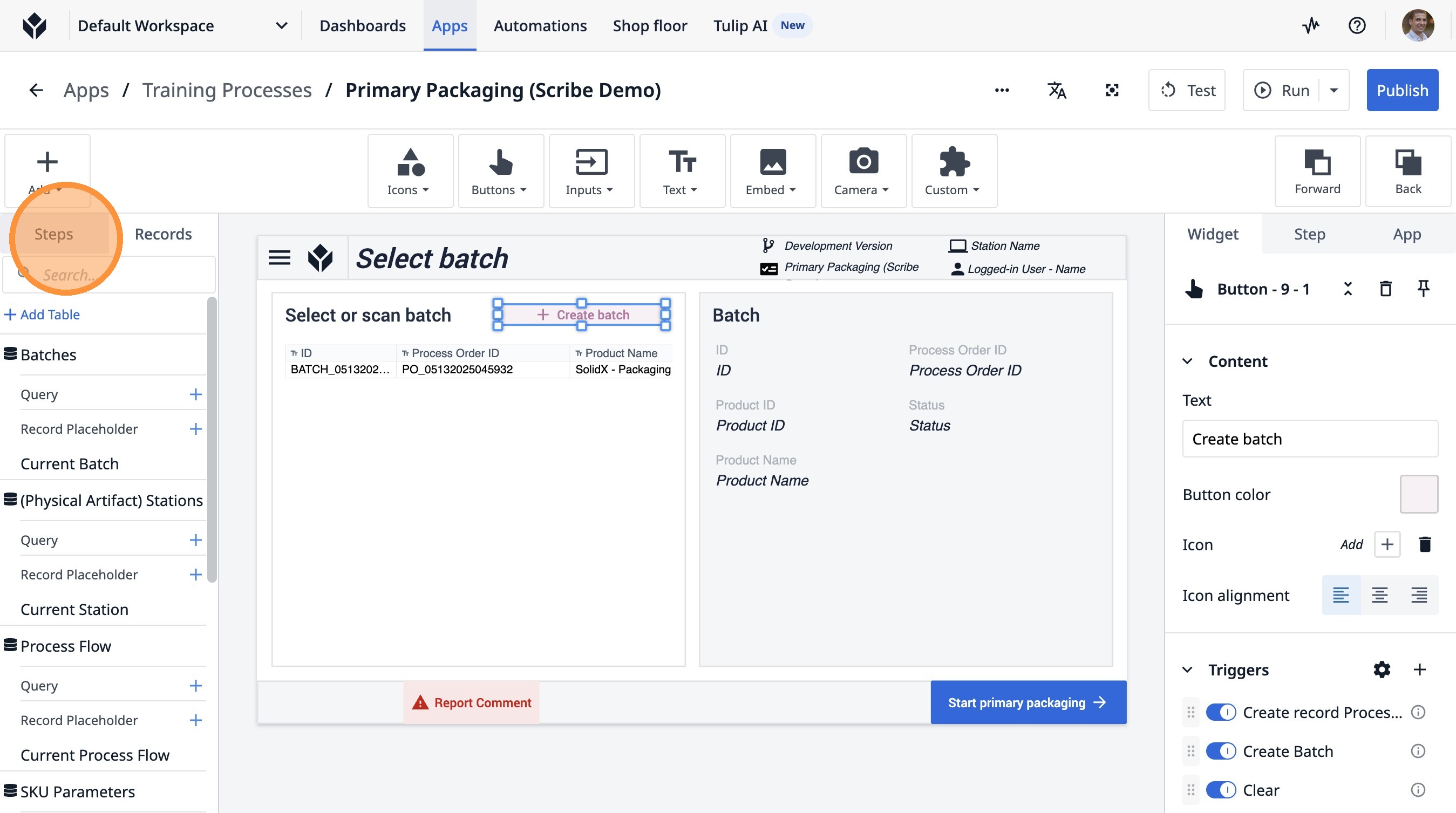
6. Click "Steps"
7. Click here.
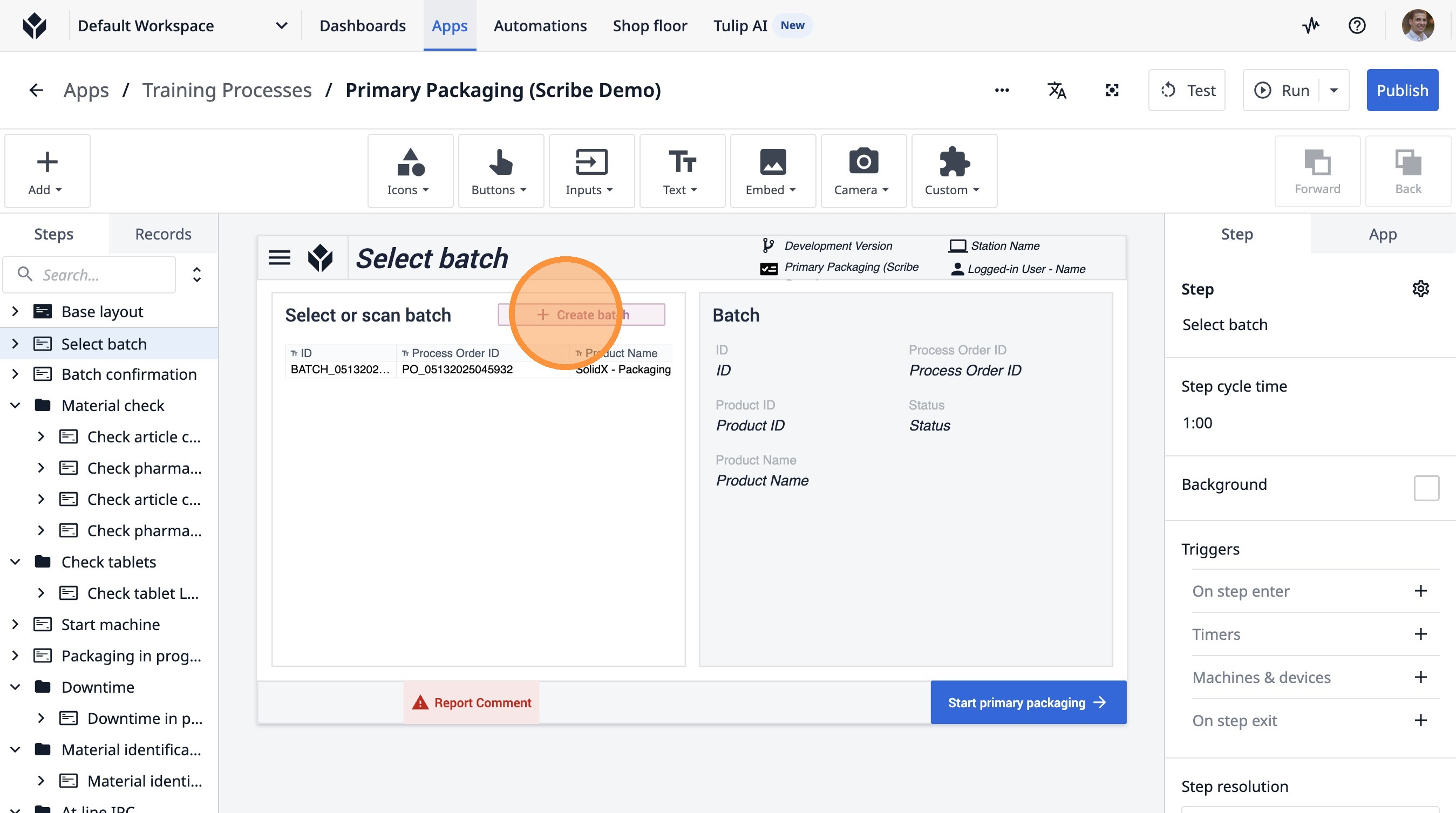
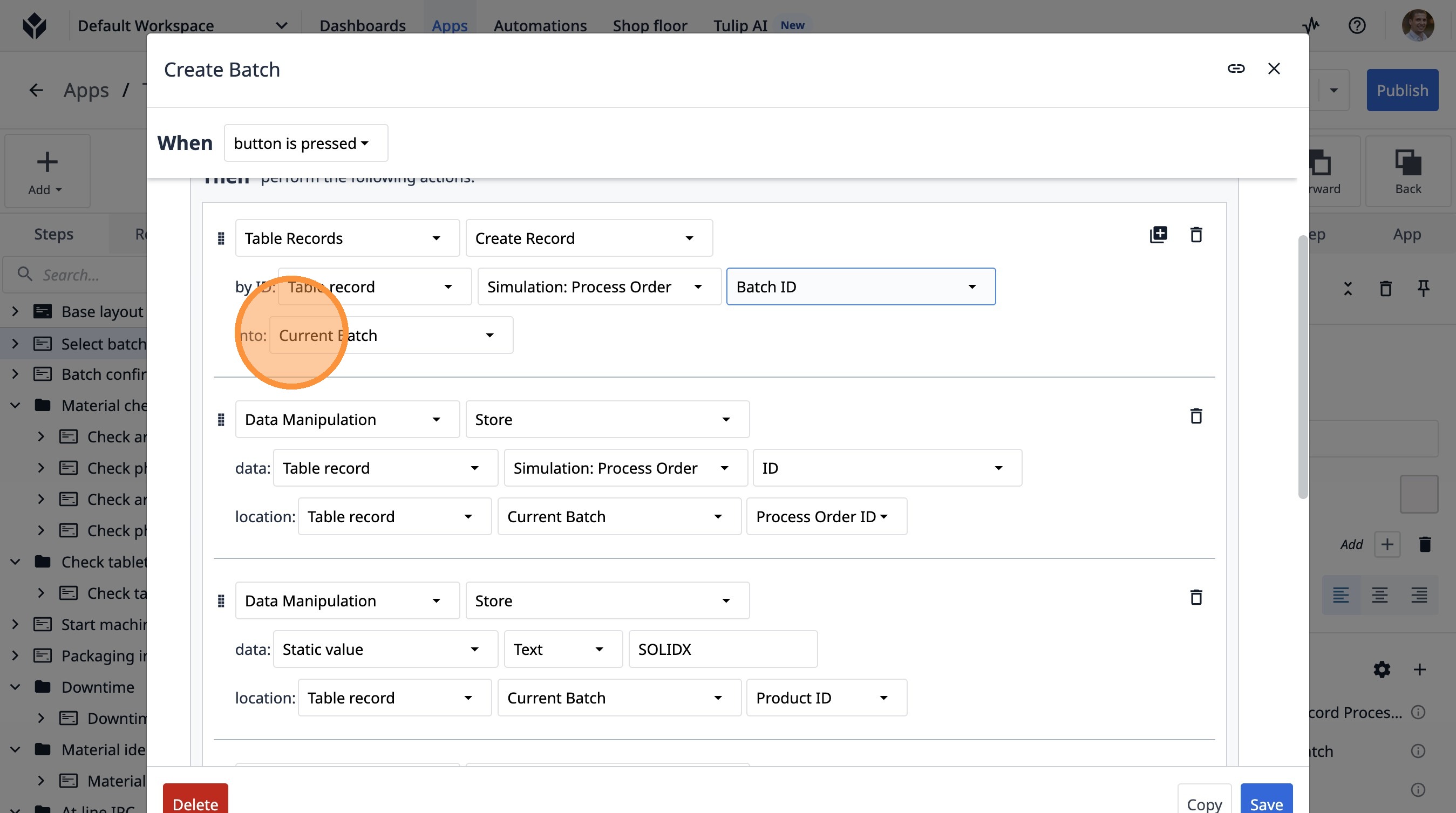
8. Click "Create Batch"
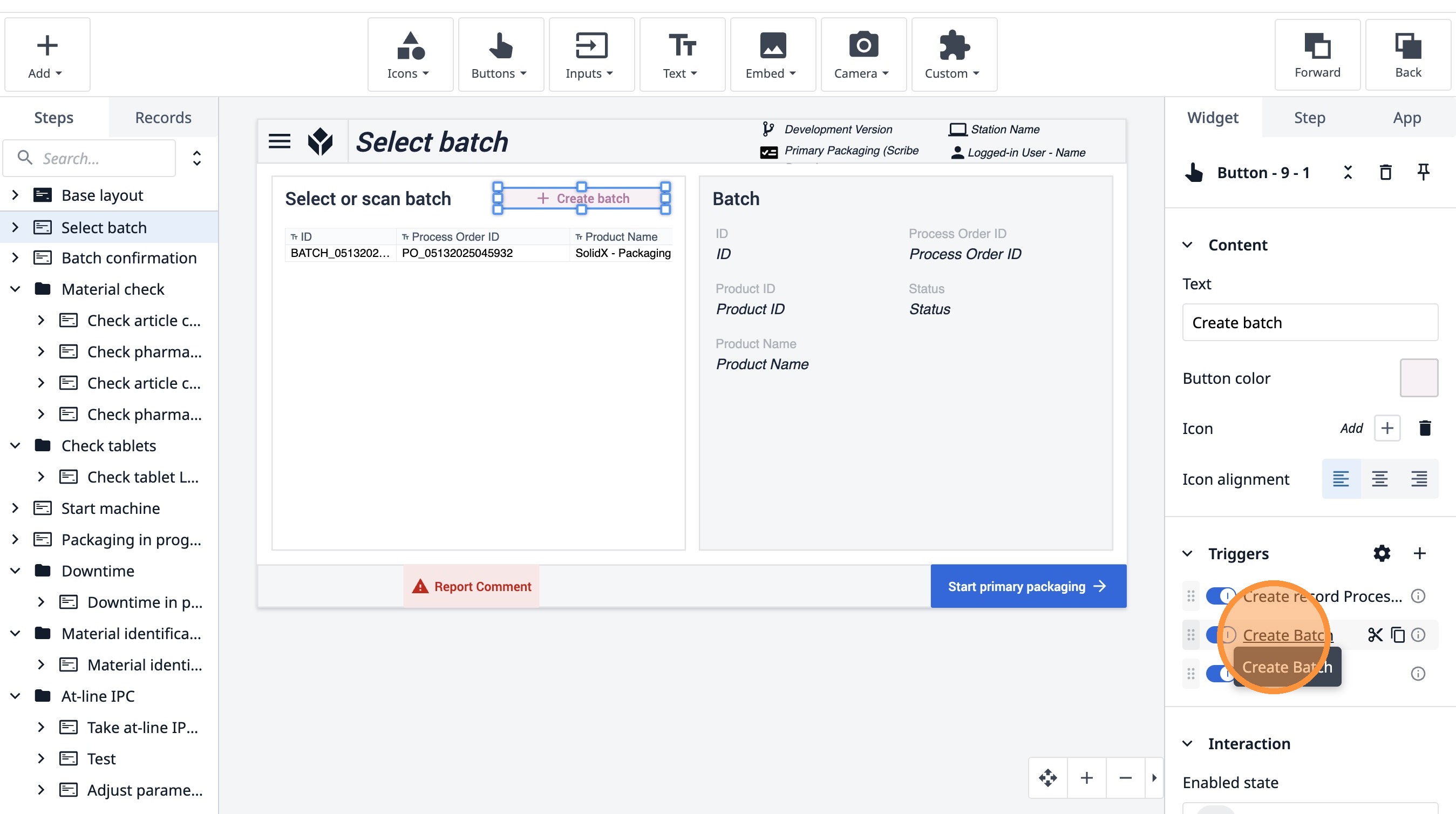
9. Click this dropdown. The batch ID comes from the Process order table.
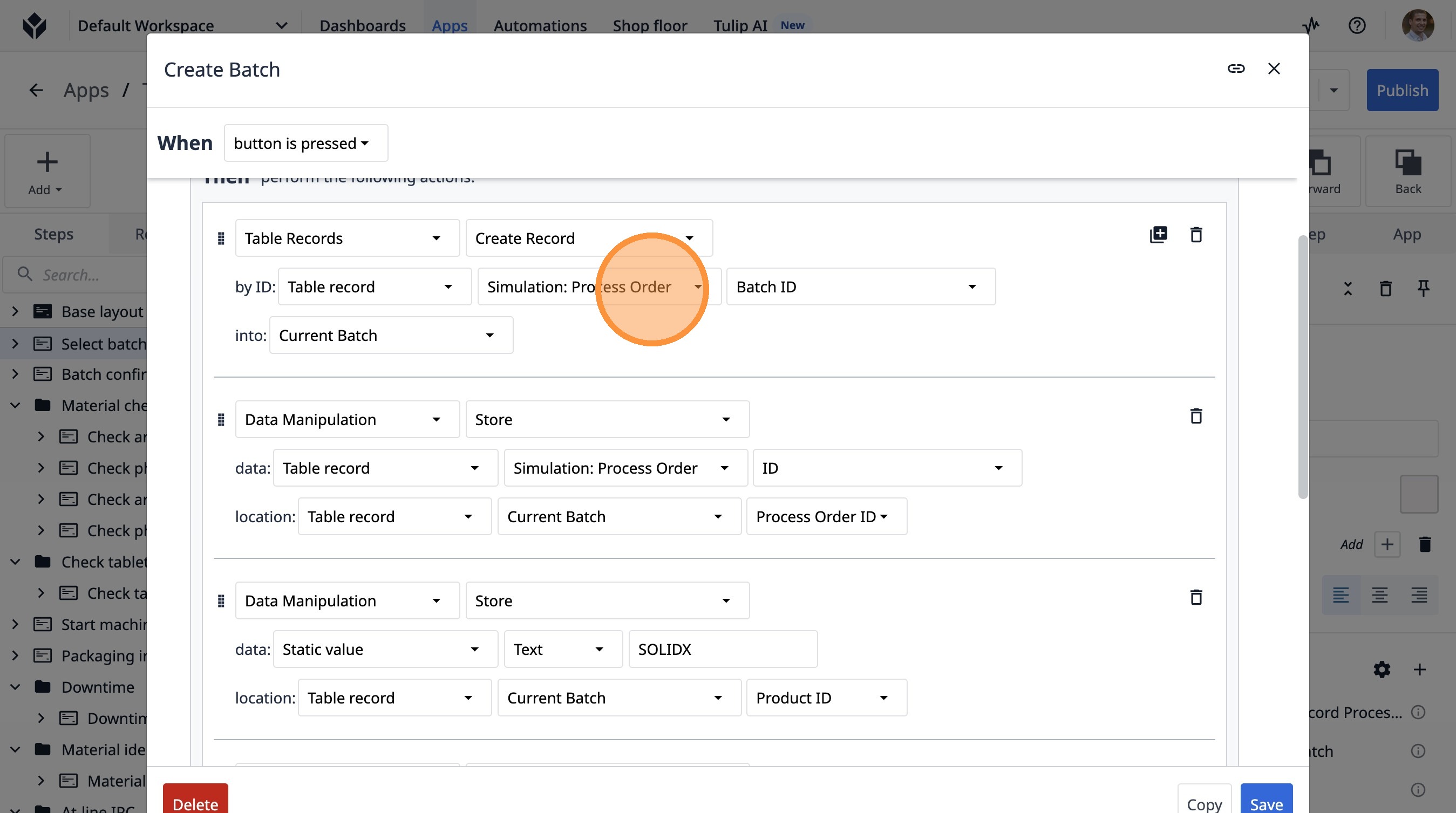
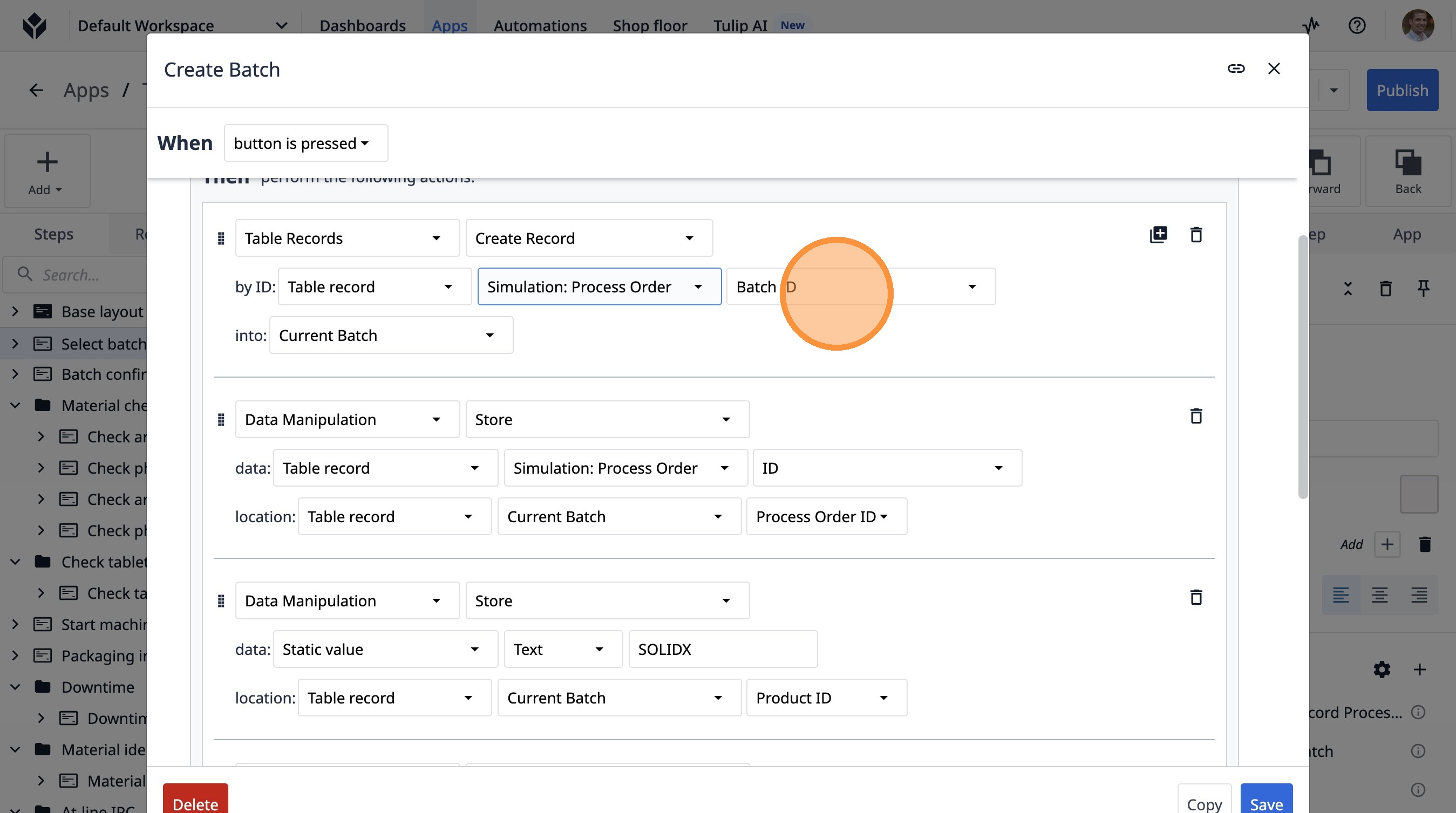
10. Click this dropdown.
11. Click this dropdown.