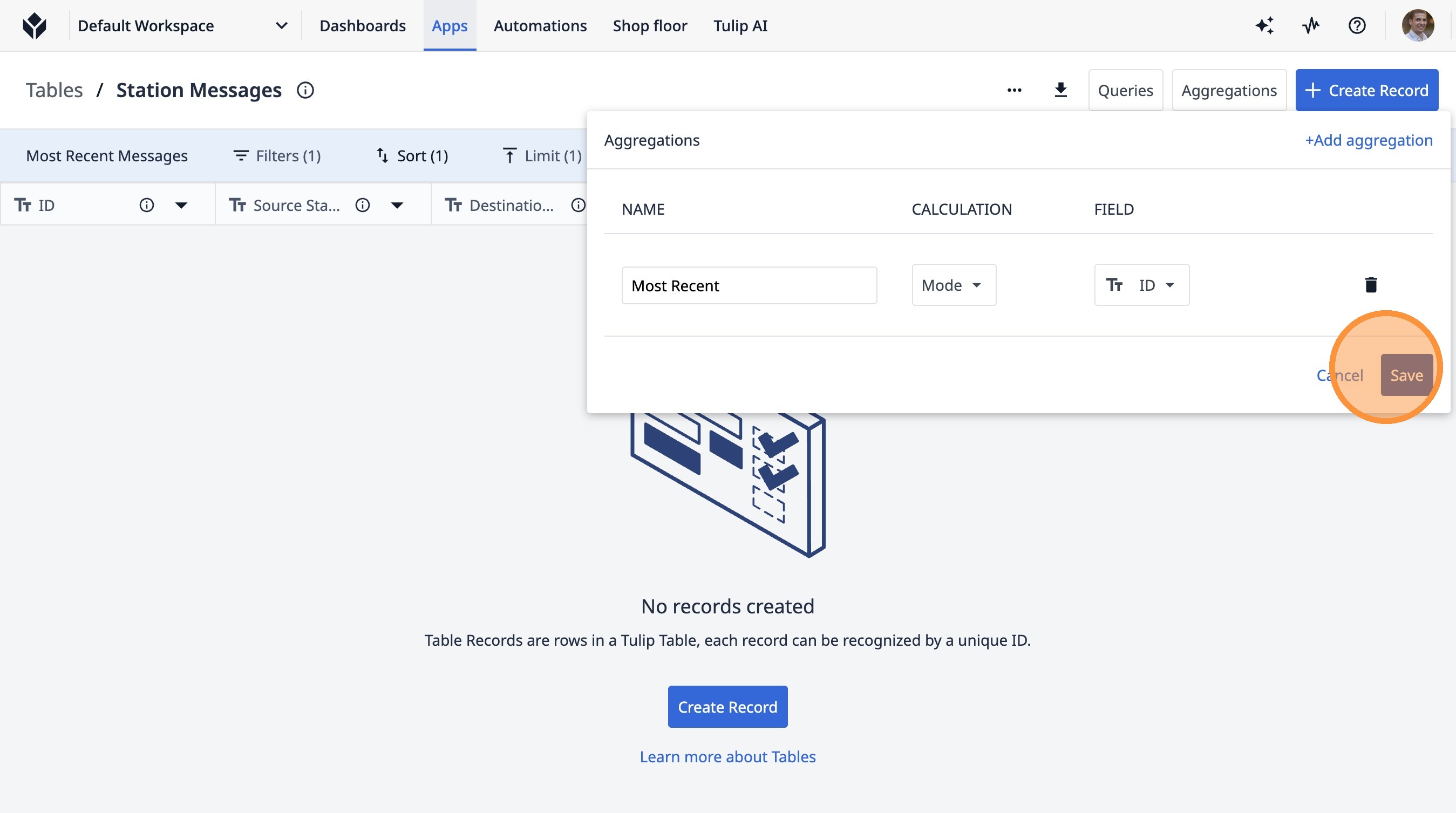
Learn how to create a new table in Tulip to store station messages. This guide walks you through setting up a query to find the most recent messages and defining an aggregation to easily access them.
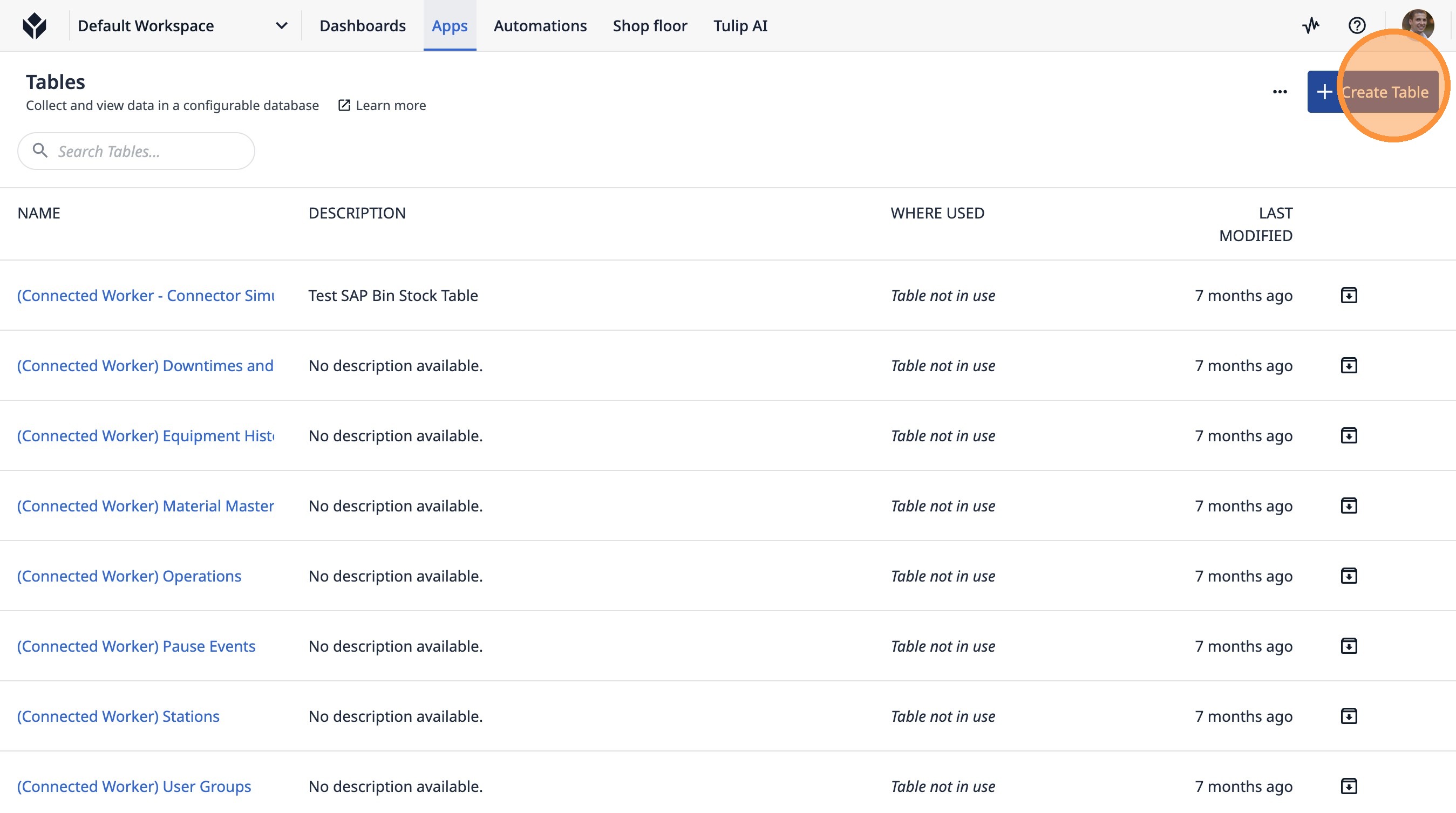
1. Click "Create Table"
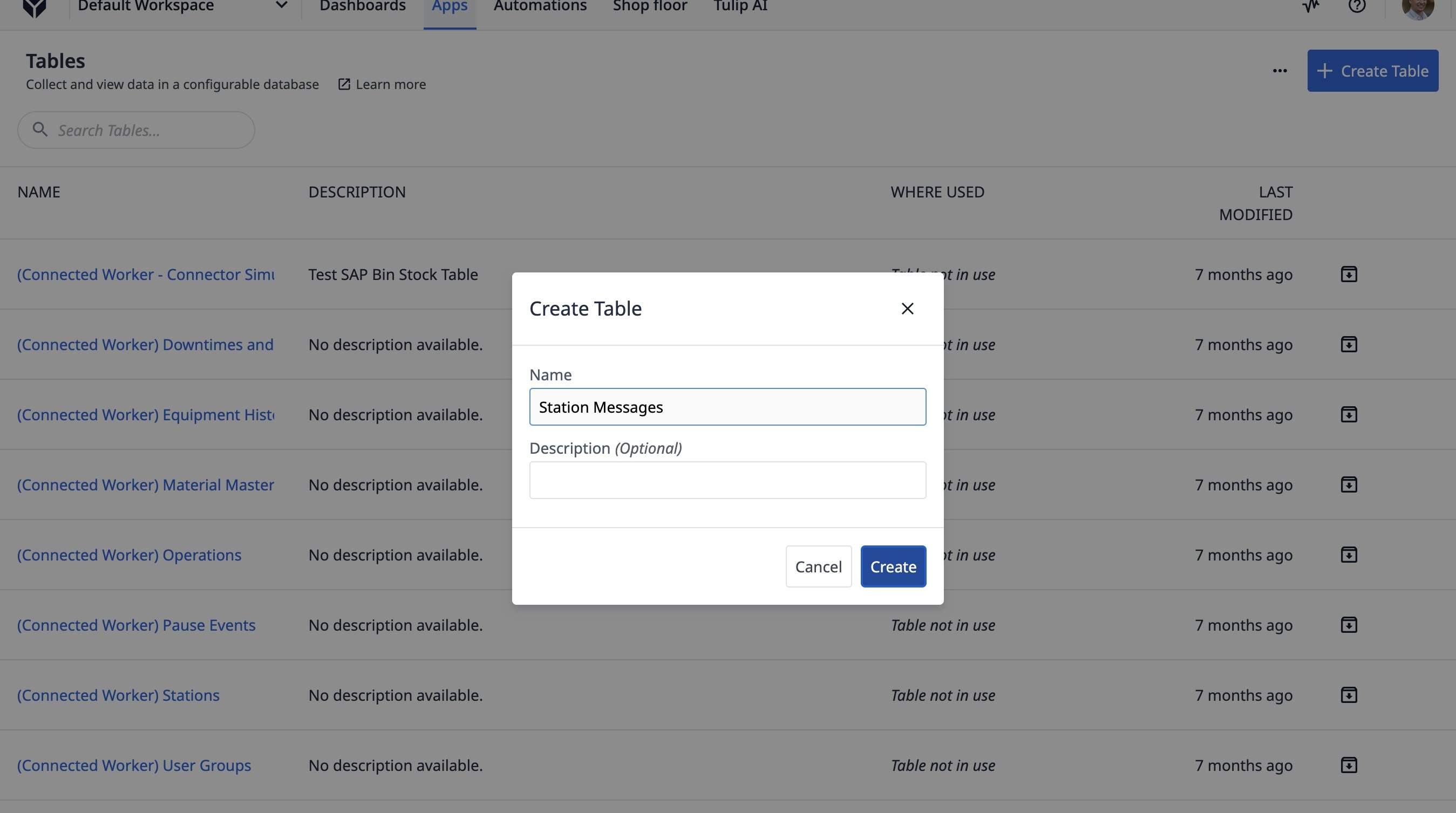
2. Type "Station Messages"
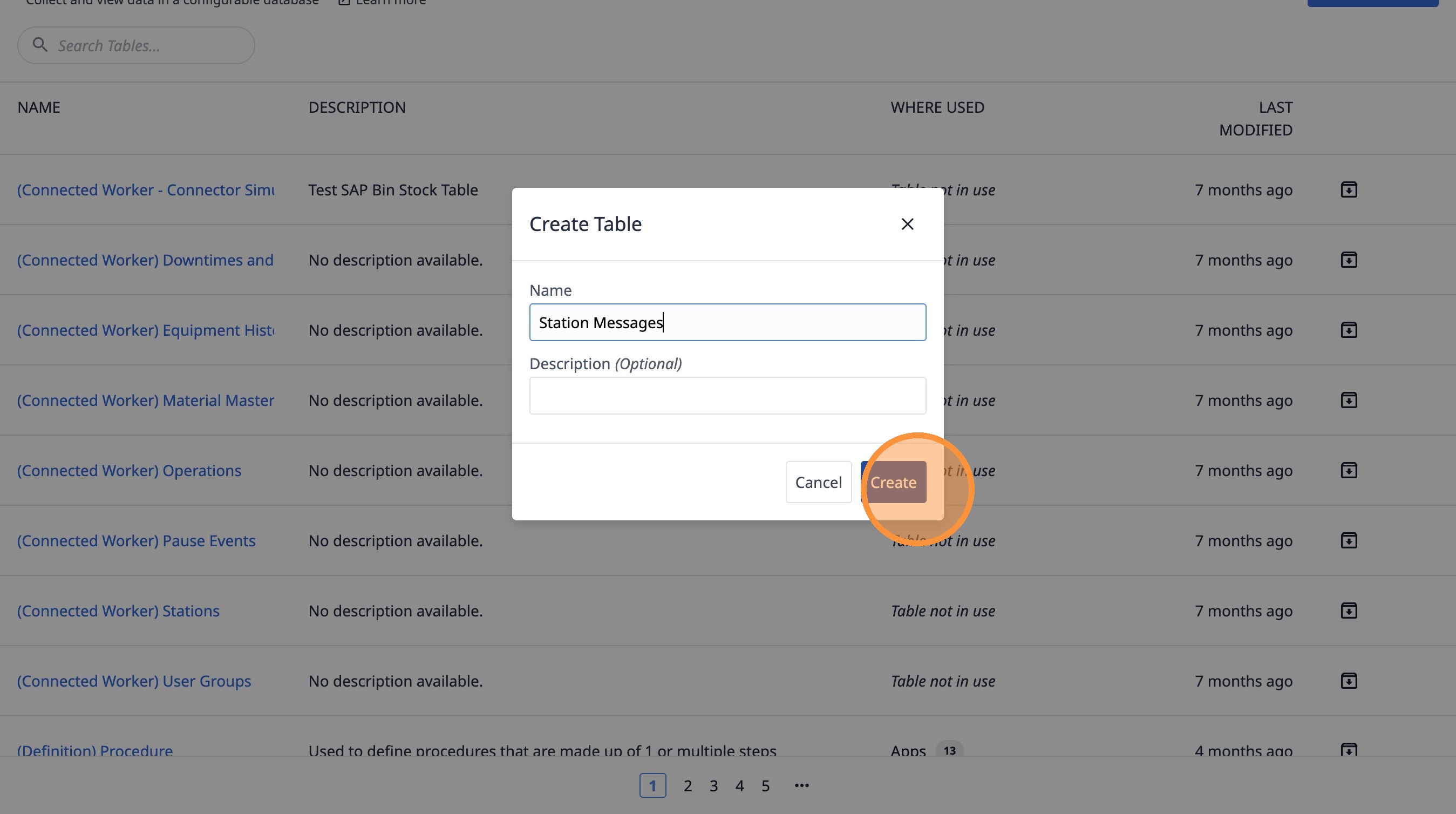
3. Click "Create"
4. Click here.
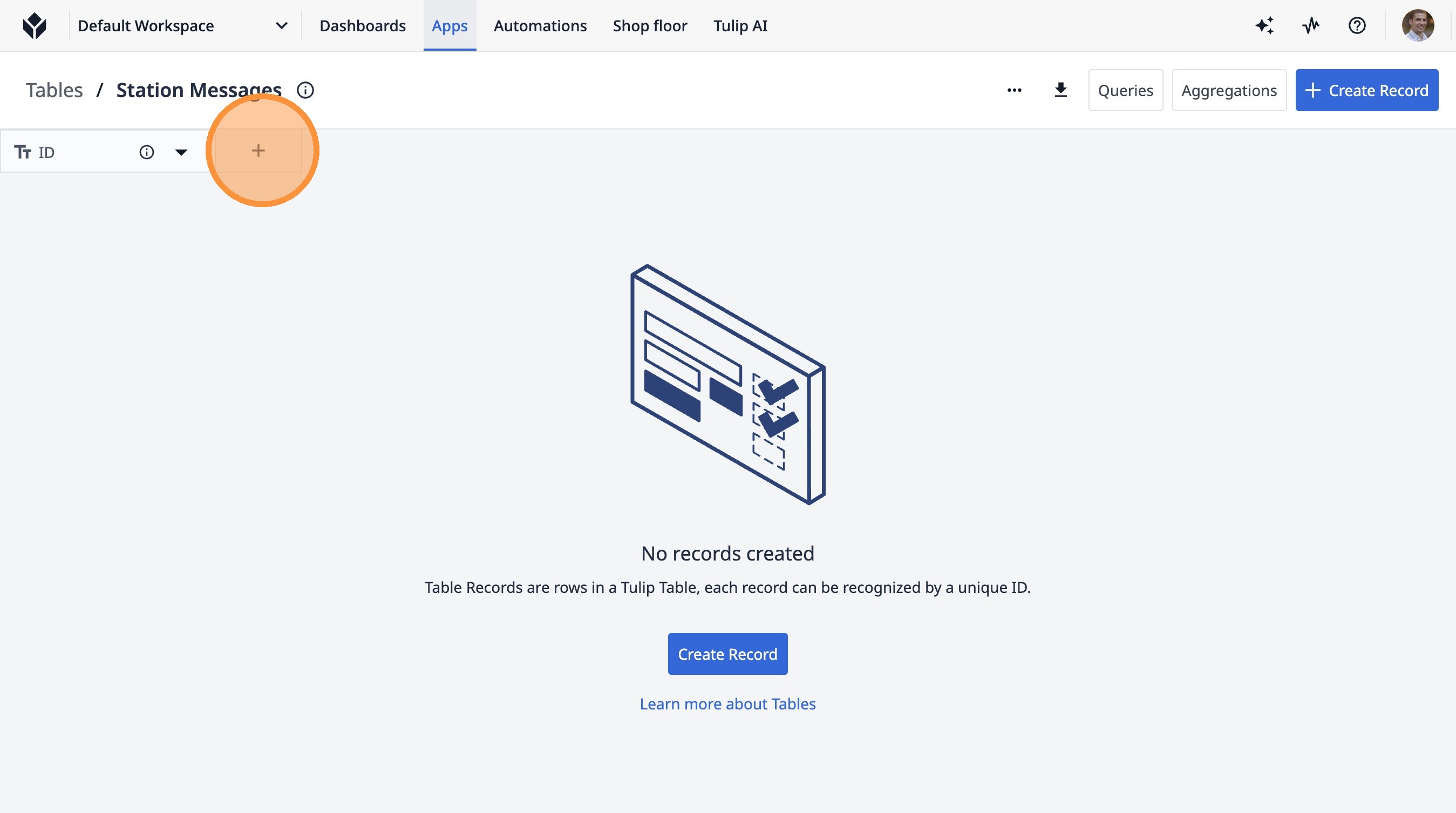
5. Click this text field.
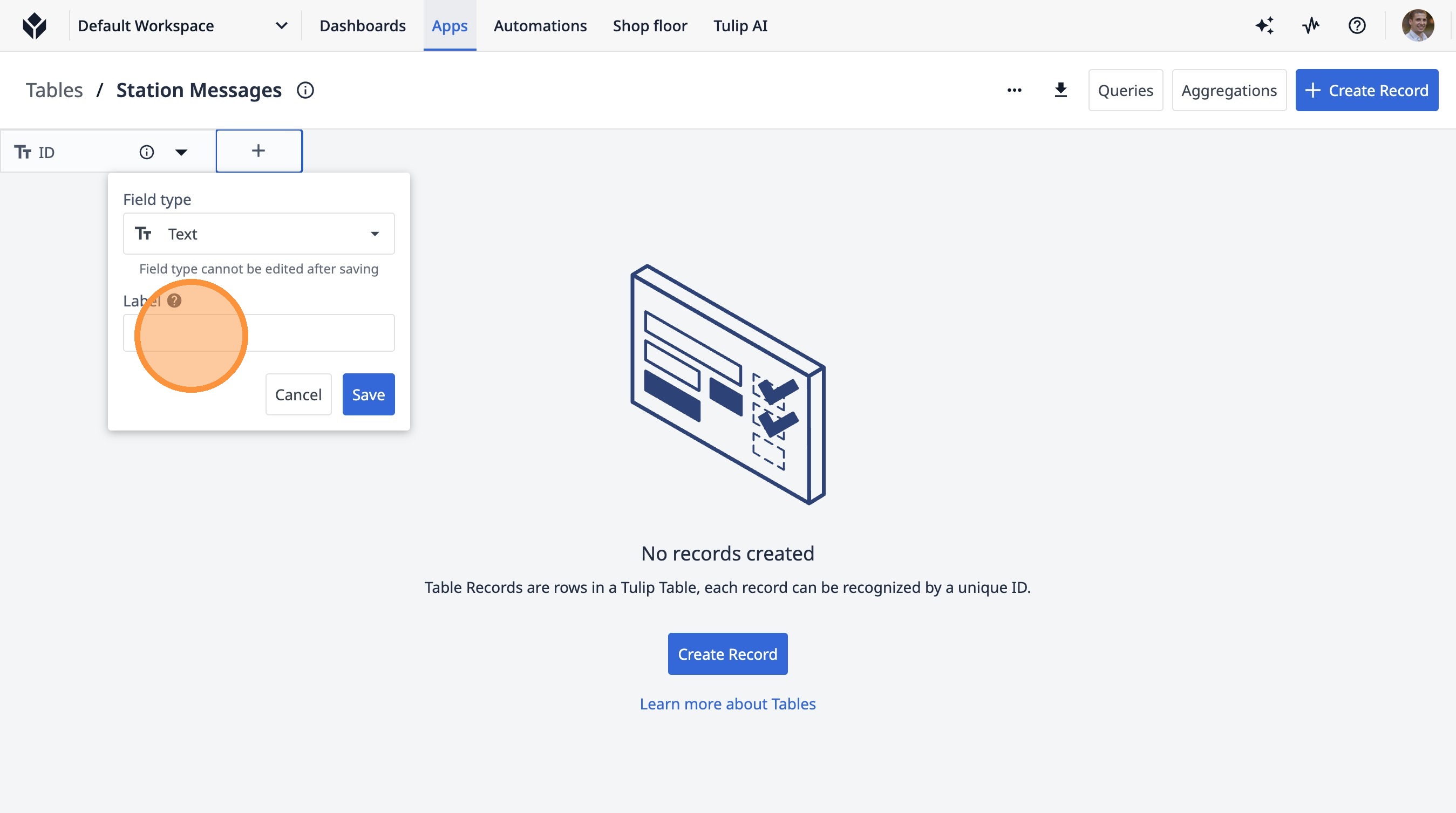
6. Type "Source Station"
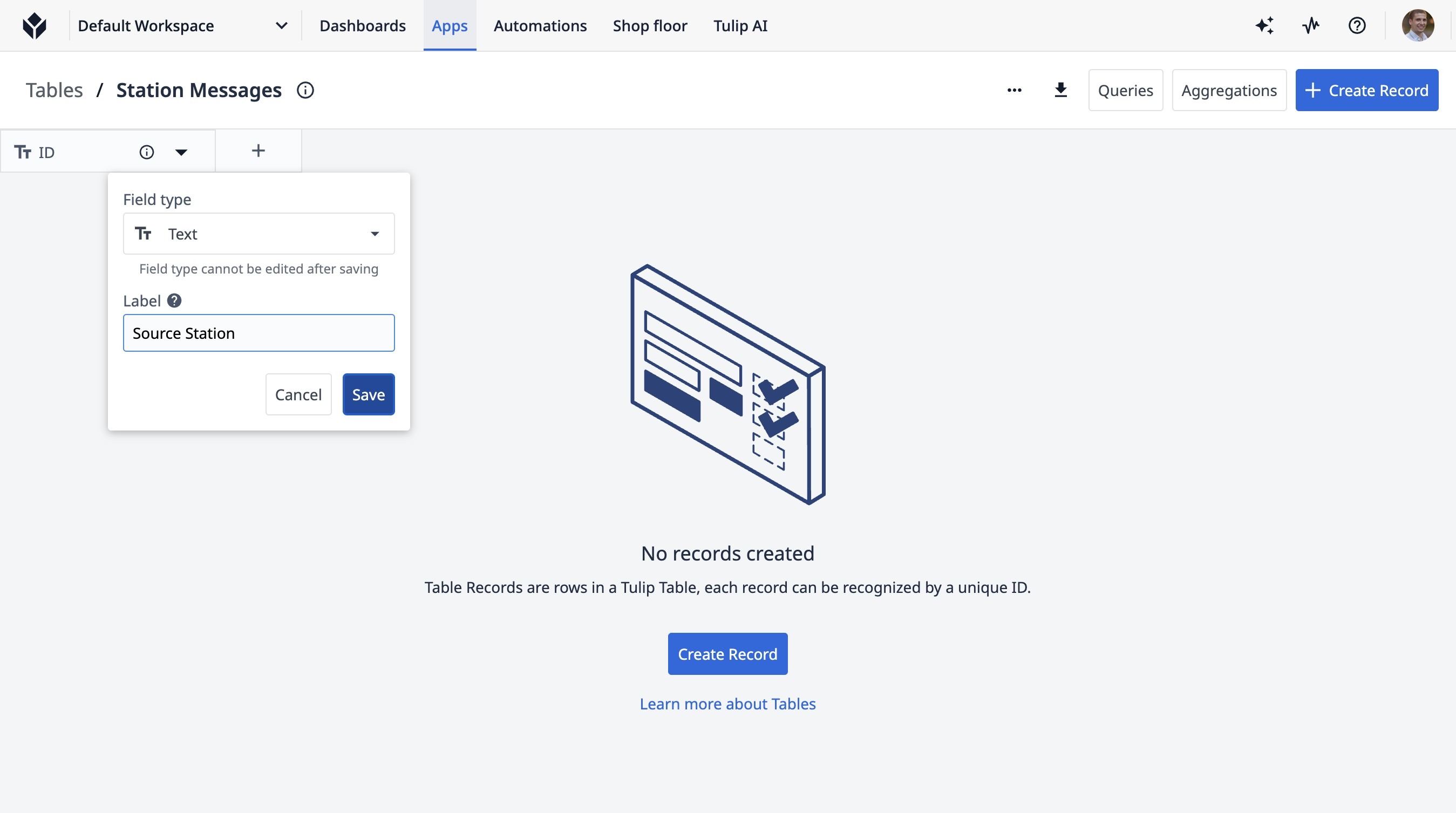
7. Click "Save"
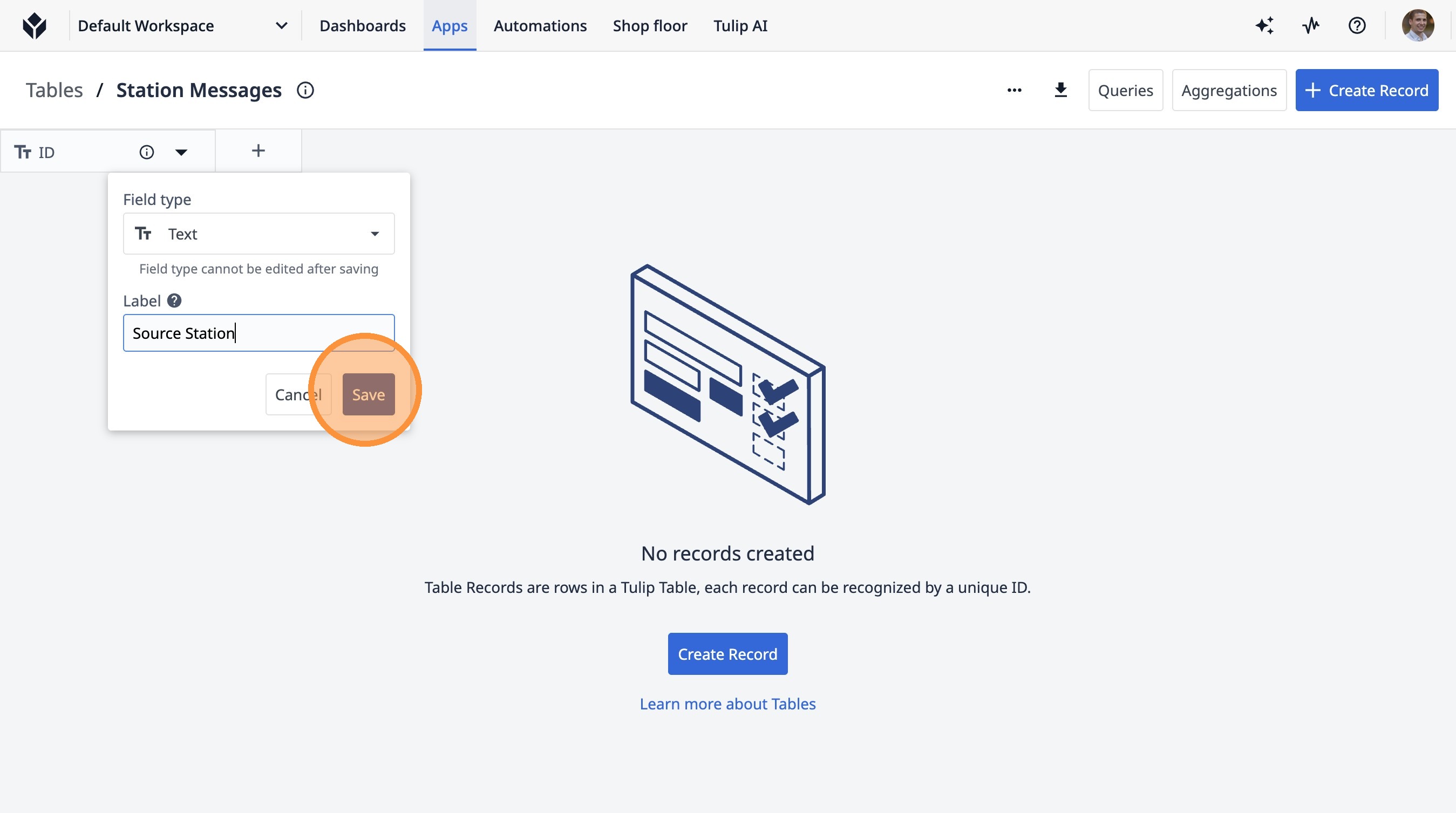
8. Click this icon.
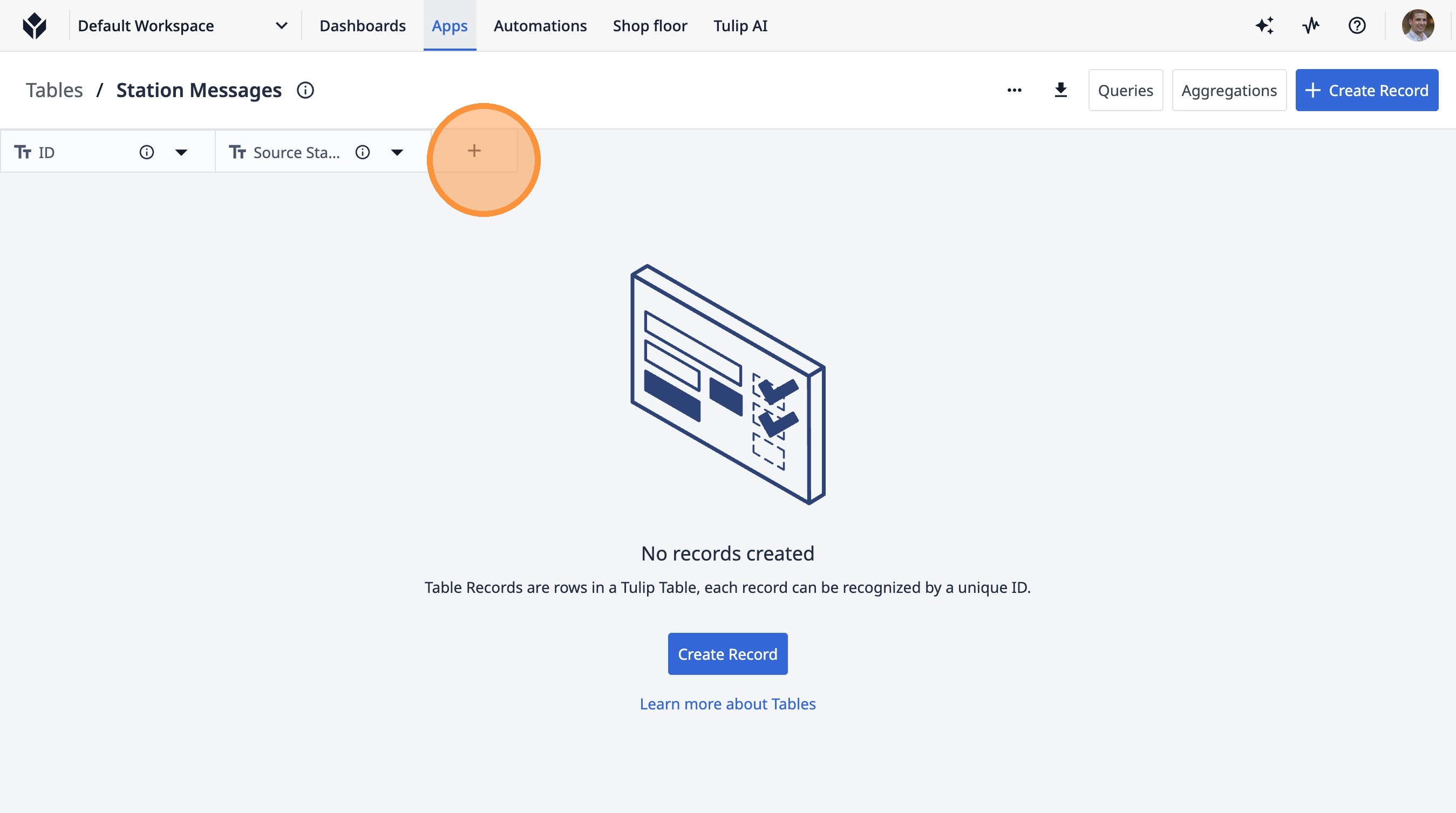
9. Type "Destination Station"
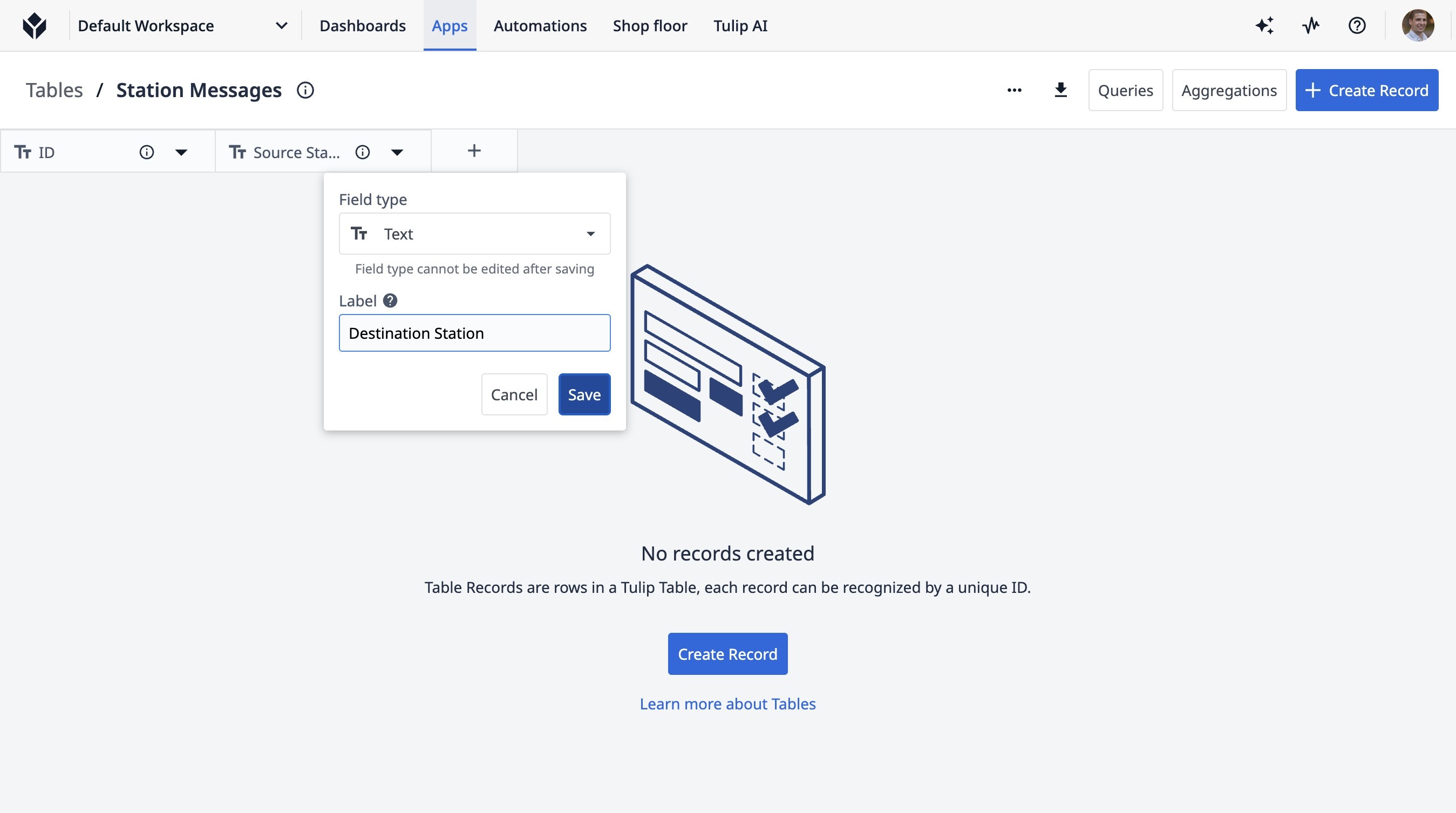
10. Click "Save"
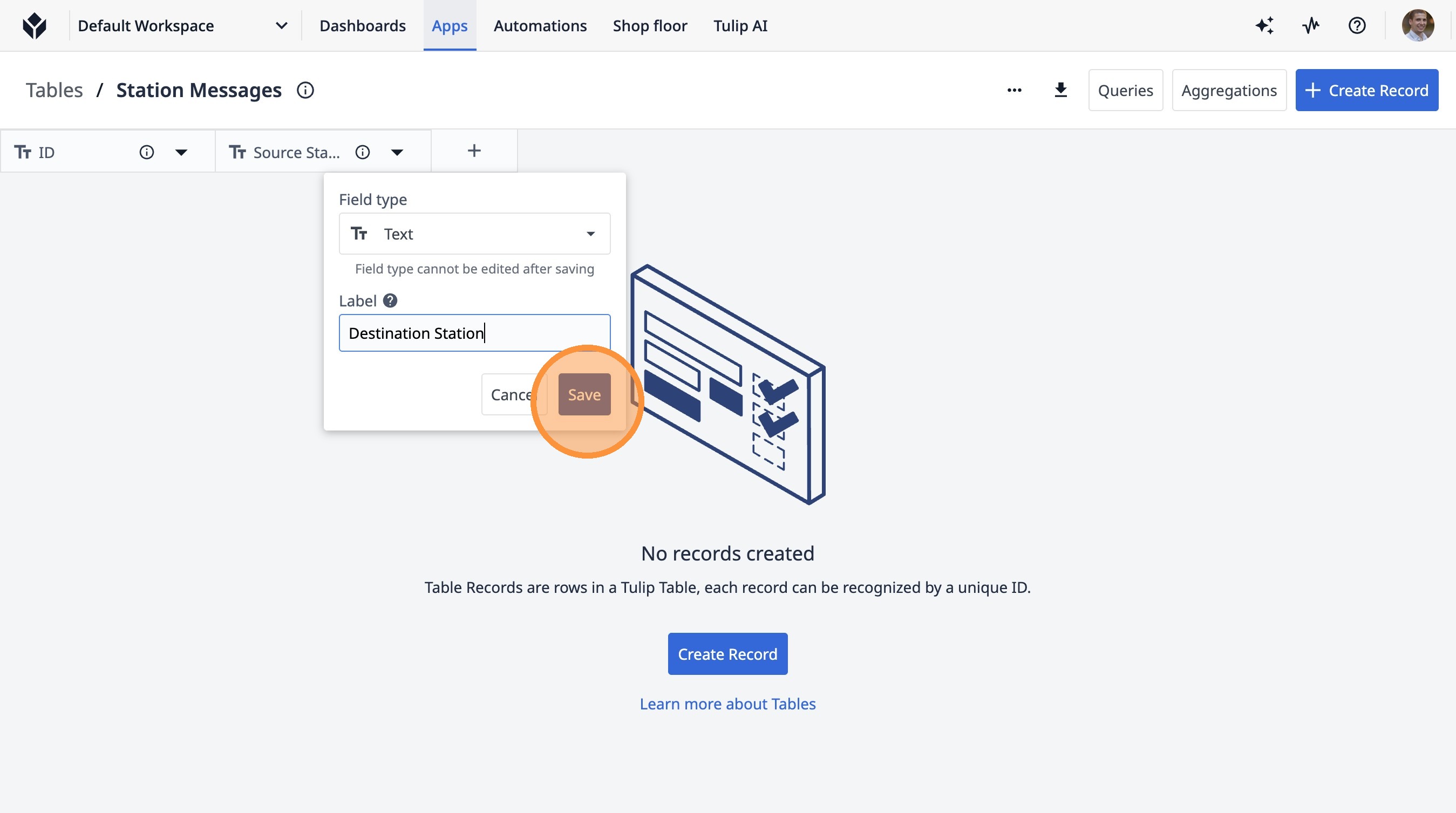
11. Click "Queries"
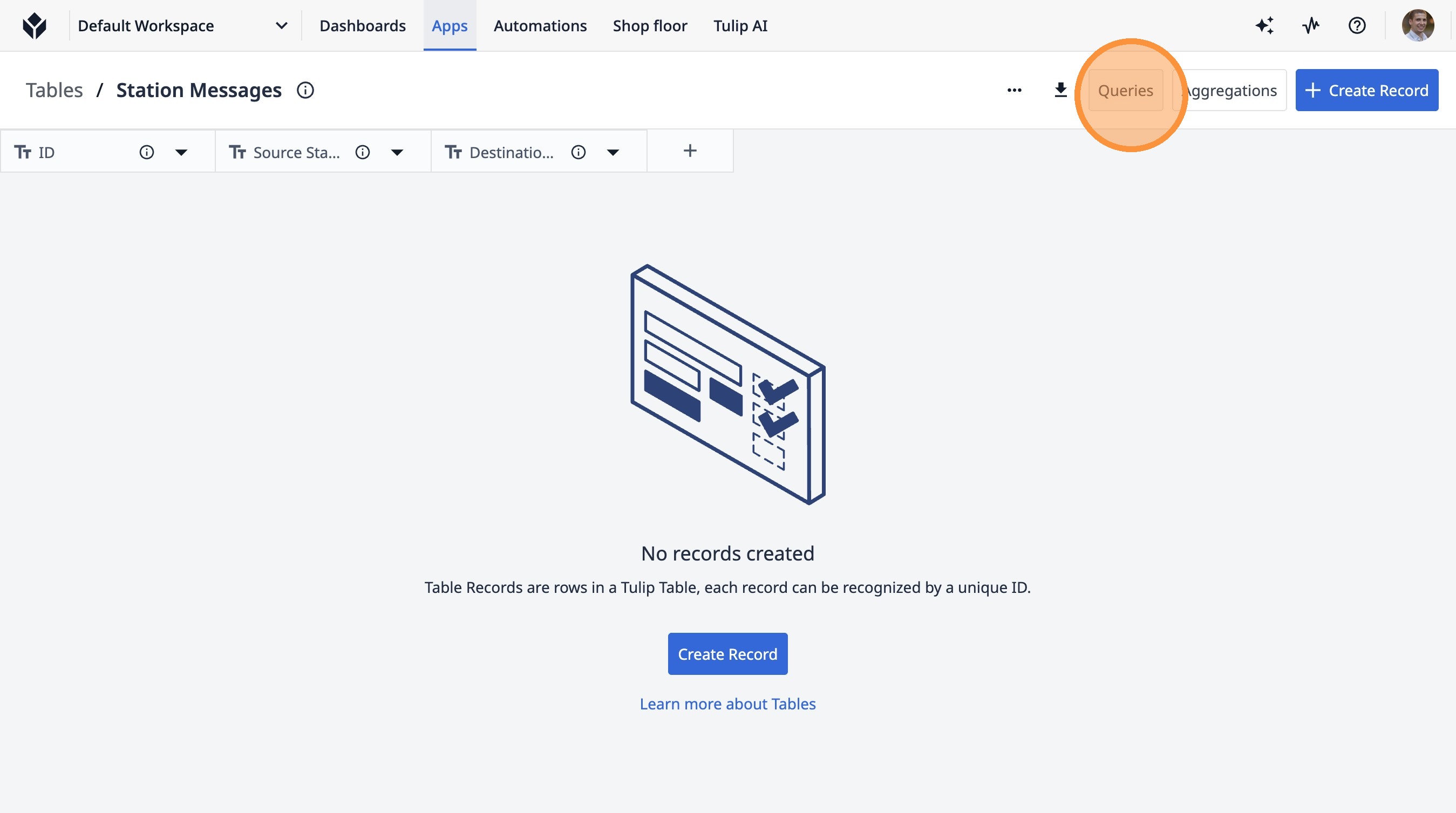
12. Click "Create New Query"
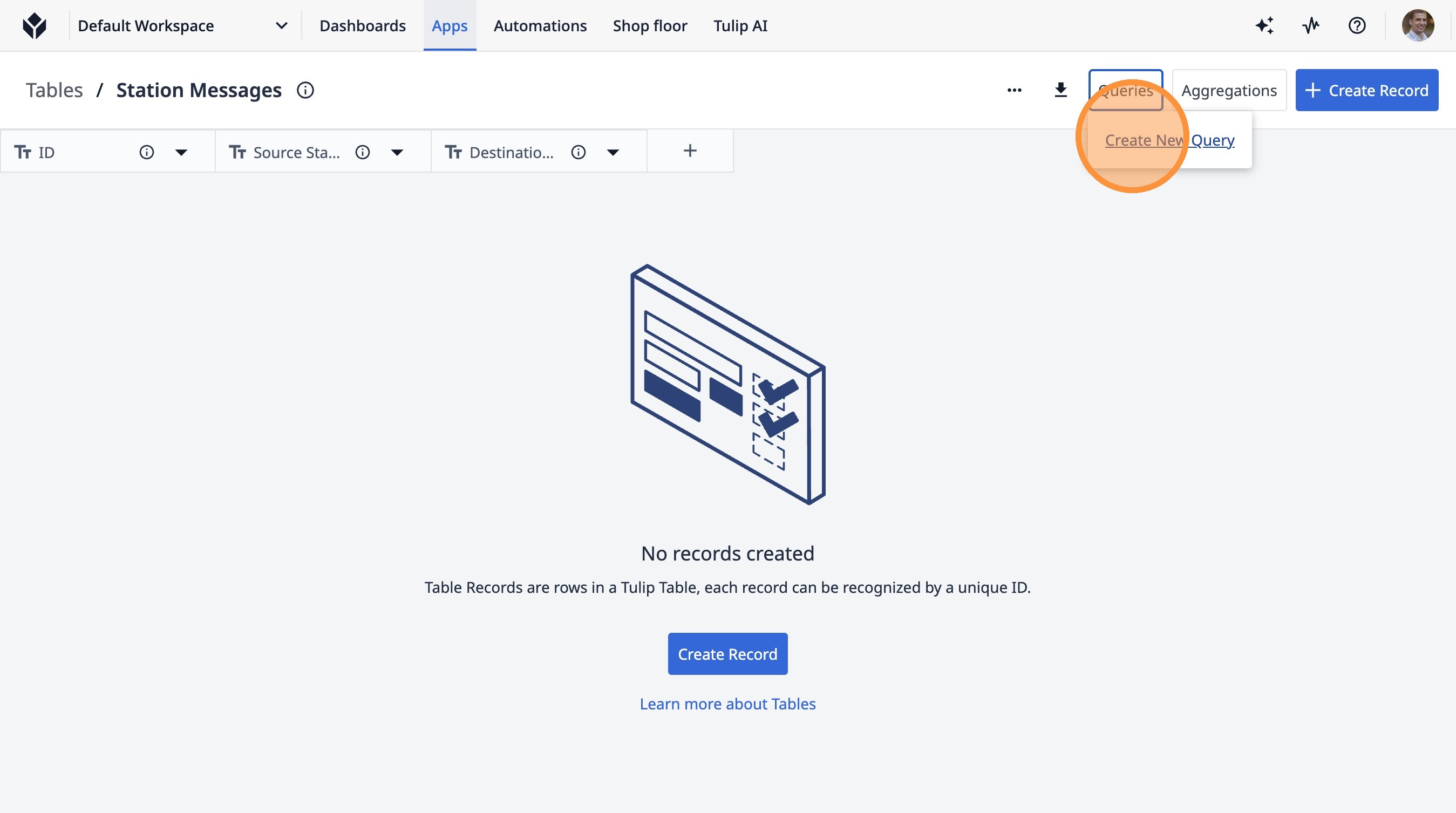
13. Click the "Query Name" field.
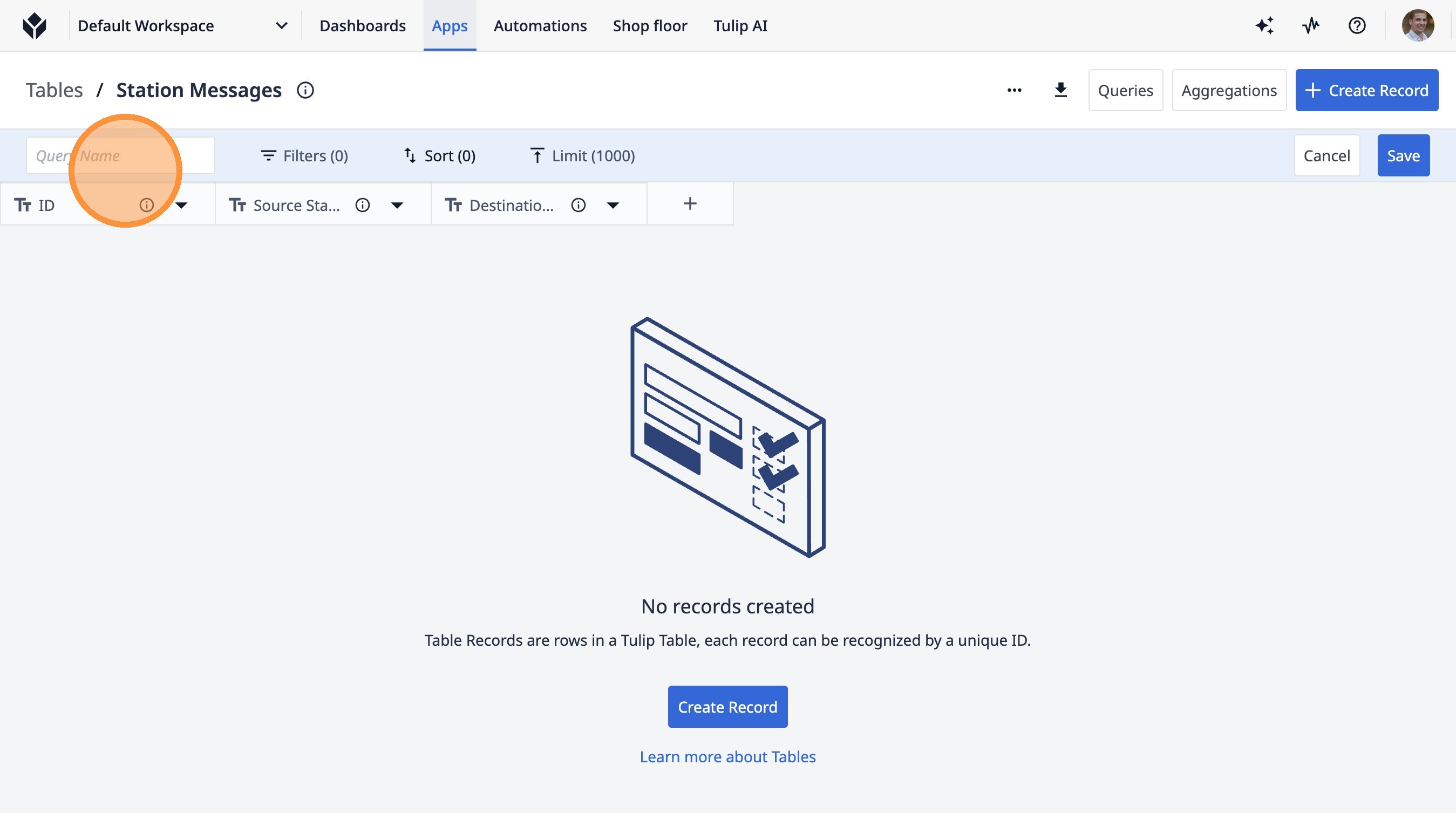
14. Type "Most Recent Messages"
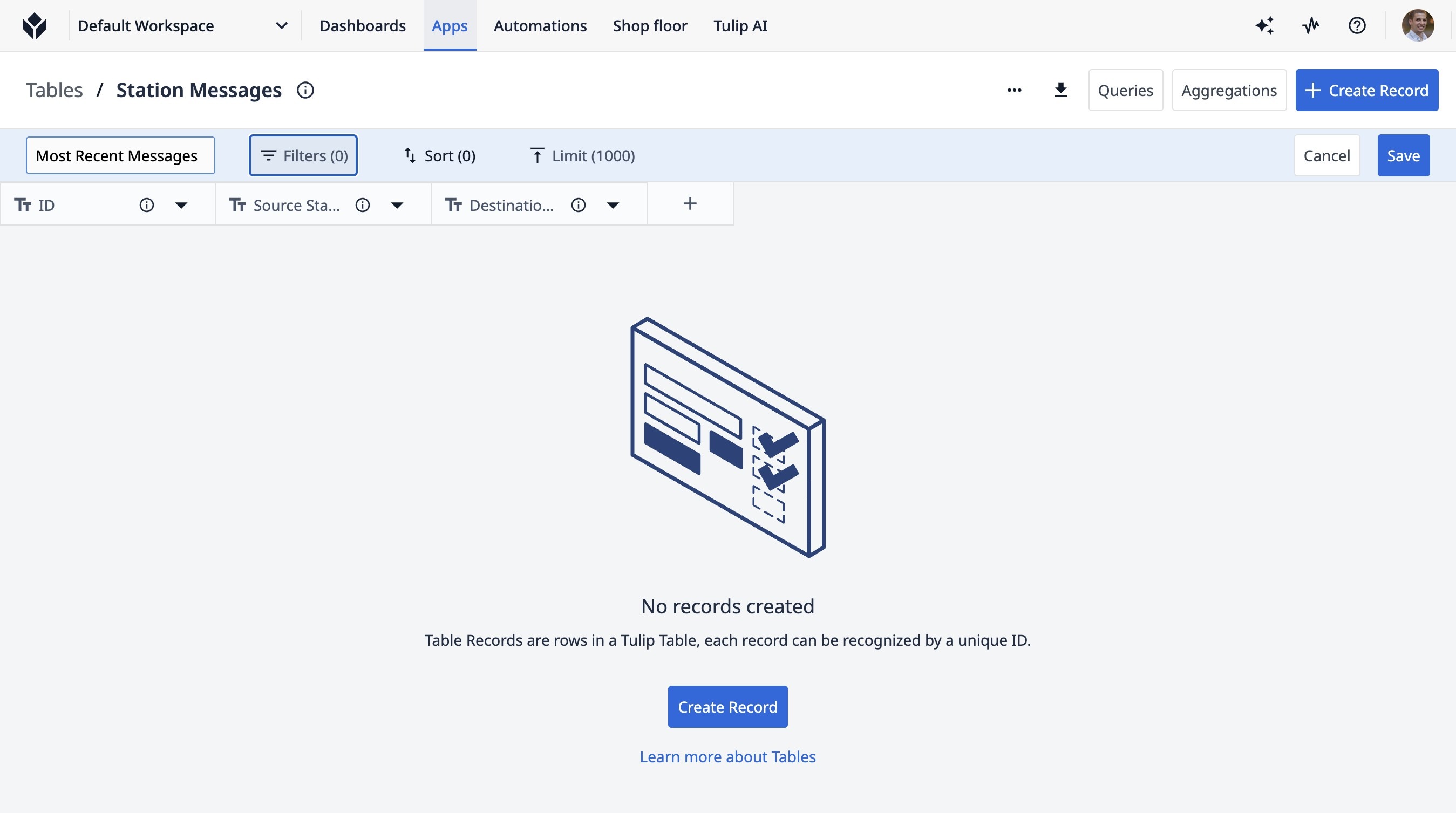
15. Click "Filters (0)"
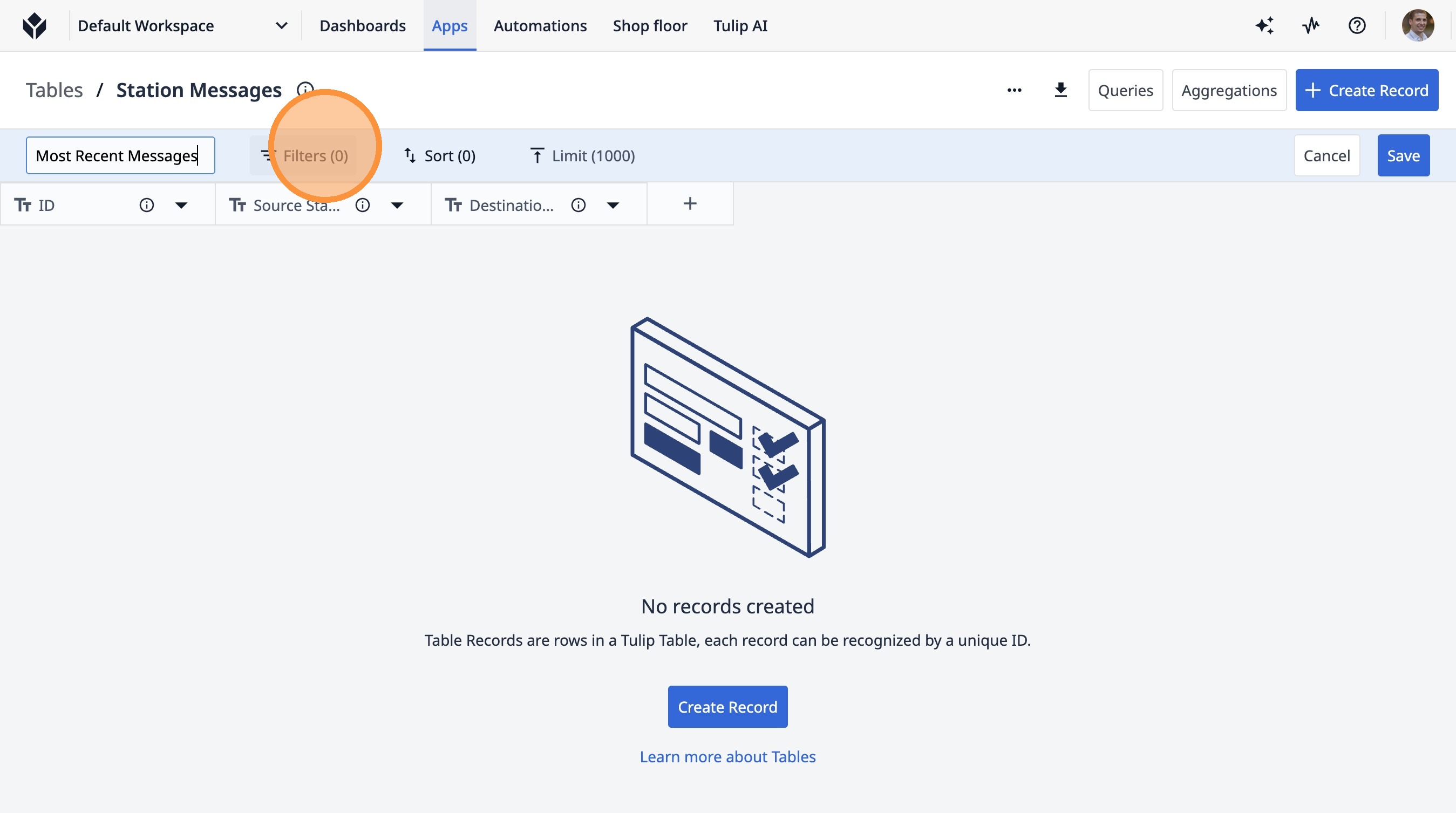
16. Click "+ Add Filter"
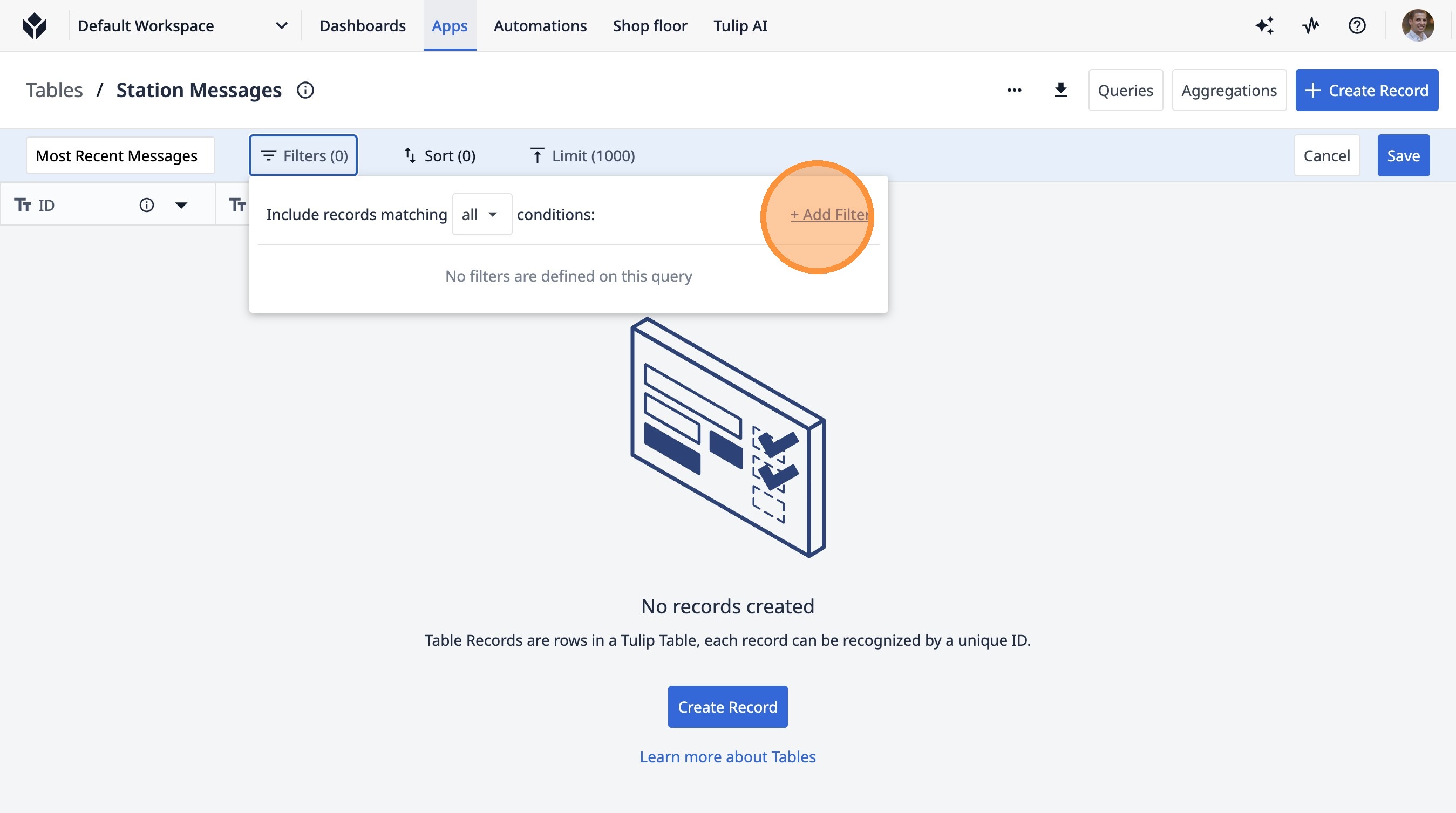
17. Click "ID"
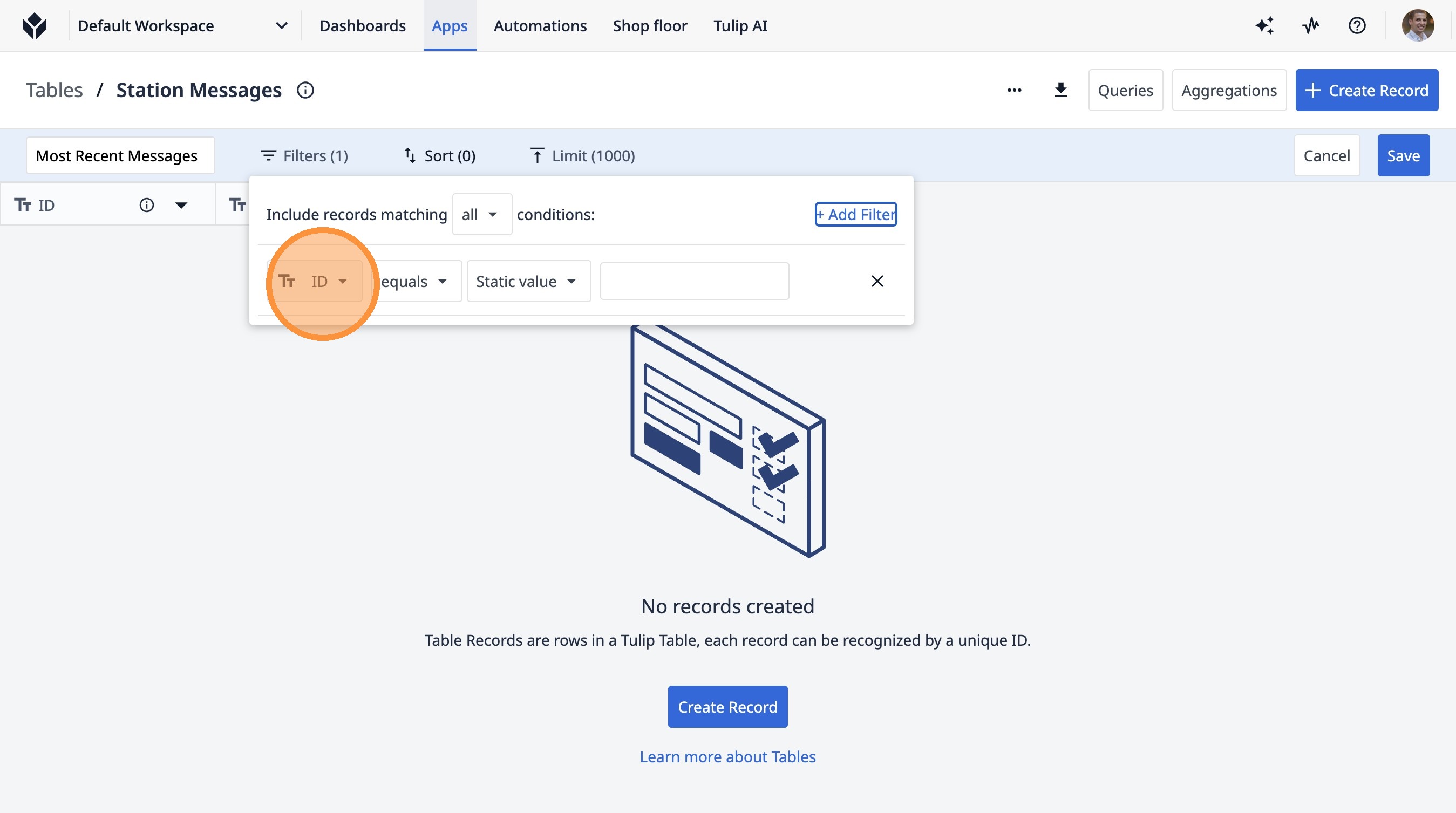
18. Click "Destination Station"
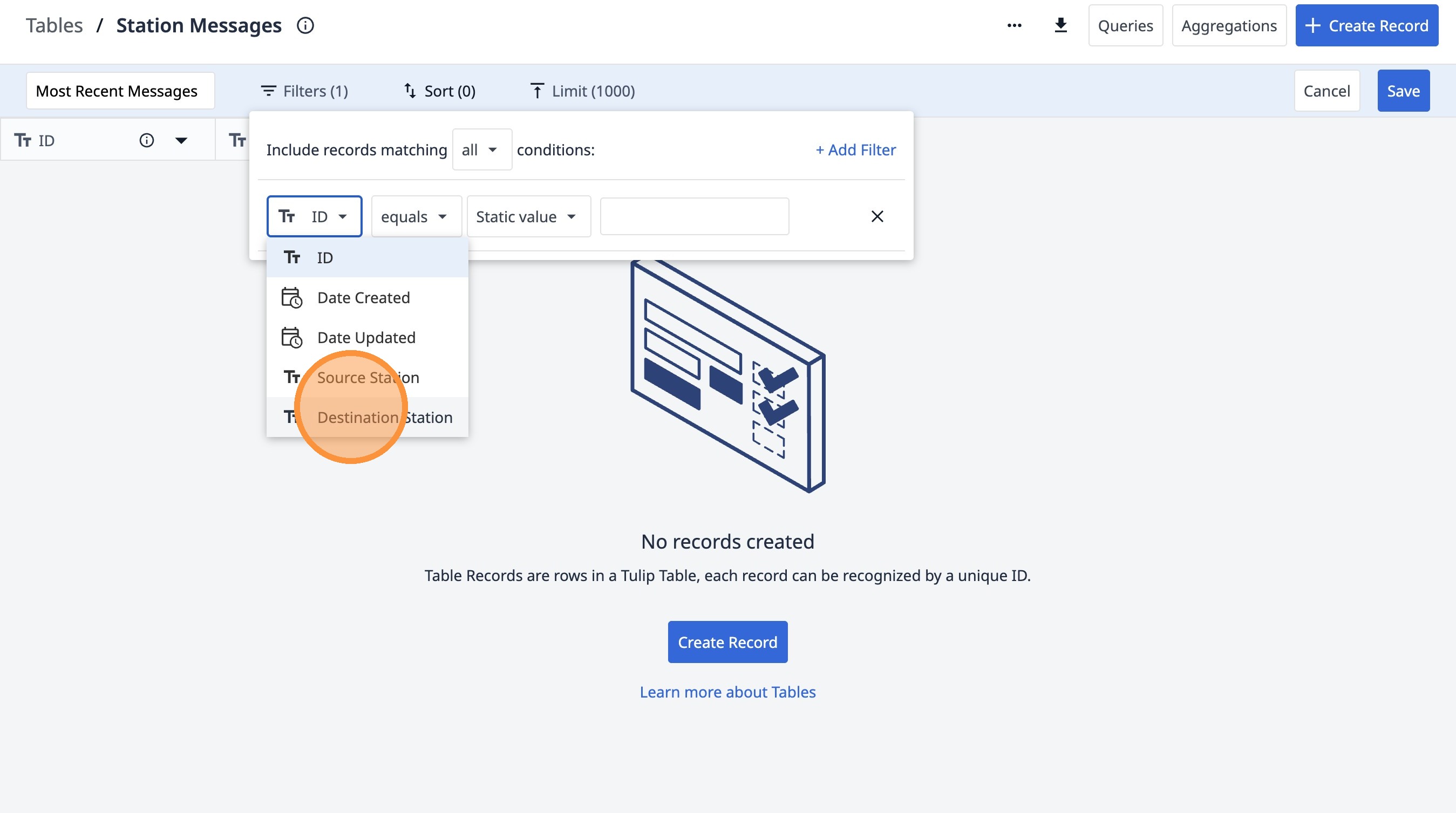
19. Click "Static value"
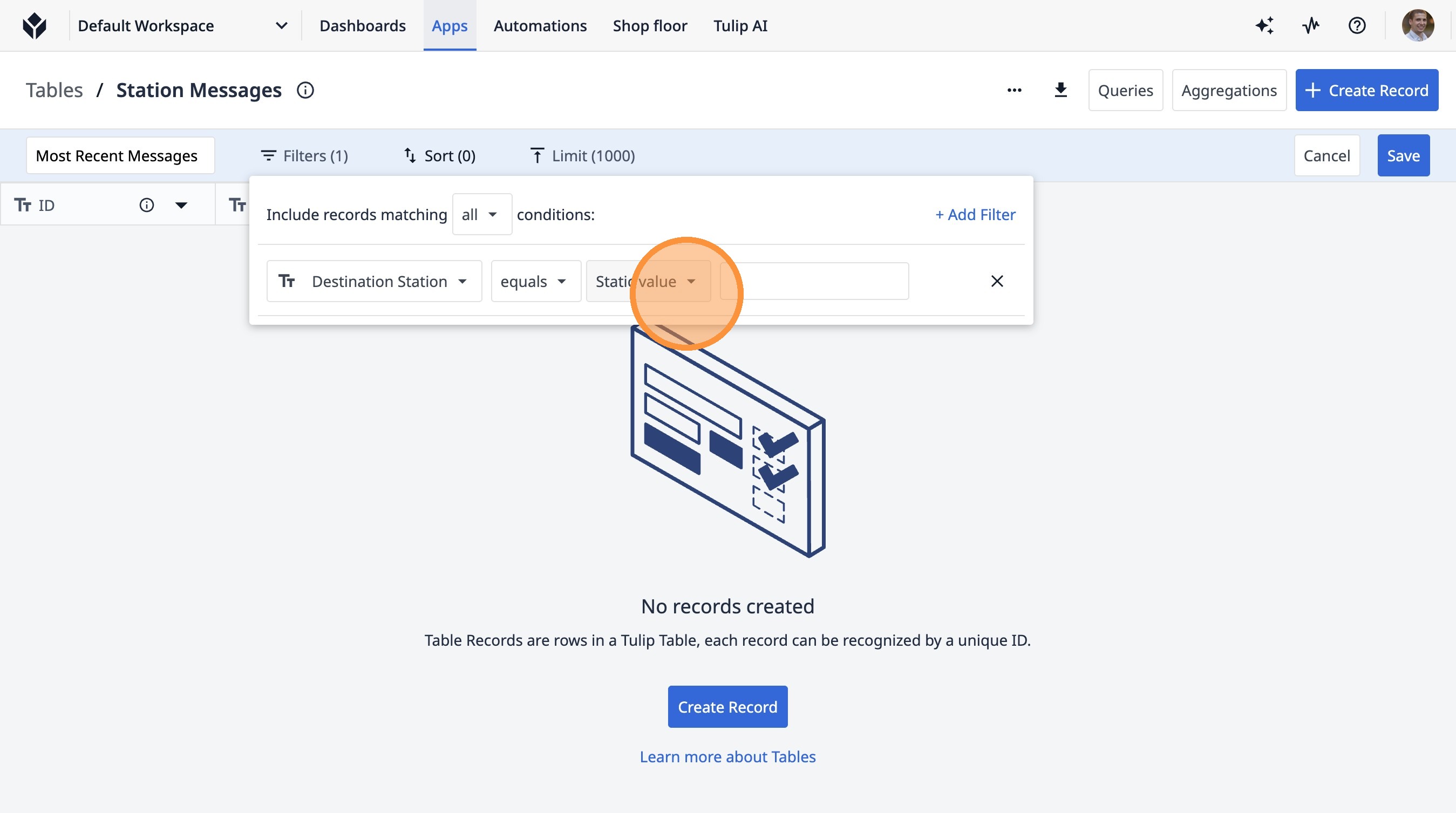
20. Click "App input"
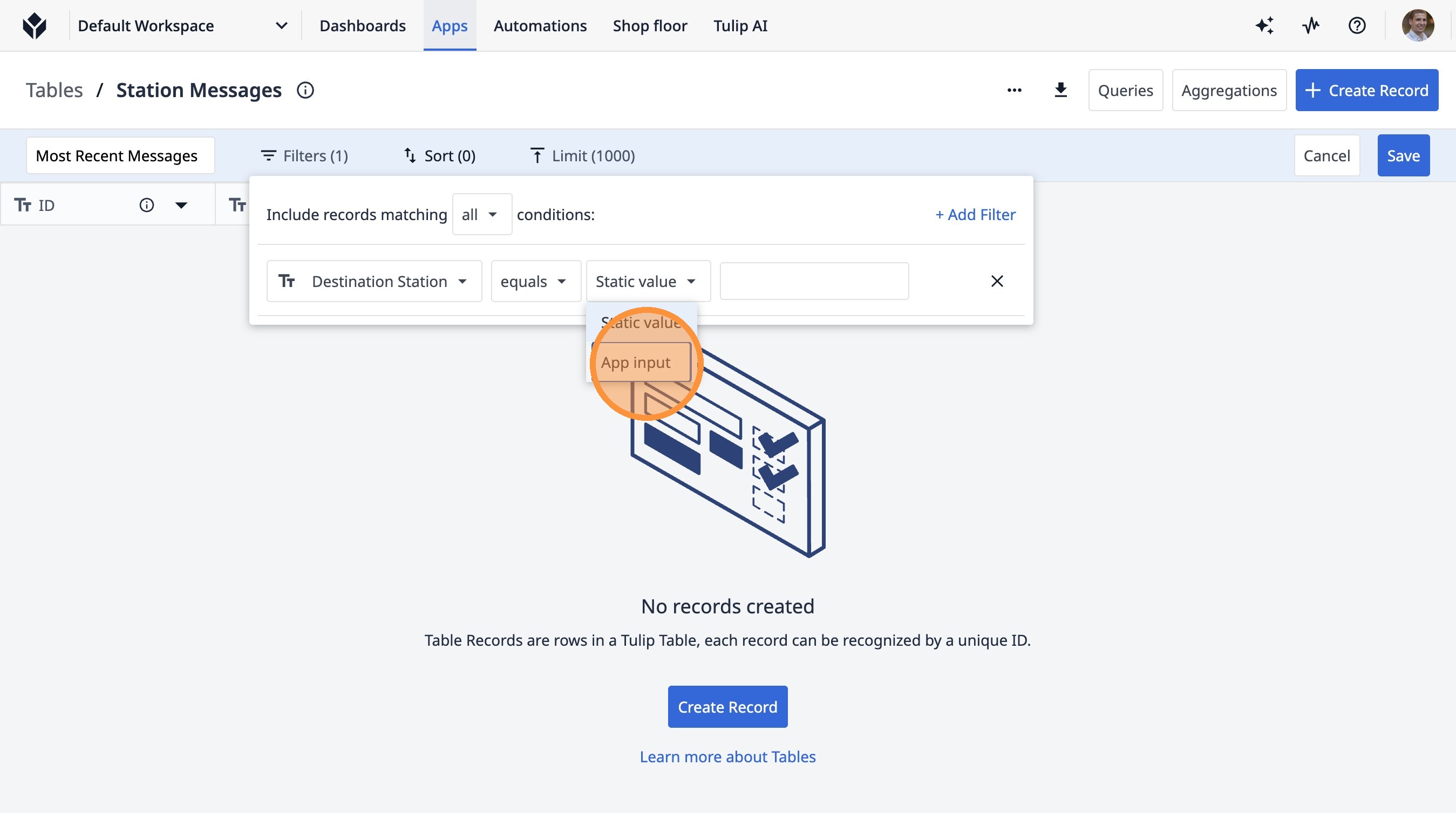
21. Click "Sort (0)"
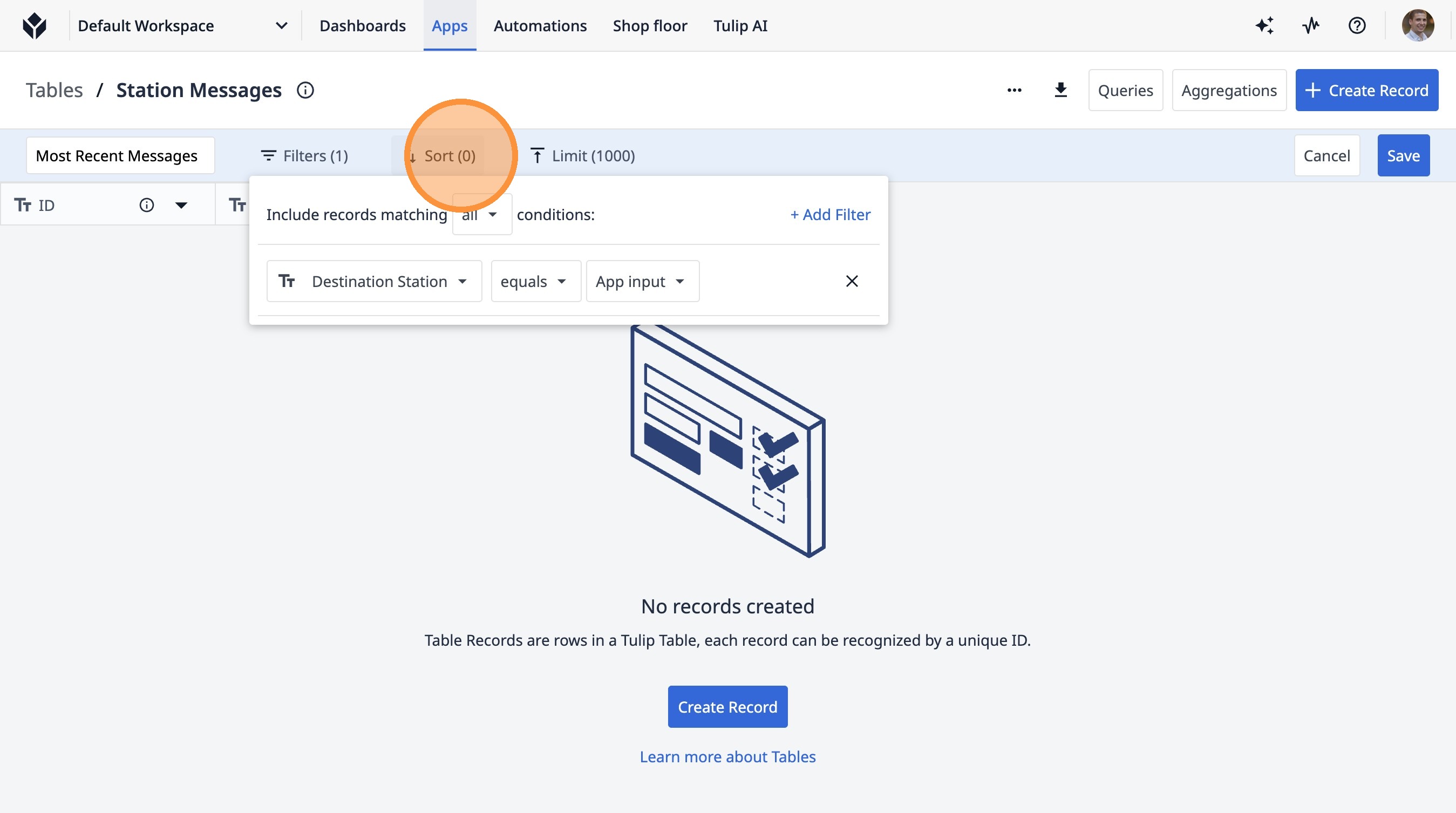
22. Click "+ Add Sorting Method"
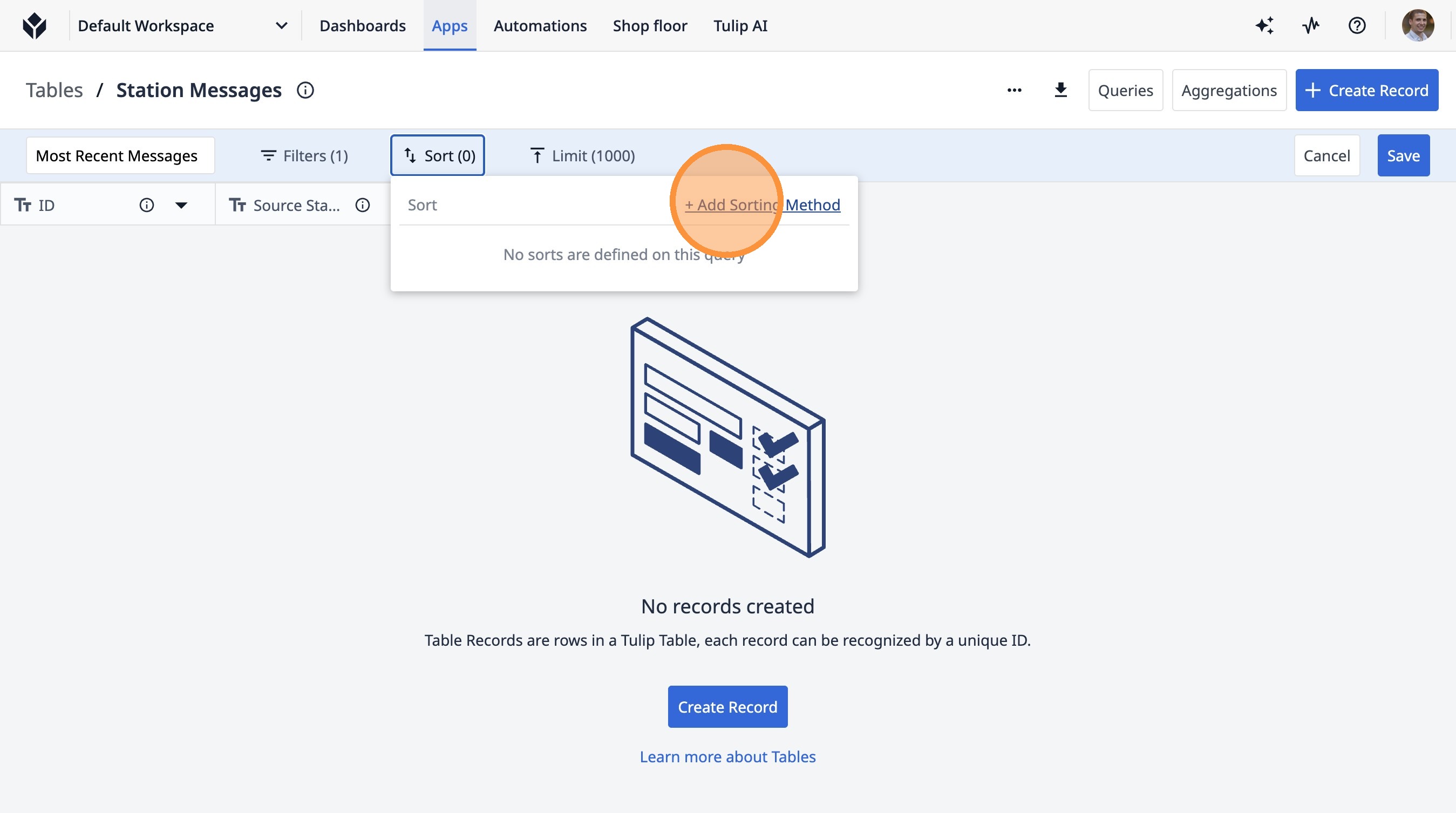
23. Click this icon.
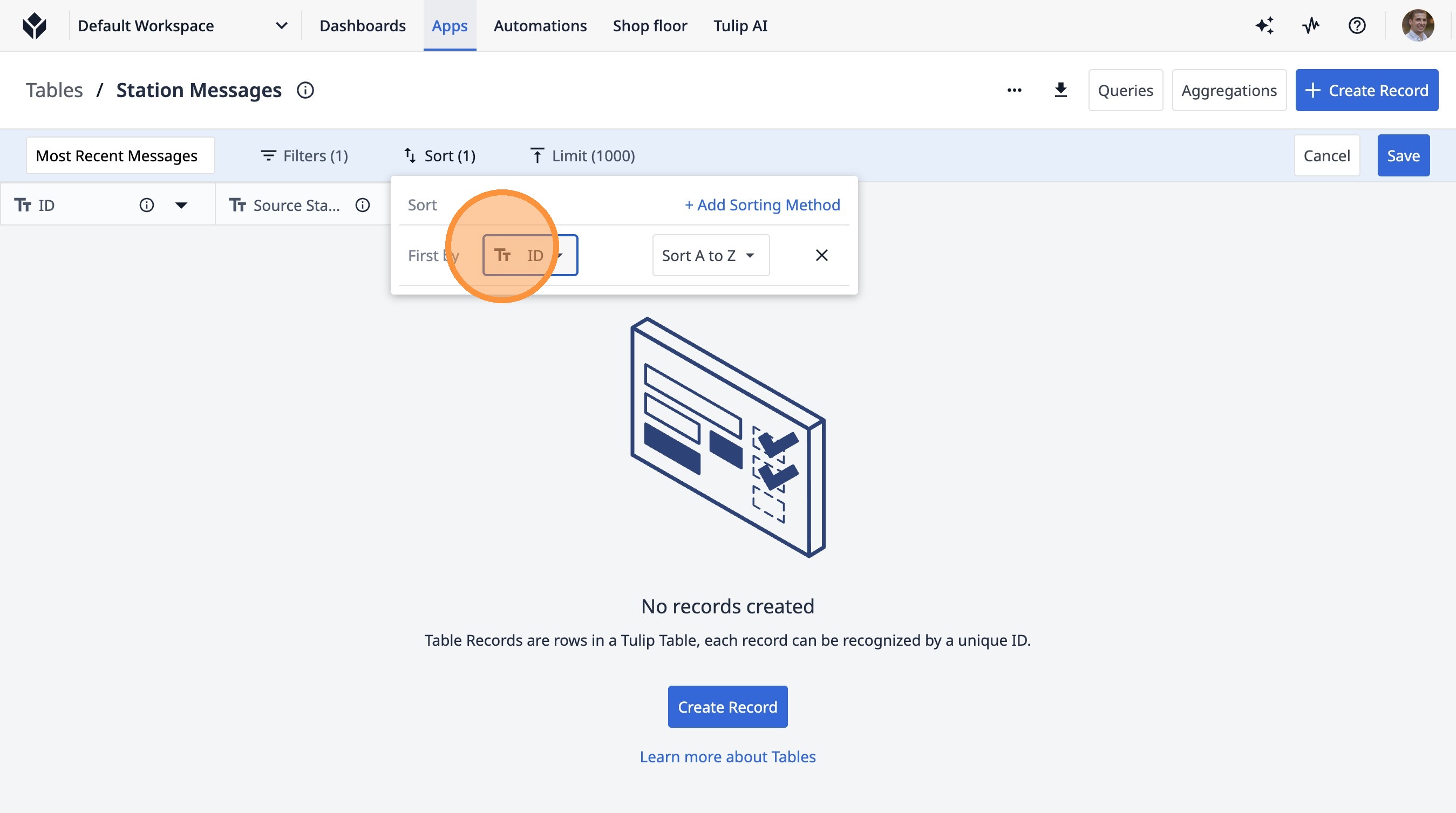
24. Click "Date Created"
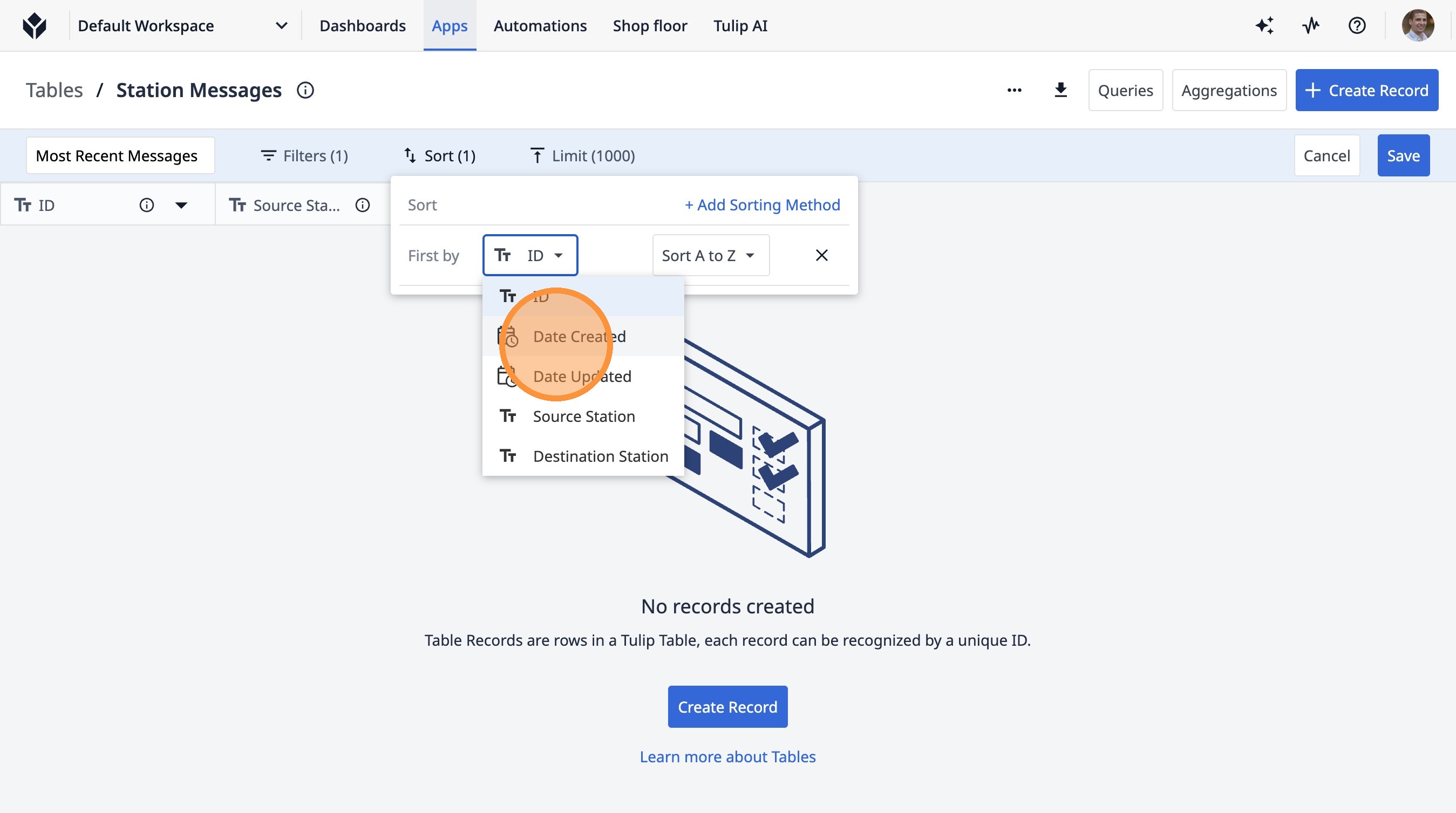
25. Click "Sort oldest to newest"
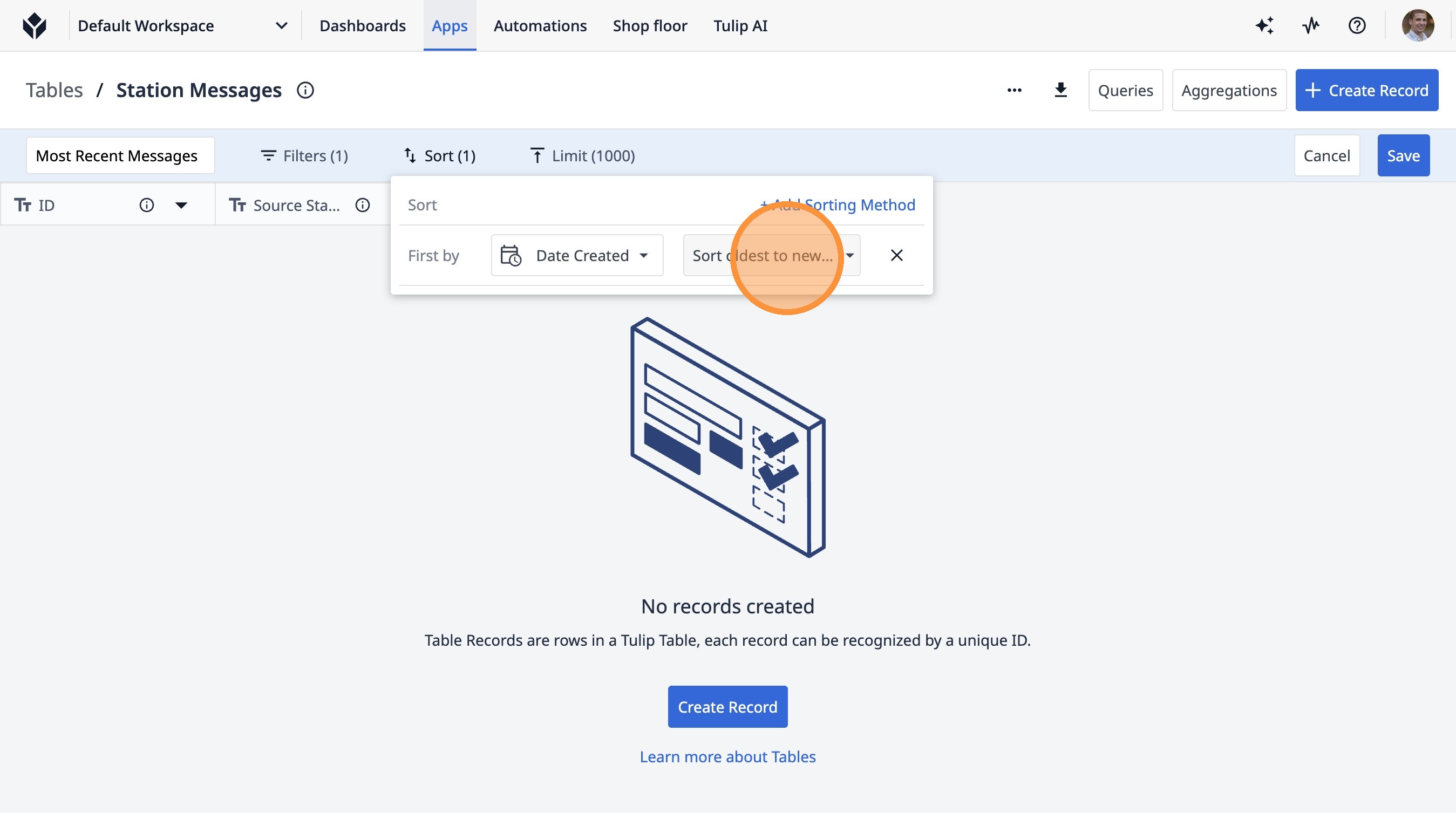
26. Click "Sort newest to oldest"
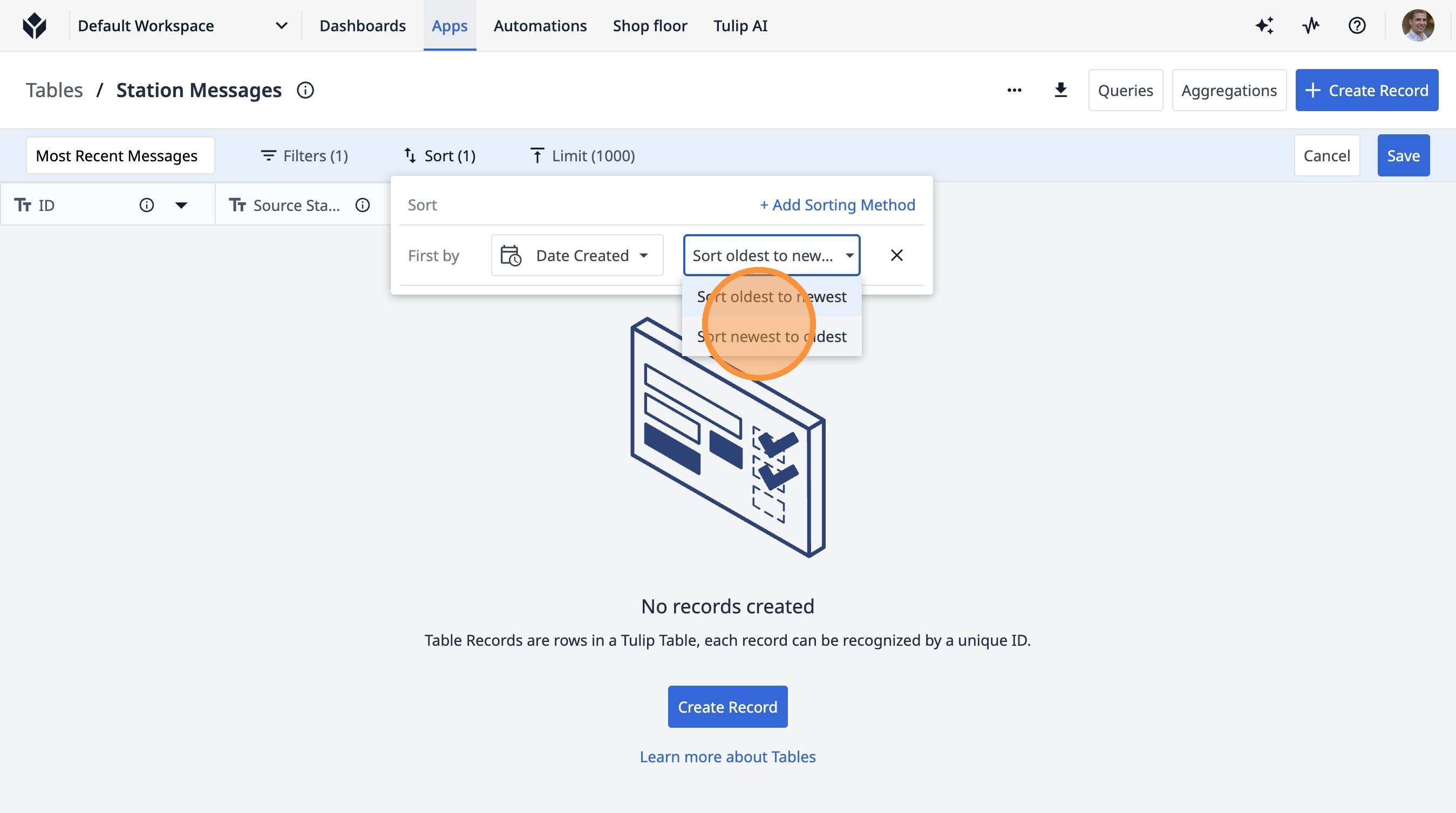
27. Click "Limit (1000)"
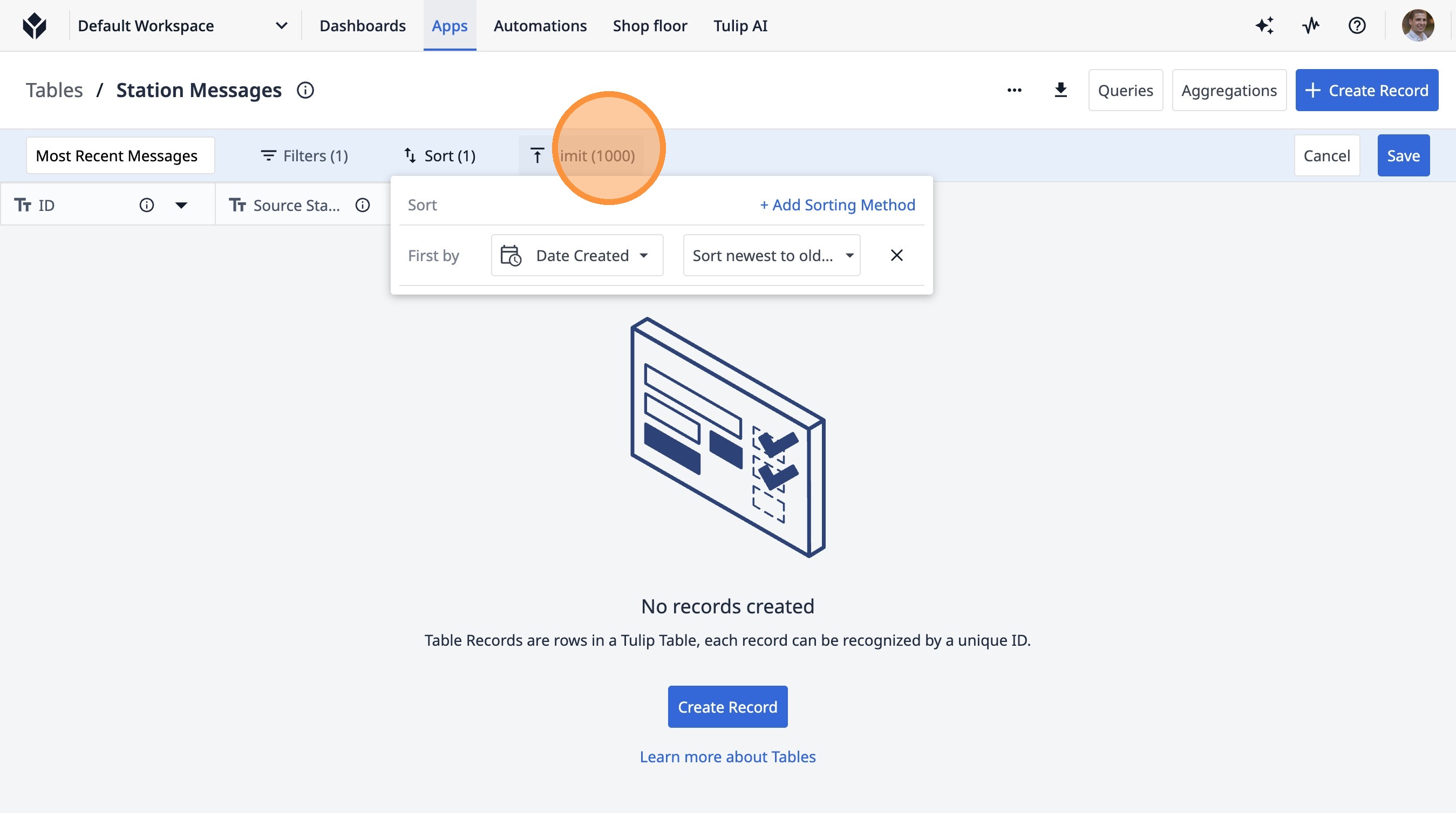
28. Click this text field.
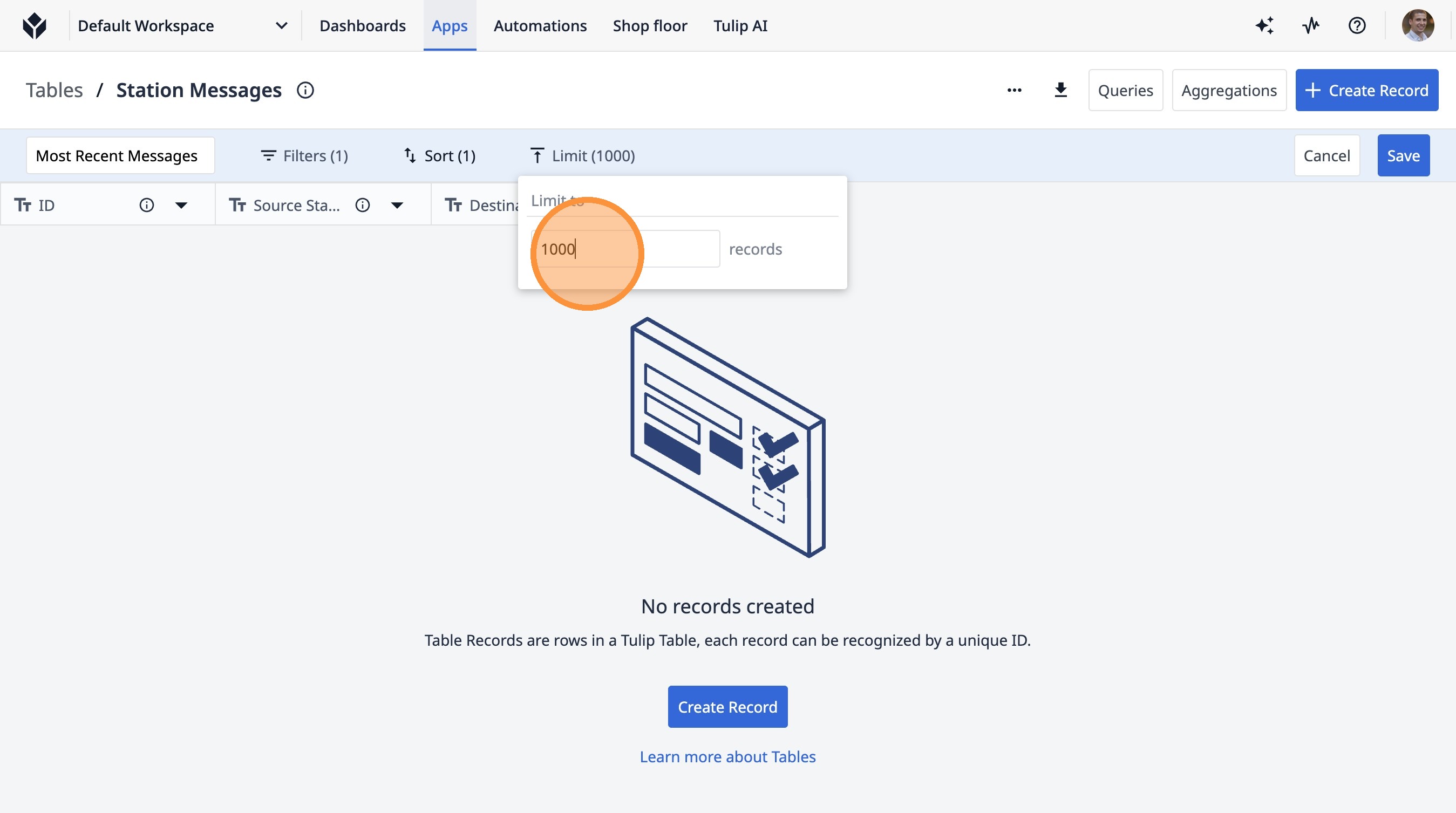
29. Type " [[Backspace]] [[Enter]]"
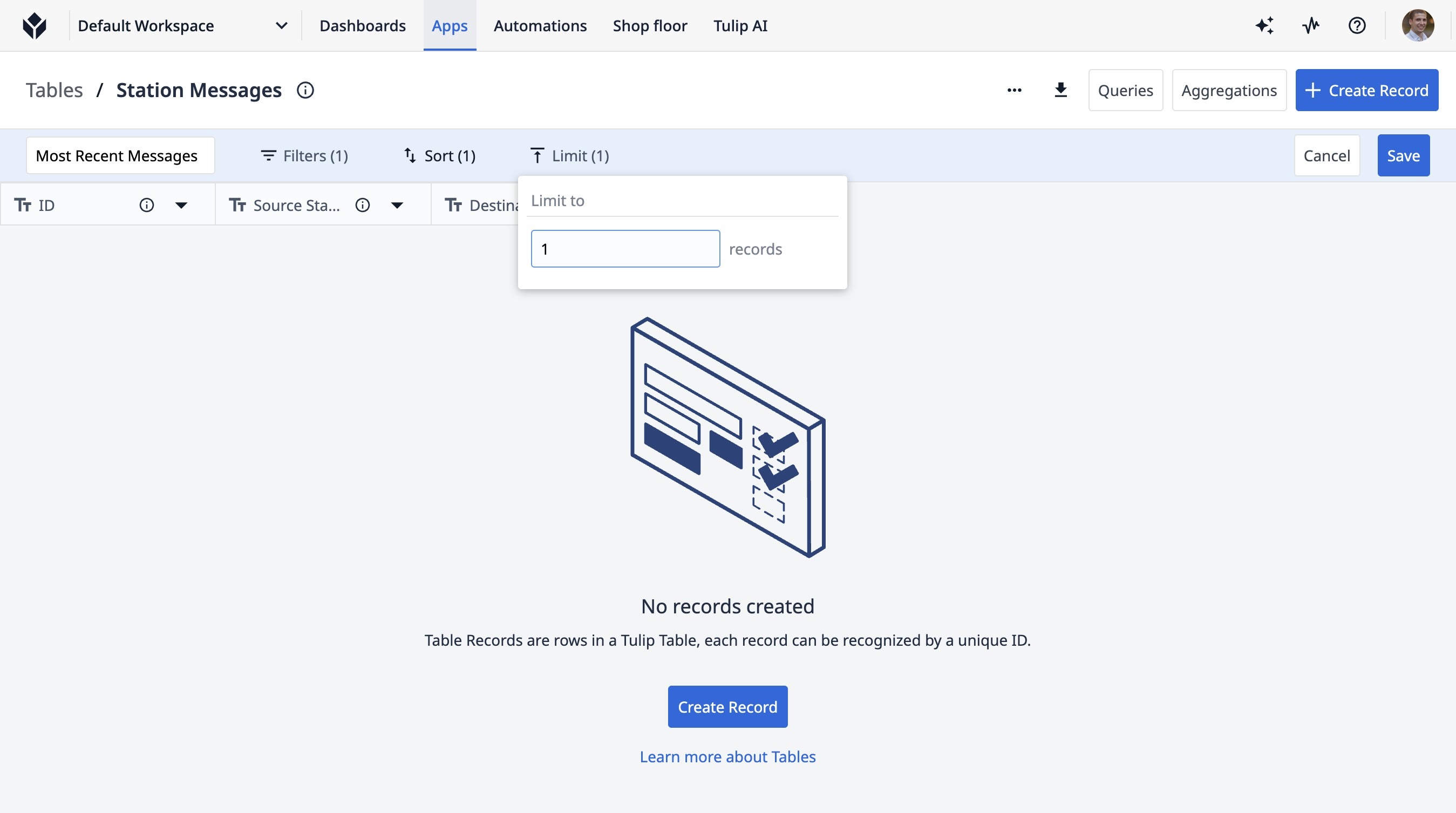
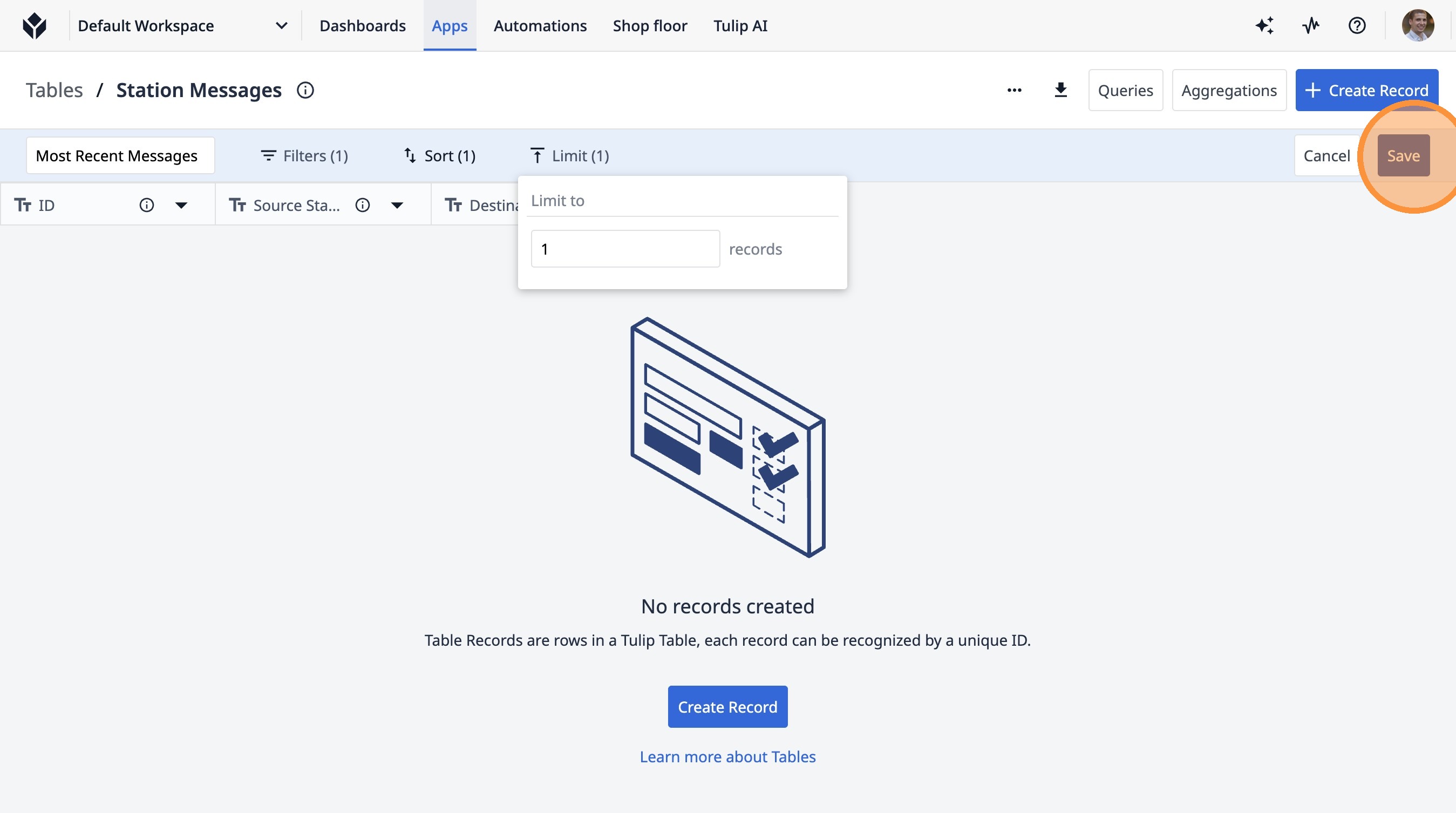
30. Click "Save"
31. Click "Aggregations"
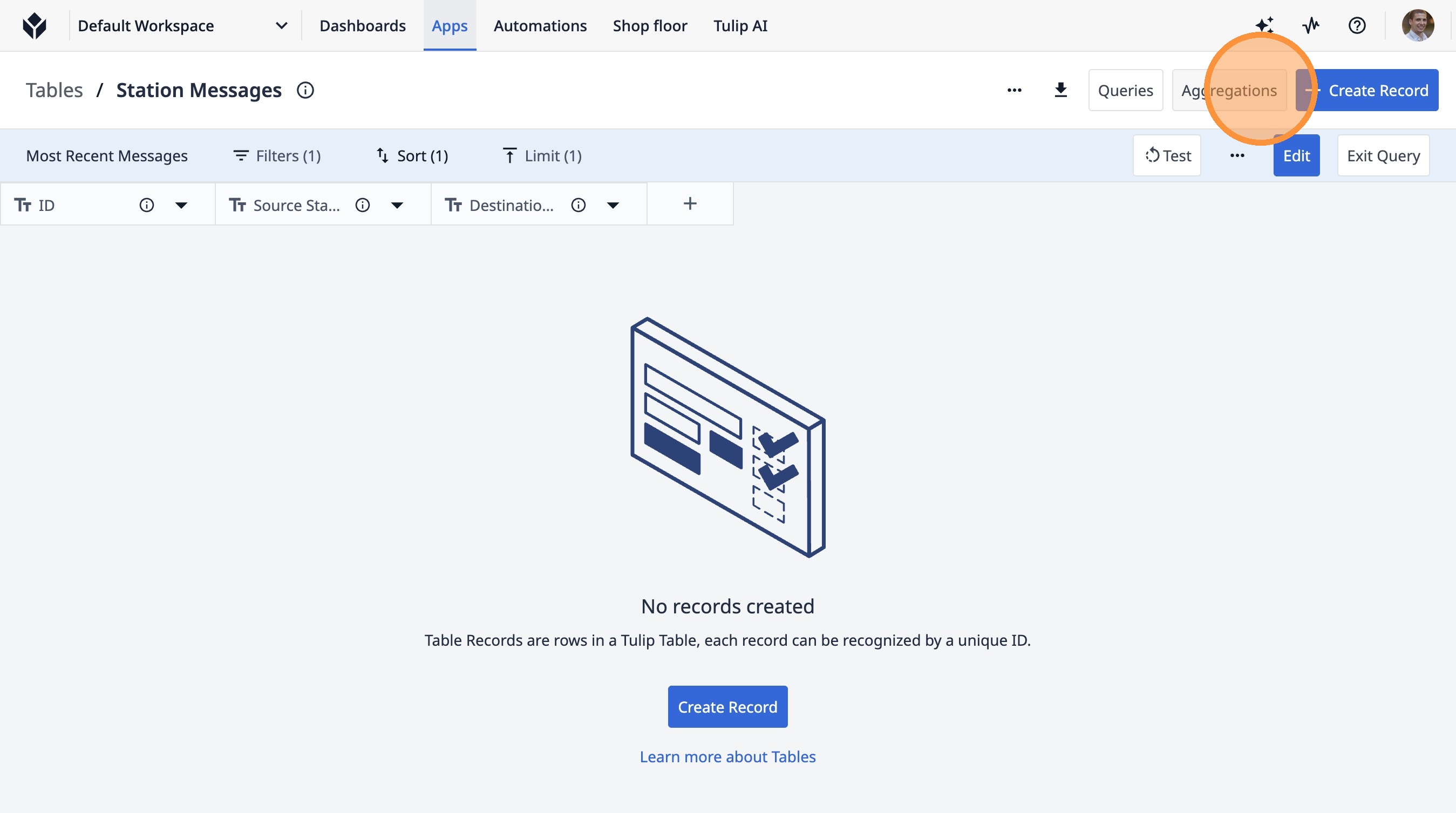
32. Click "Edit"
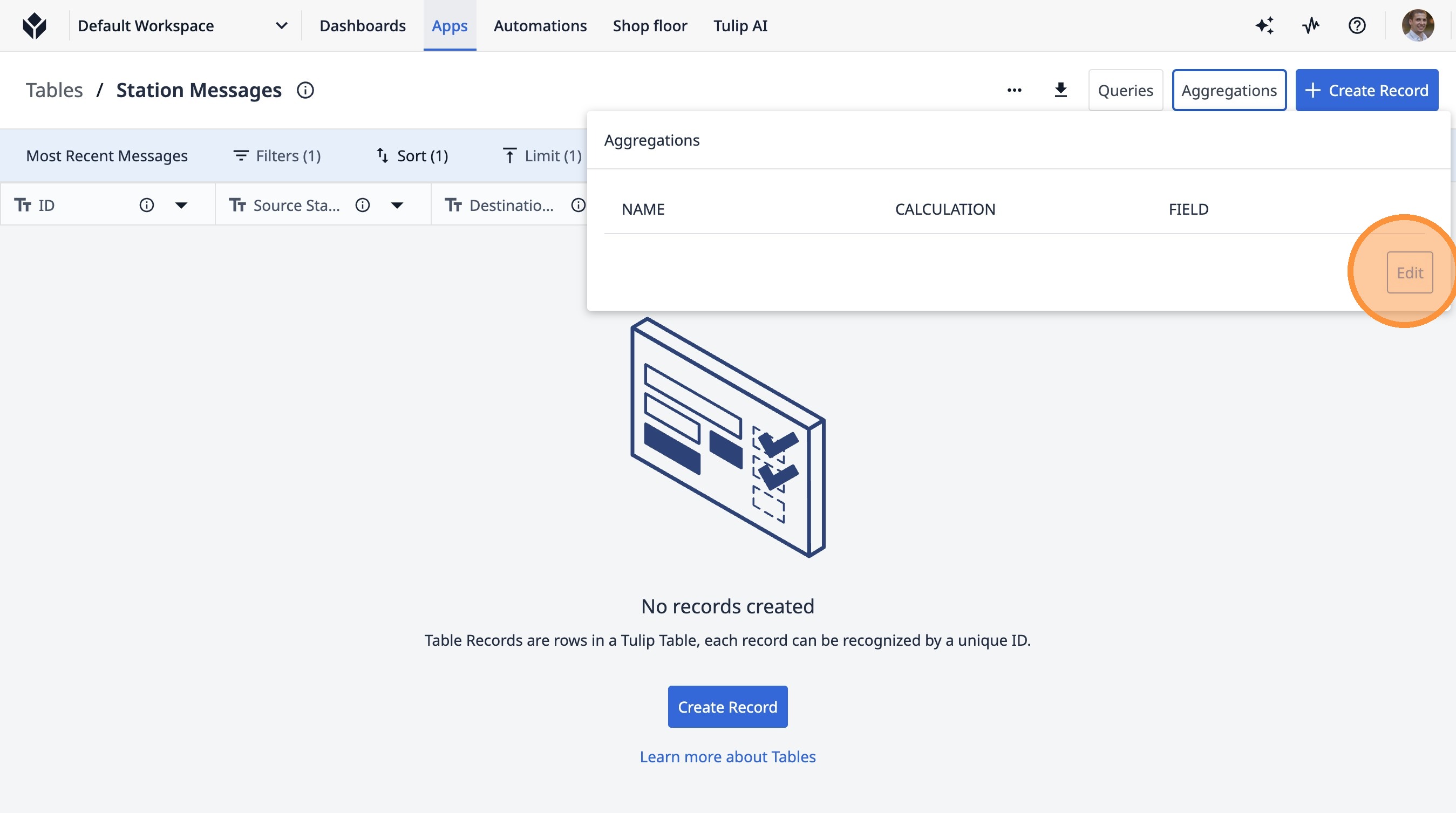
33. Click "+Add aggregation"
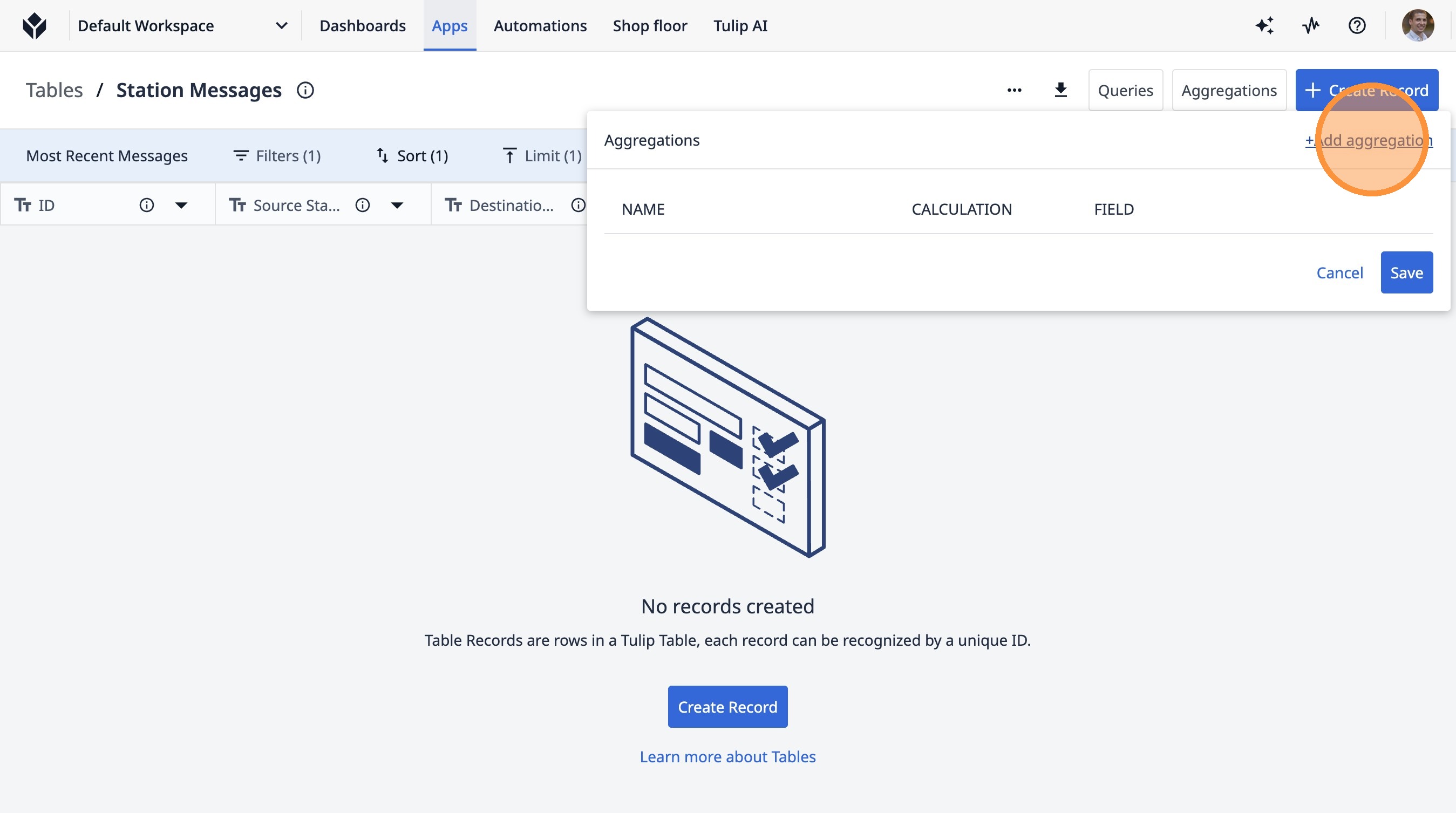
34. Click the "Aggregation Name" field.
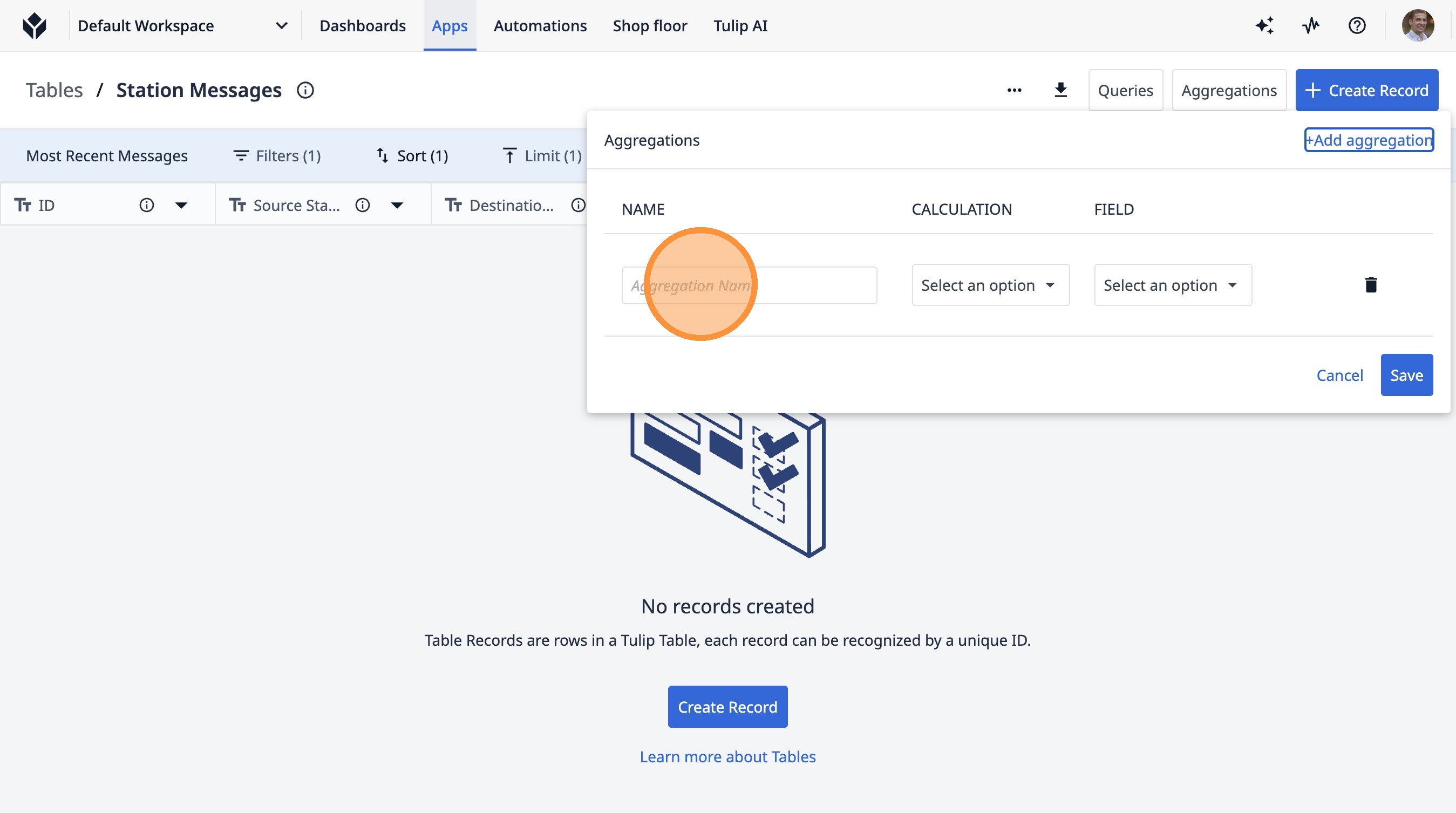
35. Type "Most Recent"
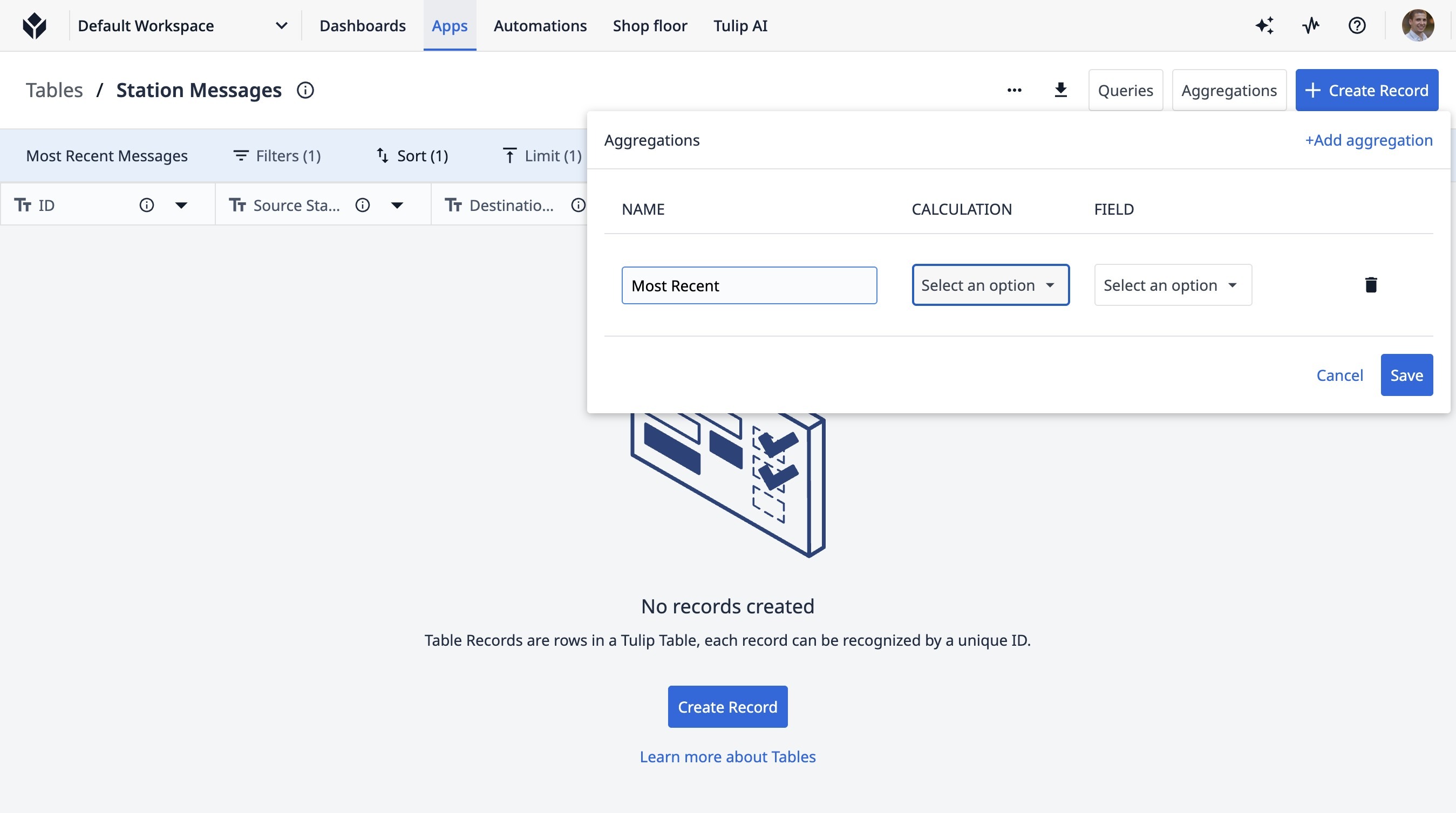
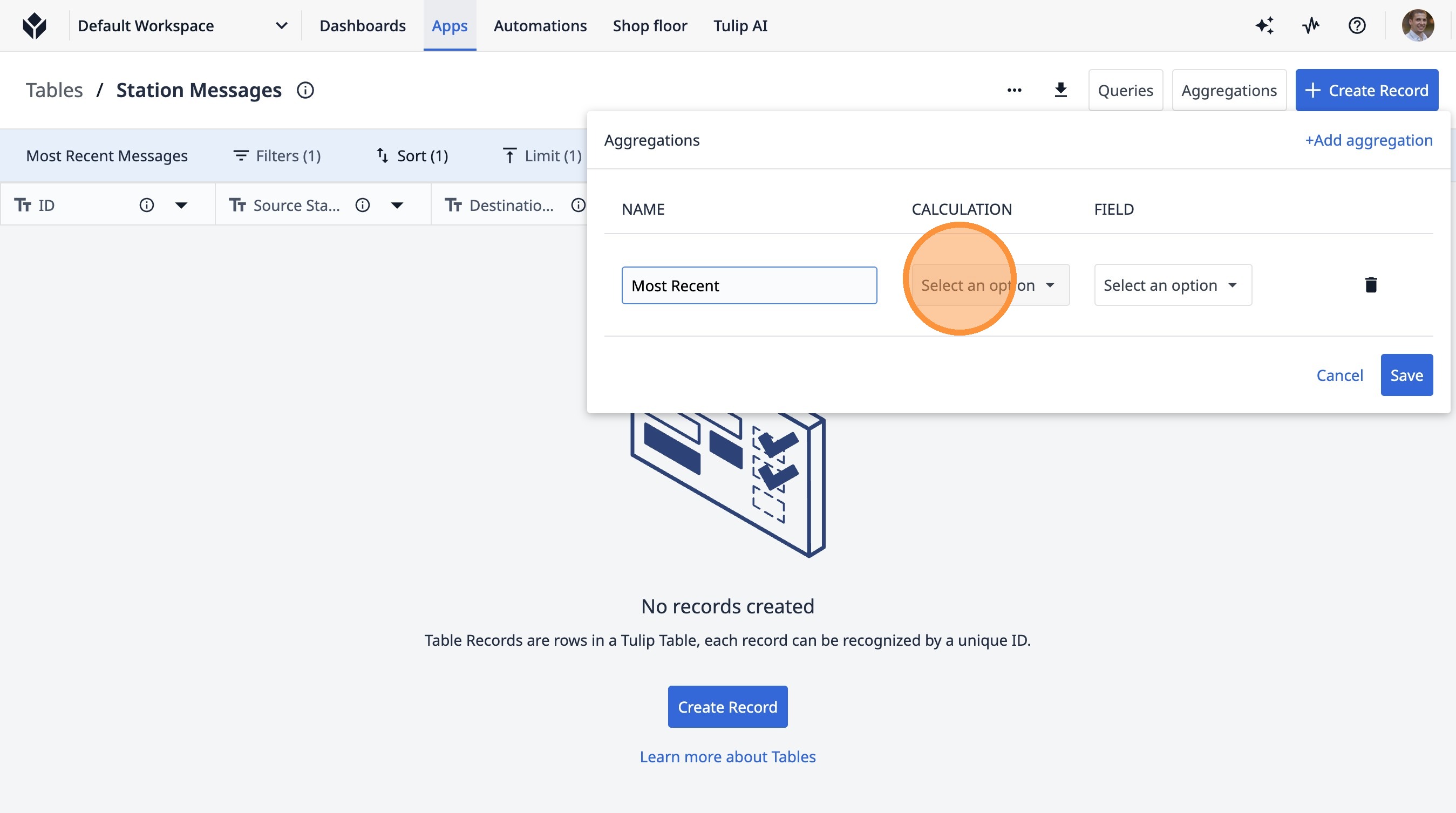
36. Click "Select an option"
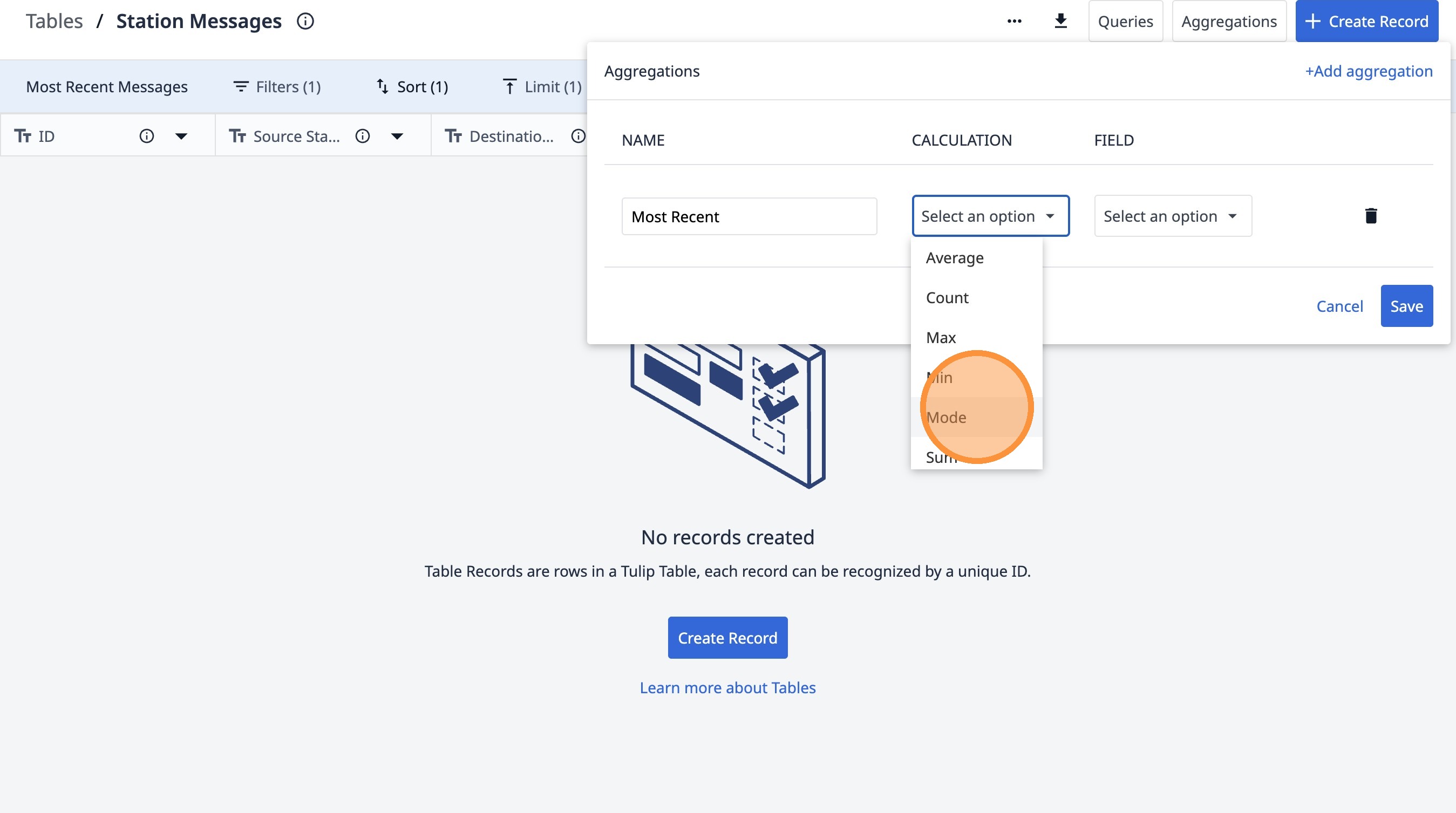
37. Click "Mode"
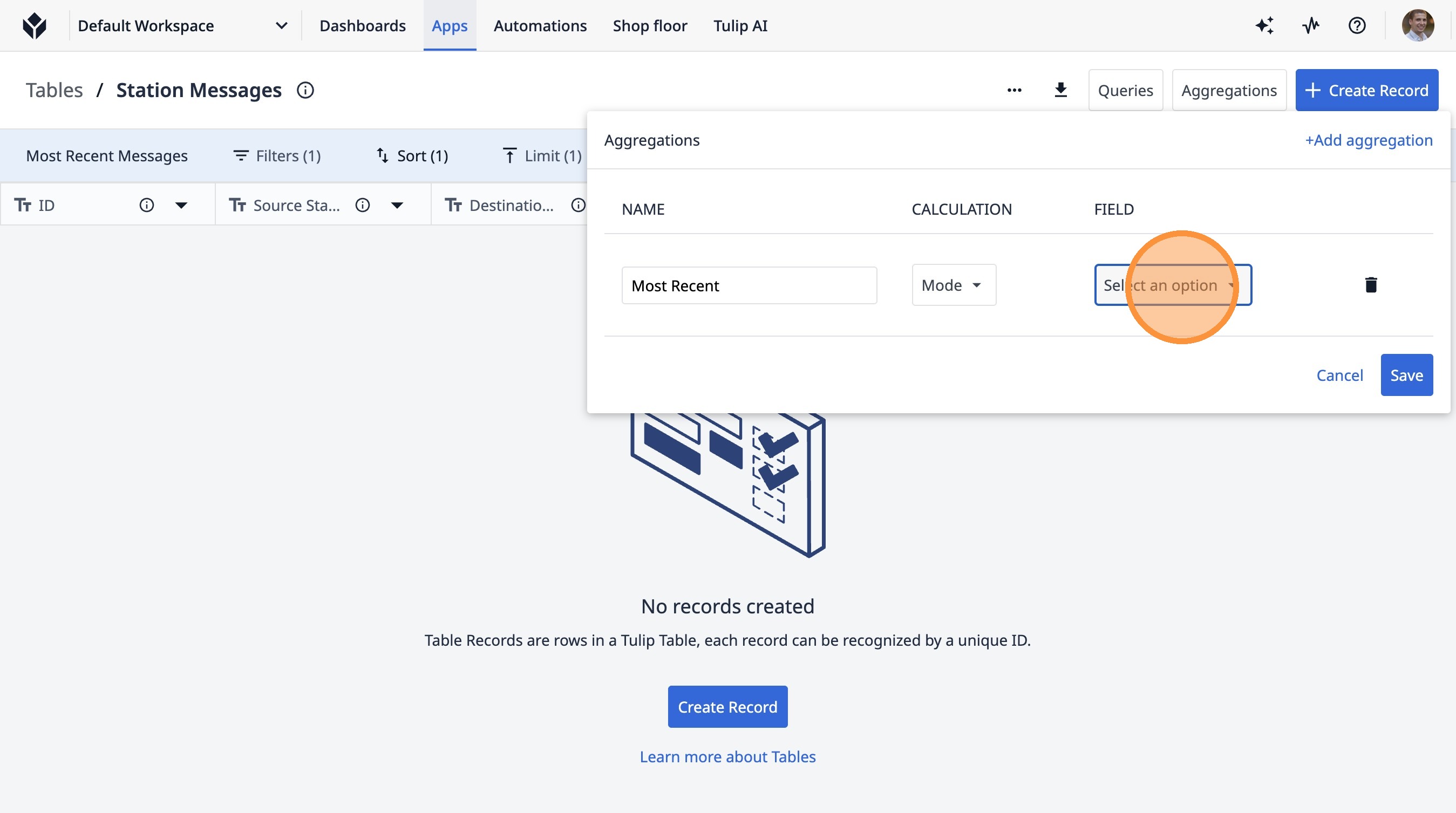
38. Click "Select an option"
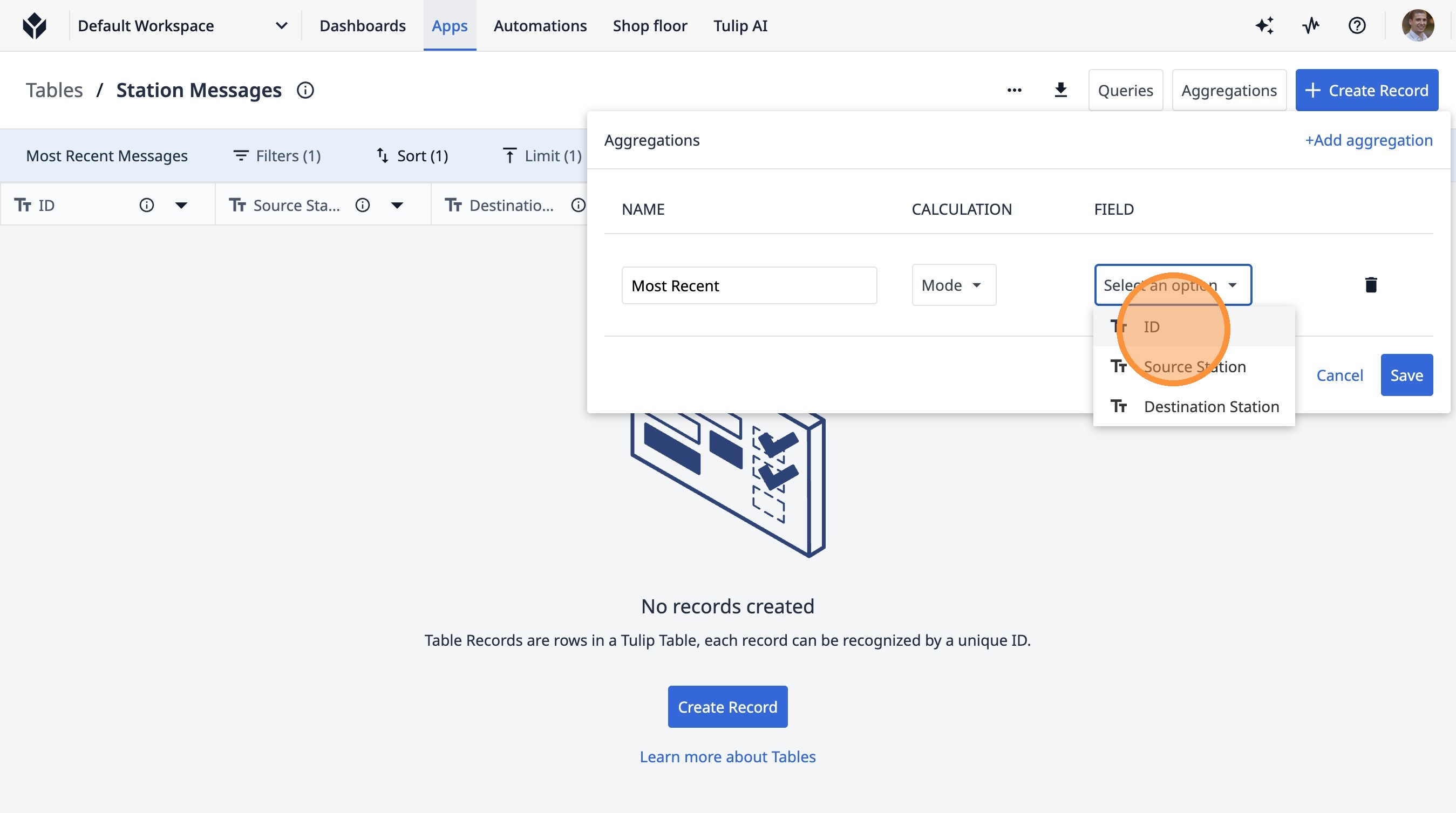
39. Click "ID"
40. Click "Save"