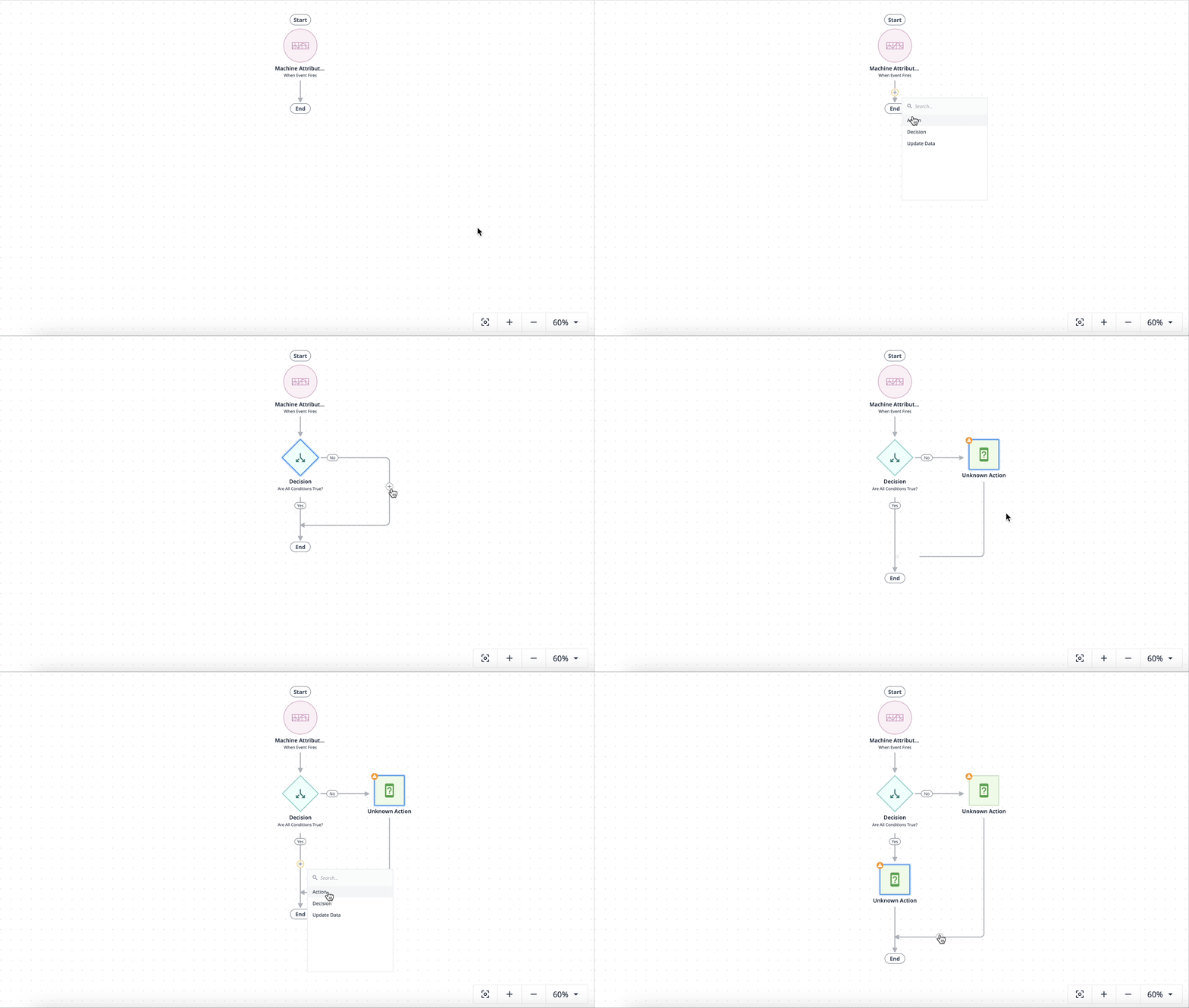
Automation can be exported from one Tulip instance and imported to another. Both instances must be on the same release to import and export. This feature lets you share automations across different instances or workspaces.
Export an automation
- On the Automations page, hover over the automation you want to export.
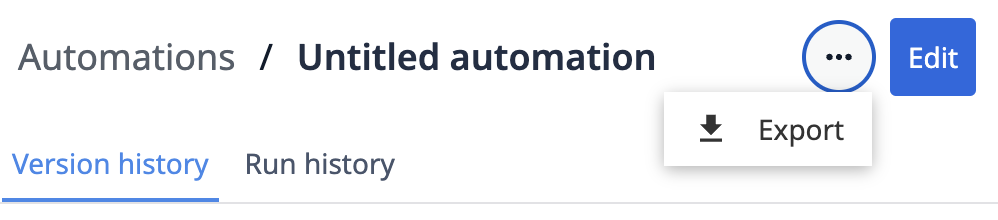
- Click on the automation's name and on the overview page, click the three-dot menu and select Export.
- Choose to either download the export as a file or copy the export token to your clipboard.
Automations don't have explicit versions. Exporting always captures the current development version, so version history and run history aren't included.
What gets exported
When you export an automation, the following referenced items are included:
- Connectors: The entire connector containing any referenced connector function, including its functions and environments.
- Table schemas: The table and its un-archived fields. Table data is not included.
- Table queries and aggregations: Any queries and aggregations the automation references.
The following items are not included in the export:
- Machine references, including machines in an event start
- Schedules
- User references
- Table data
- Version history and run history
Import an automation
- Navigate to the Automations page in the destination workspace.
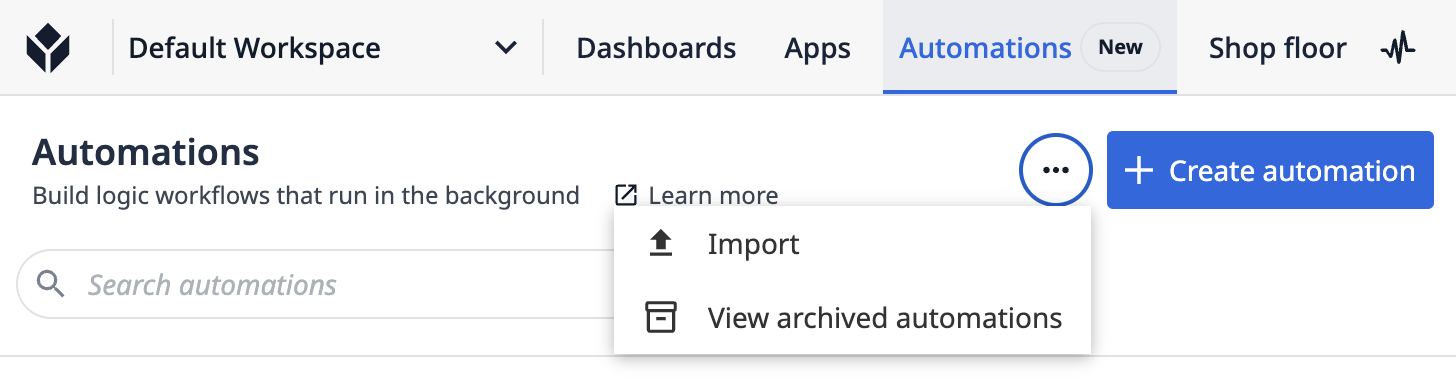
- Click the three-dot menu at the top of the page and select Import.
- Paste the export token or upload the export file.
- Click Import.
Importing an automation always creates a new automation, even if an identical automation already exists on the destination instance.
After import
The following items appear in the target instance:
- The automation appears on the Automations page as a new automation, with only a development version
- Tulip creates referenced tables with their unarchived fields, but without data. If a table with the same ID already exists on the destination, the two will merge: it adds new columns and leaves existing columns as they are
- Tulip imports connectors and connector functions if they don't already exist on the destination instance. Tulip never includes authentication details; reconfigure them after import
- If a table used by the automation is archived in the target instance, then that table remains archived, and the automation will appear misconfigured.
Before you can publish the imported automation:
- Remap any machine references. This applies even if the same machine already exists on the destination instance
- Reconfigure schedules
- Reassign any user references
- Relink any table links
Broken references manifest as empty fields or unknowns in imported automations. In create/update table record blocks, fields with invalid values are automatically removed. Tulip is actively working to resolve this behavior.
Further reading
Did you find what you were looking for?
You can also head to community.tulip.co to post your question or see if others have solved a similar topic!