
Introduction and Purpose
This connector allows you to generate PDF reports that are password protected from Tulip.
You can find the API Documentation here.
Pre Requisites - Setup in the pdf Generator Portal
- Create your account
- Create your template and save it.
- From the Dashboard page, copy the template ID, this will be needed in the generate PDF connector function.
To learn more about creating templates, refer to the pdf Generator Support Portal.
App setup
The data input for populating the PDF template must be formatted as a JSON. As a result, you will need to use the expression editor to wrap your data and format it as a JSON object.
Here's an example:

Connector Environment Setup
- Host: us1.pdfgeneratorapi.com
- Protocol: HTTPS (TLS enabled)
- Authentication: OAuth 2.0 (Bearer Token)
The JWT token are generally valid for 15 minutes, i.e. you will need to regenerate your temporary tokens and update the connector configs since JWT is not natively supported yet.
Connector Functions
-
Generating a PDF document - This takes in the template ID and the JSON formatted data as an input to populate and generate the PDF document.
- Update the template.id in the Request Body.
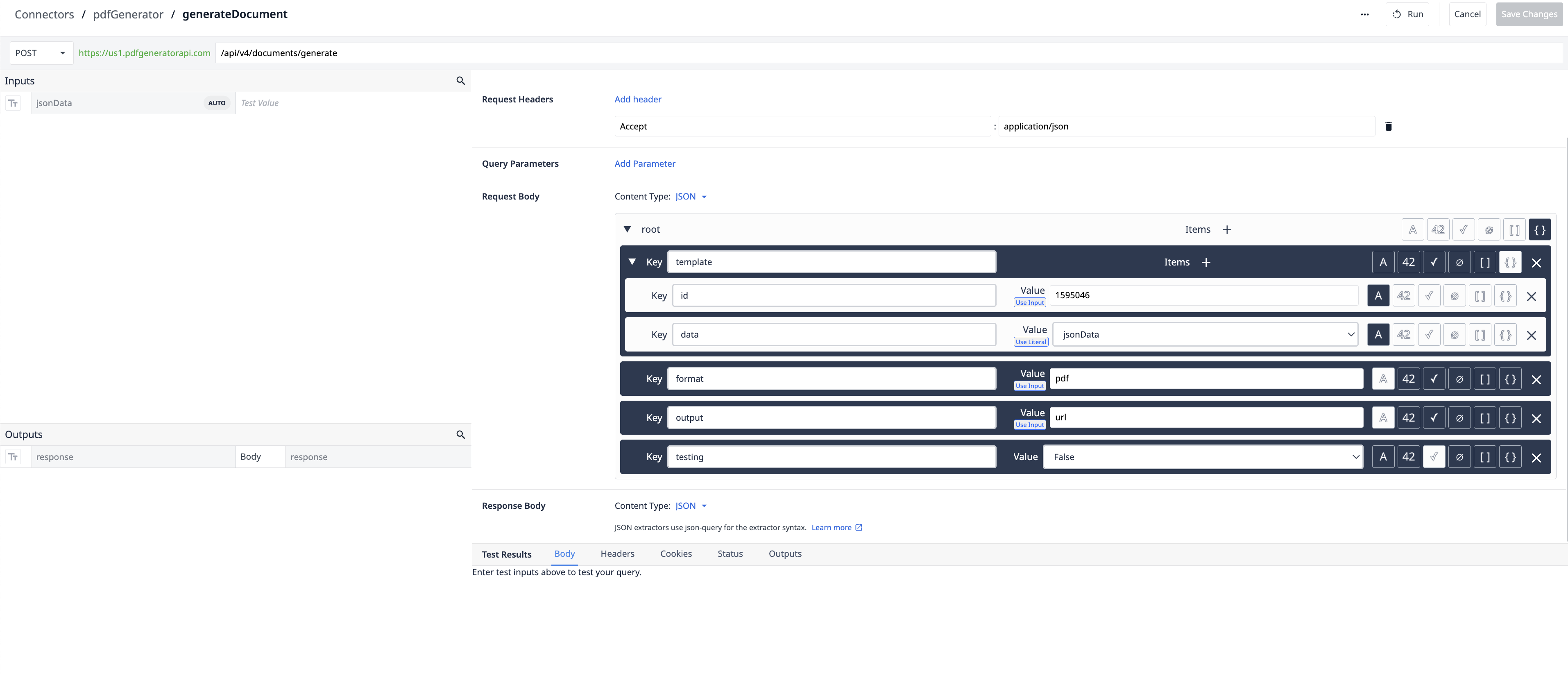
- Update the template.id in the Request Body.
-
Encrypting a document - This takes in the URL from the connector function above and creates a password to access it.
- Update the owner_password and user_password in the Request Body.
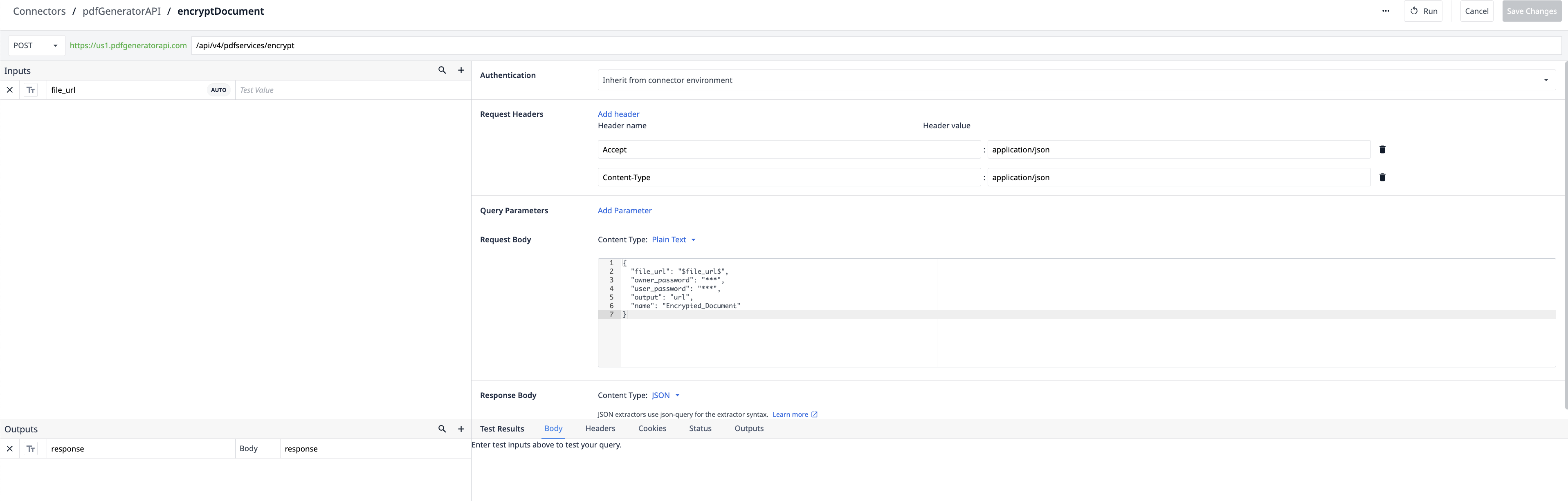
- Update the owner_password and user_password in the Request Body.
Further Reading
For additional resources, visit the pdf Generator API Knowledge Base.
Learn more about Tulip connectors in the Connectors Documentation.
To ask questions, share ideas, and discuss use cases, join the Tulip Community.