


How to create a new blank Tulip App.
When creating a new Tulip app, it's often helpful to start with an existing app and then copy it to preserve a consistent look and feel. Your Tulip Instance comes with a set of sample apps you can use or duplicate to get started.
To create a new blank application, follow the instructions below:
Create a new app
-
Click the Apps tab.
-
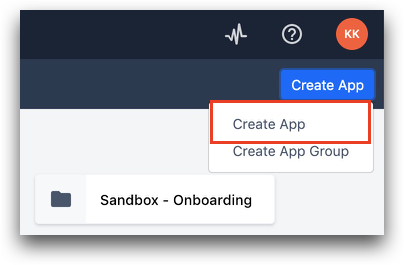
In the top right corner, click + Create App.
-
Type your app name and description.
-
Click + Create.
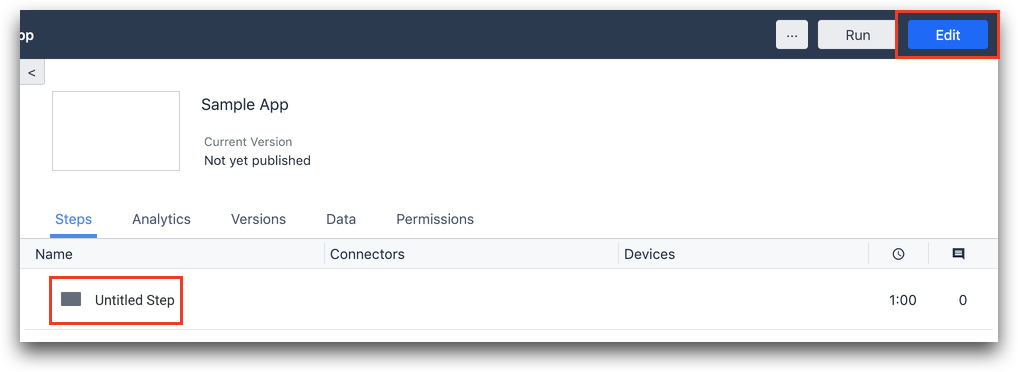
You will be taken to the app's summary view.
- To go to the App Editor and start building, click Edit or select the Untitled Step from the Steps tab.
Congratulations, you've created a new blank Tulip App. For more on how to add visual elements and logic to your app we recommend reading Tulip App Design 101
Edit app details
To edit an app's name or description:
- Navigate to the app's summary view.
- Hover over the app name and click the pencil icon.
- Edit the fields you want, then click Save.
Did you find what you were looking for?
You can also head to community.tulip.co to post your question or see if others have solved a similar topic!